




已更新 2026年5月8日
生成每月账户报表(PDF 文档)
using IronPDF C# PDF 库,开发人员可以在 .NET 项目中将 HTML 转换为可靠的 PDF 文件,而无需依赖外部服务。
阅读更多

在 ASP.NET Core 中动态生成专业的 PDF 文档,方法是将 HTML 内容转换为精美的 PDF,并将其直接流式传输到浏览器——无需磁盘存储,无需管理临时文件。
在 ASP.NET Core 中构建现代 Web 应用程序时,按需生成PDF 文档的功能是一个反复出现的需求。 发票需要在付款到账后立即下载。 审计员点击"导出"后,合规性报告必须立即显示。证书应该在用户来得及怀疑是否出了问题之前就准备就绪。 IronPDF通过其基于 Chromium 的PDF 库处理所有这些场景,该库将 HTML(包括 CSS、JavaScript 和 Web 字体)转换为像素精确的 PDF 输出,而无需将任何内容写入磁盘。
本指南涵盖您需要了解的一切:安装库、从 HTML 字符串生成发票、从 Entity Framework 数据流式传输报告、应用页面标头和安全设置,以及采用最佳实践来保持高流量 ASP.NET 应用程序的良好性能。
"即时生成"是指在发出 HTTP 请求时,文档在内存中构建并直接发送给调用者。 不会向文件系统写入 PDF 文件,不会在后台作业中排队处理工作,也不会在请求之间缓存结果。
这种方法之所以重要,原因有以下几点。 首先,云部署目标(Azure 应用服务、AWS Lambda、Docker 容器)通常运行在本地文件系统是临时的或只读的环境中。 在这些环境下,将 PDF 文件生成到临时文件夹然后再读取回来是不安全的。 其次,避免磁盘写入可以减少攻击面:不会留下残留文件,后续请求可能会意外地将文件提供给错误的用户。 第三,仅内存生成通常速度更快,因为它消除了关键路径中的两次 I/O 操作(写入和读取)。
IronPDF的ChromePdfRenderer在每个生成的文档上公开.Stream属性。 两者都可以直接传递给ASP.NET Core FileResult,使流媒体在实践中成为一行代码。

可以通过程序包管理器控制台或 .NET CLI 添加 NuGet 程序包:
安装包后,在应用程序启动时设置您的许可证密钥 -- 通常是在创建第一个渲染器之前的Program.cs中:
using IronPdf;

// Place license activation before any IronPDF call
License.LicenseKey = "YOUR-LICENSE-KEY";

var builder = WebApplication.CreateBuilder(args);
builder.Services.AddControllersWithViews();

// Register ChromePdfRenderer as a singleton so the Chromium engine
// is initialised once and reused across all requests.
builder.Services.AddSingleton<ChromePdfRenderer>();

var app = builder.Build();
app.MapDefaultControllerRoute();
app.Run();Imports IronPdf
' Place license activation before any IronPDF call
License.LicenseKey = "YOUR-LICENSE-KEY"
Dim builder = WebApplication.CreateBuilder(args)
builder.Services.AddControllersWithViews()
' Register ChromePdfRenderer as a singleton so the Chromium engine
' is initialised once and reused across all requests.
builder.Services.AddSingleton(Of ChromePdfRenderer)()
Dim app = builder.Build()
app.MapDefaultControllerRoute()
app.Run()将ChromePdfRenderer注册为单例很重要。 渲染器首次使用时会启动一个内部 Chromium 子进程。 如果每次请求都创建一个新实例,则每次调用都需要支付启动成本,这会在负载下增加数百毫秒的延迟。 单例实例是线程安全的,无需额外配置即可处理并发渲染请求。
要更全面地了解安装选项(包括私有源的 NuGet.config 设置),请访问安装概述。
最常见的即时使用场景是生成交易文档——发票、收据、订单确认——其中内容会根据请求而变化,但布局保持不变。
模式是:构建一个带有插值数据的HTML字符串,将其传递给RenderHtmlAsPdf,并将二进制结果作为文件下载返回。
using IronPdf;
using Microsoft.AspNetCore.Mvc;
public class DocumentController : Controller
{
private readonly ChromePdfRenderer _renderer;
public DocumentController(ChromePdfRenderer renderer)
{
_renderer = renderer;
}
[HttpGet("invoice/{orderId:int}")]
public IActionResult GetInvoice(int orderId)
{
// In a real application, fetch this from your database or order service.
var order = GetOrderData(orderId);
string html = $"""
<!DOCTYPE html>
<html lang="en">
<head>
<meta charset="utf-8">
<style>
body {{font-family: Arial, sans-serif; margin: 40px; color: #333;}}
h1 {{color: #1a56db;}}
table {{width: 100%; border-collapse: collapse; margin-top: 24px;}}
th, td {{padding: 10px 14px; border: 1px solid #d1d5db; text-align: left;}}
th {{background: #f3f4f6;}}
tfoot td {{font-weight: bold;}}
</style>
</head>
<body>
<h1>Invoice #{order.InvoiceNumber}</h1>
<p>Date: {DateTime.UtcNow:yyyy-MM-dd} | Customer: {order.CustomerName}</p>
<table>
<thead><tr><th>Item</th><th>Qty</th><th>Unit Price</th><th>Subtotal</th></tr></thead>
<tbody>
{string.Join("", order.Items.Select(i =>
$"<tr><td>{i.Name}</td><td>{i.Quantity}</td>" +
$"<td>${i.UnitPrice:F2}</td><td>${i.Quantity * i.UnitPrice:F2}</td></tr>"))}
</tbody>
<tfoot>
<tr><td colspan="3">Total</td><td>${order.Items.Sum(i => i.Quantity * i.UnitPrice):F2}</td></tr>
</tfoot>
</table>
</body>
</html>
""";
var pdf = _renderer.RenderHtmlAsPdf(html);
return File(pdf.BinaryData, "application/pdf", $"invoice-{orderId}.pdf");
}
}RenderHtmlAsPdf处理完整的HTML文档 -- CSS网格、Flexbox、网页字体,甚至内联SVG -- 使用与Google Chrome相同的Chromium引擎。 返回的MemoryStream)。 将"application/pdf"和一个文件名一起触发浏览器下载。
对于需要像素级精确度的布局,请参阅HTML 到 PDF 渲染指南,其中涵盖响应式 CSS、自定义字体和JavaScript 渲染。
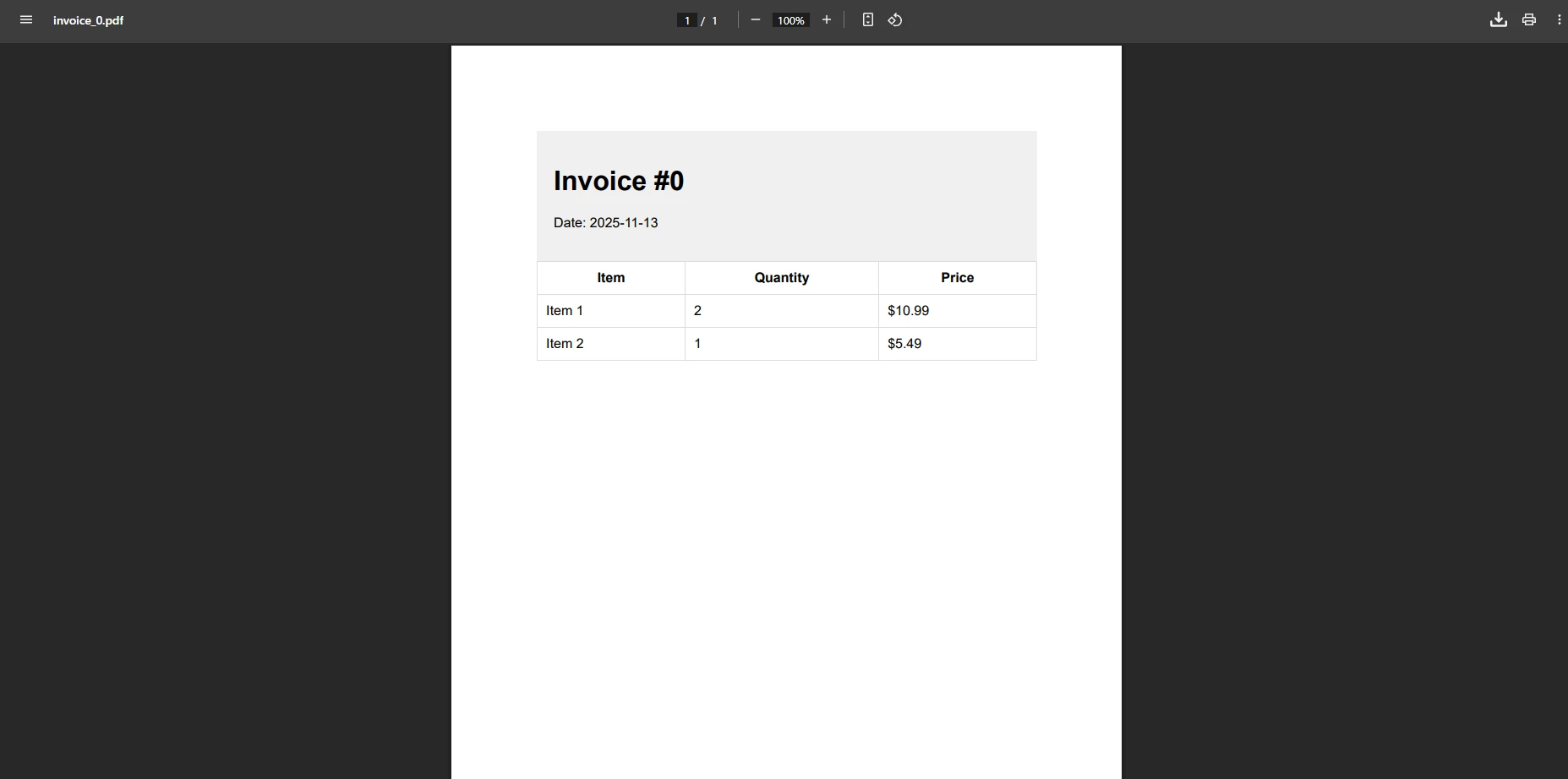
内嵌服务PDF -- 在浏览器的内置查看器中打开而不是下载 -- 需要两处小改动:将File()调用中的文件名。
[HttpPost("report/preview")]
public async Task<IActionResult> PreviewReport([FromBody] ReportRequest request)
{
    string html = BuildReportHtml(request);

    var pdfDocument = await _renderer.RenderHtmlAsPdfAsync(html);

    // "inline" tells the browser to display rather than download.
    Response.Headers["Content-Disposition"] = "inline; filename=report.pdf";

    return new FileContentResult(pdfDocument.BinaryData, "application/pdf");
}Imports Microsoft.AspNetCore.Mvc
<HttpPost("report/preview")>
Public Async Function PreviewReport(<FromBody> request As ReportRequest) As Task(Of IActionResult)
Dim html As String = BuildReportHtml(request)
Dim pdfDocument = Await _renderer.RenderHtmlAsPdfAsync(html)
' "inline" tells the browser to display rather than download.
Response.Headers("Content-Disposition") = "inline; filename=report.pdf"
Return New FileContentResult(pdfDocument.BinaryData, "application/pdf")
End Function由于它在Chromium渲染时释放线程池线程,因此对于ASP.NET Core控制器,建议使用异步重载RenderHtmlAsPdfAsync,从而在并发负载下保持服务器响应。

pdfDocument.BinaryData字节数组完全存在于托管内存中。 不涉及中间文件路径。 Content-Disposition头控制PDF是内嵌显示还是提供下载 -- 由HTTP规范定义的浏览器行为。 要深入了解 MemoryStream 方法,包括流式传输到 Azure Blob 存储,请访问PDF 内存流文档。
大多数业务应用程序都从数据库中提取报表数据,而不是在调用时构建报表。以下模式查询Entity Framework Core ,构建 HTML 表格,并返回 PDF 文件——所有操作都在单个控制器操作中完成。
[HttpGet("report/monthly")]
public async Task<IActionResult> MonthlyReport(int year, int month)
{
    // Pull aggregated transaction data from EF Core.
    var rows = await _dbContext.Transactions
        .Where(t => t.Date.Year == year && t.Date.Month == month)
        .GroupBy(t => t.Category)
        .Select(g => new { Category = g.Key, Count = g.Count(), Total = g.Sum(t => t.Amount) })
        .OrderByDescending(g => g.Total)
        .ToListAsync();

    string tableRows = string.Join("", rows.Select(r =>
        $"<tr><td>{r.Category}</td><td>{r.Count}</td><td>${r.Total:F2}</td></tr>"));

    string html = $"""
        <html><body style="font-family:Arial,sans-serif;padding:32px">
        <h1>Monthly Report -- {month:D2}/{year}</h1>
        <table style="width:100%;border-collapse:collapse">
          <thead>
            <tr style="background:#e5e7eb">
              <th style="padding:8px;border:1px solid #d1d5db">Category</th>
              <th style="padding:8px;border:1px solid #d1d5db">Transactions</th>
              <th style="padding:8px;border:1px solid #d1d5db">Total</th>
            </tr>
          </thead>
          <tbody>{tableRows}</tbody>
        </table>
        </body></html>
        """;

    var pdf = _renderer.RenderHtmlAsPdf(html);
    pdf.MetaData.Title  = $"Monthly Report {month:D2}/{year}";
    pdf.MetaData.Author = "Reporting System";

    return File(pdf.BinaryData, "application/pdf", $"report-{year}-{month:D2}.pdf");
}Imports Microsoft.AspNetCore.Mvc
Imports System.Threading.Tasks
Imports System.Linq
<HttpGet("report/monthly")>
Public Async Function MonthlyReport(year As Integer, month As Integer) As Task(Of IActionResult)
' Pull aggregated transaction data from EF Core.
Dim rows = Await _dbContext.Transactions _
.Where(Function(t) t.Date.Year = year AndAlso t.Date.Month = month) _
.GroupBy(Function(t) t.Category) _
.Select(Function(g) New With {Key .Category = g.Key, Key .Count = g.Count(), Key .Total = g.Sum(Function(t) t.Amount)}) _
.OrderByDescending(Function(g) g.Total) _
.ToListAsync()
Dim tableRows As String = String.Join("", rows.Select(Function(r) $"<tr><td>{r.Category}</td><td>{r.Count}</td><td>${r.Total:F2}</td></tr>"))
Dim html As String = $"
<html><body style='font-family:Arial,sans-serif;padding:32px'>
<h1>Monthly Report -- {month:D2}/{year}</h1>
<table style='width:100%;border-collapse:collapse'>
<thead>
<tr style='background:#e5e7eb'>
<th style='padding:8px;border:1px solid #d1d5db'>Category</th>
<th style='padding:8px;border:1px solid #d1d5db'>Transactions</th>
<th style='padding:8px;border:1px solid #d1d5db'>Total</th>
</tr>
</thead>
<tbody>{tableRows}</tbody>
</table>
</body></html>
"
Dim pdf = _renderer.RenderHtmlAsPdf(html)
pdf.MetaData.Title = $"Monthly Report {month:D2}/{year}"
pdf.MetaData.Author = "Reporting System"
Return File(pdf.BinaryData, "application/pdf", $"report-{year}-{month:D2}.pdf")
End Function设置pdf.MetaData.Author将该信息嵌入到PDF的文档属性中,这对于合规性跟踪和文档管理系统很有用。 对于更复杂的报告布局,请考虑使用CSS 打印样式、显式分页符和嵌入式图表图像。
生产文档通常需要包含文档标题的页眉、页码页脚以及防止未经授权的打印或复制的访问控制。 IronPDF的ChromePdfRenderOptions涵盖了所有这些要求。
[HttpPost("document/secured")]
public async Task<IActionResult> GenerateSecuredDocument([FromBody] SecuredDocRequest request)
{
    var renderOptions = new ChromePdfRenderOptions
    {
        纸张尺寸       = Pdf纸张尺寸.A4,
        MarginTop       = 45,
        MarginBottom    = 45,
        MarginLeft      = 25,
        MarginRight     = 25,
        启用 JavaScript = true,
        WaitFor         = new WaitFor { RenderDelay = 500 }
    };

    renderOptions.TextHeader = new 文本页眉页脚
    {
        CenterText       = request.DocumentTitle,
        DrawDividerLine  = true,
        FontSize         = 11
    };

    renderOptions.TextFooter = new 文本页眉页脚
    {
        LeftText  = "{date} {time}",
        RightText = "Page {page} of {total-pages}",
        FontSize  = 9
    };

    _renderer.RenderingOptions = renderOptions;

    var pdf = await _renderer.RenderHtmlAsPdfAsync(request.HtmlContent);

    if (request.RequirePassword)
    {
        pdf.SecuritySettings.OwnerPassword         = request.OwnerPassword;
        pdf.SecuritySettings.UserPassword          = request.UserPassword;
        pdf.SecuritySettings.AllowUserPrinting     = PdfPrintSecurity.NoPrint;
        pdf.SecuritySettings.AllowUserCopyPasteContent = false;
    }

    return File(pdf.BinaryData, "application/pdf", $"{request.FileName}.pdf");
}Imports Microsoft.AspNetCore.Mvc
<HttpPost("document/secured")>
Public Async Function GenerateSecuredDocument(<FromBody> request As SecuredDocRequest) As Task(Of IActionResult)
Dim renderOptions As New ChromePdfRenderOptions With {
.纸张尺寸 = Pdf纸张尺寸.A4,
.MarginTop = 45,
.MarginBottom = 45,
.MarginLeft = 25,
.MarginRight = 25,
.启用JavaScript = True,
.WaitFor = New WaitFor With {.RenderDelay = 500}
}
renderOptions.TextHeader = New 文本页眉页脚 With {
.CenterText = request.DocumentTitle,
.DrawDividerLine = True,
.FontSize = 11
}
renderOptions.TextFooter = New 文本页眉页脚 With {
.LeftText = "{date} {time}",
.RightText = "Page {page} of {total-pages}",
.FontSize = 9
}
_renderer.RenderingOptions = renderOptions
Dim pdf = Await _renderer.RenderHtmlAsPdfAsync(request.HtmlContent)
If request.RequirePassword Then
pdf.SecuritySettings.OwnerPassword = request.OwnerPassword
pdf.SecuritySettings.UserPassword = request.UserPassword
pdf.SecuritySettings.AllowUserPrinting = PdfPrintSecurity.NoPrint
pdf.SecuritySettings.AllowUserCopyPasteContent = False
End If
Return File(pdf.BinaryData, "application/pdf", $"{request.FileName}.pdf")
End Function当您的HTML包含如Chart.js或ApexCharts等异步完成绘制的图表库时,WaitFor.RenderDelay设置特别有用。 设置 300-500 毫秒的延迟可确保 Chromium 捕获最终渲染状态。 对于需要符合归档标准的文档,将上述方法与PDF/A 合规性和数字签名相结合。
页脚文本中的{total-pages}标记在渲染时由IronPDF自动解析。额外的页眉和页脚选项包括用于徽标放置的基于HTML的页眉和每节覆盖能力。
下表总结了动态生成中最有用的ChromePdfRenderOptions属性:
| 属性 | 翻译类型 | 翻译目的 |
|---|---|---|
| 纸张尺寸 | Pdf纸张尺寸 | 设置页面尺寸(A4、Letter、Legal、自定义) |
| 上边距/下边距 | 整数(毫米) | 控制打印区域间距 |
| 启用 JavaScript | bool | 允许在捕获之前执行 JS 操作 |
| WaitFor.RenderDelay | 整数(毫秒) | 延迟捕获以进行异步渲染 |
| 文本页眉/文本页脚 | 文本页眉页脚 | 页面页眉和页脚 |
| HTML页眉/HTML页脚 | HtmlHeaderFooter | 带有图片的 HTML 格式页眉/页脚 |
| 灰度 | bool | 输出单色 PDF |
| 适应纸张宽度 | bool | 将宽内容缩放以适应页面 |
当单个服务器处理数百个并发 PDF 请求时,一些架构决策会对吞吐量和延迟产生巨大的影响。
单例渲染器注册。 如安装部分所示,在DI容器中将ChromePdfRenderer注册为单例可以避免每次请求启动新的Chromium子进程的成本。根据微软ASP.NET Core性能指导,最具影响力的优化是最小化对象分配和重复利用昂贵资源。
始终使用异步。 Task<PdfDocument>并在Chromium工作时挂起控制器线程。 这样可以释放线程池,使其能够并行处理其他传入的请求,这也是异步文档建议 Web 主机使用此重载的原因。 同步重载仅适用于可以接受线程阻塞的控制台工具或后台服务。
直接流式传输,尽可能跳过中间数组。 对于大型PDF,.Stream可以直接写入响应主体,而不需要实现完整的字节数组:
[HttpGet("document/large")]
public IActionResult StreamLargeDocument(int documentId)
{
    string html = BuildLargeDocumentHtml(documentId);
    var pdf = _renderer.RenderHtmlAsPdf(html);

    // Stream.Position is already at 0; no seek needed.
    return File(pdf.Stream, "application/pdf", $"document-{documentId}.pdf");
}Imports Microsoft.AspNetCore.Mvc
<HttpGet("document/large")>
Public Function StreamLargeDocument(documentId As Integer) As IActionResult
Dim html As String = BuildLargeDocumentHtml(documentId)
Dim pdf = _renderer.RenderHtmlAsPdf(html)
' Stream.Position is already at 0; no seek needed.
Return File(pdf.Stream, "application/pdf", $"document-{documentId}.pdf")
End Function使用后处理。 IDisposable。 将其包裹在using语句中可以及时释放底层内存缓冲区,这在连续生成多个大型PDF时很重要:
using var pdf = _renderer.RenderHtmlAsPdf(html);
byte[] data = pdf.BinaryData;
// pdf is disposed here; data is safely copied to the local array.
return File(data, "application/pdf", "output.pdf");Imports System.IO
Using pdf = _renderer.RenderHtmlAsPdf(html)
Dim data As Byte() = pdf.BinaryData
' pdf is disposed here; data is safely copied to the local array.
Return File(data, "application/pdf", "output.pdf")
End UsingIronPDF 文档针对Azure 、AWS、Docker 和 Linux 环境提供了云部署指导,并提供了特定于环境的配置说明。 如果启动后的首次渲染很慢,请咨询 热身和缓存指南 以了解在首次用户请求到达之前预先初始化渲染器的策略。
在流式传输之前,可以在生成的文档的每一页上添加文本或图像水印:
[HttpGet("document/draft/{id:int}")]
public IActionResult GetDraftDocument(int id)
{
    string html = BuildDocumentHtml(id);
    var pdf = _renderer.RenderHtmlAsPdf(html);

    // Stamp "DRAFT" diagonally across every page.
    pdf.ApplyWatermark(
        "<h1 style='color:rgba(200,0,0,0.25);transform:rotate(-45deg)'>DRAFT</h1>",
        rotation: 45,
        opacity: 30
    );

    return File(pdf.BinaryData, "application/pdf", $"draft-{id}.pdf");
}<AttributeUsage(AttributeTargets.Method, Inherited:=True, AllowMultiple:=False)>
Public Class HttpGetAttribute
Inherits Attribute
Public Sub New(route As String)
End Sub
End Class
<HttpGet("document/draft/{id:int}")>
Public Function GetDraftDocument(id As Integer) As IActionResult
Dim html As String = BuildDocumentHtml(id)
Dim pdf = _renderer.RenderHtmlAsPdf(html)
' Stamp "DRAFT" diagonally across every page.
pdf.ApplyWatermark(
"<h1 style='color:rgba(200,0,0,0.25);transform:rotate(-45deg)'>DRAFT</h1>",
rotation:=45,
opacity:=30
)
Return File(pdf.BinaryData, "application/pdf", $"draft-{id}.pdf")
End Function有关完整的水印配置选项(包括图像水印和每页控制),请参阅水印文档。
 使用 NuGet 安装
ASP.NET Core中的动态PDF生成遵循一致的模式:构建您的HTML,调用FileResult返回结果。 IronPDF 可以处理中间的所有步骤——Chromium 渲染、CSS 应用、JavaScript 执行——而无需在任何阶段进行磁盘 I/O。
从这里出发,您可以根据自己的应用需求探索多个方向。 如果您的 PDF 需要合并多个源文档,合并和拆分指南涵盖了如何将现有 PDF 与新渲染的页面连接起来。 如果您需要用户填写并提交嵌入在 PDF 中的表单,交互式表单文档将展示如何创建和读取字段值。 对于受监管的行业, PDF/A 合规性和PDF/UA 可访问性可确保文档符合存档和可访问性标准。
如果您正在评估 IronPDF 与其他替代方案, iText 与 IronPDF 的比较提供了并排的技术分析。 准备好投入生产时,请购买许可证以解锁所有功能并获得优先工程支持。 完整的API 参考文档包含了本指南中讨论的每个类和方法。
如果在实施过程中遇到任何问题,工程支持团队随时为您提供帮助。关于Blazor Server或 MAUI 等平台的具体说明,我们提供了专门的指南,其中涵盖了每种主机型号的配置差异。

Curtis Chau 拥有卡尔顿大学的计算机科学学士学位,专注于前端开发,精通 Node.js、TypeScript、JavaScript 和 React。他热衷于打造直观且美观的用户界面,喜欢使用现代框架并创建结构良好、视觉吸引力强的手册。

当您需要PDF看起来像HTML时,速度快。















