


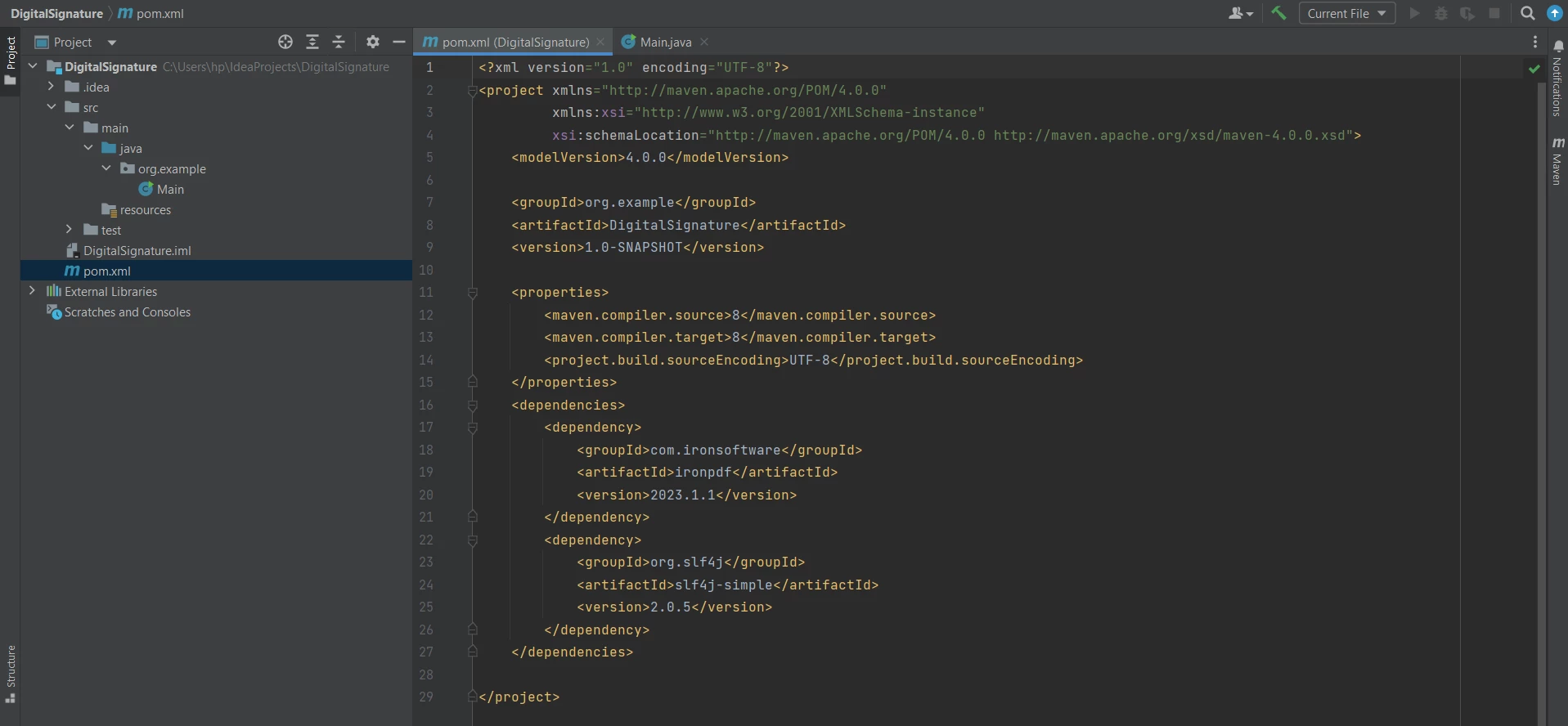
JAVA용 IRONPDF 사용 Java로 PDF에 디지털 서명을 추가하는 방법 커티스 차우 업데이트됨:7월 28, 2025 다운로드 IronPDF 메이븐 다운로드 JAR 다운로드 무료 체험 시작하기 LLM용 사본 LLM용 사본 LLM용 마크다운 형식으로 페이지를 복사하세요 ChatGPT에서 열기 ChatGPT에 이 페이지에 대해 문의하세요 제미니에서 열기 제미니에게 이 페이지에 대해 문의하세요 Grok에서 열기 Grok에게 이 페이지에 대해 문의하세요 혼란 속에서 열기 Perplexity에게 이 페이지에 대해 문의하세요 공유하다 페이스북에 공유하기 트위터에 공유하기 LinkedIn에 공유하기 URL 복사 이메일로 기사 보내기 In this article, you will learn how to add a digital signature to a PDF using IronPDF in a Java program. IronPDF - A Java PDF Library IronPDF Java PDF Library Overview is a Java library that allows developers to create new PDF documents from scratch through Converting HTML String to PDF, Converting HTML File to PDF, Word to PDF Conversion, or URL. It helps manipulate PDFs easily by adding or removing content from them. It provides Security and Digital Signing Options for the PDF document along with digital signing. IronPDF does not require any other third-party libraries to perform any of its PDF-related tasks. It also provides the facility to convert between different file formats. It provides cross-platform support and is specifically designed for Java, Scala, and Kotlin. Steps to Add Digital Signatures to PDF Document in Java Prerequisites To digitally sign PDF documents, the following prerequisites are required: Any Java IDE (NetBeans, Eclipse, IntelliJ) Installed - This article will use IntelliJ. You can separately download the Java Development Kit from the Oracle Java SE Downloads. Maven Java Project for Automation - This will help download and manage dependencies in your Java program. You can download Maven from the Apache Maven Download Page. IronPDF Library Downloaded and Installed - To download and install IronPDF, include its Maven dependency artifact. You can add the following code snippet in the pom.xml file dependencies tag: <dependency> <groupId>com.ironsoftware</groupId> <artifactId>ironpdf</artifactId> <version>2023.2.0</version> </dependency> <dependency> <groupId>com.ironsoftware</groupId> <artifactId>ironpdf</artifactId> <version>2023.2.0</version> </dependency> XML Another dependency required is Slf4j-simple. It is optional and can be added using the following dependency in the pom.xml file: <dependency> <groupId>org.slf4j</groupId> <artifactId>slf4j-simple</artifactId> <version>2.0.5</version> </dependency> <dependency> <groupId>org.slf4j</groupId> <artifactId>slf4j-simple</artifactId> <version>2.0.5</version> </dependency> XML pom.xml file IronPDF Import Java Packages The following imports are required in the main file. It allows using IronPDF functions to add a digital signature to a PDF document: import com.ironsoftware.ironpdf.PdfDocument; import com.ironsoftware.ironpdf.signature.Signature; import com.ironsoftware.ironpdf.signature.SignatureManager; import java.io.IOException; import java.nio.file.Paths; import com.ironsoftware.ironpdf.PdfDocument; import com.ironsoftware.ironpdf.signature.Signature; import com.ironsoftware.ironpdf.signature.SignatureManager; import java.io.IOException; import java.nio.file.Paths; JAVA Now, everything required is done and ready to add a digital signature to PDF documents in Java using IronPDF. Create PDF File or Open Existing PDF File To Learn How to Digitally Sign PDFs, it is necessary to either create a PDF document from scratch or open an existing PDF document. This article will create a new PDF document for PDF signature using the renderHtmlAsPdf Method of the PdfDocument Class. The code goes as follows: PdfDocument pdf = PdfDocument.renderHtmlAsPdf("<h1>Testing 2048 bit digital security</h1>"); PdfDocument pdf = PdfDocument.renderHtmlAsPdf("<h1>Testing 2048 bit digital security</h1>"); JAVA The PDF document is created but not saved yet. So, the next step is to create a digital signature and then add it to this PDF document and then finally save it. Create a Digital Signature You will have to create a digital signature certificate using Adobe Reader, which will be used in Java code to digitally sign PDF documents with those details. You can have a look at How to Create a Digital Signature in Adobe Reader. Open Adobe Reader and click on Edit > Preferences. Then click on Signatures and like more on Identities and Trusted Certificates. The project preferences Add the following Signature field to make the .pfx or .p12 file doc. Add Digital ID dialog The following code sample will create a new signature in Java code using the .pfx certificate file for Windows and .p12 file for Mac along with its private key (password): Signature signature = new Signature("Iron.pfx", "123456"); Signature signature = new Signature("Iron.pfx", "123456"); JAVA Sign PDF File with Digital Signature IronPDF helps with adding the signature certificate using the SignatureManager class. [getSignature Method](/java/object-reference/api/com/ironsoftware/ironpdf/PdfDocument.html#getSignature()) helps to get the previous signature of the PDF document, and then a new signature can be added using the SignPdfWithSignature Method with the signature file as an argument. The code goes as follows: SignatureManager signatureManager = pdf.getSignature(); signatureManager.SignPdfWithSignature(signature); SignatureManager signatureManager = pdf.getSignature(); signatureManager.SignPdfWithSignature(signature); JAVA Save PDF Signature File Finally, let's save the PDF file; otherwise, the PDF is not signed by using the saveAs Method of the PdfDocument class. The code is simple and as follows: pdf.saveAs("signed.pdf"); pdf.saveAs("signed.pdf"); JAVA On successful compilation and execution of the code, the output produces a PDF that has been digitally signed. The output PDF file IronPDF also provides other signing options, which are optional and can also be used for digital signatures. It includes signature images in the form of handwriting, computer-generated text images, or digitized images. The following code sample helps you add some additional security options for digital signing: signature.setSigningContact("support@ironsoftware.com"); signature.setSigningLocation("Chicago, USA"); signature.setSigningReason("To show how to sign a PDF"); BufferedImage signatureImage = ImageIO.read(new File("handwriting.png")); WritableRaster raster = signatureImage.getRaster(); DataBufferByte data = (DataBufferByte) raster.getDataBuffer(); signature.setSignatureImage(data.getData()); signature.setSigningContact("support@ironsoftware.com"); signature.setSigningLocation("Chicago, USA"); signature.setSigningReason("To show how to sign a PDF"); BufferedImage signatureImage = ImageIO.read(new File("handwriting.png")); WritableRaster raster = signatureImage.getRaster(); DataBufferByte data = (DataBufferByte) raster.getDataBuffer(); signature.setSignatureImage(data.getData()); JAVA The complete code goes as follows: import com.ironsoftware.ironpdf.PdfDocument; import com.ironsoftware.ironpdf.signature.Signature; import com.ironsoftware.ironpdf.signature.SignatureManager; import javax.imageio.ImageIO; import java.awt.image.BufferedImage; import java.awt.image.DataBufferByte; import java.awt.image.WritableRaster; import java.io.File; import java.io.IOException; public class DigitalSignatureExample { public static void main(String[] args) throws IOException { // Step 1. Create a PDF File Doc PdfDocument pdf = PdfDocument.renderHtmlAsPdf("<h1>Testing 2048 bit digital security</h1>"); // Step 2. Create a Signature. Signature signature = new Signature("Iron.pfx", "123456"); // Step 3. Sign the PDF with the PdfSignature. SignatureManager signatureManager = pdf.getSignature(); signatureManager.SignPdfWithSignature(signature); // Step 4. The PDF is not signed until saved to file, stream, or byte array. pdf.saveAs("signed.pdf"); } } import com.ironsoftware.ironpdf.PdfDocument; import com.ironsoftware.ironpdf.signature.Signature; import com.ironsoftware.ironpdf.signature.SignatureManager; import javax.imageio.ImageIO; import java.awt.image.BufferedImage; import java.awt.image.DataBufferByte; import java.awt.image.WritableRaster; import java.io.File; import java.io.IOException; public class DigitalSignatureExample { public static void main(String[] args) throws IOException { // Step 1. Create a PDF File Doc PdfDocument pdf = PdfDocument.renderHtmlAsPdf("<h1>Testing 2048 bit digital security</h1>"); // Step 2. Create a Signature. Signature signature = new Signature("Iron.pfx", "123456"); // Step 3. Sign the PDF with the PdfSignature. SignatureManager signatureManager = pdf.getSignature(); signatureManager.SignPdfWithSignature(signature); // Step 4. The PDF is not signed until saved to file, stream, or byte array. pdf.saveAs("signed.pdf"); } } JAVA You can check more information on Digital Signature from the PDF Signatures Code Example. If you want to add more security and even edit metadata, then check the Security and Metadata Code Example. Conclusion This article explained step by step how to add digital signatures to PDF documents using IronPDF for Java. First, the article covered the necessary components required to work with PDFs in Java using IronPDF. Then created a simple PDF document using an HTML string. A certificate file was created from Adobe Reader, which was used to sign the original PDF document. IronPDF provides a Signature and SignatureManager class, which helps users add a certificate and sign PDF with a signature field. IronPDF facilitates developers in carrying out PDF-related tasks with ease and speed. It provides accurate results with pixel-perfect PDFs. For a versatile and widely used programming language like Java, IronPDF is well-suited to work with PDF documents as it is also versatile and supports almost all PDF operations. Moreover, it is built on already successful .NET capabilities. IronPDF also provides easy conversion from different file formats, using the fast IronPDFEngine designed specifically for Java. You can use the IronPDF library to Extract or Add Text, Load and Extract Images, Add Headers and Footers to PDFs, annotations, Render Charts and Graphs to PDFs, work with PDF Forms, and many more. You can get detailed information on how to use IronPDF from the Java PDF Code Examples pages. IronPDF is free for individual development and provides a free trial without watermark to generate PDF documents. It can be licensed for commercial use, and its users can get more information on the license from this Detailed Licensing Information Page. 자주 묻는 질문 Java로 된 PDF에 디지털 서명을 추가하려면 어떻게 해야 하나요? PDF 문서를 만들거나 열고, 인증서 파일로 디지털 서명을 생성하고, IronPDF의 `SignatureManager` 클래스를 사용하여 서명을 적용하여 Java에서 PDF에 디지털 서명을 추가할 수 있습니다. 마지막으로 서명된 PDF 문서를 저장합니다. Java 라이브러리를 사용하여 HTML을 PDF로 변환하는 단계는 무엇인가요? Java에서 IronPDF를 사용하여 HTML을 PDF로 변환하려면 PdfDocument.renderHtmlAsPdf 메서드를 활용하세요. 이렇게 하면 HTML 문자열을 PDF 문서로 직접 변환한 다음 PdfDocument.saveAs 메서드를 사용하여 저장할 수 있습니다. Java 프로젝트에서 IronPDF를 사용하려면 어떤 전제 조건이 필요하나요? Java 프로젝트에서 IronPDF를 사용하려면 IntelliJ와 같은 Java IDE, 종속성 관리를 위한 Maven 프로젝트 및 IronPDF 라이브러리가 필요합니다. 또한 디지털 서명을 추가하려면 디지털 서명 인증서가 필요합니다. Java의 IronPDF는 다른 파일 형식을 PDF로 변환할 수 있나요? 예, IronPDF는 HTML 외에도 Java 애플리케이션에서 Word 문서 및 URL과 같은 다양한 파일 형식을 PDF로 변환할 수 있습니다. IronPDF는 PDF 기능을 위해 타사 라이브러리가 필요하나요? 아니요, IronPDF는 핵심 PDF 기능에 타사 라이브러리가 필요하지 않으므로 Java에서 PDF를 생성하고 조작할 수 있는 독립형 솔루션입니다. PDF 서명을 위한 디지털 서명 인증서는 어떻게 생성하나요? 디지털 서명 인증서는 Adobe Reader에서 편집 > 기본 설정 > 서명으로 이동하여 ID 및 신뢰할 수 있는 인증서를 관리하여 만들 수 있습니다. Java에서 디지털 서명을 관리하는 데 사용되는 IronPDF의 클래스는 무엇인가요? IronPDF의 SignatureManager 클래스는 Java에서 디지털 서명을 관리하는 데 사용됩니다. 이 클래스를 사용하면 PDF 문서에서 새 서명을 추가하고 기존 서명을 검색할 수 있습니다. Java에서 IronPDF로 디지털 서명을 할 때 사용할 수 있는 추가 옵션에는 어떤 것이 있나요? Java의 IronPDF는 서명 이미지 추가, 서명 연락처, 위치, 이유 지정, 디지털 서명에 손글씨 및 디지털화된 이미지 추가 옵션을 제공합니다. Java용 IronPDF 무료 버전이 있나요? IronPDF는 개별 개발을 위한 무료 평가판을 제공하며 워터마크 없이 사용할 수 있습니다. 상업적 사용을 위한 라이선스 옵션이 있습니다. Java용 IronPDF의 고급 기능에는 어떤 것이 있나요? Java용 IronPDF에는 텍스트 및 이미지 추출, 머리글 및 바닥글 추가, 차트 및 그래프 렌더링, PDF 양식 작업과 같은 기능이 포함되어 있습니다. 커티스 차우 지금 바로 엔지니어링 팀과 채팅하세요 기술 문서 작성자 커티스 차우는 칼턴 대학교에서 컴퓨터 과학 학사 학위를 취득했으며, Node.js, TypeScript, JavaScript, React를 전문으로 하는 프론트엔드 개발자입니다. 직관적이고 미적으로 뛰어난 사용자 인터페이스를 만드는 데 열정을 가진 그는 최신 프레임워크를 활용하고, 잘 구성되고 시각적으로 매력적인 매뉴얼을 제작하는 것을 즐깁니다. 커티스는 개발 분야 외에도 사물 인터넷(IoT)에 깊은 관심을 가지고 있으며, 하드웨어와 소프트웨어를 통합하는 혁신적인 방법을 연구합니다. 여가 시간에는 게임을 즐기거나 디스코드 봇을 만들면서 기술에 대한 애정과 창의성을 결합합니다. 관련 기사 업데이트됨 6월 22, 2025 Java에서 TIFF를 PDF로 변환하는 방법 이 포괄적인 가이드는 IronPDF를 사용하여 Java에서 TIFF 이미지를 PDF로 원활하게 변환하는 방법에 대한 단계를 안내합니다. 더 읽어보기 업데이트됨 7월 28, 2025 Java에서 PDF를 PDFA로 변환하는 방법 이 문서에서는 IronPDF를 사용하여 Java에서 PDF 파일을 PDF/A 형식으로 변환하는 방법을 살펴봅니다. 더 읽어보기 업데이트됨 7월 28, 2025 Java로 PDF 문서를 만드는 방법 이 문서에서는 주요 개념, 최고의 라이브러리 및 예제를 다루는 Java에서 PDF 작업에 대한 포괄적인 가이드를 제공합니다. 더 읽어보기 Java PDF 변환기(코드 예제 튜토리얼)Java에서 PDF 파일을 읽는 방법

업데이트됨 6월 22, 2025 Java에서 TIFF를 PDF로 변환하는 방법 이 포괄적인 가이드는 IronPDF를 사용하여 Java에서 TIFF 이미지를 PDF로 원활하게 변환하는 방법에 대한 단계를 안내합니다. 더 읽어보기
업데이트됨 7월 28, 2025 Java에서 PDF를 PDFA로 변환하는 방법 이 문서에서는 IronPDF를 사용하여 Java에서 PDF 파일을 PDF/A 형식으로 변환하는 방법을 살펴봅니다. 더 읽어보기
업데이트됨 7월 28, 2025 Java로 PDF 문서를 만드는 방법 이 문서에서는 주요 개념, 최고의 라이브러리 및 예제를 다루는 Java에서 PDF 작업에 대한 포괄적인 가이드를 제공합니다. 더 읽어보기



