푸터 콘텐츠로 바로가기
NODE.JS용 IRONPDF 사용
Node.js에서 PDF 파일에 서명하는 방법

Node.js에서 PDF 파일에 서명하는 방법

In the realm of modern document management, the ability to sign PDFs programmatically has become an essential feature for countless applications. Node.js, a powerful runtime environment for server-side JavaScript, provides developers with a versatile platform to integrate seamless PDF signing capabilities. Whether for electronic contracts, legal documents, or other critical paperwork, the Sign PDF NodeJS approach empowers developers to automate and streamline the digital signing process. This introduction explores the significance of signing PDFs using Node.js, highlighting its importance in facilitating secure, efficient, and legally binding digital transactions.

In this article, we will discuss how you can digitally sign PDF documents using Node.js. For that purpose, we will use the top-of-the-line PDF Library for Node.js named IronPDF.

1. How to Sign a PDF Document using Node.js

  1. Install the PDF Library to sign PDF in Node.js.
  2. Import the required dependencies.
  3. Open the PDF file using the fromFile method.
  4. Sign the PDF file using the signDigitalSignature method.
  5. Check if the PDF file is signed using the isSigned method.
  6. Find the digital signature count using the signatureCount function.
  7. Save the signed PDF file using the saveAs method.

2. IronPDF For Node.js

In the ever-evolving landscape of web development, the need for dynamic and seamless PDF generation within Node.js applications has become increasingly vital. Enter IronPDF for Node.js — a powerful integration of IronPDF's sophisticated PDF processing capabilities with the versatility of Node.js. This innovative solution empowers developers to effortlessly create, manipulate, and render high-quality PDF documents, offering a comprehensive toolkit for tasks ranging from report generation to crafting dynamic invoices. This introduction delves into the capabilities of IronPDF for Node.js, highlighting its role as a valuable asset for developers seeking efficient and feature-rich PDF processing within their Node.js projects.

3. Install the IronPDF Library for Node.js

Install the IronPDF Library for Node.js from npm to get started signing PDF documents using a digital signature. Run the following command on the console to install the IronPDF library.

npm install @ironsoftware/ironpdf
SHELL

To install the IronPDF engine that is a must for using the IronPDF Library, run the following command on the console.

npm install @ironsoftware/ironpdf-engine-windows-x64
SHELL

4. Digitally Sign PDF Documents Programmatically

Digitally signing a PDF programmatically using IronPDF for Node.js involves leveraging the library's capabilities to embed a digital signature within the PDF document. Here's a simplified example of how you can achieve this:

import { PdfDocument } from "@ironsoftware/ironpdf";
import { IronPdfGlobalConfig } from "@ironsoftware/ironpdf";

// Asynchronous function to create and sign PDFs
(async function createPDFs() {
  // Input the license key
  const IronPdfConfig = {
    licenseKey: "License-Key", // Replace with your actual license
  };

  // Set the global configuration with the license key
  IronPdfGlobalConfig.setConfig(IronPdfConfig);

  // Define the digital signature parameters
  var digitalSignature = {
    signatureImage: {
      SignatureImagePath: "signature.png" // Path to the signature image
    },
    certificatePath: "WALEED.pfx", // Path to the certificate file
    certificatePassword: "nokhanok" // Password for the certificate
  };

  // Open the PDF document that will be signed
  await PdfDocument.fromFile("output.pdf").then(async (pdf) => {
    // Sign the PDF file with the digital signature
    await pdf.signDigitalSignature(digitalSignature);

    // Check if the PDF is signed successfully
    var signed = await pdf.isSigned();
    if (signed) {
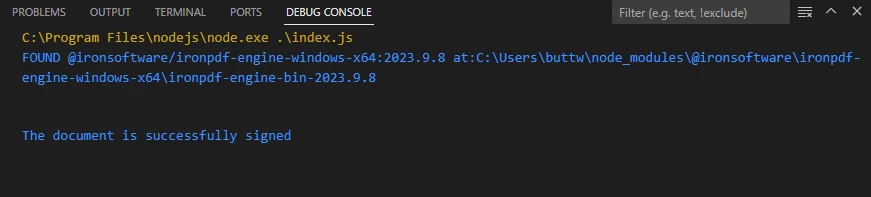
      console.log("\nThe document is successfully signed");
    }

    // Save the signed PDF document
    await pdf.saveAs("sample-contract-signed.pdf");
  });
})();
import { PdfDocument } from "@ironsoftware/ironpdf";
import { IronPdfGlobalConfig } from "@ironsoftware/ironpdf";

// Asynchronous function to create and sign PDFs
(async function createPDFs() {
  // Input the license key
  const IronPdfConfig = {
    licenseKey: "License-Key", // Replace with your actual license
  };

  // Set the global configuration with the license key
  IronPdfGlobalConfig.setConfig(IronPdfConfig);

  // Define the digital signature parameters
  var digitalSignature = {
    signatureImage: {
      SignatureImagePath: "signature.png" // Path to the signature image
    },
    certificatePath: "WALEED.pfx", // Path to the certificate file
    certificatePassword: "nokhanok" // Password for the certificate
  };

  // Open the PDF document that will be signed
  await PdfDocument.fromFile("output.pdf").then(async (pdf) => {
    // Sign the PDF file with the digital signature
    await pdf.signDigitalSignature(digitalSignature);

    // Check if the PDF is signed successfully
    var signed = await pdf.isSigned();
    if (signed) {
      console.log("\nThe document is successfully signed");
    }

    // Save the signed PDF document
    await pdf.saveAs("sample-contract-signed.pdf");
  });
})();
JAVASCRIPT

This Node.js script utilizes the IronPDF library to digitally sign a PDF document. After setting the IronPDF configuration with the provided license key, the code defines a digital signature, specifying a signature image path, a certificate path, and the associated password.

Subsequently, it opens an existing PDF file ("output.pdf"), signs it with the defined digital signature, checks if the signing process was successful, and saves the signed document as "sample-contract-signed.pdf". The script provides a streamlined and programmatically efficient solution for applying digital signatures to PDFs using IronPDF in a Node.js environment.

How to Sign A PDF File in Node.js, Figure 1: The document is successfully signed The document is successfully signed

4.1. Verify a Signed PDF Document

To verify a signed PDF document using IronPDF in Node.js, you can use the following code snippet. This assumes you have a signed PDF file and the public key associated with the digital signature.

import { PdfDocument } from "@ironsoftware/ironpdf";
import { IronPdfGlobalConfig } from "@ironsoftware/ironpdf";

// Asynchronous function to verify signed PDFs
(async function verifyPDFs() {
  // Configure IronPDF with a license key
  const IronPdfConfig = {
    licenseKey: "License-Key", // Replace with your actual license
  };

  // Set the global configuration
  IronPdfGlobalConfig.setConfig(IronPdfConfig);

  // Open the signed PDF document
  await PdfDocument.fromFile("sample-contract-signed.pdf").then(async (pdf) => {
    // Check if the PDF is signed
    var signed = await pdf.isSigned();
    if (signed) {
      console.log("\nThe document is signed");
    }
  });
})();
import { PdfDocument } from "@ironsoftware/ironpdf";
import { IronPdfGlobalConfig } from "@ironsoftware/ironpdf";

// Asynchronous function to verify signed PDFs
(async function verifyPDFs() {
  // Configure IronPDF with a license key
  const IronPdfConfig = {
    licenseKey: "License-Key", // Replace with your actual license
  };

  // Set the global configuration
  IronPdfGlobalConfig.setConfig(IronPdfConfig);

  // Open the signed PDF document
  await PdfDocument.fromFile("sample-contract-signed.pdf").then(async (pdf) => {
    // Check if the PDF is signed
    var signed = await pdf.isSigned();
    if (signed) {
      console.log("\nThe document is signed");
    }
  });
})();
JAVASCRIPT

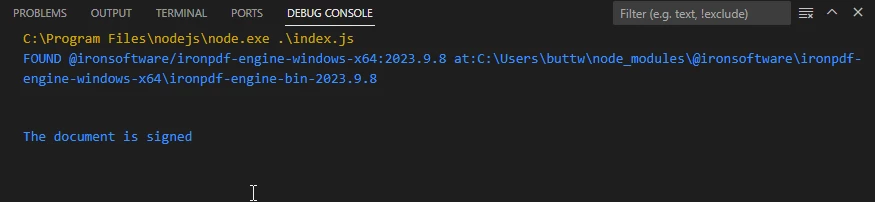
This Node.js script employs the IronPDF library to handle PDF files, focusing on a file named "sample-contract-signed.pdf". Initially, the IronPDF configuration is set with a specific license key. Subsequently, the script loads the PDF document, checks whether it is digitally signed using the isSigned method, and logs a message indicating the signed status.

How to Sign A PDF File in Node.js, Figure 2: The document is signed The document is signed

4.2. Count the Number of Digital Signatures

To count the number of digital signatures in a PDF document using IronPDF in Node.js, you can use the following code snippet:

import { PdfDocument } from "@ironsoftware/ironpdf";

// Asynchronous function to count signatures in a PDF
(async function countSignatures() {
  // Open the PDF document
  await PdfDocument.fromFile("sample-contract-signed.pdf").then(async (pdf) => {
    // Count the number of signatures in the PDF
    var numberOfSignatures = await pdf.signatureCount();
    console.log("Number of Signatures: " + numberOfSignatures);
  });
})();
import { PdfDocument } from "@ironsoftware/ironpdf";

// Asynchronous function to count signatures in a PDF
(async function countSignatures() {
  // Open the PDF document
  await PdfDocument.fromFile("sample-contract-signed.pdf").then(async (pdf) => {
    // Count the number of signatures in the PDF
    var numberOfSignatures = await pdf.signatureCount();
    console.log("Number of Signatures: " + numberOfSignatures);
  });
})();
JAVASCRIPT

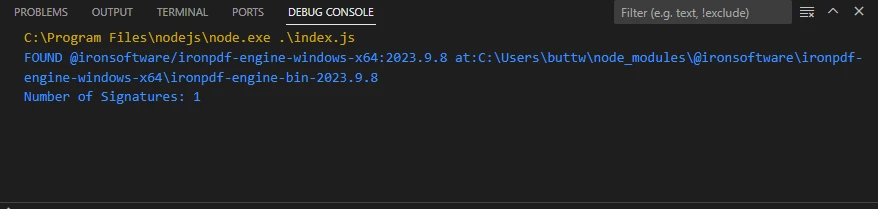
This concise Node.js script utilizes the IronPDF library to open a PDF document named "sample-contract-signed.pdf". Leveraging the PdfDocument.fromFile method, it then asynchronously counts the number of digital signatures within the PDF using signatureCount. The resulting count is logged to the console, providing a straightforward and effective means of retrieving and displaying the quantity of digital signatures present in the specified PDF file. This code exemplifies the simplicity with which IronPDF enables developers to interact with and extract valuable information from PDF documents programmatically.

How to Sign A PDF File in Node.js, Figure 3: Number of Signatures Number of Signatures

5. Conclusion

In conclusion, the integration of Node.js and IronPDF proves to be a powerful solution for addressing various challenges in the domain of PDF document management. From the initial exploration of the significance of programmatically signing PDFs in Node.js to the detailed walkthrough of leveraging IronPDF for dynamic PDF generation and digital signature application, this guide aims to equip developers with essential tools for efficient document processing.

The installation process of the IronPDF library and practical demonstrations of digitally signing and verifying PDFs, as well as counting digital signatures, underscore the versatility and simplicity that this combination offers. By seamlessly combining the strengths of Node.js and IronPDF, developers can enhance their capabilities in handling PDF documents, ensuring secure and streamlined operations in diverse application scenarios.

IronPDF for Node.js offers a free trial for their users. For more details on the commercial license, please visit the license page. To get started with IronPDF, visit the documentation page. The code example of Sign PDF Node.js can be found at this example for Node.js link. For more code examples on how to use IronPDF for Node.js, please visit those example pages.

자주 묻는 질문

Node.js를 사용하여 PDF에 서명하는 것의 의미는 무엇인가요?

특히 전자 계약서 및 법률 문서에 대한 디지털 서명 프로세스를 자동화하고 간소화하려면 Node.js를 사용하여 PDF에 서명하는 것이 중요합니다. Node.js용 IronPDF는 PDF를 프로그래밍 방식으로 안전하게 서명하고 관리할 수 있는 기능을 제공합니다.

Node.js에서 PDF에 프로그래밍 방식으로 서명하려면 어떻게 해야 하나요?

IronPDF를 사용하여 Node.js에서 PDF에 프로그래밍 방식으로 서명할 수 있습니다. 먼저 IronPDF 라이브러리를 설치한 다음 fromFile 메서드를 사용하여 PDF를 로드하고 signDigitalSignature로 디지털 서명을 적용하고 isSigned로 확인한 후 문서를 저장합니다.

Node.js에서 PDF 서명을 관리하는 데는 어떤 방법이 사용되나요?

Node.js에서 IronPDF는 서명을 적용하기 위한 signDigitalSignature, 검증을 위한 isSigned, 문서의 서명 수를 계산하는 signatureCount 등 PDF 서명을 관리하기 위한 여러 가지 메서드를 제공합니다.

Node.js 애플리케이션에서 PDF 처리를 위한 IronPDF를 설치하려면 어떻게 해야 하나요?

Node.js 애플리케이션에서 PDF를 처리하기 위해 IronPDF를 설치하려면 npm install @ironsoftware/ironpdf를 실행하세요. 또한 IronPDF 엔진의 경우 npm install @ironsoftware/ironpdf-engine-windows-x64가 필요할 수도 있습니다.

Node.js용 PDF 라이브러리의 기능은 무엇인가요?

동적 PDF 생성, 텍스트 및 이미지 조작, 문서 병합, 분할, 암호화, 디지털 서명 관리와 같은 기능을 제공하는 Node.js용 IronPDF는 PDF 처리를 위한 종합적인 솔루션입니다.

PDF가 Node.js를 사용하여 디지털 서명되었는지 확인할 수 있나요?

예, Node.js에서 IronPDF를 사용하면 문서의 진위 여부를 확인하기 위해 isSigned 메서드를 사용하여 PDF가 디지털 서명되었는지 확인할 수 있습니다.

Node.js PDF 라이브러리에 대한 무료 평가판이 있나요?

예, Node.js용 IronPDF는 무료 평가판을 제공하여 개발자가 구매하기 전에 PDF 관리를 위한 기능을 살펴볼 수 있습니다.

Node.js에서 PDF 라이브러리를 사용하기 위한 문서와 예제는 어디에서 찾을 수 있나요?

자세한 가이드와 튜토리얼을 제공하는 공식 IronPDF 웹사이트에서 Node.js에서 IronPDF를 사용하기 위한 포괄적인 문서와 예제를 찾을 수 있습니다.

Node.js에서 PDF 서명에 IronPDF를 사용하면 어떤 이점이 있나요?

IronPDF는 서명을 적용하고 확인하는 사용하기 쉬운 방법을 제공하여 개발자가 안전하고 효율적으로 문서를 관리할 수 있도록 Node.js에서 PDF에 서명하는 프로세스를 간소화합니다.

커티스 차우
기술 문서 작성자

커티스 차우는 칼턴 대학교에서 컴퓨터 과학 학사 학위를 취득했으며, Node.js, TypeScript, JavaScript, React를 전문으로 하는 프론트엔드 개발자입니다. 직관적이고 미적으로 뛰어난 사용자 인터페이스를 만드는 데 열정을 가진 그는 최신 프레임워크를 활용하고, 잘 구성되고 시각적으로 매력적인 매뉴얼을 제작하는 것을 즐깁니다.

커티스는 개발 분야 외에도 사물 인터넷(IoT)에 깊은 관심을 가지고 있으며, 하드웨어와 소프트웨어를 통합하는 혁신적인 방법을 연구합니다. 여가 시간에는 게임을 즐기거나 디스코드 봇을 만들면서 기술에 대한 애정과 창의성을 결합합니다.