


已更新 2026年6月20日
如何在 Node.js 中從 PDF 中提取圖像
在本文章中,我們將探索如何使用 IronPDF(適用於 .NET 的強大 PDF 庫)從 PDF 中提取和保存圖像,以及如何通過 NPM 套件將其整合到 Node.js 環境中。
閱讀更多

在現代文件管理的領域中,以程式化方式簽署PDF已成為無數應用程式的必備功能。 Node.js,一個功能強大的伺服端JavaScript運行環境,為開發者提供了一個多功能的平台來整合無縫的PDF簽署功能。 無論是電子合約、法律文件或其他重要文件,Sign PDF Node.js方法讓開發者能夠自動化並簡化數位簽署流程。 本介紹將探討使用Node.js簽署PDF的重要性,強調其在促進安全、高效且具有法律約束力的數位交易中的重要性。
在本文中,我們將討論如何使用Node.js來數位簽署PDF文件。 為此,我們將使用名為IronPDF的頂級Node.js PDF程式庫。
fromFile方法打開PDF文件。signDigitalSignature方法簽署PDF文件。isSigned方法檢查PDF文件是否簽署。signatureCount功能查找數位簽章數量。saveAs方法儲存已簽署的PDF文件。在不斷發展的網頁開發領域中,Node.js應用程式內動態和無縫生成PDF的需求變得愈加重要。 推出IronPDF for Node.js——一個將IronPDF精緻的PDF處理功能與Node.js多功能性結合的強大整合方案。 此創新解決方案使開發人員能夠輕鬆建立、操作和呈現高品質PDF文件,提供一個全面的工具包來處理從報告生成到動態發票製作的任務。 本介紹深入探討IronPDF for Node.js的功能,強調其作為開發者尋求Node.js專案中的高效且功能豐富的PDF處理工具的價值。
從npm安裝IronPDF程式庫 for Node.js,以開始使用數位簽章簽PDF文件。 在控制台上運行以下命令以安裝IronPDF程式庫。
要安裝使用IronPDF程式庫的必備IronPDF引擎,請在控制台上運行以下命令。
使用IronPDF for Node.js程式化地簽署PDF牽涉到利用該程式庫的功能將數位簽章嵌入到PDF文件中。 這是一個簡化的範例,說明您如何實現這一目標:
import { PdfDocument } from "@ironsoftware/ironpdf";
import { IronPdfGlobalConfig } from "@ironsoftware/ironpdf";

// Asynchronous function to create and sign PDFs
(async function createPDFs() {
  // Input the license key
  const IronPdfConfig = {
    licenseKey: "License-Key", // Replace with your actual license
  };

  // Set the global configuration with the license key
  IronPdfGlobalConfig.setConfig(IronPdfConfig);

  // Define the digital signature parameters
  var digitalSignature = {
    signatureImage: {
      SignatureImagePath: "signature.png" // Path to the signature image
    },
    certificatePath: "WALEED.pfx", // Path to the certificate file
    certificatePassword: "nokhanok" // Password for the certificate
  };

  // Open the PDF document that will be signed
  await PdfDocument.fromFile("output.pdf").then(async (pdf) => {
    // Sign the PDF file with the digital signature
    await pdf.signDigitalSignature(digitalSignature);

    // Check if the PDF is signed successfully
    var signed = await pdf.isSigned();
    if (signed) {
      console.log("\nThe document is successfully signed");
    }

    // Save the signed PDF document
    await pdf.saveAs("sample-contract-signed.pdf");
  });
})();此Node.js腳本利用IronPDF程式庫來數位簽署PDF文件。 設置IronPDF配置與提供的授權金鑰後,程式碼定義了一個數位簽章,指定簽名圖像路徑、證書路徑和相關密碼。
然後,它打開一個現有的PDF文件("output.pdf"),用定義的數位簽章簽署它,檢查簽署過程是否成功,並將簽署後的文件保存為"sample-contract-signed.pdf"。 該腳本為通過IronPDF在Node.js環境中對PDF應用數位簽章提供了一個簡化且程式化高效的解決方案。
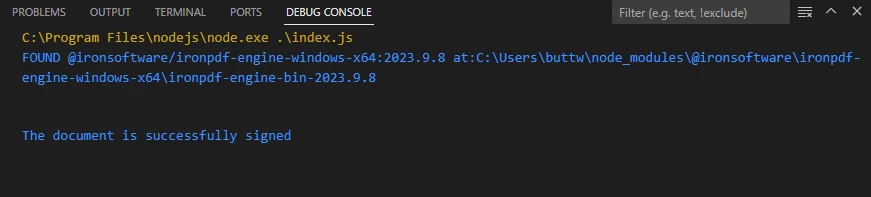 文件簽署成功
要在Node.js中使用IronPDF驗證已簽署的PDF文件,您可以使用以下程式碼片段。 這假設您有一個已簽署的PDF文件和與數位簽章相關的公鑰。
import { PdfDocument } from "@ironsoftware/ironpdf";
import { IronPdfGlobalConfig } from "@ironsoftware/ironpdf";

// Asynchronous function to verify signed PDFs
(async function verifyPDFs() {
  // Configure IronPDF with a license key
  const IronPdfConfig = {
    licenseKey: "License-Key", // Replace with your actual license
  };

  // Set the global configuration
  IronPdfGlobalConfig.setConfig(IronPdfConfig);

  // Open the signed PDF document
  await PdfDocument.fromFile("sample-contract-signed.pdf").then(async (pdf) => {
    // Check if the PDF is signed
    var signed = await pdf.isSigned();
    if (signed) {
      console.log("\nThe document is signed");
    }
  });
})();此Node.js腳本使用IronPDF程式庫來處理PDF文件,著重於名為"sample-contract-signed.pdf"的文件。 最初,用特定的授權金鑰設定了IronPDF配置。 隨後,該腳本會載入PDF文件,使用isSigned方法檢查是否已數位簽署,並記錄一條訊息以指示簽署狀態。
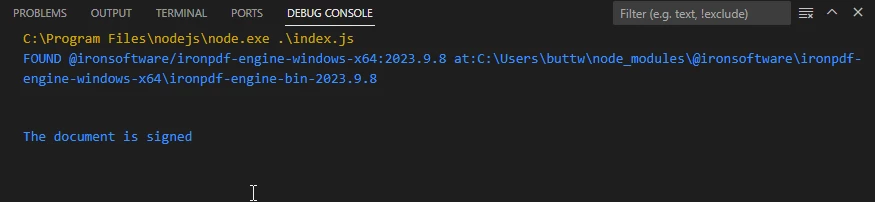 文件已簽署
文件已簽署
要在Node.js中使用IronPDF計算PDF文件中的數位簽章數量,您可以使用以下程式碼片段:
import { PdfDocument } from "@ironsoftware/ironpdf";

// Asynchronous function to count signatures in a PDF
(async function countSignatures() {
  // Open the PDF document
  await PdfDocument.fromFile("sample-contract-signed.pdf").then(async (pdf) => {
    // Count the number of signatures in the PDF
    var numberOfSignatures = await pdf.signatureCount();
    console.log("Number of Signatures: " + numberOfSignatures);
  });
})();這個簡潔的Node.js腳本利用IronPDF程式庫打開名為"sample-contract-signed.pdf"的PDF文件。 借助signatureCount。 結果數量記錄到控制台,提供了一種檢索和顯示指定PDF文件中數位簽章數量的簡單有效的方法。這段程式碼例證IronPDF讓開發人員能夠簡單地以程式化方式與PDF文件進行互動並提取有價值資訊的能力。
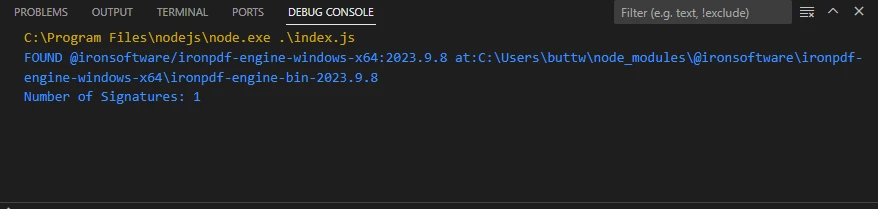 簽章數量
簽章數量
總之,Node.js和IronPDF的結合證明是一個解決PDF文件管理領域各種挑戰的強大方案。 從最初探索在Node.js中程式化地簽署PDF的重要性到詳細的操作說明利用IronPDF進行動態PDF生成和數位簽章應用,本指南旨在為開發人員提供高效文件處理的基本工具。
IronPDF程式庫的安裝過程以及數位簽署和驗證PDF及計算數位簽章的實際演示,突顯了這種組合所提供的多樣性和簡單性。 通過無縫結合Node.js和IronPDF的優勢,開發者可以增強其處理PDF文件的能力,確保在多個應用場景中的安全和流暢操作。
Node.js 的 IronPDF為其使用者提供了免費試用。 有關商業授權的更多詳細資訊,請存取授權頁面。 要開始使用IronPDF,請存取文件頁面。 Sign PDF Node.js的程式碼範例可以在Node.js範例連結中找到。 有關如何使用IronPDF for Node.js的更多程式碼範例,請存取這些範例頁面。

Curtis Chau擁有Carleton大學的電腦科學學士學位,專精於前端開發,擁有Node.js、TypeScript、JavaScript和React的專業知識。Curtis熱衷於建立直觀且美觀的使用者介面,喜愛使用現代框架並建立結構良好、視覺吸引力的手冊。


IronPDF 是 IRONSUITE 的一部分
10 款適用於辦公室文件的 .NET API 產品

當您需要您的PDF看起來像HTML一樣快速。











