

如何在 Node.js 中編輯 PDF 文件

PDF文件已成為數位文件中的基礎元素,以其可靠性和安全性而受到高度重視。 它們在各個平台上保持一致的格式,使其成為許多專業應用的首選。 然而,在許多專業環境中,修改或更新現有PDF文件的需求是常見的,這反映了數位資訊管理的動態特性。 Node.js是一個強大的JavaScript運行環境,可與IronPDF程式庫配合使用,以有效地編輯和操作PDF文件。 本教程旨在引導初學者了解如何在Node.js中使用IronPDF來編輯和建立PDF檔案。
了解IronPDF
了解更多關於IronPDF for Node.js的資訊,這是一個與Node.js完美整合的出色PDF程式庫,提供強大的PDF操作功能。 它使開發人員能夠建立新的簡單PDF文件、修改現有PDF文件、新增自訂字體,甚至合併多個PDF文件。 在深入技術細節之前,了解IronPDF的基本概念及其在Node.js環境中的運作方式是很重要的。
如何使用Node.js程式庫編輯PDF
- 建立一個新的Node.js應用程式。
- 使用npm安裝Edit PDF Library。
- 使用fromFile方法在應用中載入PDF文件。
- 新增數位簽名、密碼和任何其他想要的修改。
- 使用SaveAs方法保存PDF文件。
設置您的環境
在您開始在Node.js應用中處理PDF之前,您需要設置好環境。 以下是您需要遵循的步驟:
- 安裝Node.js:存取Node.js官方網站下載並安裝適用您操作系統的最新穩定版本。
建立新專案目錄:打開終端或命令提示符,使用以下命令建立專案的新目錄:
mkdir pdf-editing-projectmkdir pdf-editing-projectSHELL導航到專案目錄:使用以下命令改變到專案目錄:
cd pdf-editing-projectcd pdf-editing-projectSHELL初始化新的Node.js專案:在專案目錄中運行以下命令初始化新的Node.js專案:
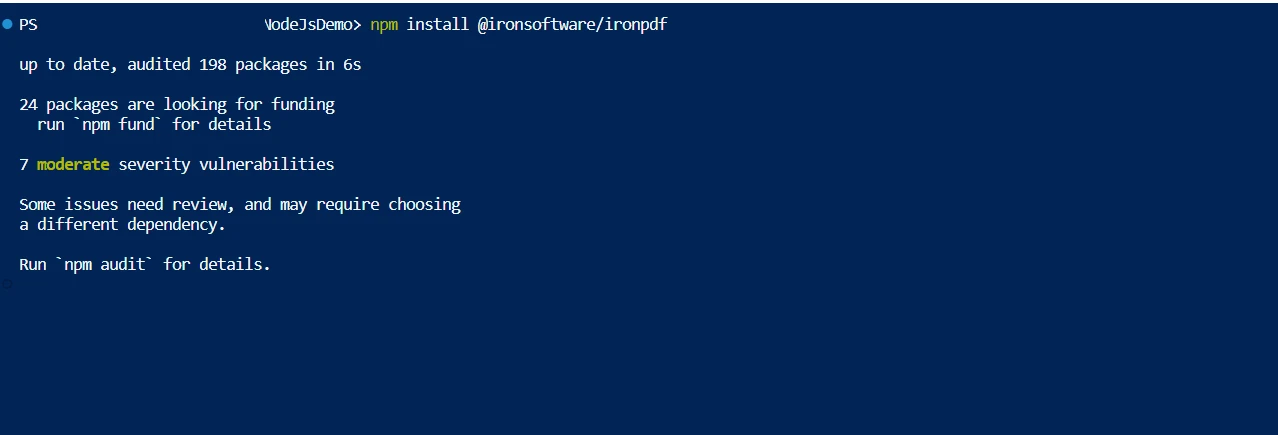
npm init -ynpm init -ySHELL這將建立一個
package.json文件,具有預設值。安裝PDF編輯程式庫:使用npm安裝您選擇的PDF編輯程式庫。 例如,如果您想使用"pdf-lib"程式庫,運行以下命令:
npm install pdf-libnpm install pdf-libSHELL這將安裝"pdf-lib"程式庫並將其作為您的
package.json文件的依賴項新增。- 建立您的應用檔:在專案目錄中建立一個新的JavaScript文件(例如,
app.js)並在您喜愛的程式碼編輯器中打開。 現在您可以開始編碼並在Node.js應用中使用PDF編輯程式庫了。 祝您編程愉快!
請務必查看您使用的PDF編輯程式庫的官方文件以獲取詳細的說明和例子。
安裝Node.js和IronPDF
要開始操作PDF文件,您需要一個正常運行的Node.js環境和已安裝的IronPDF程式庫。 本章將指導您完成安裝過程,以確保您擁有開始PDF操作旅程所需的工具。
步驟1:安裝Node.js
- 存取Node.js官方網站。
- 下載適用於您操作系統的最新穩定版Node.js。
- 運行安裝程式並按照提示完成安裝過程。
要驗證Node.js是否正確安裝,打開終端或命令提示符,運行以下命令:
node --versionnode --versionSHELL您應該在控制台中看到Node.js的版本號。
步驟2:安裝IronPDF
要安裝IronPDF程式庫,您有兩個選擇:
選項1:使用npm
- 打開終端或命令提示符。
- 導航到您的專案目錄。
運行以下命令:
npm install ironpdfnpm install ironpdfSHELL
選項2:使用yarn
- 打開終端或命令提示符。
- 導航到您的專案目錄。
運行以下命令:
yarn add ironpdfyarn add ironpdfSHELL
步驟3:驗證安裝
要驗證IronPDF是否正確安裝,您可以建立一個簡單的Node.js腳本,使用IronPDF執行基本操作,例如生成PDF文件。以下是一個例子:
const IronPDF = require('ironpdf');

async function generatePdf() {
  const html = '<html><body><h1>Hello IronPDF!</h1></body></html>';

  const pdf = await IronPdf.Renderer.RenderHtmlAsPdf(html);

  await pdf.SaveAs('output.pdf');
}

generatePdf();
const IronPDF = require('ironpdf');
async function generatePdf() {
const html = '<html><body><h1>Hello IronPDF!</h1></body></html>';
const pdf = await IronPdf.Renderer.RenderHtmlAsPdf(html);
await pdf.SaveAs('output.pdf');
}
generatePdf();將上述程式碼保存到一個文件中(例如,generate-pdf.js),並使用Node.js運行以下命令:
node generate-pdf.jsnode generate-pdf.js如果一切設置正確,您應該會在專案目錄中看到名為output.pdf的新文件。
恭喜! 您現在已經安裝了Node.js和IronPDF,準備開始操作PDF文件。
逐步安裝指南
- 安裝Node.js:首先,從其官方網站下載並安裝Node.js。 這還會安裝npm(Node Package Manager),這是管理JavaScript軟體包的主要工具。
- 新增IronPDF:安裝Node.js後,使用npm來安裝IronPDF。 在命令行中運行
npm install ironpdf。
建立您的第一個JavaScript文件
設置好環境後,是時候建立您的第一個JavaScript文件。該文件將作為您PDF操作任務的基礎。 您可以使用任何IDE來建立JavaScript文件。
以下是建立JavaScript文件的步驟:
- 打開您首選的整合開發環境(IDE)或文字編輯器。
- 建立一個新文件,並使用
pdfManipulation.js)。 - 在文件中,您可以開始撰寫JavaScript程式碼以執行所需的PDF操作任務。
例如,我們定義一個函式來為PDF新增浮水印:
function addWatermarkToPdf(pdfPath, watermarkText, outputPath) {
  // Code to add the watermark to the PDF
  // ...
}

// Example usage
const pdfPath = 'path/to/input.pdf';
const watermarkText = 'Confidential';
const outputPath = 'path/to/output.pdf';

addWatermarkToPdf(pdfPath, watermarkText, outputPath);
function addWatermarkToPdf(pdfPath, watermarkText, outputPath) {
// Code to add the watermark to the PDF
// ...
}
// Example usage
const pdfPath = 'path/to/input.pdf';
const watermarkText = 'Confidential';
const outputPath = 'path/to/output.pdf';
addWatermarkToPdf(pdfPath, watermarkText, outputPath);請記得替換outputPath為您要使用的實際文件路徑和浮水印文字。
一旦您撰寫了程式碼,您可以保存文件,並透過在Node.js中運行或根據您的需求使用任何其他方法來開始測試您的PDF操作功能。
祝您編程愉快!
編輯PDF:了解IronPDF功能
編輯PDF內容是最常見的任務之一。 IronPDF的編輯功能強大,允許在PDF文件中進行任何型別的修改。
密碼、安全性與元資料
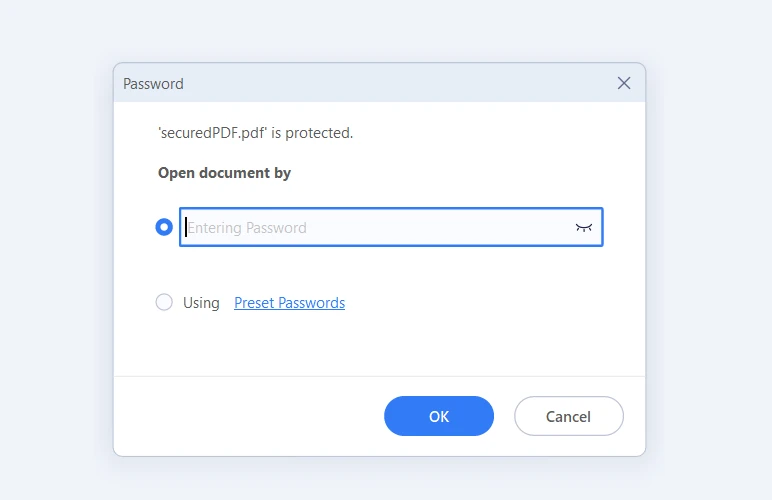
IronPDF確保您的PDF文件不僅安全,還通過適當的元資料得到良好組織。 設置密碼是一個簡單的過程,您還可以實施額外的安全措施,包括限制PDF文件的列印、複製和編輯。元資料在文件管理中扮演著關鍵角色,使根據作者、標題和主題等屬性來分類和檢索PDF文件變得更加容易。
import { PdfDocument } from "@ironsoftware/ironpdf";

(async function securePDFs() {
  try {
    // Load the existing PDF document
    const pdf = await PdfDocument.fromFile("output.pdf");

    // Make PDF read-only
    await pdf.makePdfDocumentReadOnly("readonlypassword");

    // Configure permissions
    const permissions = {
      AllowAnnotations: false,
      AllowExtractContent: false,
      AllowFillForms: false,
      AllowPrint: true,
    };
    await pdf.setPermission(permissions);

    // Change or set the document encryption password
    await pdf.saveAs("securedPDF.pdf", { userPassword: "my-password" });
  } catch (error) {
    // Handle errors here
    console.error("An error occurred:", error);
  }
})();
import { PdfDocument } from "@ironsoftware/ironpdf";
(async function securePDFs() {
try {
// Load the existing PDF document
const pdf = await PdfDocument.fromFile("output.pdf");
// Make PDF read-only
await pdf.makePdfDocumentReadOnly("readonlypassword");
// Configure permissions
const permissions = {
AllowAnnotations: false,
AllowExtractContent: false,
AllowFillForms: false,
AllowPrint: true,
};
await pdf.setPermission(permissions);
// Change or set the document encryption password
await pdf.saveAs("securedPDF.pdf", { userPassword: "my-password" });
} catch (error) {
// Handle errors here
console.error("An error occurred:", error);
}
})();
數位簽名
IronPDF支持數位簽名,這對於業務交易中的驗證和信任是必不可少的。 此功能增加了一層身份驗證,確認整個文件的來源和完整性。
import { PdfDocument } from "@ironsoftware/ironpdf";

(async function signPDFs() {
  try {
    // Import a PDF
    const pdf = await PdfDocument.open("output.pdf");

    // Sign the PDF with digital certificate
    await pdf.signDigitalSignature({
      certificatePath: "DigitalIronSoftware.pfx",
      certificatePassword: "abcdedf",
      signingReason: "How to sign a PDF",
      signingLocation: "Chicago, USA",
      signatureImage: {
        SignatureImagePath: "logo.png",
      },
    });

    // Save the Signed PDF
    await pdf.saveAs("signed.pdf");
  } catch (error) {
    // Handle errors here
    console.error("An error occurred:", error);
  }
})();
import { PdfDocument } from "@ironsoftware/ironpdf";
(async function signPDFs() {
try {
// Import a PDF
const pdf = await PdfDocument.open("output.pdf");
// Sign the PDF with digital certificate
await pdf.signDigitalSignature({
certificatePath: "DigitalIronSoftware.pfx",
certificatePassword: "abcdedf",
signingReason: "How to sign a PDF",
signingLocation: "Chicago, USA",
signatureImage: {
SignatureImagePath: "logo.png",
},
});
// Save the Signed PDF
await pdf.saveAs("signed.pdf");
} catch (error) {
// Handle errors here
console.error("An error occurred:", error);
}
})();PDF壓縮
使用IronPDF,您可以減小PDF文件的大小,使其更易於分享,並加快上傳或下載速度。 壓縮是管理大量PDF文件的關鍵,特別是在儲存空間和帶寬有限的情況下。
import { PdfDocument } from "@ironsoftware/ironpdf";

(async function compressPDF() {
  // Load the existing PDF document
  const pdf = await PdfDocument.fromFile("output.pdf");

  // Compress images with quality parameter varies (1-100)
  await pdf.compressSize(70);

  // Save the compressed PDF
  await pdf.saveAs("CompressedPDF.pdf");
})();
import { PdfDocument } from "@ironsoftware/ironpdf";
(async function compressPDF() {
// Load the existing PDF document
const pdf = await PdfDocument.fromFile("output.pdf");
// Compress images with quality parameter varies (1-100)
await pdf.compressSize(70);
// Save the compressed PDF
await pdf.saveAs("CompressedPDF.pdf");
})();合併兩個或多個PDF
IronPDF支持將多個PDF合併為一個單一文件。 這特別有用於整合報告或合併多個文件以進行分發。
import { PdfDocument } from "@ironsoftware/ironpdf";

(async function mergePDFs() {
  try {
    // Load the first PDF document
    const firstPDF = await PdfDocument.fromFile("firstPDF.pdf");
    // Load the second PDF document
    const secondPDF = await PdfDocument.fromFile("secondPDF.pdf");

    // Merge the two PDF documents
    const merged = await PdfDocument.mergePdf([firstPDF, secondPDF]);

    // Save the merged PDF
    await merged.saveAs("Merged.pdf");
  } catch (error) {
    // Handle errors here
    console.error("An error occurred:", error);
  }
})();
import { PdfDocument } from "@ironsoftware/ironpdf";
(async function mergePDFs() {
try {
// Load the first PDF document
const firstPDF = await PdfDocument.fromFile("firstPDF.pdf");
// Load the second PDF document
const secondPDF = await PdfDocument.fromFile("secondPDF.pdf");
// Merge the two PDF documents
const merged = await PdfDocument.mergePdf([firstPDF, secondPDF]);
// Save the merged PDF
await merged.saveAs("Merged.pdf");
} catch (error) {
// Handle errors here
console.error("An error occurred:", error);
}
})();移除特定的PDF頁面
IronPDF允許從現有PDF文件中選擇性移除頁面,使您能夠根據特定需求或偏好準備文件。
import { PdfDocument } from "@ironsoftware/ironpdf";

(async function removePages() {
  try {
    // Load the PDF document
    const pdfDoc = await PdfDocument.fromFile("output.pdf");

    // Remove pages 2 and 3 (page numbers are zero-based)
    pdfDoc.removePage([1, 2]);

    // Save the modified PDF document
    await pdfDoc.saveAs("pageRemoved.pdf");
  } catch (error) {
    // Handle errors here
    console.error("An error occurred:", error);
  }
})();
import { PdfDocument } from "@ironsoftware/ironpdf";
(async function removePages() {
try {
// Load the PDF document
const pdfDoc = await PdfDocument.fromFile("output.pdf");
// Remove pages 2 and 3 (page numbers are zero-based)
pdfDoc.removePage([1, 2]);
// Save the modified PDF document
await pdfDoc.saveAs("pageRemoved.pdf");
} catch (error) {
// Handle errors here
console.error("An error occurred:", error);
}
})();在PDF文件中查找和替換文字
IronPDF提供了在PDF文件中搜索特定文字並進行替換的功能。 這在更新資訊或修正整個PDF文件中的錯誤時特別有用。
import { PdfDocument } from "@ironsoftware/ironpdf";

(async function replaceTextInPDF() {
  try {
    // Load the PDF document
    const pdf = await PdfDocument.fromFile("input.pdf");

    // Parameters
    const pageIndex = 0; // Page index (zero-based)
    const oldText = "Old Text"; // Text to find
    const newText = "New Text"; // Text to replace

    // Replace text on the specified page
    await pdf.replaceText(oldText, newText, pageIndex);

    // Save the modified PDF document
    await pdf.saveAs("output.pdf");
  } catch (error) {
    // Handle errors here
    console.error("An error occurred:", error);
  }
})();
import { PdfDocument } from "@ironsoftware/ironpdf";
(async function replaceTextInPDF() {
try {
// Load the PDF document
const pdf = await PdfDocument.fromFile("input.pdf");
// Parameters
const pageIndex = 0; // Page index (zero-based)
const oldText = "Old Text"; // Text to find
const newText = "New Text"; // Text to replace
// Replace text on the specified page
await pdf.replaceText(oldText, newText, pageIndex);
// Save the modified PDF document
await pdf.saveAs("output.pdf");
} catch (error) {
// Handle errors here
console.error("An error occurred:", error);
}
})();
在PDF文件中新增新內容
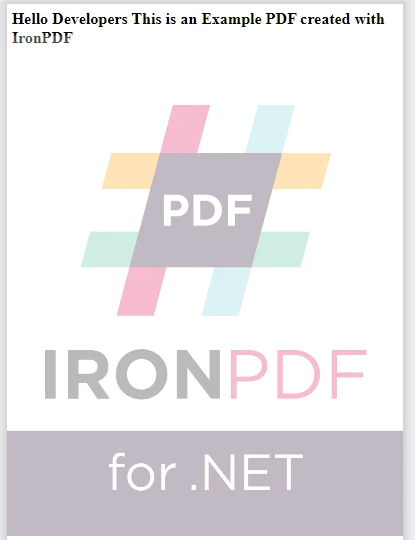
在PDF頁面上新增新內容,如圖像或文字,使用IronPDF變得非常簡單。 這可以用於品牌目的、新增頁眉、頁腳、PNG圖像或甚至浮水印。
import { PdfDocument } from "@ironsoftware/ironpdf";

(async function stampPDFs() {
  try {
    // Open existing PDF
    const pdfdoc = await PdfDocument.fromFile("output.pdf");

    // Configure the HTML stamp
    const stampOptions = {
      horizontalAlignment: "Center",
      verticalAlignment: "Bottom",
      behindExistingContent: false,
      opacity: 30,
    };

    const html = "<img src='logo.png'/>";

    // Apply the stamp to the PDF
    await pdfdoc.stampHtml(html, { htmlStampOptions: stampOptions });

    // Save the stamped PDF
    await pdfdoc.saveAs("stamped_image.pdf");
  } catch (error) {
    // Handle errors here
    console.error("An error occurred:", error);
  }
})();
import { PdfDocument } from "@ironsoftware/ironpdf";
(async function stampPDFs() {
try {
// Open existing PDF
const pdfdoc = await PdfDocument.fromFile("output.pdf");
// Configure the HTML stamp
const stampOptions = {
horizontalAlignment: "Center",
verticalAlignment: "Bottom",
behindExistingContent: false,
opacity: 30,
};
const html = "<img src='logo.png'/>";
// Apply the stamp to the PDF
await pdfdoc.stampHtml(html, { htmlStampOptions: stampOptions });
// Save the stamped PDF
await pdfdoc.saveAs("stamped_image.pdf");
} catch (error) {
// Handle errors here
console.error("An error occurred:", error);
}
})();
PDF表單
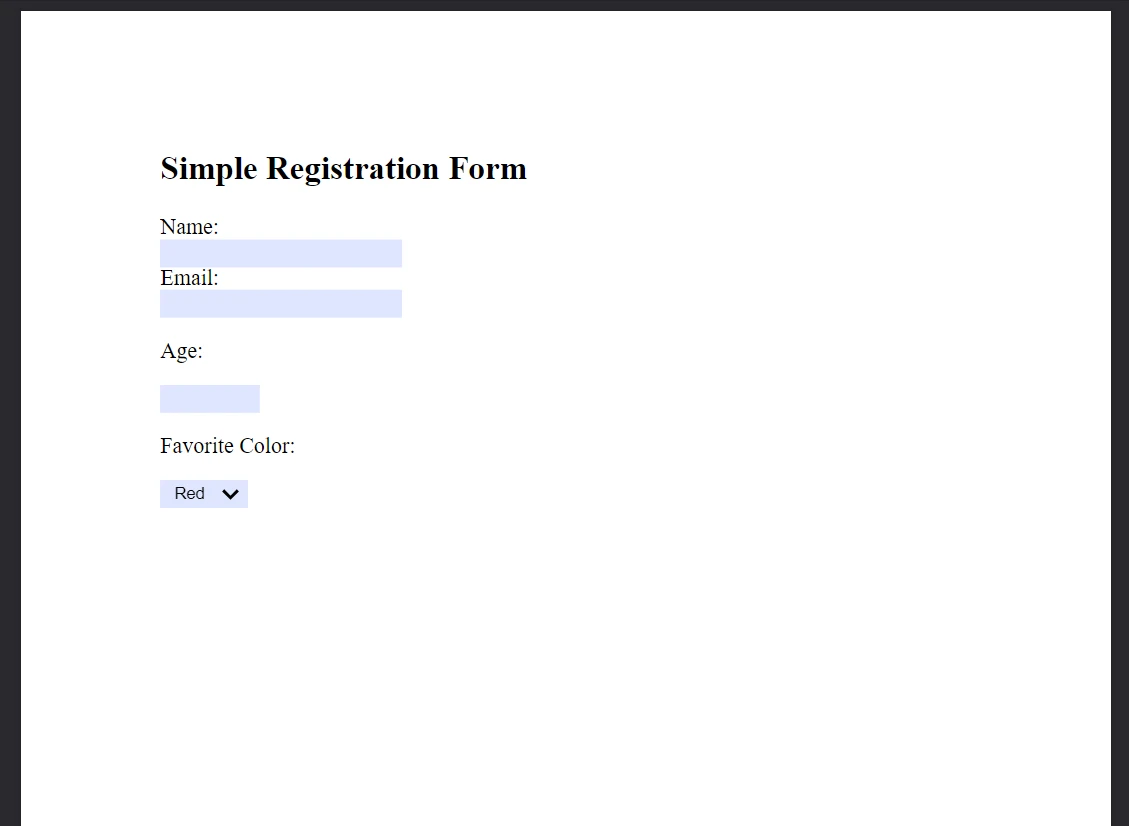
IronPDF支持PDF表單的建立和操作,允許將互動元素如文字字段、選框和單選按鈕新增到您的文件中。 使用者可以直接在PDF中填寫表單,簡化資料收集和分發過程。
import { PdfDocument } from "@ironsoftware/ironpdf";

(async function createPDFsWithForms() {
  try {
    // Simplified HTML content with fewer form fields
    const formHtml = `
        <html>
            <body>
                <h2>Simple Registration Form</h2>
                <form>
                    Name: <br>
                    Email: <br>
                    <p>Age:</p>
                    <p>Favorite Color:</p>
                    <select name='color'>
                        <option value='Red'>Red</option>
                        <option value='Blue'>Blue</option>
                        <option value='Green'>Green</option>
                        <option value='Yellow'>Yellow</option>
                    </select>
                </form>
            </body>
        </html>
    `;

    // Render HTML content to a PDF with editable forms
    const pdfdoc = await PdfDocument.fromHtml(formHtml, {
      renderOptions: { createPdfFormsFromHtml: true },
    });

    // Save the new PDF
    await pdfdoc.saveAs("simpleRegistrationForm.pdf");
  } catch (error) {
    // Handle errors here
    console.error("An error occurred:", error);
  }
})();
import { PdfDocument } from "@ironsoftware/ironpdf";
(async function createPDFsWithForms() {
try {
// Simplified HTML content with fewer form fields
const formHtml = `
<html>
<body>
<h2>Simple Registration Form</h2>
<form>
Name: <br>
Email: <br>
<p>Age:</p>
<p>Favorite Color:</p>
<select name='color'>
<option value='Red'>Red</option>
<option value='Blue'>Blue</option>
<option value='Green'>Green</option>
<option value='Yellow'>Yellow</option>
</select>
</form>
</body>
</html>
`;
// Render HTML content to a PDF with editable forms
const pdfdoc = await PdfDocument.fromHtml(formHtml, {
renderOptions: { createPdfFormsFromHtml: true },
});
// Save the new PDF
await pdfdoc.saveAs("simpleRegistrationForm.pdf");
} catch (error) {
// Handle errors here
console.error("An error occurred:", error);
}
})();
結論
IronPDF成為Node.js中PDF操作的綜合解決方案。 利用其從合併PDF到保護PDF的功能,IronPDF幫助開發人員有效管理PDF文件。 無論手頭的任務是編輯現有的PDF,還是從頭開始建立新的PDF,IronPDF都提供了必需的工具來有效且精確地完成這些任務。
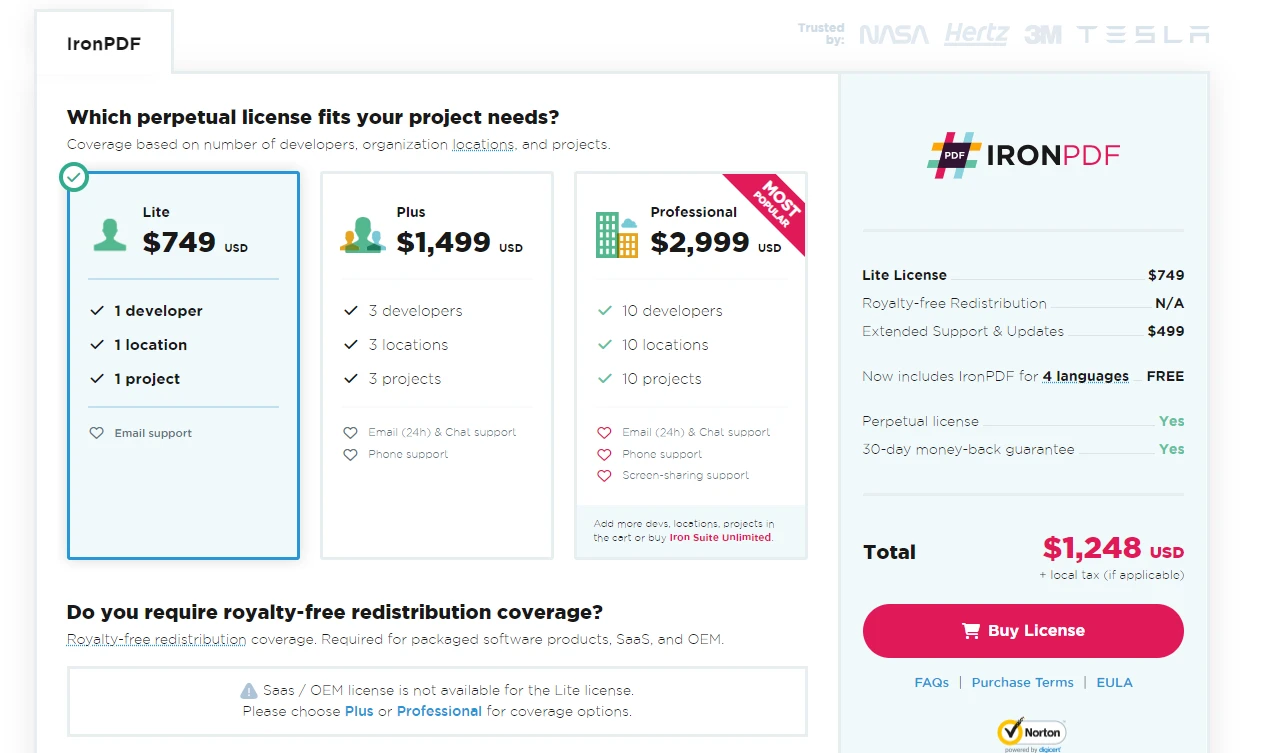
IronPDF提供免費試用和多種授權選項,讓您全面使用所有IronPDF的功能。
 。
。
常見問題
我如何在 Node.js 環境中開始編輯 PDF?
要在 Node.js 中開始編輯 PDF,首先設定您的 Node.js 環境,並使用 npm install ironpdf 安裝 IronPDF 程式庫。然後您可以透過 IronPDF 的 API 來載入 PDF 文件、進行編輯和儲存變更。
在 Node.js 中合併 PDF 文件需要哪些步驟?
要在 Node.js 中合併 PDF 文件,可以使用 IronPDF 載入多個 PDF 文件,然後使用其合併功能將它們合併為單一文件。最後,使用 IronPDF 的保存功能儲存合併後的文件。
我如何在 Node.js 中保護我的 PDF 文件?
IronPDF 提供多種安全功能來保護 Node.js 中的 PDF 文件,包括密碼保護、權限設置和數位簽名,以確保文件的安全和完整性。
我可以在 Node.js 中壓縮 PDF 文件嗎?
可以,您可以使用 IronPDF 在 Node.js 中壓縮 PDF 文件。這可以通過減少 PDF 中影像和其他元素的大小來實現,使文件更易於管理和分享。
在 Node.js 中使用哪些選項來替換 PDF 中的文字?
IronPDF 允許您在 Node.js 環境中搜尋和替換 PDF 文件中的文字,這對於更新內容或修正現有文件中的錯誤非常有用。
我如何在 Node.js 中新增互動表單到 PDF?
IronPDF 使得在 Node.js 中建立和操作互動式 PDF 表單成為可能。您可以新增像文字欄位、核取方塊和單選按鈕這樣的元素,使您的 PDF 具備互動性。
在 Node.js 使用 PDF 程式庫有哪些授權選擇?
IronPDF 為使用 Node.js 的開發人員提供免費試用和多種授權選擇,讓開發者可以使用程式庫的所有 PDF 操作功能。
我如何在 Node.js 中新增數位簽名到 PDF?
要在 Node.js 中將數位簽名新增到 PDF,請使用 IronPDF 的簽名功能,這使您能夠驗證文件的真實性和完整性。
在 Node.js 中安裝 PDF 程式庫的過程是什麼?
您可以通過在專案目錄中執行命令 npm install ironpdf 來在您的 Node.js 專案中安裝 IronPDF,讓您開始進行 PDF 的處理工作。
IronPDF 如何在 Node.js 中增強文件的安全性?
IronPDF 通過提供如密碼保護、元資料管理和權限設置等功能,來在 Node.js 中增強文件的安全性,確保您的 PDF 保持安全且組織良好。






 免費開始
免費開始 免費開始
免費開始 預訂免費直播演示
















