

Python에서 PDF를 PDFA로 변환하는 방법

This post will introduce the IronPDF for Python module to convert an existing PDF file to a PDFA file.
- Download the Python PDF Library to convert PDF to PDF/A in Python.
- Create a New Python Project in PyCharm or any other IDE.
- Load an existing PDF file using
PdfDocument.FromFilemethod. - Convert PDF to PDFA using
SaveAsPdfAmethod. - Run the project to get the converted PDFA file.
IronPDF
Compared to other languages, Python provides significantly greater dynamism for programmers and enables developers to rapidly and easily create graphical user interfaces. Therefore, incorporating the IronPDF library into Python is a straightforward process. A wide range of pre-installed tools, such as PyQt, wxWidgets, Kivy, and various other packages and libraries, can be utilized to efficiently and securely assemble a fully functional GUI.
Python web design and development are greatly simplified with the aid of IronPDF. This is primarily attributed to the abundance of Python web development paradigms available, including Django, Flask, and Pyramid. Websites and online services like Reddit, Mozilla, and Spotify have successfully employed these frameworks.
Features of IronPDF
- HTML, HTML5, ASP, PHP, and other sources can be used to create PDF files. Additionally, picture files can be converted to PDF.
- IronPDF enables the creation of interactive PDF documents. It provides functionality such as printing PDF files, rasterizing PDF pages to images, converting PDF to HTML, dividing and merging PDF files, extracting text and images from PDF files, searching for specific phrases in PDF files, and filling out and submitting interactive forms.
- With IronPDF, it is possible to create a document from a URL, while also supporting user agents, proxies, cookies, HTTP headers, unique network login credentials, form variables, and user agents that log in using HTML login forms.
- IronPDF allows users to inspect and annotate PDF files.
- Images can be extracted from documents using IronPDF.
- With IronPDF, it is very easy to add headers, footers, text, pictures, bookmarks, watermarks, and more to documents.
- Users can combine and split pages within a new or existing document using IronPDF.
- Conversion of documents to PDF objects is possible without relying on an Acrobat viewer.
- IronPDF allows the creation of a PDF document from a CSS file.
- CSS files with media-type specifications can be used to construct documents with IronPDF.
Configure Python Environment
Setup Python
Ensure that Python is installed on your computer. Visit the official Python website to download and install the latest version of Python suitable for your operating system. Once Python is installed, create a virtual environment to isolate the requirements for your project. Utilize the venv module to create and manage virtual environments, providing a clean and separate workspace for your conversion project.
New Project in PyCharm
For this tutorial, PyCharm, an IDE for Python development, is recommended. Download and install PyCharm from the official website.
After launching the PyCharm IDE, select "New Project" from the menu, as shown in the figure below.
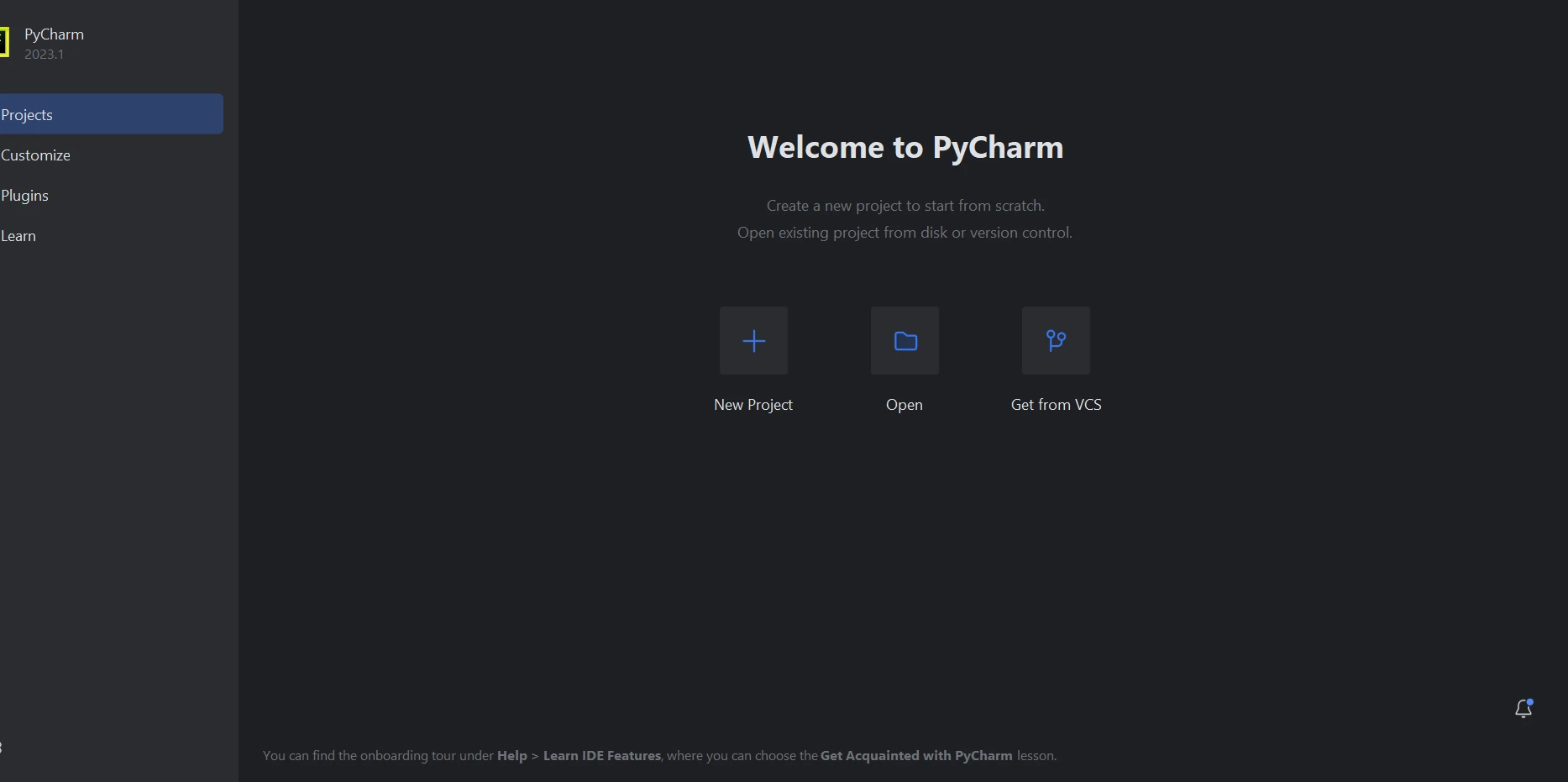 PyCharm IDE
When you select "New Project," a new window will emerge that lets you specify the project's location and Python environment, as shown in the figure below.
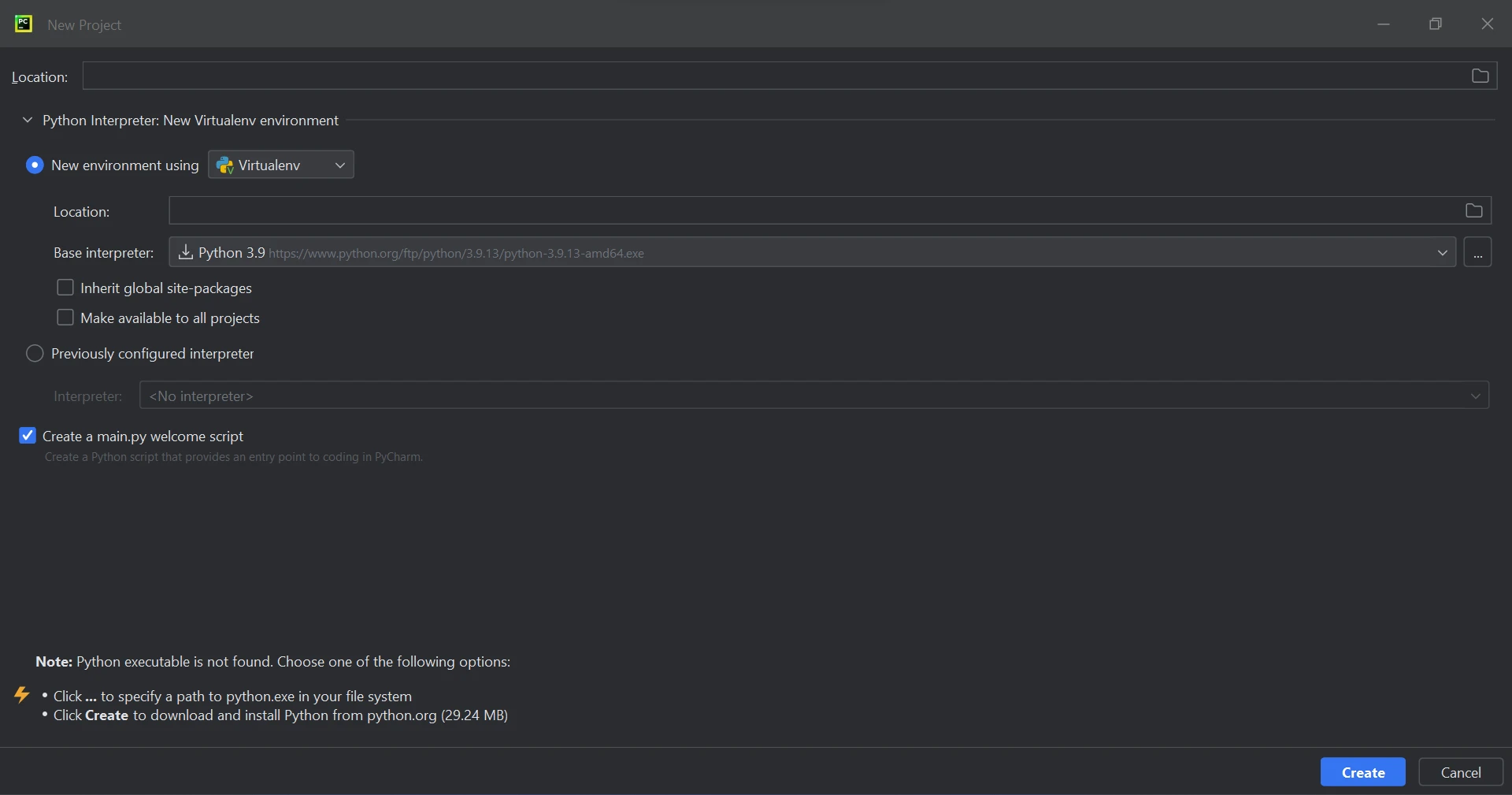 Create a new Python project in PyCharm
After selecting the project's location and environment route, click the Create button to initiate a new project. In the newly opened window, you can enter your code in a Python file. This tutorial utilizes Python 3.9.
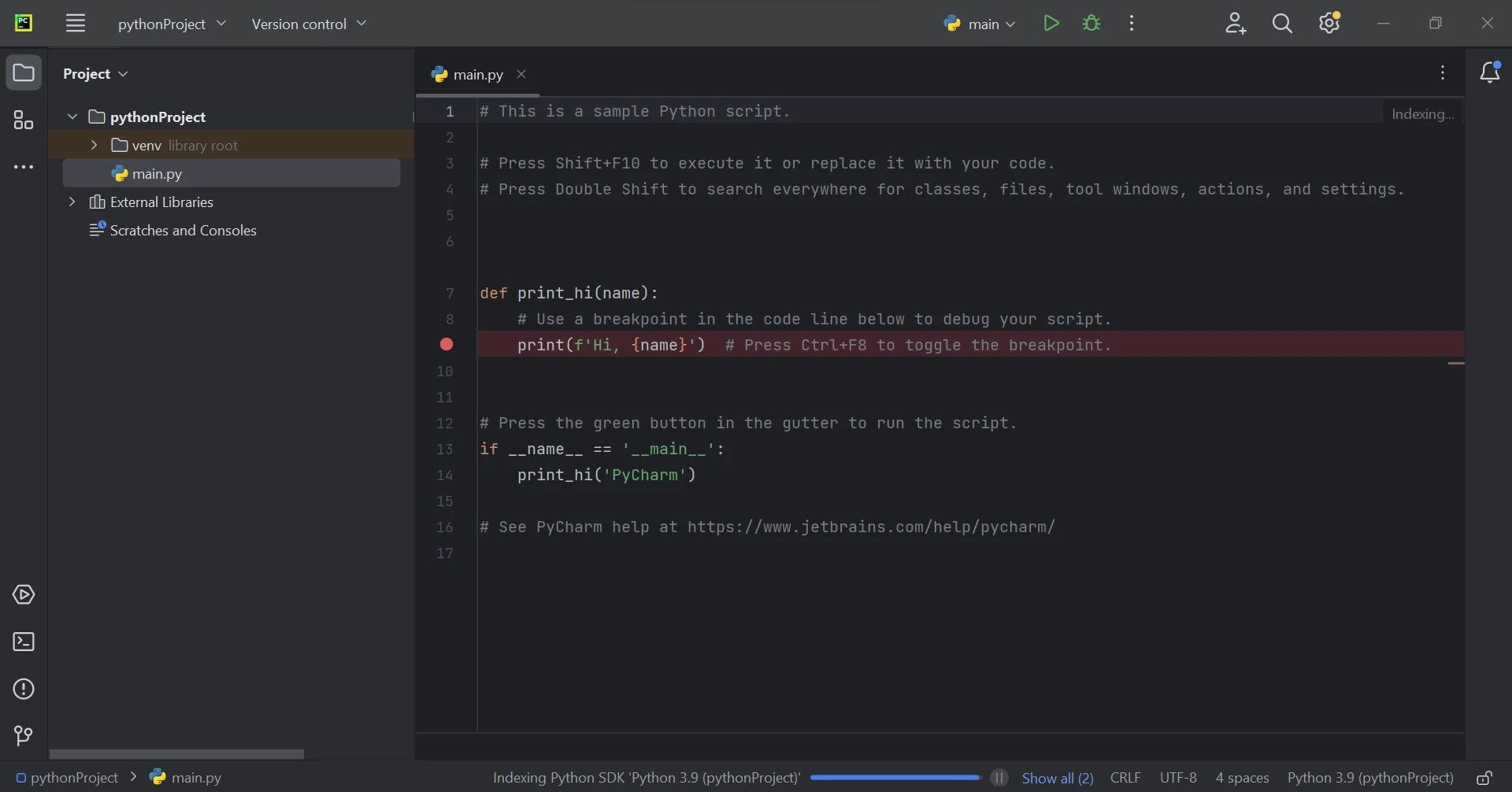 The main Python file
IronPDF Library Requirement
IronPDF in Python utilizes .NET. Therefore, it is necessary to have the .NET Runtime installed on your machine in order to use IronPDF for Python. This comes pre-installed on Windows, but Linux and Mac users may need to install .NET before using this Python package.
IronPDF Library Setup
In order to be able to generate, modify, and open files with the ".pdf" extension, the ironpdf package must be installed. Open a terminal window and enter the following command to install the package in PyCharm:
pip install ironpdf
The ironpdf package has been installed, as shown in the screenshot below.
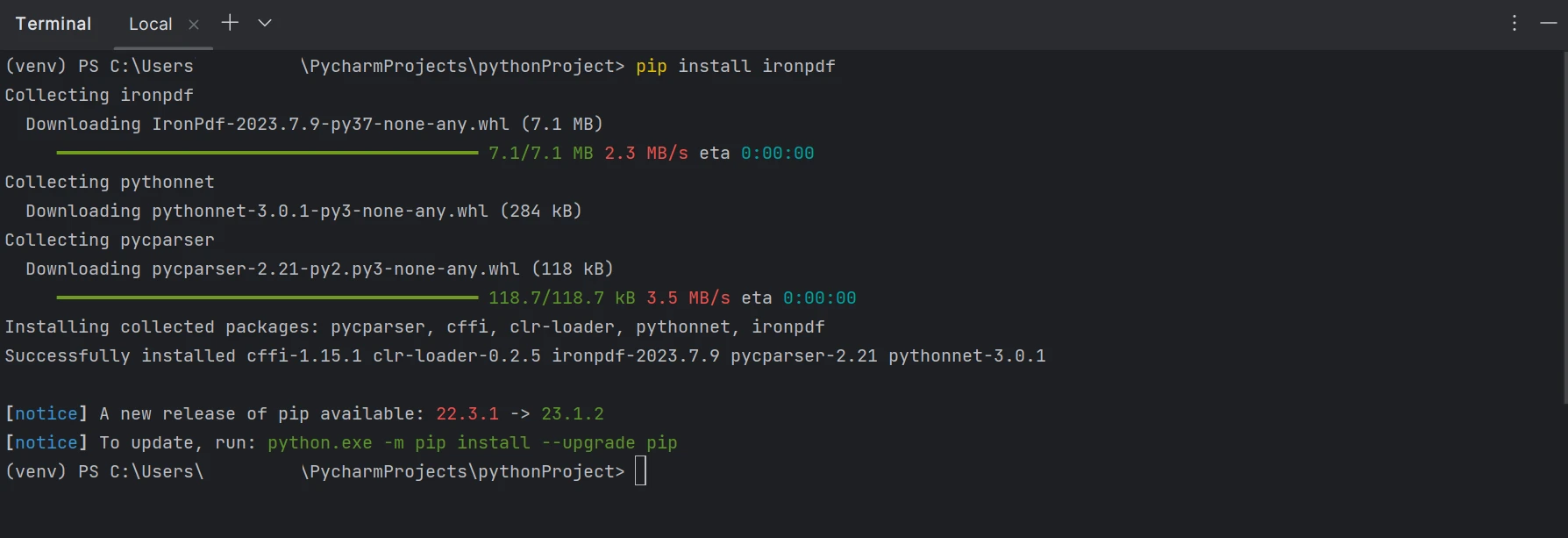 Install the IronPDF package
Creating PDF/A from PDF Document
With the assistance of the IronPDF library, creating a PDF/A document is a straightforward process. These files are designed to store information for long-term preservation. Below is an example code snippet for converting a PDF file to a PDF/A file:
from ironpdf import PdfDocument, PdfAVersions

# Load an existing PDF file
pdf = PdfDocument.FromFile("sample.pdf")

# Save it as a PDF/A file, specifying the desired version
pdf.SaveAsPdfA("Converted_pdfa.pdf", PdfAVersions.PdfA3)
from ironpdf import PdfDocument, PdfAVersions
# Load an existing PDF file
pdf = PdfDocument.FromFile("sample.pdf")
# Save it as a PDF/A file, specifying the desired version
pdf.SaveAsPdfA("Converted_pdfa.pdf", PdfAVersions.PdfA3)The above code demonstrates how to convert PDF files to PDF/A format using just a few lines of Python code with the assistance of IronPDF. In the initial step, we import the necessary classes from the IronPDF library, which allows access to all the features provided by IronPDF, particularly through the PdfDocument class.
By using the FromFile method, the input PDF file is loaded by specifying its file path as a parameter. The PdfDocument object provides the SaveAsPdfA method, which allows you to save and convert the PDF file into the PDF/A format. The SaveAsPdfA method requires two parameters: the new save file location and the PDF/A version. The PDF/A version parameter is optional, and if not specified, it will default to PdfAVersions.PdfA3.
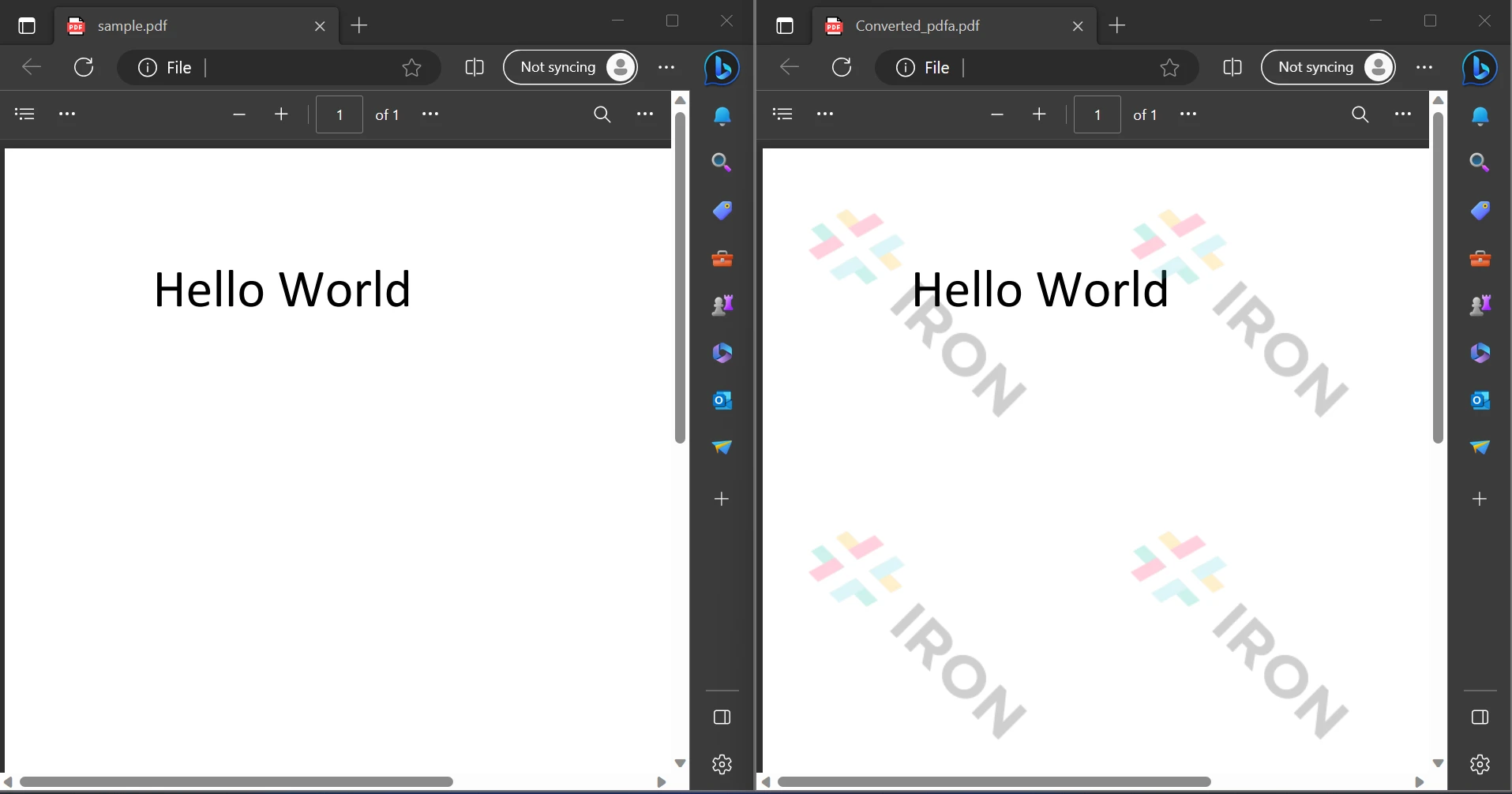 The output PDF file
In the output, both the source file and the created PDF/A file are displayed. However, the watermark can be removed by using the licensed version of the software. For more detailed tutorials and information, you can click on the following tutorial for HTML to PDF converter.
Conclusion
To enhance data security and minimize potential risks, the IronPDF library offers robust security features. It is compatible with all major web browsers and is not limited to any particular one. With just a few lines of code, programmers can easily create and read PDF files using IronPDF. The library provides a range of licensing options to cater to developers' diverse needs, including a free developer license and additional development licenses available for purchase.
The Lite package, priced at $799, includes a perpetual license, a 30-day money-back guarantee, one year of software support, and upgrade options. There are no additional fees following the initial purchase. These licenses are suitable for development, staging, and production environments. In addition, IronPDF offers free licenses with certain time and redistribution restrictions. Users have the opportunity to try the software in a real-world setting with a free trial period, during which no watermarks are applied. Please click the following licensing page for additional information about IronPDF's trial price and licensing.
자주 묻는 질문
Python에서 PDF 파일을 PDF/A 형식으로 변환하려면 어떻게 해야 하나요?
IronPDF를 사용하여 Python에서 PDF 파일을 PDF/A로 변환하려면 PdfDocument.FromFile 메서드로 PDF를 로드하고 SaveAsPdfA 메서드를 사용하여 PDF/A로 저장하면 됩니다.
Python용 IronPDF를 설정하는 단계는 무엇인가요?
Python용 IronPDF를 설정하려면 먼저 Python이 설치되어 있는지 확인하세요. 그런 다음 PyCharm과 같은 IDE에서 새 프로젝트를 생성하고 pip install ironpdf를 사용하여 IronPDF를 설치합니다. .NET 런타임이 시스템에 설치되어 있는지 확인합니다.
IronPDF를 사용하여 Python에서 그래픽 사용자 인터페이스를 만들 수 있나요?
예, IronPDF를 Python과 통합하여 Python의 동적 기능과 사용 편의성을 활용하여 그래픽 사용자 인터페이스를 만들 수 있습니다.
IronPDF는 PDF 조작을 위해 어떤 추가 기능을 제공하나요?
IronPDF는 대화형 PDF 생성, PDF 파일 병합 및 분할, 텍스트 및 이미지 추출, 머리글 및 바닥글과 같은 주석 추가와 같은 기능을 제공합니다.
IronPDF는 Python 웹 개발에 적합한가요?
예, IronPDF는 Python 웹 개발에서 사용할 수 있으며, Django, Flask, Pyramid와 같은 프레임워크와 통합하여 웹 애플리케이션을 향상시킬 수 있습니다.
IronPDF를 사용하려면 특정 환경 설정이 필요하나요?
IronPDF에는 Python과 .NET 런타임이 필요합니다. Windows에서는 일반적으로 .NET 런타임이 사전 설치되어 있지만 Linux 또는 Mac 시스템에서는 설치가 필요할 수 있습니다.
라이선스를 구매하지 않고 IronPDF를 테스트하려면 어떻게 해야 하나요?
라이선스를 구매하기 전에 워터마크 없이 기능을 살펴볼 수 있는 무료 평가판을 사용하여 IronPDF를 테스트할 수 있습니다.
Python과 함께 IronPDF를 사용하는 데 권장되는 개발 환경은 무엇인가요?
PyCharm은 Python 개발을 포괄적으로 지원하기 때문에 Python과 함께 IronPDF를 사용하는 데 권장되는 IDE입니다.
Python에서 IronPDF를 사용하여 HTML 파일을 PDF로 변환하려면 무엇이 필요하나요?
IronPDF를 사용하면 HTML 콘텐츠를 로드하고 라이브러리에서 제공하는 변환 방법을 사용하여 HTML 파일을 PDF로 변환할 수 있습니다.
Python에서 IronPDF를 사용하여 PDF에 주석을 달 수 있나요?
예, IronPDF를 사용하면 북마크, 워터마크 등과 같은 요소를 추가하여 PDF에 주석을 달아 문서의 사용성을 향상시킬 수 있습니다.










 무료로 시작하세요
 무료로 시작하세요
 무료 라이브 데모 예약하기



 신용카드나 계정 생성은 필요하지 않습니다.









