

Python에서 PDF 파일을 파싱하는 방법

1.0 Introduction
Modern libraries have streamlined PDF creation. When choosing a library for PDF projects, consider build, read, and conversion capabilities for optimal integration and performance. Python offers tools like IronPDF that can efficiently parse existing PDFs.
2.0 IronPDF
Python is a programming language that enables developers to quickly and easily construct graphical user interfaces. It offers greater dynamism for programmers compared to other languages. Therefore, integrating the IronPDF library with Python is a straightforward process.
To rapidly and securely build a fully functional GUI, developers can utilize several pre-installed tools, including PyQt, wxWidgets, Kivy, and many other packages and libraries. It is worth noting that IronPDF is not a pure Python PDF library; instead, it allows the inclusion of various features from other frameworks like .NET Core.
IronPDF simplifies Python web design and development, particularly due to the popularity of Python web development paradigms such as Django, Flask, and Pyramid. Notable websites and online services, including Reddit, Mozilla, and Spotify, have utilized these frameworks. You can learn more about Python in IronPDF on the IronPDF for Python website.
2.1 Features of IronPDF
- IronPDF is capable of generating PDF files from various sources, including HTML, HTML5, ASPX, and Razor/MVC View. It provides functionality to create PDFs from HTML pages and images.
- The IronPDF toolkit offers a range of tools for tasks such as creating interactive PDFs, filling and submitting interactive forms, split and combine PDF files, extract text and images from PDF files, search for certain words within a PDF file, rasterize PDF pages to images, convert PDF to HTML.
- With support for user-agents, proxies, cookies, HTTP headers, and shape variables, IronPDF allows HTML login form validation.
- Access to protected documents in IronPDF is granted through the use of usernames and passwords.
- IronPDF helps generate PDF files and print with just a few lines of code from various sources like strings, streams, URLs, etc.
3.0 Setup Python
3.1 Environment Setup
Ensure that Python is installed on your PC. Visit the official Python website to download and install the latest version of Python suitable for your operating system. Once Python is installed, set up a virtual environment to isolate the dependencies for your project. Use the "venv" module to create and manage virtual environments, providing your conversion project with a clean and independent workspace.
3.2 New Project in PyCharm
We're going to use PyCharm, an IDE for writing Python code, for this demonstration.
Click "New Project" after launching the PyCharm IDE.
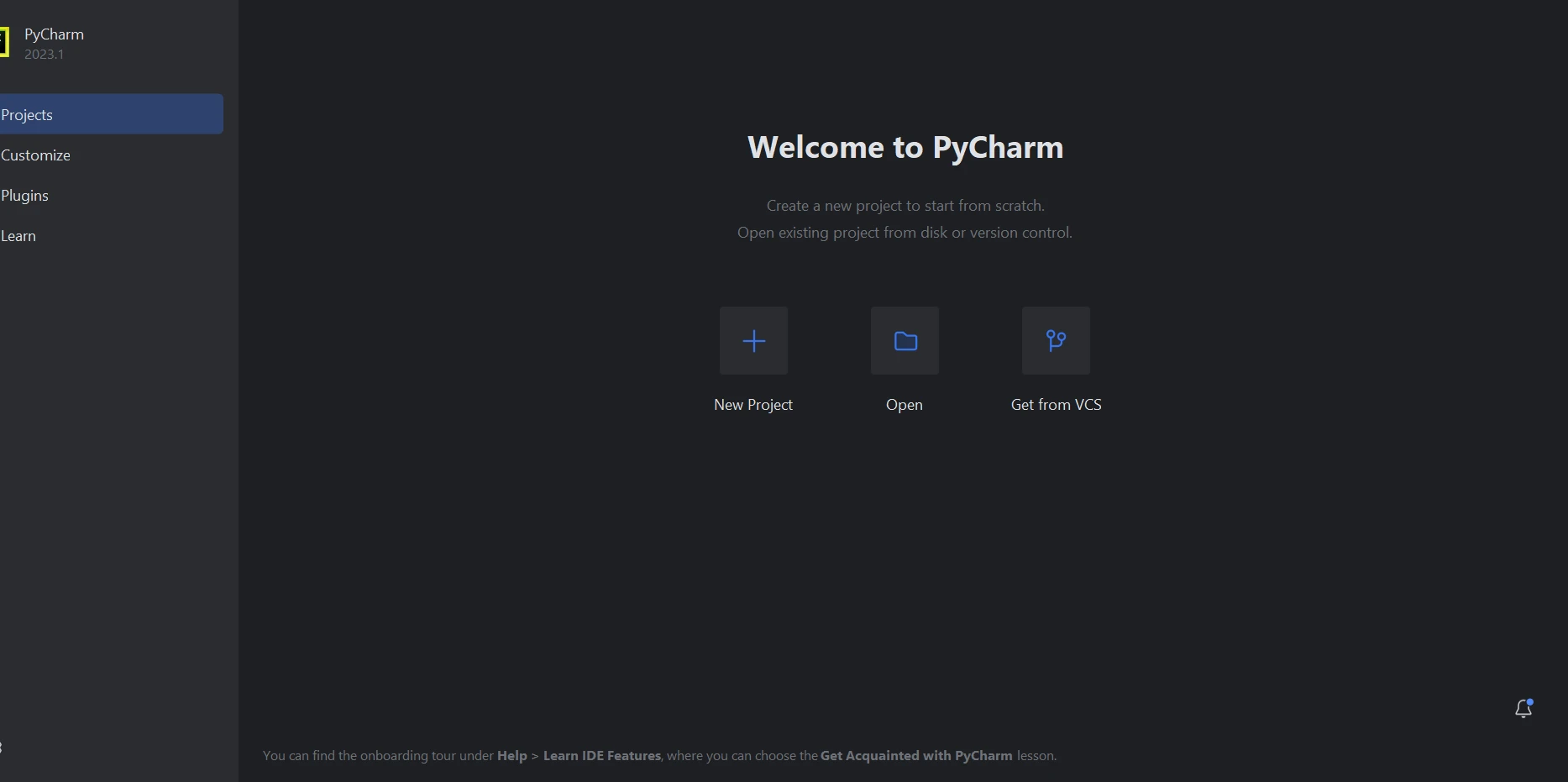 The PyCharm welcome screen
When you select "New Project", a new window will emerge, allowing you to specify the project's location and its environment. This new window can be seen in the screenshot below.
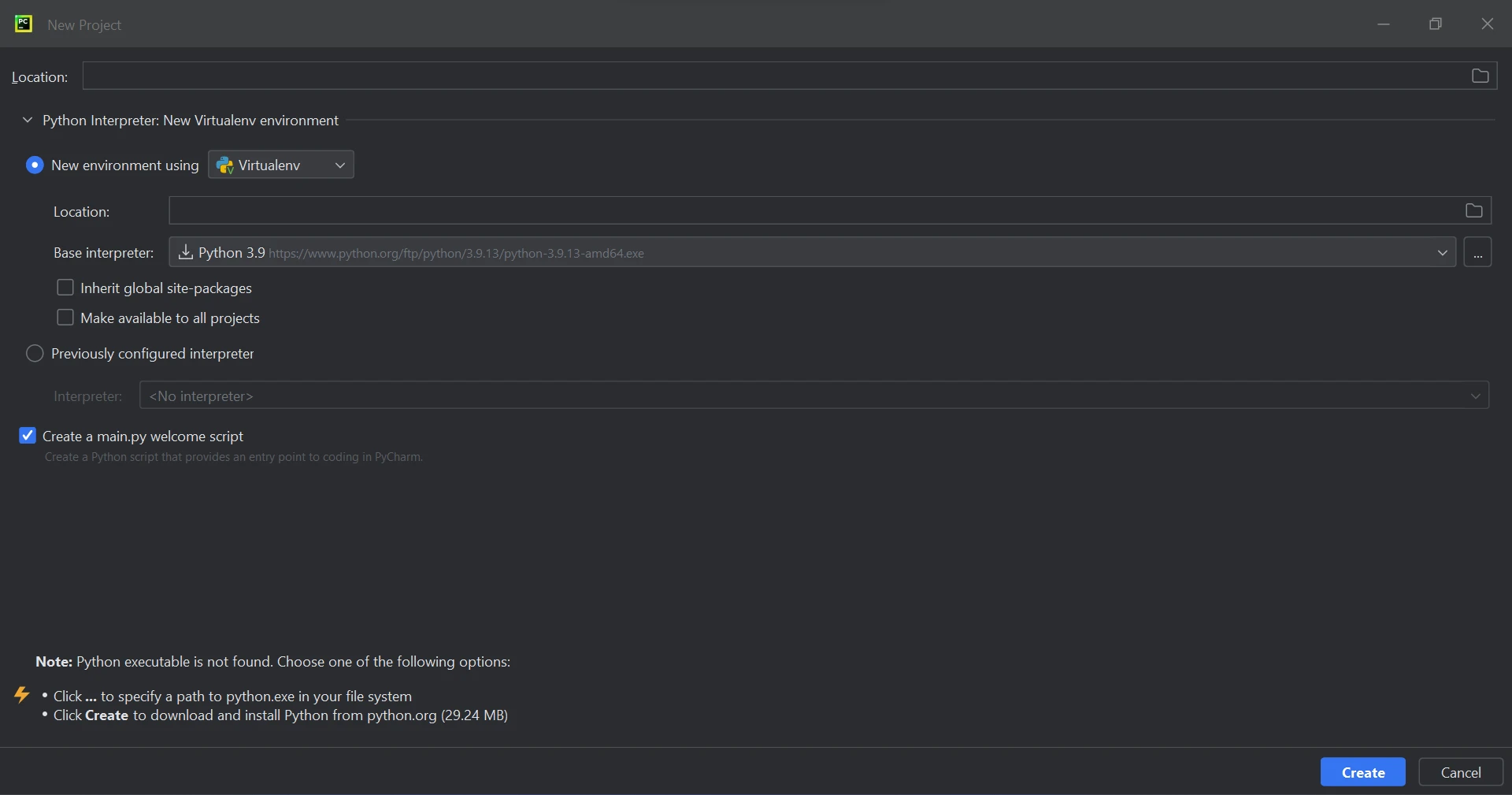 The new project screen in PyCharm
Click the Create button to start a new project, after setting the Project location and environment path. This will open a new window where the program can be developed. This tutorial recommended Python 3.9.
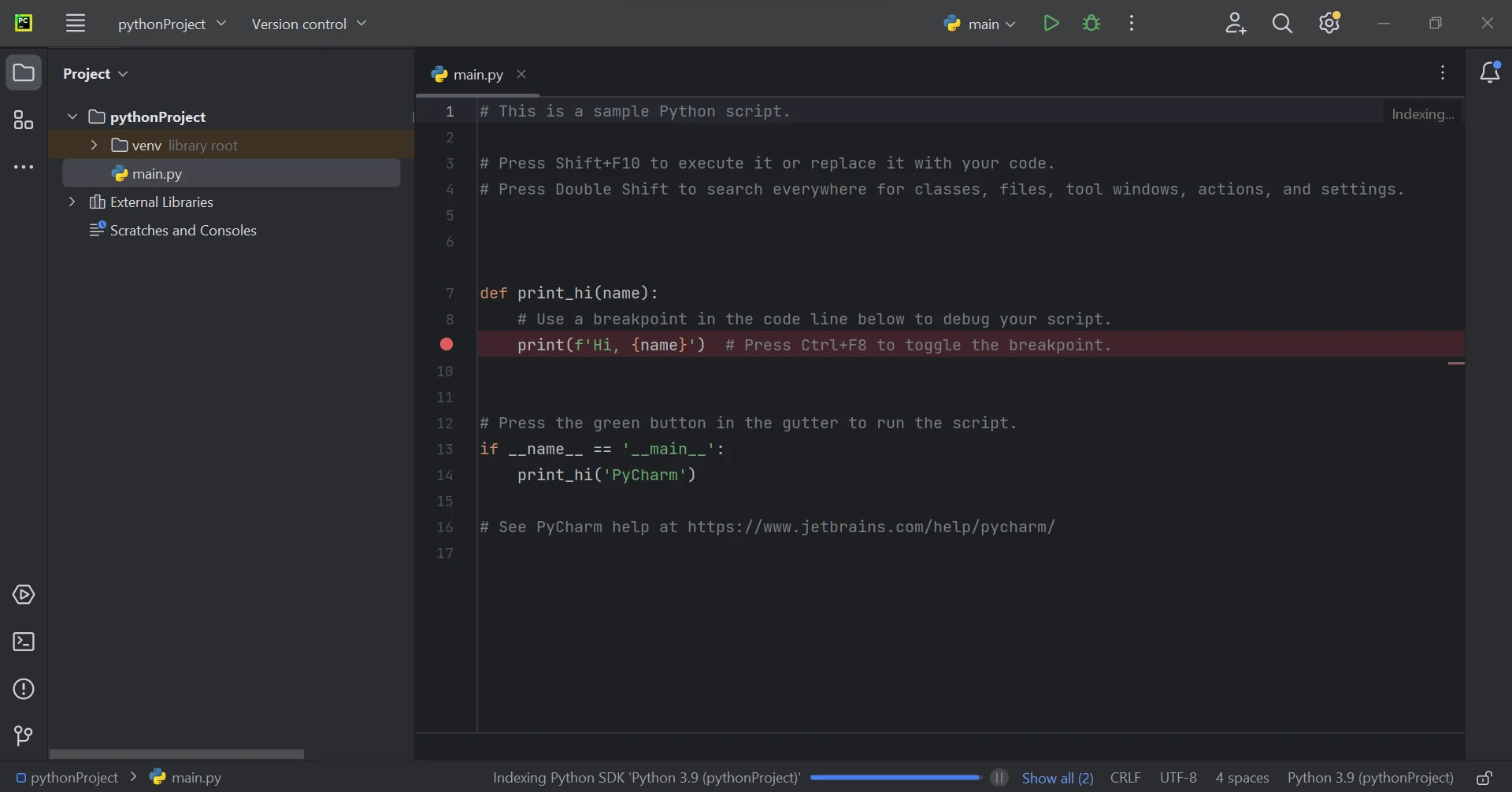 A main file opened in PyCharm
3.3 IronPDF Library Requirement
IronPDF, a Python library, relies primarily on .NET 6.0. As a result, to make use of IronPDF for Python, your PC has to have the .NET 6.0 runtime installed. Before Linux and Mac users may use this Python module, .NET may need to be installed. You can obtain the required runtime environment from the .NET website.
3.4 IronPDF Library Setup
The "ironpdf" package needs to be installed in order to create, edit, and open files with the ".pdf" extension. To install the package in PyCharm, open a terminal window and type the following command:
pip install ironpdfpip install ironpdfThe screenshot underneath shows the setup of the 'ironpdf' package.
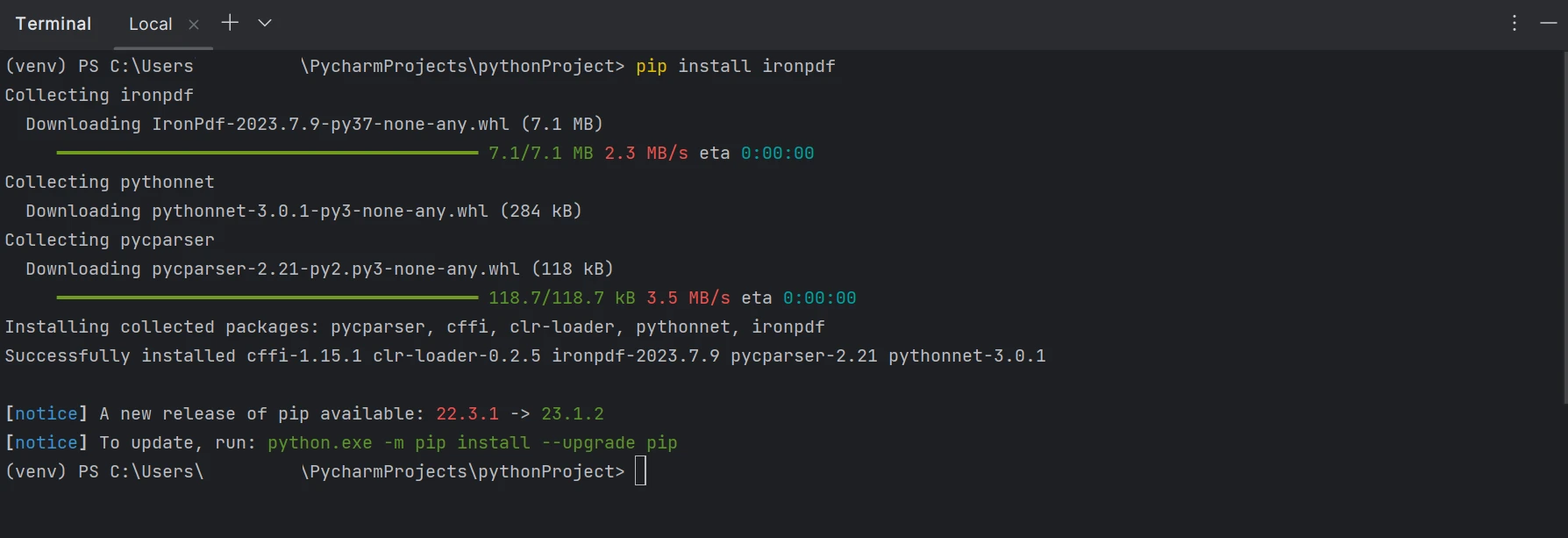 A terminal showing the installation of IronPDF using pip
4.0 Parse PDF with IronPDF
With the assistance of the IronPDF libraries, it is possible to extract text from PDF files. IronPDF provides various techniques for text extraction. The first approach involves retrieving all the content on the page as a single string. The second approach involves reading the content page by page, starting from the first page. The following code snippet demonstrates a pattern for inspecting current PDF files using IronPDF.
There are two methods available to extract data from a PDF:
- Extracting from the PDF by page.
- Extracting the whole PDF as text.
Below is the PDF file which we're going to use for this article. It has two pages.
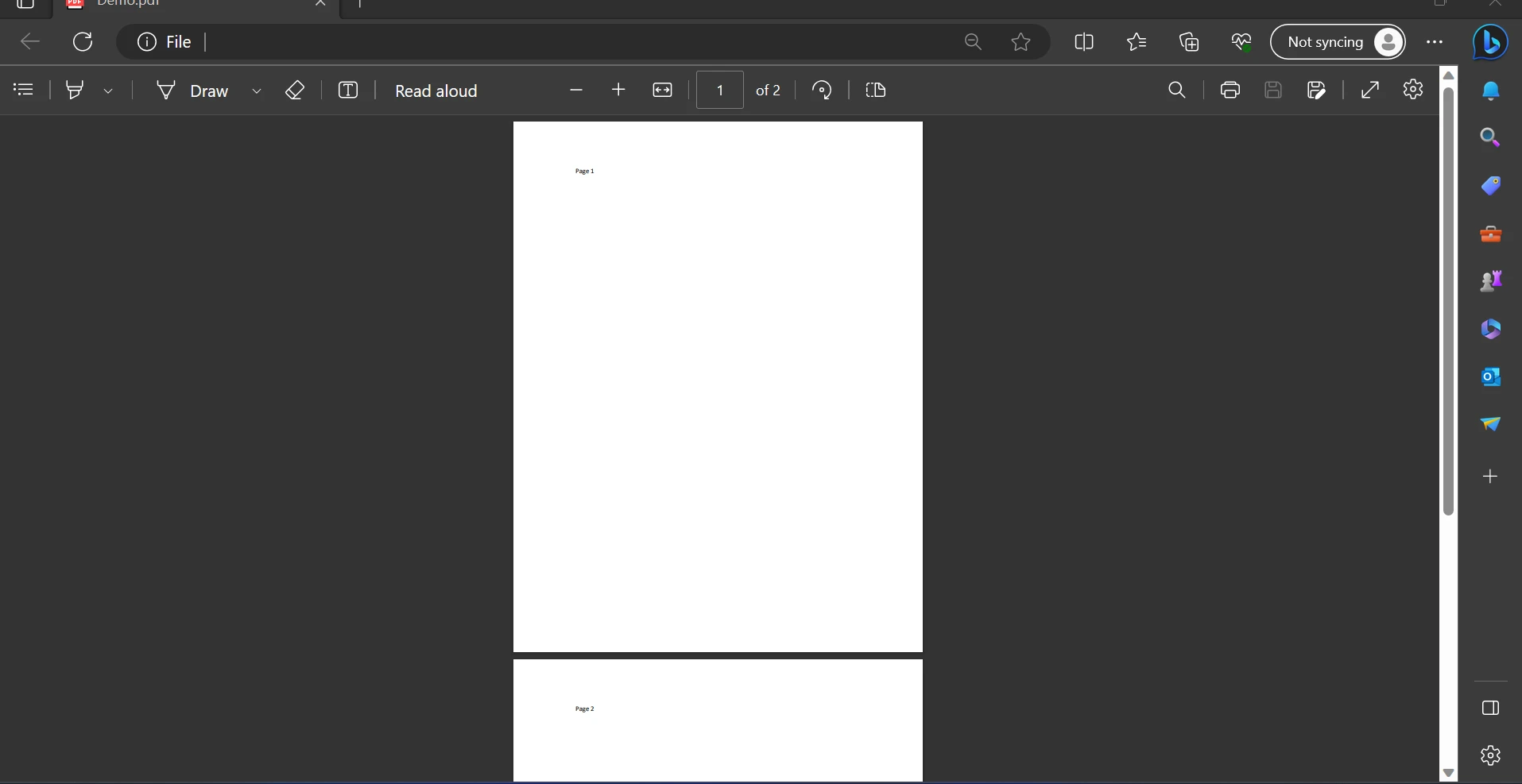 A PDF with the page number at the top of each page
4.0.1 TEXT EXTRACTION BY PAGES
The sample code provided below demonstrates how to use the page number to retrieve data from a PDF file.
from ironpdf import PdfDocument

# Open a PDF file and create a PDF document object
pdfDocument = PdfDocument.FromFile("F:\\PDF\\1.pdf")

# Extract text from the first page (index 0)
AllText = pdfDocument.ExtractTextFromPage(0)

# Print the extracted text from the first page
print(AllText)
from ironpdf import PdfDocument
# Open a PDF file and create a PDF document object
pdfDocument = PdfDocument.FromFile("F:\\PDF\\1.pdf")
# Extract text from the first page (index 0)
AllText = pdfDocument.ExtractTextFromPage(0)
# Print the extracted text from the first page
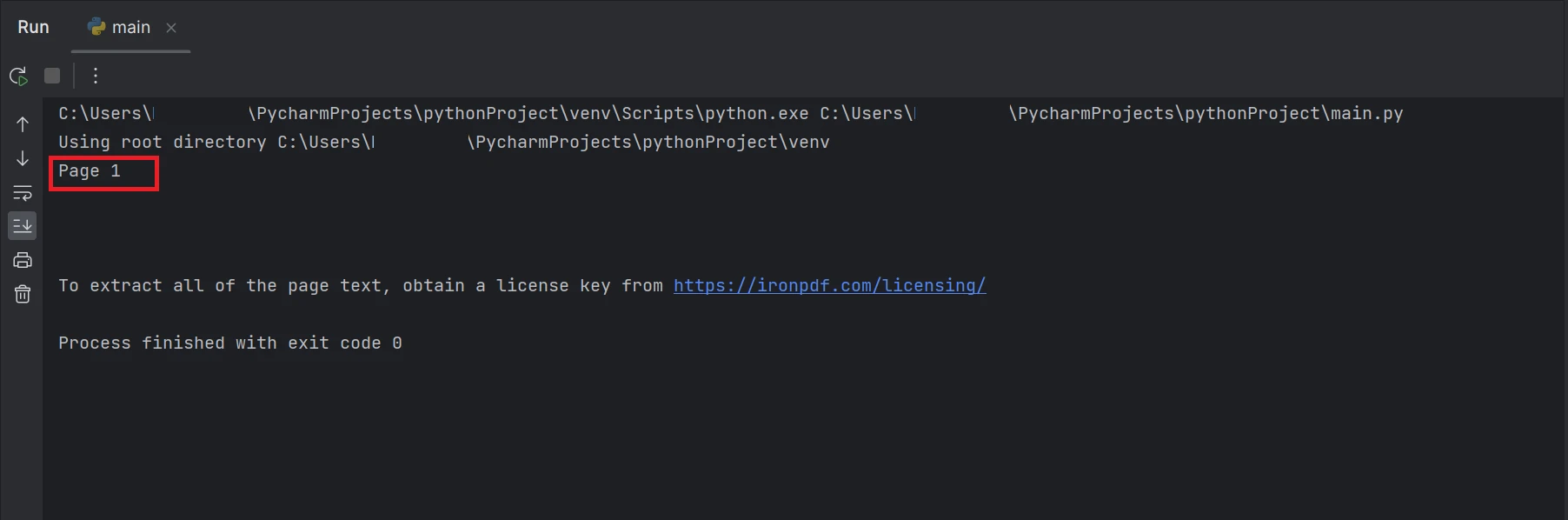
print(AllText)The code snippet demonstrates the usage of the FromFile function to read a PDF file and create a PDF document object. This object allows access to texts and images within the PDF. To extract the text from a particular page, the ExtractTextFromPage method can be used by providing the page number as a parameter. This method will return a string containing all the words on the specified page. The output will be displayed as below.
 A screenshot of the terminal with text output "Page 1"
The rectangle box which highlighted in the result is the data extracted text from the PDF file on the page number 1, which has the index as 0.
4.0.2 EXTRACT FROM ALL PAGE
The first approach to quickly and easily obtain all the PDF content as a string is shown in the code example that follows.
from ironpdf import PdfDocument

# Create a PDF file object from the file path
pdf = PdfDocument.FromFile('F:\\PDF\\1.pdf')

# Extract all text from the entire PDF
all_text = pdf.ExtractAllText()

# Print the extracted text from the entire PDF
print(all_text)
from ironpdf import PdfDocument
# Create a PDF file object from the file path
pdf = PdfDocument.FromFile('F:\\PDF\\1.pdf')
# Extract all text from the entire PDF
all_text = pdf.ExtractAllText()
# Print the extracted text from the entire PDF
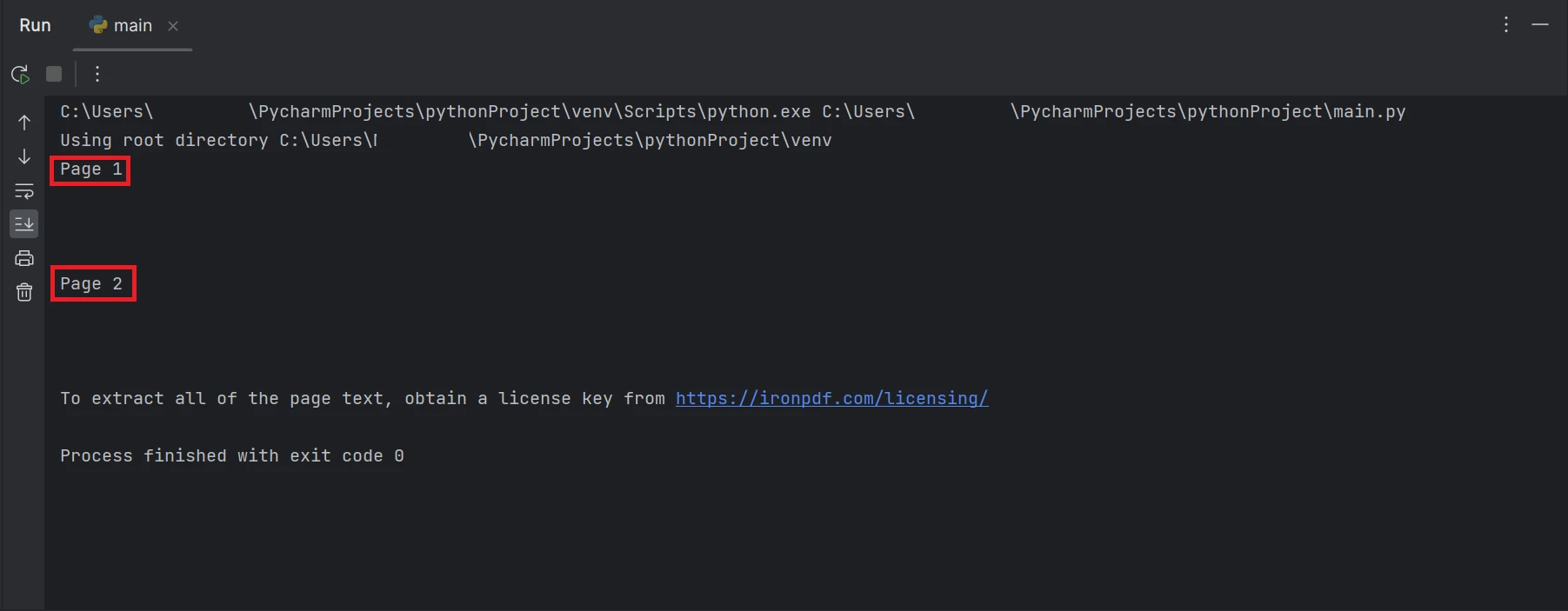
print(all_text)The example code shown above explains how to read a PDF from an existing file path and turn it into a PDF file object using the FromFile function. The PDF's plain text will be extracted and converted into a string using the object's ExtractAllText function and it will print the extracted text on the terminal. The result will be shown like below.
 A screenshot of the terminal with text output "Page 1", and "Page 2"
The rectangle boxes which are highlighted in the result contain the data extracted text from all the pages of the PDF file.
We are able to create PDFs using C# with the help of IronPDF. To learn more about IronPDF, visit the IronPDF website.
5.0 Conclusion
To minimize risks and ensure data protection, the IronPDF library provides strong security measures. It is compatible with all commonly used browsers and is not limited to any one. IronPDF enables programmers to easily create and read PDF files with just a few lines of code. To accommodate the various needs of developers, the IronPDF library provides a variety of licensing options, including a free developer license and additional development licenses that are available for purchase.
The $799 Lite package comes with a perpetual license, a 30-day money-back guarantee, a year of software support, and upgrade possibilities. Beyond the first purchase, there are no extra charges. Production, staging, and development environments all make use of these licenses. IronPDF also offers free licenses with a few time and redistribution limitations. During the free trial period, users can test the product in actual use without a watermark. For further details on the cost and licensing of IronPDF's trial version, please visit the IronPDF licensing page.
자주 묻는 질문
Python을 사용하여 PDF 문서를 파싱하려면 어떻게 해야 하나요?
IronPDF를 사용하여 Python에서 PDF 문서를 파싱할 수 있습니다. 이 라이브러리를 사용하면 PDF 문서 객체를 생성하고 ExtractTextFromPage와 같은 메서드를 사용하여 특정 페이지에서 텍스트를 추출하거나 ExtractAllText와 같은 메서드를 사용하여 전체 문서에서 텍스트를 추출할 수 있습니다.
Python 환경에서 IronPDF를 실행하기 위한 전제 조건은 무엇인가요?
Python 환경에서 IronPDF를 실행하려면 .NET 6.0 런타임이 시스템에 설치되어 있어야 하는데, 이는 IronPDF가 작동을 위해 .NET에 의존하기 때문입니다.
IronPDF는 널리 사용되는 Python 웹 프레임워크와 함께 사용할 수 있나요?
예, IronPDF는 장고, 플라스크, 파이라미드 등 널리 사용되는 Python 웹 프레임워크와 원활하게 통합되어 웹 개발 프로젝트를 위한 다목적 도구로 사용할 수 있습니다.
Python 가상 환경에 IronPDF를 어떻게 설치하나요?
Python 가상 환경에 IronPDF를 설치하려면 먼저 Python이 설치되어 있는지 확인하고 가상 환경을 만듭니다. IDE의 터미널에서 pip install ironpdf 명령을 사용하여 패키지를 설치합니다.
Python 개발자를 위한 IronPDF의 주요 기능은 무엇인가요?
IronPDF는 HTML, 이미지, 문자열 및 스트림에서 PDF 생성, 대화형 PDF 생성, 양식 채우기, PDF 분할 및 결합, 텍스트 및 이미지 추출과 같은 기능을 제공합니다.
IronPDF는 다른 운영 체제와 호환되나요?
예, IronPDF는 다양한 운영 체제와 호환됩니다. 그러나 Linux 및 Mac 사용자는 Python 모듈을 사용하려면 시스템에 .NET이 설치되어 있는지 확인해야 합니다.
IronPDF에는 어떤 라이선스 옵션을 사용할 수 있나요?
IronPDF는 제한이 있는 무료 개발자 라이선스와 영구 라이선스 및 30일 환불 보장이 포함된 유료 Lite 패키지 등 다양한 라이선스 옵션을 제공합니다. 이러한 옵션은 개발 요구 사항에 따라 유연성을 제공합니다.
PyCharm에서 새 IronPDF 프로젝트를 설정하려면 어떻게 해야 하나요?
PyCharm에서 새 IronPDF 프로젝트를 설정하려면 IDE를 열고 '새 프로젝트'를 클릭한 다음 프로젝트의 위치 및 환경을 구성합니다. PyCharm의 터미널을 사용하여 pip install ironpdf로 IronPDF를 설치합니다.
IronPDF는 PDF 문서의 보안을 어떻게 보장하나요?
IronPDF는 PDF 문서의 안전과 무결성을 보장하는 강력한 보안 조치를 통합하여 PDF 처리가 필요한 애플리케이션에 신뢰할 수 있는 선택이 될 수 있습니다.
IronPDF를 사용하여 PDF에서 이미지를 추출할 수 있나요?
예, 문서 개체에 액세스하고 적절한 방법을 사용하여 이미지 데이터를 검색하여 PDF에서 이미지를 추출하는 데 IronPDF를 사용할 수 있습니다.










 무료로 시작하세요
 무료로 시작하세요
 무료 라이브 데모 예약하기



 신용카드나 계정 생성은 필요하지 않습니다.









