

Python PdfWriter(코드 예제 튜토리얼)

IronPDF is a pure Python PDF file object library for Python developers looking to write PDF files or manipulate PDF files within their applications. IronPDF stands out for its simplicity and versatility, making it an ideal choice for tasks that require automated PDF creation or integrating PDF generation into software systems.
This guide will explore how IronPDF, a pure Python PDF library, can be used for creating PDF files or PDF page attributes and reading PDF files. It will include examples and practical code snippets, giving you a hands-on understanding of how to use IronPDF for Python's PdfWriter in your Python projects to write PDF files and create a new PDF page.
Setting Up IronPDF
Installation
To start using IronPDF, you'll need to install it via the Python Package Index. Run the following command in the terminal:
pip install ironpdf
Writing PDF Files and Manipulating PDF Files
Creating a New PDF
IronPDF simplifies the process of creating new PDF files and working on existing PDFs. It provides a straightforward interface for generating documents, whether a simple one-page PDF or a more complex document with various elements such as user passwords. This functionality is vital for tasks like report generation, creating invoices, and much more.
from ironpdf import ChromePdfRenderer, License, Logger

# Set the IronPDF license key
License.LicenseKey = "Your-License-Key"
# Enable logging for debugging purposes
Logger.EnableDebugging = True
Logger.LogFilePath = "Custom.log"
Logger.LoggingMode = Logger.LoggingModes.All

# Basic HTML content for the PDF
html = """
<html>
   <head>
      <title>IronPDF for Python!</title>
      <link rel='stylesheet' href='assets/style.css'>
   </head>
   <body>
      # It's IronPDF World!!
      <a href="https://ironpdf.com/python/"><img src='assets/logo.png' /></a>
   </body>
</html>
"""

# Create a PDF renderer
renderer = ChromePdfRenderer()
# Render the HTML content as a PDF
pdf = renderer.RenderHtmlAsPdf(html)
# Save the rendered PDF to a file
pdf.SaveAs("New PDF File.pdf")
from ironpdf import ChromePdfRenderer, License, Logger
# Set the IronPDF license key
License.LicenseKey = "Your-License-Key"
# Enable logging for debugging purposes
Logger.EnableDebugging = True
Logger.LogFilePath = "Custom.log"
Logger.LoggingMode = Logger.LoggingModes.All
# Basic HTML content for the PDF
html = """
<html>
<head>
<title>IronPDF for Python!</title>
<link rel='stylesheet' href='assets/style.css'>
</head>
<body>
# It's IronPDF World!!
<a href="https://ironpdf.com/python/"><img src='assets/logo.png' /></a>
</body>
</html>
"""
# Create a PDF renderer
renderer = ChromePdfRenderer()
# Render the HTML content as a PDF
pdf = renderer.RenderHtmlAsPdf(html)
# Save the rendered PDF to a file
pdf.SaveAs("New PDF File.pdf")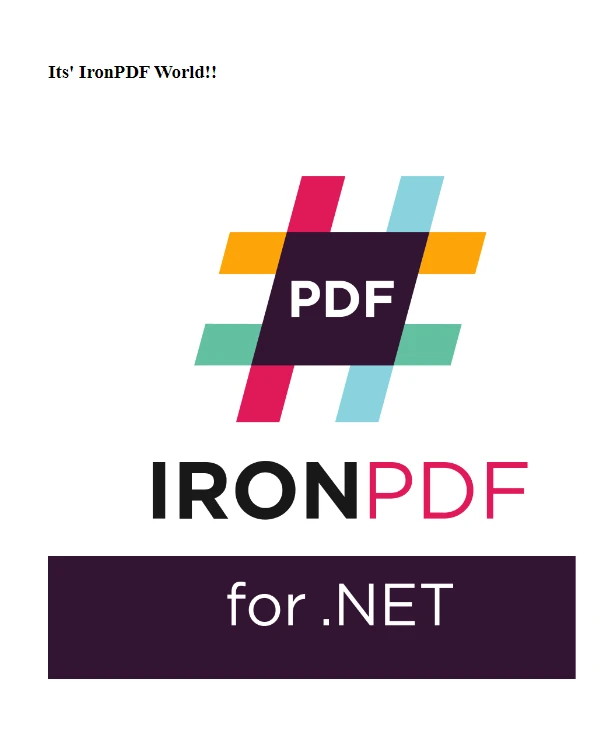 Output File
Merging PDF Files
IronPDF simplifies the task of combining several PDF files into one. This feature is beneficial for aggregating various reports, assembling scanned documents, or organizing information that belongs together. For instance, you might need to merge PDF files when creating a comprehensive report from multiple sources or when you have a series of documents that need to be presented as a single file.
from ironpdf import PdfDocument, License, Logger

# Set the IronPDF license key
License.LicenseKey = "Your-License-Key"
# Enable logging for debugging purposes
Logger.EnableDebugging = True
Logger.LogFilePath = "Custom.log"
Logger.LoggingMode = Logger.LoggingModes.All

# Load existing PDF documents
pdfOne = PdfDocument("Report First.pdf")
pdfTwo = PdfDocument("Report Second.pdf")
# Merge the PDFs into a single document
merged = PdfDocument.Merge(pdfOne, pdfTwo)
# Save the merged PDF
merged.SaveAs("Merged.pdf")
from ironpdf import PdfDocument, License, Logger
# Set the IronPDF license key
License.LicenseKey = "Your-License-Key"
# Enable logging for debugging purposes
Logger.EnableDebugging = True
Logger.LogFilePath = "Custom.log"
Logger.LoggingMode = Logger.LoggingModes.All
# Load existing PDF documents
pdfOne = PdfDocument("Report First.pdf")
pdfTwo = PdfDocument("Report Second.pdf")
# Merge the PDFs into a single document
merged = PdfDocument.Merge(pdfOne, pdfTwo)
# Save the merged PDF
merged.SaveAs("Merged.pdf")The ability to merge existing PDF files into a new PDF file can also be useful in fields like data science, where a consolidated PDF document could serve as a dataset for training an AI module. IronPDF handles this task effortlessly, maintaining the integrity and formatting of each page from the original documents, resulting in a seamless and coherent output PDF file.
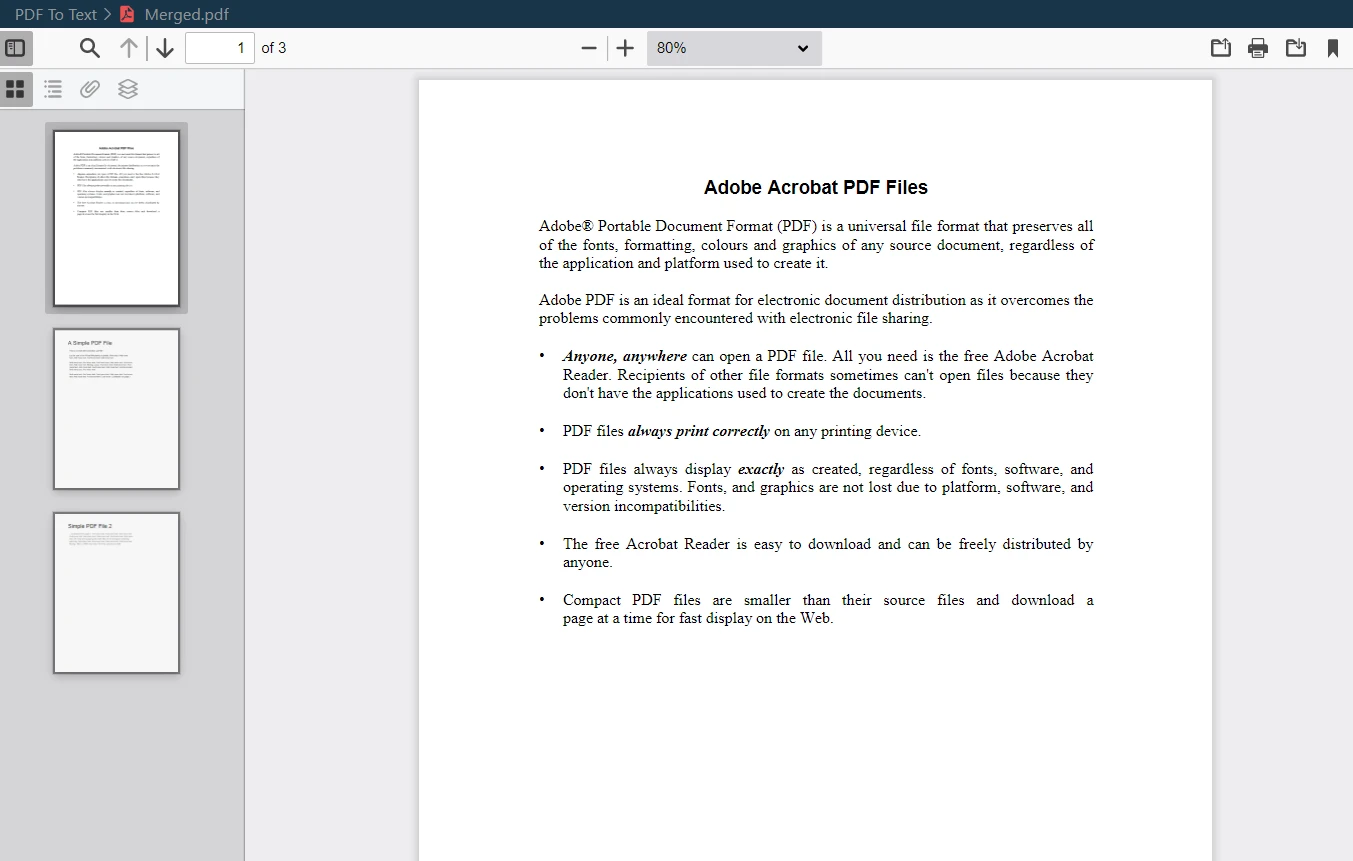 Merged PDF Output
Splitting a Single PDF
Conversely, IronPDF also excels at dividing an existing PDF file into multiple new files. This function is handy when you need to extract specific sections from a substantial PDF document or when dividing a document into smaller, more manageable parts.
from ironpdf import PdfDocument, License, Logger

# Set the IronPDF license key
License.LicenseKey = "Your-License-Key"
# Enable logging for debugging purposes
Logger.EnableDebugging = True
Logger.LogFilePath = "Custom.log"
Logger.LoggingMode = Logger.LoggingModes.All

# Load the PDF document
pdf = PdfDocument("Report.pdf")
# Extract the first page
page1doc = pdf.CopyPage(0)
# Save the extracted page as a new PDF
page1doc.SaveAs("Split1.pdf")
from ironpdf import PdfDocument, License, Logger
# Set the IronPDF license key
License.LicenseKey = "Your-License-Key"
# Enable logging for debugging purposes
Logger.EnableDebugging = True
Logger.LogFilePath = "Custom.log"
Logger.LoggingMode = Logger.LoggingModes.All
# Load the PDF document
pdf = PdfDocument("Report.pdf")
# Extract the first page
page1doc = pdf.CopyPage(0)
# Save the extracted page as a new PDF
page1doc.SaveAs("Split1.pdf")For example, you might want to isolate certain PDF pages from a large report or create individual documents from different chapters of a book. IronPDF lets you select the desired multiple pages to convert into a new PDF file, ensuring you can manipulate and manage your PDF content as needed.
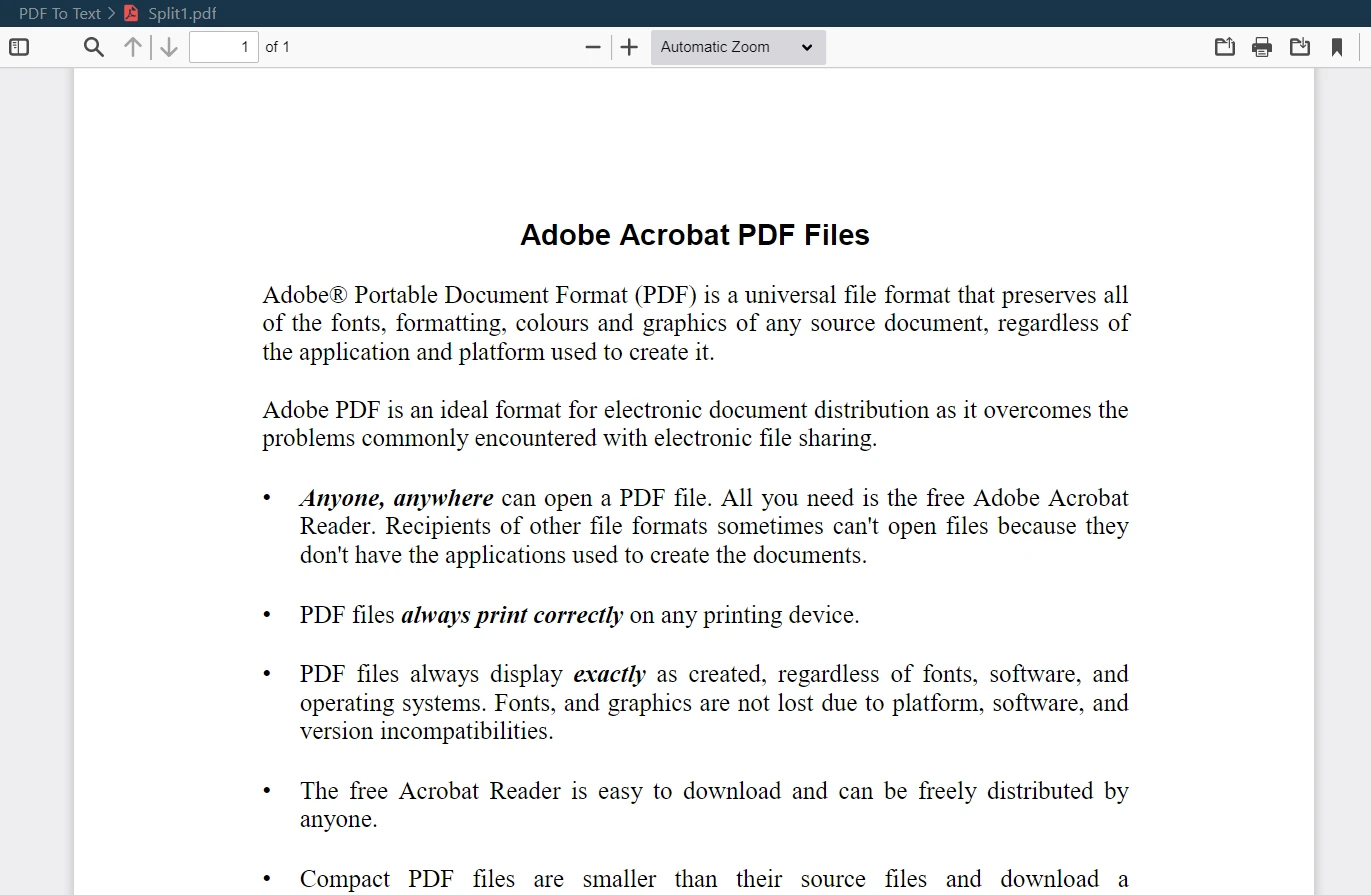 Split PDF Output
Implementing Security Features
Securing your PDF documents becomes a top priority when dealing with sensitive or confidential information. IronPDF addresses this need by offering robust security features, including user password protection and encryption. This ensures that your PDF files remain secure and accessible only to authorized users.
from ironpdf import PdfDocument, License, Logger

# Set the IronPDF license key
License.LicenseKey = "Your-License-Key"
# Enable logging for debugging purposes
Logger.EnableDebugging = True
Logger.LogFilePath = "Custom.log"
Logger.LoggingMode = Logger.LoggingModes.All

# Load the PDF document
pdf = PdfDocument("Report.pdf")
# Adjust security settings to make the PDF read-only and set permissions
pdf.SecuritySettings.RemovePasswordsAndEncryption()
pdf.SecuritySettings.MakePdfDocumentReadOnly("secret-key")
pdf.SecuritySettings.AllowUserAnnotations = False
pdf.SecuritySettings.AllowUserCopyPasteContent = False
pdf.SecuritySettings.AllowUserFormData = False
pdf.SecuritySettings.AllowUserPrinting = PdfPrintSecurity.FullPrintRights
# Set the document encryption passwords
pdf.SecuritySettings.OwnerPassword = "top-secret"  # password to edit the PDF
pdf.SecuritySettings.UserPassword = "sharable"  # password to open the PDF
# Save the secured PDF
pdf.SaveAs("secured.pdf")
from ironpdf import PdfDocument, License, Logger
# Set the IronPDF license key
License.LicenseKey = "Your-License-Key"
# Enable logging for debugging purposes
Logger.EnableDebugging = True
Logger.LogFilePath = "Custom.log"
Logger.LoggingMode = Logger.LoggingModes.All
# Load the PDF document
pdf = PdfDocument("Report.pdf")
# Adjust security settings to make the PDF read-only and set permissions
pdf.SecuritySettings.RemovePasswordsAndEncryption()
pdf.SecuritySettings.MakePdfDocumentReadOnly("secret-key")
pdf.SecuritySettings.AllowUserAnnotations = False
pdf.SecuritySettings.AllowUserCopyPasteContent = False
pdf.SecuritySettings.AllowUserFormData = False
pdf.SecuritySettings.AllowUserPrinting = PdfPrintSecurity.FullPrintRights
# Set the document encryption passwords
pdf.SecuritySettings.OwnerPassword = "top-secret" # password to edit the PDF
pdf.SecuritySettings.UserPassword = "sharable" # password to open the PDF
# Save the secured PDF
pdf.SaveAs("secured.pdf")By implementing user passwords, you can control who can view or edit your PDF documents. Encryption options add an extra layer of security, safeguarding your data against unauthorized access and making IronPDF a reliable choice for managing sensitive information in PDF format.
Extracting Text from PDFs
Another critical feature of IronPDF is its ability to extract text from PDF documents. This functionality is particularly useful for data retrieval, content analysis, or even for repurposing text content from existing PDFs into new documents.
from ironpdf import PdfDocument, License, Logger

# Set the IronPDF license key
License.LicenseKey = "Your-License-Key"
# Enable logging for debugging purposes
Logger.EnableDebugging = True
Logger.LogFilePath = "Custom.log"
Logger.LoggingMode = Logger.LoggingModes.All

# Load the PDF document
pdf = PdfDocument("Report.pdf")
# Extract all text from the PDF document
allText = pdf.ExtractAllText()
# Extract text from a specific page in the document
specificPage = pdf.ExtractTextFromPage(3)
from ironpdf import PdfDocument, License, Logger
# Set the IronPDF license key
License.LicenseKey = "Your-License-Key"
# Enable logging for debugging purposes
Logger.EnableDebugging = True
Logger.LogFilePath = "Custom.log"
Logger.LoggingMode = Logger.LoggingModes.All
# Load the PDF document
pdf = PdfDocument("Report.pdf")
# Extract all text from the PDF document
allText = pdf.ExtractAllText()
# Extract text from a specific page in the document
specificPage = pdf.ExtractTextFromPage(3)Whether you're extracting data for analysis, searching for specific information within a large document, or transitioning content from PDF to text files for further processing, IronPDF makes it straightforward and efficient. The library ensures that the extracted text maintains its original formatting and structure, making it immediately usable for your specific needs.
Managing Document Information
Efficient management of PDFs extends beyond their content. IronPDF allows for effectively managing document metadata and properties such as the author's name, document title, creation date, and more. This capability is vital for organizing and cataloging your PDF documents, particularly in environments where document provenance and metadata are important.
from ironpdf import PdfDocument, License, Logger
from datetime import datetime

# Set the IronPDF license key
License.LicenseKey = "Your-License-Key"
# Enable logging for debugging purposes
Logger.EnableDebugging = True
Logger.LogFilePath = "Custom.log"
Logger.LoggingMode = Logger.LoggingModes.All

# Load an existing PDF or create a new one
pdf = PdfDocument("Report.pdf")
# Edit file metadata
pdf.MetaData.Author = "Satoshi Nakamoto"
pdf.MetaData.Keywords = "SEO, Friendly"
pdf.MetaData.ModifiedDate = datetime.now()
# Save the PDF with updated metadata
pdf.SaveAs("MetaData Updated.pdf")
from ironpdf import PdfDocument, License, Logger
from datetime import datetime
# Set the IronPDF license key
License.LicenseKey = "Your-License-Key"
# Enable logging for debugging purposes
Logger.EnableDebugging = True
Logger.LogFilePath = "Custom.log"
Logger.LoggingMode = Logger.LoggingModes.All
# Load an existing PDF or create a new one
pdf = PdfDocument("Report.pdf")
# Edit file metadata
pdf.MetaData.Author = "Satoshi Nakamoto"
pdf.MetaData.Keywords = "SEO, Friendly"
pdf.MetaData.ModifiedDate = datetime.now()
# Save the PDF with updated metadata
pdf.SaveAs("MetaData Updated.pdf")For instance, in an academic or corporate setting, being able to track the creation date and authorship of documents can be essential for record-keeping and document retrieval purposes. IronPDF makes managing this information easy, providing a streamlined way to handle and update document information within your Python applications.
Conclusion
 License
This tutorial has covered the basics of using IronPDF in Python for PDF manipulation. From creating new PDF files to merging existing ones, and adding security features, IronPDF is a versatile tool for any Python developer.
IronPDF for Python also offers the following features:
- Create new PDF file from scratch using HTML or URL
- Editing existing PDF files
- Rotate PDF pages
- Extract text, metadata, and images from PDF files
- Secure PDF files with passwords and restrictions
- Split and merge PDFs
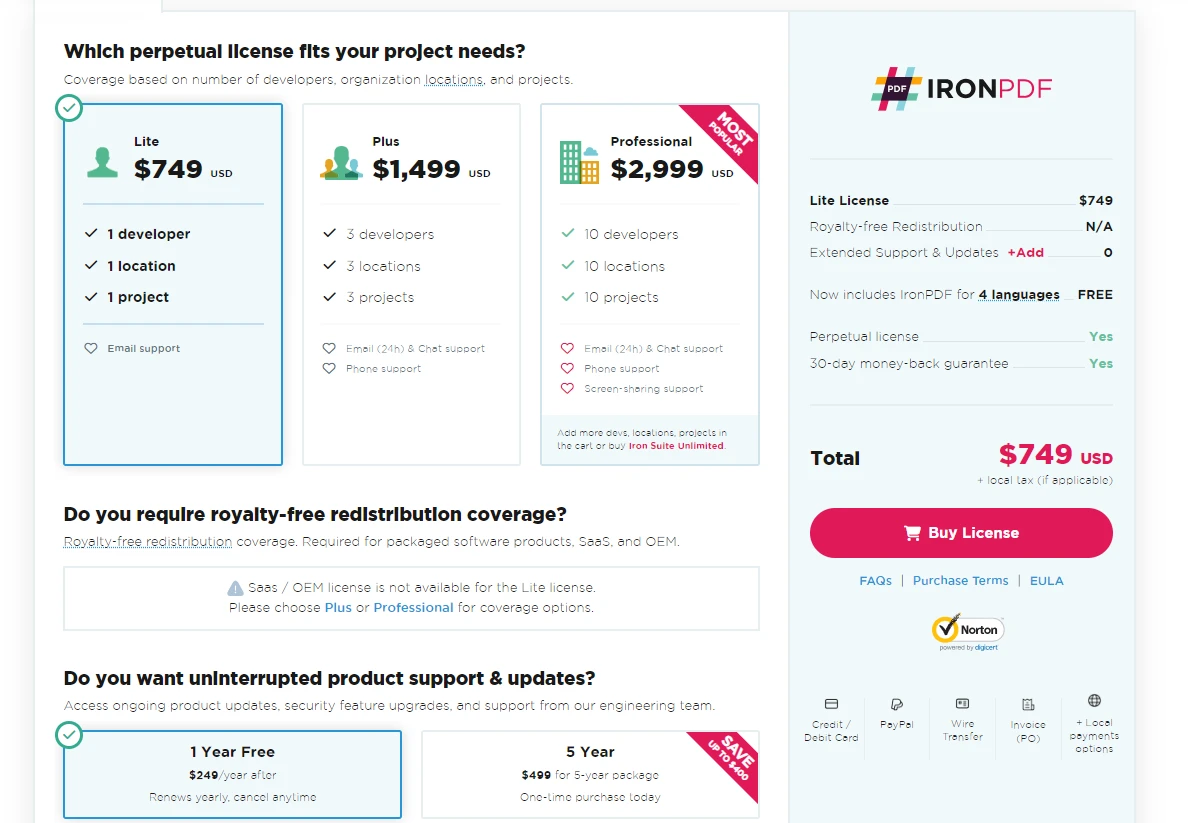
IronPDF for Python offers a free trial for users to explore its features. For continued use beyond the trial, licenses start at $799. This pricing allows developers to utilize the full range of IronPDF's capabilities in their projects.
자주 묻는 질문
Python으로 PDF 파일을 만들려면 어떻게 해야 하나요?
IronPDF의 CreatePdf 메서드를 사용하여 새 PDF 파일을 생성할 수 있습니다. 이 메서드를 사용하면 Python을 사용하여 사용자 지정 PDF 문서를 처음부터 만들 수 있습니다.
Python용 IronPDF를 설치하는 단계는 무엇인가요?
Python용 IronPDF를 설치하려면 다음 명령을 실행하여 Python 패키지 색인을 사용할 수 있습니다: pip install ironpdf.
Python을 사용하여 여러 PDF를 하나로 병합하려면 어떻게 해야 하나요?
IronPDF는 여러 PDF 파일을 병합하는 기능을 제공합니다. MergePdfFiles 메서드를 사용하여 여러 PDF를 하나의 문서로 결합할 수 있습니다.
IronPDF로 PDF를 여러 페이지로 분할할 수 있나요?
예, IronPDF는 PDF를 개별 페이지 또는 섹션으로 분할하여 각 부분에 대해 별도의 파일을 생성할 수 있는 SplitPdf 기능을 제공합니다.
IronPDF는 PDF에 대해 어떤 보안 기능을 지원하나요?
IronPDF는 비밀번호 보호 및 암호화를 비롯한 여러 보안 기능을 지원하여 PDF 파일을 안전하게 보호하고 권한이 있는 사용자만 액세스할 수 있도록 합니다.
Python으로 PDF 문서에서 텍스트를 추출하려면 어떻게 해야 하나요?
IronPDF를 사용하면 데이터 검색 및 분석에 유용한 ExtractText 메서드를 사용하여 PDF 문서에서 텍스트를 쉽게 추출할 수 있습니다.
IronPDF에서 제공하는 주요 PDF 조작 기능은 무엇인가요?
IronPDF를 사용하면 PDF를 생성, 병합 및 분할하고, 보안 조치를 적용하고, 텍스트를 추출하고, 작성자 이름 및 생성 날짜와 같은 문서 메타데이터를 관리할 수 있습니다.
IronPDF 무료 평가판이 있으며 어떻게 이용할 수 있나요?
예, IronPDF는 무료 평가판을 제공합니다. 평가판 기간 동안 기능을 살펴볼 수 있으며, 평가판 종료 후에도 계속 사용할 수 있도록 라이선스를 구매할 수 있습니다.
Python 프로젝트에서 IronPDF의 실제 사용 사례는 무엇인가요?
IronPDF는 다양한 Python 프로젝트에서 보고서를 생성하고, 송장을 만들고, 문서를 보호하고, PDF 메타데이터를 관리하는 데 이상적입니다.
IronPDF를 사용하여 PDF 메타데이터를 관리하려면 어떻게 해야 하나요?
IronPDF를 사용하면 문서 정리 및 카탈로그 작성에 중요한 작성자 이름, 문서 제목, 작성 날짜 등 PDF 메타데이터를 관리할 수 있습니다.










 무료로 시작하세요
 무료로 시작하세요
 무료 라이브 데모 예약하기



 신용카드나 계정 생성은 필요하지 않습니다.









