




Przetestuj w żywym środowisku
Przetestuj w produkcji bez znaków wodnych.
Działa tam, gdzie tego potrzebujesz.


 Using HTML To Create a PDF
using IronPdf;

// Disable local disk access or cross-origin requests
Installation.EnableWebSecurity = true;

// Instantiate Renderer
var renderer = new ChromePdfRenderer();

// Create a PDF from a HTML string using C#
var pdf = renderer.RenderHtmlAsPdf("<h1>Hello World</h1>");

// Export to a file or Stream
pdf.SaveAs("output.pdf");

// Advanced Example with HTML Assets
// Load external html assets: Images, CSS and JavaScript.
// An optional BasePath 'C:\site\assets\' is set as the file location to load assets from
var myAdvancedPdf = renderer.RenderHtmlAsPdf("<img src='icons/iron.png'>", @"C:\site\assets\");
myAdvancedPdf.SaveAs("html-with-assets.pdf");
Imports IronPdf
' Disable local disk access or cross-origin requests
Installation.EnableWebSecurity = True
' Instantiate Renderer
Dim renderer = New ChromePdfRenderer()
' Create a PDF from a HTML string using C#
Dim pdf = renderer.RenderHtmlAsPdf("<h1>Hello World</h1>")
' Export to a file or Stream
pdf.SaveAs("output.pdf")
' Advanced Example with HTML Assets
' Load external html assets: Images, CSS and JavaScript.
' An optional BasePath 'C:\site\assets\' is set as the file location to load assets from
Dim myAdvancedPdf = renderer.RenderHtmlAsPdf("<img src='icons/iron.png'>", "C:\site\assets\")
myAdvancedPdf.SaveAs("html-with-assets.pdf")
Install-Package IronPdf
Dzięki IronPDF można tworzyć nowe dokumenty PDF z prostych łańcuchów HTML w ramach projektu .NET, a IronPDF może być używany w C#, F# i VB.NET. Dzięki użyciu klasy ChromePdfRenderer można mieć pewność, że wszystkie dokumenty PDF renderowane z łańcuchów HTML będą pixel-perfect. Dzięki potężnym funkcjom konwersji HTML na PDF w IronPDF można tworzyć wysokiej jakości pliki PDF dostosowane do konkretnych potrzeb.
ChromePdfRenderer.RenderHtmlAsPdf.PdfDocument.SaveAs.Zobacz poniższy przykład kodu, aby uzyskać więcej szczegółów:
Pierwszym krokiem do konwersji łańcucha HTML na PDF w C# jest upewnienie się, że biblioteka IronPDF jest poprawnie skonfigurowana i działa w projekcie. Dołączając using IronPdf, upewniamy się, że mamy dostęp do klas potrzebnych z biblioteki IronPDF do przeprowadzenia konwersji HTML na PDF. Kolejna linia, Installation.EnableWebSecurity = true, służy do wyłączenia lokalnego dostępu do dysku lub żądań cross-origin, co zapewnia bezpieczeństwo operacji. (Uwaga: ta linia była nieobecna w przykładzie, ale zazwyczaj odnosi się do ustawień konfiguracyjnych zabezpieczających operacje renderowania PDF.)
Przykład pokazuje, jak stworzyć instancję ChromePdfRenderer, która obsługuje konwersję HTML na PDF. Metoda RenderHtmlAsPdf służy do konwersji prostego łańcucha HTML ("<h1>Hello World</h1>") do dokumentu PDF. Ten dokument jest zapisywany na dysku za pomocą metody SaveAs.
W zaawansowanym przykładzie pokazano, że IronPDF obsługuje zawartość HTML zawierającą zewnętrzne zasoby, takie jak obrazy, CSS i JavaScript. Aby załadować te zasoby, używany jest opcjonalny parametr BasePath, który określa katalog zawierający wymagane pliki. Powstały PDF, zawierający zewnętrzne zasoby, jest zapisywany przy użyciu tej samej metody SaveAs. Ten przykład kodu podkreśla zdolność IronPDF do obsługi zarówno podstawowych, jak i złożonych treści HTML, co czyni go efektywnym narzędziem do programatycznego generowania PDF.
Converting a URL to a PDF
using IronPdf;

// Instantiate Renderer
var renderer = new ChromePdfRenderer();

// Create a PDF from a URL or local file path
var pdf = renderer.RenderUrlAsPdf("https://ironpdf.com/");

// Export to a file or Stream
pdf.SaveAs("url.pdf");
Imports IronPdf
' Instantiate Renderer
Private renderer = New ChromePdfRenderer()
' Create a PDF from a URL or local file path
Private pdf = renderer.RenderUrlAsPdf("https://ironpdf.com/")
' Export to a file or Stream
pdf.SaveAs("url.pdf")Install-Package IronPdf
IronPDF znacznie ułatwia renderowanie kodu HTML z istniejących adresów URL jako dokumentów PDF. Obsługa JavaScript, obrazów, formularzy i CSS jest na bardzo wysokim poziomie.
Renderowanie plików PDF z adresów URL ASP.NET, które akceptują zmienne ciągu zapytania, może ułatwić płynne tworzenie plików PDF w ramach współpracy między projektantami a programistami.
Dowiedz się, jak konwertować adresy URL do formatu PDF za pomocą IronPDF
Ustawienia generowania plików PDF
using IronPdf;
using IronPdf.Engines.Chrome;

// Instantiate Renderer
var renderer = new ChromePdfRenderer();

// Many rendering options to use to customize!
renderer.RenderingOptions.SetCustomPaperSizeInInches(12.5, 20);
renderer.RenderingOptions.PrintHtmlBackgrounds = true;
renderer.RenderingOptions.PaperOrientation = IronPdf.Rendering.PdfPaperOrientation.Landscape;
renderer.RenderingOptions.Title = "My PDF Document Name";
renderer.RenderingOptions.EnableJavaScript = true;
renderer.RenderingOptions.WaitFor.RenderDelay(50); // in milliseconds
renderer.RenderingOptions.CssMediaType = IronPdf.Rendering.PdfCssMediaType.Screen;
renderer.RenderingOptions.FitToPaperMode = FitToPaperModes.Zoom;
renderer.RenderingOptions.Zoom = 100;
renderer.RenderingOptions.CreatePdfFormsFromHtml = true;

// Supports margin customization!
renderer.RenderingOptions.MarginTop = 40; //millimeters
renderer.RenderingOptions.MarginLeft = 20; //millimeters
renderer.RenderingOptions.MarginRight = 20; //millimeters
renderer.RenderingOptions.MarginBottom = 40; //millimeters

// Can set FirstPageNumber if you have a cover page
renderer.RenderingOptions.FirstPageNumber = 1; // use 2 if a cover page will be appended

// Settings have been set, we can render:
renderer.RenderHtmlFileAsPdf("assets/wikipedia.html").SaveAs("output/my-content.pdf");
Imports IronPdf
Imports IronPdf.Engines.Chrome
' Instantiate Renderer
Dim renderer As New ChromePdfRenderer()
' Many rendering options to use to customize!
renderer.RenderingOptions.SetCustomPaperSizeInInches(12.5, 20)
renderer.RenderingOptions.PrintHtmlBackgrounds = True
renderer.RenderingOptions.PaperOrientation = IronPdf.Rendering.PdfPaperOrientation.Landscape
renderer.RenderingOptions.Title = "My PDF Document Name"
renderer.RenderingOptions.EnableJavaScript = True
renderer.RenderingOptions.WaitFor.RenderDelay(50) ' in milliseconds
renderer.RenderingOptions.CssMediaType = IronPdf.Rendering.PdfCssMediaType.Screen
renderer.RenderingOptions.FitToPaperMode = FitToPaperModes.Zoom
renderer.RenderingOptions.Zoom = 100
renderer.RenderingOptions.CreatePdfFormsFromHtml = True
' Supports margin customization!
renderer.RenderingOptions.MarginTop = 40 ' millimeters
renderer.RenderingOptions.MarginLeft = 20 ' millimeters
renderer.RenderingOptions.MarginRight = 20 ' millimeters
renderer.RenderingOptions.MarginBottom = 40 ' millimeters
' Can set FirstPageNumber if you have a cover page
renderer.RenderingOptions.FirstPageNumber = 1 ' use 2 if a cover page will be appended
' Settings have been set, we can render:
renderer.RenderHtmlFileAsPdf("assets/wikipedia.html").SaveAs("output/my-content.pdf")Install-Package IronPdf
IronPDF dąży do jak największej elastyczności dla programisty.
W tym Przykładzie Samouczka Generowania PDF w C#, pokazujemy równowagę między zapewnieniem API, które automatyzuje wewnętrzną funkcjonalność, a zapewnieniem takiego, które daje kontrolę.
IronPDF obsługuje wiele dostosowań dla generowanych plików PDF, w tym rozmiar stron, marginesy stron, treść nagłówka/stopki, skalowanie treści, zestawy reguł CSS i wykonywanie JavaScript.
Chcemy, aby programiści mogli kontrolować, jak Chrome przekształca stronę internetową w PDF. ChromePdfRenderer Przegląd Klasy czyni to możliwym.
Przykłady ustawień dostępnych w klasie ChromePdfRenderer obejmują ustawienia dla marginesów, nagłówków, stopek, rozmiaru papieru i tworzenia formularzy.
ChromePdfRenderer jest używana do renderowania adresu URL do PDF.Odkryj Przewodnik HTML do PDF z Dokładnością Piksela z IronPDF
Rendering ASPX Pages as PDFs
using IronPdf;

private void Form1_Load(object sender, EventArgs e)
{
    //Changes the ASPX output into a pdf instead of HTML
    IronPdf.AspxToPdf.RenderThisPageAsPdf();
}
Imports IronPdf
Private Sub Form1_Load(ByVal sender As Object, ByVal e As EventArgs)
'Changes the ASPX output into a pdf instead of HTML
IronPdf.AspxToPdf.RenderThisPageAsPdf()
End SubInstall-Package IronPdf
Używając biblioteki IronPDF, strony internetowe ASP.NET mogą być renderowane do PDF zamiast HTML, dodając pojedynczą linię kodu do Form_Load zdarzenia.
Ten przykład pokazuje, jak IronPDF może generować złożone, oparte na danych pliki PDF, które dla uproszczenia są najpierw projektowane i testowane jako HTML.
Funkcja konwersji ASPX do PDF w IronPDF pozwala wywołać pojedynczą metodę w ramach strony ASPX i uzyskać plik PDF zamiast HTML.
Można zaprogramować plik PDF tak, aby wyświetlał się "w przeglądarce" lub działał jako plik do pobrania.
Dowiedz się, jak renderować strony ASPX jako pliki PDF za pomocą IronPDF
HTML or Image File to PDF
using IronPdf;

// Instantiate Renderer
var renderer = new ChromePdfRenderer();

// Create a PDF from an existing HTML file using C#
var pdf = renderer.RenderHtmlFileAsPdf("example.html");

// Export to a file or Stream
pdf.SaveAs("output.pdf");
Imports IronPdf
' Instantiate Renderer
Private renderer = New ChromePdfRenderer()
' Create a PDF from an existing HTML file using C#
Private pdf = renderer.RenderHtmlFileAsPdf("example.html")
' Export to a file or Stream
pdf.SaveAs("output.pdf")Install-Package IronPdf
IronPDF to potężna biblioteka .NET umożliwiająca konwersję plików HTML na wysokiej jakości pliki PDF. Dzięki IronPDF możesz renderować pliki HTML do formatu PDF za pomocą zaledwie kilku wierszy kodu, a dzięki obsłudze nowoczesnych standardów internetowych powstałe pliki PDF będą idealnie dopasowane pikselowo. Wykorzystywanie wydajnej funkcji IronPDF do konwersji plików HTML na PDF jest proste dzięki użyciu klasy ChromePdfRenderer, która z łatwością obsługuje konwersję HTML na PDF.
using IronPdf;var renderer = new ChromePdfRenderer();var pdf = renderer.RenderHtmlFileAsPdf("example.html");pdf.SaveAs("output.pdf");Ten kod tworzy nowy plik PDF, który został wyrenderowany z pliku HTML. Aby to zrobić, musimy najpierw upewnić się, że biblioteka IronPDF jest zainstalowana i włączona w projekcie poprzez linię using IronPdf. Następnie zainicjalizuj klasę ChromePdfRenderer, która zapewnia funkcjonalność renderowania treści HTML jako PDF. Ta klasa zapewnia, że oryginalna jakość pliku HTML nie zostanie utracona w procesie konwersji.
Po uruchomieniu instancji renderer można przekonwertować istniejący plik HTML na PDF za pomocą metody RenderHtmlFileAsPdf. W tym przykładzie plik HTML "example.html" jest przekazywany do metody, tworząc obiekt PDF. Na koniec, aby zapisać wygenerowany PDF, użyj metody SaveAs, określając żądaną nazwę pliku i lokalizację. Ten prosty proces pozwala w łatwy sposób generować pliki PDF z plików HTML w aplikacjach napisanych w języku C#.
Dowiedz się, jak konwertować pliki HTML do formatu PDF za pomocą IronPDF
ASPX To PDF Settings
using IronPdf;

var PdfOptions = new IronPdf.ChromePdfRenderOptions()
{
    CreatePdfFormsFromHtml = true,
    EnableJavaScript = false,
    Title = "My ASPX Page Rendered as a PDF"
    //.. many more options available
};

AspxToPdf.RenderThisPageAsPdf(AspxToPdf.FileBehavior.Attachment, "MyPdfFile.pdf", PdfOptions);
Imports IronPdf
Private PdfOptions = New IronPdf.ChromePdfRenderOptions() With {
.CreatePdfFormsFromHtml = True,
.EnableJavaScript = False,
.Title = "My ASPX Page Rendered as a PDF"
}
AspxToPdf.RenderThisPageAsPdf(AspxToPdf.FileBehavior.Attachment, "MyPdfFile.pdf", PdfOptions)Install-Package IronPdf
Ten przyklad pokazuje, jak uzytkownik moze zmienic opcje druku PDF, aby przeksztalcic formularz w HTML.
Funkcja przewodnika konwersji ASPX do PDF firmy IronPDF oferuje wiele opcji renderowania HTML do PDF na podstawie ciągu znaków lub pliku.
Dwie szczególnie ważne opcje to:
Dowiedz się, jak konwertować pliki ASPX do formatu PDF za pomocą IronPDF
Image To PDF
using IronPdf;
using System.IO;
using System.Linq;

// One or more images as IEnumerable. This example selects all JPEG images in a specific 'assets' folder.
var imageFiles = Directory.EnumerateFiles("assets").Where(f => f.EndsWith(".jpg") || f.EndsWith(".jpeg"));

// Converts the images to a PDF and save it.
ImageToPdfConverter.ImageToPdf(imageFiles).SaveAs("composite.pdf");

// Also see PdfDocument.RasterizeToImageFiles() method to flatten a PDF to images or thumbnails
Imports IronPdf
Imports System.IO
Imports System.Linq
' One or more images as IEnumerable. This example selects all JPEG images in a specific 'assets' folder.
Private imageFiles = Directory.EnumerateFiles("assets").Where(Function(f) f.EndsWith(".jpg") OrElse f.EndsWith(".jpeg"))
' Converts the images to a PDF and save it.
ImageToPdfConverter.ImageToPdf(imageFiles).SaveAs("composite.pdf")
' Also see PdfDocument.RasterizeToImageFiles() method to flatten a PDF to images or thumbnailsInstall-Package IronPdf
Dany pojedynczy obraz znajdujący się na komputerze pod C:\images\example.png, można szybko przekształcić w dokument PDF, wywołując metodę IronPdf.ImageToPdfConverter.ImageToPdf z jego ścieżką pliku:
Można także przekształcić wiele obrazów w jeden dokument PDF za pomocą System.IO.Directory.EnumerateFiles w połączeniu z ImageToPdfConverter.ImageToPdf:
Aby dowiedzieć się więcej o konwersji obrazów do formatów PDF przy użyciu IronPDF w celu ulepszenia swoich aplikacji, lub aby odkryć całą gamę narzędzi deweloperskich oferowanych przez Iron Software, w tym IronBarcode, IronOCR i inne, odwiedź stronę internetową Iron Software.
HTML Headers & Footers
using IronPdf;
using System;

// Instantiate Renderer
var renderer = new IronPdf.ChromePdfRenderer();


// Build a footer using html to style the text
// mergeable fields are:
// {page} {total-pages} {url} {date} {time} {html-title} & {pdf-title}
renderer.RenderingOptions.HtmlFooter = new HtmlHeaderFooter()
{
    MaxHeight = 15, //millimeters
    HtmlFragment = "<center><i>{page} of {total-pages}<i></center>",
    DrawDividerLine = true
};

// Use sufficient MarginBottom to ensure that the HtmlFooter does not overlap with the main PDF page content.
renderer.RenderingOptions.MarginBottom = 25; //mm


// Build a header using an image asset
// Note the use of BaseUrl to set a relative path to the assets
renderer.RenderingOptions.HtmlHeader = new HtmlHeaderFooter()
{
    MaxHeight = 20, //millimeters
    HtmlFragment = "<img src='logo.png'>",
    BaseUrl = new Uri(@"C:\assets\images\").AbsoluteUri
};

// Use sufficient MarginTop to ensure that the HtmlHeader does not overlap with the main PDF page content.
renderer.RenderingOptions.MarginTop = 25; //mm
Imports IronPdf
Imports System
' Instantiate Renderer
Private renderer = New IronPdf.ChromePdfRenderer()
' Build a footer using html to style the text
' mergeable fields are:
' {page} {total-pages} {url} {date} {time} {html-title} & {pdf-title}
renderer.RenderingOptions.HtmlFooter = New HtmlHeaderFooter() With {
.MaxHeight = 15,
.HtmlFragment = "<center><i>{page} of {total-pages}<i></center>",
.DrawDividerLine = True
}
' Use sufficient MarginBottom to ensure that the HtmlFooter does not overlap with the main PDF page content.
renderer.RenderingOptions.MarginBottom = 25 'mm
' Build a header using an image asset
' Note the use of BaseUrl to set a relative path to the assets
renderer.RenderingOptions.HtmlHeader = New HtmlHeaderFooter() With {
.MaxHeight = 20,
.HtmlFragment = "<img src='logo.png'>",
.BaseUrl = (New Uri("C:\assets\images\")).AbsoluteUri
}
' Use sufficient MarginTop to ensure that the HtmlHeader does not overlap with the main PDF page content.
renderer.RenderingOptions.MarginTop = 25 'mmInstall-Package IronPdf
Nagłówki i stopki HTML zapewniają elastyczną metodę tworzenia dynamicznych nagłówków i stopek dla dokumentów PDF. Dodając nagłówki i stopki w ten sposób, deweloperzy mają pełną kontrolę nad wyglądem swoich nagłówków i stopek, ponieważ są one renderowane jako niezależne dokumenty HTML zdolne do zawierania własnych zasobów i arkuszy stylów.
Najpierw należy utworzyć instancję klasy ChromePdfRenderer, która zajmuje się renderowaniem zawartości HTML w perfekcyjny dokument PDF.
Następnie należy zdefiniować stopkę za pomocą klasy HtmlHeaderFooter, gdzie określa się MaxHeight, zawartość HTML dla stopki (która w naszym przypadku zawiera numerację stron) oraz podstawowy URL dla rozdzielczości obrazu. Stopka jest wystylizowana, aby wyświetlać wycentrowane informacje o stronach.
Aby uniknąć nakładania się stopki i głównej treści PDF, należy ustawić dolny margines za pomocą właściwości MarginBottom. Podobnie, należy utworzyć nagłówek zawierający obraz (taki jak logo), korzystając z klasy HtmlHeaderFooter. Tutaj skonfigurowaliśmy BaseUrl do katalogu zawierającego zasób obrazka, co pozwala na poprawną rozdzielczość obrazu podczas renderowania.
Na koniec należy użyć właściwości MarginTop, aby ustawić górny margines zapobiegający nakładaniu się nagłówka i treści. Ten przykład pokazuje, jak łatwo jest zaimplementować niestandardowe nagłówki i stopki HTML w dokumentach PDF z użyciem IronPDF.
Naucz się dodawać nagłówki i stopki HTML do dokumentów PDF za pomocą IronPDF
Simple Headers & Footers
using IronPdf;

// Initiate PDF Renderer
var renderer = new ChromePdfRenderer();

// Add a header to every page easily
renderer.RenderingOptions.FirstPageNumber = 1; // use 2 if a cover page  will be appended
renderer.RenderingOptions.TextHeader.DrawDividerLine = true;
renderer.RenderingOptions.TextHeader.CenterText = "{url}";
renderer.RenderingOptions.TextHeader.Font = IronSoftware.Drawing.FontTypes.Helvetica;
renderer.RenderingOptions.TextHeader.FontSize = 12;
renderer.RenderingOptions.MarginTop = 25; //create 25mm space for header

// Add a footer too
renderer.RenderingOptions.TextFooter.DrawDividerLine = true;
renderer.RenderingOptions.TextFooter.Font = IronSoftware.Drawing.FontTypes.Arial;
renderer.RenderingOptions.TextFooter.FontSize = 10;
renderer.RenderingOptions.TextFooter.LeftText = "{date} {time}";
renderer.RenderingOptions.TextFooter.RightText = "{page} of {total-pages}";
renderer.RenderingOptions.MarginTop = 25; //create 25mm space for footer

// Mergeable fields are:
// {page} {total-pages} {url} {date} {time} {html-title} & {pdf-title}
Imports IronPdf
' Initiate PDF Renderer
Private renderer = New ChromePdfRenderer()
' Add a header to every page easily
renderer.RenderingOptions.FirstPageNumber = 1 ' use 2 if a cover page will be appended
renderer.RenderingOptions.TextHeader.DrawDividerLine = True
renderer.RenderingOptions.TextHeader.CenterText = "{url}"
renderer.RenderingOptions.TextHeader.Font = IronSoftware.Drawing.FontTypes.Helvetica
renderer.RenderingOptions.TextHeader.FontSize = 12
renderer.RenderingOptions.MarginTop = 25 'create 25mm space for header
' Add a footer too
renderer.RenderingOptions.TextFooter.DrawDividerLine = True
renderer.RenderingOptions.TextFooter.Font = IronSoftware.Drawing.FontTypes.Arial
renderer.RenderingOptions.TextFooter.FontSize = 10
renderer.RenderingOptions.TextFooter.LeftText = "{date} {time}"
renderer.RenderingOptions.TextFooter.RightText = "{page} of {total-pages}"
renderer.RenderingOptions.MarginTop = 25 'create 25mm space for footer
' Mergeable fields are:
' {page} {total-pages} {url} {date} {time} {html-title} & {pdf-title}Install-Package IronPdf
Istnieją dwie metody dodawania nagłówków i stopek do dokumentu PDF. Mogą być dodane jako klasyczny format tekstowy, z możliwością dodawania dynamicznych danych. Lub mogą być dodane za pomocą znacznie bardziej elastycznego formatu HTML, który pozwala programistom na renderowanie dynamicznych nagłówków i stopek poprzez ich treść HTML.
Dziś przyjrzymy się, jak można dodać klasyczne tekstowe nagłówki i stopki do dokumentów PDF w kilku prostych krokach. Pierwszym krokiem do dodania dostosowanych nagłówków i stopek do dokumentów PDF jest zapewnienie, że biblioteka IronPDF została uwzględniona w projekcie z użyciem instrukcji using IronPdf;. Następnie należy utworzyć instancję ChromePdfRenderer, która zapewnia funkcjonalność renderowania treści HTML w idealnie odwzorowanych dokumentach PDF.
Kolejno, skonfiguruj ustawienia nagłówka. Właściwość FirstPageNumber pozwala określić numer początkowej strony, uwzględniając ewentualną stronę tytułową. Właściwości TextHeader umożliwiają dostosowanie wyglądu, takie jak rysowanie linii rozdzielającej, centrowanie tekstu (w tym przypadku URL dokumentu), wybór typu i rozmiaru czcionki oraz tworzenie marginesu u góry strony dla nagłówka.
Po skonfigurowaniu nagłówka, należy ustawić stopkę za pomocą właściwości TextFooter. Podobnie jak w przypadku nagłówka, można narysować linię rozdzielającą, wybrać typ i rozmiar czcionki oraz uwzględnić dynamiczną treść, taką jak bieżąca data, godzina i numery stron z ich łączną liczbą. Na koniec tworzony jest margines na dole strony, aby uwzględnić stopkę.
Podążając za tymi krokami, można wzbogacić dokumenty PDF o informacje w nagłówkach i stopkach, które zwiększają ich profesjonalizm i czytelność.
Edycja plików PDF
using IronPdf;
using System.Collections.Generic;

// Instantiate Renderer
var renderer = new ChromePdfRenderer();

// Join Multiple Existing PDFs into a single document
var pdfs = new List<PdfDocument>();
pdfs.Add(PdfDocument.FromFile("A.pdf"));
pdfs.Add(PdfDocument.FromFile("B.pdf"));
pdfs.Add(PdfDocument.FromFile("C.pdf"));
var pdf = PdfDocument.Merge(pdfs);
pdf.SaveAs("merged.pdf");

// Add a cover page
pdf.PrependPdf(renderer.RenderHtmlAsPdf("<h1>Cover Page</h1><hr>"));

// Remove the last page from the PDF and save again
pdf.RemovePage(pdf.PageCount - 1);
pdf.SaveAs("merged.pdf");

// Copy pages 5-7 and save them as a new document.
pdf.CopyPages(4, 6).SaveAs("excerpt.pdf");

foreach (var eachPdf in pdfs)
{
    eachPdf.Dispose();
}
Imports IronPdf
Imports System.Collections.Generic
' Instantiate Renderer
Private renderer = New ChromePdfRenderer()
' Join Multiple Existing PDFs into a single document
Private pdfs = New List(Of PdfDocument)()
pdfs.Add(PdfDocument.FromFile("A.pdf"))
pdfs.Add(PdfDocument.FromFile("B.pdf"))
pdfs.Add(PdfDocument.FromFile("C.pdf"))
Dim pdf = PdfDocument.Merge(pdfs)
pdf.SaveAs("merged.pdf")
' Add a cover page
pdf.PrependPdf(renderer.RenderHtmlAsPdf("<h1>Cover Page</h1><hr>"))
' Remove the last page from the PDF and save again
pdf.RemovePage(pdf.PageCount - 1)
pdf.SaveAs("merged.pdf")
' Copy pages 5-7 and save them as a new document.
pdf.CopyPages(4, 6).SaveAs("excerpt.pdf")
For Each eachPdf In pdfs
eachPdf.Dispose()
Next eachPdfInstall-Package IronPdf
IronPDF oferuje ponad 50 funkcji do odczytu i edycji plików PDF. Najpopularniejsze to scalanie plików PDF, klonowanie stron oraz wyodrębnianie tekstu z obróconych treści.
IronPDF umożliwia również użytkownikom dodawanie znaków wodnych, obracanie stron, dodawanie adnotacji, podpisywanie stron PDF podpisem cyfrowym, tworzenie nowych dokumentów PDF, dołączanie stron tytułowych, dostosowywanie rozmiarów plików PDF i wiele więcej podczas generowania i formatowania plików PDF. Ponadto obsługuje konwersję plików PDF na wszystkie popularne typy plików graficznych, w tym JPG, BMP, JPEG, GIF, PNG, TIFF itp.
Zapoznaj się z samouczkiem dotyczącym edycji plików PDF w języku C#, aby dowiedzieć się, jak w pełni wykorzystać IronPDF do modyfikowania dokumentów PDF w sposób najlepiej odpowiadający wymaganiom projektu.
FromFile aby zaimportować wiele plików PDFDowiedz się, jak dodawać nagłówki i stopki w plikach PDF za pomocą IronPDF
Passwords, Security & Metadata
using IronPdf;

// Open an Encrypted File, alternatively create a new PDF from Html
var pdf = PdfDocument.FromFile("encrypted.pdf", "password");

// Get file metadata
System.Collections.Generic.List<string> metadatakeys = pdf.MetaData.Keys(); // returns {"Title", "Creator", ...}

// Remove file metadata
pdf.MetaData.RemoveMetaDataKey("Title");
metadatakeys = pdf.MetaData.Keys(); // return {"Creator", ...} // title was deleted

// Edit file metadata
pdf.MetaData.Author = "Satoshi Nakamoto";
pdf.MetaData.Keywords = "SEO, Friendly";
pdf.MetaData.ModifiedDate = System.DateTime.Now;

// The following code makes a PDF read only and will disallow copy & paste and printing
pdf.SecuritySettings.RemovePasswordsAndEncryption();
pdf.SecuritySettings.MakePdfDocumentReadOnly("secret-key");
pdf.SecuritySettings.AllowUserAnnotations = false;
pdf.SecuritySettings.AllowUserCopyPasteContent = false;
pdf.SecuritySettings.AllowUserFormData = false;
pdf.SecuritySettings.AllowUserPrinting = IronPdf.Security.PdfPrintSecurity.FullPrintRights;

// Change or set the document encryption password
pdf.SecuritySettings.OwnerPassword = "top-secret"; // password to edit the pdf
pdf.SecuritySettings.UserPassword = "sharable"; // password to open the pdf
pdf.SaveAs("secured.pdf");
Imports System
Imports IronPdf
' Open an Encrypted File, alternatively create a new PDF from Html
Private pdf = PdfDocument.FromFile("encrypted.pdf", "password")
' Get file metadata
Private metadatakeys As System.Collections.Generic.List(Of String) = pdf.MetaData.Keys() ' returns {"Title", "Creator", ...}
' Remove file metadata
pdf.MetaData.RemoveMetaDataKey("Title")
metadatakeys = pdf.MetaData.Keys() ' return {"Creator", ...} // title was deleted
' Edit file metadata
pdf.MetaData.Author = "Satoshi Nakamoto"
pdf.MetaData.Keywords = "SEO, Friendly"
pdf.MetaData.ModifiedDate = DateTime.Now
' The following code makes a PDF read only and will disallow copy & paste and printing
pdf.SecuritySettings.RemovePasswordsAndEncryption()
pdf.SecuritySettings.MakePdfDocumentReadOnly("secret-key")
pdf.SecuritySettings.AllowUserAnnotations = False
pdf.SecuritySettings.AllowUserCopyPasteContent = False
pdf.SecuritySettings.AllowUserFormData = False
pdf.SecuritySettings.AllowUserPrinting = IronPdf.Security.PdfPrintSecurity.FullPrintRights
' Change or set the document encryption password
pdf.SecuritySettings.OwnerPassword = "top-secret" ' password to edit the pdf
pdf.SecuritySettings.UserPassword = "sharable" ' password to open the pdf
pdf.SaveAs("secured.pdf")Install-Package IronPdf
IronPDF zapewnia programistom zaawansowane opcje zabezpieczeń plików PDF, umożliwiając dostosowywanie i konfigurowanie metadanych, haseł, uprawnień i innych elementów. Dzięki opcjom haseł, zabezpieczeń i metadanych w IronPDF można tworzyć niestandardowe uprawnienia i poziomy bezpieczeństwa dostosowane do potrzeb danego dokumentu PDF. Jest to możliwe dzięki użyciu klas takich jak SecuritySettings i MetaData. Niektóre opcje obejmują ograniczenie możliwości drukowania dokumentów PDF, ustawienie ich jako tylko do odczytu, 128-bitowe szyfrowanie oraz ochronę hasłem dokumentów PDF.
Ustawianie niestandardowych metadanych polega na zaimplementowaniu klasy MetaData w celu uzyskania dostępu do różnych opcji metadanych PDF i ustawieniu ich z dostosowanymi wartościami. Obejmuje to zmianę autora, słów kluczowych, dat modyfikacji i innych elementów. Konfiguracja niestandardowych ustawień zabezpieczeń obejmuje możliwość ustawienia niestandardowych haseł użytkownika i właściciela, uprawnień do drukowania, trybu tylko do odczytu i innych opcji.
var pdf = PdfDocument.FromFile("encrypted.pdf", "password");System.Collections.Generic.List<string> metadatakeys = pdf.MetaData.Keys;var metadatakeys = pdf.MetaData.Keys;pdf.MetaData.Author = "Satoshi Nakamoto";pdf.SecuritySettings.MakePdfDocumentReadOnly("secret-key");Aby rozpocząć dostosowywanie zabezpieczeń dokumentów PDF, należy najpierw załadować istniejący plik PDF lub utworzyć nowy. W tym miejscu załadowano istniejący dokument PDF chroniony hasłem, podając hasło potrzebne do jego otwarcia. Po załadowaniu PDF-a można użyć pdf.MetaData.Keys, aby pobrać bieżące metadane dokumentu. Aby usunąć istniejące wartości metadanych, należy użyć metody RemoveMetaDataKey. Aby ustawić nowe wartości metadanych, należy użyć pdf.MetaData.metadataField (np. pdf.MetaData.Keywords) i przypisać do niego nową wartość. Pola metadanych, takie jak Title i Keywords, przyjmują wartości łańcuchowe, natomiast pole ModifiedData przyjmuje wartości datetime.
Następnie ustawiono nowe ustawienia zabezpieczeń przy użyciu klasy SecuritySettings. Jak widać, istnieje wiele opcji, które można tutaj skonfigurować. Zapewnia to pełną kontrolę nad uprawnieniami i poziomami bezpieczeństwa każdego dokumentu PDF. Aby uzyskać dostęp do tych ustawień, należy użyć pdf.SecuritySettings, po którym następuje nazwa żądanego ustawienia. Na przykład metoda MakePdfDocumentReadOnly ustawia dokument PDF jako tylko do odczytu, szyfrując zawartość za pomocą 128-bitowego klucza. Inne opcje klasy SecuritySettings obejmują:
AllowUserAnnotations: Określa, czy użytkownicy mogą dodawać adnotacje do PDF-a.AllowUserPrinting: Kontroluje uprawnienia do drukowania dokumentu.AllowUserFormData: Określa uprawnienia dotyczące wypełniania formularzy przez użytkowników.OwnerPassword: Ustawia hasło właściciela PDF-a, używane do włączania lub wyłączania pozostałych ustawień zabezpieczeń.UserPassword: Ustawia hasło użytkownika PDF-a, które jest wymagane do otwarcia lub wydrukowania dokumentu.Po ustawieniu niestandardowych metadanych, haseł i ustawień zabezpieczeń dokumentu PDF należy użyć metody pdf.SaveAs, aby zapisać PDF w określonym miejscu.
Znak wodny w pliku PDF
using IronPdf;

// Stamps a Watermark onto a new or existing PDF
var renderer = new ChromePdfRenderer();

var pdf = renderer.RenderUrlAsPdf("https://www.nuget.org/packages/IronPdf");
pdf.ApplyWatermark("<h2 style='color:red'>SAMPLE</h2>", 30, IronPdf.Editing.VerticalAlignment.Middle, IronPdf.Editing.HorizontalAlignment.Center);
pdf.SaveAs("watermarked.pdf");
Imports IronPdf
' Stamps a Watermark onto a new or existing PDF
Private renderer = New ChromePdfRenderer()
Private pdf = renderer.RenderUrlAsPdf("https://www.nuget.org/packages/IronPdf")
pdf.ApplyWatermark("<h2 style='color:red'>SAMPLE</h2>", 30, IronPdf.Editing.VerticalAlignment.Middle, IronPdf.Editing.HorizontalAlignment.Center)
pdf.SaveAs("watermarked.pdf")Install-Package IronPdf
IronPDF zapewnia metody do nakładania 'znaków wodnych' na dokumenty PDF za pomocą HTML.
Używając metody ApplyStamp, programiści mogą dodać znak wodny oparty na HTML do pliku PDF. Jak pokazano w powyższym przykładzie, kod HTML dla znaku wodnego jest pierwszym argumentem metody. Dodatkowe argumenty dla ApplyStamp kontrolują rotację, przezroczystość i pozycję znaku wodnego.
Skorzystaj z metody ApplyStamp zamiast metody ApplyWatermark, aby uzyskać bardziej precyzyjną kontrolę nad umiejscowieniem znaku wodnego. Na przykład, użyj ApplyStamp, aby:
Text, Image lub znaki wodne HTML do plików PDFPdfDocument lub użyj istniejącego pliku PdfDocument.ApplyStamp, aby dodać znaki wodne do PDF.SaveAs.Upewnij się, że zainstalowałeś bibliotekę IronPDF w swoim projekcie. Możesz znaleźć bardziej szczegółowe instrukcje na stronie pakietu IronPDF NuGet.
Wyjaśnienie kodu:
IronPdf, która dostarcza wszystkie niezbędne klasy i metody do manipulacji PDF. PdfDocument.FromFile, określając ścieżkę do istniejącego pliku PDF. ApplyStamp jest używana do nakładania znaku wodnego na PDF. Ta metoda pozwala na szczegółową personalizację:
rotationDegrees: Określa kąt obrotu znaku wodnego, w stopniach. left i top: Ustalają pozycję X i Y znaku wodnego, mierzonych od lewego górnego rogu. opacity: Określa przezroczystość znaku wodnego. pageRange: Określa, które strony powinny otrzymać znak wodny, umożliwiając różnorodne strategie umieszczania. SaveAs eksportuje zmodyfikowany PDF do nowego pliku.Podsumowując, metoda ApplyStamp IronPDF pozwala na precyzyjną kontrolę nad znakowaniem wodnym dokumentów PDF za pomocą HTML. To podejście jest elastyczne, uwzględniając różne potrzeby personalizacji w zakresie pozycji, stylizacji i stosowania znaków wodnych do określonych stron.
Backgrounds & Foregrounds
using IronPdf;

// With IronPDF, we can easily merge 2 PDF files using one as a background or foreground
var renderer = new ChromePdfRenderer();
var pdf = renderer.RenderUrlAsPdf("https://www.nuget.org/packages/IronPdf");
pdf.AddBackgroundPdf(@"MyBackground.pdf");
pdf.AddForegroundOverlayPdfToPage(0, @"MyForeground.pdf", 0);
pdf.SaveAs("complete.pdf");
Imports IronPdf
' With IronPDF, we can easily merge 2 PDF files using one as a background or foreground
Private renderer = New ChromePdfRenderer()
Private pdf = renderer.RenderUrlAsPdf("https://www.nuget.org/packages/IronPdf")
pdf.AddBackgroundPdf("MyBackground.pdf")
pdf.AddForegroundOverlayPdfToPage(0, "MyForeground.pdf", 0)
pdf.SaveAs("complete.pdf")Install-Package IronPdf
Podczas tworzenia i renderowania dokumentów PDF w IronPDF warto użyć określonego tła i pierwszego planu. W takim przypadku można użyć istniejącego lub renderowanego pliku PDF jako tła lub pierwszego planu dla innego dokumentu PDF. Jest to szczególnie przydatne dla zachowania spójności projektu i tworzenia szablonów.
Ten przykład pokazuje, jak użyć dokumentu PDF jako tła lub pierwszego planu innego dokumentu PDF.
Można to zrobić w języku C#, ładując lub tworząc wielostronicowy plik PDF jako obiekt IronPdf.PdfDocument.
Można dodać tło za pomocą PdfDocument.AddBackgroundPdf. Więcej szczegółów na temat metod wstawiania tła można znaleźć w dokumentacji dotyczącej tła IronPdf.PdfDocument; Opisuje kilka metod wstawiania tła oraz ich nadpisania. Dodaje to tło do każdej strony roboczego pliku PDF. Tło zostało skopiowane ze strony innego dokumentu PDF.
Można dodać elementy pierwszego planu, znane również jako "nakładki", używając PdfDocument.AddForegroundOverlayPdfToPage. Szczegółowe informacje na temat metod wstawiania na pierwszym planie można znaleźć w dokumentacji nakładki IronPdf.PdfDocument.
Ten kod ilustruje, jak zintegrować dodatkowe elementy projektu z podstawowym plikiem PDF przy użyciu IronPDF. W przypadku bardziej zaawansowanych technik i dodatkowych opcji należy zawsze odwoływać się do oficjalnej dokumentacji.
Zapoznaj się z naszym przewodnikiem dotyczącym dodawania tła i pierwszego planu
Form Data
using IronPdf;
using System;

// Step 1.  Creating a PDF with editable forms from HTML using form and input tags
// Radio Button and Checkbox can also be implemented with input type 'radio' and 'checkbox'
const string formHtml = @"
    <html>
        <body>
            <h2>Editable PDF  Form</h2>
            <form>
              First name: <br> <input type='text' name='firstname' value=''> <br>
              Last name: <br> <input type='text' name='lastname' value=''> <br>
              <br>
              <p>Please specify your gender:</p>
              <input type='radio' id='female' name='gender' value= 'Female'>
                <label for='female'>Female</label> <br>
                <br>
              <input type='radio' id='male' name='gender' value='Male'>
                <label for='male'>Male</label> <br>
                <br>
              <input type='radio' id='non-binary/other' name='gender' value='Non-Binary / Other'>
                <label for='non-binary/other'>Non-Binary / Other</label>
              <br>

              <p>Please select all medical conditions that apply:</p>
              <input type='checkbox' id='condition1' name='Hypertension' value='Hypertension'>
              <label for='condition1'> Hypertension</label><br>
              <input type='checkbox' id='condition2' name='Heart Disease' value='Heart Disease'>
              <label for='condition2'> Heart Disease</label><br>
              <input type='checkbox' id='condition3' name='Stoke' value='Stoke'>
              <label for='condition3'> Stoke</label><br>
              <input type='checkbox' id='condition4' name='Diabetes' value='Diabetes'>
              <label for='condition4'> Diabetes</label><br>
              <input type='checkbox' id='condition5' name='Kidney Disease' value='Kidney Disease'>
              <label for='condition5'> Kidney Disease</label><br>
            </form>
        </body>
    </html>";

// Instantiate Renderer
var renderer = new ChromePdfRenderer();
renderer.RenderingOptions.CreatePdfFormsFromHtml = true;
renderer.RenderHtmlAsPdf(formHtml).SaveAs("BasicForm.pdf");

// Step 2. Reading and Writing PDF form values.
var FormDocument = PdfDocument.FromFile("BasicForm.pdf");

// Set and Read the value of the "firstname" field
var FirstNameField = FormDocument.Form.FindFormField("firstname");
FirstNameField.Value = "Minnie";
Console.WriteLine("FirstNameField value: {0}", FirstNameField.Value);

// Set and Read the value of the "lastname" field
var LastNameField = FormDocument.Form.FindFormField("lastname");
LastNameField.Value = "Mouse";
Console.WriteLine("LastNameField value: {0}", LastNameField.Value);

FormDocument.SaveAs("FilledForm.pdf");
Imports IronPdf
Imports System
' Step 1. Creating a PDF with editable forms from HTML using form and input tags
' Radio Button and Checkbox can also be implemented with input type 'radio' and 'checkbox'
Private Const formHtml As String = "
<html>
<body>
<h2>Editable PDF Form</h2>
<form>
First name: <br> <input type='text' name='firstname' value=''> <br>
Last name: <br> <input type='text' name='lastname' value=''> <br>
<br>
<p>Please specify your gender:</p>
<input type='radio' id='female' name='gender' value= 'Female'>
<label for='female'>Female</label> <br>
<br>
<input type='radio' id='male' name='gender' value='Male'>
<label for='male'>Male</label> <br>
<br>
<input type='radio' id='non-binary/other' name='gender' value='Non-Binary / Other'>
<label for='non-binary/other'>Non-Binary / Other</label>
<br>
<p>Please select all medical conditions that apply:</p>
<input type='checkbox' id='condition1' name='Hypertension' value='Hypertension'>
<label for='condition1'> Hypertension</label><br>
<input type='checkbox' id='condition2' name='Heart Disease' value='Heart Disease'>
<label for='condition2'> Heart Disease</label><br>
<input type='checkbox' id='condition3' name='Stoke' value='Stoke'>
<label for='condition3'> Stoke</label><br>
<input type='checkbox' id='condition4' name='Diabetes' value='Diabetes'>
<label for='condition4'> Diabetes</label><br>
<input type='checkbox' id='condition5' name='Kidney Disease' value='Kidney Disease'>
<label for='condition5'> Kidney Disease</label><br>
</form>
</body>
</html>"
' Instantiate Renderer
Private renderer = New ChromePdfRenderer()
renderer.RenderingOptions.CreatePdfFormsFromHtml = True
renderer.RenderHtmlAsPdf(formHtml).SaveAs("BasicForm.pdf")
' Step 2. Reading and Writing PDF form values.
Dim FormDocument = PdfDocument.FromFile("BasicForm.pdf")
' Set and Read the value of the "firstname" field
Dim FirstNameField = FormDocument.Form.FindFormField("firstname")
FirstNameField.Value = "Minnie"
Console.WriteLine("FirstNameField value: {0}", FirstNameField.Value)
' Set and Read the value of the "lastname" field
Dim LastNameField = FormDocument.Form.FindFormField("lastname")
LastNameField.Value = "Mouse"
Console.WriteLine("LastNameField value: {0}", LastNameField.Value)
FormDocument.SaveAs("FilledForm.pdf")Install-Package IronPdf
Za pomocą IronPDF można tworzyć edytowalne dokumenty PDF tak samo łatwo, jak zwykłe dokumenty. Klasa PdfForm to zbiór pól formularza edytowalnych przez użytkownika w dokumencie PDF. Można go wdrożyć w renderowaniu pliku PDF, aby przekształcić go w formularz lub dokument z możliwością edycji.
Ten przykład pokazuje, jak tworzyć edytowalne formularze PDF w IronPDF.
PDF-y z edytowalnymi formularzami można tworzyć z HTML, dodając po prostu znaczniki <form>, <input> i <textarea> do części dokumentu.
Metody PdfDocument.Form.FindFormField można używać do odczytu i zapisu wartości dowolnego pola formularza. Nazwa pola będzie taka sama jak atrybut "name" nadany temu polu w kodzie HTML.
Obiekt PdfDocument.Form może być używany na dwa sposoby:
W powyższym przykładzie najpierw importujemy bibliotekę IronPdf i definiujemy metodę CreateEditablePdfDocument. Ta metoda zawiera strukturę HTML prostego formularza z polami wprowadzania dla nazwy użytkownika i komentarzy. Używając rendereru HtmlToPdf, konwertujemy tę zawartość HTML na dokument PDF.
Następnie pdfDocument.Form jest używany do dostępu i manipulacji polami formularza. Ustawiamy wartości domyślne, które pojawią się po otwarciu dokumentu w przeglądarce PDF. Na koniec dokument jest zapisywany pod nazwą "EditableForm.pdf", co pozwala na jego przechowywanie lub udostępnianie z osadzonymi edytowalnymi polami.
Naucz się edytować formularze PDF z przewodnikiem How-To IronPDF
Rasterize a PDF to Images
using IronPdf;
using IronSoftware.Drawing;

var pdf = PdfDocument.FromFile("Example.pdf");

// Extract all pages to a folder as image files
pdf.RasterizeToImageFiles(@"C:\image\folder\*.png");

// Dimensions and page ranges may be specified
pdf.RasterizeToImageFiles(@"C:\image\folder\example_pdf_image_*.jpg", 100, 80);

// Extract all pages as AnyBitmap objects
AnyBitmap[] pdfBitmaps = pdf.ToBitmap();
Imports IronPdf
Imports IronSoftware.Drawing
Private pdf = PdfDocument.FromFile("Example.pdf")
' Extract all pages to a folder as image files
pdf.RasterizeToImageFiles("C:\image\folder\*.png")
' Dimensions and page ranges may be specified
pdf.RasterizeToImageFiles("C:\image\folder\example_pdf_image_*.jpg", 100, 80)
' Extract all pages as AnyBitmap objects
Dim pdfBitmaps() As AnyBitmap = pdf.ToBitmap()Install-Package IronPdf
Aby przekształcić dokument PDF na obrazy, należy wywołać metodę RasterizeToImageFiles IronPDF na obiekcie PdfDocument. Dokument PDF można załadować, używając metody PdfDocument.FromFile lub jednej z dostępnych metod generowania PDF dla .NET Core.
RasterizeToImageFiles renderuje każdą stronę PDF jako obraz rastrowy. Pierwszy argument określa wzorzec nazewnictwa do użycia dla każdego obrazu. Opcjonalne argumenty można użyć do dostosowania jakości i wymiarów dla każdego obrazu. Inna opcja pozwala na przekształcenie wybranych stron z PDF na obrazy.
Linia 24 w wyróżnionym przykładzie kodu demonstruje metodę ToBitMap. Wywołaj tę metodę na dowolnym obiekcie PdfDocument, aby szybko przekształcić PDF w obiekty AnyBitmap, które można zapisać w plikach lub manipulować w miarę potrzeb.
FromFileRasterizeToImageFiles
Digitally Sign a PDF
using IronPdf;
using IronPdf.Signing;

// Cryptographically sign an existing PDF in 1 line of code!
new IronPdf.Signing.PdfSignature("Iron.p12", "123456").SignPdfFile("any.pdf");

/***** Advanced example for more control *****/

// Step 1. Create a PDF
var renderer = new ChromePdfRenderer();
var doc = renderer.RenderHtmlAsPdf("<h1>Testing 2048 bit digital security</h1>");

// Step 2. Create a Signature.
// You may create a .pfx or .p12 PDF signing certificate using Adobe Acrobat Reader.
// Read: https://helpx.adobe.com/acrobat/using/digital-ids.html

var signature = new IronPdf.Signing.PdfSignature("Iron.pfx", "123456")
{
    // Step 3. Optional signing options and a handwritten signature graphic
    SigningContact = "support@ironsoftware.com",
    SigningLocation = "Chicago, USA",
    SigningReason = "To show how to sign a PDF"
};

//Step 3. Sign the PDF with the PdfSignature. Multiple signing certificates may be used
doc.Sign(signature);

//Step 4. The PDF is not signed until saved to file, steam or byte array.
doc.SaveAs("signed.pdf");
Imports IronPdf
Imports IronPdf.Signing
' Cryptographically sign an existing PDF in 1 line of code!
Call (New IronPdf.Signing.PdfSignature("Iron.p12", "123456")).SignPdfFile("any.pdf")
'''*** Advanced example for more control ****
' Step 1. Create a PDF
Dim renderer = New ChromePdfRenderer()
Dim doc = renderer.RenderHtmlAsPdf("<h1>Testing 2048 bit digital security</h1>")
' Step 2. Create a Signature.
' You may create a .pfx or .p12 PDF signing certificate using Adobe Acrobat Reader.
' Read: https://helpx.adobe.com/acrobat/using/digital-ids.html
Dim signature = New IronPdf.Signing.PdfSignature("Iron.pfx", "123456") With {
.SigningContact = "support@ironsoftware.com",
.SigningLocation = "Chicago, USA",
.SigningReason = "To show how to sign a PDF"
}
'Step 3. Sign the PDF with the PdfSignature. Multiple signing certificates may be used
doc.Sign(signature)
'Step 4. The PDF is not signed until saved to file, steam or byte array.
doc.SaveAs("signed.pdf")Install-Package IronPdf
Cyfrowe podpisanie dokumentu PDF pomaga zapewnić integralność dokumentu, dostarczając metodę dodania uwierzytelnienia bezpośrednio do PDF. Z IronPDF masz kilka opcji w zakresie podpisywania nowego lub istniejącego pliku PDF. Obejmują one cyfrowe podpisanie dokumentu PDF przy użyciu certyfikatu, dodanie graficznej wersji własnoręcznego podpisu do PDF, umieszczenie obrazu certyfikatu na PDF lub po prostu stworzenie pola podpisu na PDF, aby zachęcić użytkownika do podpisania.
Pierwszym krokiem w tym procesie jest załadowanie lub utworzenie PDF, który chcemy podpisać. W tym przykładzie tworzymy nowy dokument PDF z zawartości HTML. Aby to zrobić, należy najpierw utworzyć nową instancję ChromePdfRenderer. To wydajny silnik renderujący IronPDF używany do renderowania HTML, CSS i JavaScript do PDF bez utraty jakości. Następnie używamy metody RenderHtmlAsPdf, aby wyrenderować nasz ciąg HTML do dokumentu PDF wysokiej jakości gotowego do podpisania. Wynikowy PDF jest przechowywany w zmiennej doc.
Następnie należy utworzyć podpis. W tym przykładzie podpisujemy nasz dokument PDF za pomocą certyfikatu. PdfSignature reprezentuje obiekt podpisu cyfrowego służący do podpisania PDF, a wymaga ścieżki do pliku .pfx, którego chcemy użyć do podpisu oraz hasła do uzyskania dostępu do tego pliku. Zawiera trzy opcjonalne właściwości: SigningContact dodaje e-mail lub informacje kontaktowe do metadanych podpisu, SigningLocation określa, gdzie dokument jest podpisany, a SigningReason podaje powód podpisania dokumentu.
Następnie podpisujemy dokument PDF z utworzonym obiektem PdfSignature. Wywołując metodę Sign, stosujemy podpis do dokumentu PDF w jednej prostej linii. Do dokumentu PDF można zastosować wiele certyfikatów podpisu, korzystając z tej metody.
Na koniec zapisujemy podpisany dokument PDF, używając metody SaveAs, która zapisuje PDF w określonej lokalizacji pliku.
Dowiedz się, jak bezpiecznie podpisywać pliki PDF za pomocą IronPDF.

Our .NET PDF Library solution is a dream for developers, especially software engineers who use C#. You can easily create a core pdf library for .NET. IronPDF uses a .NET Chromium engine to render HTML pages to PDF files. There's no need to use complex APIs to position or design PDFs. IronPDF supports standard web documents HTML, ASPX, JS, CSS, and images. It enables you to create a .NET PDF library using HTML5, CSS, JavaScript, and also images. You can edit, stamp, and add headers and footers to a PDF effortlessly. It also makes it easy to read PDF text and extract images!
Rozpocznij
We’ve never seen a more accurate HTML to PDF converter! Our industry-leading PDF library has so many features and a rendering engine that enables heedlessness and embeddability in the Chrome / Webkit. No installation is required.
Create
Edit Existing PDF Documents without Adobe Acrobat
Manipulate Existing PDF Documents
Convert from Multiple Formats
Export
Save
Secure

Creating, merging, splitting, editing, and manipulating PDF files whenever you want them, the way you want them is a breeze. Use your C# development skills to tap into IronPDF’s expanding features list.
To begin working on a project with IronPDF, download the free NuGet Package Installer or directly download the DLL. You can then proceed to create PDF document, edit and manipulate existing file formats, or export to any format without adobe acrobat.
Our support extends from a free and exhaustive range of tutorials to 24/7 live support.
Get Started with IronPDF
IronPDF lets you work with mainstream HTML document formats and turn it into PDF in ASP.NET web applications. Apply multiple settings including setting file behavior and names, adding headers and footers, changing print options, adding page breaks, combining async and multithreading, and more.
Similarly you can convert C# MVC HTML to PDF for ASP .NET Applications, print MVC view to return PDF file format, supported with HTML, CSS, JavaScript and images.
In addition, create PDF documents and convert a present HTML page to PDF in ASP .NET C# applications and websites (C# html-to-pdf converter). The rich HTML is used as the PDF content with the ability to edit and manipulate with IronPDF's generate feature.
With IronPDF, worrying about resolutions is an issue from the past. The output PDF documents from IronPdf are pixel identical to the PDF functionality in the Google Chrome web browser.
Made for .NET, C#, VB, MVC, ASPX, ASP.NET, .NET Core
Get Started in Minutes
The benefits are clear! With IronPDF, you can do so much more, so much easier. Our product is perfect for anyone who needs to make, manage and edit a library of PDFs, including businesses in real estate, publishing, finance, and enterprise. The prices of our solution are also very competitive.
Ready to see what IronPDF can do for your projects and business? Try it out now






Free for development purposes. Deployment licenses from $749.






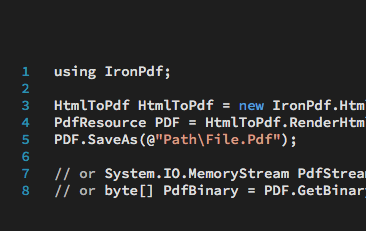
C# PDF HTML

Let's create PDFs in .NET, without the need for complex programtic design layout or APIs…
View Jean's HTML To PDF Tutorial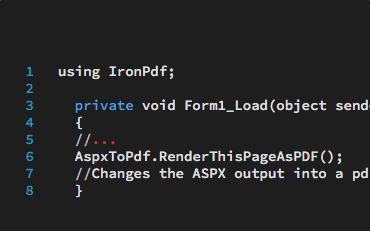
C# PDF .NET ASPX

See how easy it is to convert ASPX pages into PDF documents using C# or VB .NET…
See Jacob's ASPX To PDF Tutorial
VB.NET PDF ASP.NET

See how I use IronPDF to create PDF documents within my VB .NET projects…
See Veronica's VB .NET Tutorial





IronPDF is constantly supported as a leading .NET PDF Library










Install-Package IronPdf


Nie wymaga karty kredytowej
Twój klucz próbny powinien być w e-mailu. Formularz próbny został przesłany
pomyślnie.
Jeśli go nie ma, skontaktuj się
support@ironsoftware.com
Nie wymaga karty kredytowej

 Rozpocznij za DARMO
Przetestuj w produkcji bez znaków wodnych.
Działa tam, gdzie tego potrzebujesz.
Uzyskaj 30 dni pełni funkcjonalnego produktu.
Uruchom w ciągu kilku minut.
Pełny dostęp do naszego zespołu wsparcia technicznego podczas okresu próbnego
 Rozpocznij za DARMO
 Zarezerwuj darmowe Demo na żywo
Demonstrowanie na żywo naszego produktu i jego kluczowych funkcji
Zyskaj rekomendacje funkcji specyficznych dla projektu
Wszystkie twoje pytania zostaną odpowiednio wyjaśnione, abyś miał wszystkie potrzebne informacje. (Bez żadnych zobowiązań.)
Zarezerwuj darmowe Demo na żywo



 Nie wymaga karty kredytowej ani tworzenia konta




Zarezerwuj Konsultację Bez Zobowiązań

Wypełnij poniższy formularz lub wyślij e-mail na sales@ironsoftware.com
Twoje dane zawsze będą utrzymywane w tajemnicy.


Zarezerwuj 30-minutowe, osobiste demo.
Bez umowy, brak danych karty, brak zobowiązań.






