


IronPDF與iText7的比較

Full Comparison
Looking for a detailed feature-by-feature breakdown? See how IronPDF stacks up against Itext on pricing, HTML support, and licensing.
一個體面的和簡單的工具來處理PDF可以簡化許多建立和編輯PDF文件中涉及的任務和流程。 在.NET生態系統中,有兩個流行的程式庫 - IronPDF 和 iText - 允許進行PDF生成而不依賴於任何Adobe。 它們都提供了一些功能,例如建立、編輯、轉換等,但這篇文章將著重於基於三個標準來比較這些程式庫:它們提供的功能、它們提供的文件質量,以及這些公司針對使用其產品所採用的定價政策。
IronPDF和iText概述
IronPDF是一個顯著的.NET PDF程式庫,允許開發者輕鬆建立、修改和與PDF文件互動。 它可以在不同的.NET環境中使用,包括Core、8、7、6和Framework,這使得它對於各種開發需求高度靈活。 IronPDF 的關鍵功能是其豐富的功能集,例如HTML到PDF轉換、合併PDF、PDF加密和應用數位簽章等。 文件的撰寫方式讓使用者能夠毫無困難地理解,同時該程式庫本身具有強大的技術支援。
iText 是一個為 Java 和 .NET (C#) 提供的最受歡迎的 PDF 程式庫之一。 iText Core 8 提供了一種企業級可程式化解決方案,用於建立和操作PDF文件。 iText 提供對許多不同功能的支援,並在開源 (AGPL) 許可證和商業許可證下發佈。 這意味著它能夠在數位化轉型項目中涵蓋廣泛的用例,得益於其多樣性。
跨平台相容性
IronPDF 和 iText 與多種平台相容; 它們可以在.NET框架中的許多不同系統上處理PDF。 我們將比較每個產品支援的框架和平台。
IronPDF:
IronPDF 支援平台概述 支援廣泛的平臺和環境,確保在各種系統中無縫整合和部署:
-
.NET版本:
- .NET Core(8, 7, 6, 5, 和3.1+)
- .NET Standard(2.0+)
- .NET Framework(4.6.2+)
-
應用環境: IronPDF 可在包括 Windows、Linux、Mac、Docker、Azure 和 AWS 在內的應用環境中運行。
-
IDE: 支援使用 Microsoft Visual Studio、JetBrains Rider 和 ReSharper 等 IDE。
- 操作系統和處理器: 支援包括 Windows、Mac、Linux、x64、x86、ARM 在內的多種操作系統和處理器。
iText
-
.NET版本:
- .NET Core (2.x, 3.x)
- .NET Framework (4.6.1+)
- .NET 5+
-
應用環境: iText 支援一系列的應用環境,得益於其對 Java 和 .NET (C#) 的支持,其中包括 Windows、Mac、Linux 和 Docker。
- 操作系統: 在 Windows、macOS 和 Linux 作業系統上運行。
關鍵功能比較:IronPDF vs. iText
IronPDF 關鍵功能列表 和 iText 都提供了一系列功能和工具來處理PDF文件。 接下來的部分將重點檢視其中的一些功能,並看看這兩個程式庫在執行不同PDF相關任務時如何比較。
IronPDF
-
HTML到PDF轉換: 支持HTML、CSS、JavaScript和圖片。
-
PDF文件操作: 拆分和合併文件,改變格式,以及編輯現有的PDF文件。
-
安全性: PDF加密和解密。
-
編輯: 新增註釋、書籤和大綱。
-
模板: 應用頁眉、頁腳和頁碼。
-
浮水印: 輕鬆應用文字和圖片浮水印於PDF文件; 使用HTML/CSS獲得完整控制。
- PDF蓋章: 使用 IronPDF 將圖片和文字蓋在您的PDF文件上。
有關IronPDF提供的廣泛功能集的更多資訊,請存取 IronPDF功能頁面。
iText
-
PDF建立: 支持從頭建立PDF文件。
-
表單: 建立和編輯PDF表單。
-
數位簽名: 簽署PDF文件。
-
壓縮: 優化PDF文件大小。
-
內容提取: 從PDF中提取文字和圖片。
-
開源: 以AGPL許可證發佈。
- 可自訂性: 針對進階使用情境有高度的自訂化程度。
IronPDF與iText的PDF功能特徵比較
HTML到PDF轉換
在許多不同的辦公室和工作空間中,使用IronPDF將HTML內容轉換成PDF 是一項被執行的任務。 下面是比較IronPDF和iText如何處理該過程的程式碼範例。
IronPDF
using IronPdf;

// Configure security settings
Installation.EnableWebSecurity = true;

// Instantiate Renderer
var renderer = new ChromePdfRenderer();

// Create a PDF from an HTML string using C#
var pdf = renderer.RenderHtmlAsPdf("<h1>Hello World</h1>");
pdf.SaveAs("output.pdf");

// Advanced Example with HTML Assets
// Load external HTML assets: images, CSS and JavaScript.
var myAdvancedPdf = renderer.RenderHtmlAsPdf("<img src='icons/iron.png'>", @"C:\site\assets\");
myAdvancedPdf.SaveAs("html-with-assets.pdf");
using IronPdf;
// Configure security settings
Installation.EnableWebSecurity = true;
// Instantiate Renderer
var renderer = new ChromePdfRenderer();
// Create a PDF from an HTML string using C#
var pdf = renderer.RenderHtmlAsPdf("<h1>Hello World</h1>");
pdf.SaveAs("output.pdf");
// Advanced Example with HTML Assets
// Load external HTML assets: images, CSS and JavaScript.
var myAdvancedPdf = renderer.RenderHtmlAsPdf("<img src='icons/iron.png'>", @"C:\site\assets\");
myAdvancedPdf.SaveAs("html-with-assets.pdf");Imports IronPdf
' Configure security settings
Installation.EnableWebSecurity = True
' Instantiate Renderer
Dim renderer = New ChromePdfRenderer()
' Create a PDF from an HTML string using C#
Dim pdf = renderer.RenderHtmlAsPdf("<h1>Hello World</h1>")
pdf.SaveAs("output.pdf")
' Advanced Example with HTML Assets
' Load external HTML assets: images, CSS and JavaScript.
Dim myAdvancedPdf = renderer.RenderHtmlAsPdf("<img src='icons/iron.png'>", "C:\site\assets\")
myAdvancedPdf.SaveAs("html-with-assets.pdf")iText
using iText.Html2pdf;

static void Main(string[] args)
{
    using (FileStream htmlSource = File.Open("input.html", FileMode.Open))
    using (FileStream pdfDest = File.Open("output.pdf", FileMode.Create))
    {
        ConverterProperties converterProperties = new ConverterProperties();
        HtmlConverter.ConvertToPdf(htmlSource, pdfDest, converterProperties);
    }
}
using iText.Html2pdf;
static void Main(string[] args)
{
using (FileStream htmlSource = File.Open("input.html", FileMode.Open))
using (FileStream pdfDest = File.Open("output.pdf", FileMode.Create))
{
ConverterProperties converterProperties = new ConverterProperties();
HtmlConverter.ConvertToPdf(htmlSource, pdfDest, converterProperties);
}
}Imports iText.Html2pdf
Shared Sub Main(ByVal args() As String)
Using htmlSource As FileStream = File.Open("input.html", FileMode.Open)
Using pdfDest As FileStream = File.Open("output.pdf", FileMode.Create)
Dim converterProperties As New ConverterProperties()
HtmlConverter.ConvertToPdf(htmlSource, pdfDest, converterProperties)
End Using
End Using
End Sub在將HTML轉換為PDF時,IronPDF 提供了一個簡潔方便的工具來執行此任務。 IronPDF 使用 ChromePdfRenderer 將HTML內容轉換為PDF,提供使用者像素完美的PDF文件。 使用者可以直接從HTML字串建立PDF,也可以包含帶有可選基路徑的外部資產,如高級範例所示。 另一方面,iText 使用其 HtmlConverter 類從HTML文件建立PDF文件,這是一種更基本的方法。
加密PDF文件
使用IronPDF加密和解密PDF文件 在許多工作場所中至關重要。 下面我們將看看 iText 和 IronPDF 如何處理PDF的加密。
IronPDF
using IronPdf;
using System;

// Open an Encrypted File, alternatively create a new PDF from HTML
var pdf = PdfDocument.FromFile("encrypted.pdf", "password");

// Edit file metadata
pdf.MetaData.Author = "Satoshi Nakamoto";
pdf.MetaData.Keywords = "SEO, Friendly";
pdf.MetaData.ModifiedDate = DateTime.Now;

// Edit file security settings
pdf.SecuritySettings.RemovePasswordsAndEncryption();
pdf.SecuritySettings.MakePdfDocumentReadOnly("secret-key");
pdf.SecuritySettings.AllowUserAnnotations = false;
pdf.SecuritySettings.AllowUserCopyPasteContent = false;
pdf.SecuritySettings.AllowUserFormData = false;
pdf.SecuritySettings.AllowUserPrinting = IronPdf.Security.PdfPrintSecurity.FullPrintRights;

// Change or set the document encryption password
pdf.Password = "my-password";
pdf.SaveAs("secured.pdf");
using IronPdf;
using System;
// Open an Encrypted File, alternatively create a new PDF from HTML
var pdf = PdfDocument.FromFile("encrypted.pdf", "password");
// Edit file metadata
pdf.MetaData.Author = "Satoshi Nakamoto";
pdf.MetaData.Keywords = "SEO, Friendly";
pdf.MetaData.ModifiedDate = DateTime.Now;
// Edit file security settings
pdf.SecuritySettings.RemovePasswordsAndEncryption();
pdf.SecuritySettings.MakePdfDocumentReadOnly("secret-key");
pdf.SecuritySettings.AllowUserAnnotations = false;
pdf.SecuritySettings.AllowUserCopyPasteContent = false;
pdf.SecuritySettings.AllowUserFormData = false;
pdf.SecuritySettings.AllowUserPrinting = IronPdf.Security.PdfPrintSecurity.FullPrintRights;
// Change or set the document encryption password
pdf.Password = "my-password";
pdf.SaveAs("secured.pdf");Imports IronPdf
Imports System
' Open an Encrypted File, alternatively create a new PDF from HTML
Private pdf = PdfDocument.FromFile("encrypted.pdf", "password")
' Edit file metadata
pdf.MetaData.Author = "Satoshi Nakamoto"
pdf.MetaData.Keywords = "SEO, Friendly"
pdf.MetaData.ModifiedDate = DateTime.Now
' Edit file security settings
pdf.SecuritySettings.RemovePasswordsAndEncryption()
pdf.SecuritySettings.MakePdfDocumentReadOnly("secret-key")
pdf.SecuritySettings.AllowUserAnnotations = False
pdf.SecuritySettings.AllowUserCopyPasteContent = False
pdf.SecuritySettings.AllowUserFormData = False
pdf.SecuritySettings.AllowUserPrinting = IronPdf.Security.PdfPrintSecurity.FullPrintRights
' Change or set the document encryption password
pdf.Password = "my-password"
pdf.SaveAs("secured.pdf")iText
using System;
using System.IO;
using System.Text;
using iText.Kernel.Pdf;

public class EncryptPdf
{
    public static readonly String DEST = "results/sandbox/security/encrypt_pdf.pdf";
    public static readonly String SRC = "../../../resources/pdfs/hello.pdf";

    public static readonly String OWNER_PASSWORD = "World";
    public static readonly String USER_PASSWORD = "Hello";

    public static void Main(String[] args)
    {
        FileInfo file = new FileInfo(DEST);
        file.Directory.Create();

        new EncryptPdf().ManipulatePdf(DEST);
    }

    protected void ManipulatePdf(String dest)
    {
        PdfDocument document = new PdfDocument(new PdfReader(SRC), new PdfWriter(dest,
            new WriterProperties().SetStandardEncryption(
                Encoding.UTF8.GetBytes(USER_PASSWORD),
                Encoding.UTF8.GetBytes(OWNER_PASSWORD),
                EncryptionConstants.ALLOW_PRINTING,
                EncryptionConstants.ENCRYPTION_AES_128 | EncryptionConstants.DO_NOT_ENCRYPT_METADATA
            )));
        document.Close();
    }
}
using System;
using System.IO;
using System.Text;
using iText.Kernel.Pdf;
public class EncryptPdf
{
public static readonly String DEST = "results/sandbox/security/encrypt_pdf.pdf";
public static readonly String SRC = "../../../resources/pdfs/hello.pdf";
public static readonly String OWNER_PASSWORD = "World";
public static readonly String USER_PASSWORD = "Hello";
public static void Main(String[] args)
{
FileInfo file = new FileInfo(DEST);
file.Directory.Create();
new EncryptPdf().ManipulatePdf(DEST);
}
protected void ManipulatePdf(String dest)
{
PdfDocument document = new PdfDocument(new PdfReader(SRC), new PdfWriter(dest,
new WriterProperties().SetStandardEncryption(
Encoding.UTF8.GetBytes(USER_PASSWORD),
Encoding.UTF8.GetBytes(OWNER_PASSWORD),
EncryptionConstants.ALLOW_PRINTING,
EncryptionConstants.ENCRYPTION_AES_128 | EncryptionConstants.DO_NOT_ENCRYPT_METADATA
)));
document.Close();
}
}Imports System
Imports System.IO
Imports System.Text
Imports iText.Kernel.Pdf
Public Class EncryptPdf
Public Shared ReadOnly DEST As String = "results/sandbox/security/encrypt_pdf.pdf"
Public Shared ReadOnly SRC As String = "../../../resources/pdfs/hello.pdf"
Public Shared ReadOnly OWNER_PASSWORD As String = "World"
Public Shared ReadOnly USER_PASSWORD As String = "Hello"
Public Shared Sub Main(ByVal args() As String)
Dim file As New FileInfo(DEST)
file.Directory.Create()
Call (New EncryptPdf()).ManipulatePdf(DEST)
End Sub
Protected Sub ManipulatePdf(ByVal dest As String)
Dim document As New PdfDocument(New PdfReader(SRC), New PdfWriter(dest, (New WriterProperties()).SetStandardEncryption(Encoding.UTF8.GetBytes(USER_PASSWORD), Encoding.UTF8.GetBytes(OWNER_PASSWORD), EncryptionConstants.ALLOW_PRINTING, EncryptionConstants.ENCRYPTION_AES_128 Or EncryptionConstants.DO_NOT_ENCRYPT_METADATA)))
document.Close()
End Sub
End ClassIronPDF為使用者提供了一種簡單的方法來加密PDF文件,同時也為使用者提供了大量的控制,例如編輯元資料和調整安全設置,如使文件僅可讀或限制使用者行為如複製和粘貼。 另一方面,iText 採用了一種較低層級且較長的方法,其中在文件建立過程中應用PDF加密,指定擁有者和使用者密碼以及使用AES-128等加密標準的權限,如列印權限。
編輯PDF內容
在處理機密或私人資訊時,有時可能需要在PDF中使用IronPDF編輯文字 PDF文件的一部分。以下程式碼範例將展示如何使用IronPDF與iText進行文字編輯。
IronPDF
using IronPdf;

PdfDocument pdf = PdfDocument.FromFile("novel.pdf");

// Redact 'are' phrase from all pages
pdf.RedactTextOnAllPages("are");

pdf.SaveAs("redacted.pdf");
using IronPdf;
PdfDocument pdf = PdfDocument.FromFile("novel.pdf");
// Redact 'are' phrase from all pages
pdf.RedactTextOnAllPages("are");
pdf.SaveAs("redacted.pdf");Imports IronPdf
Private pdf As PdfDocument = PdfDocument.FromFile("novel.pdf")
' Redact 'are' phrase from all pages
pdf.RedactTextOnAllPages("are")
pdf.SaveAs("redacted.pdf")iText
using System;
using System.IO;
using iText.Kernel.Pdf;
using iText.Layout;
using iText.Layout.Element;
using iText.Layout.Properties;
using iText.Kernel.Colors;

string src = "input.pdf";
string dest = "output_redacted.pdf";

using (PdfReader reader = new PdfReader(src))
using (PdfWriter writer = new PdfWriter(dest))
using (PdfDocument pdfDoc = new PdfDocument(reader, writer))
{
    // Iterate through each page
    for (int pageNum = 1; pageNum <= pdfDoc.GetNumberOfPages(); pageNum++)
    {
        PdfPage page = pdfDoc.GetPage(pageNum);
        PdfCanvas canvas = new PdfCanvas(page);
        Rectangle[] rectanglesToRedact = { new Rectangle(100, 100, 200, 50) }; // Define rectangles to redact

        // Overlay black rectangles to simulate redaction
        foreach (Rectangle rect in rectanglesToRedact)
        {
            canvas.SetFillColor(ColorConstants.BLACK)
                .Rectangle(rect.GetX(), rect.GetY(), rect.GetWidth(), rect.GetHeight())
                .Fill();
        }
    }
}
using System;
using System.IO;
using iText.Kernel.Pdf;
using iText.Layout;
using iText.Layout.Element;
using iText.Layout.Properties;
using iText.Kernel.Colors;
string src = "input.pdf";
string dest = "output_redacted.pdf";
using (PdfReader reader = new PdfReader(src))
using (PdfWriter writer = new PdfWriter(dest))
using (PdfDocument pdfDoc = new PdfDocument(reader, writer))
{
// Iterate through each page
for (int pageNum = 1; pageNum <= pdfDoc.GetNumberOfPages(); pageNum++)
{
PdfPage page = pdfDoc.GetPage(pageNum);
PdfCanvas canvas = new PdfCanvas(page);
Rectangle[] rectanglesToRedact = { new Rectangle(100, 100, 200, 50) }; // Define rectangles to redact
// Overlay black rectangles to simulate redaction
foreach (Rectangle rect in rectanglesToRedact)
{
canvas.SetFillColor(ColorConstants.BLACK)
.Rectangle(rect.GetX(), rect.GetY(), rect.GetWidth(), rect.GetHeight())
.Fill();
}
}
}Imports System
Imports System.IO
Imports iText.Kernel.Pdf
Imports iText.Layout
Imports iText.Layout.Element
Imports iText.Layout.Properties
Imports iText.Kernel.Colors
Private src As String = "input.pdf"
Private dest As String = "output_redacted.pdf"
Using reader As New PdfReader(src)
Using writer As New PdfWriter(dest)
Using pdfDoc As New PdfDocument(reader, writer)
' Iterate through each page
Dim pageNum As Integer = 1
Do While pageNum <= pdfDoc.GetNumberOfPages()
Dim page As PdfPage = pdfDoc.GetPage(pageNum)
Dim canvas As New PdfCanvas(page)
Dim rectanglesToRedact() As Rectangle = { New Rectangle(100, 100, 200, 50) } ' Define rectangles to redact
' Overlay black rectangles to simulate redaction
For Each rect As Rectangle In rectanglesToRedact
canvas.SetFillColor(ColorConstants.BLACK).Rectangle(rect.GetX(), rect.GetY(), rect.GetWidth(), rect.GetHeight()).Fill()
Next rect
pageNum += 1
Loop
End Using
End Using
End UsingIronPDF的編輯工具簡潔易用,只需要幾行程式碼即可簡化編輯過程。 這有助於提高PDF編輯任務的效率,為使用者提供了一種簡單的方法來保持其敏感和私人資料的安全。 另一方面,iText 不提供像IronPDF這樣的內建編輯工具。 然而,它仍然可以用上面顯示的方法來覆蓋使用者希望編輯的內容進行覆蓋。 這可能導致潛在問題,因為這些矩形實際上並未移除或正確編輯文字,這意味著其他人可能會複製和貼上被編輯的資料。
簽署PDF文件
能夠使用IronPDF數位簽署PDF文件可能會節省時間,尤其是當這是自動化過程時。 這裡有些程式碼片段比較了IronPDF與iText在進行文件數位簽名時的差異。
IronPDF
using IronPdf;
using IronPdf.Signing;
using System.Security.Cryptography.X509Certificates;

// Create X509Certificate2 object with X509KeyStorageFlags set to Exportable
X509Certificate2 cert = new X509Certificate2("IronSoftware.pfx", "123456", X509KeyStorageFlags.Exportable);

// Create PdfSignature object
var sig = new PdfSignature(cert);

// Sign PDF document
PdfDocument pdf = PdfDocument.FromFile("document.pdf");
pdf.Sign(sig);
pdf.SaveAs("signed.pdf");
using IronPdf;
using IronPdf.Signing;
using System.Security.Cryptography.X509Certificates;
// Create X509Certificate2 object with X509KeyStorageFlags set to Exportable
X509Certificate2 cert = new X509Certificate2("IronSoftware.pfx", "123456", X509KeyStorageFlags.Exportable);
// Create PdfSignature object
var sig = new PdfSignature(cert);
// Sign PDF document
PdfDocument pdf = PdfDocument.FromFile("document.pdf");
pdf.Sign(sig);
pdf.SaveAs("signed.pdf");Imports IronPdf
Imports IronPdf.Signing
Imports System.Security.Cryptography.X509Certificates
' Create X509Certificate2 object with X509KeyStorageFlags set to Exportable
Private cert As New X509Certificate2("IronSoftware.pfx", "123456", X509KeyStorageFlags.Exportable)
' Create PdfSignature object
Private sig = New PdfSignature(cert)
' Sign PDF document
Private pdf As PdfDocument = PdfDocument.FromFile("document.pdf")
pdf.Sign(sig)
pdf.SaveAs("signed.pdf")iText
using System;
using System.IO;
using iText.Kernel.Pdf;
using iText.Signatures;
using Org.BouncyCastle.Crypto;
using Org.BouncyCastle.Pkcs;
using Org.BouncyCastle.X509;

class Program
{
    static void Main(string[] args)
    {
        string src = "input.pdf";
        string dest = "output_signed.pdf";
        string pfxFile = "your_certificate.pfx";
        string pfxPassword = "your_password";

        try
        {
            // Load your certificate
            Pkcs12Store ks = new Pkcs12Store(new FileStream(pfxFile, FileMode.Open), pfxPassword.ToCharArray());
            string alias = null;
            foreach (string al in ks.Aliases)
            {
                if (ks.IsKeyEntry(al))
                {
                    alias = al;
                    break;
                }
            }
            ICipherParameters pk = ks.GetKey(alias).Key;
            X509CertificateEntry[] chain = ks.GetCertificateChain(alias);
            X509Certificate2 cert = new X509Certificate2(chain[0].Certificate.GetEncoded());

            // Create output PDF with signed content
            using (PdfReader reader = new PdfReader(src))
            using (PdfWriter writer = new PdfWriter(dest))
            using (PdfDocument pdfDoc = new PdfDocument(reader, writer))
            {
                // Create the signer
                PdfSigner signer = new PdfSigner(pdfDoc, writer, new StampingProperties().UseAppendMode());

                // Configure signature appearance
                PdfSignatureAppearance appearance = signer.GetSignatureAppearance();
                appearance.SetReason("Digital Signature");
                appearance.SetLocation("Your Location");
                appearance.SetContact("Your Contact");

                // Create signature
                IExternalSignature pks = new PrivateKeySignature(pk, "SHA-256");
                signer.SignDetached(pks, chain, null, null, null, 0, PdfSigner.CryptoStandard.CMS);
            }

            Console.WriteLine($"PDF digitally signed successfully: {dest}");
        }
        catch (Exception ex)
        {
            Console.WriteLine($"Error signing PDF: {ex.Message}");
        }
    }
}
using System;
using System.IO;
using iText.Kernel.Pdf;
using iText.Signatures;
using Org.BouncyCastle.Crypto;
using Org.BouncyCastle.Pkcs;
using Org.BouncyCastle.X509;
class Program
{
static void Main(string[] args)
{
string src = "input.pdf";
string dest = "output_signed.pdf";
string pfxFile = "your_certificate.pfx";
string pfxPassword = "your_password";
try
{
// Load your certificate
Pkcs12Store ks = new Pkcs12Store(new FileStream(pfxFile, FileMode.Open), pfxPassword.ToCharArray());
string alias = null;
foreach (string al in ks.Aliases)
{
if (ks.IsKeyEntry(al))
{
alias = al;
break;
}
}
ICipherParameters pk = ks.GetKey(alias).Key;
X509CertificateEntry[] chain = ks.GetCertificateChain(alias);
X509Certificate2 cert = new X509Certificate2(chain[0].Certificate.GetEncoded());
// Create output PDF with signed content
using (PdfReader reader = new PdfReader(src))
using (PdfWriter writer = new PdfWriter(dest))
using (PdfDocument pdfDoc = new PdfDocument(reader, writer))
{
// Create the signer
PdfSigner signer = new PdfSigner(pdfDoc, writer, new StampingProperties().UseAppendMode());
// Configure signature appearance
PdfSignatureAppearance appearance = signer.GetSignatureAppearance();
appearance.SetReason("Digital Signature");
appearance.SetLocation("Your Location");
appearance.SetContact("Your Contact");
// Create signature
IExternalSignature pks = new PrivateKeySignature(pk, "SHA-256");
signer.SignDetached(pks, chain, null, null, null, 0, PdfSigner.CryptoStandard.CMS);
}
Console.WriteLine($"PDF digitally signed successfully: {dest}");
}
catch (Exception ex)
{
Console.WriteLine($"Error signing PDF: {ex.Message}");
}
}
}Imports System
Imports System.IO
Imports iText.Kernel.Pdf
Imports iText.Signatures
Imports Org.BouncyCastle.Crypto
Imports Org.BouncyCastle.Pkcs
Imports Org.BouncyCastle.X509
Friend Class Program
Shared Sub Main(ByVal args() As String)
Dim src As String = "input.pdf"
Dim dest As String = "output_signed.pdf"
Dim pfxFile As String = "your_certificate.pfx"
Dim pfxPassword As String = "your_password"
Try
' Load your certificate
Dim ks As New Pkcs12Store(New FileStream(pfxFile, FileMode.Open), pfxPassword.ToCharArray())
Dim [alias] As String = Nothing
For Each al As String In ks.Aliases
If ks.IsKeyEntry(al) Then
[alias] = al
Exit For
End If
Next al
Dim pk As ICipherParameters = ks.GetKey([alias]).Key
Dim chain() As X509CertificateEntry = ks.GetCertificateChain([alias])
Dim cert As New X509Certificate2(chain(0).Certificate.GetEncoded())
' Create output PDF with signed content
Using reader As New PdfReader(src)
Using writer As New PdfWriter(dest)
Using pdfDoc As New PdfDocument(reader, writer)
' Create the signer
Dim signer As New PdfSigner(pdfDoc, writer, (New StampingProperties()).UseAppendMode())
' Configure signature appearance
Dim appearance As PdfSignatureAppearance = signer.GetSignatureAppearance()
appearance.SetReason("Digital Signature")
appearance.SetLocation("Your Location")
appearance.SetContact("Your Contact")
' Create signature
Dim pks As IExternalSignature = New PrivateKeySignature(pk, "SHA-256")
signer.SignDetached(pks, chain, Nothing, Nothing, Nothing, 0, PdfSigner.CryptoStandard.CMS)
End Using
End Using
End Using
Console.WriteLine($"PDF digitally signed successfully: {dest}")
Catch ex As Exception
Console.WriteLine($"Error signing PDF: {ex.Message}")
End Try
End Sub
End Class在數位簽署PDF文件時,IronPDF 提供了一個簡潔而強大的工具來完成這個過程。 它的簡單性使得過程可以快速進行,為任何將其實施於其簽名需求的開發者節省時間。 iText 則需要較長且複雜的過程來將數位簽名應用於PDF文件。 雖然它們能夠使用不同的介面選項和密鑰來提供更大的控制給使用者,但該工具執行此任務的複雜性可能會妨礙其使用。
應用于PDF文件的浮水印
在PDF上新增和自定義浮水印的能力可以大大幫助於機密性、版權保護、品牌推廣或任何涉及敏感資訊的任務。 以下是IronPDF和iText如何將浮水印應用於PDF文件的比較。
IronPDF
using IronPdf;

// Stamps a Watermark onto a new or existing PDF
var renderer = new ChromePdfRenderer();

var pdf = renderer.RenderUrlAsPdf("https://www.nuget.org/packages/IronPdf");
pdf.ApplyWatermark("<h2 style='color:red'>SAMPLE</h2>", 30, IronPdf.Editing.VerticalAlignment.Middle, IronPdf.Editing.HorizontalAlignment.Center);
pdf.SaveAs(@"C:\Path\To\Watermarked.pdf");
using IronPdf;
// Stamps a Watermark onto a new or existing PDF
var renderer = new ChromePdfRenderer();
var pdf = renderer.RenderUrlAsPdf("https://www.nuget.org/packages/IronPdf");
pdf.ApplyWatermark("<h2 style='color:red'>SAMPLE</h2>", 30, IronPdf.Editing.VerticalAlignment.Middle, IronPdf.Editing.HorizontalAlignment.Center);
pdf.SaveAs(@"C:\Path\To\Watermarked.pdf");Imports IronPdf
' Stamps a Watermark onto a new or existing PDF
Private renderer = New ChromePdfRenderer()
Private pdf = renderer.RenderUrlAsPdf("https://www.nuget.org/packages/IronPdf")
pdf.ApplyWatermark("<h2 style='color:red'>SAMPLE</h2>", 30, IronPdf.Editing.VerticalAlignment.Middle, IronPdf.Editing.HorizontalAlignment.Center)
pdf.SaveAs("C:\Path\To\Watermarked.pdf")iText
using iText.IO.Font;
using iText.IO.Font.Constants;
using iText.Kernel.Colors;
using iText.Kernel.Font;
using iText.Kernel.Pdf;
using iText.Kernel.Pdf.Canvas;
using iText.Kernel.Pdf.Extgstate;
using iText.Layout;
using iText.Layout.Element;
using iText.Layout.Properties;

public class TransparentWatermark
{
    public static readonly String DEST = "results/sandbox/stamper/transparent_watermark.pdf";
    public static readonly String SRC = "../../../resources/pdfs/hero.pdf";

    public static void Main(String[] args)
    {
        FileInfo file = new FileInfo(DEST);
        file.Directory.Create();

        new TransparentWatermark().ManipulatePdf(DEST);
    }

    protected void ManipulatePdf(String dest)
    {
        PdfDocument pdfDoc = new PdfDocument(new PdfReader(SRC), new PdfWriter(dest));
        PdfCanvas under = new PdfCanvas(pdfDoc.GetFirstPage().NewContentStreamBefore(), new PdfResources(), pdfDoc);
        PdfFont font = PdfFontFactory.CreateFont(FontProgramFactory.CreateFont(StandardFonts.HELVETICA));
        Paragraph paragraph = new Paragraph("This watermark is added UNDER the existing content")
                .SetFont(font)
                .SetFontSize(15);

        Canvas canvasWatermark1 = new Canvas(under, pdfDoc.GetDefaultPageSize())
                .ShowTextAligned(paragraph, 297, 550, 1, TextAlignment.CENTER, VerticalAlignment.TOP, 0);
        canvasWatermark1.Close();
        PdfCanvas over = new PdfCanvas(pdfDoc.GetFirstPage());
        over.SetFillColor(ColorConstants.BLACK);
        paragraph = new Paragraph("This watermark is added ON TOP OF the existing content")
                .SetFont(font)
                .SetFontSize(15);

        Canvas canvasWatermark2 = new Canvas(over, pdfDoc.GetDefaultPageSize())
                .ShowTextAligned(paragraph, 297, 500, 1, TextAlignment.CENTER, VerticalAlignment.TOP, 0);
        canvasWatermark2.Close();
        paragraph = new Paragraph("This TRANSPARENT watermark is added ON TOP OF the existing content")
                .SetFont(font)
                .SetFontSize(15);
        over.SaveState();

        PdfExtGState gs1 = new PdfExtGState();
        gs1.SetFillOpacity(0.5f);
        over.SetExtGState(gs1);
        Canvas canvasWatermark3 = new Canvas(over, pdfDoc.GetDefaultPageSize())
                .ShowTextAligned(paragraph, 297, 450, 1, TextAlignment.CENTER, VerticalAlignment.TOP, 0);
        canvasWatermark3.Close();
        over.RestoreState();

        pdfDoc.Close();
    }
}
using iText.IO.Font;
using iText.IO.Font.Constants;
using iText.Kernel.Colors;
using iText.Kernel.Font;
using iText.Kernel.Pdf;
using iText.Kernel.Pdf.Canvas;
using iText.Kernel.Pdf.Extgstate;
using iText.Layout;
using iText.Layout.Element;
using iText.Layout.Properties;
public class TransparentWatermark
{
public static readonly String DEST = "results/sandbox/stamper/transparent_watermark.pdf";
public static readonly String SRC = "../../../resources/pdfs/hero.pdf";
public static void Main(String[] args)
{
FileInfo file = new FileInfo(DEST);
file.Directory.Create();
new TransparentWatermark().ManipulatePdf(DEST);
}
protected void ManipulatePdf(String dest)
{
PdfDocument pdfDoc = new PdfDocument(new PdfReader(SRC), new PdfWriter(dest));
PdfCanvas under = new PdfCanvas(pdfDoc.GetFirstPage().NewContentStreamBefore(), new PdfResources(), pdfDoc);
PdfFont font = PdfFontFactory.CreateFont(FontProgramFactory.CreateFont(StandardFonts.HELVETICA));
Paragraph paragraph = new Paragraph("This watermark is added UNDER the existing content")
.SetFont(font)
.SetFontSize(15);
Canvas canvasWatermark1 = new Canvas(under, pdfDoc.GetDefaultPageSize())
.ShowTextAligned(paragraph, 297, 550, 1, TextAlignment.CENTER, VerticalAlignment.TOP, 0);
canvasWatermark1.Close();
PdfCanvas over = new PdfCanvas(pdfDoc.GetFirstPage());
over.SetFillColor(ColorConstants.BLACK);
paragraph = new Paragraph("This watermark is added ON TOP OF the existing content")
.SetFont(font)
.SetFontSize(15);
Canvas canvasWatermark2 = new Canvas(over, pdfDoc.GetDefaultPageSize())
.ShowTextAligned(paragraph, 297, 500, 1, TextAlignment.CENTER, VerticalAlignment.TOP, 0);
canvasWatermark2.Close();
paragraph = new Paragraph("This TRANSPARENT watermark is added ON TOP OF the existing content")
.SetFont(font)
.SetFontSize(15);
over.SaveState();
PdfExtGState gs1 = new PdfExtGState();
gs1.SetFillOpacity(0.5f);
over.SetExtGState(gs1);
Canvas canvasWatermark3 = new Canvas(over, pdfDoc.GetDefaultPageSize())
.ShowTextAligned(paragraph, 297, 450, 1, TextAlignment.CENTER, VerticalAlignment.TOP, 0);
canvasWatermark3.Close();
over.RestoreState();
pdfDoc.Close();
}
}Imports iText.IO.Font
Imports iText.IO.Font.Constants
Imports iText.Kernel.Colors
Imports iText.Kernel.Font
Imports iText.Kernel.Pdf
Imports iText.Kernel.Pdf.Canvas
Imports iText.Kernel.Pdf.Extgstate
Imports iText.Layout
Imports iText.Layout.Element
Imports iText.Layout.Properties
Public Class TransparentWatermark
Public Shared ReadOnly DEST As String = "results/sandbox/stamper/transparent_watermark.pdf"
Public Shared ReadOnly SRC As String = "../../../resources/pdfs/hero.pdf"
Public Shared Sub Main(ByVal args() As String)
Dim file As New FileInfo(DEST)
file.Directory.Create()
Call (New TransparentWatermark()).ManipulatePdf(DEST)
End Sub
Protected Sub ManipulatePdf(ByVal dest As String)
Dim pdfDoc As New PdfDocument(New PdfReader(SRC), New PdfWriter(dest))
Dim under As New PdfCanvas(pdfDoc.GetFirstPage().NewContentStreamBefore(), New PdfResources(), pdfDoc)
Dim font As PdfFont = PdfFontFactory.CreateFont(FontProgramFactory.CreateFont(StandardFonts.HELVETICA))
Dim paragraph As Paragraph = (New Paragraph("This watermark is added UNDER the existing content")).SetFont(font).SetFontSize(15)
Dim canvasWatermark1 As Canvas = (New Canvas(under, pdfDoc.GetDefaultPageSize())).ShowTextAligned(paragraph, 297, 550, 1, TextAlignment.CENTER, VerticalAlignment.TOP, 0)
canvasWatermark1.Close()
Dim over As New PdfCanvas(pdfDoc.GetFirstPage())
over.SetFillColor(ColorConstants.BLACK)
paragraph = (New Paragraph("This watermark is added ON TOP OF the existing content")).SetFont(font).SetFontSize(15)
Dim canvasWatermark2 As Canvas = (New Canvas(over, pdfDoc.GetDefaultPageSize())).ShowTextAligned(paragraph, 297, 500, 1, TextAlignment.CENTER, VerticalAlignment.TOP, 0)
canvasWatermark2.Close()
paragraph = (New Paragraph("This TRANSPARENT watermark is added ON TOP OF the existing content")).SetFont(font).SetFontSize(15)
over.SaveState()
Dim gs1 As New PdfExtGState()
gs1.SetFillOpacity(0.5F)
over.SetExtGState(gs1)
Dim canvasWatermark3 As Canvas = (New Canvas(over, pdfDoc.GetDefaultPageSize())).ShowTextAligned(paragraph, 297, 450, 1, TextAlignment.CENTER, VerticalAlignment.TOP, 0)
canvasWatermark3.Close()
over.RestoreState()
pdfDoc.Close()
End Sub
End ClassIronPDF的簡單而直觀的API讓使用者能夠快速將自定義浮水印應用於其PDF文件,提供對過程的完整控制。 它使用HTML/CSS進一步簡化過程而不失去任何自定化控制。 iText的將浮水印新增到PDF的方式需要更多的手動工作,可能會放慢過程。
將圖像和文字蓋在PDF上
有時候需要在PDF上蓋上文字或圖像,類似於對PDF文件應用浮水印。 現在我們來比較IronPDF和iText在PDF文件上進行蓋章內容的表現。
IronPDF
using IronPdf;
using IronPdf.Editing;

ChromePdfRenderer renderer = new ChromePdfRenderer();

PdfDocument pdf = renderer.RenderHtmlAsPdf("<h1>Example HTML Document!</h1>");

// Create text stamper
TextStamper textStamper = new TextStamper()
{
    Text = "Text Stamper!",
    FontFamily = "Bungee Spice",
    UseGoogleFont = true,
    FontSize = 30,
    IsBold = true,
    IsItalic = true,
    VerticalAlignment = VerticalAlignment.Top,
};

// Stamp the text stamper
pdf.ApplyStamp(textStamper);
pdf.SaveAs("stampText.pdf");

// Create image stamper
ImageStamper imageStamper = new ImageStamper(new Uri("https://ironpdf.com/img/svgs/iron-pdf-logo.svg"))
{
    VerticalAlignment = VerticalAlignment.Top,
};

// Stamp the image stamper
pdf.ApplyStamp(imageStamper, 0);
pdf.SaveAs("stampImage.pdf");
using IronPdf;
using IronPdf.Editing;
ChromePdfRenderer renderer = new ChromePdfRenderer();
PdfDocument pdf = renderer.RenderHtmlAsPdf("<h1>Example HTML Document!</h1>");
// Create text stamper
TextStamper textStamper = new TextStamper()
{
Text = "Text Stamper!",
FontFamily = "Bungee Spice",
UseGoogleFont = true,
FontSize = 30,
IsBold = true,
IsItalic = true,
VerticalAlignment = VerticalAlignment.Top,
};
// Stamp the text stamper
pdf.ApplyStamp(textStamper);
pdf.SaveAs("stampText.pdf");
// Create image stamper
ImageStamper imageStamper = new ImageStamper(new Uri("https://ironpdf.com/img/svgs/iron-pdf-logo.svg"))
{
VerticalAlignment = VerticalAlignment.Top,
};
// Stamp the image stamper
pdf.ApplyStamp(imageStamper, 0);
pdf.SaveAs("stampImage.pdf");Imports IronPdf
Imports IronPdf.Editing
Private renderer As New ChromePdfRenderer()
Private pdf As PdfDocument = renderer.RenderHtmlAsPdf("<h1>Example HTML Document!</h1>")
' Create text stamper
Private textStamper As New TextStamper() With {
.Text = "Text Stamper!",
.FontFamily = "Bungee Spice",
.UseGoogleFont = True,
.FontSize = 30,
.IsBold = True,
.IsItalic = True,
.VerticalAlignment = VerticalAlignment.Top
}
' Stamp the text stamper
pdf.ApplyStamp(textStamper)
pdf.SaveAs("stampText.pdf")
' Create image stamper
Dim imageStamper As New ImageStamper(New Uri("https://ironpdf.com/img/svgs/iron-pdf-logo.svg")) With {.VerticalAlignment = VerticalAlignment.Top}
' Stamp the image stamper
pdf.ApplyStamp(imageStamper, 0)
pdf.SaveAs("stampImage.pdf")iText
using iText.Kernel.Pdf;
using iText.Layout;
using iText.Layout.Element;

public void StampPDF(string inputPdfPath, string outputPdfPath, string stampText)
{
    PdfDocument pdfDoc = new PdfDocument(new PdfReader(inputPdfPath), new PdfWriter(outputPdfPath));

    Document doc = new Document(pdfDoc);

    // Add stamp (text) to each page
    int numPages = pdfDoc.GetNumberOfPages();
    for (int i = 1; i <= numPages; i++)
    {
        doc.ShowTextAligned(new Paragraph(stampText),
                            36, 36, i, iText.Layout.Properties.TextAlignment.LEFT,
                            iText.Layout.Properties.VerticalAlignment.TOP, 0);
    }

    doc.Close();
}
using iText.Kernel.Pdf;
using iText.Layout;
using iText.Layout.Element;
public void StampPDF(string inputPdfPath, string outputPdfPath, string stampText)
{
PdfDocument pdfDoc = new PdfDocument(new PdfReader(inputPdfPath), new PdfWriter(outputPdfPath));
Document doc = new Document(pdfDoc);
// Add stamp (text) to each page
int numPages = pdfDoc.GetNumberOfPages();
for (int i = 1; i <= numPages; i++)
{
doc.ShowTextAligned(new Paragraph(stampText),
36, 36, i, iText.Layout.Properties.TextAlignment.LEFT,
iText.Layout.Properties.VerticalAlignment.TOP, 0);
}
doc.Close();
}Imports iText.Kernel.Pdf
Imports iText.Layout
Imports iText.Layout.Element
Public Sub StampPDF(ByVal inputPdfPath As String, ByVal outputPdfPath As String, ByVal stampText As String)
Dim pdfDoc As New PdfDocument(New PdfReader(inputPdfPath), New PdfWriter(outputPdfPath))
Dim doc As New Document(pdfDoc)
' Add stamp (text) to each page
Dim numPages As Integer = pdfDoc.GetNumberOfPages()
For i As Integer = 1 To numPages
doc.ShowTextAligned(New Paragraph(stampText), 36, 36, i, iText.Layout.Properties.TextAlignment.LEFT, iText.Layout.Properties.VerticalAlignment.TOP, 0)
Next i
doc.Close()
End SubIronPDF可以幫助您以靈活和自訂的方式將文字或圖像新增到PDF中,提供完整的控制。 其API易於理解和使用,特別是對熟悉HTML/CSS的開發者。 iText使用其圖像和文字蓋章工具來提供使用者更多對其PDF文件上顯示內容的控制,儘管過程可能會變得更加手動。
將DOCX轉換為PDF
有時,您可能需要將PDF從一種格式轉換為另一種格式。 在這種情況下,我們正在研究IronPDF的DOCX到PDF轉換,以及IronPDF和iText如何以不同方式處理這個過程。
IronPDF
using IronPdf;

// Instantiate Renderer
DocxToPdfRenderer renderer = new DocxToPdfRenderer();

// Render from DOCX file
PdfDocument pdf = renderer.RenderDocxAsPdf("Modern-chronological-resume.docx");

// Save the PDF
pdf.SaveAs("pdfFromDocx.pdf");
using IronPdf;
// Instantiate Renderer
DocxToPdfRenderer renderer = new DocxToPdfRenderer();
// Render from DOCX file
PdfDocument pdf = renderer.RenderDocxAsPdf("Modern-chronological-resume.docx");
// Save the PDF
pdf.SaveAs("pdfFromDocx.pdf");Imports IronPdf
' Instantiate Renderer
Private renderer As New DocxToPdfRenderer()
' Render from DOCX file
Private pdf As PdfDocument = renderer.RenderDocxAsPdf("Modern-chronological-resume.docx")
' Save the PDF
pdf.SaveAs("pdfFromDocx.pdf")iText
iText本身無法處理DOCX到PDF的轉換; 而是依賴於DocX或Aspose.Words等外部程式庫。
IronPDF為開發者提供了一個簡單而且簡潔的工具來處理DOCX到PDF的轉換任務,這使得不需要外部程式庫即可輕鬆將DOCX文件轉換為PDF格式。 另一方面,iText依賴於外部程式庫來執行此任務。
程式碼範例比較的總結
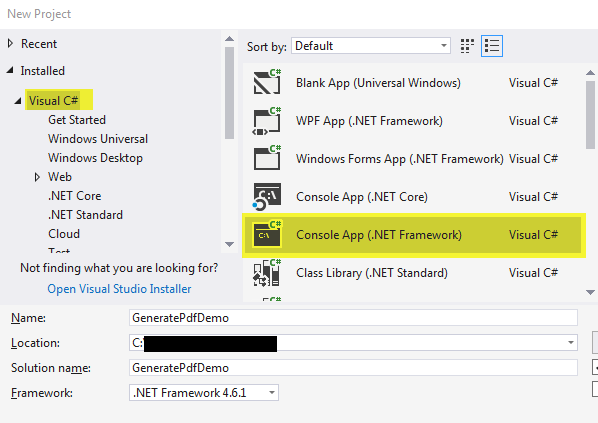
有關更詳細的範例,請存取IronPDF從HTML建立PDF的範例。
Bootstrap和現代CSS框架的支持
在現實世界中的開發過程中,經常出現的一個關鍵考量是每個程式庫如何處理現代CSS框架。 有了Bootstrap、Tailwind CSS和Foundation作為大多數當代網路應用程式的基礎,框架相容性可以大大影響您的開發工作流程和產出質量。
IronPDF:完全現代框架支持
IronPDF的Chrome渲染引擎提供了對所有現代CSS框架的全面、準備好生產的支持:
- Bootstrap 5:原生彈性盒和CSS Grid支持所有布局
- Tailwind CSS:完整的實用程式優先框架支持
- 現代CSS3:變換、動畫、自定義屬性和高級選擇器
- 框架驗證:成功渲染Bootstrap首頁和Bootstrap模板
程式碼範例:Bootstrap進度指示器
using IronPdf;

var renderer = new ChromePdfRenderer();

string bootstrap ProgressBars = @"
<!DOCTYPE html>
<html>
<head>
    <link href='https://cdn.jsdelivr.net/npm/bootstrap@5.3.0/dist/css/bootstrap.min.css' rel='stylesheet'>
</head>
<body>
    <div class='container my-5'>
        <h2 class='mb-4'>Project Progress Dashboard</h2>

        <div class='mb-4'>
            <div class='d-flex justify-content-between mb-1'>
                <span>Backend Development</span>
                <span class='text-success fw-bold'>85%</span>
            </div>
            <div class='progress' style='height: 25px;'>
                <div class='progress-bar progress-bar-striped bg-success' role='progressbar'
                     style='width: 85%' aria-valuenow='85' aria-valuemin='0' aria-valuemax='100'>
                </div>
            </div>
        </div>

        <div class='mb-4'>
            <div class='d-flex justify-content-between mb-1'>
                <span>Frontend UI</span>
                <span class='text-warning fw-bold'>60%</span>
            </div>
            <div class='progress' style='height: 25px;'>
                <div class='progress-bar progress-bar-animated bg-warning' role='progressbar'
                     style='width: 60%' aria-valuenow='60' aria-valuemin='0' aria-valuemax='100'>
                </div>
            </div>
        </div>

        <div class='mb-4'>
            <div class='d-flex justify-content-between mb-1'>
                <span>Testing & QA</span>
                <span class='text-info fw-bold'>40%</span>
            </div>
            <div class='progress' style='height: 25px;'>
                <div class='progress-bar bg-info' role='progressbar'
                     style='width: 40%' aria-valuenow='40' aria-valuemin='0' aria-valuemax='100'>
                </div>
            </div>
        </div>
    </div>
</body>
</html>";

var pdf = renderer.RenderHtmlAsPdf(bootstrapProgressBars);
pdf.SaveAs("project-progress.pdf");
using IronPdf;
var renderer = new ChromePdfRenderer();
string bootstrap ProgressBars = @"
<!DOCTYPE html>
<html>
<head>
<link href='https://cdn.jsdelivr.net/npm/bootstrap@5.3.0/dist/css/bootstrap.min.css' rel='stylesheet'>
</head>
<body>
<div class='container my-5'>
<h2 class='mb-4'>Project Progress Dashboard</h2>
<div class='mb-4'>
<div class='d-flex justify-content-between mb-1'>
<span>Backend Development</span>
<span class='text-success fw-bold'>85%</span>
</div>
<div class='progress' style='height: 25px;'>
<div class='progress-bar progress-bar-striped bg-success' role='progressbar'
style='width: 85%' aria-valuenow='85' aria-valuemin='0' aria-valuemax='100'>
</div>
</div>
</div>
<div class='mb-4'>
<div class='d-flex justify-content-between mb-1'>
<span>Frontend UI</span>
<span class='text-warning fw-bold'>60%</span>
</div>
<div class='progress' style='height: 25px;'>
<div class='progress-bar progress-bar-animated bg-warning' role='progressbar'
style='width: 60%' aria-valuenow='60' aria-valuemin='0' aria-valuemax='100'>
</div>
</div>
</div>
<div class='mb-4'>
<div class='d-flex justify-content-between mb-1'>
<span>Testing & QA</span>
<span class='text-info fw-bold'>40%</span>
</div>
<div class='progress' style='height: 25px;'>
<div class='progress-bar bg-info' role='progressbar'
style='width: 40%' aria-valuenow='40' aria-valuemin='0' aria-valuemax='100'>
</div>
</div>
</div>
</div>
</body>
</html>";
var pdf = renderer.RenderHtmlAsPdf(bootstrapProgressBars);
pdf.SaveAs("project-progress.pdf");Imports IronPdf
Dim renderer As New ChromePdfRenderer()
Dim bootstrapProgressBars As String = "
<!DOCTYPE html>
<html>
<head>
<link href='https://cdn.jsdelivr.net/npm/bootstrap@5.3.0/dist/css/bootstrap.min.css' rel='stylesheet'>
</head>
<body>
<div class='container my-5'>
<h2 class='mb-4'>Project Progress Dashboard</h2>
<div class='mb-4'>
<div class='d-flex justify-content-between mb-1'>
<span>Backend Development</span>
<span class='text-success fw-bold'>85%</span>
</div>
<div class='progress' style='height: 25px;'>
<div class='progress-bar progress-bar-striped bg-success' role='progressbar'
style='width: 85%' aria-valuenow='85' aria-valuemin='0' aria-valuemax='100'>
</div>
</div>
</div>
<div class='mb-4'>
<div class='d-flex justify-content-between mb-1'>
<span>Frontend UI</span>
<span class='text-warning fw-bold'>60%</span>
</div>
<div class='progress' style='height: 25px;'>
<div class='progress-bar progress-bar-animated bg-warning' role='progressbar'
style='width: 60%' aria-valuenow='60' aria-valuemin='0' aria-valuemax='100'>
</div>
</div>
</div>
<div class='mb-4'>
<div class='d-flex justify-content-between mb-1'>
<span>Testing & QA</span>
<span class='text-info fw-bold'>40%</span>
</div>
<div class='progress' style='height: 25px;'>
<div class='progress-bar bg-info' role='progressbar'
style='width: 40%' aria-valuenow='40' aria-valuemin='0' aria-valuemax='100'>
</div>
</div>
</div>
</div>
</body>
</html>"
Dim pdf = renderer.RenderHtmlAsPdf(bootstrapProgressBars)
pdf.SaveAs("project-progress.pdf")iText:有限的框架支持
iText使用自定義的HTML到PDF轉換器(pdfHTML),對現代CSS框架有重大限制:
- 無法執行JavaScript:無法處理動態Bootstrap組件
- 彈性盒支持有限: Bootstrap 4+布局經常無法正確渲染(v7.1.15有部分支持)
- 不支持CSS Grid:現代以網格為基礎的布局將無法運行
- 需要手動預處理: 複雜的布局需要外部工具,如Selenium或Puppeteer
根據官方的iText文件,建議開發人員:
- 避免包含彈性盒的複雜CSS布局
- 使用基於表格的布局替代現代網格系統
- 將Bootstrap組件簡化為基本HTML
- 徹底測試,因為框架相容性有限
現實世界的影響:如果您的應用程式使用Bootstrap作為其使用者介面,您需要與您的網站設計匹配的PDF導出,iText則需要對PDF生成進行大幅HTML/CSS重新設計,或者與外部瀏覽器自動化工具整合,大大增加了複雜性和開發時間。
有關全面的CSS框架相容性資訊,請查看Bootstrap & Flexbox CSS指南。
定價和許可:IronPDF vs. iText程式庫
IronPDF定價和許可
IronPDF授權選項提供不同級別和額外功能以購買授權。 開發人員也可以購買Iron Suite,以兩個的價格獲得Iron Software的所有產品。 如果您還沒準備好購買授權,IronPDF提供了一個30天的免費試用版。
-
永久授權: 根據您的團隊規模、專案需求和地點數量提供多種永久授權。 每種授權型別都附有電子郵件支援。
-
Lite License: 此授權支援一名開發者、一個地點和一個專案。
-
Plus License: 支援三名開發者、三個地點和三個專案,價格為$1,499。 Plus授權提供聊天、電話和電子郵件支援。
-
Professional License: 適合較大團隊,支援十名開發者、十個地點和十個專案,提供$2,399。 它提供與上一層級相同的聯絡支援渠道,但也提供螢幕共享支援。
-
免版稅再分發: IronPDF的授權還提供免版稅再分發覆蓋範圍,額外費用為$2,399。
-
不間斷的產品支援:$2,399獲得5年覆蓋。
- Iron Suite:$2,998讓您獲得所有Iron Software產品,包括IronPDF、IronOCR、IronWord、IronXL、IronBarcode、IronQR、IronZIP、IronPrint和IronWebScraper。
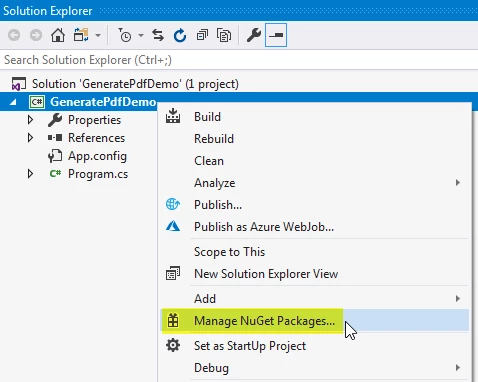
iText 授權
-
AGPL License: iText Core程式庫是開源的,免費提供給使用者。 要根據此授權模式使用iText,使用者必須遵守其條款,且根據此許可證對iText進行的任何修改也必須在AGPL許可模式下發布。
- 商業授權: 致力於不符合AGPL條款的項目的開發者,iText提供了商業授權模式,定價基於報價。
文件與支持:IronPDF vs. iText
IronPDF
-
全面的文件:涵蓋所有功能的廣泛且使用者友好型文件。
-
24/5支持:提供活躍的工程師支援。
-
影片教程:提供循序漸進的YouTube影片指南。
-
社區論壇:活躍的社區以提供額外支持。
- 定期更新: 每月產品更新包括最新功能和安全修補。
iText
-
文件: 深入的文件覆蓋了iText軟體功能。
-
範例和教程: 各種功能的教程和程式碼範例。
-
GitHub: 開發者可以將任何問題或錯誤提交到iText的GitHub儲存庫並與iText小組溝通。
- 更新: iText提供定期更新和改進。
有關IronPDF文件和支持的更多詳細資訊,請存取IronPDF文件和Iron Software YouTube頻道。
結論
在.NET的PDF操作工具領域中,IronPDF和iText都提供了針對各種開發需求的強大能力。 IronPDF以其跨平台的簡單整合而聞名於 .NET Core、Framework 和 Standard,並提供全面的功能如 HTML 到 PDF 的轉換和高級安全選項。 另一方面,以其Java遺產而聞名的iText提供了在開源和商業許可證下的強大PDF生成和操作工具,強調多樣性和自訂性。
選擇這些工具的最終取決於項目需求、授權偏好和所需的技術支持水平。 無論選擇 IronPDF 的簡單靈活性還是作為開源PDF程式庫的iText的豐富功能集,開發者都擁有充足的資源來有效地簡化其應用程式中的PDF工作流程。
您可以嘗試30天免費試用來查看他們提供的功能。
常見問題
如何在C#中將HTML轉換為PDF?
您可以使用IronPDF的RenderHtmlAsPdf方法將HTML字串轉換成PDF。也可以使用RenderHtmlFileAsPdf將HTML文件轉換為PDF。
IronPDF 和 iText 之間的主要區別是什麼?
IronPDF 因其易於使用、完整的文件和強大的技術支援而受到讚譽,使其成為開發人員的使用者友好選擇。而 iText 雖然強大,通常需要更多的手動工作,並且提供開源(AGPL)和商業授權。
PDF 程式庫有哪些授權選擇?
IronPDF 提供多種永久授權和免版稅選項,而 iText 提供免費的 AGPL 授權,並為不符合 AGPL 的專案提供商業選項。
哪個 PDF 程式庫為開發者提供更好的支援?
IronPDF 提供完整的文件、24/5 工程師支援和活躍的社區論壇,確保開發者能獲得最新的資源和協助。
IronPDF 是否相容不同的 .NET 環境?
是的,IronPDF 相容 .NET Core、.NET Standard 和 .NET Framework,並適用於 Windows、Linux、Mac、Docker、Azure 和 AWS 等環境。
IronPDF 如何處理 PDF 加密?
IronPDF 提供簡單的 API 用於加密 PDF,允許使用者輕鬆編輯元資料和調整安全設置,確保文件安全和合規。
IronPDF 能夠執行 DOCX 到 PDF 的轉換嗎?
是的,IronPDF 擅長 DOCX 到 PDF 的轉換,提供直接有效的過程,而不需要外部程式庫,簡化應用中的文件轉換任務。
IronPDF 在 HTML 到 PDF 轉換方面有哪些亮點功能?
IronPDF 使用 ChromePdfRenderer 進行 HTML 到 PDF 轉換,允許輕鬆整合 HTML、CSS 和 JavaScript,保證網頁內容精確渲染到 PDF。
IronPDF 和 iText 在跨平台相容性方面如何比較?
兩者均支援多個操作系統和環境,但 IronPDF 為像 HTML 到 PDF 轉換和 PDF 加密等任務提供更流暢的體驗。
IronPDF 提供哪些關鍵功能?
IronPDF 提供的功能包括 HTML 到 PDF 轉換、PDF 文件操控、加密和解密、編輯能力、浮水印、PDF 蓋章和數位簽名。











 免費開始
免費開始 免費開始
免費開始 預訂免費直播演示
















