


如何在iPhone上編輯PDF

由於PDF文件的複雜性,程式化地生成PDF文件可能相當複雜,尤其是在包含圖片、表格、文字、格式和其他功能時。
主要的挑戰是如何將純文字文件轉換為PDF格式。 有許多方法可以使用,但選擇一個能夠保持原始文件格式的方法是至關重要的。
在本教程中,我將比較Progress Software Corporation的Telerik PdfProcessing程式庫與Iron Software的IronPDF在生成PDF文件方面的表現。
如何在Telerik中將HTML轉換為PDF
- 安裝C#程式庫將HTML轉換為PDF
- 利用
Import方法來載入現有的HTML檔案在C#中 - 使用
Export方法將HTML轉換為PDF - 導出生成的PDF文件到所需位置
- 在C#中使用一行程式碼執行步驟3和4
Telerik PdfProcessing
Telerik PdfProcessing文件,是Progress文件處理應用程式組合的一部分,允許您建立和導出PDF而不需要寫任何程式碼。 它具有文字區塊、圖像、表單、表格、導入和導出等功能。 此外,該程式庫提供了適合流程式編輯的功能。 PdfProcessing應用程式可用於網頁、桌面和移動平台。
IronPDF .NET PDF 程式庫
IronPDF是一個.NET的PDF程式庫,可以在不需要Adobe Acrobat或其他第三方軟體的情況下生成PDFs。 該程式庫可以從頭生成PDF或將現有的.NET組件(如ASP.NET官方網站網頁,WPF使用者介面等)導出成PDF文件。
安裝
在本節中,我將介紹如何安裝IronPDF和Telerik文件處理程式庫。
安裝Telerik文件處理程式庫
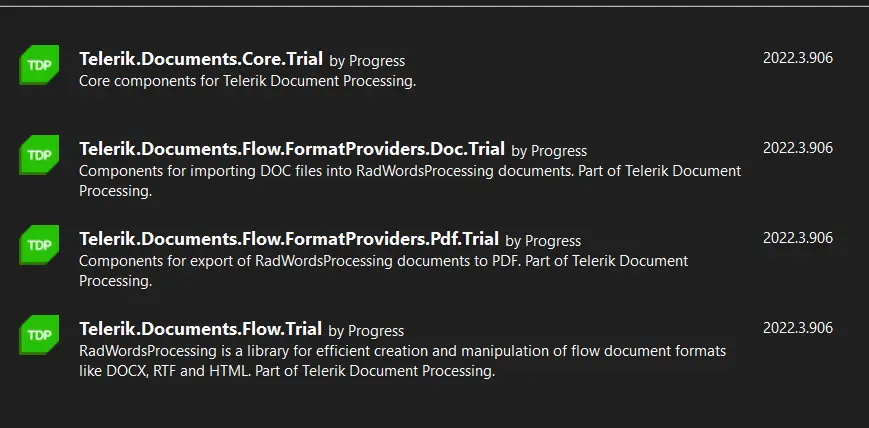
要使用Telerik文件處理套件從HTML建立PDF文件,我們必須安裝三個程式庫:
- Telerik.Documents.Core.Trial
- Telerik.Documents.Flow.FormatProviders.Doc.Trial
- Telerik.Documents.Flow.FormatProviders.Pdf.Trial
- Telerik.Documents.Flow.Trial
您可以使用NuGet包管理器安裝這些程式庫。
Telerik 和 Kendo UI 程式庫
安裝IronPDF C#.NET PDF 程式庫
您可以通過以下三種方式安裝IronPDF:
- 使用NuGet包管理器控制台安裝
- 使用NuGet Visual Studio GUI安裝
- 下載IronPDF DLL 文件進進行手動安裝
使用包管理器控制檯進行安裝時,在控制檯中輸入以下命令。
Install-Package IronPdf
此命令將安裝項目中的最新IronPDF庫版本。 當然,您可以始終在IronPDF的NuGet 頁面上查看最新版本。
使用Telerik生成PDF
Telerik 支持使用RadFlowDocument 程式庫插件將HTML轉換爲PDF。 它可以將包含HTML字串的HTML文件轉換爲PDF文件。
您可以使用以下程式碼來使用Telerik將HTML轉換爲PDF。
using Telerik.Windows.Documents.Flow.FormatProviders.Html;
using Telerik.Windows.Documents.Flow.Model;

// Create an HTML format provider for importing HTML files.
HtmlFormatProvider htmlProvider = new Telerik.Windows.Documents.Flow.FormatProviders.Html.HtmlFormatProvider();

// Create a document instance from the content of an HTML file.
RadFlowDocument document = htmlProvider.Import(File.ReadAllText(@"C:\HTML Website\website\index.html"));

// Create a PDF format provider for exporting the document.
Telerik.Windows.Documents.Flow.FormatProviders.Pdf.PdfFormatProvider pdfProvider = new Telerik.Windows.Documents.Flow.FormatProviders.Pdf.PdfFormatProvider();

// Export the document to a byte array.
byte[] pdfBytes = pdfProvider.Export(document);

// Save the PDF byte array to a file.
File.WriteAllBytes(@"C:/test.pdf", pdfBytes);
using Telerik.Windows.Documents.Flow.FormatProviders.Html;
using Telerik.Windows.Documents.Flow.Model;
// Create an HTML format provider for importing HTML files.
HtmlFormatProvider htmlProvider = new Telerik.Windows.Documents.Flow.FormatProviders.Html.HtmlFormatProvider();
// Create a document instance from the content of an HTML file.
RadFlowDocument document = htmlProvider.Import(File.ReadAllText(@"C:\HTML Website\website\index.html"));
// Create a PDF format provider for exporting the document.
Telerik.Windows.Documents.Flow.FormatProviders.Pdf.PdfFormatProvider pdfProvider = new Telerik.Windows.Documents.Flow.FormatProviders.Pdf.PdfFormatProvider();
// Export the document to a byte array.
byte[] pdfBytes = pdfProvider.Export(document);
// Save the PDF byte array to a file.
File.WriteAllBytes(@"C:/test.pdf", pdfBytes);Imports Telerik.Windows.Documents.Flow.FormatProviders.Html
Imports Telerik.Windows.Documents.Flow.Model
' Create an HTML format provider for importing HTML files.
Private htmlProvider As HtmlFormatProvider = New Telerik.Windows.Documents.Flow.FormatProviders.Html.HtmlFormatProvider()
' Create a document instance from the content of an HTML file.
Private document As RadFlowDocument = htmlProvider.Import(File.ReadAllText("C:\HTML Website\website\index.html"))
' Create a PDF format provider for exporting the document.
Private pdfProvider As New Telerik.Windows.Documents.Flow.FormatProviders.Pdf.PdfFormatProvider()
' Export the document to a byte array.
Private pdfBytes() As Byte = pdfProvider.Export(document)
' Save the PDF byte array to a file.
File.WriteAllBytes("C:/test.pdf", pdfBytes)上述程式碼有點複雜。 您首先需要建立一個HtmlFormatProvider 和一個RadFlowDocument。 使用PdfFormatProvider。 最后,使用WriteAllBytes方法将PDF文件导出到特定位置。
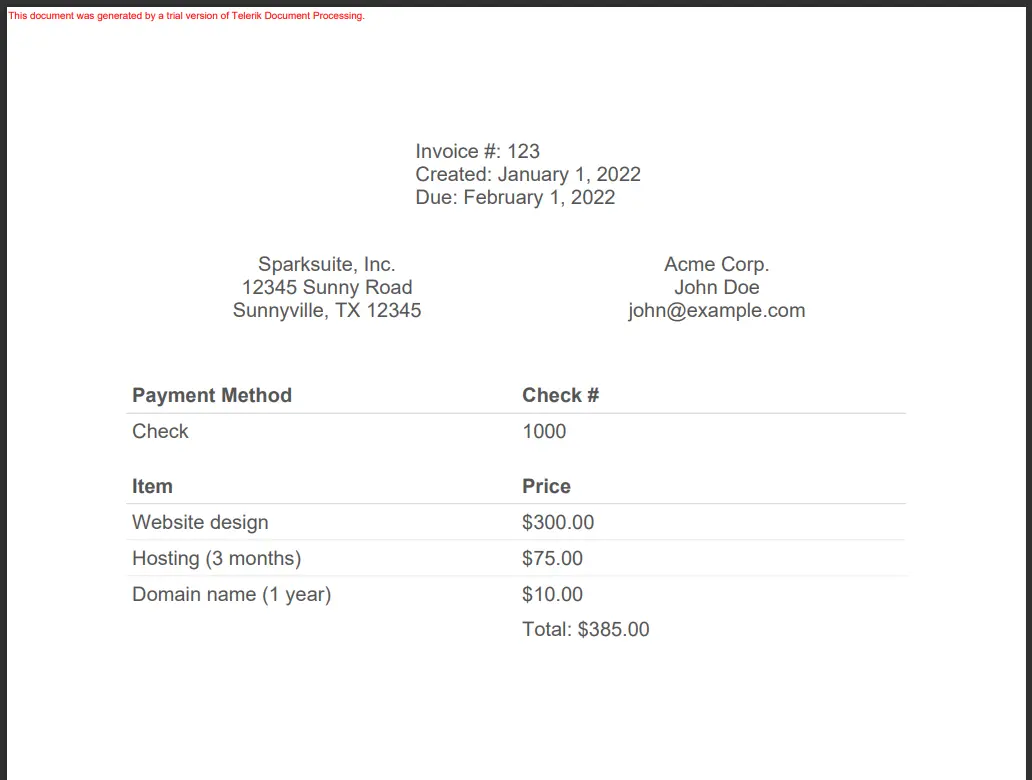
Telerik生成的輸出不好。 Telerik未保留HTML文件的UI,也未載入任何圖像。
Telerik 輸出
使用IronPDF生成PDF
IronPDF可以使用HTML文件、HTML字串和URL生成PDF。
HTML轉PDF
使用以下程式碼建立一個PDF文件,使用HTML文件。
using IronPdf;

// Create an instance of ChromePdfRenderer
var IronRenderer = new ChromePdfRenderer();

// Set the renderer's options to fit to the specified paper mode.
IronRenderer.RenderingOptions.FitToPaperMode = IronPdf.Engines.Chrome.FitToPaperModes.FixedPixelWidth;

// Render the HTML file as a PDF document.
var pdfFromHtmlFile = IronRenderer.RenderHtmlFileAsPdf(@"C:\HTML Website\website\index.html");

// Save the rendered PDF document to a file.
pdfFromHtmlFile.SaveAs(@"C:/IronPDF Test.pdf");
using IronPdf;
// Create an instance of ChromePdfRenderer
var IronRenderer = new ChromePdfRenderer();
// Set the renderer's options to fit to the specified paper mode.
IronRenderer.RenderingOptions.FitToPaperMode = IronPdf.Engines.Chrome.FitToPaperModes.FixedPixelWidth;
// Render the HTML file as a PDF document.
var pdfFromHtmlFile = IronRenderer.RenderHtmlFileAsPdf(@"C:\HTML Website\website\index.html");
// Save the rendered PDF document to a file.
pdfFromHtmlFile.SaveAs(@"C:/IronPDF Test.pdf");Imports IronPdf
' Create an instance of ChromePdfRenderer
Private IronRenderer = New ChromePdfRenderer()
' Set the renderer's options to fit to the specified paper mode.
IronRenderer.RenderingOptions.FitToPaperMode = IronPdf.Engines.Chrome.FitToPaperModes.FixedPixelWidth
' Render the HTML file as a PDF document.
Dim pdfFromHtmlFile = IronRenderer.RenderHtmlFileAsPdf("C:\HTML Website\website\index.html")
' Save the rendered PDF document to a file.
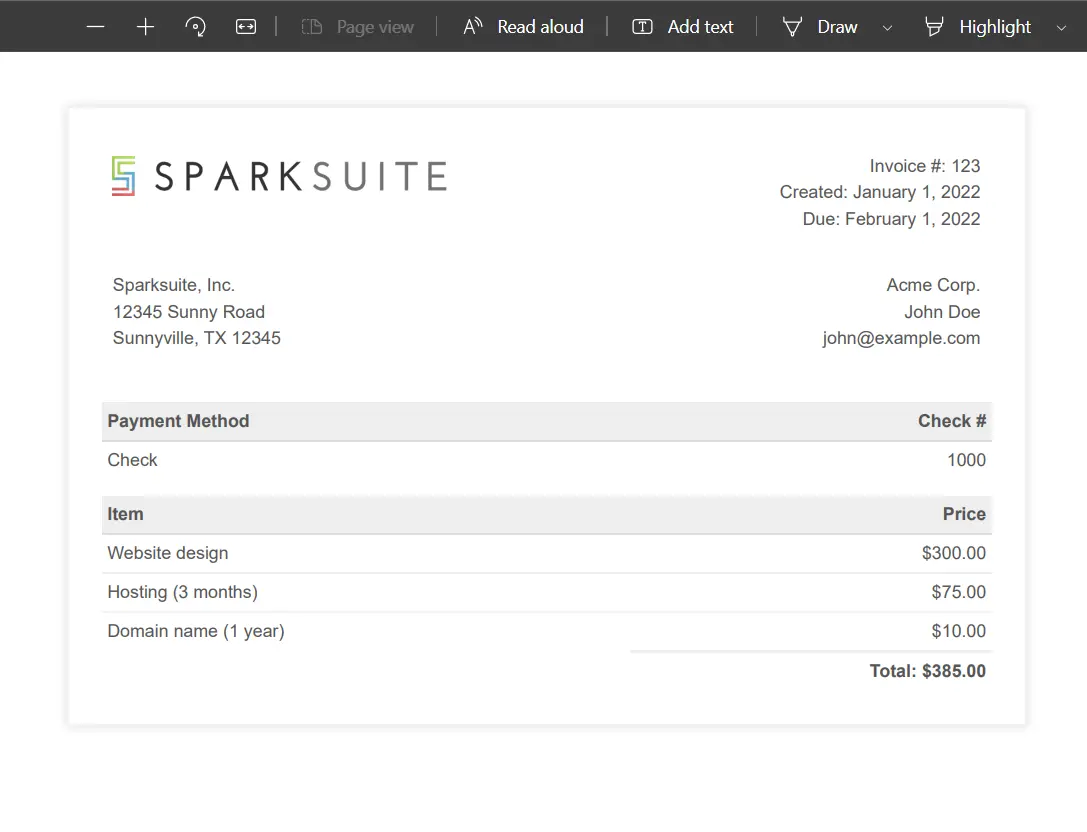
pdfFromHtmlFile.SaveAs("C:/IronPDF Test.pdf")RenderHtmlFileAsPdf 方法用於從HTML文件生成PDF。此函式讀取HTML文件中的所有內容,並載入相關的CSS和JavaScript文件。 RenderHtmlFileAsPdf方法的輸出顯示如下。
IronPDF HTML轉PDF
IronPDF從HTML生成PDF非常漂亮。 這個結果與Telerik生成的PDF不同,也更好。
URL轉PDF
您可以使用以下程式碼從URL生成PDF。
using IronPdf.Rendering;
using IronPdf;

// Create an instance of ChromePdfRenderer
ChromePdfRenderer renderer = new ChromePdfRenderer();

// Set the paper size for rendering the PDF.
renderer.RenderingOptions.PaperSize = PdfPaperSize.A2;

// Render the specified URL as a PDF document.
PdfDocument myPdf = renderer.RenderUrlAsPdf("https://dotnet.microsoft.com/en-us/");

// Save the rendered PDF document to a file.
myPdf.SaveAs(@"C:/dotnet.pdf");
using IronPdf.Rendering;
using IronPdf;
// Create an instance of ChromePdfRenderer
ChromePdfRenderer renderer = new ChromePdfRenderer();
// Set the paper size for rendering the PDF.
renderer.RenderingOptions.PaperSize = PdfPaperSize.A2;
// Render the specified URL as a PDF document.
PdfDocument myPdf = renderer.RenderUrlAsPdf("https://dotnet.microsoft.com/en-us/");
// Save the rendered PDF document to a file.
myPdf.SaveAs(@"C:/dotnet.pdf");Imports IronPdf.Rendering
Imports IronPdf
' Create an instance of ChromePdfRenderer
Private renderer As New ChromePdfRenderer()
' Set the paper size for rendering the PDF.
renderer.RenderingOptions.PaperSize = PdfPaperSize.A2
' Render the specified URL as a PDF document.
Dim myPdf As PdfDocument = renderer.RenderUrlAsPdf("https://dotnet.microsoft.com/en-us/")
' Save the rendered PDF document to a file.
myPdf.SaveAs("C:/dotnet.pdf")RenderUrlAsPdf 函式將網頁的URL轉換爲PDF。 它會等待載入所有相關文件後再渲染,產生非凡的結果。 它保留了所有的顏色、設計和UI。 您可以在下方看到輸出。

URL到PDF
您可以在IronPDF教程頁面上獲取有關IronPDF的更多教程並觀察它們的運行。
比較
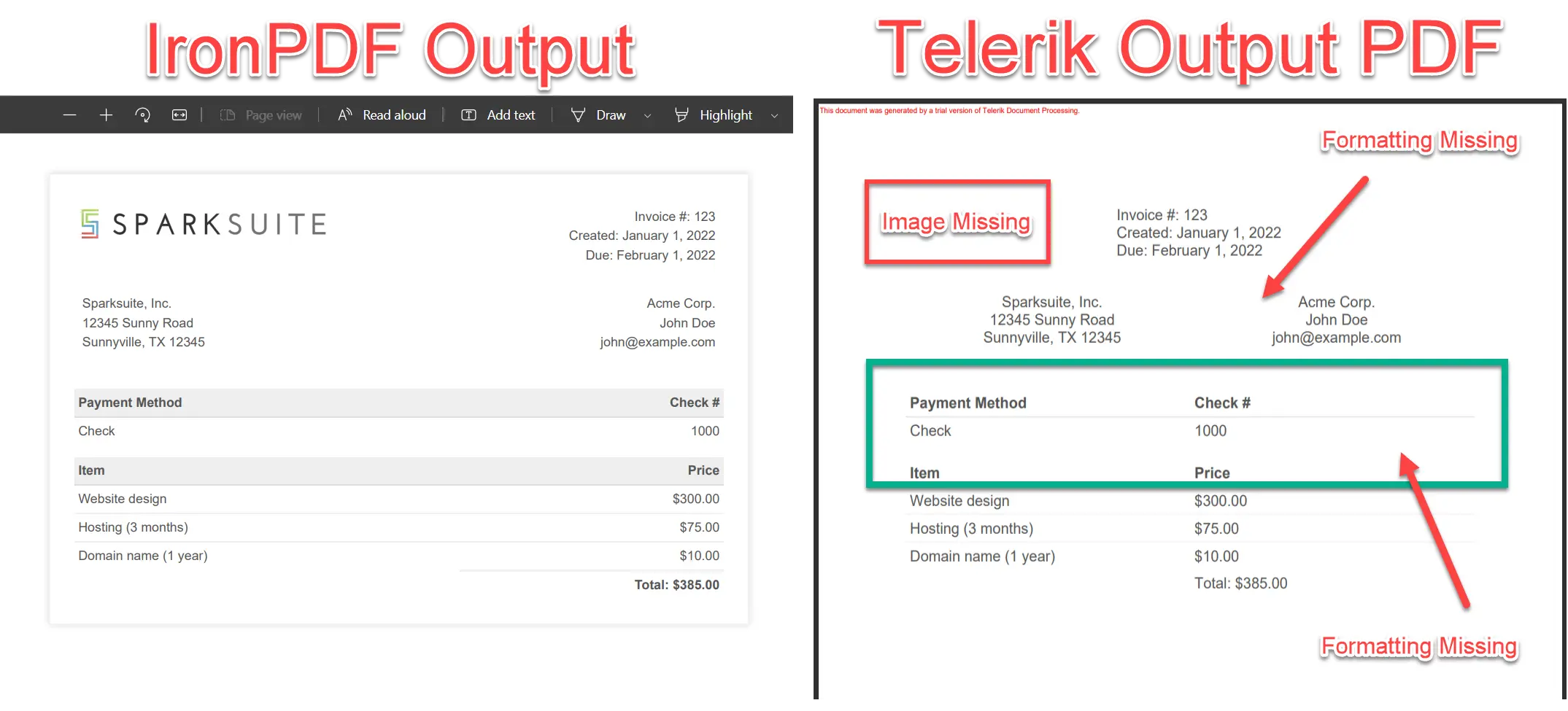
如我們所見,IronPDF和Telerik的ASP.NET結果介面顯示Telerik不是HTML到PDF轉換的好選擇,因為其渲染質量不好。 您可以在下方看到IronPDF和Telerik輸出的差異。
輸出比較
渲染質量
在上圖中,您可以清楚地看到IronPDF和Telerik標準輸出的差異。 讓我們根據功能來比較輸出。
Telerik的渲染質量較差。 它渲染的PDF格式差,無法保留文件的原始樣式。 另一方面,IronPDF具有出色的渲染質量,保留了源文件的每個方面。
CSS和JavaScript支持
Telerik PdfProcessing主要設計用於基於程式碼的PDF生成,不原生支持用於HTML轉換的外部CSS或JavaScript文件。 它的重點在於程式化的文件建立,而不是HTML渲染。
相反,IronPDF對內部和外部CSS和JavaScript聲明提供完全支持。 可以根據需要開關JavaScript處理與IronPDF。
Telerik文档处理的限制
總之,以下是Telerik PdfProcessing在HTML到PDF工作流中一些附加的限制:
- Telerik PdfProcessing沒有原生支持用於HTML轉換的外部CSS或JavaScript文件。
- 与基于浏览器的PDF生成器相比,有限的HTML渲染能力。
- 沒有內建的URL到PDF轉換功能。
- 設計用於程式化的PDF建立,而非HTML文件轉換。
- HTML渲染質量可能無法匹配源文件的外觀。
IronPDF的特色
IronPDF的主要特色是:
- IronPDF支持URL到PDF和HTML文件到PDF轉換。
- IronPDF支持諸如圖像、CSS和JS文件等外部文件。
- IronPDF在不使用任何外部庫的情況下自動載入每個文件。
- IronPDF有详尽的文档。
- IronPDF保留UI并提供出色的渲染质量。
IronPDF還有許多其他功能。 您可以存取IronPDF功能頁面獲取最佳資訊。
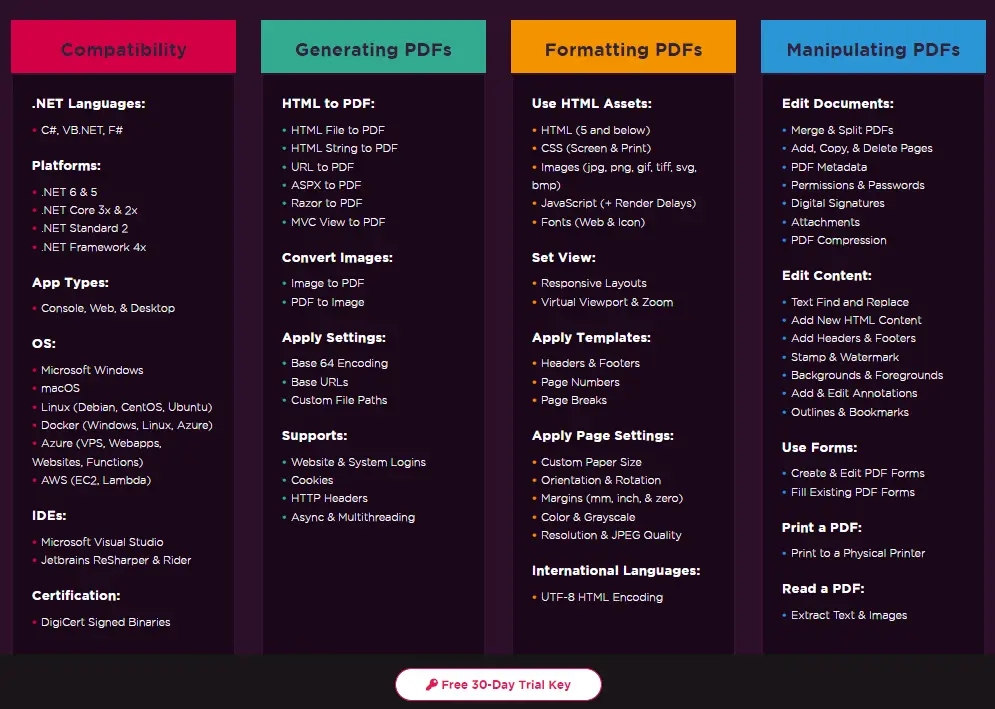
IronPDF特色
總結
在本文中,我們比較了IronPDF與Telerik的PdfDocument處理程式庫,發現IronPDF在HTML到PDF轉換方面遠優於Telerik程式庫。
IronPDF是一個優秀的用於所有與PDF相關操作的程式庫。 您可以在所有最新的.NET和.NET Core框架中建立、編輯和修改PDF文件。 請存取IronPDF許可頁面以獲取有關IronPDF產品包的分發和許可的更多資訊。
常見問題
如何在C#中將HTML轉換為PDF?
您可以使用IronPDF的RenderHtmlAsPdf方法將HTML字串轉換成PDF。也可以使用RenderHtmlFileAsPdf將HTML文件轉換為PDF。
使用IronPDF超越Telerik進行PDF生成功能的好處是什麼?
IronPDF提供優越的渲染質量,支援外部CSS和JavaScript文件,並允許URL轉PDF轉換。它還比Telerik PdfProcessing更好地保留原始文件的樣式和使用者介面。
我可以使用IronPDF來處理外部CSS和JavaScript文件嗎?
是的,IronPDF支援外部CSS和JavaScript文件的包含,這確保了HTML文件的準確渲染。
有哪些安裝IronPDF的方法?
IronPDF可以通過NuGet Package Manager Console、NuGet Visual Studio GUI,或下載IronPDF DLL文件進行手動安裝。
為什麼Telerik PdfProcessing在渲染質量方面可能受限?
Telerik PdfProcessing不支援外部CSS、JavaScript或URL轉PDF轉換,導致渲染質量差和文件功能不完整。
IronPDF提供哪些主要功能?
IronPDF支援URL轉PDF和HTML文件轉PDF轉換,處理外部文件如圖像、CSS和JS,並提供卓越的渲染質量。它還包括完整的文件。
使用IronPDF是否可以將URL轉換為PDF?
是的,IronPDF允許將URL轉換為PDF,使用其多功能的渲染能力來保留原始樣式和內容。
如何使用Package Manager Console安裝IronPDF?
要通過Package Manager Console安裝IronPDF,使用命令Install-Package IronPdf。
Telerik PdfProcessing在處理PDF中的圖像時面臨哪些挑戰?
由於缺乏對外部CSS和JavaScript的支援,Telerik PdfProcessing在PDF中渲染圖像時表現不佳,這可能影響到文件的整體質量和完整性。
如何確保IronPDF比Telerik擁有更好的PDF文件質量?
IronPDF通過支援外部CSS和JavaScript,提供全面的文件,並提供強大的渲染能力來保留原始文件的樣式和UI,從而確保更高的質量。









 免費開始
免費開始 免費開始
免費開始 預訂免費直播演示
















