


.NET MAUI Blazor for (PDF,EXCEL,OCR,BARCODE,QR Code)

.NET 多平台應用程式 UI(.NET MAUI)包含 BlazorWebView 控制項,使開發者能夠將 MAUI Blazor 伺服器應用程式整合到使用 Visual Studio 的 .NET MAUI 專案中。 這些稱為 .NET MAUI Blazor 應用程式的 Blazor 混合應用程式,使之能夠與平台特定的功能整合並呈現網頁 UI(使用者介面)控制項。 這些 .NET MAUI Blazor 應用程式是跨平台的應用程式,因為 .NET MAUI 是一個跨平台框架,且不需要平台特定的程式碼。 我們可以在 Android 裝置/Android 模擬器、iOS、macOS、Mac Catalyst 和 Windows 作業系統的機器上使用 .NET MAUI 應用程式。
可以將 BlazorWebView 控制項新增到 .NET MAUI 原生應用程式的任何頁面,並指向 MAUI Blazor 網頁應用程式的根目錄。 .NET MAUI Blazor 網頁應用程式的 Razor 元件將在 .NET 進程中原生運行,並通過內嵌的網頁檢視控制項呈現網頁 UI 元件。 MAUI Blazor 混合應用程式、桌面應用程式或 Windows 表單可以在 .NET MAUI 支援的所有不同平台上使用,包括瀏覽器沙箱。
IronPDF:一個 .NET PDF 程式庫
IronPDF
作為 C# 開發者,您知道擁有正確的工具對於工作的重要性。 這就是 IronPDF 的用武之地。 這個強大的 .NET 類庫使得使用 .NET Core 和 .NET 技術的跨平台 API 開發 PDF 處理應用程式變得容易。IronPDF 使用 .NET Chromium 引擎將 HTML 頁面(以程式碼或 URL 形式)轉換為 PDF 檔案,省去了複雜的 API 和手動設計工作的需要。 它支援標準的網頁文件,如 HTML、ASPX、JS、CSS 和圖片。
與 Blazor 和 .NET MAUI 的相容性
IronPDF 可以輕鬆地整合到使用 Blazor 元件和 .NET MAUI 框架構建的應用程式中,為開發者提供了一系列可用於建立和操作 PDF 文件的功能。 這些功能包括從 HTML、XML 和其他文件格式生成 PDF,還可以通過新增或修改文字、圖片和其他 .NET MAUI 工作負載元素來編輯現有的 PDF。
建立 .NET MAUI Blazor 應用程式的步驟
按照以下步驟在 Visual Studio 中建立 .NET MAUI 應用程式。
步驟 1:開啟 Visual Studio
開啟最新版本的 Visual Studio 並啟用開發者模式。 推薦使用最新版本的 Visual Studio。
步驟 2:搜尋 .NET Blazor
現在點擊"建立新專案"按鈕並搜尋 .NET MAUI Blazor 模板。 從搜尋結果中選擇".NET MAUI Blazor 應用程式",然後點擊"下一步"按鈕。

建立 Visual Studio .NET MAUI 應用程式
步驟 3:設置專案名稱
為專案賦予適當的名稱,然後點擊"下一步"按鈕。
步驟 4:.NET Framework
選擇 .NET 目標框架。 推薦使用最新的框架以確保流暢的工作體驗。 選擇框架後,點擊"建立"按鈕。
通過上述步驟,將建立一個 .NET MAUI Blazor 應用程式。

建立 Visual Studio .NET MAUI 應用程式
讓我們看看如何使用這個根 Blazor 元件專案來進行 IronPDF。
將 Blazor 內容匯出為 PDF
我們可以使用以下程式碼非常輕鬆地將 Blazor 內容轉換為 PDF。
首先,開啟 Index.razor 檔案並將程式碼替換為以下程式碼:
@page "/"

<input @bind="InputValue" placeholder="Enter HTML content" />
<button @onclick="SubmitHTML">Render HTML</button>

@code {
    // Property to bind input value
    private string InputValue { get; set; }

    // Async method to render HTML as PDF and save
    private async Task SubmitHTML()
    {
        // Create an instance of ChromePdfRenderer
        var renderer = new IronPdf.ChromePdfRenderer();

        // Render the HTML input value as a PDF document
        var doc = renderer.RenderHtmlAsPdf(InputValue);

        // Save the document as 'Test.pdf' on the local file system
        doc.SaveAs("Test.pdf");
    }
}
@page "/"
<input @bind="InputValue" placeholder="Enter HTML content" />
<button @onclick="SubmitHTML">Render HTML</button>
@code {
// Property to bind input value
private string InputValue { get; set; }
// Async method to render HTML as PDF and save
private async Task SubmitHTML()
{
// Create an instance of ChromePdfRenderer
var renderer = new IronPdf.ChromePdfRenderer();
// Render the HTML input value as a PDF document
var doc = renderer.RenderHtmlAsPdf(InputValue);
// Save the document as 'Test.pdf' on the local file system
doc.SaveAs("Test.pdf");
}
}Imports IronPdf
@page "/"
<input @bind="InputValue" placeholder="Enter HTML content" />
<button @onclick="SubmitHTML">Render HTML</button>
@code
' Property to bind input value
Private Property InputValue As String
' Async method to render HTML as PDF and save
Private Async Function SubmitHTML() As Task
' Create an instance of ChromePdfRenderer
Dim renderer As New ChromePdfRenderer()
' Render the HTML input value as a PDF document
Dim doc = renderer.RenderHtmlAsPdf(InputValue)
' Save the document as 'Test.pdf' on the local file system
doc.SaveAs("Test.pdf")
End Function
End Code此程式碼幫助將產生的 PDF 檔案下載到本地機器上。這就是我們如何用 IronPDF 將 Blazor 內容轉換為 PDF 檔案,而不使用任何外部程式庫。

使用 .NET MAUI Blazor 生成 PDF
我們將在文字框中輸入以下 HTML:
<!DOCTYPE html>
<html>
  <head>
    <link href='https://fonts.googleapis.com/css2?family=Popin&display=swap' rel='stylesheet'>
    <style>
      /* Add CSS styles for the invoice here */
      body{
        font-family: 'Popin', cursive;
      }
      .invoice {
        width: 80%;
        margin: 0 auto;
        border: 1px solid #ccc;
        padding: 20px;
        background-color: #f5f5f5;
        color: #333;
      }
      .invoice h1 {
        text-align: center;
      }
      .invoice .invoice-info {
        display: flex;
        justify-content: space-between;
        margin-bottom: 20px;
      }
      .invoice .invoice-info div {
        width: 45%;
      }
      .invoice table {
        width: 100%;
        border-collapse: collapse;
      }
      .invoice table th, .invoice table td {
        border: 1px solid #ccc;
        padding: 10px;
      }
      .invoice table th {
        text-align: left;
        background-color: #f5f5f5;
      }
      .invoice table td {
        text-align: right;
      }
      .invoice table td.total {
        font-weight: bold;
      }
    </style>
  </head>
  <body>
    <div class="invoice">
      <h1>Invoice</h1>
      <div class="invoice-info">
        <div>
          <p><strong>From:</strong></p>
          <p>Your Company Name</p>
          <p>123 Main St</p>
          <p>City, State ZIP</p>
        </div>
        <div>
          <p><strong>To:</strong></p>
          <p>Customer Name</p>
          <p>456 Park Ave</p>
          <p>City, State ZIP</p>
        </div>
      </div>
      <table>
        <thead>
          <tr>
            <th>Product</th>
            <th>Quantity</th>
            <th>Price</th>
            <th>Total</th>
          </tr>
        </thead>
        <tbody>
          <tr>
            <td>Product 1</td>
            <td>1</td>
            <td>$10.00</td>
            <td>$10.00</td>
          </tr>
          <tr>
            <td>Product 2</td>
            <td>2</td>
            <td>$5.00</td>
            <td>$10.00</td>
          </tr>
          <tr>
            <td colspan="3" class="total">Total:</td>
            <td class="total">$20.00</td>
          </tr>
        </tbody>
      </table>
    </div>
  </body>
</html>
<!DOCTYPE html>
<html>
<head>
<link href='https://fonts.googleapis.com/css2?family=Popin&display=swap' rel='stylesheet'>
<style>
/* Add CSS styles for the invoice here */
body{
font-family: 'Popin', cursive;
}
.invoice {
width: 80%;
margin: 0 auto;
border: 1px solid #ccc;
padding: 20px;
background-color: #f5f5f5;
color: #333;
}
.invoice h1 {
text-align: center;
}
.invoice .invoice-info {
display: flex;
justify-content: space-between;
margin-bottom: 20px;
}
.invoice .invoice-info div {
width: 45%;
}
.invoice table {
width: 100%;
border-collapse: collapse;
}
.invoice table th, .invoice table td {
border: 1px solid #ccc;
padding: 10px;
}
.invoice table th {
text-align: left;
background-color: #f5f5f5;
}
.invoice table td {
text-align: right;
}
.invoice table td.total {
font-weight: bold;
}
</style>
</head>
<body>
<div class="invoice">
<h1>Invoice</h1>
<div class="invoice-info">
<div>
<p><strong>From:</strong></p>
<p>Your Company Name</p>
<p>123 Main St</p>
<p>City, State ZIP</p>
</div>
<div>
<p><strong>To:</strong></p>
<p>Customer Name</p>
<p>456 Park Ave</p>
<p>City, State ZIP</p>
</div>
</div>
<table>
<thead>
<tr>
<th>Product</th>
<th>Quantity</th>
<th>Price</th>
<th>Total</th>
</tr>
</thead>
<tbody>
<tr>
<td>Product 1</td>
<td>1</td>
<td>$10.00</td>
<td>$10.00</td>
</tr>
<tr>
<td>Product 2</td>
<td>2</td>
<td>$5.00</td>
<td>$10.00</td>
</tr>
<tr>
<td colspan="3" class="total">Total:</td>
<td class="total">$20.00</td>
</tr>
</tbody>
</table>
</div>
</body>
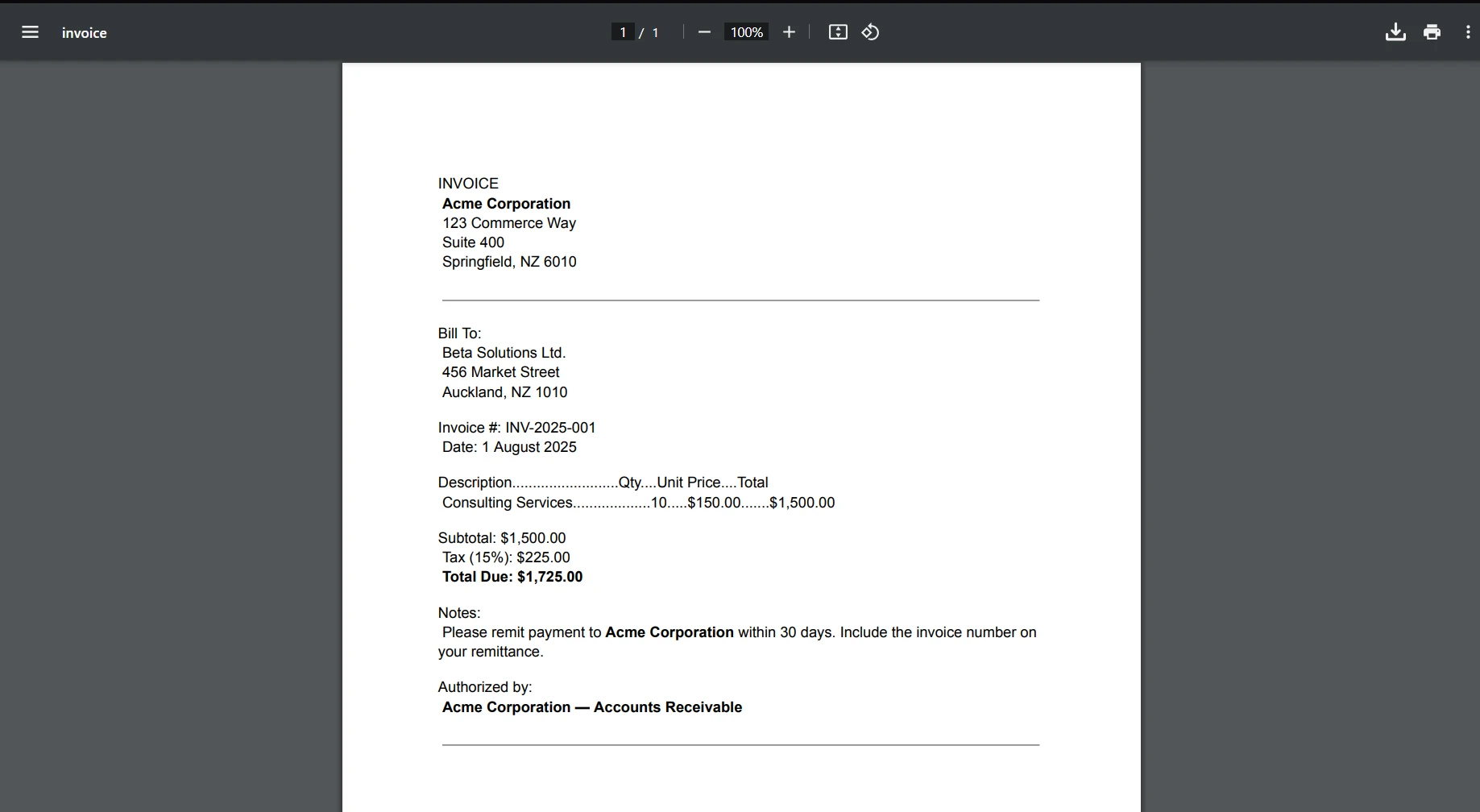
</html>MAUI Blazor 應用程式生成如下面所示的輸出。

使用 .NET MAUI Blazor 生成 PDF
透過 Blazor PDF 建立教程 和 .NET MAUI 應用程式 獲取更多有關 IronPDF 的資訊。
IronXL

IronXL
IronXL 是一個 .NET 程式庫,讓開發者可以在 C# 中讀取、編輯和建立 Excel 試算表。 它不需要安裝 Microsoft Excel,支援包括 Android、iOS、macOS、Windows 機器和 Azure 的所有平台。 它提供了一系列功能,例如從各種格式載入和編輯資料、保存和匯出到各種格式,並處理 System.Data 物件、處理公式、排序資料和設置儲存格樣式。 此外,它可以作為 NuGet 套件獲取,並且在其網站和 GitHub 資源庫中有文件和範例可用。
IronXL 支援 .NET MAUI 和 Blazor,讓使用者能從各種來源存取或提取資料,包括 Excel 試算表、網路或 Azure 服務和其他應用程式。 有了 IronXL 支援 .NET MAUI 和 Blazor,開發者可以在 iOS、macOS、Windows 和 Android 裝置上開發令人難忘的使用者介面。
讓我們看一個 IronXL 的範例程式碼:
using IronXL;
using IronXL.Formatting;
using IronXL.Formatting.Enums;
using IronXL.Styles;

// Load an existing Excel workbook
WorkBook workbook = WorkBook.Load("test.xlsx");
WorkSheet sheet = workbook.DefaultWorkSheet;

// Create a specific conditional formatting rule for cells with values less than 8
ConditionalFormattingRule rule = sheet.ConditionalFormatting.CreateConditionalFormattingRule(ComparisonOperator.LessThan, "8");

// Set different style options for the rule
rule.FontFormatting.IsBold = true; // Bold text
rule.FontFormatting.FontColor = "#123456"; // Custom font color
rule.BorderFormatting.RightBorderColor = "#ffffff"; // Right border color
rule.BorderFormatting.RightBorderType = BorderType.Thick; // Right border thickness
rule.PatternFormatting.BackgroundColor = "#54bdd9"; // Background color
rule.PatternFormatting.FillPattern = FillPattern.Diamonds; // Fill pattern

// Add the formatting rule to the specified cell range
sheet.ConditionalFormatting.AddConditionalFormatting("A3:A8", rule);

// Create another conditional formatting rule for values between 7 and 10
ConditionalFormattingRule rule1 = sheet.ConditionalFormatting.CreateConditionalFormattingRule(ComparisonOperator.Between, "7", "10");

// Set additional style options for the new rule
rule1.FontFormatting.IsItalic = true; // Italic text
rule1.FontFormatting.UnderlineType = FontUnderlineType.Single; // Single underline

// Add this formatting rule to a different range of cells
sheet.ConditionalFormatting.AddConditionalFormatting("A3:A9", rule1);

// Save the workbook with the applied conditional formatting
workbook.SaveAs("ApplyConditionalFormatting.xlsx");
using IronXL;
using IronXL.Formatting;
using IronXL.Formatting.Enums;
using IronXL.Styles;
// Load an existing Excel workbook
WorkBook workbook = WorkBook.Load("test.xlsx");
WorkSheet sheet = workbook.DefaultWorkSheet;
// Create a specific conditional formatting rule for cells with values less than 8
ConditionalFormattingRule rule = sheet.ConditionalFormatting.CreateConditionalFormattingRule(ComparisonOperator.LessThan, "8");
// Set different style options for the rule
rule.FontFormatting.IsBold = true; // Bold text
rule.FontFormatting.FontColor = "#123456"; // Custom font color
rule.BorderFormatting.RightBorderColor = "#ffffff"; // Right border color
rule.BorderFormatting.RightBorderType = BorderType.Thick; // Right border thickness
rule.PatternFormatting.BackgroundColor = "#54bdd9"; // Background color
rule.PatternFormatting.FillPattern = FillPattern.Diamonds; // Fill pattern
// Add the formatting rule to the specified cell range
sheet.ConditionalFormatting.AddConditionalFormatting("A3:A8", rule);
// Create another conditional formatting rule for values between 7 and 10
ConditionalFormattingRule rule1 = sheet.ConditionalFormatting.CreateConditionalFormattingRule(ComparisonOperator.Between, "7", "10");
// Set additional style options for the new rule
rule1.FontFormatting.IsItalic = true; // Italic text
rule1.FontFormatting.UnderlineType = FontUnderlineType.Single; // Single underline
// Add this formatting rule to a different range of cells
sheet.ConditionalFormatting.AddConditionalFormatting("A3:A9", rule1);
// Save the workbook with the applied conditional formatting
workbook.SaveAs("ApplyConditionalFormatting.xlsx");Imports IronXL
Imports IronXL.Formatting
Imports IronXL.Formatting.Enums
Imports IronXL.Styles
' Load an existing Excel workbook
Private workbook As WorkBook = WorkBook.Load("test.xlsx")
Private sheet As WorkSheet = workbook.DefaultWorkSheet
' Create a specific conditional formatting rule for cells with values less than 8
Private rule As ConditionalFormattingRule = sheet.ConditionalFormatting.CreateConditionalFormattingRule(ComparisonOperator.LessThan, "8")
' Set different style options for the rule
rule.FontFormatting.IsBold = True ' Bold text
rule.FontFormatting.FontColor = "#123456" ' Custom font color
rule.BorderFormatting.RightBorderColor = "#ffffff" ' Right border color
rule.BorderFormatting.RightBorderType = BorderType.Thick ' Right border thickness
rule.PatternFormatting.BackgroundColor = "#54bdd9" ' Background color
rule.PatternFormatting.FillPattern = FillPattern.Diamonds ' Fill pattern
' Add the formatting rule to the specified cell range
sheet.ConditionalFormatting.AddConditionalFormatting("A3:A8", rule)
' Create another conditional formatting rule for values between 7 and 10
Dim rule1 As ConditionalFormattingRule = sheet.ConditionalFormatting.CreateConditionalFormattingRule(ComparisonOperator.Between, "7", "10")
' Set additional style options for the new rule
rule1.FontFormatting.IsItalic = True ' Italic text
rule1.FontFormatting.UnderlineType = FontUnderlineType.Single ' Single underline
' Add this formatting rule to a different range of cells
sheet.ConditionalFormatting.AddConditionalFormatting("A3:A9", rule1)
' Save the workbook with the applied conditional formatting
workbook.SaveAs("ApplyConditionalFormatting.xlsx")上面的程式碼幫助您打開已存在的 Excel 檔案並對不同儲存格範圍應用條件格式。 使用以下 Excel 條件格式教程 獲取更多關於 IronXL 的教程。
IronOCR

IronOCR
IronOCR 是 C# 開發者中廣泛使用的 OCR 工具,提供簡單的 API 來將 OCR 功能整合到 C# 應用程式中。 它能有效地從各種來源提取文字,如掃描文件、PDF 和圖片,使用先進的機器學習算法來準確識別即使是變形或難以閱讀的文字。 IronOCR 為 C# 開發者提供了一系列定制選項,包括調整識別文字的語言、字體和字元集、預測集合,並預處理圖片以提高 OCR 的準確性。 這些定制功能允許開發者針對其特定需求優化 IronOCR 的性能。
IronOCR 是一個強大的 OCR 識別程式庫,支援 .NET MAUI 和 Blazor。 使用 IronOCR,開發者可以在任何平台上快速建立應用程式,而不必擔心掃描、閱讀和撰寫大量文字資料的複雜性。 沒有其他 OCR 軟體能讓使用者如此簡單地存取如此多的開發工具並進行整合。
請查看 IronOCR 的範例,展示了如何使用 IronOCR 從 PDF 檔案中提取文字。
using IronOcr;

var ocrTesseract = new IronTesseract();

using (var ocrInput = new OcrInput())
{
    // OCR the entire document
    ocrInput.AddPdf("example.pdf", "password");

    // Alternatively OCR selected page numbers
    ocrInput.AddPdfPages("example.pdf", new[] { 1, 2, 3 }, "password");

    var ocrResult = ocrTesseract.Read(ocrInput);
    Console.WriteLine(ocrResult.Text);
}
using IronOcr;
var ocrTesseract = new IronTesseract();
using (var ocrInput = new OcrInput())
{
// OCR the entire document
ocrInput.AddPdf("example.pdf", "password");
// Alternatively OCR selected page numbers
ocrInput.AddPdfPages("example.pdf", new[] { 1, 2, 3 }, "password");
var ocrResult = ocrTesseract.Read(ocrInput);
Console.WriteLine(ocrResult.Text);
}Imports IronOcr
Private ocrTesseract = New IronTesseract()
Using ocrInput As New OcrInput()
' OCR the entire document
ocrInput.AddPdf("example.pdf", "password")
' Alternatively OCR selected page numbers
ocrInput.AddPdfPages("example.pdf", { 1, 2, 3 }, "password")
Dim ocrResult = ocrTesseract.Read(ocrInput)
Console.WriteLine(ocrResult.Text)
End Using點擊此處以獲取有關如何在 .NET Maui 中使用 IronOCR 的更多教程:OCR in .NET MAUI tutorial。
使用以下 PDF OCR 教程 獲取更多有關 IronOCR 的教程。
IronBarcode

IronBarcode
如何在 .NET Maui 中建立條碼掃描器
- 下載 C# 程式庫以在 Maui 中建立條碼掃描器
- 使用
Read方法從 PDF 和圖片掃描條碼 - 支援多種條碼格式,包括 QR 碼、Code 39、Code 128 等。
- 將 C# 程式庫輕鬆整合到現有的 .NET MAUI 和 Blazor 專案中
- 將預處理應用於不完美的圖片
IronBarcode 是一個 C# 程式庫,讓開發者能夠輕鬆地為其 C# 應用程式新增條碼閱讀和撰寫功能。 此程式庫對於從事掃描或生成條碼專案的開發者格外有用,例如庫存管理系統或銷售點系統。 IronBarcode 的一個主要特點是能夠讀取和撰寫各種條碼格式,包括 QR 碼、Code 39、Code 128 等。 這意味著開發者可以根據專案需求使用它來處理各種不同的條碼型別。
IronBarcode 支援 .NET MAUI 和 Blazor 這兩個開發者用於建立現代跨平台應用程式的流行框架。 這對開發者很有利,因為這一特性允許他們輕鬆將 IronBarcode 強大的條碼生成和掃描功能整合到其 .NET MAUI 和 Blazor 專案中。
以下程式碼範例顯示了如何使用 IronBarcode 讀取多種型別的條碼。 這是一個非常簡單且容易理解的過程。
using IronBarCode;
using IronSoftware.Drawing;

// Reading a barcode is easy with IronBarcode.
// Read from a File, Bitmap, Image, or Stream:

var resultFromFile = BarcodeReader.Read(@"file/barcode.png"); // From a file

var resultFromBitMap = BarcodeReader.Read(new Bitmap("barcode.bmp")); // From a bitmap

var resultFromAnyBitmap = BarcodeReader.Read(new AnyBitmap("barcode.bmp")); // From AnyBitmap

var resultFromImage = BarcodeReader.Read(Image.FromFile("barcode.jpg")); // From an image

var resultFromStream = BarcodeReader.Read(myStream); // From a stream

// PDFs are more intricate and must be read using ReadPdf:
var resultFromPdf = BarcodeReader.ReadPdf(@"file/mydocument.pdf");
using IronBarCode;
using IronSoftware.Drawing;
// Reading a barcode is easy with IronBarcode.
// Read from a File, Bitmap, Image, or Stream:
var resultFromFile = BarcodeReader.Read(@"file/barcode.png"); // From a file
var resultFromBitMap = BarcodeReader.Read(new Bitmap("barcode.bmp")); // From a bitmap
var resultFromAnyBitmap = BarcodeReader.Read(new AnyBitmap("barcode.bmp")); // From AnyBitmap
var resultFromImage = BarcodeReader.Read(Image.FromFile("barcode.jpg")); // From an image
var resultFromStream = BarcodeReader.Read(myStream); // From a stream
// PDFs are more intricate and must be read using ReadPdf:
var resultFromPdf = BarcodeReader.ReadPdf(@"file/mydocument.pdf");Imports IronBarCode
Imports IronSoftware.Drawing
' Reading a barcode is easy with IronBarcode.
' Read from a File, Bitmap, Image, or Stream:
Private resultFromFile = BarcodeReader.Read("file/barcode.png") ' From a file
Private resultFromBitMap = BarcodeReader.Read(New Bitmap("barcode.bmp")) ' From a bitmap
Private resultFromAnyBitmap = BarcodeReader.Read(New AnyBitmap("barcode.bmp")) ' From AnyBitmap
Private resultFromImage = BarcodeReader.Read(Image.FromFile("barcode.jpg")) ' From an image
Private resultFromStream = BarcodeReader.Read(myStream) ' From a stream
' PDFs are more intricate and must be read using ReadPdf:
Private resultFromPdf = BarcodeReader.ReadPdf("file/mydocument.pdf")點擊此網址獲取有關如何在 .NET Maui 中使用 IronBarcode 的更多教程:Barcode Scanner in .NET MAUI tutorial。
使用以下 Barcode Scanner Reader 教程 獲取更多有關 IronBarcode 的用例和教程。
IronDrawing

IronDrawing
IronDrawing 是一個免費的開源程式庫,為需要建立跨平台應用程式的 .NET 開發者提供解決方案,這些應用程式需要使用圖形、圖片和字體。 它作為不同圖形程式庫之間的橋樑,使開發者能在程式碼中使用單一一致的格式,同時又能夠使用其選擇的底層程式庫。IronDrawing 與 .NET Framework 4.6.2 及更新版本相容,包括 .NET 5、6 和 7。
IronDrawing 由 Iron Software 開發和維護,這是一支致力於 .NET 成長和成功的經驗豐富的 .NET 開發者團隊。 他們建立 IronDrawing 是為了使程式庫和 NuGet 開發更容易,並幫助 NuGet 生態系統繁榮昌盛。
開發 IronDrawing 的原因
IronDrawing 的開發是為應對微軟宣佈的重大變革,即 System.Drawing.Common 只會在 Windows 平台上獲得支援。 這一變革對維護使用 System.Drawing.Common 的跨平台程式庫的開發者構成了問題,因為這要求他們重建其程式庫以支援非 Windows 使用者,如 Android、iOS。 IronDrawing 作為一種中介格式而建立,能夠在不同的圖形程式庫之間進行轉換,使得開發者更容易過渡到新出現的圖形標準。
IronDrawing 的功能
IronDrawing 提供數個功能來協助開發者的工作,包括 AnyBitmap,一個普遍相容的 Bitmap 類,可以轉換為各種其他 Bitmap 實作; Color,一個普遍相容的 Color 類; CropRectangle,一個普遍相容的 Rectangle 類; 以及 AnyFont,一個普遍相容的 Font 類。 它還提供這些類與不同圖形程式庫的對應類之間的隱式型別轉換,允許在它們之間進行簡易轉換。 您可以從 NuGet 網站 取得它。
IronDrawing 支援幾乎所有包含 .NET MAUI 和 Blazor 的 .NET 模板。 它的跨平台特性使得它非常易於在從 Windows 桌面到移動或基於網路的專案中使用。
開源的好處
IronDrawing 是一個開源程式庫。 任何人都可以從 GitHub 儲存庫 存取程式碼,這使得比以往更容易定制和修改程式來更好地適應個別專案和需求。 不僅如此,且因為源程式碼公開,這鼓勵開發者之間的合作,因為他們彼此共享和借鑒彼此的想法。 IronDrawing C# 程式庫的可能性是無窮無盡的——因此請查看 GitHub 並開始探索!
讓我們看看 IronDrawing 的程式範例,從多個文件格式生成 AnyBitmap。
using IronSoftware.Drawing;

AnyBitmap bitmap;

// Generate AnyBitmap using filepath
bitmap = AnyBitmap.FromFile(@"FILE_PATH");
bitmap.SaveAs("output.bmp");

// Generate AnyBitmap from bytes
byte[] bytes = File.ReadAllBytes(@"FILE_PATH");
bitmap = AnyBitmap.FromBytes(bytes);
bitmap.SaveAs("result.bmp");

// Generate AnyBitmap from memory stream
byte[] bytes = File.ReadAllBytes(@"FILE_PATH");
MemoryStream ms = new MemoryStream(bytes);
bitmap = AnyBitmap.FromStream(ms);
bitmap.SaveAs("output.bmp");

// Generate AnyBitmap from Uri
Uri uri = new Uri("URI_PATH");
bitmap = AnyBitmap.FromUri(uri);
bitmap.SaveAs("uriImage.bmp");

// Generate AnyBitmap file from SVG file
bitmap = AnyBitmap.FromFile(@"FILE_PATH.svg");
bitmap.SaveAs("result.bmp");
using IronSoftware.Drawing;
AnyBitmap bitmap;
// Generate AnyBitmap using filepath
bitmap = AnyBitmap.FromFile(@"FILE_PATH");
bitmap.SaveAs("output.bmp");
// Generate AnyBitmap from bytes
byte[] bytes = File.ReadAllBytes(@"FILE_PATH");
bitmap = AnyBitmap.FromBytes(bytes);
bitmap.SaveAs("result.bmp");
// Generate AnyBitmap from memory stream
byte[] bytes = File.ReadAllBytes(@"FILE_PATH");
MemoryStream ms = new MemoryStream(bytes);
bitmap = AnyBitmap.FromStream(ms);
bitmap.SaveAs("output.bmp");
// Generate AnyBitmap from Uri
Uri uri = new Uri("URI_PATH");
bitmap = AnyBitmap.FromUri(uri);
bitmap.SaveAs("uriImage.bmp");
// Generate AnyBitmap file from SVG file
bitmap = AnyBitmap.FromFile(@"FILE_PATH.svg");
bitmap.SaveAs("result.bmp"); Imports IronSoftware.Drawing
Private bitmap As AnyBitmap
' Generate AnyBitmap using filepath
bitmap = AnyBitmap.FromFile("FILE_PATH")
bitmap.SaveAs("output.bmp")
' Generate AnyBitmap from bytes
Dim bytes() As Byte = File.ReadAllBytes("FILE_PATH")
bitmap = AnyBitmap.FromBytes(bytes)
bitmap.SaveAs("result.bmp")
' Generate AnyBitmap from memory stream
Dim bytes() As Byte = File.ReadAllBytes("FILE_PATH")
Dim ms As New MemoryStream(bytes)
bitmap = AnyBitmap.FromStream(ms)
bitmap.SaveAs("output.bmp")
' Generate AnyBitmap from Uri
Dim uri As New Uri("URI_PATH")
bitmap = AnyBitmap.FromUri(uri)
bitmap.SaveAs("uriImage.bmp")
' Generate AnyBitmap file from SVG file
bitmap = AnyBitmap.FromFile("FILE_PATH.svg")
bitmap.SaveAs("result.bmp")IronDrawing 使用多種方法將文件從路徑轉換為 bitmap。您可以看到 IronDrawing 使用記憶流將文件轉換為 BMP,這在基於伺服器的應用程式中非常有幫助。 同樣地,您也可以使用 SVG 文件生成 BMP。

從 IronDrawing 開源程式庫生成的 Bitmap 文件
價格
Iron Software 提供一套名為 Iron Suite 的五個軟體產品。該套件包含 IronPDF、IronXL、IronOCR、IronWebScraper 和 IronBarcode,這些都是用於分別與 PDF、試算表、圖片、網路抓取和條碼互動的工具。
這些產品以 $999 起售單價定價,但 Iron Software 提供專為整個套件價格,起價為 $1498。Iron Suite 是一個需要處理多種文件型別,並且需要自動化轉換、分析和操作過程的人的理想解決方案。
結論
總之,.NET MAUI 是一個用於構建跨平台桌面和移動應用程式的框架。 在本文中,我們討論了多個程式庫,例如 IronPDF、IronXL、IronBarcode、IronOCR 和 IronDrawing,它們提供各種功能來建立和操作 PDF 文件、讀取和撰寫 Excel 文件、生成和掃描條碼、光學字元識別,以及繪圖和操作圖形。
在這些程式庫中,IronDrawing 凸顯為一個強大的工具,讓開發者在其 .NET 應用程式中建立和編輯向量圖形。 它提供廣泛的功能並且易於使用,使其成為 .NET MAUI 框架的寶貴補充。 總體來說,.NET MAUI 與這些程式庫的組合為開發者提供了一個多功能的工具包,用於在多種平台上構建現代且功能豐富的應用程式。
常見問題
我如何將PDF功能整合到.NET MAUI應用程式中?
您可以通過使用IronPDF整合PDF功能,它允許您使用.NET Chromium引擎將HTML轉換為PDF。此整合支持在您的.NET MAUI應用程式中建立和操作PDF文件。
在.NET MAUI專案中使用Excel程式庫有何優勢?
在.NET MAUI專案中使用IronXL允許您在不需要安裝Microsoft Excel的情況下操作Excel試算表。它支持在Android、iOS、macOS和Windows等平台上讀取、編輯和建立試算表。
IronOCR如何增強.NET MAUI應用程式中的文字提取?
IronOCR在.NET MAUI應用程式中提供了先進的OCR功能,允許從掃描的文件、PDF和圖像中準確提取文字。它使用機器學習算法並提供語言和字體的自訂。
在.NET MAUI和Blazor應用程式中可以實現哪些條碼功能?
可以將IronBarcode整合到.NET MAUI和Blazor應用程式中以新增條碼讀取和寫入功能。它支持多種條碼格式,包括QR碼和Code 128,適合於諸如庫存管理的應用。
IronDrawing如何利於跨平台圖形開發?
IronDrawing是一個免費且開源的程式庫,用於在.NET中建立跨平台圖形應用程式。它提供了一種一致的圖形格式,填補了微軟對System.Drawing.Common支持變化所留下的空白。
BlazorWebView在.NET MAUI應用程式中扮演什麼角色?
BlazorWebView是.NET MAUI中的一個控制項,允許開發者將MAUI Blazor伺服器應用程式整合到.NET MAUI專案中。它通過在原生應用中渲染Web UI控制項來促進跨平台應用程式的建立。
如何用.NET MAUI實現跨平台開發?
.NET MAUI跨平台開發可以通過利用其框架來實現,該框架構建運行於Android、iOS、macOS和Windows上的應用程式。與BlazorWebView的整合進一步加強了這種功能,允許使用Web UI控制項。
.NET MAUI在現代應用程式開發中的關鍵功能是什麼?
.NET MAUI提供了一個具有原生性能的跨平台應用程式開發框架。其關鍵功能包括BlazorWebView的整合以支持Web UI控制項,並相容像IronPDF、IronXL、IronOCR、IronBarcode和IronDrawing這樣的程式庫以增強功能。







 免費開始
免費開始 免費開始
免費開始 預訂免費直播演示
















