




已更新 2026年4月23日
在 .NET 中用 Microsoft.Extensions.AI 簡化 LLM 整合
AI 正在改變軟體開發,但將大型語言模型 (LLM) 整合到 .NET 中一直很複雜。利用 IronPdf.AI 將 AI 整合推向更遠,為 .NET 應用程式帶來由 OpenAI 驅動的 PDF 解析、資料擷取和內容總結。
閱讀更多

現代軟體程式必須能夠在當今的互聯網世界中可靠且高效地透過網路傳送資料。 互聯網的主要網路協定,TCP/IP,提供了一個穩定的框架來應對各種網路條件下的資料傳輸。 這組協定使裝置之間的通訊成為可能,並支援包括檔案傳輸、遠程存取和即時通訊在內的多種用例。
反之,IronPDF 是一個功能強大的 .NET 程式庫,用於建立和修改 PDF 文件。 IronPDF 是一個有用的工具,因為它允許開發人員從 HTML 內容、URL 或原始資料動態建立 PDF 文件,因此在文件生成、報告和資料可視化活動中具有很大的用途。
在本文中,我們探討如何將 IronPDF 與 TCP .NET 整合,以促進 .NET 應用程式中的有效文件生成。 透過結合這些技術,程式設計師可以透過網路通訊獲取資料、與遠程系統交互並建立動態 PDF 頁面,從而提高他們應用程式的生產力和可擴展性。
一組稱為 TCP/IP(傳輸控制協定/網際協定)的通信協定,可控制透過網路,主要是互聯網,的資料發送和接收。 TCP/IP 提供了一個標準化的電腦和裝置通信框架,允許資料在連接的網路中傳送。 TCP/IP 有多個層次,每一層負責處理通訊的特定方面。
網際協定(IP)是 TCP/IP 的基本組成部分,負責管理網路中裝置之間的資料包地址和路由。IP 提供一個獨特的 IP 地址或網路地址給每個連接到網路的裝置,以便能夠將資料傳送到及接收自指定位置。
TCP 使用包括序列號、確認和重傳在內的幾種技術來保證資料的可靠傳送。 發送者發送資料包,然後等候接收者確認資料包已成功傳送。 如果在預定時間內未收到確認,發送者將重發資料包以確保其被正確送達。這種可靠性機制有助於避免在傳輸過程中引起的資料丟失或損壞。
在發送資料之前,TCP 協定會在發送者和接收者之間建立連接。 為了建立同步並決定通信設置,發送者和接收者在設立連接期間進行三次握手。資料可以在雙方之間來回傳送,直到連接被斷開。
為了管理資料從發送者到接收者的發送速度,TCP 使用流量控制方法。 流量控制使用滑動窗口方法來阻止發送者發送過多資料到接收者。 發送者可以透過響應接收者宣布的其可用緩衝區大小來調整其傳輸速率。 通過這樣做,可以有效地使用網路資源,並避免擁塞或緩衝區溢出。
要開啟 Visual Studio 應用程式,請選擇文件選單。 選擇"新專案"後,選擇"控制台應用程式"。
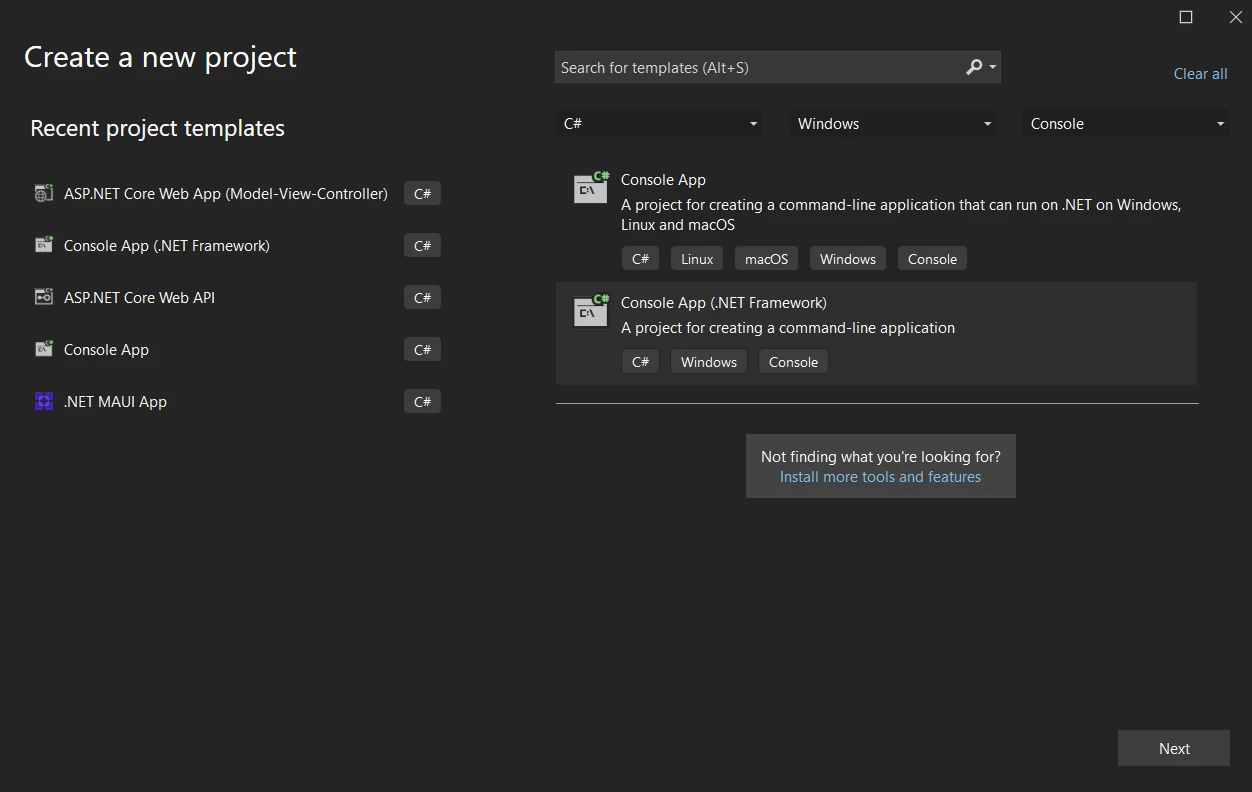
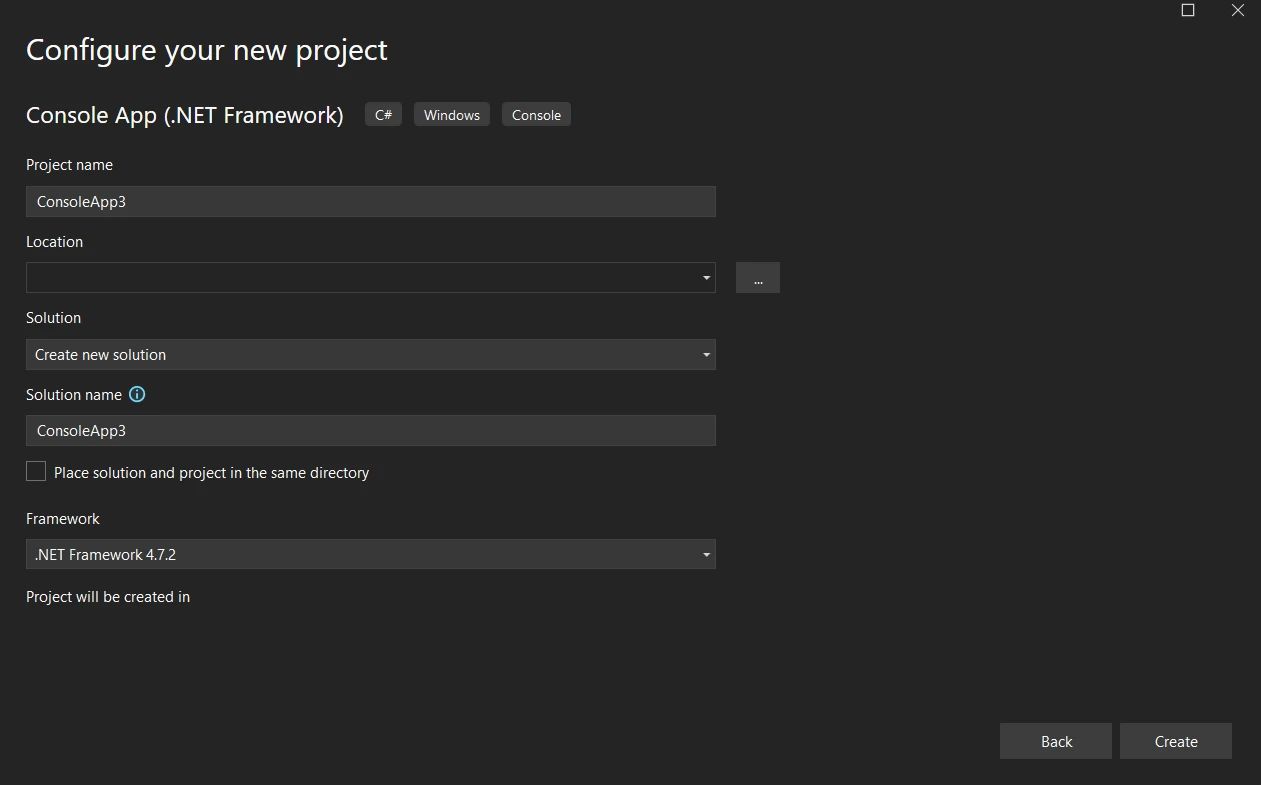
選擇文件位置後,在指定的文字字段中輸入專案名稱。 接下來,選擇所需的.NET Framework,然後點擊建立按鈕,如以下範例所示。
網路系統.NET基本類庫包括套接字命名空間,這在您的 C# 項目中應該是預設可用的。 它提供了有關如何操作套接字的類,套接字是網路通訊的端點。
多種型別的 C# 應用程式支援 TCP,包括 Windows Forms(WinForms)和 Windows 控制台。 雖然每個框架有不同的實現方式,但基本概念始終相同:TCP/IP 作為您應用程式的客戶端和伺服器之間通信的容器。
TCP程式碼分為兩部分:一個是伺服器,另一個是客戶端。 伺服器程式碼使用 IP 地址和端口將消息發送給客戶端,客戶端接收消息並相應處理。
// Basic TCP Server Code in C#
using System;
using System.Net;
using System.Net.Sockets;
using System.IO;

class TcpServer
{
    static void Main()
    {
        // Set up the server endpoint with localhost IP address and a specified port
        var endPoint = new IPEndPoint(IPAddress.Parse("127.0.0.1"), 57472);

        // Create a new TcpListener and start listening for incoming connections
        TcpListener listener = new TcpListener(endPoint);
        listener.Start();
        Console.WriteLine("Server listening...");

        // Accept a TcpClient once a connection attempt is made
        TcpClient client = listener.AcceptTcpClient();
        Console.WriteLine("Client connected");

        // Obtain a NetworkStream object for reading and writing data
        NetworkStream stream = client.GetStream();
        StreamWriter writer = new StreamWriter(stream);

        // Write a message to the client's stream and flush to ensure it's sent
        writer.WriteLine("Hello from the server");
        writer.Flush();

        Console.WriteLine("Message sent from server");
        // Close the client connection
        client.Close();

        // Stop the server listener after communication
        listener.Stop();
    }
}' Basic TCP Server Code in VB.NET
Imports System
Imports System.Net
Imports System.Net.Sockets
Imports System.IO
Class TcpServer
Shared Sub Main()
' Set up the server endpoint with localhost IP address and a specified port
Dim endPoint As New IPEndPoint(IPAddress.Parse("127.0.0.1"), 57472)
' Create a new TcpListener and start listening for incoming connections
Dim listener As New TcpListener(endPoint)
listener.Start()
Console.WriteLine("Server listening...")
' Accept a TcpClient once a connection attempt is made
Dim client As TcpClient = listener.AcceptTcpClient()
Console.WriteLine("Client connected")
' Obtain a NetworkStream object for reading and writing data
Dim stream As NetworkStream = client.GetStream()
Dim writer As New StreamWriter(stream)
' Write a message to the client's stream and flush to ensure it's sent
writer.WriteLine("Hello from the server")
writer.Flush()
Console.WriteLine("Message sent from server")
' Close the client connection
client.Close()
' Stop the server listener after communication
listener.Stop()
End Sub
End Class在這個伺服器程式碼中,我們正在建立一個 TCP 伺服器程式碼,將資料包發送給連接的客戶端。 伺服器接受傳入的連接,並透過TCP套接字發送消息。
// TCP client code
using System;
using System.Net;
using System.Net.Sockets;
using System.IO;

class TcpClientExample
{
    static void Main()
    {
        // Set up the client to connect to the same endpoint as the server
        var endPoint = new IPEndPoint(IPAddress.Parse("127.0.0.1"), 57472);

        // Initialize a new TcpClient and connect to the server endpoint
        TcpClient client = new TcpClient();
        client.Connect(endPoint);

        // Use a NetworkStream to read data received from the server
        NetworkStream stream = client.GetStream();
        StreamReader reader = new StreamReader(stream);

        // Read the response sent by the server and display it
        string response = reader.ReadLine();
        Console.WriteLine($"Message from server: {response}");

        // Close the connection once done
        client.Close();
    }
}' TCP client code
Imports System
Imports System.Net
Imports System.Net.Sockets
Imports System.IO
Friend Class TcpClientExample
Shared Sub Main()
' Set up the client to connect to the same endpoint as the server
Dim endPoint = New IPEndPoint(IPAddress.Parse("127.0.0.1"), 57472)
' Initialize a new TcpClient and connect to the server endpoint
Dim client As New TcpClient()
client.Connect(endPoint)
' Use a NetworkStream to read data received from the server
Dim stream As NetworkStream = client.GetStream()
Dim reader As New StreamReader(stream)
' Read the response sent by the server and display it
Dim response As String = reader.ReadLine()
Console.WriteLine($"Message from server: {response}")
' Close the connection once done
client.Close()
End Sub
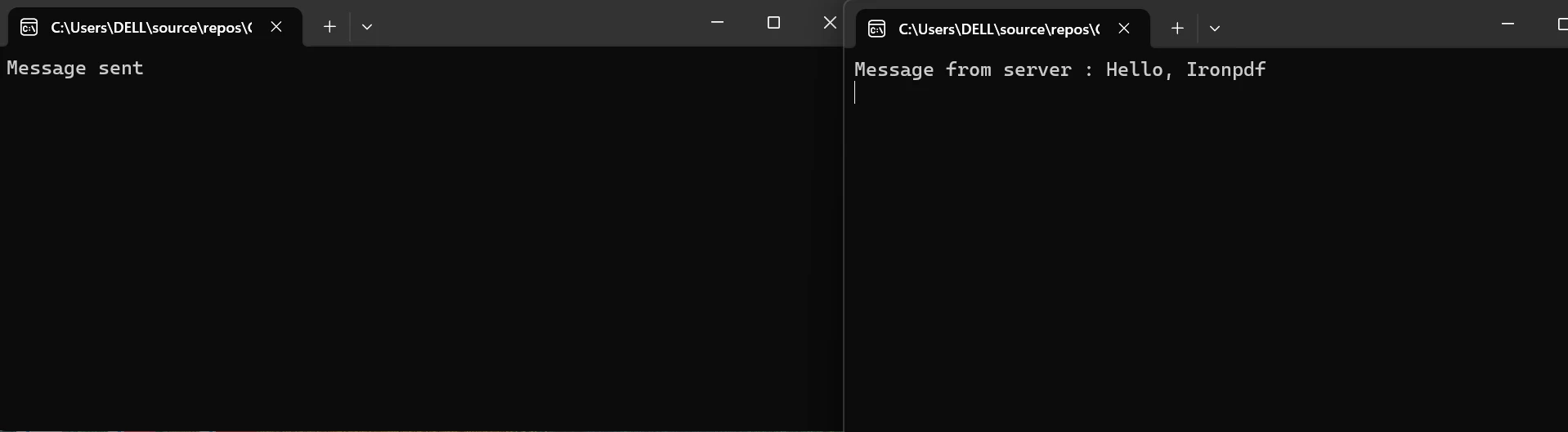
End Class在上述客戶端程式碼中,它連接到TCP套接字並讀取從TCP伺服器接收到的字串消息,然後在控制台上顯示該消息。 此範例說明了在 .NET 環境中的基本 TCP 客戶端-伺服器通信。
TCP套接字用於在端點之間連接和交換資料。 要透過 TCP 進行交互,應用程式必須根據需要建立、綁定、監聽、接受、連接和關閉套接字。
可以使用 TCP 和 TLS/SSL 等安全協議加密透過網路傳輸的資料,以確保機密性和完整性。
利用流量控制方法,TCP 確保發送者不會向接收者發送過多資料。 為此,TCP 窗口不斷調整可以傳輸的資料量,然后再收到確認。
要連接到 TCP 伺服器,您可以建立一個 TCP 客戶端。 為此,請使用 TcpClient 類。
TcpClient client = new TcpClient();
var endPoint = new IPEndPoint(IPAddress.Parse("127.0.0.1"), 57472);
client.Connect(endPoint);Dim client As New TcpClient()
Dim endPoint = New IPEndPoint(IPAddress.Parse("127.0.0.1"), 57472)
client.Connect(endPoint)當 TCP/IP 網路和 PDF 生成與 IronPDF 在 .NET 應用程式中整合時,開發人員可以根據透過TCP/IP連接接收的資料動態建立PDF文件。 由於此接口允許進行即時文件建立和自定義,因此可以用於多種用途,包括基於即時資料流生成報表、發票和報告。
開啟 Visual Studio 專案。
選擇"工具" > "NuGet 包管理器" > "包管理控制台"。
在包管理控制台中,輸入以下命令:
或者,您可以使用 NuGet 包管理器為解決方案安裝 IronPDF。
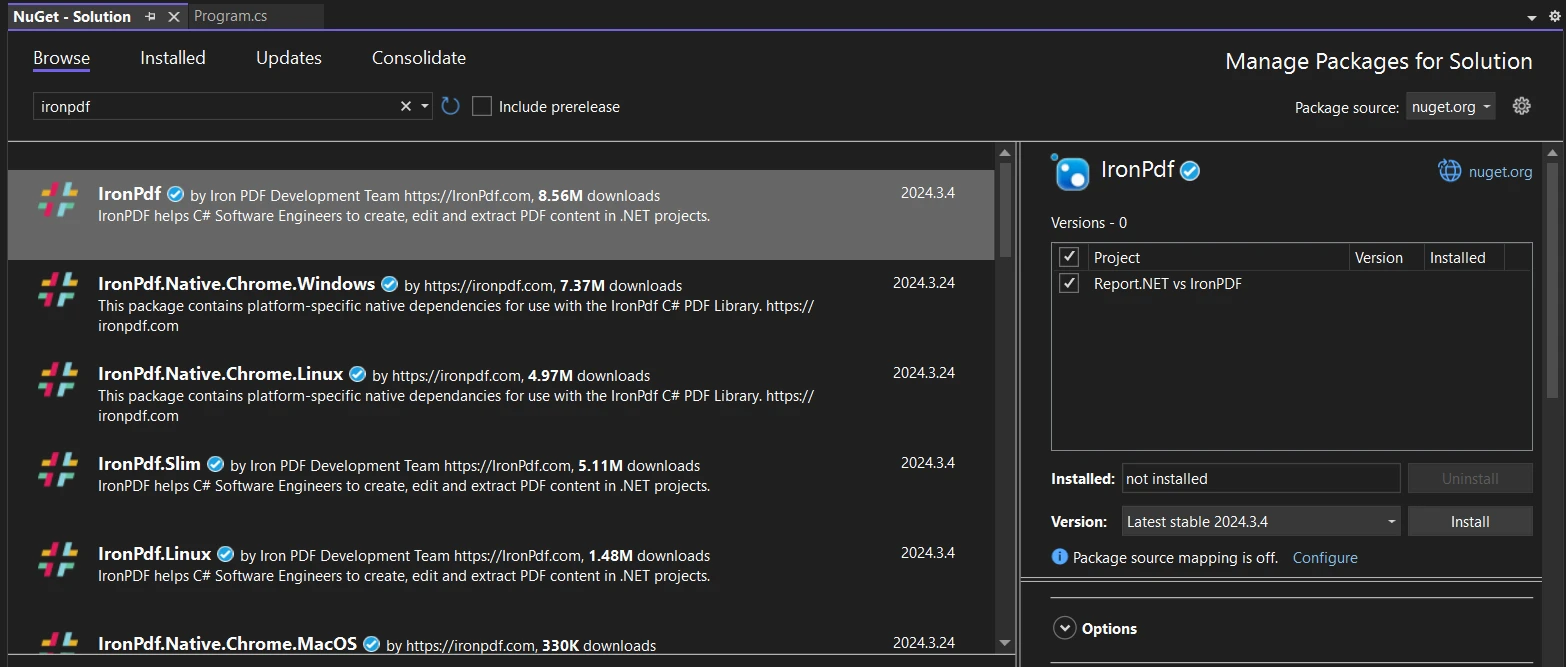
存取 NuGet 網站上的IronPDF頁面,以了解IronPDF的功能、相容性和其他下載選項。
作為替代方案,您可以直接使用 IronPDF 的 DLL 文件將其合併到您的項目中。要下載包含 DLL 的 ZIP 文件,請單擊IronPDF ZIP 文件下載頁面。 一旦解壓,將DLL包含在您的專案中。
這種整合使實時文件建立和自定義成為可能,使其適合用於生成基於即時資料流來生成報告、發票和報表等多種用途。
// IronPDF code example to create a PDF with network-received data
using System;
using IronPdf;

class PdfGenerator
{
    public static void GeneratePdf(string response)
    {
        // Create a PDF renderer
        var Renderer = new ChromePdfRenderer();

        // Render an HTML snippet to a PDF and save it
        Renderer.RenderHtmlAsPdf("<h1>Dynamic PDF Document</h1><p>Data from network: " + response + "</p>").SaveAs("document.pdf");

        Console.WriteLine("PDF generated and saved as document.pdf");
    }
}' IronPDF code example to create a PDF with network-received data
Imports System
Imports IronPdf
Class PdfGenerator
Public Shared Sub GeneratePdf(response As String)
' Create a PDF renderer
Dim Renderer = New ChromePdfRenderer()
' Render an HTML snippet to a PDF and save it
Renderer.RenderHtmlAsPdf("<h1>Dynamic PDF Document</h1><p>Data from network: " & response & "</p>").SaveAs("document.pdf")
Console.WriteLine("PDF generated and saved as document.pdf")
End Sub
End Class要了解更多有關程式碼範例的資訊,請參考 IronPDF 使用 HTML 建立 PDF 的文件。
以下是執行輸出:
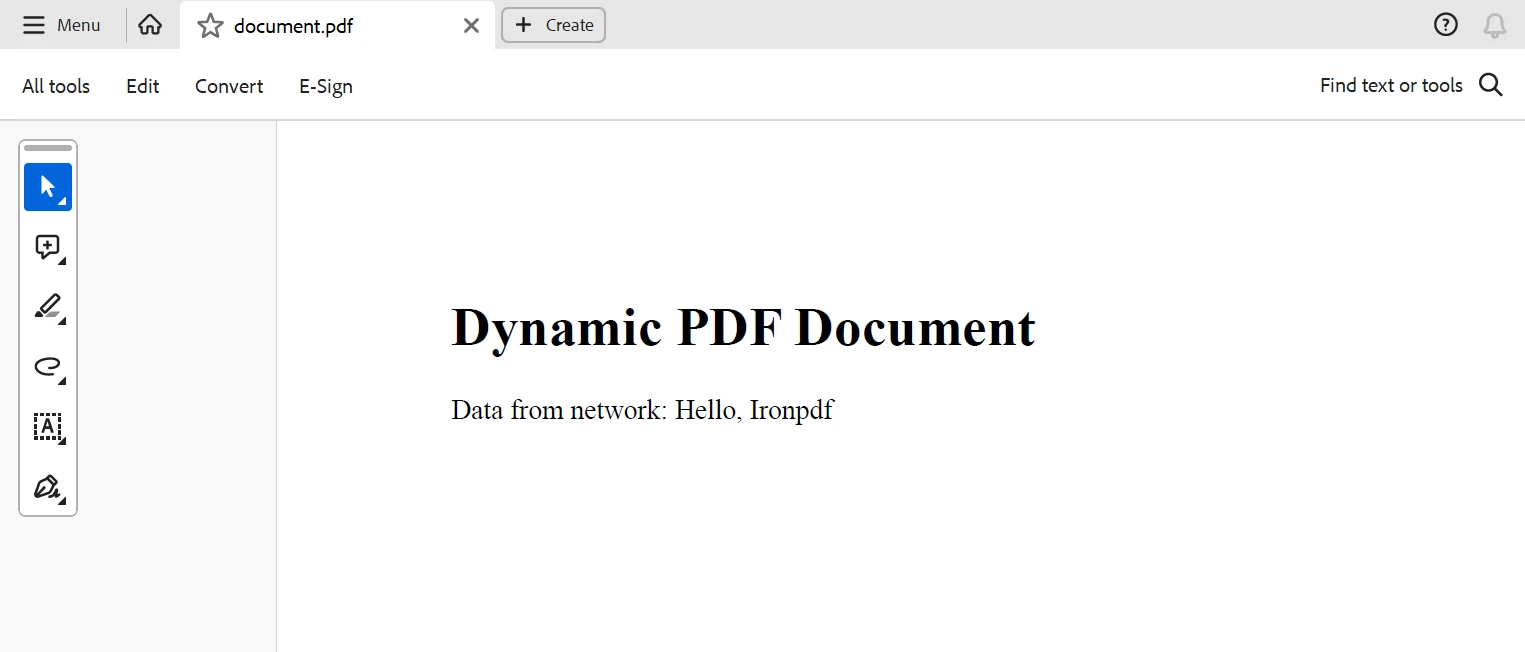
總之,通過將TCP/IP 網路與IronPDF整合到 .NET 應用程式中,提供了一種基於透過網路連接接收到的實時資料動態建立 PDF 文件的強大方法。 使用此方法,開發人員可以構建有效且靈活的文件建立系統,適應各種行業和用例。
開發人員可以透過 TCP/IP 網路可靠地連接到遠程伺服器或裝置,這樣就能夠接收即時資料流,IronPDF 可以輕鬆將其包含在 PDF 出版物中。 借助這種整合,開發人員可以即時生成個性化的報告、賬單、聲明和其他文件,而無需人工介入。
$999 Lite 包含永久授權、一年的軟體維護和 IronPDF 的程式庫升級。 存取 Iron Software 網站 來了解更多有關 Iron Software 程式庫的資訊。

Jacob Mellor是Iron Software的首席技術官,一位在C# PDF技術上開創先河的遠見工程師。作為Iron Software核心程式碼庫的原開發者,他從創立以來就一直在塑造公司的產品架構,與首席執行官Cameron Rimington一起將公司轉變為服務於NASA、特斯拉和全球政府公司的50多名人員的公司。



IronPDF 是 IRONSUITE 的一部分
10 款適用於辦公室文件的 .NET API 產品

當您需要您的PDF看起來像HTML一樣快速。












