




已更新 2026年9月4日
產生每月帳戶報表(PDF 文件)
using IronPDF C# PDF 庫,開發人員可以在 .NET 專案中將 HTML 轉換為可靠的 PDF 文件,而無需依賴外部服務。
閱讀更多

許多.NET開發者在搜尋PDF SDK時遇到同樣的問題:需要大量設置的程式庫、不透明的授權分級、和明顯以PDF規範而非開發者易用性為設計基礎的API。 IronPDF是一個為解決這種摩擦而設計的.NET PDF程式庫。 它通過一個可在.NET Framework, .NET Core, 和.NET 10中運行的單一NuGet套件,提供PDF建立、編輯、表單處理和檔案安全性。
開始您的免費試用,並加入NASA、Tesla、和3M團隊,他們依賴IronPDF來處理文件工作流程。
選擇生產使用的PDF程式庫需要評估一些不會在快速NuGet安裝測試中揭露的權衡。 四個標準通常能區分合格程式庫和生產準備好的程式庫。
最具影響力的選擇是程式庫是使用真實的瀏覽器引擎(Chromium或WebKit)還是自定義HTML到PDF渲染器。 自定義渲染器支援CSS2子集 - 基本排版和浮動效果可用,但flexbox, CSS Grid和JavaScript渲染內容會失效。 基於Chromium的引擎以和Chrome相同的方式呈現HTML,因此現有的Razor視圖、報告模板和客戶端JavaScript會產生準確的輸出,而無需手動調整佈局。 要測試渲染準確性,渲染一個使用CSS Grid和JavaScript生成內容的文件; 支援有限CSS的程式庫會安放錯誤或回退到無樣式輸出。
一個.NET PDF SDK必須能在Linux上運行,並且不需要Microsoft Office或COM自動化。 那些將HTML渲染委託給Word interop的程式庫無法在Linux Docker容器中運行。 基於Chromium的程式庫以本地二進制形式提供渲染引擎,只需要在Debian或Ubuntu主機上安裝標準系統包(libgdiplus, fontconfig)。 .NET跨平台部署文件涵蓋了在定位Linux或Alpine Docker映像時相關的運行時標識符慣例。
許多PDF程式庫只在附註中記錄執行緒安全性。 對於每個HTTP請求產生PDF的ASP.NET Core應用程式,這直接影響。 IronPDF的ChromePdfRenderer不是執行緒安全的 - 每個並發任務必須擁有自己的實例。 使用Parallel.ForEach,每次迭代一個渲染器,並設定並發限制,避免競爭並符合 async和多執行緒操作指南中的指導。 對於批量任務,每個工作執行緒一個渲染器可隨著CPU核心數量成線性擴展。
授權結構會影響大規模擁有的總成本。 每開發者授權(IronPDF, Syncfusion)根據開發和部署應用程式的開發者數收費。 AGPL授權(iText Core)要求分發應用程式原始碼,除非購買商業授權。 MIT授權(QuestPDF, PDFSharp)不施加分發限制,但不提供商業支持。 對於需要長期存檔的受監管環境,遵循ISO 19005 PDF/A標準是一項與授權模型不同的要求 - 需單獨驗證。
如果主要需求是將現有HTML模板或Razor視圖轉換為PDF,使用基於Chromium的程式庫是正確選擇。為網頁完成的佈局工作可以直接轉換為PDF,無需單獨設計。
如果需求是在沒有HTML模板的情況下從資料生成結構化文件,QuestPDF(MIT授權)是低容量內部工具的合理選擇。 它不支援HTML輸入,無法讀取或編輯現有PDF,但消除了Chromium運行時依賴。
如果需求是操作現有PDF - 合併、拆分、修訂或簽署其他系統產生的文件,大多數商用.NET PDF程式庫能夠滿足要求。 區別在於授權成本和API人體工學,而不是渲染能力。
通過NuGet包管理器新增IronPDF到專案只需不到一分鐘。 在Visual Studio中打開套件管理器控制台並運行:
PM> Install-Package IronPdf或者,通過在NuGet GUI中搜尋IronPdf來新增套件。 該套件針對.NET Standard 2.0,因此可在.NET Framework 4.6.2及更高版本、.NET Core 2.0及更高版本以及每一個現代.NET版本(包括.NET 10)中運作。
安裝完成後,請在渲染之前應用授權金鑰。 如需評估,請在應用程式啟動時調用IronPdf.License.LicenseKey = "IRONPDF-TRIAL-KEY";,或從IronPDF網站使用免費試用授權。開發期間,本地運行該程式庫不需授權金鑰。
IronPDF以本地二進制形式提供預構建的Chromium引擎。 引擎第一次在新機器上初始化時會將其運行時提取到臨時資料夾,這需要幾秒鐘時間。 隨後的調用速度很快。在Linux和Docker上,確保安裝libgdiplus和字體包 - Linux部署指南涵蓋了特定於分發的要求。
HTML到PDF轉換是.NET PDF SDK工作流程中最常見的起點。 IronPDF使用基於Chromium的渲染引擎將HTML字串、本地文件或在線URL轉換為像素準確的PDF,保留CSS3佈局、Google字體和JavaScript渲染的內容。
using IronPdf;

// Apply license key (omit for trial watermarked output)
// IronPdf.License.LicenseKey = "YOUR-LICENSE-KEY";

var renderer = new ChromePdfRenderer();

// Configure page layout
renderer.RenderingOptions.PaperSize = IronPdf.Rendering.PdfPaperSize.A4;
renderer.RenderingOptions.MarginTop = 20;
renderer.RenderingOptions.MarginBottom = 20;
renderer.RenderingOptions.MarginLeft = 15;
renderer.RenderingOptions.MarginRight = 15;

// Render an HTML string to PDF
string htmlContent = @"
    <html>
    <head><style>body { font-family: Arial; } h1 { color: #333; }</style></head>
    <body>
        <h1>Customer Registration</h1>
        <p>Form generated on: <span id='date'></span></p>
        <form>
            <label>Full Name: <input type='text' name='name' /></label><br/>
            <label>Email: <input type='email' name='email' /></label>
        </form>
        <script>document.getElementById('date').textContent = new Date().toLocaleDateString();</script>
    </body>
    </html>";

PdfDocument pdf = renderer.RenderHtmlAsPdf(htmlContent);
pdf.SaveAs("registration-form.pdf");Imports IronPdf
' Apply license key (omit for trial watermarked output)
' IronPdf.License.LicenseKey = "YOUR-LICENSE-KEY"
Dim renderer As New ChromePdfRenderer()
' Configure page layout
renderer.RenderingOptions.PaperSize = IronPdf.Rendering.PdfPaperSize.A4
renderer.RenderingOptions.MarginTop = 20
renderer.RenderingOptions.MarginBottom = 20
renderer.RenderingOptions.MarginLeft = 15
renderer.RenderingOptions.MarginRight = 15
' Render an HTML string to PDF
Dim htmlContent As String = "
<html>
<head><style>body { font-family: Arial; } h1 { color: #333; }</style></head>
<body>
<h1>Customer Registration</h1>
<p>Form generated on: <span id='date'></span></p>
<form>
<label>Full Name: <input type='text' name='name' /></label><br/>
<label>Email: <input type='email' name='email' /></label>
</form>
<script>document.getElementById('date').textContent = new Date().toLocaleDateString();</script>
</body>
</html>"
Dim pdf As PdfDocument = renderer.RenderHtmlAsPdf(htmlContent)
pdf.SaveAs("registration-form.pdf")ChromePdfRenderer類別公開RenderingOptions屬性,控制PDF佈局的各個方面。 將CustomPaperHeight以毫米為單位定義自訂尺寸。 邊距值以毫米為單位指定,PrintHtmlBackgrounds確保背景顏色和圖像正確渲染。
對於URL到PDF的轉換,將目標地址傳遞給RenderUrlAsPdf。 渲染器處理cookies、HTTP標頭和自定義使用者代理,使其適合用於需驗證的頁面和單頁應用程式。 HTML到PDF指南詳細說明驗證、JavaScript等待條件和延遲載入內容。
 IronPDF ChromePdfRenderer輸出:HTML模板渲染為A4 PDF,保留CSS3樣式
using IronPdf;

var renderer = new ChromePdfRenderer();

// Render from a URL (async variant for ASP.NET Core)
PdfDocument fromUrl = await renderer.RenderUrlAsPdfAsync("https://example.com/report");
fromUrl.SaveAs("url-report.pdf");

// Render from a local HTML file
PdfDocument fromFile = renderer.RenderHtmlFileAsPdf("templates/invoice.html");
fromFile.SaveAs("invoice.pdf");Imports IronPdf
Dim renderer As New ChromePdfRenderer()
' Render from a URL (async variant for ASP.NET Core)
Dim fromUrl As PdfDocument = Await renderer.RenderUrlAsPdfAsync("https://example.com/report")
fromUrl.SaveAs("url-report.pdf")
' Render from a local HTML file
Dim fromFile As PdfDocument = renderer.RenderHtmlFileAsPdf("templates/invoice.html")
fromFile.SaveAs("invoice.pdf")Task<PdfDocument>,因此它直接整合到ASP.NET Core控制器和背景服務中的await模式。 非同步渲染指南解釋了高吞吐量情況下執行緒安全性和連接池配置。
許多.NET應用程式需要將圖像文件轉換為PDF,或者從現有文件中提取圖像和文字。 IronPDF處理這兩個方向,而不需要中間文件格式或外部工具。
using IronPdf;

// Convert a list of image files to a single multi-page PDF
var imageFiles = new System.Collections.Generic.List<string>
{
    "scans/page1.png",
    "scans/page2.jpg",
    "scans/page3.tiff"
};

PdfDocument pdfFromImages = ImageToPdfConverter.ImageToPdf(imageFiles);
pdfFromImages.SaveAs("scanned-document.pdf");

// Extract images from an existing document
PdfDocument existing = PdfDocument.FromFile("annual-report.pdf");
var images = existing.ExtractAllImages();
int index = 0;
foreach (var img in images)
{
    img.SaveAs($"extracted/image_{index++}.png");
}

// Extract all text content for indexing or search
string fullText = existing.ExtractAllText();
System.IO.File.WriteAllText("report-text.txt", fullText);IRON VB CONVERTER ERROR developers@ironsoftware.comImageToPdfConverter類別預設保留原始圖像尺寸,但您可以通過指定FitToPage將圖像縮放到目標紙張大小。 支援JPEG, PNG, GIF, TIFF, BMP和WebP格式。
通過ExtractAllText()的文字提取從本身含有文字層的本機PDF和影像型(掃描的)文件返回機器可讀文字。 對於無文字層的掃描PDF,與IronOCR配對可在單一NuGet安裝中新增光學字元識別功能。 AnyBitmap物件集合。
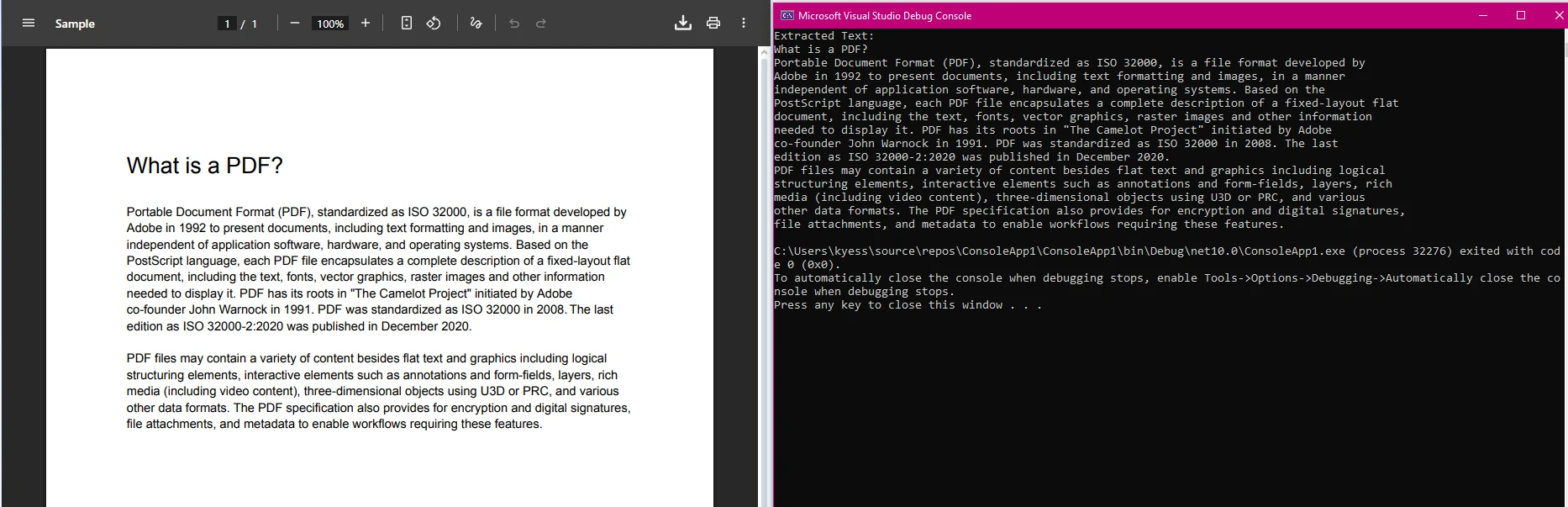 ImageToPdfConverter輸出:三個來源圖像文件合併到單一多頁PDF檔案
企業PDF工作流程通常需要加密或數位簽署文件,或兩者兼備。 IronPDF透過PdfSignature類別公開這些功能。
using IronPdf;
using IronPdf.Signing;

// Load an existing contract
PdfDocument contract = PdfDocument.FromFile("contracts/service-agreement.pdf");

// Apply AES-256 encryption with separate owner and user passwords
contract.SecuritySettings.OwnerPassword = "owner-admin-2024";
contract.SecuritySettings.UserPassword = "client-readonly";
contract.SecuritySettings.AllowUserPrinting = IronPdf.Security.PdfPrintSecurity.FullPrintRights;
contract.SecuritySettings.AllowUserEdits = IronPdf.Security.PdfEditSecurity.NoEdit;
contract.SecuritySettings.AllowUserCopyPasteContent = false;

// Apply a digital signature from a .pfx certificate
var signature = new PdfSignature("certs/company.pfx", "cert-password")
{
    SigningContact = "legal@company.com",
    SigningLocation = "Chicago, IL",
    SigningReason = "Contract Authorization"
};

contract.Sign(signature);
contract.SaveAs("contracts/service-agreement-signed.pdf");Imports IronPdf
Imports IronPdf.Signing
' Load an existing contract
Dim contract As PdfDocument = PdfDocument.FromFile("contracts/service-agreement.pdf")
' Apply AES-256 encryption with separate owner and user passwords
contract.SecuritySettings.OwnerPassword = "owner-admin-2024"
contract.SecuritySettings.UserPassword = "client-readonly"
contract.SecuritySettings.AllowUserPrinting = IronPdf.Security.PdfPrintSecurity.FullPrintRights
contract.SecuritySettings.AllowUserEdits = IronPdf.Security.PdfEditSecurity.NoEdit
contract.SecuritySettings.AllowUserCopyPasteContent = False
' Apply a digital signature from a .pfx certificate
Dim signature As New PdfSignature("certs/company.pfx", "cert-password") With {
.SigningContact = "legal@company.com",
.SigningLocation = "Chicago, IL",
.SigningReason = "Contract Authorization"
}
contract.Sign(signature)
contract.SaveAs("contracts/service-agreement-signed.pdf")SecuritySettings屬性直接映射到PDF 1.7規範中定義的PDF權限。 僅設OwnerPassword限制在PDF閱讀器級別的編輯和列印; 新增UserPassword則需要密碼來開啟文件。
數位簽章使用.pfx格式中的X.509證書,這與Windows證書商店和大多數證書頒發機構使用的格式相同。 簽名包括在Adobe Acrobat的簽名面板中可見的聯絡人、位置和原因字段,滿足許多電子簽名合規要求。 對於可能包含危險腳本或嵌入元資料PDF文件中,清理方法在分發前去除JavaScript、嵌入文件和隱藏元資料。
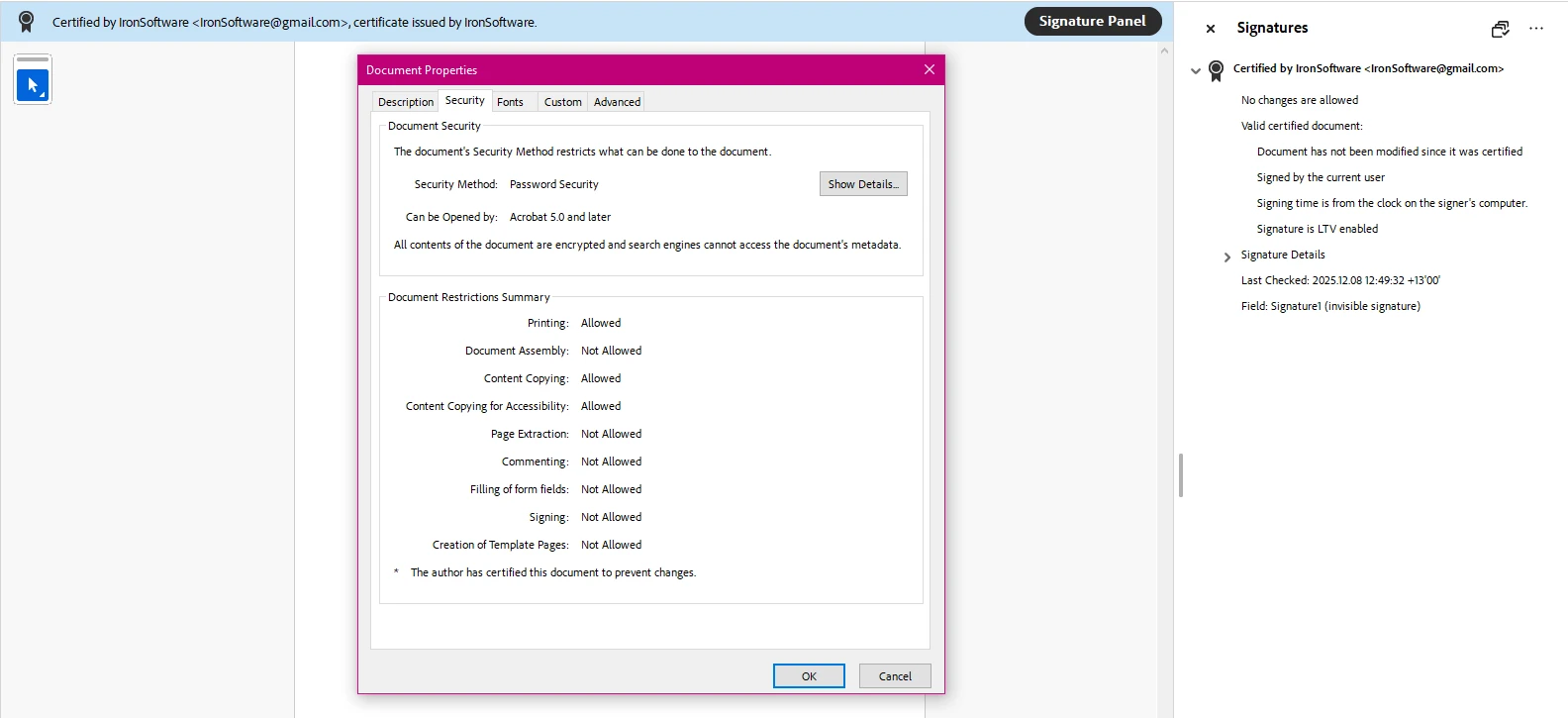 IronPDF PdfSignature結果:X.509證書應用於合約,在Adobe Acrobat簽名面板中可見
AcroForm和XFA表單處理在保險、醫療保健和法律文件工作流程中是常見的需求。 IronPDF從現有表單讀取字段名稱,並以編程方式填寫值,無需Acrobat或任何PDF查看器。
using IronPdf;

// Open a PDF containing AcroForm fields
PdfDocument form = PdfDocument.FromFile("forms/application-form.pdf");

// List all field names for discovery
foreach (var field in form.Form.Fields)
{
    System.Console.WriteLine($"Field: {field.Name}, Type: {field.GetType().Name}");
}

// Set field values by name
form.Form.FindFormField("applicant_name").Value = "Jane Smith";
form.Form.FindFormField("date_of_birth").Value = "1985-04-12";
form.Form.FindFormField("agree_terms").Value = "true"; // checkbox

// Flatten the form to prevent further editing
form.Form.Flatten();
form.SaveAs("forms/completed-application.pdf");Imports IronPdf
' Open a PDF containing AcroForm fields
Dim form As PdfDocument = PdfDocument.FromFile("forms/application-form.pdf")
' List all field names for discovery
For Each field In form.Form.Fields
System.Console.WriteLine($"Field: {field.Name}, Type: {field.GetType().Name}")
Next
' Set field values by name
form.Form.FindFormField("applicant_name").Value = "Jane Smith"
form.Form.FindFormField("date_of_birth").Value = "1985-04-12"
form.Form.FindFormField("agree_terms").Value = "true" ' checkbox
' Flatten the form to prevent further editing
form.Form.Flatten()
form.SaveAs("forms/completed-application.pdf")IronPDF的表單API使用字段名稱作為識別符,因此程式碼直接映射到在Acrobat中可見的字段結構。 Flatten()方法將互動字段轉換為靜態內容,產生適合存檔或傳輸的唯讀PDF。 有關表單型別、單選組和下拉清單的詳細資訊,請參閱PDF表單指南。
如需從頭生成新表單,使用HTML中的<input>, <textarea>元素。 Chromium渲染器會自動將標准的HTML表單元素轉換爲AcroForm字段,這意味著在網路應用程式中使用的現有HTML表單可以在不做結構更改的情況下生成可填寫的PDF。 建立PDF表單指南提供了完整工作流程,包括單選按鈕、日期選擇器和多選字段。
評估.NET的PDF SDK時,開發者通常考量渲染質量、API可訪性、部署難度和授權條款。 下表將IronPDF相較於這些標準下的其他常見.NET選擇。
| 程式庫 | HTML到PDF | .NET 10支援 | 表單處理 | 數位簽名 | 授權模型 |
|---|---|---|---|---|---|
| IronPDF | 基於Chromium(全CSS3/JS) | 是 | AcroForm + XFA | 是(.pfx) | 每開發者,免版稅 |
| QuestPDF | 否(程式碼優先佈局引擎) | 是 | 否 | 否 | MIT(社區)、商業 |
| iText Core | 僅限附加功能 | 是 | AcroForm | 是 | AGPL或商業 |
| Syncfusion PDF | 部分(CSS2子集) | 是 | AcroForm | 是 | 每開發者或收入基礎 |
| PDFSharp | 否 | 是(v6+) | 有限 | 否 | MIT |
IronPDF的授權頁面涵蓋SaaS部署、OEM再分發以及Iron Suite包,其中包含IronPDF及IronOCR、IronBarcode、IronXL,價格比單獨購買每個產品優惠很多。
IronPDF的主要區別在於HTML渲染質量。 基於低階PDF繪圖API的程式庫要求開發者手動複製CSS佈局邏輯。 當現有的HTML模板或Razor視圖已經定義文件結構時,直接將其轉換為PDF,比使用程式碼優先繪圖API重新編排佈局更快且更易維護。
為生產應用程式選擇PDF程式庫不僅僅是確認其能建立PDF。 文件密集型應用程式需要特定的功能,只有在初步概念證明工作開始擴展到實際資料量和部署環境後才會變得顯而易見。
生產級.NET PDF SDK必須能在Windows Server、Linux容器和macOS開發電腦上運行,且不需平台特定的程式碼路徑。 IronPDF支持所有三者開箱即用; 同一個NuGet包可以部署到Azure應用服務、AWS Lambda和Docker,而不需在應用程式程式碼中進行平台切換。
包括政府、金融和醫療保健在內的受監管行業通常要求長期存檔的PDF/A合規。 ISO 19005 PDF/A標準定義了PDF/A-1b和PDF/A-3b,它們限制嵌入JavaScript和未嵌入字體,以確保文件在沒有原始應用程式的情況下保持可讀性。 IronPDF將現有PDF轉換為PDF/A並驗證其合規性,返回指示輸出是否符合標準的標誌。 PDF/UA(可存取性)合規同樣適用於必須符合WCAG或Section 508要求的文件。
在計劃任務生成數千個PDF或處理上載隊列時,需要可預測的記憶體行為。 IronPDF的混合光柵內容(MRC)壓縮減少了包含文字和高解析度圖像的文件大小。 對於高容量批量作業,多執行緒指南展示了使用ChromePdfRenderer實例 - 渲染器不是執行緒安全的,因此每個任務應擁有自己的實例。
除了HTML,IronPDF還將Word文件(.docx)和試算表直接轉換為PDF,這消除了對Microso展开office interop或COM自動化的依賴,進行文件導出工作流程。 與IronXL配對,提供完整的試算表到PDF的處理線路,伺服器無需安裝Microsoft Office。
IronPDF將複雜的PDF工作流程轉換為可維護的C#程式碼。 從保持全CSS3一致性的HTML到PDF,到數位簽章、表單處理和PDF/A存檔,程式庫一個NuGet包涵蓋了完整的文件生命周期。
從IronPDF文件中心開始,探索教程、操作指南和API參考。 範例畫廊提供了最常見PDF任務的可運行程式碼,包括合併PDFs、新增水印、新增頁首和頁尾、和修訂敏感內容。
購買授權以進行生產部署或開始您的免費試用,無需任何承諾即可評估完整功能。


Curtis Chau擁有Carleton大學的電腦科學學士學位,專精於前端開發,擁有Node.js、TypeScript、JavaScript和React的專業知識。Curtis熱衷於建立直觀且美觀的使用者介面,喜愛使用現代框架並建立結構良好、視覺吸引力的手冊。

IronPDF 是 IRONSUITE 的一部分
10 款適用於辦公室文件的 .NET API 產品

當您需要您的PDF看起來像HTML一樣快速。














