PDF(可携带文档格式)是一种广泛使用的文档格式,因为它能够保留文档格式、安全性和可移植性而受到欢迎。
PDF文件已成为世界上最广泛使用的文档格式之一,有多种库可用于在C#语言中创建和操作PDF。
了解如何使用 C# 使用 IronPDF 和 iText 编辑 PDF 文件,通过利用这些强大的库使任务简单明了。
在本文中,我们将比较 C# 中用于 PDF 操作的两个流行库:iText 和 IronPDF。 我们将讨论如何使用这两个库编辑 PDF 文件,然后我们将探讨 IronPDF 如何在输出打印、性能和定价方面优于 iText。
iText DLL 和 IronPDF 库介绍
iText 和 IronPDF 功能和试用信息可用,以帮助开发者高效地使用 C# 处理 PDF 文件。 这两个库提供了一系列广泛的功能来创建、编辑和操作PDF文档。
iText DLL 是 iText 库的 Java 移植的 C# 版本。 它提供了一个简单易用的API,用于创建和操作PDF文档。 iText 是一个开源库,使用 AGPL 许可证。
IronPDF是一个.NET库,专为使用C#创建、编辑和操作PDF文件而设计。 它提供了一个现代且直观的API,用于处理PDF文档。 IronPDF是一个商业库,提供免费试用版本和订阅选项以用于更广泛的使用。
iText 和 IronPDF 库的对比
iText 和 IronPDF 库均提供丰富的功能和特性来创建、编辑和操作 PDF 文档。 然而,IronPDF 相对 iText 具有多个优势,使其在 C# 中处理 PDF 文档时成为优选选择。
使用 iText 和 IronPDF 编辑 PDF 文件
既然我们已经讨论了 iText 和 IronPDF 之间的差异,现在让我们看看如何使用这两个库编辑 PDF 文件。 我们将浏览使用 iText 和 IronPDF 在现有 PDF 文档中添加文本、表单字段和填写表单的示例。
使用 iText 编辑 PDF 文件
先决条件
开始之前,您将需要以下内容:
- 在您的计算机上安装Visual Studio。
- 拥有C#编程语言的基本知识。
- 您的项目中安装了 iText 库。
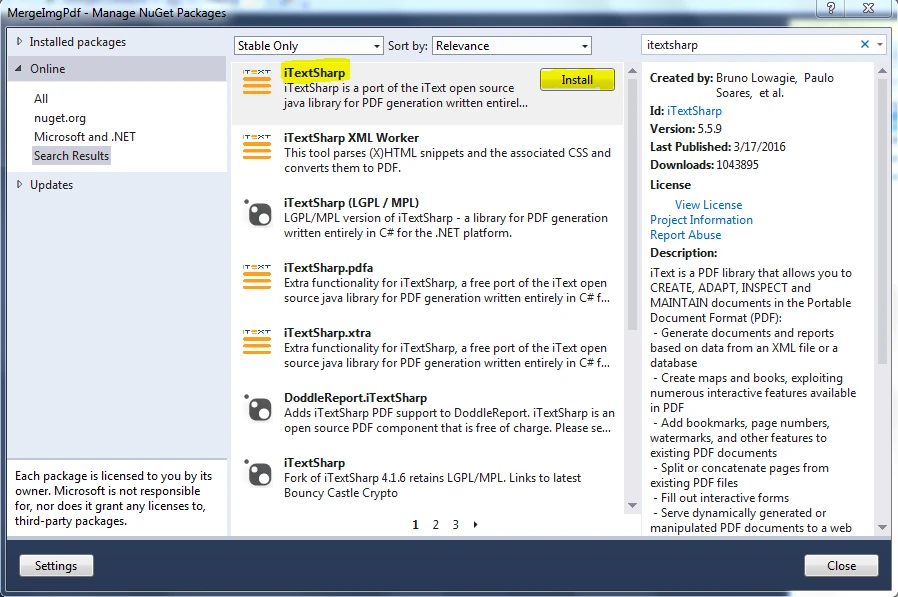
要在您的项目中安装 iText 库,可以使用 NuGet 包管理器。 打开您的Visual Studio项目,然后在解决方案资源管理器中右键单击项目名称。 从上下文菜单中选择"管理NuGet包"。 在NuGet包管理器中,搜索"iText"并安装最新版本的包。
创建一个新的PDF文件
要使用iText创建一个新的PDF文件,我们需要创建一个"Document"类的新实例,并将一个新的FileStream对象传递给其构造函数。 下面是一个例子:
using iText.Kernel.Pdf;
using iText.Layout;
using iText.Layout.Element;
using iText.Layout.Properties;
using System.IO;

// Create a new PDF document
using (var writer = new PdfWriter(new FileStream("newfile.pdf", FileMode.Create)))
{
    using (var pdf = new PdfDocument(writer))
    {
        var document = new Document(pdf);

        // Create a header paragraph
        Paragraph header = new Paragraph("HEADER")
            .SetTextAlignment(TextAlignment.CENTER)
            .SetFontSize(16);

        // Add the header to the document
        document.Add(header);

        // Loop through pages and align header text
        for (int i = 1; i <= pdf.GetNumberOfPages(); i++)
        {
            Rectangle pageSize = pdf.GetPage(i).GetPageSize();
            float x = pageSize.GetWidth() / 2;
            float y = pageSize.GetTop() - 20;

            // Add the header text to each page
            document.ShowTextAligned(header, x, y, i, TextAlignment.LEFT, VerticalAlignment.BOTTOM, 0);
        }

        // Set the margins
        document.SetTopMargin(50);
        document.SetBottomMargin(50);
    }
}
using iText.Kernel.Pdf;
using iText.Layout;
using iText.Layout.Element;
using iText.Layout.Properties;
using System.IO;

// Create a new PDF document
using (var writer = new PdfWriter(new FileStream("newfile.pdf", FileMode.Create)))
{
    using (var pdf = new PdfDocument(writer))
    {
        var document = new Document(pdf);

        // Create a header paragraph
        Paragraph header = new Paragraph("HEADER")
            .SetTextAlignment(TextAlignment.CENTER)
            .SetFontSize(16);

        // Add the header to the document
        document.Add(header);

        // Loop through pages and align header text
        for (int i = 1; i <= pdf.GetNumberOfPages(); i++)
        {
            Rectangle pageSize = pdf.GetPage(i).GetPageSize();
            float x = pageSize.GetWidth() / 2;
            float y = pageSize.GetTop() - 20;

            // Add the header text to each page
            document.ShowTextAligned(header, x, y, i, TextAlignment.LEFT, VerticalAlignment.BOTTOM, 0);
        }

        // Set the margins
        document.SetTopMargin(50);
        document.SetBottomMargin(50);
    }
}
Imports iText.Kernel.Pdf
Imports iText.Layout
Imports iText.Layout.Element
Imports iText.Layout.Properties
Imports System.IO
' Create a new PDF document
Using writer = New PdfWriter(New FileStream("newfile.pdf", FileMode.Create))
Using pdf = New PdfDocument(writer)
Dim document As New Document(pdf)
' Create a header paragraph
Dim header As Paragraph = (New Paragraph("HEADER")).SetTextAlignment(TextAlignment.CENTER).SetFontSize(16)
' Add the header to the document
document.Add(header)
' Loop through pages and align header text
Dim i As Integer = 1
Do While i <= pdf.GetNumberOfPages()
Dim pageSize As Rectangle = pdf.GetPage(i).GetPageSize()
'INSTANT VB WARNING: Instant VB cannot determine whether both operands of this division are integer types - if they are then you should use the VB integer division operator:
Dim x As Single = pageSize.GetWidth() / 2
Dim y As Single = pageSize.GetTop() - 20
' Add the header text to each page
document.ShowTextAligned(header, x, y, i, TextAlignment.LEFT, VerticalAlignment.BOTTOM, 0)
i += 1
Loop
' Set the margins
document.SetTopMargin(50)
document.SetBottomMargin(50)
End Using
End Using
Imports iText.Kernel.Pdf
Imports iText.Layout
Imports iText.Layout.Element
Imports iText.Layout.Properties
Imports System.IO

' Create a new PDF document
Using writer = New PdfWriter(New FileStream("newfile.pdf", FileMode.Create))
	Using pdf = New PdfDocument(writer)
		Dim document As New Document(pdf)

		' Create a header paragraph
		Dim header As Paragraph = (New Paragraph("HEADER")).SetTextAlignment(TextAlignment.CENTER).SetFontSize(16)

		' Add the header to the document
		document.Add(header)

		' Loop through pages and align header text
		Dim i As Integer = 1
		Do While i <= pdf.GetNumberOfPages()
			Dim pageSize As Rectangle = pdf.GetPage(i).GetPageSize()
'INSTANT VB WARNING: Instant VB cannot determine whether both operands of this division are integer types - if they are then you should use the VB integer division operator:
			Dim x As Single = pageSize.GetWidth() / 2
			Dim y As Single = pageSize.GetTop() - 20

			' Add the header text to each page
			document.ShowTextAligned(header, x, y, i, TextAlignment.LEFT, VerticalAlignment.BOTTOM, 0)
			i += 1
		Loop

		' Set the margins
		document.SetTopMargin(50)
		document.SetBottomMargin(50)
	End Using
End Using
在上面的代码中,我们创建了一个名为"newfile.pdf"的新PDF文件并添加了一个段落标题。
编辑现有PDF文件
要使用iText编辑现有的PDF文件,您需要一个PdfStamper对象来修改它。 下面是一个例子:
using iText.Kernel.Pdf;
using iText.Layout;
using iText.Layout.Element;
using iText.Layout.Properties;
using iText.Html2pdf;
using System.IO;

/**
 * iText URL to PDF
 * anchor-itext-url-to-pdf
 **/
private void ExistingWebURL()
{
    // Initialize PDF writer
    PdfWriter writer = new PdfWriter("wikipedia.pdf");

    // Initialize PDF document
    using PdfDocument pdf = new PdfDocument(writer);

    ConverterProperties properties = new ConverterProperties();
    properties.SetBaseUri("https://en.wikipedia.org/wiki/Portable_Document_Format");

    // Convert HTML to PDF
    Document document = HtmlConverter.ConvertToDocument(
        new FileStream("Test_iText7_1.pdf", FileMode.Open), pdf, properties);

    // Create and add a header paragraph
    Paragraph header = new Paragraph("HEADER")
        .SetTextAlignment(TextAlignment.CENTER)
        .SetFontSize(16);

    document.Add(header);

    // Align header text for each page
    for (int i = 1; i <= pdf.GetNumberOfPages(); i++)
    {
        Rectangle pageSize = pdf.GetPage(i).GetPageSize();
        float x = pageSize.GetWidth() / 2;
        float y = pageSize.GetTop() - 20;

        // Add header text aligned at the top
        document.ShowTextAligned(header, x, y, i, TextAlignment.LEFT, VerticalAlignment.BOTTOM, 0);
    }

    // Set the top and bottom margins
    document.SetTopMargin(50);
    document.SetBottomMargin(50);
    document.Close();
}
using iText.Kernel.Pdf;
using iText.Layout;
using iText.Layout.Element;
using iText.Layout.Properties;
using iText.Html2pdf;
using System.IO;

/**
 * iText URL to PDF
 * anchor-itext-url-to-pdf
 **/
private void ExistingWebURL()
{
    // Initialize PDF writer
    PdfWriter writer = new PdfWriter("wikipedia.pdf");

    // Initialize PDF document
    using PdfDocument pdf = new PdfDocument(writer);

    ConverterProperties properties = new ConverterProperties();
    properties.SetBaseUri("https://en.wikipedia.org/wiki/Portable_Document_Format");

    // Convert HTML to PDF
    Document document = HtmlConverter.ConvertToDocument(
        new FileStream("Test_iText7_1.pdf", FileMode.Open), pdf, properties);

    // Create and add a header paragraph
    Paragraph header = new Paragraph("HEADER")
        .SetTextAlignment(TextAlignment.CENTER)
        .SetFontSize(16);

    document.Add(header);

    // Align header text for each page
    for (int i = 1; i <= pdf.GetNumberOfPages(); i++)
    {
        Rectangle pageSize = pdf.GetPage(i).GetPageSize();
        float x = pageSize.GetWidth() / 2;
        float y = pageSize.GetTop() - 20;

        // Add header text aligned at the top
        document.ShowTextAligned(header, x, y, i, TextAlignment.LEFT, VerticalAlignment.BOTTOM, 0);
    }

    // Set the top and bottom margins
    document.SetTopMargin(50);
    document.SetBottomMargin(50);
    document.Close();
}
Imports iText.Kernel.Pdf
Imports iText.Layout
Imports iText.Layout.Element
Imports iText.Layout.Properties
Imports iText.Html2pdf
Imports System.IO
''' <summary>
''' iText URL to PDF
''' anchor-itext-url-to-pdf
''' </summary>
Private Sub ExistingWebURL()
' Initialize PDF writer
Dim writer As New PdfWriter("wikipedia.pdf")
' Initialize PDF document
Using pdf As New PdfDocument(writer)
Dim properties As New ConverterProperties()
properties.SetBaseUri("https://en.wikipedia.org/wiki/Portable_Document_Format")
' Convert HTML to PDF
Dim document As Document = HtmlConverter.ConvertToDocument(New FileStream("Test_iText7_1.pdf", FileMode.Open), pdf, properties)
' Create and add a header paragraph
Dim header As New Paragraph("HEADER") _
.SetTextAlignment(TextAlignment.CENTER) _
.SetFontSize(16)
document.Add(header)
' Align header text for each page
For i As Integer = 1 To pdf.GetNumberOfPages()
Dim pageSize As Rectangle = pdf.GetPage(i).GetPageSize()
Dim x As Single = pageSize.GetWidth() / 2
Dim y As Single = pageSize.GetTop() - 20
' Add header text aligned at the top
document.ShowTextAligned(header, x, y, i, TextAlignment.LEFT, VerticalAlignment.BOTTOM, 0)
Next
' Set the top and bottom margins
document.SetTopMargin(50)
document.SetBottomMargin(50)
document.Close()
End Using
End Sub
Imports iText.Kernel.Pdf
Imports iText.Layout
Imports iText.Layout.Element
Imports iText.Layout.Properties
Imports iText.Html2pdf
Imports System.IO

''' <summary>
''' iText URL to PDF
''' anchor-itext-url-to-pdf
''' </summary>
Private Sub ExistingWebURL()
    ' Initialize PDF writer
    Dim writer As New PdfWriter("wikipedia.pdf")

    ' Initialize PDF document
    Using pdf As New PdfDocument(writer)
        Dim properties As New ConverterProperties()
        properties.SetBaseUri("https://en.wikipedia.org/wiki/Portable_Document_Format")

        ' Convert HTML to PDF
        Dim document As Document = HtmlConverter.ConvertToDocument(New FileStream("Test_iText7_1.pdf", FileMode.Open), pdf, properties)

        ' Create and add a header paragraph
        Dim header As New Paragraph("HEADER") _
            .SetTextAlignment(TextAlignment.CENTER) _
            .SetFontSize(16)

        document.Add(header)

        ' Align header text for each page
        For i As Integer = 1 To pdf.GetNumberOfPages()
            Dim pageSize As Rectangle = pdf.GetPage(i).GetPageSize()
            Dim x As Single = pageSize.GetWidth() / 2
            Dim y As Single = pageSize.GetTop() - 20

            ' Add header text aligned at the top
            document.ShowTextAligned(header, x, y, i, TextAlignment.LEFT, VerticalAlignment.BOTTOM, 0)
        Next

        ' Set the top and bottom margins
        document.SetTopMargin(50)
        document.SetBottomMargin(50)
        document.Close()
    End Using
End Sub
在此代码中,打开一个现有的PDF,并为其页面添加标题,同时确保文字对齐。
使用IronPDF编辑PDF文档
IronPDF是一个用于C#的强大PDF库,为编辑PDF文档提供便利。 本教程将指导如何使用IronPDF编辑现有的PDF文件,包括创建新的PDF文档、添加页面、合并PDF等。
先决条件
确保您有:
- Visual Studio IDE
- IronPDF库
步骤1:创建新项目
在 Visual Studio 中创建一个新的 C# 项目。 选择"控制台应用程序"项目类型。
步骤2:安装IronPDF
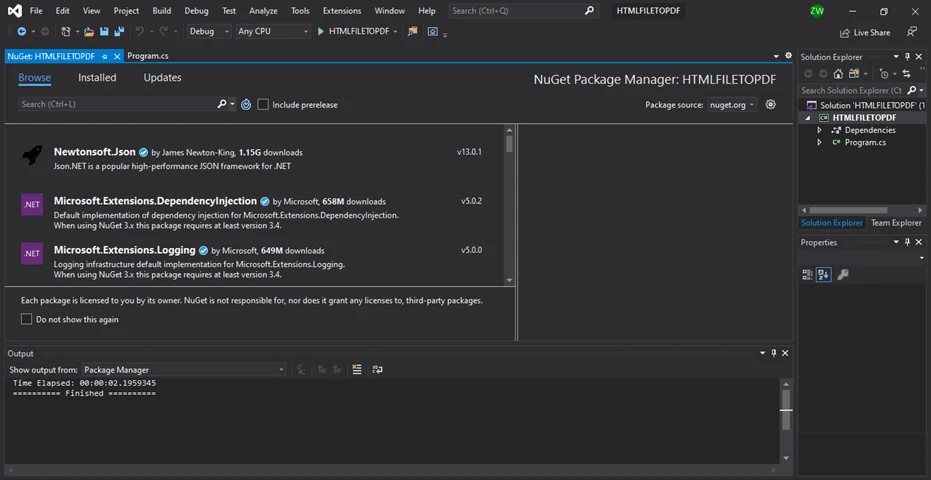
使用NuGet包管理器将IronPDF库安装到您的项目中。
// Execute this command in the Package Manager Console
Install-Package IronPdf
// Execute this command in the Package Manager Console
Install-Package IronPdf
SHELL
步骤3:加载一个现有PDF文档
使用PdfDocument类加载一个现有的PDF文档:
using IronPdf;

// Path to an existing PDF file
var existingPdf = @"C:\path\to\existing\pdf\document.pdf";

// Load the PDF document
var pdfDoc = PdfDocument.FromFile(existingPdf);
using IronPdf;

// Path to an existing PDF file
var existingPdf = @"C:\path\to\existing\pdf\document.pdf";

// Load the PDF document
var pdfDoc = PdfDocument.FromFile(existingPdf);
Imports IronPdf

' Path to an existing PDF file
Private existingPdf = "C:\path\to\existing\pdf\document.pdf"

' Load the PDF document
Private pdfDoc = PdfDocument.FromFile(existingPdf)
Imports IronPdf

' Path to an existing PDF file
Private existingPdf = "C:\path\to\existing\pdf\document.pdf"

' Load the PDF document
Private pdfDoc = PdfDocument.FromFile(existingPdf)
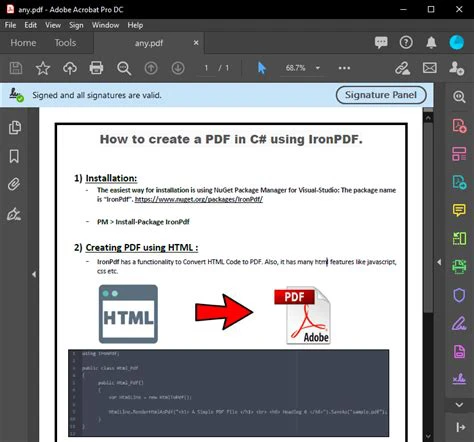
步骤4:向现有PDF文档添加新页面
添加新页面:
// Add a new page with default size
var newPage = pdfDoc.AddPage();
newPage.Size = PageSize.Letter;
// Add a new page with default size
var newPage = pdfDoc.AddPage();
newPage.Size = PageSize.Letter;
' Add a new page with default size
Dim newPage = pdfDoc.AddPage()
newPage.Size = PageSize.Letter
' Add a new page with default size
Dim newPage = pdfDoc.AddPage()
newPage.Size = PageSize.Letter
步骤5:从网站创建PDF
直接从网页URL生成PDF。 下面是一个例子:
using IronPdf;

/**
 * IronPDF URL to PDF
 * anchor-ironpdf-website-to-pdf
 **/
private void ExistingWebURL()
{
    // Create PDF from a webpage
    var Renderer = new IronPdf.ChromePdfRenderer();

    // Set rendering options
    Renderer.RenderingOptions.MarginTop = 50; // millimeters
    Renderer.RenderingOptions.MarginBottom = 50;
    Renderer.RenderingOptions.CssMediaType = IronPdf.Rendering.PdfCssMediaType.Print;
    Renderer.RenderingOptions.TextHeader = new TextHeaderFooter()
    {
        CenterText = "{pdf-title}",
        DrawDividerLine = true,
        FontSize = 16
    };
    Renderer.RenderingOptions.TextFooter = new TextHeaderFooter()
    {
        LeftText = "{date} {time}",
        RightText = "Page {page} of {total-pages}",
        DrawDividerLine = true,
        FontSize = 14
    };
    Renderer.RenderingOptions.EnableJavaScript = true;
    Renderer.RenderingOptions.RenderDelay = 500; // milliseconds

    // Render URL as PDF
    using var PDF = Renderer.RenderUrlAsPdf("https://en.wikipedia.org/wiki/Portable_Document_Format");
    PDF.SaveAs("wikipedia.pdf");
}
using IronPdf;

/**
 * IronPDF URL to PDF
 * anchor-ironpdf-website-to-pdf
 **/
private void ExistingWebURL()
{
    // Create PDF from a webpage
    var Renderer = new IronPdf.ChromePdfRenderer();

    // Set rendering options
    Renderer.RenderingOptions.MarginTop = 50; // millimeters
    Renderer.RenderingOptions.MarginBottom = 50;
    Renderer.RenderingOptions.CssMediaType = IronPdf.Rendering.PdfCssMediaType.Print;
    Renderer.RenderingOptions.TextHeader = new TextHeaderFooter()
    {
        CenterText = "{pdf-title}",
        DrawDividerLine = true,
        FontSize = 16
    };
    Renderer.RenderingOptions.TextFooter = new TextHeaderFooter()
    {
        LeftText = "{date} {time}",
        RightText = "Page {page} of {total-pages}",
        DrawDividerLine = true,
        FontSize = 14
    };
    Renderer.RenderingOptions.EnableJavaScript = true;
    Renderer.RenderingOptions.RenderDelay = 500; // milliseconds

    // Render URL as PDF
    using var PDF = Renderer.RenderUrlAsPdf("https://en.wikipedia.org/wiki/Portable_Document_Format");
    PDF.SaveAs("wikipedia.pdf");
}
Imports IronPdf
'''
''' * IronPDF URL to PDF
''' * anchor-ironpdf-website-to-pdf
''' *
Private Sub ExistingWebURL()
' Create PDF from a webpage
Dim Renderer = New IronPdf.ChromePdfRenderer()
' Set rendering options
Renderer.RenderingOptions.MarginTop = 50 ' millimeters
Renderer.RenderingOptions.MarginBottom = 50
Renderer.RenderingOptions.CssMediaType = IronPdf.Rendering.PdfCssMediaType.Print
Renderer.RenderingOptions.TextHeader = New TextHeaderFooter() With {
.CenterText = "{pdf-title}",
.DrawDividerLine = True,
.FontSize = 16
}
Renderer.RenderingOptions.TextFooter = New TextHeaderFooter() With {
.LeftText = "{date} {time}",
.RightText = "Page {page} of {total-pages}",
.DrawDividerLine = True,
.FontSize = 14
}
Renderer.RenderingOptions.EnableJavaScript = True
Renderer.RenderingOptions.RenderDelay = 500 ' milliseconds
' Render URL as PDF
Dim PDF = Renderer.RenderUrlAsPdf("https://en.wikipedia.org/wiki/Portable_Document_Format")
PDF.SaveAs("wikipedia.pdf")
End Sub
Imports IronPdf

'''
''' * IronPDF URL to PDF
''' * anchor-ironpdf-website-to-pdf
''' *
Private Sub ExistingWebURL()
	' Create PDF from a webpage
	Dim Renderer = New IronPdf.ChromePdfRenderer()

	' Set rendering options
	Renderer.RenderingOptions.MarginTop = 50 ' millimeters
	Renderer.RenderingOptions.MarginBottom = 50
	Renderer.RenderingOptions.CssMediaType = IronPdf.Rendering.PdfCssMediaType.Print
	Renderer.RenderingOptions.TextHeader = New TextHeaderFooter() With {
		.CenterText = "{pdf-title}",
		.DrawDividerLine = True,
		.FontSize = 16
	}
	Renderer.RenderingOptions.TextFooter = New TextHeaderFooter() With {
		.LeftText = "{date} {time}",
		.RightText = "Page {page} of {total-pages}",
		.DrawDividerLine = True,
		.FontSize = 14
	}
	Renderer.RenderingOptions.EnableJavaScript = True
	Renderer.RenderingOptions.RenderDelay = 500 ' milliseconds

	' Render URL as PDF
	Dim PDF = Renderer.RenderUrlAsPdf("https://en.wikipedia.org/wiki/Portable_Document_Format")
	PDF.SaveAs("wikipedia.pdf")
End Sub
iText和IronPDF的区别
iText是一个流行的开源库,用于在C#中创建、操作和提取PDF文档的数据。 它文档齐全且被广泛使用。 另一方面,IronPDF更加现代,具有额外的功能和优势,使其成为开发人员更好的选择。
从HTML输入字符串生成PDF
以下是使用IronPDF从HTML创建PDF的方法:
using IronPdf;

/**
 * IronPDF HTML to PDF
 * anchor-ironpdf-document-from-html
 **/
private void HTMLString()
{
    // Render HTML to PDF
    var Renderer = new IronPdf.ChromePdfRenderer();
    using var PDF = Renderer.RenderHtmlAsPdf("<h1>Hello IronPdf</h1>");
    Renderer.RenderingOptions.TextFooter = new HtmlHeaderFooter()
    {
        HtmlFragment = "<div style='text-align:right'><em style='color:pink'>page {page} of {total-pages}</em></div>"
    };
    var OutputPath = "ChromeHtmlToPdf.pdf";
    PDF.SaveAs(OutputPath);
}
using IronPdf;

/**
 * IronPDF HTML to PDF
 * anchor-ironpdf-document-from-html
 **/
private void HTMLString()
{
    // Render HTML to PDF
    var Renderer = new IronPdf.ChromePdfRenderer();
    using var PDF = Renderer.RenderHtmlAsPdf("<h1>Hello IronPdf</h1>");
    Renderer.RenderingOptions.TextFooter = new HtmlHeaderFooter()
    {
        HtmlFragment = "<div style='text-align:right'><em style='color:pink'>page {page} of {total-pages}</em></div>"
    };
    var OutputPath = "ChromeHtmlToPdf.pdf";
    PDF.SaveAs(OutputPath);
}
Imports IronPdf
'''
''' * IronPDF HTML to PDF
''' * anchor-ironpdf-document-from-html
''' *
Private Sub HTMLString()
' Render HTML to PDF
Dim Renderer = New IronPdf.ChromePdfRenderer()
Dim PDF = Renderer.RenderHtmlAsPdf("<h1>Hello IronPdf</h1>")
Renderer.RenderingOptions.TextFooter = New HtmlHeaderFooter() With {.HtmlFragment = "<div style='text-align:right'><em style='color:pink'>page {page} of {total-pages}</em></div>"}
Dim OutputPath = "ChromeHtmlToPdf.pdf"
PDF.SaveAs(OutputPath)
End Sub
Imports IronPdf

'''
''' * IronPDF HTML to PDF
''' * anchor-ironpdf-document-from-html
''' *
Private Sub HTMLString()
	' Render HTML to PDF
	Dim Renderer = New IronPdf.ChromePdfRenderer()
	Dim PDF = Renderer.RenderHtmlAsPdf("<h1>Hello IronPdf</h1>")
	Renderer.RenderingOptions.TextFooter = New HtmlHeaderFooter() With {.HtmlFragment = "<div style='text-align:right'><em style='color:pink'>page {page} of {total-pages}</em></div>"}
	Dim OutputPath = "ChromeHtmlToPdf.pdf"
	PDF.SaveAs(OutputPath)
End Sub
iText HTML转PDF
使用iText将HTML文本转换为PDF:
using iText.Html2pdf;
using System.IO;

/**
 * iText HTML to PDF
 * anchor-itext-html-to-pdf
 **/
private void HTMLString()
{
    HtmlConverter.ConvertToPdf("<h1>Hello iText7</h1>", new FileStream("iText7HtmlToPdf.pdf", FileMode.Create));
}
using iText.Html2pdf;
using System.IO;

/**
 * iText HTML to PDF
 * anchor-itext-html-to-pdf
 **/
private void HTMLString()
{
    HtmlConverter.ConvertToPdf("<h1>Hello iText7</h1>", new FileStream("iText7HtmlToPdf.pdf", FileMode.Create));
}
Imports iText.Html2pdf
Imports System.IO
'''
''' * iText HTML to PDF
''' * anchor-itext-html-to-pdf
''' *
Private Sub HTMLString()
HtmlConverter.ConvertToPdf("<h1>Hello iText7</h1>", New FileStream("iText7HtmlToPdf.pdf", FileMode.Create))
End Sub
Imports iText.Html2pdf
Imports System.IO

'''
''' * iText HTML to PDF
''' * anchor-itext-html-to-pdf
''' *
Private Sub HTMLString()
	HtmlConverter.ConvertToPdf("<h1>Hello iText7</h1>", New FileStream("iText7HtmlToPdf.pdf", FileMode.Create))
End Sub
性能
IronPDF被设计得比iText更快更高效,能够使用更少的资源生成PDF。 这种效率对大或复杂的文档至关重要。
定价
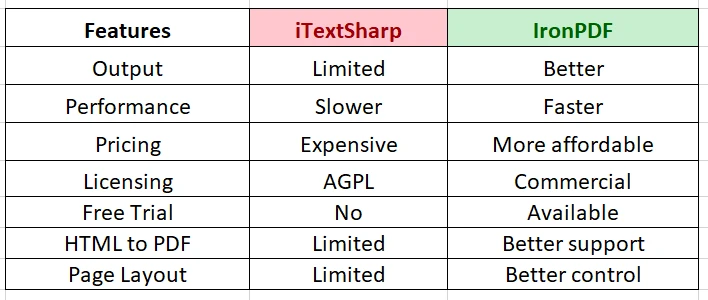
iText在某些使用场景下需要商业许可证,这可能会很昂贵。IronPDF提供更实惠的定价模式,并有各种选项满足不同的需求和预算。
许可证和定价
iText和IronPDF的一个主要区别在于它们的许可和定价模式。
- **iText:**在AGPL下许可,非开源项目需要商业许可证。 商业许可证的费用各不相同。
- **IronPDF:**提供免费试用版和灵活的许可方式,包括开发者许可和服务器许可,使其适合商业用途。
结论
总之,虽然iText和IronPDF都可以处理C#中的PDF操作,但IronPDF被认为是更灵活和高效的选择。它提供高级功能、直观的API和更好的性能。 其灵活的定价使其适用于商业项目和更大规模的组织。
通过IronPDF卓越的HTML到PDF转换,开发人员可以轻松生成包含丰富媒体或交互式内容的报告或文档。 加上具有成本效益的价格,IronPDF是需要强大且高效的C#项目PDF库开发人员的绝佳选择。
iText是一种注册商标,其各自所有者拥有其商标。 本网站不与iText有任何从属关系、认可或赞助。 所有产品名称、徽标和品牌均为各自所有者的财产。 比较仅供参考,反映撰写时公开可用的信息。