


如何在iPhone上編輯PDF

Full Comparison
Looking for a detailed feature-by-feature breakdown? See how IronPDF stacks up against Itext on pricing, HTML support, and licensing.
PDF(可攜式文件格式)是一種廣泛使用的文件格式,由於其能夠保持文件格式、安全性和可移植性而受到歡迎。
PDF 文件已經成為世界上最廣泛使用的文件格式之一,並且有多個程式庫可用於在 C# 語言中建立和操作 PDF 文件。
探索如何使用 IronPDF 和 iText 通過 C# 編輯 PDF 文件,利用這些強大的程式庫使任務變得簡單明瞭。
在本文中,我們將比較兩個在 C# 中用於 PDF 操作的流行程式庫:iText 和 IronPDF。 我們將討論如何使用這兩個程式庫編輯 PDF 文件,然後探討為什麼 IronPDF 在輸出、性能和價格上是比 iText 更優的選擇。
iText DLL 和 IronPDF 程式庫介紹
iText 和 IronPDF 的功能和試用資訊可幫助開發者在 C# 中高效處理 PDF 文件。 這兩個程式庫提供了廣泛的功能和特性來建立、編輯和操作 PDF 文件。
iText DLL 是基於 Java 的 iText 程式庫的 C# 移植版。 它提供了一個簡單易用的 API 來建立和操作 PDF 文件。 iText 是一款在 AGPL 授權下提供的開源程式庫。
IronPDF 是一個 .NET 程式庫,專為使用 C# 建立、編輯和操作 PDF 文件而設計。 它提供了一個現代且直觀的 API,用於處理 PDF 文件。 IronPDF 是一款商業程式庫,它配有免費試用版本和訂閱選項以供更廣泛的應用。
iText 和 IronPDF 程式庫比較
iText 和 IronPDF 程式庫都提供了廣泛的功能和特性來建立、編輯和操作 PDF 文件。 然而,IronPDF 相較於 iText 具有多項優勢,這使其成為在 C# 中處理 PDF 文件的偏好選擇。
使用 iText 和 IronPDF 編輯 PDF 文件
既然我們已經討論了 iText 和 IronPDF 之間的區別,讓我們來看看如何使用這兩個程式庫編輯 PDF 文件。 我們將逐步展示如何使用 iText 和 IronPDF 在現有的 PDF 文件中新增文字、表單字段和填寫表單。
使用 iText 編輯 PDF 文件
先決條件
開始之前,您需要具備以下條件:
- 在您的機器上安裝 Visual Studio。
- 基本的 C# 編程語言知識。
- 在您的專案中安裝 iText 程式庫。
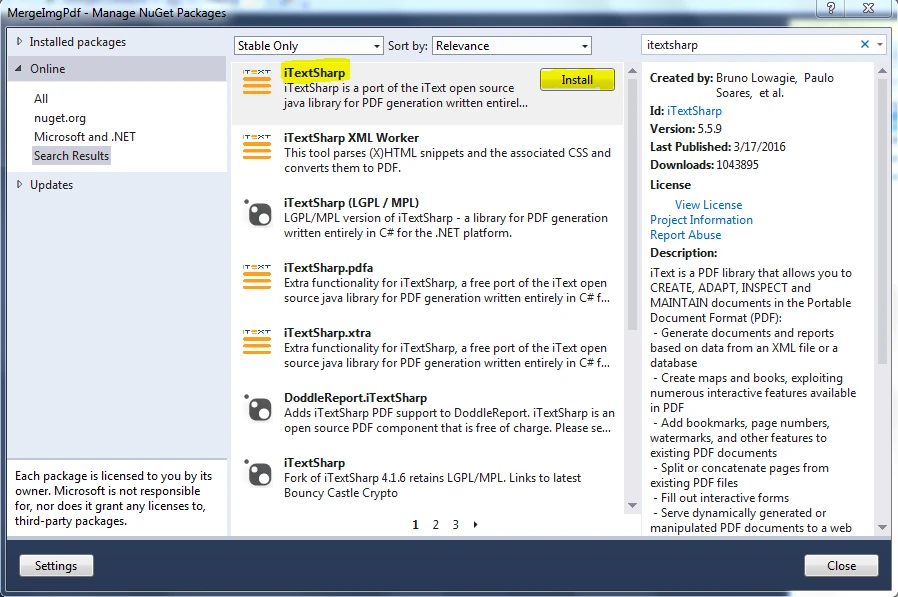
您可以使用 NuGet 套件管理器安裝專案中的 iText 程式庫。 打開您的 Visual Studio 專案,然後在 Solution Explorer 中右鍵單擊專案名稱。 從上下文選單中選擇"管理 NuGet 套件"。 在 NuGet 套件管理器中,搜索 "iText",並安裝最新版本的套件。
建立一個新的 PDF 文件
要使用 iText 建立一個新的 PDF 文件,我們需要建立 "Document" 類的新實例,並將一個新的 FileStream 物件傳遞給其構造函式。 以下是一個範例:
using iText.Kernel.Pdf;
using iText.Layout;
using iText.Layout.Element;
using iText.Layout.Properties;
using System.IO;

// Create a new PDF document
using (var writer = new PdfWriter(new FileStream("newfile.pdf", FileMode.Create)))
{
    using (var pdf = new PdfDocument(writer))
    {
        var document = new Document(pdf);

        // Create a header paragraph
        Paragraph header = new Paragraph("HEADER")
            .SetTextAlignment(TextAlignment.CENTER)
            .SetFontSize(16);

        // Add the header to the document
        document.Add(header);

        // Loop through pages and align header text
        for (int i = 1; i <= pdf.GetNumberOfPages(); i++)
        {
            Rectangle pageSize = pdf.GetPage(i).GetPageSize();
            float x = pageSize.GetWidth() / 2;
            float y = pageSize.GetTop() - 20;

            // Add the header text to each page
            document.ShowTextAligned(header, x, y, i, TextAlignment.LEFT, VerticalAlignment.BOTTOM, 0);
        }

        // Set the margins
        document.SetTopMargin(50);
        document.SetBottomMargin(50);
    }
}
using iText.Kernel.Pdf;
using iText.Layout;
using iText.Layout.Element;
using iText.Layout.Properties;
using System.IO;
// Create a new PDF document
using (var writer = new PdfWriter(new FileStream("newfile.pdf", FileMode.Create)))
{
using (var pdf = new PdfDocument(writer))
{
var document = new Document(pdf);
// Create a header paragraph
Paragraph header = new Paragraph("HEADER")
.SetTextAlignment(TextAlignment.CENTER)
.SetFontSize(16);
// Add the header to the document
document.Add(header);
// Loop through pages and align header text
for (int i = 1; i <= pdf.GetNumberOfPages(); i++)
{
Rectangle pageSize = pdf.GetPage(i).GetPageSize();
float x = pageSize.GetWidth() / 2;
float y = pageSize.GetTop() - 20;
// Add the header text to each page
document.ShowTextAligned(header, x, y, i, TextAlignment.LEFT, VerticalAlignment.BOTTOM, 0);
}
// Set the margins
document.SetTopMargin(50);
document.SetBottomMargin(50);
}
}Imports iText.Kernel.Pdf
Imports iText.Layout
Imports iText.Layout.Element
Imports iText.Layout.Properties
Imports System.IO
' Create a new PDF document
Using writer = New PdfWriter(New FileStream("newfile.pdf", FileMode.Create))
Using pdf = New PdfDocument(writer)
Dim document As New Document(pdf)
' Create a header paragraph
Dim header As Paragraph = (New Paragraph("HEADER")).SetTextAlignment(TextAlignment.CENTER).SetFontSize(16)
' Add the header to the document
document.Add(header)
' Loop through pages and align header text
Dim i As Integer = 1
Do While i <= pdf.GetNumberOfPages()
Dim pageSize As Rectangle = pdf.GetPage(i).GetPageSize()
'INSTANT VB WARNING: Instant VB cannot determine whether both operands of this division are integer types - if they are then you should use the VB integer division operator:
Dim x As Single = pageSize.GetWidth() / 2
Dim y As Single = pageSize.GetTop() - 20
' Add the header text to each page
document.ShowTextAligned(header, x, y, i, TextAlignment.LEFT, VerticalAlignment.BOTTOM, 0)
i += 1
Loop
' Set the margins
document.SetTopMargin(50)
document.SetBottomMargin(50)
End Using
End Using在上述程式碼中,我們建立了一個名為 "newfile.pdf" 的新 PDF 文件,並向其中新增了一個段落標題。
編輯現有的 PDF 文件
要使用 iText 編輯現有的 PDF 文件,您需要一個 PdfReader 物件來讀取現有的 PDF 文件,並使用一個 PdfStamper 物件來修改它。 以下是一個範例:
using iText.Kernel.Pdf;
using iText.Layout;
using iText.Layout.Element;
using iText.Layout.Properties;
using iText.Html2pdf;
using System.IO;

/**
 * iText URL to PDF
 * anchor-itext-url-to-pdf
 **/
private void ExistingWebURL()
{
    // Initialize PDF writer
    PdfWriter writer = new PdfWriter("wikipedia.pdf");

    // Initialize PDF document
    using PdfDocument pdf = new PdfDocument(writer);

    ConverterProperties properties = new ConverterProperties();
    properties.SetBaseUri("https://en.wikipedia.org/wiki/Portable_Document_Format");

    // Convert HTML to PDF
    Document document = HtmlConverter.ConvertToDocument(
        new FileStream("Test_iText7_1.pdf", FileMode.Open), pdf, properties);

    // Create and add a header paragraph
    Paragraph header = new Paragraph("HEADER")
        .SetTextAlignment(TextAlignment.CENTER)
        .SetFontSize(16);

    document.Add(header);

    // Align header text for each page
    for (int i = 1; i <= pdf.GetNumberOfPages(); i++)
    {
        Rectangle pageSize = pdf.GetPage(i).GetPageSize();
        float x = pageSize.GetWidth() / 2;
        float y = pageSize.GetTop() - 20;

        // Add header text aligned at the top
        document.ShowTextAligned(header, x, y, i, TextAlignment.LEFT, VerticalAlignment.BOTTOM, 0);
    }

    // Set the top and bottom margins
    document.SetTopMargin(50);
    document.SetBottomMargin(50);
    document.Close();
}
using iText.Kernel.Pdf;
using iText.Layout;
using iText.Layout.Element;
using iText.Layout.Properties;
using iText.Html2pdf;
using System.IO;
/**
* iText URL to PDF
* anchor-itext-url-to-pdf
**/
private void ExistingWebURL()
{
// Initialize PDF writer
PdfWriter writer = new PdfWriter("wikipedia.pdf");
// Initialize PDF document
using PdfDocument pdf = new PdfDocument(writer);
ConverterProperties properties = new ConverterProperties();
properties.SetBaseUri("https://en.wikipedia.org/wiki/Portable_Document_Format");
// Convert HTML to PDF
Document document = HtmlConverter.ConvertToDocument(
new FileStream("Test_iText7_1.pdf", FileMode.Open), pdf, properties);
// Create and add a header paragraph
Paragraph header = new Paragraph("HEADER")
.SetTextAlignment(TextAlignment.CENTER)
.SetFontSize(16);
document.Add(header);
// Align header text for each page
for (int i = 1; i <= pdf.GetNumberOfPages(); i++)
{
Rectangle pageSize = pdf.GetPage(i).GetPageSize();
float x = pageSize.GetWidth() / 2;
float y = pageSize.GetTop() - 20;
// Add header text aligned at the top
document.ShowTextAligned(header, x, y, i, TextAlignment.LEFT, VerticalAlignment.BOTTOM, 0);
}
// Set the top and bottom margins
document.SetTopMargin(50);
document.SetBottomMargin(50);
document.Close();
}Imports iText.Kernel.Pdf
Imports iText.Layout
Imports iText.Layout.Element
Imports iText.Layout.Properties
Imports iText.Html2pdf
Imports System.IO
'''
''' * iText URL to PDF
''' * anchor-itext-url-to-pdf
''' *
Private Sub ExistingWebURL()
' Initialize PDF writer
Dim writer As New PdfWriter("wikipedia.pdf")
' Initialize PDF document
Using pdf As New PdfDocument(writer)
Dim properties As New ConverterProperties()
properties.SetBaseUri("https://en.wikipedia.org/wiki/Portable_Document_Format")
' Convert HTML to PDF
Dim document As Document = HtmlConverter.ConvertToDocument(New FileStream("Test_iText7_1.pdf", FileMode.Open), pdf, properties)
' Create and add a header paragraph
Dim header As Paragraph = (New Paragraph("HEADER")).SetTextAlignment(TextAlignment.CENTER).SetFontSize(16)
document.Add(header)
' Align header text for each page
Dim i As Integer = 1
Do While i <= pdf.GetNumberOfPages()
Dim pageSize As Rectangle = pdf.GetPage(i).GetPageSize()
'INSTANT VB WARNING: Instant VB cannot determine whether both operands of this division are integer types - if they are then you should use the VB integer division operator:
Dim x As Single = pageSize.GetWidth() / 2
Dim y As Single = pageSize.GetTop() - 20
' Add header text aligned at the top
document.ShowTextAligned(header, x, y, i, TextAlignment.LEFT, VerticalAlignment.BOTTOM, 0)
i += 1
Loop
' Set the top and bottom margins
document.SetTopMargin(50)
document.SetBottomMargin(50)
document.Close()
End Using
End Sub在這個程式碼中,打開了一個現有的 PDF,我們為其頁面新增了帶有正確文字對齊的標題。
使用 IronPDF 編輯 PDF 文件
IronPDF 是一個強大的 C# PDF 程式庫,可用於便捷地編輯 PDF 文件。 本教程將逐步講解使用 IronPDF 編輯現有 PDF 文件的步驟,包括建立新 PDF 文件、新增頁面、合併 PDF 等。
先決條件
確保您具備:
- Visual Studio IDE
- IronPDF 程式庫
步驟 1:建立新專案
在 Visual Studio 中建立一個新的 C# 專案。 選擇"控制台應用程式"專案型別。
步驟 2:安裝 IronPDF
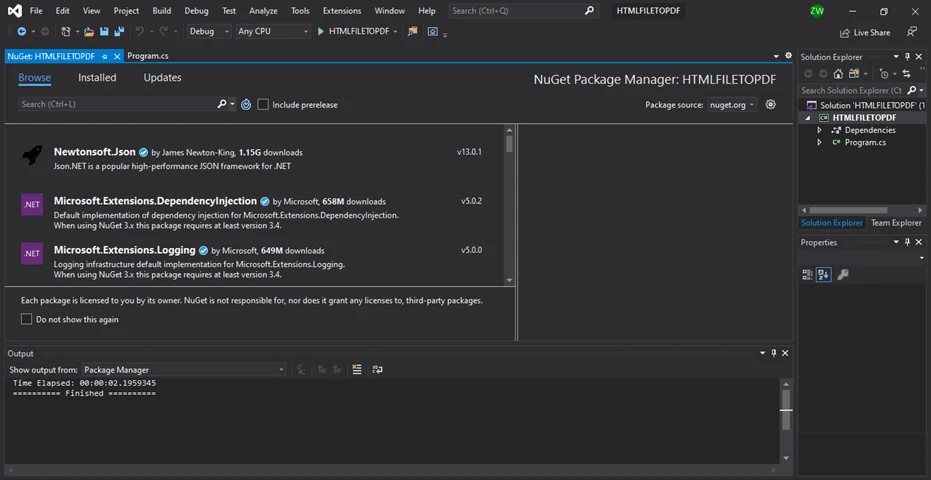 using NuGet 套件管理器將 IronPDF 程式庫安裝到您的專案中。
// Execute this command in the Package Manager Console
Install-Package IronPdf
// Execute this command in the Package Manager Console
Install-Package IronPdf步驟 3:載入現有 PDF 文件
using PdfDocument 類載入現有的 PDF 文件:
using IronPdf;

// Path to an existing PDF file
var existingPdf = @"C:\path\to\existing\pdf\document.pdf";

// Load the PDF document
var pdfDoc = PdfDocument.FromFile(existingPdf);
using IronPdf;
// Path to an existing PDF file
var existingPdf = @"C:\path\to\existing\pdf\document.pdf";
// Load the PDF document
var pdfDoc = PdfDocument.FromFile(existingPdf);Imports IronPdf
' Path to an existing PDF file
Private existingPdf = "C:\path\to\existing\pdf\document.pdf"
' Load the PDF document
Private pdfDoc = PdfDocument.FromFile(existingPdf)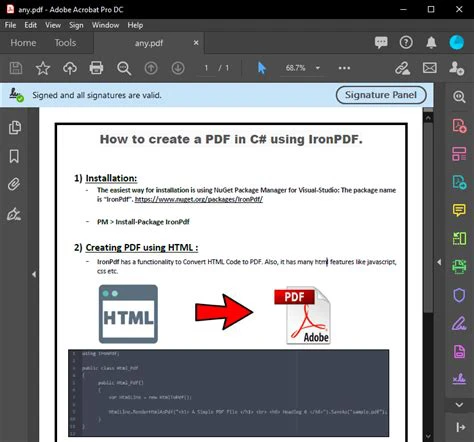
步驟 4:為現有 PDF 文件新增新頁面
要新增新頁面:
// Add a new page with default size
var newPage = pdfDoc.AddPage();
newPage.Size = PageSize.Letter;
// Add a new page with default size
var newPage = pdfDoc.AddPage();
newPage.Size = PageSize.Letter;' Add a new page with default size
Dim newPage = pdfDoc.AddPage()
newPage.Size = PageSize.Letter步驟 5:從網站建立 PDF
直接從網頁 URL 生成 PDF。 以下是一個範例:
using IronPdf;

/**
 * IronPDF URL to PDF
 * anchor-ironpdf-website-to-pdf
 **/
private void ExistingWebURL()
{
    // Create PDF from a webpage
    var Renderer = new IronPdf.ChromePdfRenderer();

    // Set rendering options
    Renderer.RenderingOptions.MarginTop = 50; // millimeters
    Renderer.RenderingOptions.MarginBottom = 50;
    Renderer.RenderingOptions.CssMediaType = IronPdf.Rendering.PdfCssMediaType.Print;
    Renderer.RenderingOptions.TextHeader = new TextHeaderFooter()
    {
        CenterText = "{pdf-title}",
        DrawDividerLine = true,
        FontSize = 16
    };
    Renderer.RenderingOptions.TextFooter = new TextHeaderFooter()
    {
        LeftText = "{date} {time}",
        RightText = "Page {page} of {total-pages}",
        DrawDividerLine = true,
        FontSize = 14
    };
    Renderer.RenderingOptions.EnableJavaScript = true;
    Renderer.RenderingOptions.RenderDelay = 500; // milliseconds

    // Render URL as PDF
    using var PDF = Renderer.RenderUrlAsPdf("https://en.wikipedia.org/wiki/Portable_Document_Format");
    PDF.SaveAs("wikipedia.pdf");
}
using IronPdf;
/**
* IronPDF URL to PDF
* anchor-ironpdf-website-to-pdf
**/
private void ExistingWebURL()
{
// Create PDF from a webpage
var Renderer = new IronPdf.ChromePdfRenderer();
// Set rendering options
Renderer.RenderingOptions.MarginTop = 50; // millimeters
Renderer.RenderingOptions.MarginBottom = 50;
Renderer.RenderingOptions.CssMediaType = IronPdf.Rendering.PdfCssMediaType.Print;
Renderer.RenderingOptions.TextHeader = new TextHeaderFooter()
{
CenterText = "{pdf-title}",
DrawDividerLine = true,
FontSize = 16
};
Renderer.RenderingOptions.TextFooter = new TextHeaderFooter()
{
LeftText = "{date} {time}",
RightText = "Page {page} of {total-pages}",
DrawDividerLine = true,
FontSize = 14
};
Renderer.RenderingOptions.EnableJavaScript = true;
Renderer.RenderingOptions.RenderDelay = 500; // milliseconds
// Render URL as PDF
using var PDF = Renderer.RenderUrlAsPdf("https://en.wikipedia.org/wiki/Portable_Document_Format");
PDF.SaveAs("wikipedia.pdf");
}Imports IronPdf
'''
''' * IronPDF URL to PDF
''' * anchor-ironpdf-website-to-pdf
''' *
Private Sub ExistingWebURL()
' Create PDF from a webpage
Dim Renderer = New IronPdf.ChromePdfRenderer()
' Set rendering options
Renderer.RenderingOptions.MarginTop = 50 ' millimeters
Renderer.RenderingOptions.MarginBottom = 50
Renderer.RenderingOptions.CssMediaType = IronPdf.Rendering.PdfCssMediaType.Print
Renderer.RenderingOptions.TextHeader = New TextHeaderFooter() With {
.CenterText = "{pdf-title}",
.DrawDividerLine = True,
.FontSize = 16
}
Renderer.RenderingOptions.TextFooter = New TextHeaderFooter() With {
.LeftText = "{date} {time}",
.RightText = "Page {page} of {total-pages}",
.DrawDividerLine = True,
.FontSize = 14
}
Renderer.RenderingOptions.EnableJavaScript = True
Renderer.RenderingOptions.RenderDelay = 500 ' milliseconds
' Render URL as PDF
Dim PDF = Renderer.RenderUrlAsPdf("https://en.wikipedia.org/wiki/Portable_Document_Format")
PDF.SaveAs("wikipedia.pdf")
End SubiText 和 IronPDF 之間的不同
iText 是一個流行的開源程式庫,用於在 C# 中建立、操作和提取 PDF 文件中的資料。 它有良好的文件記錄和廣泛的使用。 而 IronPDF 更現代化,具有附加功能和好處,這使其成為開發者更好的選擇。
從 HTML 輸入字串生成 PDF
以下是如何使用 IronPDF 從 HTML 建立 PDF:
using IronPdf;

/**
 * IronPDF HTML to PDF
 * anchor-ironpdf-document-from-html
 **/
private void HTMLString()
{
    // Render HTML to PDF
    var Renderer = new IronPdf.ChromePdfRenderer();
    using var PDF = Renderer.RenderHtmlAsPdf("<h1>Hello IronPdf</h1>");
    Renderer.RenderingOptions.TextFooter = new HtmlHeaderFooter()
    {
        HtmlFragment = "<div style='text-align:right'><em style='color:pink'>page {page} of {total-pages}</em></div>"
    };
    var OutputPath = "ChromeHtmlToPdf.pdf";
    PDF.SaveAs(OutputPath);
}
using IronPdf;
/**
* IronPDF HTML to PDF
* anchor-ironpdf-document-from-html
**/
private void HTMLString()
{
// Render HTML to PDF
var Renderer = new IronPdf.ChromePdfRenderer();
using var PDF = Renderer.RenderHtmlAsPdf("<h1>Hello IronPdf</h1>");
Renderer.RenderingOptions.TextFooter = new HtmlHeaderFooter()
{
HtmlFragment = "<div style='text-align:right'><em style='color:pink'>page {page} of {total-pages}</em></div>"
};
var OutputPath = "ChromeHtmlToPdf.pdf";
PDF.SaveAs(OutputPath);
}Imports IronPdf
'''
''' * IronPDF HTML to PDF
''' * anchor-ironpdf-document-from-html
''' *
Private Sub HTMLString()
' Render HTML to PDF
Dim Renderer = New IronPdf.ChromePdfRenderer()
Dim PDF = Renderer.RenderHtmlAsPdf("<h1>Hello IronPdf</h1>")
Renderer.RenderingOptions.TextFooter = New HtmlHeaderFooter() With {.HtmlFragment = "<div style='text-align:right'><em style='color:pink'>page {page} of {total-pages}</em></div>"}
Dim OutputPath = "ChromeHtmlToPdf.pdf"
PDF.SaveAs(OutputPath)
End SubiText HTML 到 PDF
using iText 將 HTML 文字轉換為 PDF:
using iText.Html2pdf;
using System.IO;

/**
 * iText HTML to PDF
 * anchor-itext-html-to-pdf
 **/
private void HTMLString()
{
    HtmlConverter.ConvertToPdf("<h1>Hello iText7</h1>", new FileStream("iText7HtmlToPdf.pdf", FileMode.Create));
}
using iText.Html2pdf;
using System.IO;
/**
* iText HTML to PDF
* anchor-itext-html-to-pdf
**/
private void HTMLString()
{
HtmlConverter.ConvertToPdf("<h1>Hello iText7</h1>", new FileStream("iText7HtmlToPdf.pdf", FileMode.Create));
}Imports iText.Html2pdf
Imports System.IO
'''
''' * iText HTML to PDF
''' * anchor-itext-html-to-pdf
''' *
Private Sub HTMLString()
HtmlConverter.ConvertToPdf("<h1>Hello iText7</h1>", New FileStream("iText7HtmlToPdf.pdf", FileMode.Create))
End Sub性能
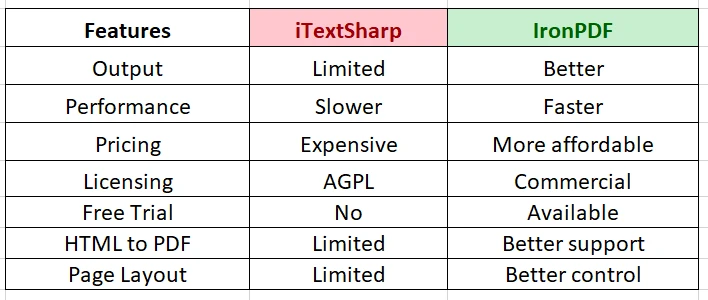
IronPDF 設計旨在比 iText 更快和更高效,使其能夠利用更少的資源更快地生成 PDF。 這種效率對於大型或複雜文件至關重要。
價格
iText 在某些使用案例中需要商業授權,這可能非常昂貴。然而,IronPDF 提供了一個更實惠的定價模式,提供針對不同需求和預算量身定制的多種選擇。
授權和定價
iText 和 IronPDF 之間的一個主要區別在於其授權和定價模型。
- iText: 以 AGPL 授權,對於非開源專案需要商業授權。 商業授權的成本各不相同。
- IronPDF: 提供免費試用和靈活授權,包括開發者和伺服器授權,使其適合商業用途。
結論
總結,儘管 iText 和 IronPDF 都能處理 C# 中的 PDF 操作,IronPDF 是更具多功能性且更高效的選擇。它提供先進的功能、直觀的 API 和更佳的性能。 其靈活的定價使其適合商業項目和較大的組織使用。
通過 IronPDF 的優質 HTML 到 PDF 轉換,開發者可以輕鬆生成包含豐富媒體或互動內容的報告或文件。 結合具成本效益的價格,IronPDF 是需要功能強大且高效的 PDF 程式庫的 C# 專案開發者的理想選擇。
常見問題
我可以如何在C#中編輯PDF文件而不損失格式?
您可以使用IronPDF在C#中編輯PDF文件,並確保格式得以保留。IronPDF提供先進的功能和現代API,以便進行高效的PDF操作。
在Visual Studio中安裝PDF程式庫涉及哪些步驟?
要在Visual Studio中安裝像IronPDF這樣的PDF程式庫,打開NuGet封裝管理員,搜尋IronPDF,然後將該封裝安裝到您的專案中。
如何在C#中將網頁URL轉換為PDF?
IronPDF允許您使用ChromePdfRenderer類將網頁URL轉換為PDF,保證高品質的輸出。
iTextSharp和IronPDF之間在授權方面有何不同?
iTextSharp是一個AGPL授權的開源程式庫,對於非開源項目需要商業授權,而IronPDF提供靈活的授權選擇,包括免費試用。
如何在C#中向現有的PDF新增文字?
使用IronPDF,您可以通過在PdfDocument物件上使用AddText等方法向現有的PDF中新增文字,實現流暢的PDF編輯。
使用IronPDF有哪些優勢相較於iTextSharp?
IronPDF提供卓越的性能、現代API和靈活的定價。它還提供先進的HTML到PDF轉換和更好的輸出質量,成為在C#中編輯PDF的首選。
我需要什麼才能在C#專案中開始使用IronPDF?
您需要Visual Studio開發環境和通過NuGet封裝管理器安裝的IronPDF程式庫,才能在您的C#專案中開始使用IronPDF。
我能否在C#中從HTML字串建立PDF?
是的,IronPDF允許您使用如RenderHtmlAsPdf的方法從HTML字串建立PDF,提供一個強大的HTML到PDF轉換工具。
是什麼使IronPDF成為C#開發者的多功能工具?
IronPDF直觀的API、高效的性能、先進的HTML到PDF轉換和具成本效益的定價使其成為C#開發者的多功能工具。
如何讓開發人員在C#中確保高質量的PDF輸出?
通過使用IronPDF,開發人員可以依賴其先進的渲染引擎與全面的功能集,確保高品質的PDF輸出,以滿足專業的PDF操作需求。









 免費開始
免費開始 免費開始
免費開始 預訂免費直播演示
















