




已更新 2026年5月8日
生成每月账户报表(PDF 文档)
using IronPDF C# PDF 库,开发人员可以在 .NET 项目中将 HTML 转换为可靠的 PDF 文件,而无需依赖外部服务。
阅读更多

IronPDF能够通过服务器端和客户端功能,在 ASP.NET 应用程序中实现可靠的PDF 打印。 它能够处理企业级需求,包括网络打印机、错误处理以及符合合规要求的文档生成,并带有完整的审计跟踪。
ASP.NET 打印 PDF 任务通常会遇到企业架构特有的挑战。 无论是生成发票、报告还是发货标签等文档,实现可靠的打印功能都需要应对服务器-客户端架构的复杂性,同时还要保持安全合规性。 IronPDF 库提供专业功能,包括数字签名、水印和 PDF/A 合规性,可实现长期存档。
本文将介绍如何使用 IronPDF 的 .NET PDF 库处理 PDF 打印任务,涵盖服务器端自动化和客户端打印工作流程。 这些示例针对采用顶级语句风格的 .NET 10,并使用 C# 编写。
传统桌面应用程序可以直接访问默认打印机,但 ASP.NET Core 应用程序在打印 PDF 文档时会面临一些障碍。 由于IIS 安全限制,服务器环境无法直接访问打印机,尝试生成进程进行文件访问会引发权限错误。 这些限制在受监管行业中尤为重要,因为这些行业必须维护审计跟踪和访问控制。 此外,Web 服务器进程通常在受限的服务帐户下运行,这些帐户无法访问物理打印机驱动程序,即使本地测试通过,基于进程的打印也不可靠。
// This fails in ASP.NET -- wrong approach
Process.Start(@"C:\Files\document.pdf"); // Works locally, crashes on servernet上面的代码说明了一个常见的错误。 Web 应用程序必须有效处理服务器端和客户端打印场景,同时满足数据驻留要求。 IronPDF 通过提供完全托管的 .NET API 来解决这个问题,该 API 不依赖于外部进程或打印机驱动程序。
IronPDF 提供了一个完整的 .NET Core 解决方案,用于生成 PDF 文档并进行打印,无需外部依赖项。 NuGet 包的安装对于 .NET Framework 和 .NET Core 应用程序来说都很简单。
通过软件包管理器控制台安装:
或者通过.NET CLI:
IronPDF 可在包括 Windows Server、Linux 发行版和Docker 容器在内的各种操作系统上运行,从而消除了影响其他库的兼容性问题。 在 macOS 上,该库原生支持 Intel 和 Apple Silicon 处理器。
安装完成后,在启动时添加许可证密钥以激活全部功能:
IronPdf.License.LicenseKey = "YOUR-LICENSE-KEY";IronPdf.License.LicenseKey = "YOUR-LICENSE-KEY"购买前可获得免费试用许可证,以便评估所有功能。
以下示例展示了如何在 ASP.NET 控制器中从 HTML 标记生成和打印 PDF 文档。 ChromePdfRenderer确保像素级精确渲染,具有完整的CSS支持。 使用CssMediaType.Print激活在HTML中定义的打印特定样式表,因此输出与浏览器中的打印预览完全匹配:
using IronPdf;
using Microsoft.AspNetCore.Mvc;

var builder = WebApplication.CreateBuilder(args);
builder.Services.AddControllers();
var app = builder.Build();
app.MapControllers();
app.Run();

[ApiController]
[Route("[controller]")]
public class PdfController : ControllerBase
{
    [HttpGet("print")]
    public IActionResult PrintDocument()
    {
        var renderer = new ChromePdfRenderer();
        renderer.RenderingOptions.PrintHtmlBackgrounds = true;
        renderer.RenderingOptions.MarginBottom = 10;
        renderer.RenderingOptions.CssMediaType = PdfCssMediaType.Print;

        var pdf = renderer.RenderHtmlAsPdf("<h1>Invoice</h1><p>Total: $999</p>");

        // Print to default server printer
        pdf.Print();

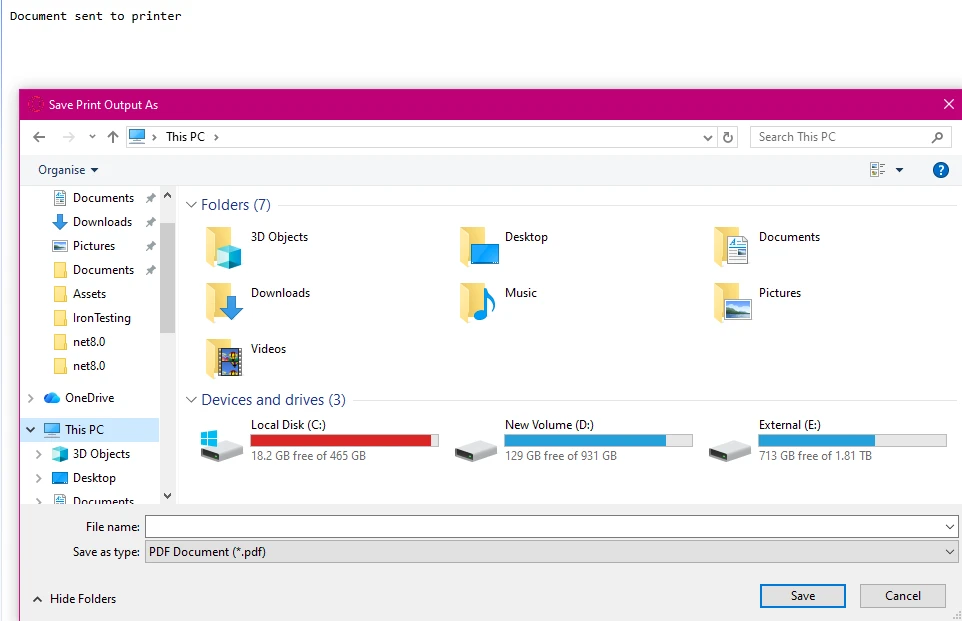
        return Ok("Document sent to printer");
    }
}此示例将渲染后的 PDF 直接发送到默认服务器打印机。 ChromePdfRenderer保留CSS样式和字体格式。 对于JavaScript密集型页面,使用RenderingOptions.WaitFor添加渲染延迟,以便在捕获之前让动态内容完成加载。
对于需要特定打印机路由和合规性跟踪的企业环境,IronPDF 提供完整的打印文档管理。 该图书馆支持多种纸张尺寸和页面方向:
using IronPdf;
using System.Drawing.Printing;
using Microsoft.AspNetCore.Mvc;

[ApiController]
[Route("[controller]")]
public class NetworkPrintController : ControllerBase
{
    [HttpPost("print-network")]
    public IActionResult PrintToNetworkPrinter(string filePath)
    {
        try
        {
            var pdfDocument = PdfDocument.FromFile(filePath);
            var printDocument = pdfDocument.GetPrintDocument();

            // Specify network printer with failover support
            printDocument.PrinterSettings.PrinterName = @"\\server\printer";
            printDocument.PrinterSettings.Copies = 2;
            printDocument.DefaultPageSettings.PaperSize = new PaperSize("A4", 827, 1169);

            var printJobId = Guid.NewGuid().ToString();
            printDocument.Print();

            return Ok(new
            {
                success = true,
                jobId = printJobId,
                message = "Document sent to " + printDocument.PrinterSettings.PrinterName
            });
        }
        catch (Exception ex)
        {
            return StatusCode(500, new { error = "Print operation failed", details = ex.Message });
        }
    }
}Imports IronPdf
Imports System.Drawing.Printing
Imports Microsoft.AspNetCore.Mvc
<ApiController>
<Route("[controller]")>
Public Class NetworkPrintController
Inherits ControllerBase
<HttpPost("print-network")>
Public Function PrintToNetworkPrinter(filePath As String) As IActionResult
Try
Dim pdfDocument = PdfDocument.FromFile(filePath)
Dim printDocument = pdfDocument.GetPrintDocument()
' Specify network printer with failover support
printDocument.PrinterSettings.PrinterName = "\\server\printer"
printDocument.PrinterSettings.Copies = 2
printDocument.DefaultPageSettings.PaperSize = New PaperSize("A4", 827, 1169)
Dim printJobId = Guid.NewGuid().ToString()
printDocument.Print()
Return Ok(New With {
.success = True,
.jobId = printJobId,
.message = "Document sent to " & printDocument.PrinterSettings.PrinterName
})
Catch ex As Exception
Return StatusCode(500, New With {.error = "Print operation failed", .details = ex.Message})
End Try
End Function
End Class这种方法可以完全控制打印机设置,包括纸张格式和分辨率。 该实施方案包括合规框架所需的错误处理和作业跟踪。 对于大批量打印,可以考虑实施异步处理和内存优化,以保持服务器的高吞吐量。
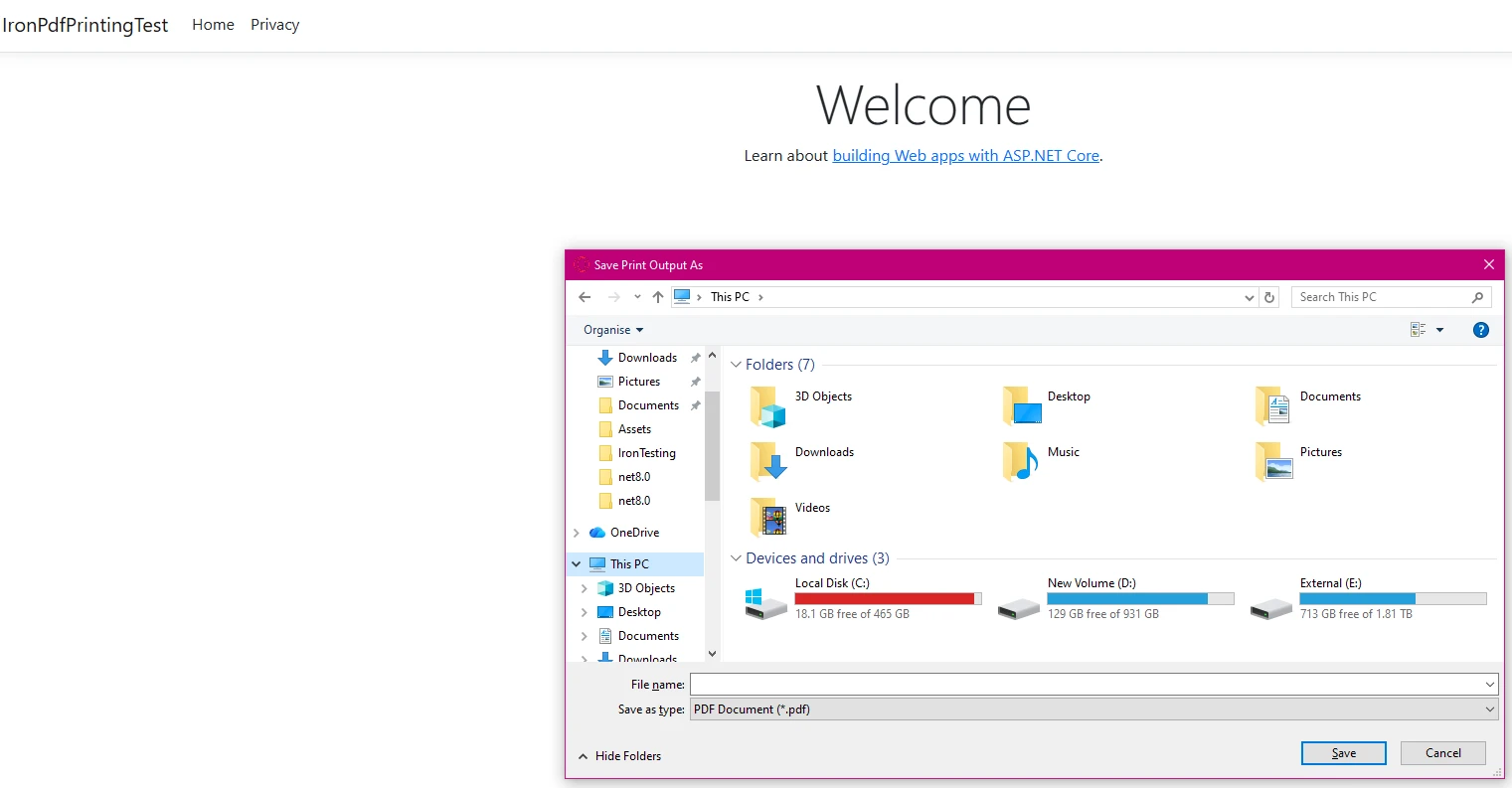
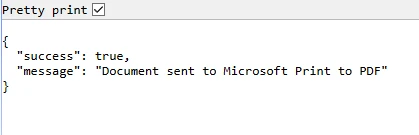
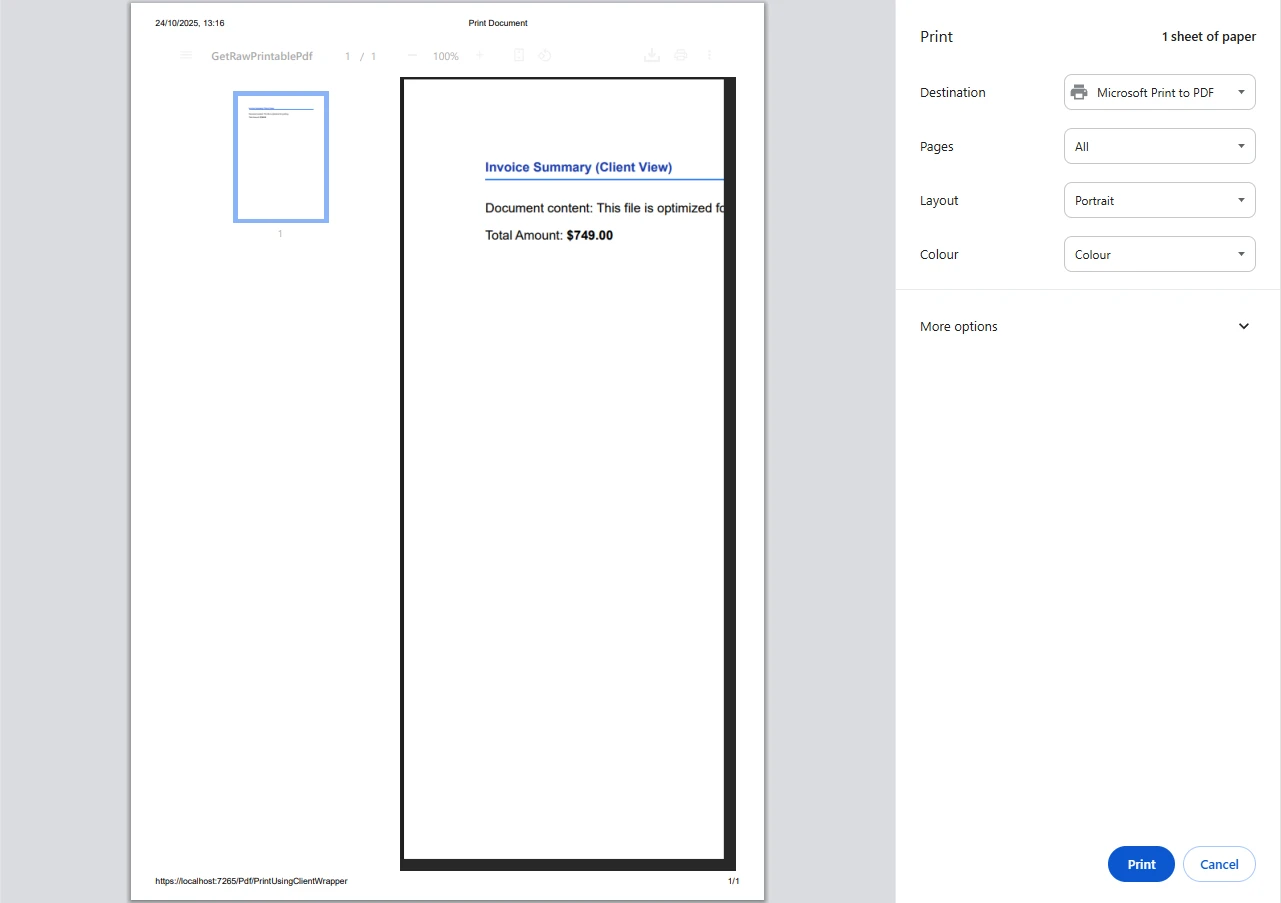
由于浏览器出于安全原因限制了直接打印机访问,因此可以通过提供带有适当安全标头的 PDF 文件来实现客户端打印。 IronPDF 支持多种压缩选项,以加快文件传输速度。 当最终用户需要通过浏览器打印对话框选择自己的打印目标位置时,这种模式非常理想:
using IronPdf;
using IronPdf.Rendering;
using Microsoft.AspNetCore.Mvc;
using System.Text;

[ApiController]
[Route("[controller]")]
public class ClientPrintController : ControllerBase
{
    [HttpGet("pdf")]
    public IActionResult GetRawPrintablePdf()
    {
        var renderer = new ChromePdfRenderer();
        renderer.RenderingOptions.EnableJavaScript = false;

        var pdf = renderer.RenderHtmlAsPdf(GetInvoiceHtml());

        pdf.SecuritySettings.AllowUserPrinting = true;
        pdf.SecuritySettings.AllowUserEditing = false;
        pdf.SecuritySettings.AllowUserCopyPasteContent = false;

        pdf.ApplyWatermark(
            "<h2 style='color:red;opacity:0.3'>CONFIDENTIAL</h2>",
            30,
            VerticalAlignment.Middle,
            HorizontalAlignment.Center);

        HttpContext.Response.Headers["Content-Disposition"] = "inline; filename=invoice.pdf";
        HttpContext.Response.Headers["X-Content-Type-Options"] = "nosniff";

        return File(pdf.BinaryData, "application/pdf");
    }

    [HttpGet("print-wrapper")]
    public IActionResult PrintUsingClientWrapper()
    {
        var printUrl = Url.Action(nameof(GetRawPrintablePdf));
        var html = new StringBuilder();
        html.AppendLine("<!DOCTYPE html><html lang=\"en\"><head><title>Print Document</title></head><body>");
        html.AppendLine($"<iframe src='{printUrl}' style='position:absolute;top:0;left:0;width:100%;height:100%;border:none;'></iframe>");
        html.AppendLine("<script>window.onload = function() { setTimeout(function() { window.print(); }, 100); };</script>");
        html.AppendLine("</body></html>");
        return Content(html.ToString(), "text/html");
    }

    private static string GetInvoiceHtml() => @"
        <html><head><style>
            body { font-family: Arial, sans-serif; }
            .header { font-weight: bold; color: #1e40af; }
            @media print { .no-print { display: none; } }
        </style></head>
        <body>
            <div class='header'>Invoice Summary</div>
            <p>Total Amount: <b>$999</b></p>
        </body></html>";
}PDF 文件会在浏览器中打开,用户可以通过标准打印对话框触发打印操作。 这种方法通过内容安全策略和水印来维护安全性,同时使服务器资源免受打印机驱动程序的依赖。
IronPDF 能够处理各种输入源,同时保持数据主权——这对于在企业环境中构建动态打印工作流程的开发人员来说非常重要。 该库支持HTML 文件、URL、HTML 字符串和 Markdown 内容:
using IronPdf;
using Microsoft.AspNetCore.Mvc;

[ApiController]
[Route("[controller]")]
public class MultiSourcePrintController : ControllerBase
{
    [HttpPost("print-multi")]
    public async Task<IActionResult> PrintFromMultipleSources()
    {
        var renderer = new ChromePdfRenderer();
        renderer.RenderingOptions.EnableJavaScript = false;
        renderer.RenderingOptions.Timeout = 30;

        // From URL with authentication
        renderer.LoginCredentials = new ChromeHttpLoginCredentials
        {
            NetworkUsername = "serviceaccount",
            NetworkPassword = "securepassword"
        };
        var pdfFromUrl = await renderer.RenderUrlAsPdfAsync("https://reports.internal.example.com/report");

        // From HTML file template
        var pdfFromFile = renderer.RenderHtmlFileAsPdf(@"Templates\report.html");

        // From sanitized HTML string
        var pdfFromString = renderer.RenderHtmlAsPdf("<h2>Summary Report</h2><p>Generated on demand.</p>");

        pdfFromUrl.Print();

        return Ok(new
        {
            message = "PDF documents processed and printed.",
            sources = new[] { "URL", "File", "HTML string" },
            timestamp = DateTime.UtcNow
        });
    }
}Imports IronPdf
Imports Microsoft.AspNetCore.Mvc
<ApiController>
<Route("[controller]")>
Public Class MultiSourcePrintController
Inherits ControllerBase
<HttpPost("print-multi")>
Public Async Function PrintFromMultipleSources() As Task(Of IActionResult)
Dim renderer As New ChromePdfRenderer()
renderer.RenderingOptions.EnableJavaScript = False
renderer.RenderingOptions.Timeout = 30
' From URL with authentication
renderer.LoginCredentials = New ChromeHttpLoginCredentials With {
.NetworkUsername = "serviceaccount",
.NetworkPassword = "securepassword"
}
Dim pdfFromUrl = Await renderer.RenderUrlAsPdfAsync("https://reports.internal.example.com/report")
' From HTML file template
Dim pdfFromFile = renderer.RenderHtmlFileAsPdf("Templates\report.html")
' From sanitized HTML string
Dim pdfFromString = renderer.RenderHtmlAsPdf("<h2>Summary Report</h2><p>Generated on demand.</p>")
pdfFromUrl.Print()
Return Ok(New With {
.message = "PDF documents processed and printed.",
.sources = New String() {"URL", "File", "HTML string"},
.timestamp = DateTime.UtcNow
})
End Function
End Class每种方法都能在保持打印质量的同时,保留文档结构和图形。 该实现包括身份验证、输入验证和加密支持。 IronPDF 支持 DOCX 文件、RTF 文档和图像格式等其他输入源,使其足够灵活,可以作为整个应用程序的单一 PDF 管道。
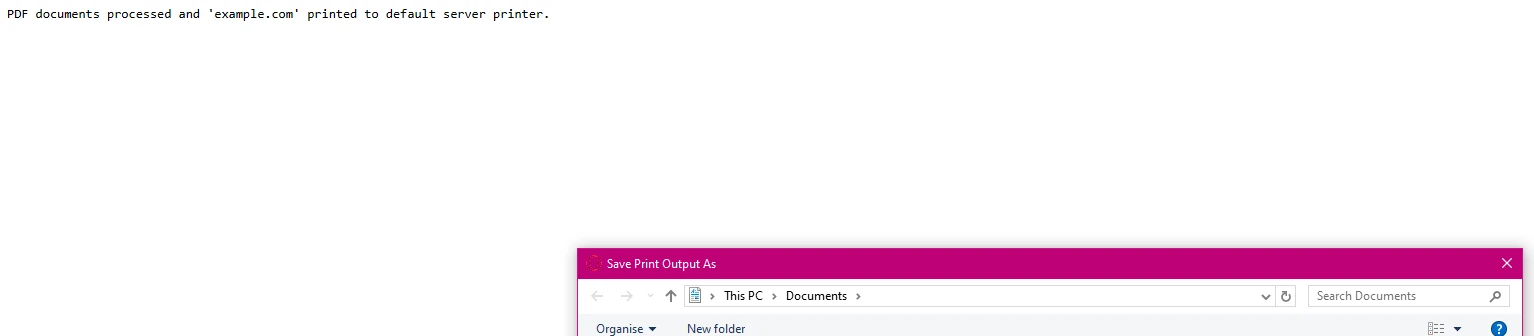
对于有合规日志记录要求的生产环境而言,可靠的错误处理至关重要。 IronPDF 提供原生异常处理和故障排除指南,用于诊断打印故障。 通过关联 ID 模式,在查看审计历史记录时,可以轻松地将日志条目与特定的打印请求进行匹配:
using IronPdf;
using System.Drawing.Printing;
using Microsoft.AspNetCore.Mvc;

[ApiController]
[Route("[controller]")]
public class SafePrintController : ControllerBase
{
    [HttpPost("safe-print")]
    public IActionResult SafePrint(string documentId)
    {
        var correlationId = Guid.NewGuid().ToString();

        try
        {
            var pdf = PdfDocument.FromFile(GetSecureFilePath(documentId));

            var availablePrinters = PrinterSettings.InstalledPrinters.Cast<string>().ToList();
            var targetPrinter = availablePrinters.FirstOrDefault();

            if (string.IsNullOrEmpty(targetPrinter))
            {
                return BadRequest(new
                {
                    error = "No printer available",
                    correlationId
                });
            }

            var printDoc = pdf.GetPrintDocument();
            printDoc.PrinterSettings.PrinterName = targetPrinter;
            printDoc.Print();

            return Ok(new
            {
                message = $"Document {documentId} printed successfully",
                printer = targetPrinter,
                correlationId,
                timestamp = DateTime.UtcNow
            });
        }
        catch (UnauthorizedAccessException)
        {
            return StatusCode(403, new { error = "Access denied", correlationId });
        }
        catch (Exception ex)
        {
            return StatusCode(500, new
            {
                error = "Printing failed",
                correlationId,
                message = "Contact support with the correlation ID"
            });
        }
    }

    private static string GetSecureFilePath(string documentId) =>
        Path.Combine(AppContext.BaseDirectory, "documents", documentId + ".pdf");
}Imports IronPdf
Imports System.Drawing.Printing
Imports Microsoft.AspNetCore.Mvc
<ApiController>
<Route("[controller]")>
Public Class SafePrintController
Inherits ControllerBase
<HttpPost("safe-print")>
Public Function SafePrint(documentId As String) As IActionResult
Dim correlationId = Guid.NewGuid().ToString()
Try
Dim pdf = PdfDocument.FromFile(GetSecureFilePath(documentId))
Dim availablePrinters = PrinterSettings.InstalledPrinters.Cast(Of String)().ToList()
Dim targetPrinter = availablePrinters.FirstOrDefault()
If String.IsNullOrEmpty(targetPrinter) Then
Return BadRequest(New With {
.error = "No printer available",
.correlationId = correlationId
})
End If
Dim printDoc = pdf.GetPrintDocument()
printDoc.PrinterSettings.PrinterName = targetPrinter
printDoc.Print()
Return Ok(New With {
.message = $"Document {documentId} printed successfully",
.printer = targetPrinter,
.correlationId = correlationId,
.timestamp = DateTime.UtcNow
})
Catch ex As UnauthorizedAccessException
Return StatusCode(403, New With {.error = "Access denied", .correlationId = correlationId})
Catch ex As Exception
Return StatusCode(500, New With {
.error = "Printing failed",
.correlationId = correlationId,
.message = "Contact support with the correlation ID"
})
End Try
End Function
Private Shared Function GetSecureFilePath(documentId As String) As String
Return Path.Combine(AppContext.BaseDirectory, "documents", documentId & ".pdf")
End Function
End Class即使系统资源不可用,也能确保可靠的打印。 关联 ID 可让您跟踪分布式系统中的请求,并将日志条目链接到审计跟踪中的特定打印作业。 结构化的错误响应还允许调用客户端采取适当的操作,例如使用备用打印机重试或通知用户。
如果代码中指定的打印机不可用,则代码将返回结构化错误响应:
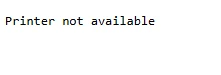
打印作业成功后,会返回一条包含作业详细信息的确认消息:

IronPDF 的渲染选项支持企业架构所需的复杂场景。 该库提供了在生成高保真文档时进行性能优化和内存管理的设置。 将CssMediaType.Print选项会激活源HTML中的任何打印特定CSS规则:
using IronPdf;
using Microsoft.AspNetCore.Mvc;

[ApiController]
[Route("[controller]")]
public class AdvancedPrintController : ControllerBase
{
    [HttpGet("advanced")]
    public IActionResult ConfigureAdvancedPrinting()
    {
        var renderer = new ChromePdfRenderer();
        renderer.RenderingOptions.PaperSize = PdfPaperSize.A4;
        renderer.RenderingOptions.EnableJavaScript = false;
        renderer.RenderingOptions.RenderDelay = 500;
        renderer.RenderingOptions.Timeout = 60;
        renderer.RenderingOptions.CssMediaType = PdfCssMediaType.Print;
        renderer.RenderingOptions.PrintHtmlBackgrounds = true;
        renderer.RenderingOptions.DpiResolution = 300;

        var pdf = renderer.RenderHtmlAsPdf(GetEnterpriseHtml());

        pdf.SecuritySettings.AllowUserPrinting = true;
        pdf.SecuritySettings.AllowUserEditing = false;
        pdf.SecuritySettings.OwnerPassword = Guid.NewGuid().ToString();

        pdf.MetaData.Author = "Enterprise Document System";
        pdf.MetaData.Subject = "Compliance Document";
        pdf.MetaData.Keywords = "enterprise,secure,compliant";
        pdf.MetaData.CreationDate = DateTime.UtcNow;

        // Apply digital signature for document integrity
        // pdf.SignWithFile("/path/to/certificate.pfx", "certificatePassword");

        return File(pdf.BinaryData, "application/pdf");
    }

    private static string GetEnterpriseHtml() => @"
        <!DOCTYPE html><html><head>
        <style>@page { size: A4; margin: 1cm; } body { font-family: Arial, sans-serif; }</style>
        </head><body>
        <h1>Enterprise Document</h1>
        <p>CONFIDENTIAL -- INTERNAL USE ONLY</p>
        </body></html>";
}Imports IronPdf
Imports Microsoft.AspNetCore.Mvc
<ApiController>
<Route("[controller]")>
Public Class AdvancedPrintController
Inherits ControllerBase
<HttpGet("advanced")>
Public Function ConfigureAdvancedPrinting() As IActionResult
Dim renderer As New ChromePdfRenderer()
renderer.RenderingOptions.PaperSize = PdfPaperSize.A4
renderer.RenderingOptions.EnableJavaScript = False
renderer.RenderingOptions.RenderDelay = 500
renderer.RenderingOptions.Timeout = 60
renderer.RenderingOptions.CssMediaType = PdfCssMediaType.Print
renderer.RenderingOptions.PrintHtmlBackgrounds = True
renderer.RenderingOptions.DpiResolution = 300
Dim pdf = renderer.RenderHtmlAsPdf(GetEnterpriseHtml())
pdf.SecuritySettings.AllowUserPrinting = True
pdf.SecuritySettings.AllowUserEditing = False
pdf.SecuritySettings.OwnerPassword = Guid.NewGuid().ToString()
pdf.MetaData.Author = "Enterprise Document System"
pdf.MetaData.Subject = "Compliance Document"
pdf.MetaData.Keywords = "enterprise,secure,compliant"
pdf.MetaData.CreationDate = DateTime.UtcNow
' Apply digital signature for document integrity
' pdf.SignWithFile("/path/to/certificate.pfx", "certificatePassword")
Return File(pdf.BinaryData, "application/pdf")
End Function
Private Shared Function GetEnterpriseHtml() As String
Return "
<!DOCTYPE html><html><head>
<style>@page { size: A4; margin: 1cm; } body { font-family: Arial, sans-serif; }</style>
</head><body>
<h1>Enterprise Document</h1>
<p>CONFIDENTIAL -- INTERNAL USE ONLY</p>
</body></html>"
End Function
End Class在应用所有安全配置生成文档后,调用pdf.Print()将文档发送到打印机。 这种方法通过数字签名和加密技术,在确保符合企业安全标准的同时,也保证了文档的完整性。 对于长期存档,请考虑符合 PDF/A 标准——该标准专门为必须在数十年内保持可读性和可复制性的文档而设计。
选择服务器端打印还是客户端打印取决于您的具体使用场景。 下表总结了关键的权衡因素:
| 方面 | 服务器端打印 | 客户端打印 |
|---|---|---|
| 打印机访问 | 服务器上的网络打印机和本地打印机 | 用户本地连接的打印机 |
| 用户交互 | 无——全自动 | 浏览器打印对话框出现 |
| 合规性日志记录 | 完整的服务器端审计跟踪 | 仅客户端控制台日志 |
| 安全控制 | 服务器强制执行所有限制 | 浏览器强制执行内容安全策略 |
| 最适合 | 批量作业、发票、受监管行业 | 按需用户触发打印 |
对于需要完整审计跟踪记录的受监管行业,服务器端打印是首选方案。客户端打印则适用于最终用户需要控制打印目标位置的场景。
IronPDF 将 ASP.NET PDF 打印从一项复杂的挑战转变为一个简单的实现,同时保持企业安全标准。 该库无需 Adobe Reader 或外部依赖项,即可用最少的代码生成和打印 PDF 文件,同时确保符合 SOC2、HIPAA 和行业特定法规。
完整的 API支持各种输入格式、编辑功能、安全功能和组织工具,可实现全面的 PDF 管理。 该库提供了丰富的教程、代码示例和故障排除资源,确保能够顺利集成到现有基础设施中。
对于超出 PDF 生成范围的打印需求(例如直接打印图像或 Office 文件),Iron Software 还提供IronPrint ,这是一个专用的 .NET 打印库。 与专注于生成和处理 PDF 内容的 IronPDF 不同,IronPrint 专注于直接文件打印,无需中间转换。 根据微软的 ASP.NET 文档,服务器端打印操作受 IIS 应用程序池标识限制,因此对于任何生产部署而言,库方法都是正确的架构选择。
立即开始免费试用,体验 IronPDF 如何简化 ASP.NET 应用程序中的文档处理。 凭借完整的文档、直接的工程支持和经过验证的合规认证,几分钟内即可开始生产就绪的 PDF 打印。 如需了解更多信息,请参阅Iron Software 的 PDF 文档安全指南和W3C PDF 可访问性规范。

Curtis Chau 拥有卡尔顿大学的计算机科学学士学位,专注于前端开发,精通 Node.js、TypeScript、JavaScript 和 React。他热衷于打造直观且美观的用户界面,喜欢使用现代框架并创建结构良好、视觉吸引力强的手册。

IronPDF 是 IRONSUITE的一部分
10 个 .NET API 产品用于您的办公文档

当您需要PDF看起来像HTML时,速度快。




