




已更新 2026年5月8日
生成每月账户报表(PDF 文档)
using IronPDF C# PDF 库,开发人员可以在 .NET 项目中将 HTML 转换为可靠的 PDF 文件,而无需依赖外部服务。
阅读更多

在整理报告、汇编月度简报或在交付前重新组织多节文件时,经常需要移动 PDF 文档中的页面(或在两个文档之间传输页面)。 使用 IronPDF,整个操作只需要几行 C# 代码。
本文将介绍四个实际场景:将单个页面移动到文档中的新位置、一次重新排列多个页面、在两个 PDF 文件之间传输页面,以及了解驱动这些工作流程的常见用例。 每个场景都包含一个可运行的代码示例和一个显示结果的输出图像。
立即开始免费试用,跟随以下示例进行操作。
using NuGet 包管理器控制台或 .NET CLI 将 IronPDF 添加到任何 .NET 项目中。 该软件包面向 .NET Standard 2.0,可在 .NET Framework 4.6.2+、.NET Core 以及所有现代 .NET 版本(包括 .NET 8 和 .NET 10)上运行。
安装完成后,在您的C#文件顶部添加using IronPdf;。有效的许可证密钥可解锁完整的商业用途; 免费试用许可证涵盖评估和开发。 在调用任何 API 之前,请先设置一次密钥:
IronPdf.License.LicenseKey = "YOUR-LICENSE-KEY";IronPdf.License.LicenseKey = "YOUR-LICENSE-KEY"引用了相关软件包并配置了许可证后,本文中的每个示例都将无需修改即可编译和运行。 IronPDF NuGet 包会自动安装所有必需的依赖项; 在 Windows、Linux 或 macOS 上,无需额外的本地二进制文件或运行时配置。
using IronPDF 在 PDF 文档中移动页面涉及三个步骤:复制目标页面,将其插入新位置,然后删除原始页面。 RemovePage,用于处理此操作的每个部分。
以下代码演示了如何将文档的最后一页移动到开头:
using IronPdf;

// Load the PDF document from the file system
var pdf = PdfDocument.FromFile("report.pdf");

// Get the zero-based index of the last page
int lastPageIndex = pdf.PageCount - 1;

// Copy the last page into a standalone PdfDocument
var pageToCopy = pdf.CopyPage(lastPageIndex);

// Insert the copied page at position 0 (the first page slot)
pdf.InsertPdf(pageToCopy, 0);

// The original last page has shifted down by one; remove it
pdf.RemovePage(lastPageIndex + 1);

// Save the reordered document to a new file
pdf.SaveAs("report-reorganized.pdf");Imports IronPdf
' Load the PDF document from the file system
Dim pdf = PdfDocument.FromFile("report.pdf")
' Get the zero-based index of the last page
Dim lastPageIndex As Integer = pdf.PageCount - 1
' Copy the last page into a standalone PdfDocument
Dim pageToCopy = pdf.CopyPage(lastPageIndex)
' Insert the copied page at position 0 (the first page slot)
pdf.InsertPdf(pageToCopy, 0)
' The original last page has shifted down by one; remove it
pdf.RemovePage(lastPageIndex + 1)
' Save the reordered document to a new file
pdf.SaveAs("report-reorganized.pdf")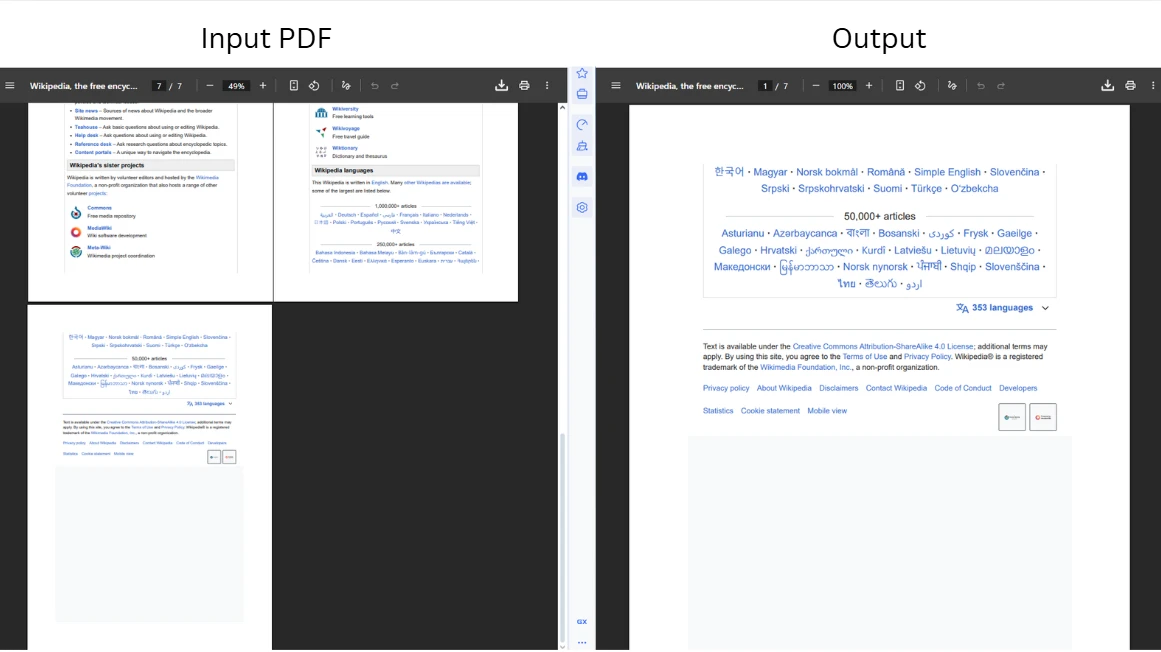
代码加载一个PDF文件并调用CopyPage通过其零基索引提取最后一页。 IronPDF在其API中使用零基页面编号,因此第一页的索引是0,最后一页是PageCount - 1。 在位置 0 插入副本后,原页在索引序列中向下移动一位; 删除调用通过定位lastPageIndex来考虑到这一点。 传递超出范围的索引会引发ArgumentOutOfRangeException,所以在处理边缘位置之前始终验证页面计数。
要深入了解各个复制和删除操作, 《添加、复制和删除 PDF 页面》指南详细介绍了每种方法。
由于插入操作会将所有后续页面索引向上移动一位,因此复制并插入后,原始页面最终会比预期位置向前移动一位。 模式pdf.RemovePage(lastPageIndex + 1)捕捉了这种变化。 同样的原理也适用于从文档中间移动页面:任何原本位于索引 N 且位于插入点之后的页面,一旦将副本插入到其前面,其索引将变为 N+1。
在保存之前验证索引计算可以防止出现静默排序错误,尤其是在文档长度不一的批处理管道中。 在每次操作之前快速检查pdf.PageCount可以确保逻辑正确,无论文档大小。
当需要移动多个页面时,CopyPages可以在一次调用中提取一组特定的页面。 该方法接受一个零基页面索引列表,并返回一个新的PdfDocument,仅包含这些页面,并按指定顺序排列。 这种方法适用于将连续的附录页面移到报告末尾,或将一组摘要页面移到前面等情况。
using IronPdf;
using System.Collections.Generic;

// Load the quarterly report
var pdf = PdfDocument.FromFile("quarterly-report.pdf");

// Copy pages at indexes 1 and 2 (the second and third pages)
var selectedPages = pdf.CopyPages(new List<int> { 1, 2 });

// Append the copied pages to the end of the original document
var result = PdfDocument.Merge(pdf, selectedPages);

// Remove the originals at their former positions (now indexes 1 and 2)
result.RemovePages(new List<int> { 1, 2 });

// Write the reordered result to a new path
result.SaveAs("quarterly-report-reordered.pdf");Imports IronPdf
Imports System.Collections.Generic
' Load the quarterly report
Dim pdf = PdfDocument.FromFile("quarterly-report.pdf")
' Copy pages at indexes 1 and 2 (the second and third pages)
Dim selectedPages = pdf.CopyPages(New List(Of Integer) From {1, 2})
' Append the copied pages to the end of the original document
Dim result = PdfDocument.Merge(pdf, selectedPages)
' Remove the originals at their former positions (now indexes 1 and 2)
result.RemovePages(New List(Of Integer) From {1, 2})
' Write the reordered result to a new path
result.SaveAs("quarterly-report-reordered.pdf")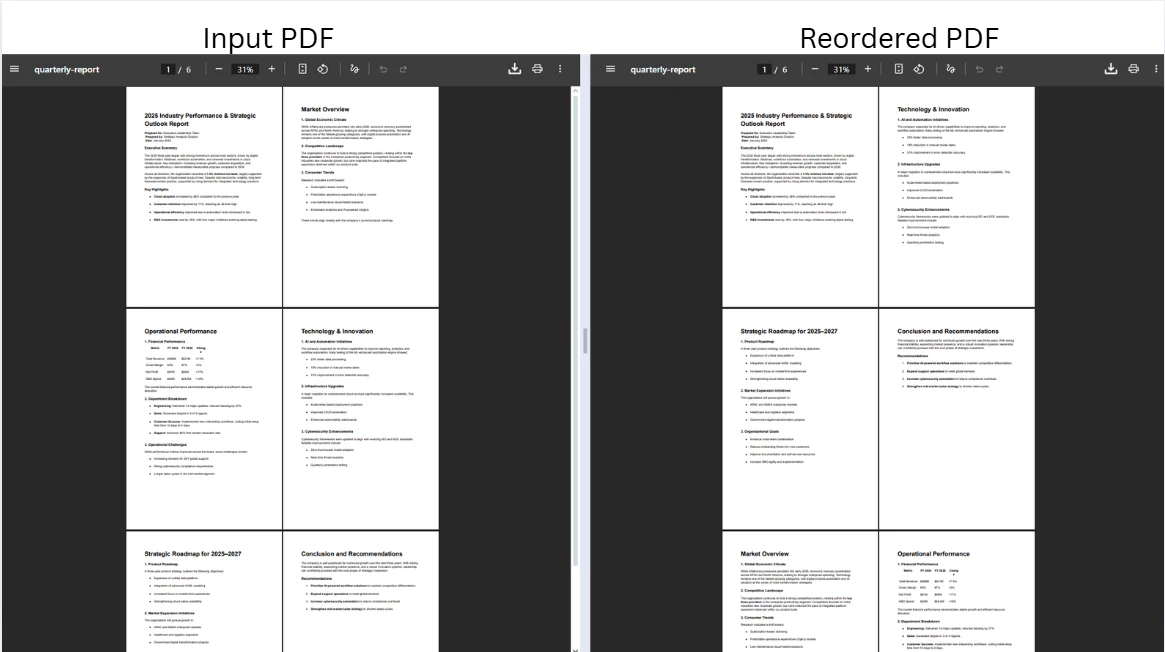
代码从源文档中复制两个页面,使用PdfDocument.Merge将它们合并到末尾,然后删除原始页面以完成重新排序。 PdfDocument对象,按顺序结合了两个输入:原始文档后跟提取的页面。 删除重复的原始文件后,最终文档将按预期顺序保存,且没有任何冗余内容。
RemovePages方法接受一个零基索引列表,并在一次处理中删除所有指定的页面。 在删除多个页面时,提供所有索引进行一次调用,而不是在循环中调用RemovePage,因为每次单独的删除会使剩余索引发生变化,并可能导致偏差错误。
合并或拆分 PDF 教程涵盖了合并和拆分文档的其他策略,包括按页面范围拆分。
IEnumerable<int>,所以自然支持不连续的页面。 传递new List<int> { 0, 3, 7 }以按该顺序将第一个、第四和第八页复制到一个文档中。 索引列表无需排序,从而可以完全控制输出顺序。 这种灵活性在从长源文件中的特定页面组装自定义文档时非常有用,例如,从多章节报告中提取执行摘要页面。
如果目的是完全重新排序文档而不是移动一个子集,请构建一个索引数组,列出所需顺序的所有页面位置,并将其传递给CopyPages,以一个操作创建重新排序的文档。 《C# PDF 页面重新排列教程》深入介绍了这种全文档重新排序模式。
在从一个PDF文档转移页面到另一个文档时,遵循相同的复制插入模式,应用于两个独立的PdfDocument实例。 这是整合来自多个源文件的内容时的标准方法:例如,将选定的审批页面从草稿移动到最终合同文件中。
using IronPdf;

// Load the source and destination documents
var sourceDoc = PdfDocument.FromFile("source-document.pdf");
var destinationDoc = PdfDocument.FromFile("destination-document.pdf");

// Extract the first page (index 0) from the source document
var pageToMove = sourceDoc.CopyPage(0);

// Insert the extracted page at position 2 in the destination (third page slot)
destinationDoc.InsertPdf(pageToMove, 2);

// Save the updated destination document
destinationDoc.SaveAs("destination-document-updated.pdf");

// Remove the transferred page from the source and save separately
sourceDoc.RemovePage(0);
sourceDoc.SaveAs("source-document-updated.pdf");Imports IronPdf
' Load the source and destination documents
Dim sourceDoc = PdfDocument.FromFile("source-document.pdf")
Dim destinationDoc = PdfDocument.FromFile("destination-document.pdf")
' Extract the first page (index 0) from the source document
Dim pageToMove = sourceDoc.CopyPage(0)
' Insert the extracted page at position 2 in the destination (third page slot)
destinationDoc.InsertPdf(pageToMove, 2)
' Save the updated destination document
destinationDoc.SaveAs("destination-document-updated.pdf")
' Remove the transferred page from the source and save separately
sourceDoc.RemovePage(0)
sourceDoc.SaveAs("source-document-updated.pdf")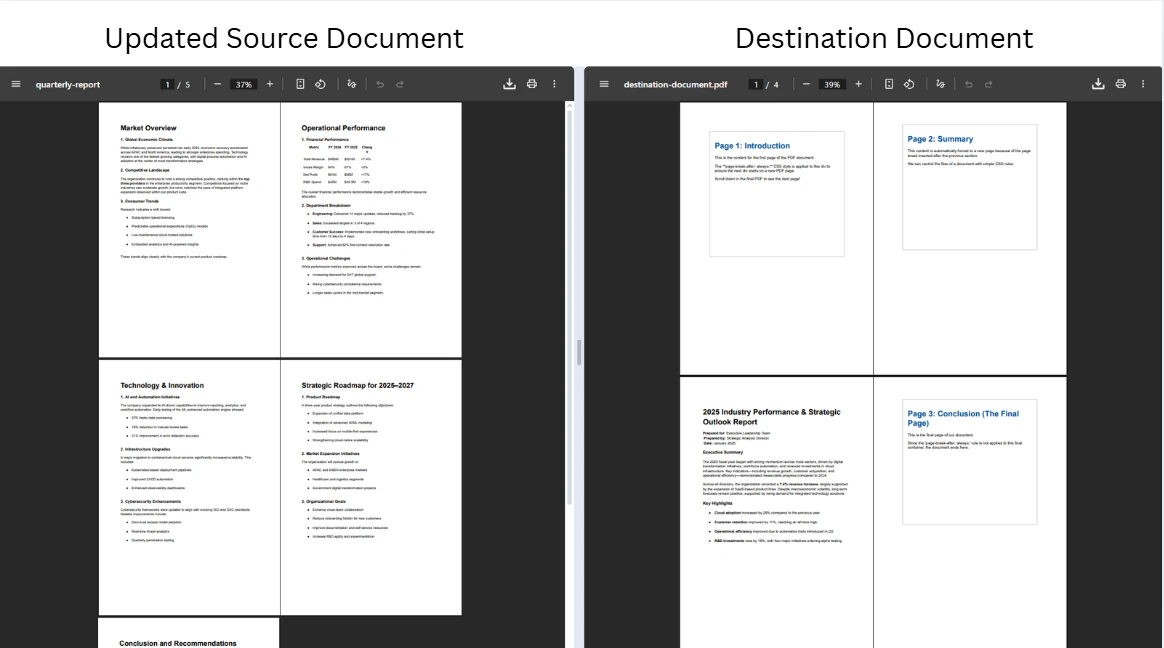
代码独立加载两个文档,使用InsertPdf在指定索引处将其插入到目标文档中。 源文件和目标文件分别保存在不同路径下的单独文件中,因此在操作过程中不会互相覆盖。 先保存目标文档,然后保存源文档是安全的,因为CopyPage会产生一个独立的副本; 直到调用RemovePage才会修改源文档。
两个PdfDocument上的输出方法进行内存中的工作流程。 这在 Web 应用程序中非常有用,因为在 Web 应用程序中,需要将修改后的 PDF 作为 HTTP 响应返回,而无需写入磁盘。 《转换 PDF 页面》指南涵盖了其他内存操作模式。
当页面使用CopyPage复制时,IronPDF会保留页面的可视内容,包括文本、图像、表单字段和渲染属性。 仅引用已移动页面的大纲(书签)会随副本一起移动,但引用多个页面的跨文档书签层次结构不会自动更新。 对于具有复杂书签树的文档,在移动页面后,请在 PDF 阅读器中查看输出,以验证内部导航链接是否指向正确的目标位置。
直接嵌入页面层的注释和表单字段数据在复制操作中得以保留。 如果源文档使用命名目标作为内部链接,则这些目标在复制的页面中保留其名称,但目标文档其他部分的链接将无法解析它们,除非这些命名目标已在目标文档的目录中注册。
在各种实际场景中,开发人员都需要移动和重新排列 PDF 页面。 PDF 规范中定义的 PDF 页面模型将每个页面表示为文档页面树中的一个独立对象,因此无论文档长度如何,对单个页面执行复制、插入和删除操作始终有效。 了解这些模式有助于设计能够处理各种输入结构的文档处理流程。
| 场景 | 典型操作 | IronPDF 方法 |
|---|---|---|
| 每月通讯汇编 | 将封面或目录移至页首 | CopyPage 、 InsertPdf 、 RemovePage |
| 报告生成 | 重新调整摘要页的位置或插入章节分隔符 | CopyPages 、 Merge 、 RemovePages |
| 文档整合 | 将多个源文件中选定的页面提取到一个输出文件中 | CopyPage 、 InsertPdf 、 SaveAs |
| 档案整理 | 重新排列参考文件的页面顺序(按时间顺序或类别)。 | CopyPages 、 Merge 、 RemovePages |
| 合同准备 | 将审批页或签名页移至所需位置 | CopyPage 、 InsertPdf 、 RemovePage |
除了页面操作,IronPDF支持在同一管道中进行全范围的文档操作。添加页眉和页脚、应用水印和添加数字签名都可以通过同一个PdfDocument API实现,因此可在最终保存之前进行多个转换。 IronPDF 功能页面提供了所有可用功能的概述。
对于页面位置由文档内容决定的自动化场景(例如,在找到特定部分后插入审批页面), 《编辑 PDF 文件》教程涵盖了文本搜索和内容驱动的操作技术,这些技术可以与页面重新排序相结合。
IronPDF 中的页面操作是对内存中的文档表示进行操作,因此性能会随着文档大小和应用的操作次数而增加。 对于大型 PDF 文件,一些模式有助于提高处理效率。
使用最少的必要页面数可以减少内存开销。 与其加载一个500页的文档来移动两页,不如首先使用Merge重新组装。 "拆分 PDF 页面"示例演示了这种分解和重组模式。
对于在多个文档间移动页面的批量处理管道,在每次保存后释放PdfDocument实例以便及时释放内存。 PdfDocument实现了using语句中可确保在发生异常时进行确定性的清理。
using IronPdf;

// Use 'using' declarations to ensure deterministic disposal
using var source = PdfDocument.FromFile("source-large.pdf");
using var destination = PdfDocument.FromFile("destination-large.pdf");

var pageToTransfer = source.CopyPage(0);
destination.InsertPdf(pageToTransfer, 0);

destination.SaveAs("destination-updated.pdf");
source.RemovePage(0);
source.SaveAs("source-updated.pdf");Imports IronPdf
' Use 'Using' blocks to ensure deterministic disposal
Using source = PdfDocument.FromFile("source-large.pdf")
Using destination = PdfDocument.FromFile("destination-large.pdf")
Dim pageToTransfer = source.CopyPage(0)
destination.InsertPdf(pageToTransfer, 0)
destination.SaveAs("destination-updated.pdf")
source.RemovePage(0)
source.SaveAs("source-updated.pdf")
End Using
End Using这里的PdfDocument对象都被释放,立即释放底层的内存缓冲区。 这种模式在ASP.NET Core应用程序中尤为重要,因为许多请求可能会在同一服务器上同时处理文档。 有关内存安全文档处理的更多 API 详细信息,请参阅IronPDF API 参考。
在C#中移动和重新排序PDF页面需要三个IronPDF方法:RemovePage,按照复制-插入-删除的顺序应用。 同样的模式可以适用于从移动单个文档中的单个页面到跨多个文件传输批量页面。 IronPDF 也支持 VB.NET,使用相同的 API,页面操作方法在所有受支持的 .NET 平台(包括 .NET 8 和 .NET 10)上均可用。
要了解相关功能,《添加、复制和删除 PDF 页面指南》深入介绍了每种页面级方法。 对于使用页面索引数组重新排列整个文档,请参阅《在 PDF C# 中重新排列页面》一文,了解该方法。
准备好为您的项目添加 PDF 页面处理功能了吗? 立即开始免费试用,在开发过程中体验 IronPDF 的所有功能,或者购买许可证,立即部署到生产环境。

Curtis Chau 拥有卡尔顿大学的计算机科学学士学位,专注于前端开发,精通 Node.js、TypeScript、JavaScript 和 React。他热衷于打造直观且美观的用户界面,喜欢使用现代框架并创建结构良好、视觉吸引力强的手册。

当您需要PDF看起来像HTML时,速度快。















