



Updated April 23, 2026
Bridging CLI Simplicity & .NET : Using Curl DotNet with IronPDF
Jacob Mellor has bridged this gap with CurlDotNet, a library created to bring the familiarity of cURL to the .NET ecosystem.
Read More

AppMetrics C# is a powerful tool designed to streamline application monitoring and performance analysis. With AppMetrics abstracts, it simplifies the complexity involved in tracking various aspects of your application. Whether you're using .NET Core or the .NET Framework, this .NET library enables you to record metric types efficiently. You can retrieve metrics and utilize metric types supported by AppMetrics for comprehensive insights.
The .NET library supports retrieving metrics and allows you to flush metrics at a specified interval, ensuring timely data collection. It also offers an extension method, providing extensibility points for enhanced flexibility. As a cross-platform solution, AppMetrics is suitable for diverse environments and ensures consistent performance monitoring.
IronPDF: Advanced PDF Library for C# Developers is another essential library for C# developers, especially when working with PDF documents. It enables the creation, editing, and extraction of PDF files directly within .NET Core applications. This can be particularly useful in scenarios where you need to generate reports, invoices, or any other document in PDF format from your application.
To integrate cross-platform AppMetrics into your .NET project, you begin by installing the AppMetrics library. You can do this using NuGet packages, the package manager for .NET. In your project, run the following command in the NuGet Package Manager Console:
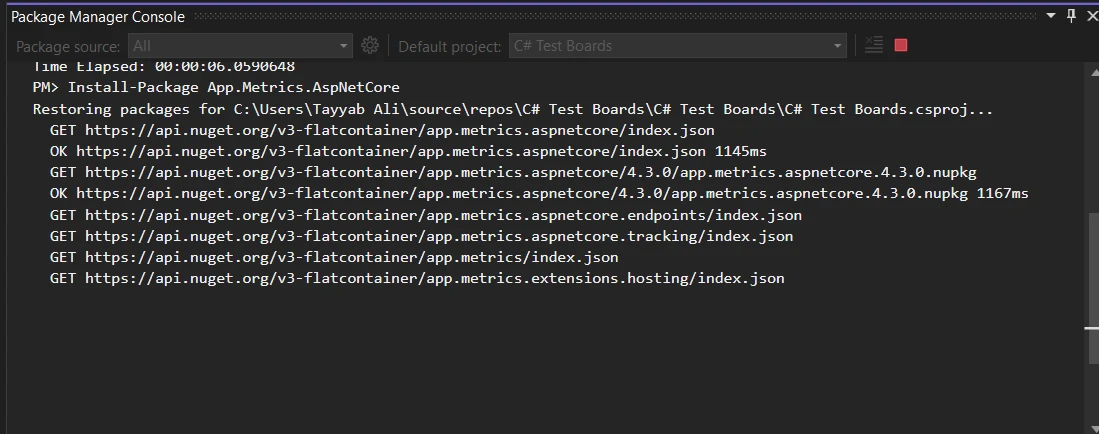
This command adds all necessary dependencies to your project, enabling you to start configuring AppMetrics.
Here's how you can set up basic monitoring for HTTP requests in your .NET application using AppMetrics. First, build the metrics in your Startup.cs file. Add the following code to the ConfigureServices method:
public void ConfigureServices(IServiceCollection services)
{
    services.AddMetrics(); // Add basic metrics services
    services.AddMetricsTrackingMiddleware(); // Enable middleware for tracking
    services.AddMetricsEndpoints(); // Add endpoints for metrics exposure
}Public Sub ConfigureServices(ByVal services As IServiceCollection)
services.AddMetrics() ' Add basic metrics services
services.AddMetricsTrackingMiddleware() ' Enable middleware for tracking
services.AddMetricsEndpoints() ' Add endpoints for metrics exposure
End SubNext, in the Configure method of the same file, ensure you add the AppMetrics middleware to handle the monitoring:
public void Configure(IApplicationBuilder app, IWebHostEnvironment env)
{
    app.UseMetricsAllMiddleware(); // Register the middleware to capture all metrics
}Public Sub Configure(ByVal app As IApplicationBuilder, ByVal env As IWebHostEnvironment)
app.UseMetricsAllMiddleware() ' Register the middleware to capture all metrics
End SubThis setup automatically starts capturing metrics about incoming HTTP requests to your application, such as request count, request duration, and error rates.
To create and record custom metrics or measure things in your application, AppMetrics provides a flexible way to define what needs tracking. Here's an example of recording a simple counter to track user logins:
public class LoginTracker
{
    private readonly IMetrics _metrics;

    public LoginTracker(IMetrics metrics)
    {
        _metrics = metrics;
    }

    public void TrackLogin(string userId)
    {
        // Increment login counter for the specified user ID
        _metrics.Measure.Counter.Increment(MetricsRegistry.Logins, new MetricTags("UserId", userId));
    }
}Public Class LoginTracker
Private ReadOnly _metrics As IMetrics
Public Sub New(ByVal metrics As IMetrics)
_metrics = metrics
End Sub
Public Sub TrackLogin(ByVal userId As String)
' Increment login counter for the specified user ID
_metrics.Measure.Counter.Increment(MetricsRegistry.Logins, New MetricTags("UserId", userId))
End Sub
End ClassIn this code, each time TrackLogin is called, the login counter increases for the specified user ID.
AppMetrics can also be used to measure app performance. For example, you can track the duration of a specific method using timers:
public void ProcessData()
{
    // Measure time taken by the database query process
    using (_metrics.Measure.Timer.Time(MetricsRegistry.DatabaseQueryTimer))
    {
        // Code to execute a database query goes here
    }
}Public Sub ProcessData()
' Measure time taken by the database query process
Using _metrics.Measure.Timer.Time(MetricsRegistry.DatabaseQueryTimer)
' Code to execute a database query goes here
End Using
End SubThis timer records how long the ProcessData method takes to execute, providing insights into the performance of database queries.
To visualize and monitor your various metric types, AppMetrics can report data to different dashboards. Here is how you can configure reporting to an InfluxDB dashboard:
public void ConfigureServices(IServiceCollection services)
{
    services.AddMetricsReportingHostedService();
    services.AddMetrics(builder =>
    {
        builder.Report.ToInfluxDb(options =>
        {
            options.InfluxDb.BaseUri = new Uri("http://your-influxdb-server"); // Configure InfluxDB server URI
            options.InfluxDb.Database = "appmetricsdb"; // Specify the database name
            options.InfluxDb.UserName = "user"; // Set database username
            options.InfluxDb.Password = "password"; // Set database password
            options.HttpPolicy.BackoffPeriod = TimeSpan.FromSeconds(30); // Set backoff period
            options.HttpPolicy.FailuresBeforeBackoff = 5; // Set failure count before backoff
            options.HttpPolicy.Timeout = TimeSpan.FromSeconds(10); // Set HTTP timeout duration
            options.FlushInterval = TimeSpan.FromSeconds(5); // Set interval for reporting metrics
        });
    });
}Public Sub ConfigureServices(ByVal services As IServiceCollection)
services.AddMetricsReportingHostedService()
services.AddMetrics(Sub(builder)
builder.Report.ToInfluxDb(Sub(options)
options.InfluxDb.BaseUri = New Uri("http://your-influxdb-server") ' Configure InfluxDB server URI
options.InfluxDb.Database = "appmetricsdb" ' Specify the database name
options.InfluxDb.UserName = "user" ' Set database username
options.InfluxDb.Password = "password" ' Set database password
options.HttpPolicy.BackoffPeriod = TimeSpan.FromSeconds(30) ' Set backoff period
options.HttpPolicy.FailuresBeforeBackoff = 5 ' Set failure count before backoff
options.HttpPolicy.Timeout = TimeSpan.FromSeconds(10) ' Set HTTP timeout duration
options.FlushInterval = TimeSpan.FromSeconds(5) ' Set interval for reporting metrics
End Sub)
End Sub)
End SubMonitoring system memory usage is crucial for performance tuning. Here's how you can track free memory:
public void CheckSystemMemory()
{
    var freeMemory = GC.GetTotalMemory(false); // Get total free memory
    _metrics.Measure.Gauge.SetValue(MetricsRegistry.FreeMemory, freeMemory); // Set gauge to measure free memory
}Public Sub CheckSystemMemory()
Dim freeMemory = GC.GetTotalMemory(False) ' Get total free memory
_metrics.Measure.Gauge.SetValue(MetricsRegistry.FreeMemory, freeMemory) ' Set gauge to measure free memory
End SubThis gauge measures the free memory available to your application, helping you understand memory consumption patterns.
AppMetrics can be configured to handle metrics collection at specified intervals. This helps in maintaining performance without logging data too frequently:
public void ConfigureScheduledReporting(IApplicationBuilder app)
{
    var metrics = app.ApplicationServices.GetService<IMetricsRoot>(); // Retrieve the IMetricsRoot instance
    var scheduler = new AppMetricsTaskScheduler(
        TimeSpan.FromSeconds(60), // Set the interval for metrics collection
        async () =>
        {
            await Task.WhenAll(metrics.ReportRunner.RunAllAsync()); // Run all reports asynchronously
        });
    scheduler.Start(); // Start the scheduler
}Public Sub ConfigureScheduledReporting(ByVal app As IApplicationBuilder)
Dim metrics = app.ApplicationServices.GetService(Of IMetricsRoot)() ' Retrieve the IMetricsRoot instance
Dim scheduler = New AppMetricsTaskScheduler(TimeSpan.FromSeconds(60), Async Sub()
Await Task.WhenAll(metrics.ReportRunner.RunAllAsync()) ' Run all reports asynchronously
End Sub)
scheduler.Start() ' Start the scheduler
End SubThis configuration sets the metrics to be reported every 60 seconds, ensuring consistent performance monitoring without overwhelming the system with continuous data logging.
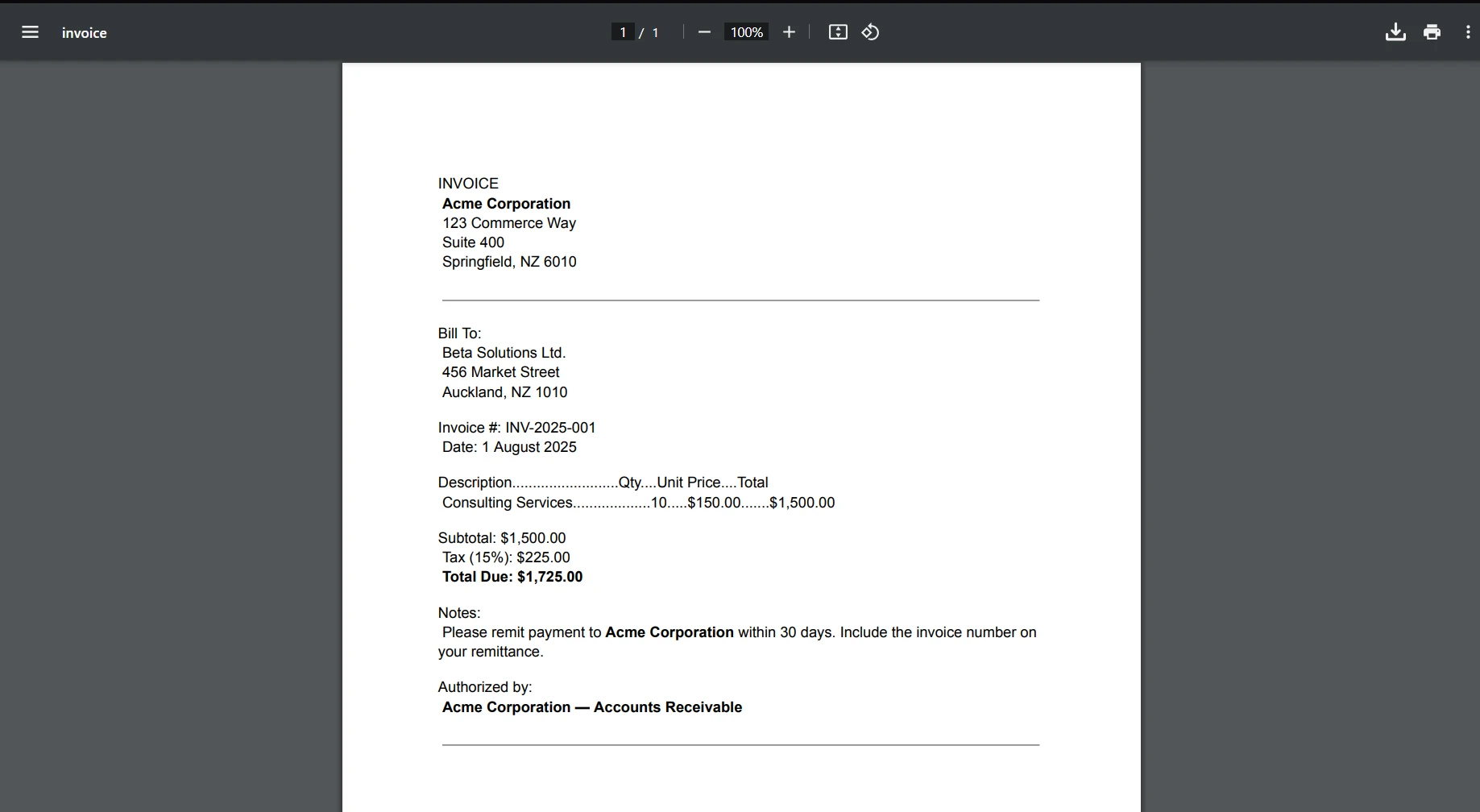
When working with metrics and PDF generation in your C# applications, combining AppMetrics C# with IronPDF can be very beneficial. This integration allows you to generate reports in PDF format directly from your metrics data, which is useful for performance reviews, client presentations, or even internal audits.
IronPDF is a comprehensive library that enables developers to create, read, and edit PDF documents using C#. What sets IronPDF apart is its ability to convert HTML to PDF with IronPDF, making it particularly valuable for web-based report generation. This capability ensures that the visual aspects of your reports are preserved, offering a high degree of fidelity from web to print form.
Consider a scenario where you need to provide monthly performance reports of your application to stakeholders. These reports include metrics like response times, error rates, user sessions, and more. With open-source AppMetrics C#, you can capture these metrics seamlessly. By merging this functionality with IronPDF, you can automatically generate and distribute these metrics in a neatly formatted PDF document.
Below is a complete example of how to implement this. This example assumes you have already set up both IronPDF and AppMetrics C# in your project.
using App.Metrics;
using App.Metrics.Formatters.Prometheus;
using IronPdf;
public class MetricsToPdfConverter
{
    private readonly IMetricsRoot _metrics;

    public MetricsToPdfConverter(IMetricsRoot metrics)
    {
        _metrics = metrics;
    }

    public void GeneratePdfReport(string outputPath)
    {
        // Step 1: Capture the metrics snapshot
        var metricsData = _metrics.Snapshot.Get();
        var formatter = new MetricsPrometheusTextOutputFormatter();
        using var stream = new MemoryStream();
        formatter.WriteAsync(stream, metricsData).Wait();

        // Step 2: Convert the metrics snapshot to string format
        stream.Position = 0;
        var reader = new StreamReader(stream);
        var metricsText = reader.ReadToEnd();

        // Step 3: Use IronPDF to convert the metrics text to a PDF document
        var renderer = new ChromePdfRenderer();
        var pdf = renderer.RenderHtmlAsPdf("<h1> Metrics Report </h1> <pre>" + metricsText + "</pre>");

        // Step 4: Save the PDF document
        pdf.SaveAs(outputPath);
    }
}

// Usage
var metrics = new MetricsBuilder().Build();
var pdfConverter = new MetricsToPdfConverter(metrics);
pdfConverter.GeneratePdfReport("MonthlyPerformanceReport.pdf");Imports App.Metrics
Imports App.Metrics.Formatters.Prometheus
Imports IronPdf
Public Class MetricsToPdfConverter
Private ReadOnly _metrics As IMetricsRoot
Public Sub New(ByVal metrics As IMetricsRoot)
_metrics = metrics
End Sub
Public Sub GeneratePdfReport(ByVal outputPath As String)
' Step 1: Capture the metrics snapshot
Dim metricsData = _metrics.Snapshot.Get()
Dim formatter = New MetricsPrometheusTextOutputFormatter()
Dim stream = New MemoryStream()
formatter.WriteAsync(stream, metricsData).Wait()
' Step 2: Convert the metrics snapshot to string format
stream.Position = 0
Dim reader = New StreamReader(stream)
Dim metricsText = reader.ReadToEnd()
' Step 3: Use IronPDF to convert the metrics text to a PDF document
Dim renderer = New ChromePdfRenderer()
Dim pdf = renderer.RenderHtmlAsPdf("<h1> Metrics Report </h1> <pre>" & metricsText & "</pre>")
' Step 4: Save the PDF document
pdf.SaveAs(outputPath)
End Sub
End Class
' Usage
Private metrics = (New MetricsBuilder()).Build()
Private pdfConverter = New MetricsToPdfConverter(metrics)
pdfConverter.GeneratePdfReport("MonthlyPerformanceReport.pdf")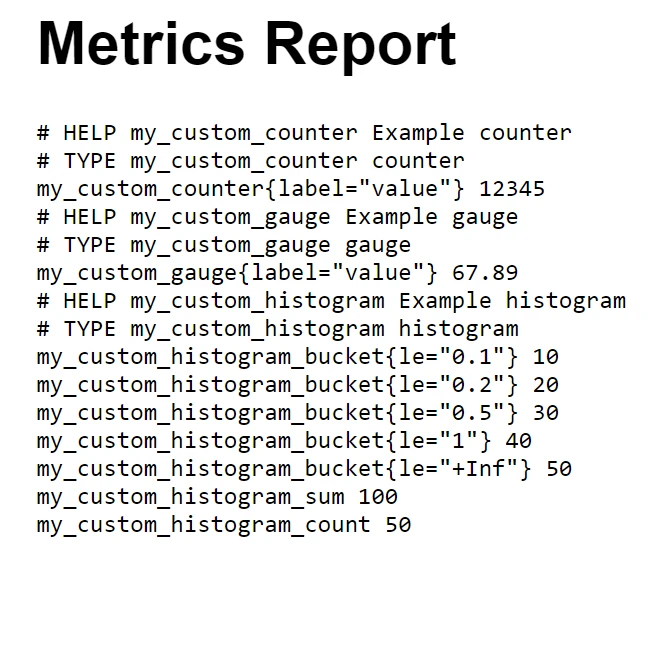
This integration not only automates the process of report generation but also ensures that the reports are easily readable and professionally formatted, perfect for any stakeholder meetings or archival purposes.
In summary, combining AppMetrics C# with IronPDF in your .NET projects provides a robust solution for both monitoring application performance and generating high-quality PDF reports. This integration allows you to seamlessly transition from capturing detailed performance data with AppMetrics to presenting it in a clear, professional format using IronPDF.
IronPDF is especially beneficial for C# developers looking to handle PDF files within their applications. It simplifies the creation and manipulation of PDF documents and offers a unique capability to convert HTML directly to PDF. If you're considering incorporating IronPDF into your projects, they offer a free trial of IronPDF to get you started, and licenses begin at $999, providing a cost-effective way to enhance your document handling capabilities.

Jacob Mellor is Chief Technology Officer at Iron Software and a visionary engineer pioneering C# PDF technology. As the original developer behind Iron Software's core codebase, he has shaped the company's product architecture since its inception, transforming it alongside CEO Cameron Rimington into a 50+ person company serving NASA, Tesla, and global government agencies.

IronPDF is a part of IRONSUITE
10 .NET API products for your office documents











When you need your PDF to look like HTML, fast.


