Working with Base64 to PDF in C# is a common requirement when building modern .NET applications. Many REST APIs, document management systems, cloud storage providers, and third-party services return a Base64 string instead of a physical PDF file. Before the document can be viewed in a browser, stored on a local machine, or shared with users, developers need to convert Base64 to PDF.
While .NET provides built-in methods for decoding Base64 data, developers often need more than simply writing bytes to a file. They may need to inspect the document, merge it with another PDF, add watermarks, apply security, or generate additional pages. Using a dedicated PDF tool simplifies these tasks and keeps your code clean.
In this guide, you'll learn how to convert Base64 to PDF in C# using IronPDF. We'll cover decoding a Base64 string, loading the resulting document, saving the output PDF, working with streams, and preparing the document for further editing.
What Is IronPDF?
IronPDF is a comprehensive .NET PDF library that enables developers to create, read, edit, and manipulate PDF documents using an intuitive C# API. It supports .NET Framework, .NET Core, and modern .NET versions, making it suitable for desktop, web, cloud, and enterprise applications.
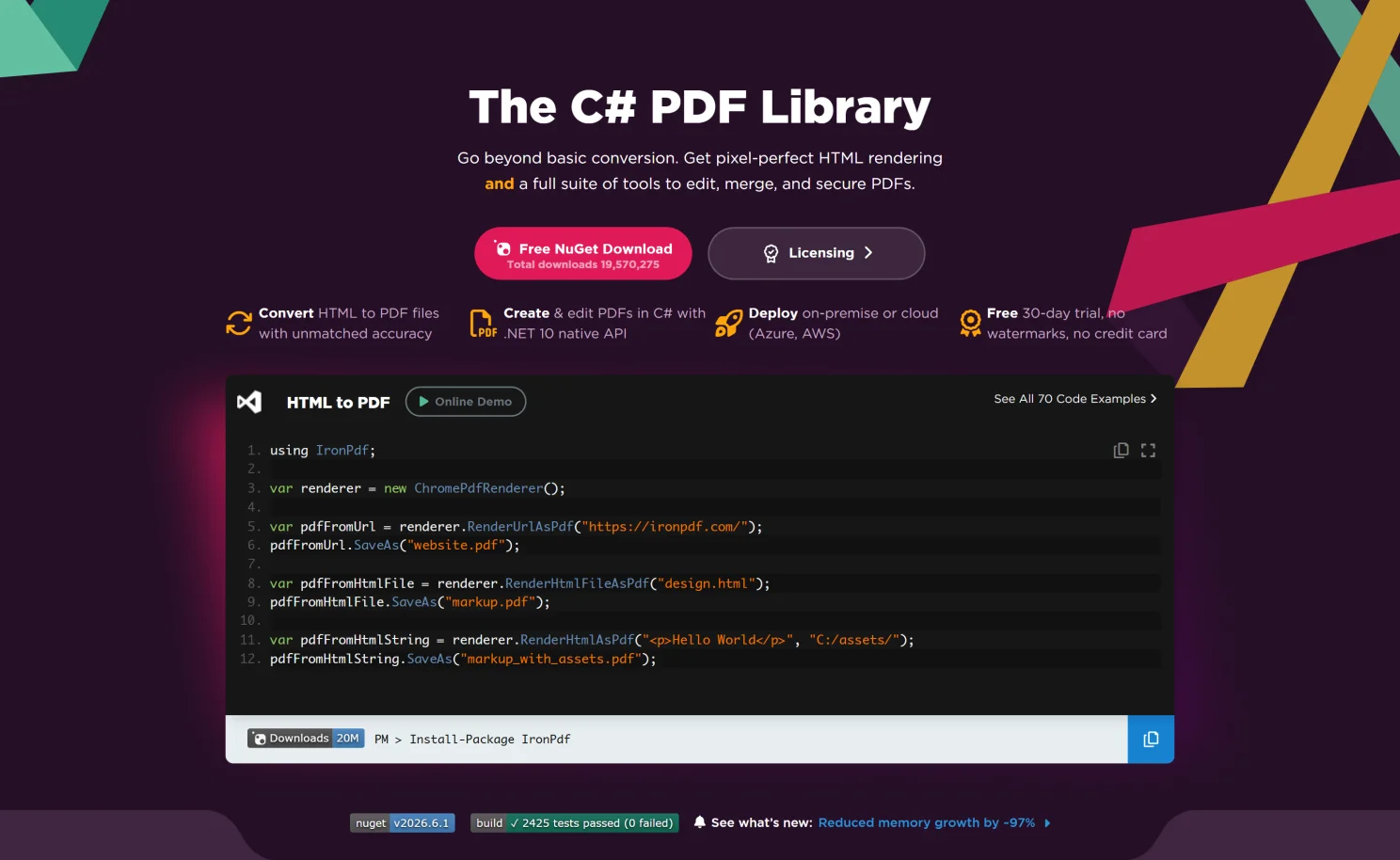 Unlike basic Base64 converters that only decode a string into a file, IronPDF lets you continue working with the document after the conversion. Once the decoded bytes are loaded into a PdfDocument, you can edit pages, merge documents, add watermarks, insert images, extract text, and apply password protection without switching to another library.
With IronPDF, you can:
- Create PDF documents from HTML.
- Load existing PDF files from disk, streams, or byte arrays.
- Merge and split PDF documents.
- Add text, watermarks, headers and footers.
- Insert images into PDFs.
- Secure documents with passwords and permissions.
- Work directly with streams and byte arrays.
- Save documents to disk or memory.
This makes IronPDF an excellent choice for applications that receive Base64-encoded PDF documents from APIs, databases, or external services.
Why Use it for Base64 to PDF Conversion?
Converting a Base64 string into a PDF file is only the first step in many applications. In real-world projects, developers often need to validate the document, modify it, or return it to another service.
IronPDF streamlines this workflow by allowing you to load the decoded byte array directly into a PdfDocument. From there, you can perform additional operations without converting between multiple formats or using several libraries.
Some common scenarios include:
- Receiving PDF invoices from a REST API.
- Saving Base64 PDF documents from a database.
- Downloading PDF reports generated by another system.
- Processing email attachments encoded as Base64.
- Adding watermarks before users download the document.
- Combining multiple decoded PDFs into a single document.
Because IronPDF works directly with byte arrays and streams, integrating it into existing C# applications is straightforward.
Note: If you encounter any issues while working with PDFs, IronPDF provides extensive documentation and API reference.
Setting Up Your Project
Before writing any code, install the IronPDF NuGet package.
Install-Package IronPdf
Install-Package IronPdf
PowerShell
After installation, import the required namespaces:
using IronPdf;
using System;
using System.IO;
using IronPdf;
using System;
using System.IO;
C#
Once installed, you're ready to decode Base64 content and load it into an IronPDF PdfDocument.
The most common scenario is receiving a Base64 string from an API or database and converting it into a PDF document.
IronPDF works directly with the decoded byte array. First, decode the Base64 string using the built-in .NET conversion method, then load those bytes into a PdfDocument, and finally save the document.
Below is the sample document.txt file with base64 string. It represents a minimal, valid one-page PDF document saying: "Hello, IronPDF!".
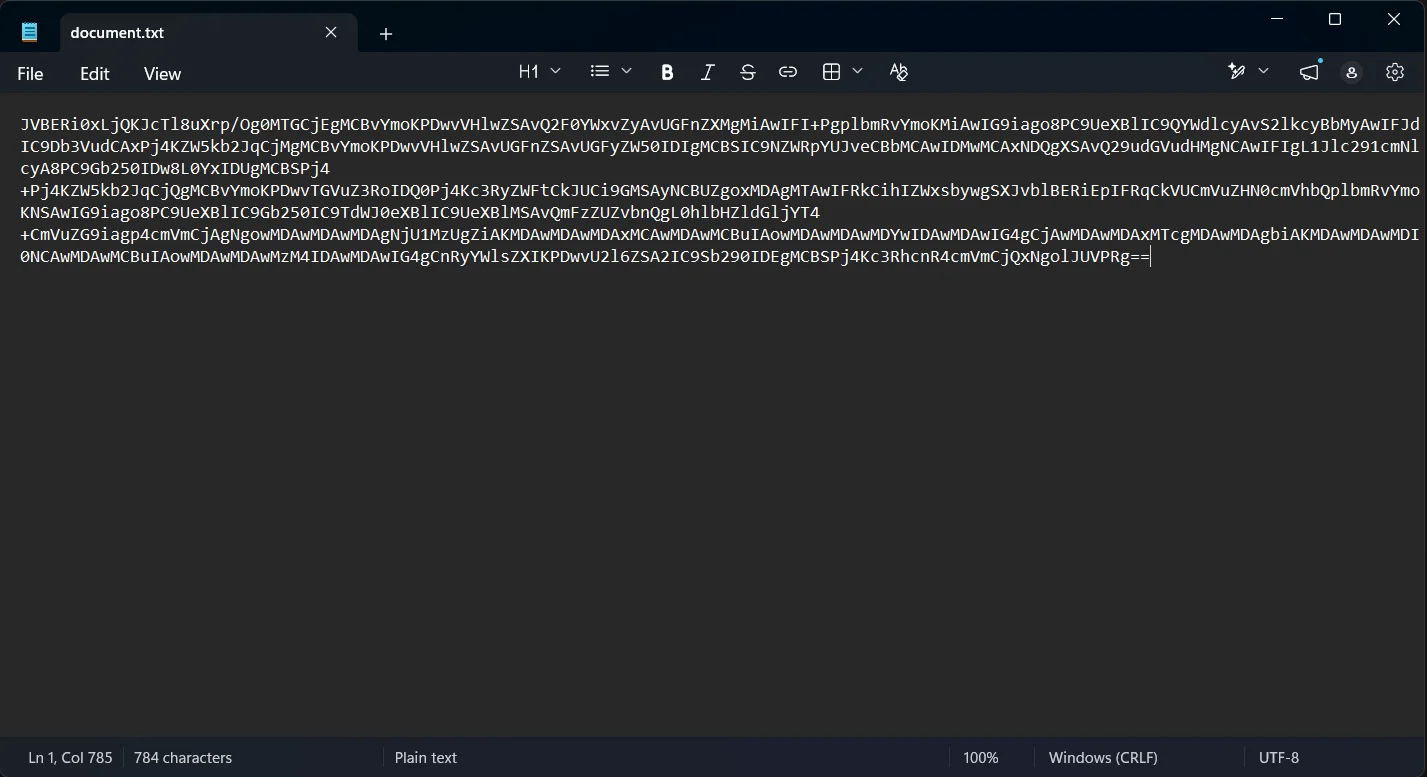 Whitespace does not affect Convert.FromBase64String, so a wrapped line from storage or transport usually does not need to be erased before decoding.
using IronPdf;
using System;
using System.IO;

class Program
{
    static void Main()
    {
        // Read the Base64 string
        string base64String = File.ReadAllText("document.txt");

        // Decode the Base64 data
        byte[] pdfBytes = Convert.FromBase64String(base64String);

        // Load the PDF into IronPDF
        PdfDocument pdf = new PdfDocument(pdfBytes);

        // Save the PDF document
        pdf.SaveAs("Output.pdf");

        Console.WriteLine("PDF saved successfully.");
    }
}
using IronPdf;
using System;
using System.IO;

class Program
{
    static void Main()
    {
        // Read the Base64 string
        string base64String = File.ReadAllText("document.txt");

        // Decode the Base64 data
        byte[] pdfBytes = Convert.FromBase64String(base64String);

        // Load the PDF into IronPDF
        PdfDocument pdf = new PdfDocument(pdfBytes);

        // Save the PDF document
        pdf.SaveAs("Output.pdf");

        Console.WriteLine("PDF saved successfully.");
    }
}
Text
This example performs three simple steps:
- Reads the Base64 string.
- Decodes it into a byte array.
- Loads the bytes into IronPDF and saves the resulting PDF file.
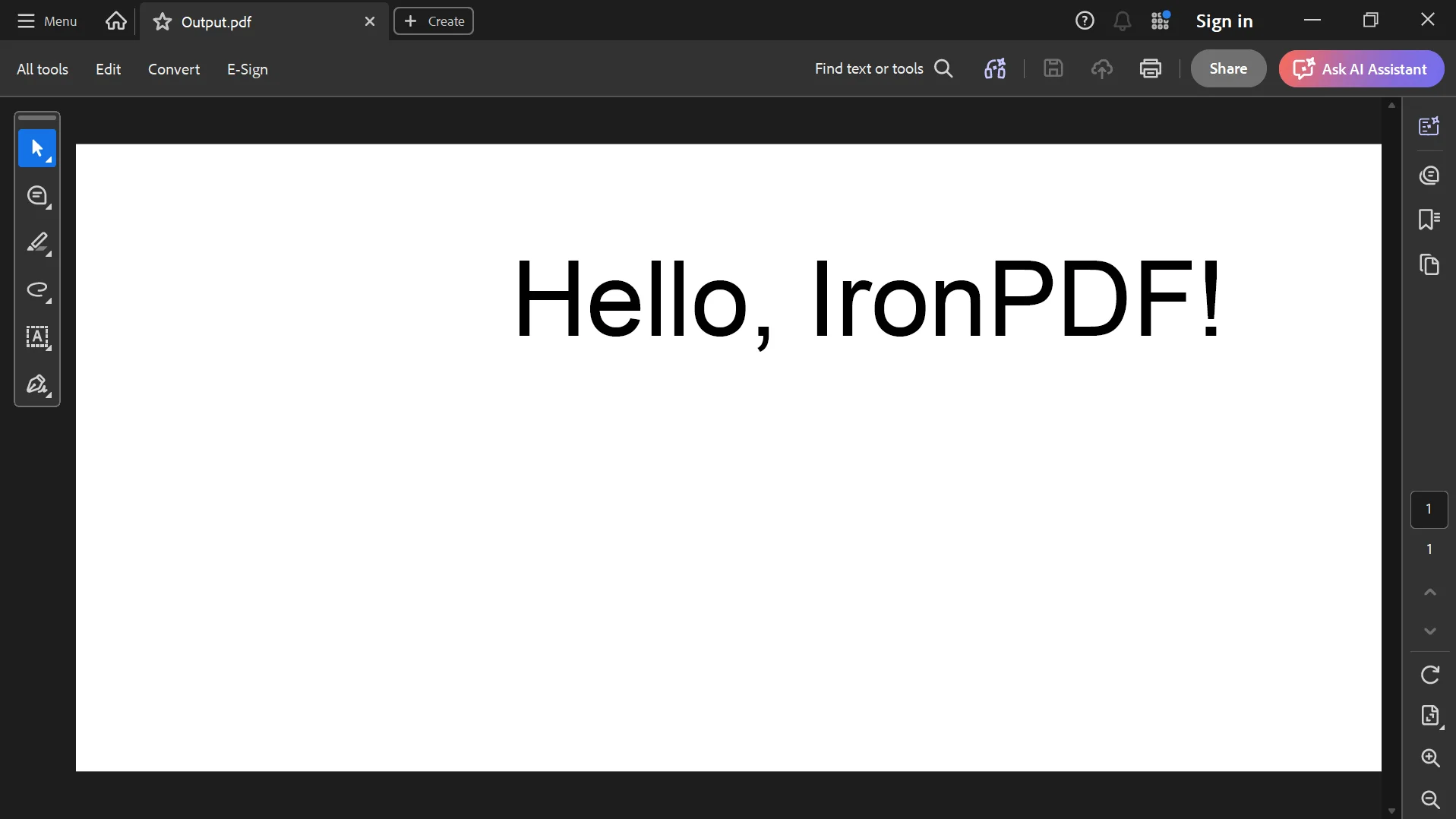 The advantage of loading the document with IronPDF rather than simply writing the bytes to disk is that the document is immediately available for additional processing.
Loading a Base64 PDF Received from an API
Many web APIs return documents as Base64 strings inside JSON responses. After receiving the response, you can decode the document and immediately load it into IronPDF.
using IronPdf;
using System;

string base64String = apiResponse.PdfContent;

byte[] pdfBytes = Convert.FromBase64String(base64String);

PdfDocument pdf = new PdfDocument(pdfBytes);

pdf.SaveAs("Invoice.pdf");
using IronPdf;
using System;

string base64String = apiResponse.PdfContent;

byte[] pdfBytes = Convert.FromBase64String(base64String);

PdfDocument pdf = new PdfDocument(pdfBytes);

pdf.SaveAs("Invoice.pdf");
C#
This approach works equally well whether the Base64 content comes from:
- REST APIs
- Databases
- Cloud storage
- Email services
- Queue messages
- Internal business applications
Instead of treating the decoded data as a simple file, IronPDF lets you continue working with the document immediately after loading it.
Understanding the Base64 Conversion Process
Although the code is only a few lines long, it's helpful to understand what's happening during the conversion.
When a PDF document is encoded as Base64, its binary data is converted into plain text. This allows the document to be safely transmitted through systems that primarily handle text, such as JSON payloads, XML files, or HTTP requests.
When you call:
Convert.FromBase64String(base64String);
Convert.FromBase64String(base64String);
Text
.NET decodes the text back into the original byte array representing the PDF document.
Those bytes are then passed directly to IronPDF:
PdfDocument pdf = new PdfDocument(pdfBytes);
PdfDocument pdf = new PdfDocument(pdfBytes);
Text
At this point, the PDF is fully loaded and ready for editing, inspection, merging, or saving. Once loaded, it can also be inspected to display file information.
Many Base64-encoded PDF documents begin with the characters JVBERi0, which is the encoded representation of the %PDF- file signature. While this isn't a guarantee that the content is valid, it is often a useful indicator that the encoded data represents a PDF document.
Validating the Base64 String Before Loading
Before attempting the conversion, it's good practice to validate the input. An invalid Base64 string causes Convert.FromBase64String() to throw a FormatException.
using System;

public static bool IsValidBase64(string value)
{
    if (string.IsNullOrWhiteSpace(value))
        return false;

    value = value.Trim();

    if (value.Length % 4 != 0)
        return false;

    try
    {
        Convert.FromBase64String(value);
        return true;
    }
    catch (FormatException)
    {
        return false;
    }
}
using System;

public static bool IsValidBase64(string value)
{
    if (string.IsNullOrWhiteSpace(value))
        return false;

    value = value.Trim();

    if (value.Length % 4 != 0)
        return false;

    try
    {
        Convert.FromBase64String(value);
        return true;
    }
    catch (FormatException)
    {
        return false;
    }
}
Text
This helper method checks that:
- The string isn't empty.
- Its length is divisible by four, so the expected number of characters still lines up after trimming.
- It can be successfully decoded.
Using validation before loading the document helps prevent unexpected runtime errors, especially when processing user uploads or data from external services.
Handling Conversion Errors
Whenever you're working with files or external data, wrap the conversion logic in a try/catch block.
using IronPdf;
using System;

try
{
    byte[] pdfBytes = Convert.FromBase64String(base64String);

    PdfDocument pdf = new PdfDocument(pdfBytes);

    pdf.SaveAs("Converted.pdf");
}
catch (FormatException ex)
{
    Console.WriteLine($"Invalid Base64 string: {ex.Message}");
}
catch (Exception ex)
{
    Console.WriteLine($"Unexpected error: {ex.Message}");
}
using IronPdf;
using System;

try
{
    byte[] pdfBytes = Convert.FromBase64String(base64String);

    PdfDocument pdf = new PdfDocument(pdfBytes);

    pdf.SaveAs("Converted.pdf");
}
catch (FormatException ex)
{
    Console.WriteLine($"Invalid Base64 string: {ex.Message}");
}
catch (Exception ex)
{
    Console.WriteLine($"Unexpected error: {ex.Message}");
}
C#
Graceful error handling makes your application more reliable and simplifies troubleshooting when invalid or incomplete data is received.
By catching FormatException, you can provide a meaningful message instead of allowing the application to fail unexpectedly.
Editing the PDF After Decoding
One of the biggest advantages of using IronPDF is that the decoded document is immediately available for further editing. Rather than simply saving the PDF file, you can modify it before delivering it to users.
For example, you might receive an invoice from another system as a Base64 string and need to add a company watermark before making it available for download.
using IronPdf;

byte[] pdfBytes = Convert.FromBase64String(base64String);

PdfDocument pdf = new PdfDocument(pdfBytes);

// Apply a watermark
pdf.AddWatermark("CONFIDENTIAL");

// Save the updated PDF
pdf.SaveAs("WatermarkedInvoice.pdf");
using IronPdf;

byte[] pdfBytes = Convert.FromBase64String(base64String);

PdfDocument pdf = new PdfDocument(pdfBytes);

// Apply a watermark
pdf.AddWatermark("CONFIDENTIAL");

// Save the updated PDF
pdf.SaveAs("WatermarkedInvoice.pdf");
Text
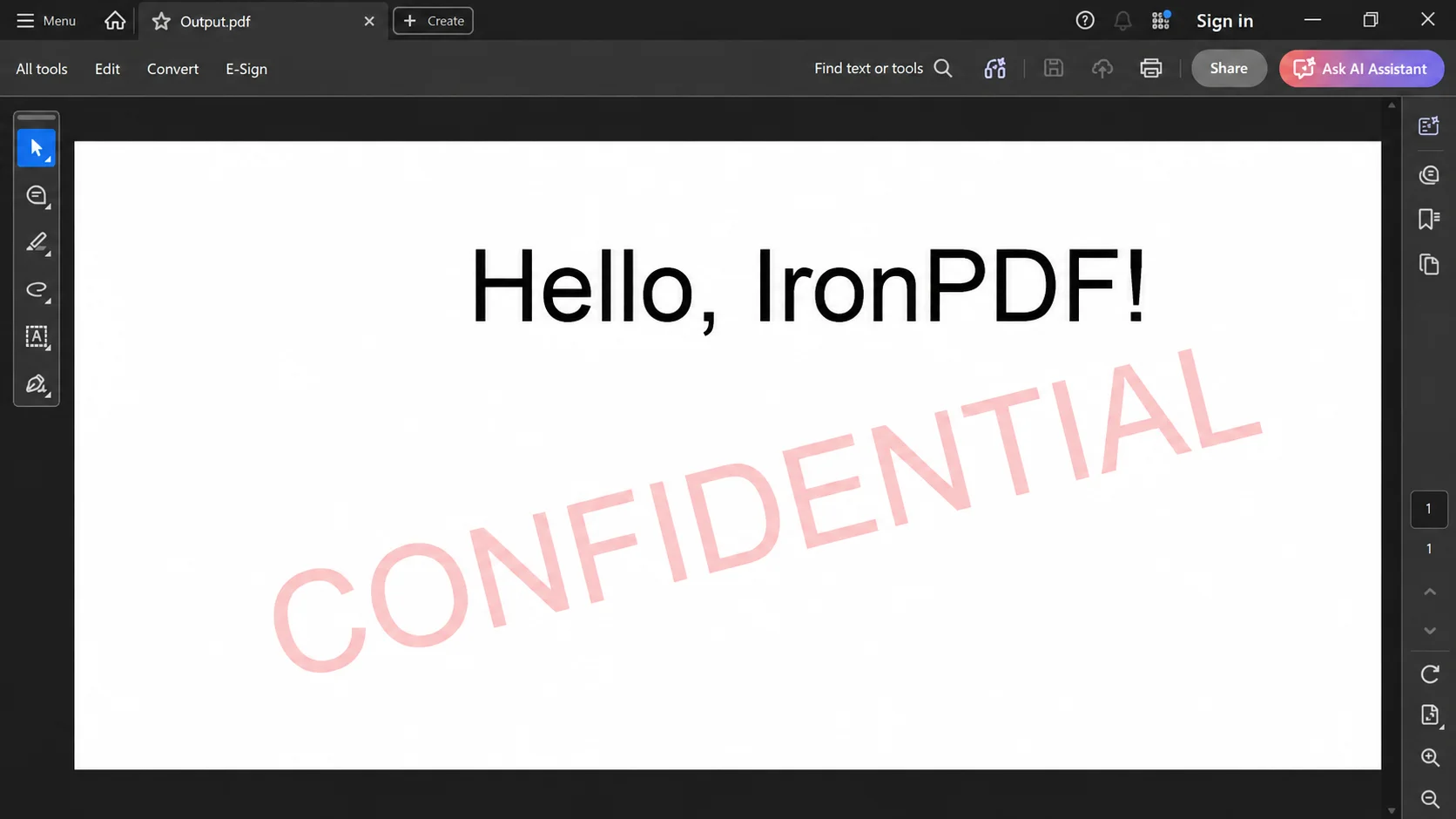 Similarly, you can merge multiple decoded documents, split pages, add headers and footers, insert an image onto a page, or apply password protection after loading the PDF, with C# code also able to control its placement and margins in the final document. This flexibility allows developers to build complete document processing workflows without switching between multiple PDF libraries.
Generating a PDF and Encoding It as Base64
Some applications require the reverse workflow. Instead of receiving a Base64 string, you may need to generate a PDF and send it to another system as Base64.
IronPDF makes this straightforward.
using IronPdf;
using System;

var renderer = new ChromePdfRenderer();

PdfDocument pdf = renderer.RenderHtmlAsPdf(@"
<h1>Monthly Report</h1>
<p>This PDF was generated with IronPDF.</p>");

byte[] pdfBytes = pdf.BinaryData;

string base64String = Convert.ToBase64String(pdfBytes);

Console.WriteLine(base64String);
using IronPdf;
using System;

var renderer = new ChromePdfRenderer();

PdfDocument pdf = renderer.RenderHtmlAsPdf(@"
<h1>Monthly Report</h1>
<p>This PDF was generated with IronPDF.</p>");

byte[] pdfBytes = pdf.BinaryData;

string base64String = Convert.ToBase64String(pdfBytes);

Console.WriteLine(base64String);
C#
This approach is useful when integrating with REST APIs that expect Base64 document data instead of uploaded files. The encoded string can be included in JSON requests, stored in a database, or transmitted through messaging systems.
Saving the Output PDF
After decoding and processing the document, IronPDF allows you to save the final output in several ways, including as a file in pdf format.
Saving directly to a PDF file is the simplest option.
pdf.SaveAs("FinalDocument.pdf");
pdf.SaveAs("FinalDocument.pdf");
Text
You can also access the PDF as a byte array.
byte[] outputBytes = pdf.BinaryData;
byte[] outputBytes = pdf.BinaryData;
Text
In ASP.NET apps, you can stream the PDF with the correct mime type so the browser can display it or trigger download pdf behavior.
The response can also expose a direct link for users who need to open the file on their device.
Or obtain a stream for additional processing.
using Stream pdfStream = pdf.Stream;
using Stream pdfStream = pdf.Stream;
Text
This flexibility makes it easy to integrate IronPDF with ASP.NET applications, cloud storage services, APIs, and enterprise document management systems.
Best Practices
When working with Base64 PDF conversion in C#, consider the following recommendations to improve reliability and performance.
- Validate the Base64 string before decoding it.
- Handle FormatException whenever user input or external data is involved.
- Verify that the decoded document begins with the standard PDF header (%PDF-) if additional validation is required.
- Use MemoryStream when the document doesn't need to be written immediately to disk.
- Prefer FileStream over File.WriteAllBytes() when processing very large PDF files.
- If the input comes from users, have them paste only the raw Base64 data, not surrounding markup or metadata.
- Dispose of streams and PdfDocument objects properly to release system resources.
- Store sensitive documents securely on the server.
- A pdf online converter can help with quick testing, but production workflows should keep sensitive documents in controlled systems.
- Apply passwords or permissions if confidential PDF documents are generated.
- Log conversion errors to simplify troubleshooting in production environments.
Following these practices helps create scalable applications that process PDF documents efficiently while minimizing memory usage.
Common Errors and Troubleshooting
Invalid Base64 String
If the Base64 string is malformed, Convert.FromBase64String() throws a FormatException. Validate the string before attempting the conversion.
Corrupted PDF Document
If the decoded byte array does not represent a valid PDF file, IronPDF may not be able to load the document. In many cases, valid PDF documents begin with the %PDF- file signature, while their Base64 representation commonly starts with JVBERi0.
Incomplete Base64 Data
If the Base64 string is truncated during transmission, the decoded PDF may be incomplete or unreadable. Ensure the full string is received before decoding.
Large PDF Files
Large PDF documents consume more memory during processing. When working with sizeable files, streams provide better memory management than loading everything into memory at once.
Conclusion
Converting Base64 to PDF in C# is straightforward with IronPDF. After decoding the Base64 string into a byte array using the built-in .NET conversion methods, you can load the document directly into an IronPDF PdfDocument, making it immediately available for editing, merging, watermarking, securing, or saving.
Unlike a basic Base64 converter that simply writes bytes to a PDF file, IronPDF provides a complete document processing solution. You can generate PDFs from HTML, modify existing documents, insert images, merge multiple PDF files, apply password protection, and automate document workflows using a clean and intuitive C# API.
If you'd like to explore these features in your own projects, you can download the IronPDF Free Trial to test the library without changing your existing workflow. For more advanced examples, API reference material, and step-by-step guides, the IronPDF Documentation provides comprehensive resources covering everything from PDF generation and editing to security, digital signatures, and document conversion.