


How to Convert PDF to JPG: 11 Easy Methods (Step-by-Step Guide)

Need to know how to convert PDF to JPG fast? Converting PDF files to JPG images is simple: the quickest way on a Windows or Mac computer is Adobe Acrobat’s built-in export feature. Just open the PDF file, then select File > Export To > Image > JPEG from the drop-down menu, and choose where to save the JPG file. The whole JPG conversion takes about thirty seconds and produces individual images for each page automatically.
If Adobe Acrobat is not installed on the computer, the next fastest PDF converter is a free online tool. Options like Smallpdf, ILovePDF, and the Adobe online JPG converter let users drag a PDF file onto a webpage and download the JPG images within seconds, no software required. These conversion tools are fully browser based, meaning the only requirement is an internet connection. Adobe Acrobat Online is regarded as the gold standard for accuracy in PDF conversions. For Mac users, the built-in Preview app is the default app for opening PDF files and handles the same job offline without leaving the desktop.
For business users converting multiple PDFs, working with sensitive documents, or needing high-resolution JPG images for print, a dedicated desktop tool is usually the better choice. Programs such as PDF24 Creator, IrfanView, and Photoshop handle bulk JPG conversion offline on any operating system. PDF24 Creator is a completely free desktop suite that processes files locally on the PC, ensuring high privacy. Developers building this functionality into their own applications often turn to libraries like IronPDF for programmatic conversion. Many converters also support a variety of file types, such as Word, PowerPoint, Plain text, and Excel, making them versatile for different document needs. Whichever method fits the situation, this guide walks through every reliable way to convert PDF to JPG in easy steps, with screenshots, troubleshooting tips, and a FAQ section for the situations where things do not go as planned. These tools help users create high-quality JPG images from PDFs efficiently.
Why Convert a PDF to JPG?
Before getting into the methods, it helps to understand why so many office workers, students, and content creators need this conversion in the first place. PDF files are excellent for preserving formatting across devices, but JPG images are far more flexible across many file formats and use cases:
- Email attachments: Some email clients block or strip PDF attachments, while inline JPG files always display.
- Social media posts: Platforms like Instagram, Facebook, and LinkedIn accept JPG but not PDF for image posts.
- Website content: Embedding a JPG into a blog post or product page is faster and more SEO-friendly than linking to a PDF, as you can easily embed the converted image directly into your web pages.
- PowerPoint and Excel: Inserting individual images into a PPT slide or an Excel report works smoothly with JPG, while embedding multi-page PDFs requires extra steps.
- Document templates: Marketing templates, proposal templates, and design templates often expect image format inputs rather than PDF.
- Image editing: Tools like Photoshop, GIMP, and Canva work directly with JPG rather than PDF.
- File size reduction: A compressed JPG is often smaller than the original PDF, especially for image-heavy documents.
The JPG format is commonly used for photographs and complex images due to its lossy compression, which reduces file sizes while maintaining acceptable image quality, making it ideal for web use and sharing. Converting PDFs to JPG images is particularly useful in industries such as marketing, education, and design, where visual content is essential for communication.
With those use cases in mind, here are the eleven most reliable methods to turn PDF pages into JPG, ordered roughly from quickest to most specialized.
Method 1: Adobe Acrobat Pro (Export PDF Feature)
Adobe Acrobat Pro is the gold standard for working with PDF files, and its built-in export feature handles JPG conversion better than almost anything else. The process takes three clicks.
Steps:
- Open the PDF file in Acrobat Pro.
-
Click File > Export To > Image > JPEG in the top menu.
- Choose a destination folder and click Save.
JPEG" highlighted in the drop-down menu" />
Acrobat will automatically save each PDF page as a separate JPG file, named sequentially (for example, Document_Page_1.jpg, Document_Page_2.jpg). For multiple PDFs, the sequential naming makes batch organization easy, and the same dialog can also export to PNG or other image formats if needed.
Best for: Office workers who already have Acrobat Pro installed and need high-quality JPG images for professional use.
Tip: To adjust image quality before saving, click the Settings button in the export dialog. Higher quality means larger file size, while lower quality keeps files lean for email or web. *
Method 2: Adobe Acrobat Reader (Free Version Workaround)
Adobe Acrobat Reader is the free PDF reader from Adobe, and it does not include the full Export to Image feature. However, there are two workarounds for free Reader users.
Workaround A: Take a Snapshot
- Open the PDF in Acrobat Reader.
-
Click Edit > Take a Snapshot from the drop-down menu.
- Drag a selection box around the area of the page to capture.
- Open Microsoft Paint, Preview, or any image editor and paste the snapshot.
- Save the file as JPG.
This method works well for grabbing one page or a portion of a page. For converting multiple PDFs in bulk, the other methods below are better suited.
Workaround B: Print to an Image Printer
- Install a virtual image printer such as ImagePrinter or PDFCreator.
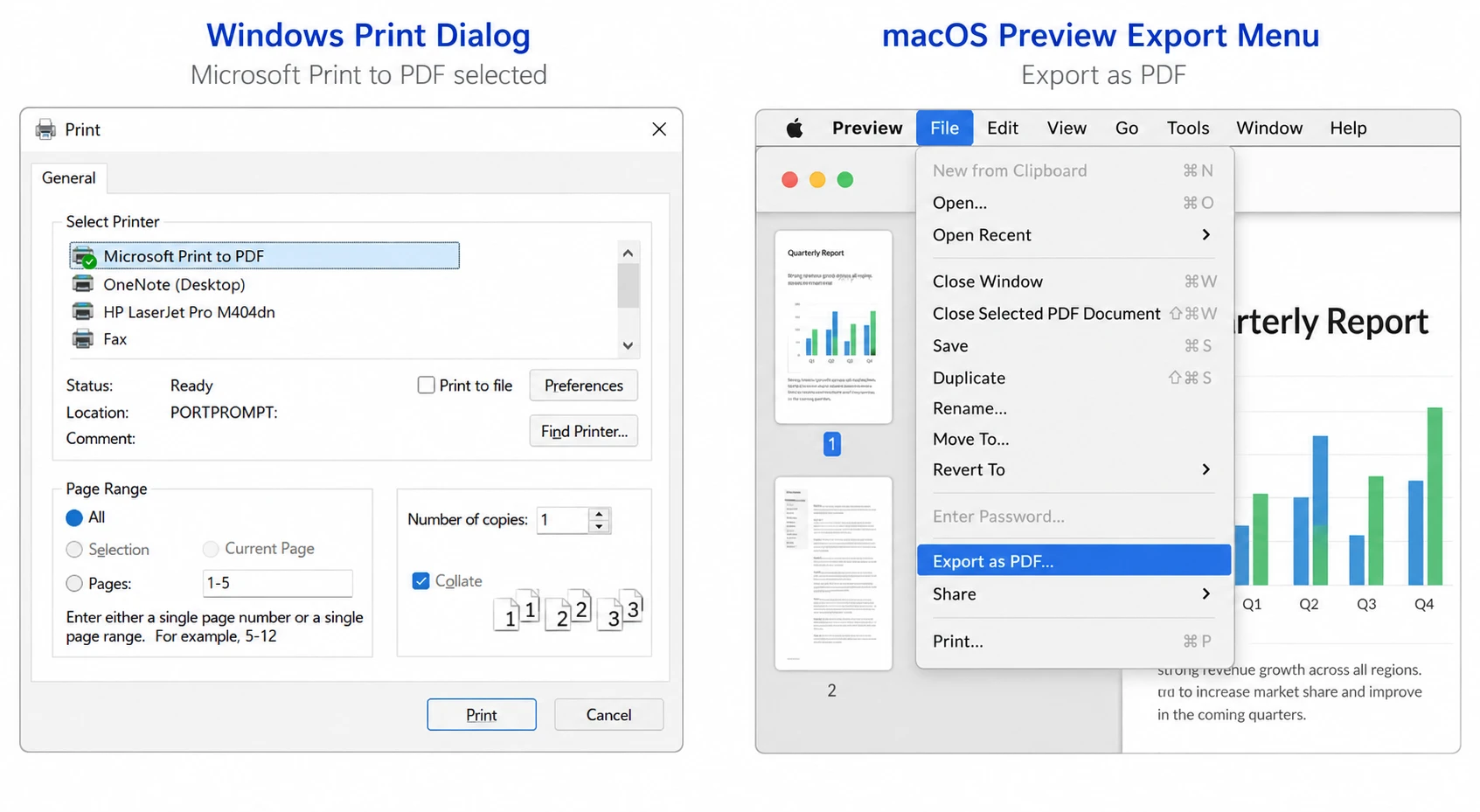
- Open the PDF and select File > Print.
- Choose the image printer as the destination.
- Configure JPG as the output file format and click Print.
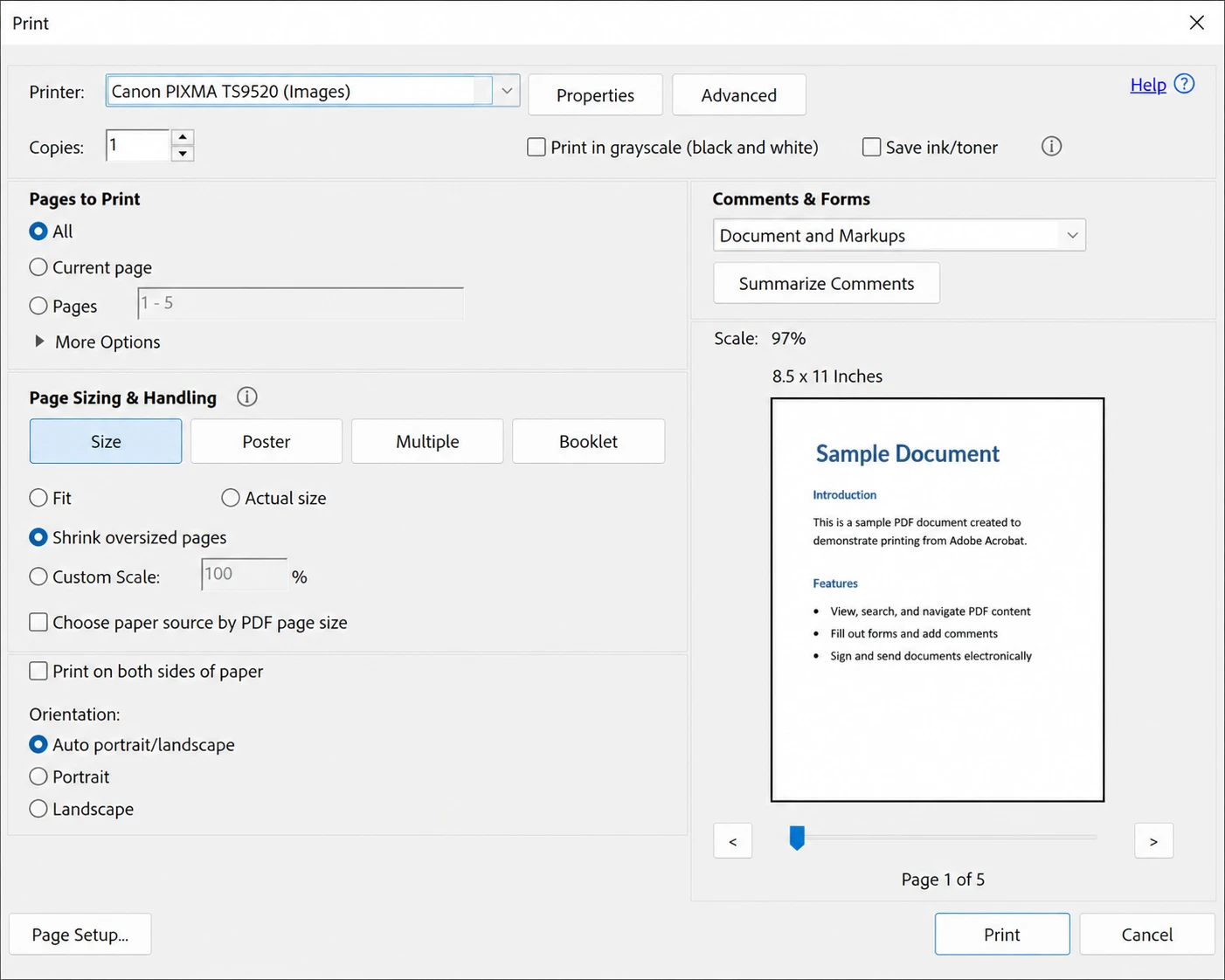
This second workaround handles multi-page documents because every printed page becomes its own JPG file. *
Method 3: macOS Preview (Built-In Mac Tool)
Mac users have an underappreciated tool sitting right on their dock. Preview is the default app on macOS for opening PDFs, and it can export pages directly to JPG images without any extra software.
Steps:
- Double-click the PDF to open it in Preview.
-
Click File > Export in the menu bar.
-
In the dialog box, click the Format drop-down menu and choose JPEG.
- Adjust the quality slider for the desired image quality.
- Click Save.
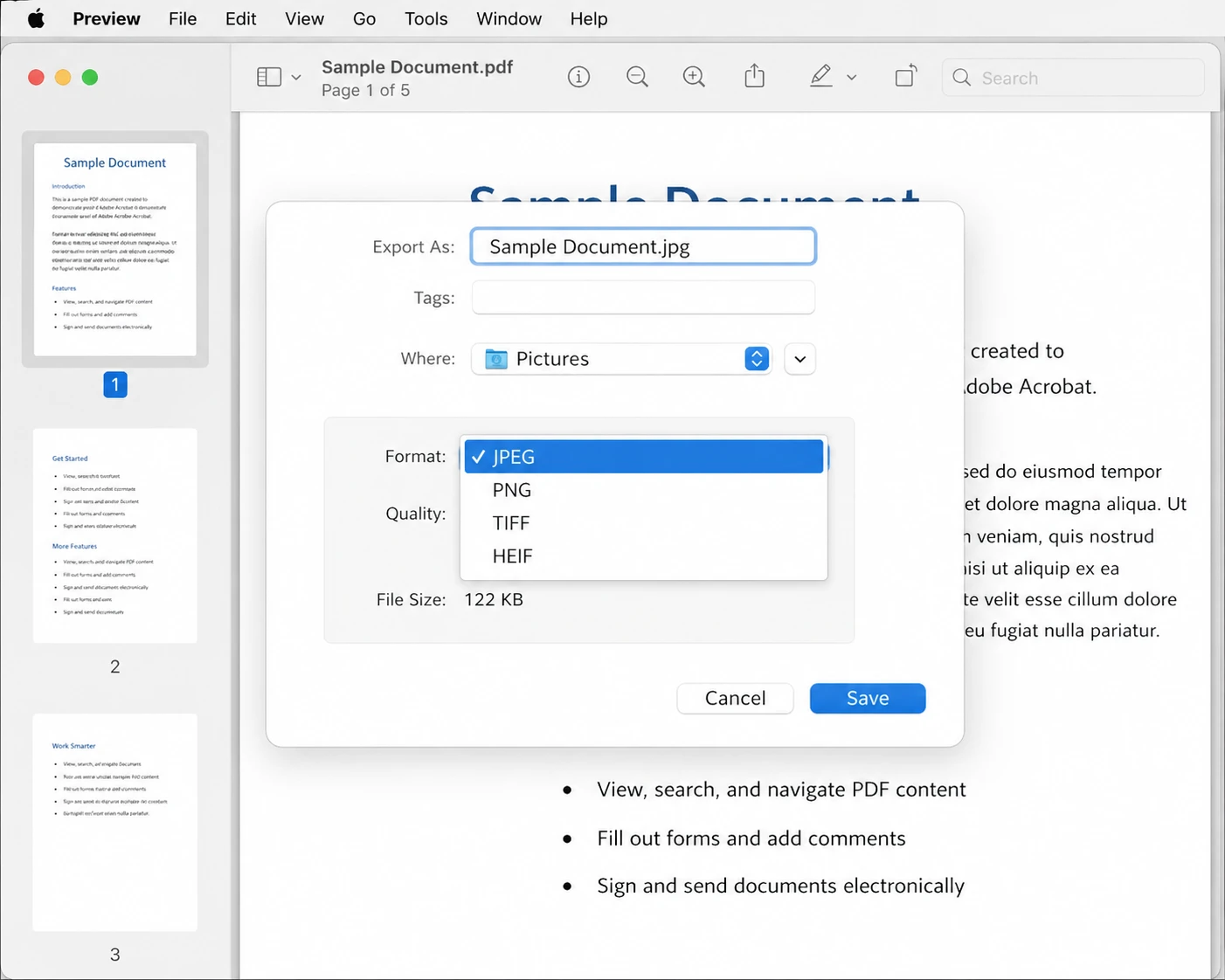
By default, Preview exports only the page currently being viewed. To export all pages, select them in the sidebar (View > Thumbnails) before opening the Export dialog. This approach is built into the operating system, costs nothing, and avoids uploading sensitive files to the internet.
Best for: Mac users converting one page or a couple of pages quickly, or anyone who prefers offline conversion tools for confidential documents. *
Method 4: Microsoft Word (Open and Save Trick)
Few people realize that Microsoft Word can open PDF files directly and even create editable documents from PDFs to a limited degree. While the built-in conversion is more useful for editing text, the workflow can also produce JPG output through a screenshot or save workaround.
Steps:
- Right-click the PDF and choose Open with > Microsoft Word.
-
Click OK when Word warns about layout changes.
- Once the document is open, take a screenshot of each page using Windows Key + Shift + S, or save the document and convert it using one of the other methods.
This approach is clunky compared to the rest, but it works in a pinch on a corporate laptop where the IT department has locked down third-party software installations. Layout fidelity drops on PDFs with complex formatting, so this method is best reserved for simple, text-heavy documents.
Method 5: Free Online PDF to JPG Converters
Online tools are the fastest path for casual users. The leading free PDF converter websites handle PDF to JPG conversion in under a minute, with no software installation required.
Top free online converters:
- Smallpdf
- ILovePDF
- PDF2JPG.net
- Adobe's free online tool
- Soda PDF Steps (general workflow):
- Visit the converter's website.
- Click upload, then select the PDF file (or drag it onto the upload area).
- Wait a few seconds for the conversion to complete.
- Download the resulting JPG file (or ZIP archive containing multiple JPEG files).
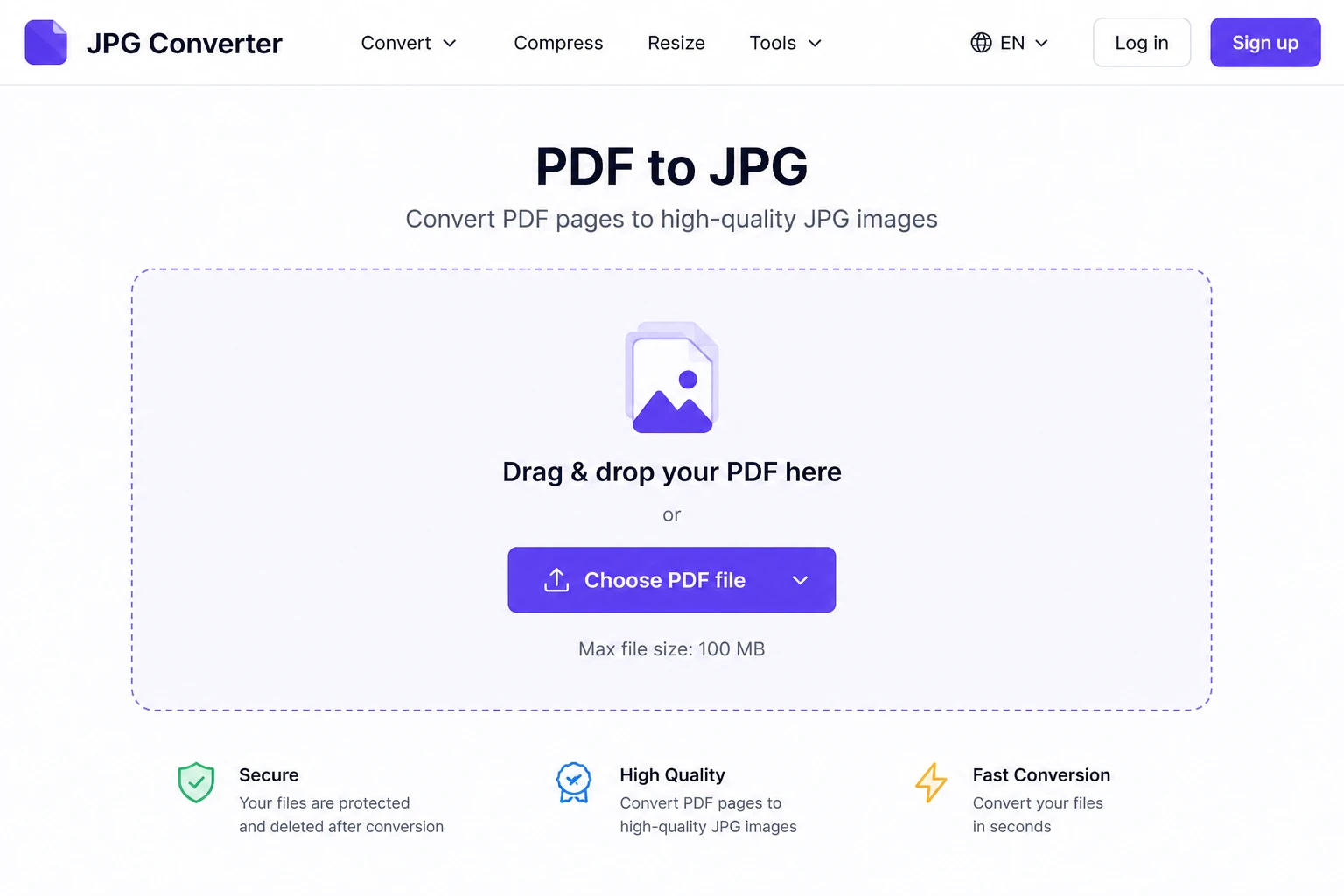
Because these tools are fully browser based, they work the same way across Windows, Mac, and Linux, and they require nothing more than an internet connection and a modern browser.
Important caveat: Online converters upload the original PDF to a third-party server. For documents containing financial data, personal information, contracts, or any confidential content, online conversion tools are not appropriate. Stick to offline methods like Adobe Acrobat, Preview, or PDF24 for sensitive material.
Most free online tools impose limits on file size (typically 25 to 100 MB) and on how many conversions can be done per day. Paid tiers remove these limits and add features like OCR, batch processing, and password handling. *
Method 6: Google Drive (Browser Method)
For users already living in the Google ecosystem, Drive offers a roundabout but workable path for JPG conversion.
Steps:
- Upload the PDF to Google Drive.
- Right-click the file and choose Open with > Google Docs.
- Once open in Docs, take screenshots of each page using a screenshot tool.
- Save the screenshots as JPG.
This method has limitations: Google Docs reflows the PDF content, often losing quality and layout precision, and screenshots only capture what is visible on screen. It works best for text-heavy PDFs where exact layout is not critical.
A cleaner Google Drive workflow uses the built-in PDF preview:
- Open the PDF in Google Drive's preview window.
-
Press Print Screen (Windows) or Cmd + Shift + 4 (Mac) to capture the visible page.
- Save the captured image as JPG. *
Method 7: Windows Snipping Tool
The Snipping Tool (and its newer cousin, Snip & Sketch) is built into every Windows operating system installation. It captures any rectangular area of the screen, including a PDF page being viewed.
Steps:
- Open the PDF in any PDF viewer or web browser.
-
Press Windows Key + Shift + S to launch Snip & Sketch.
- Drag a selection box around the PDF page.
- The captured image lands on the clipboard. Open Paint, paste with Ctrl + V, and save as JPG (or PNG, if preferred).
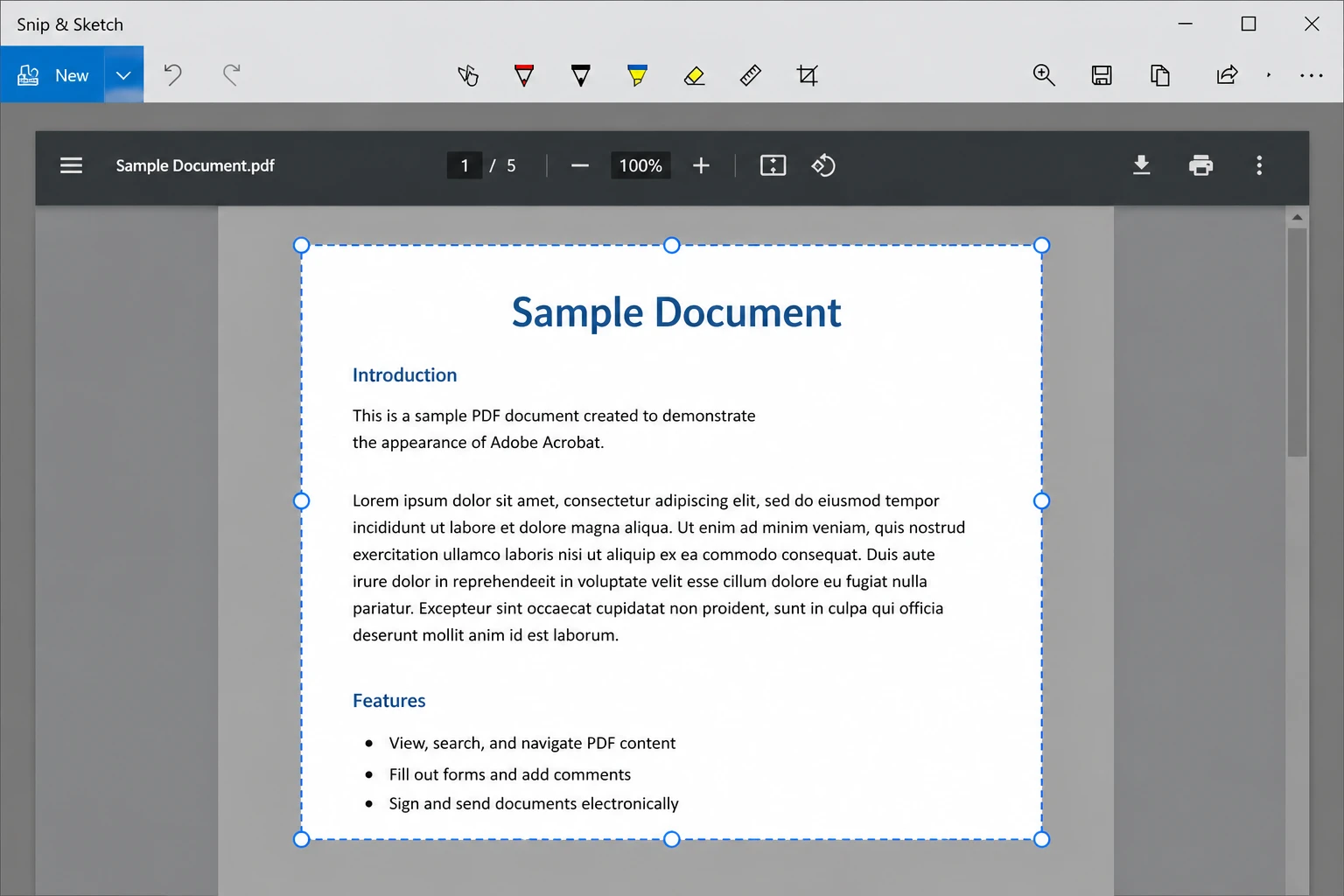
Pros: Built in, free, no software to install, no upload needed.
Cons: Resolution is capped at screen resolution, so the output looks soft when printed or zoomed in for detailed work that needs high resolution images. *
Method 8: Browser Screenshot Method
Modern browsers like Chrome, Edge, and Firefox can open PDF files directly. Combined with a full-page screenshot extension, this becomes a quick conversion path.
Steps (Chrome example):
- Drag the PDF file into a Chrome window to open it.
-
Install a screenshot extension such as GoFullPage from the Chrome Web Store.
- Use the extension to capture the entire PDF page.
- The extension downloads the image as PNG. Convert PNG to JPG using any image viewer's "Save As" feature.
This method is handy for capturing webpage-style PDFs (such as online receipts or saved articles) but produces uneven results for multi-page documents. *
Method 9: Photoshop (For Designers)
Adobe Photoshop can open PDF files directly and export individual images as JPG with full control over resolution, color profile, and compression. This is the best option for high quality output destined for print.
Steps:
-
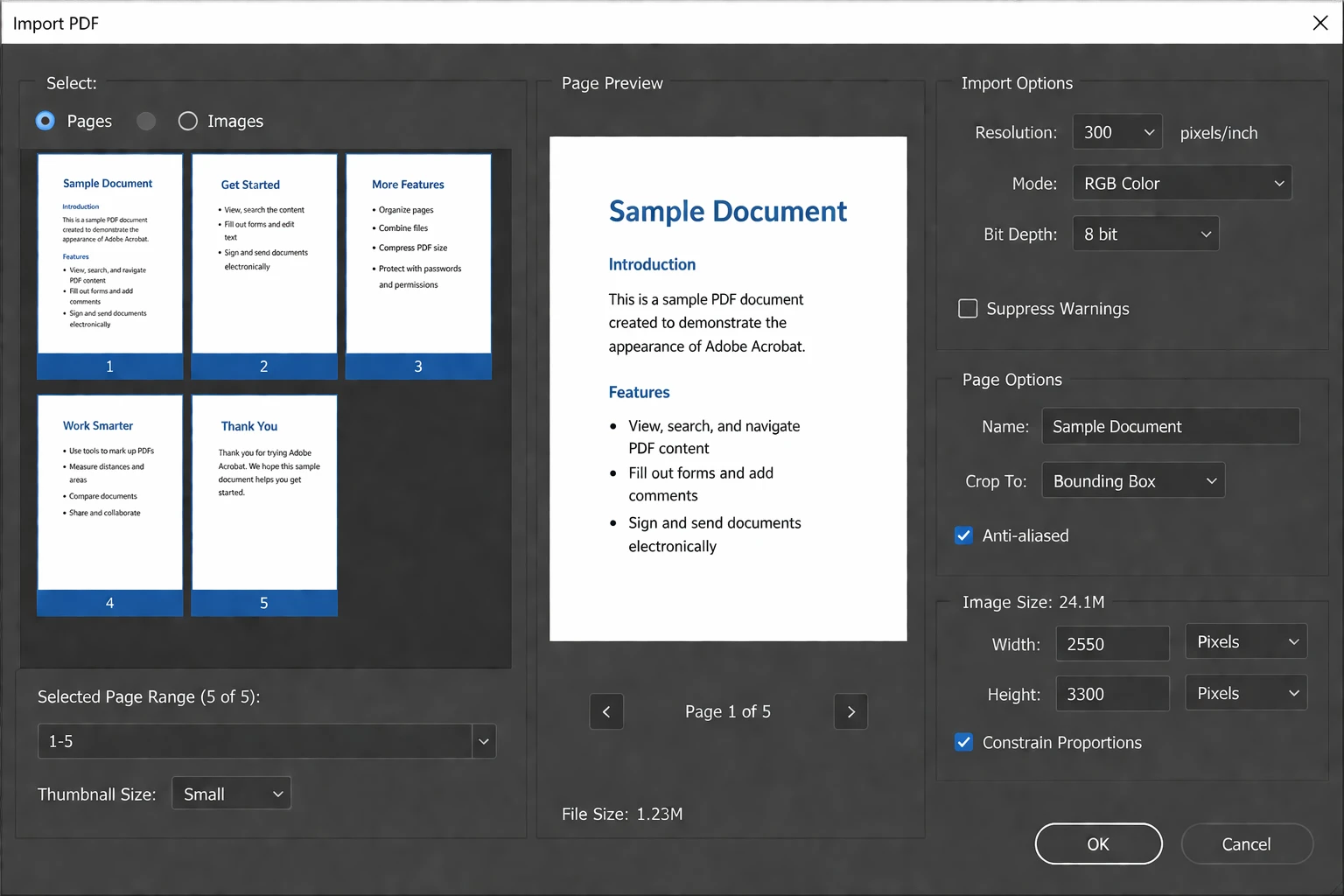
In Photoshop, click File > Open and select the PDF.
-
The Import PDF dialog appears. Choose which pages to open and at what resolution (300 DPI for print, 72 DPI for web).
- Each page opens as a separate document.
- Click File > Save As, choose JPEG as the format, and save.
Best for: Graphic designers, marketing teams, and anyone who needs high-resolution JPG images for print materials. The downside is that Photoshop is overkill for a simple conversion if it is not already installed. *
Method 10: Mobile Apps (iOS and Android)
Any mobile device can convert PDFs to JPG too. The native Files app on iOS and the Google Drive app on Android both offer simple paths.
iOS (iPhone or iPad):
- Open the PDF in the Files app or as a Mail attachment.
-
Tap the Share icon.
- Scroll down and choose Save to Photos for single-page PDFs, or use a dedicated JPG tool like PDF to JPG from the App Store.
Android:
- Open the PDF in Google Drive or any PDF reader.
- Tap the menu icon and choose Print.
- In the print dialog, select Save as Image if available, or use a third-party app like PDF to JPG Converter.
For frequent mobile device conversions, dedicated apps such as Adobe Scan, iLovePDF Mobile, and Smallpdf Mobile offer cleaner workflows. *
Method 11: Free Desktop Tools for Windows, Mac, and Linux
For users who want a free, offline, full-featured option that works across operating systems, three standout tools deserve mention.
PDF24 Creator (Windows) is a Swiss Army knife for PDF tasks. It includes a PDF to JPG conversion feature accessible from the main menu.
- Download and install PDF24 Creator (free for personal and commercial use).
- Open PDF24 and click PDF to Images.
- Drag the PDF file in, choose JPG as output, and click Convert.
IrfanView (Windows) is a lightweight image viewer that can also handle PDFs with the right plugin.
-
Install IrfanView and the All Plugins package from the official site.
- Open the PDF in IrfanView (it converts each page to a viewable image).
- Use File > Save As and choose JPG as the file format.
GIMP and pdftoppm (Linux, Mac, Windows). For Linux users especially, the command-line pdftoppm utility (part of poppler-utils) converts a PDF into JPG files directly: pdftoppm -jpeg input.pdf output. GIMP, the free open-source image editor, also opens PDFs page by page and lets users export to JPG with full control over image quality.
These tools are freeware for personal and non-commercial use, fast, and respect user privacy by working entirely offline. *
Common Issues and Troubleshooting
Even with the right PDF converter, JPG conversion sometimes hits snags. Here are the most common problems and how to fix them.
The exported JPG is blurry or low quality
This usually means the export resolution is set too low. Most tools default to 72 or 96 DPI, which is fine for screens but bad for print. To fix it:
- In Adobe Acrobat Pro, click Settings in the export dialog and raise the resolution to 300 DPI for high quality output.
- In Photoshop, set the Resolution field in the Import PDF dialog to 300 DPI before opening to get high resolution images.
- In Preview on Mac, the export dialog has a quality slider. Push it to Best.
The file is too large to email
JPG files can balloon when exported at high resolution. To shrink them:
- Lower the JPG quality slider during export (try 70 to 80 percent).
- Reduce the resolution to 150 DPI for screen viewing.
- Use an image compressor like TinyJPG after conversion.
Some pages are missing or out of order
This happens when the export tool only processes the currently visible page or a selected range. Double-check the export dialog for a "Pages: All" option before clicking save. In Preview on Mac, all pages must be selected in the thumbnail sidebar before exporting.
The PDF contains scanned images, and the JPG looks fuzzy
Scanned PDFs are already images embedded inside a PDF wrapper. Re-exporting to JPG just adds another compression layer, which causes losing quality on every step. The fix is to extract images directly:
- In Adobe Acrobat Pro, use Tools > Export PDF > Image > Export all images.
- In free tools like PDF24, look for an "Extract Images" function rather than a conversion function.
For scanned PDFs that need to become editable, OCR tools like IronOCR can recognize the text inside the images, though that goes beyond simple JPG conversion.
The PDF is password-protected
Encrypted PDFs cannot be converted by most tools without first entering the password.
- Open the PDF in Acrobat or Preview and enter the password when prompted.
- Save an unencrypted copy using File > Save As.
- Convert the unencrypted copy to JPG.
If the password is unknown, the conversion is not possible without permission from whoever set the password. This is by design, since PDFs are often locked precisely to prevent extraction.
The output JPG has a black or transparent background instead of white
This typically affects PDFs designed with transparency. Some converters interpret the transparent layer as black. Workarounds include:
- In Photoshop, manually flatten the layers before saving.
- In Acrobat, choose PDF/A as an intermediate format before converting to JPG.
Hyperlinks or interactive elements are missing in the JPG
JPG is a flat image format. Any clickable links, form fields, or embedded video in the original PDF will appear as visible text or images in the JPG, but they will no longer function. This is expected behavior given the format. To preserve interactivity, stick with PDF or convert to HTML instead.
Text in the JPG looks pixelated even at high DPI
This often happens with very small font sizes that get crushed during rasterization. Increasing the export DPI to 600 helps, as does opening the PDF in Photoshop and using its Image > Image Size dialog to upscale before saving. *
When to Use Which Method
With eleven methods on the table, choosing the right one depends on the situation. A quick decision guide:
- One-off conversion of a small file: Free online JPG converter (Smallpdf or ILovePDF).
- Confidential or sensitive PDF: macOS Preview, Adobe Acrobat Pro, or PDF24 (all offline).
- Multiple PDFs in a batch: Adobe Acrobat Pro, Photoshop, or PDF24.
- High resolution JPG images for print: Photoshop with the Import PDF dialog set to 300 DPI.
- Quick capture of one page or section: Snipping Tool or macOS screenshot shortcuts.
- Mobile device conversion: Adobe Scan, iLovePDF Mobile, or built-in Files app.
- Linux desktop: GIMP or the pdftoppm command-line tool.
- Building this into software or a website: A developer library (covered next).
-
- *
For Developers: Programmatic PDF to JPG Conversion
While this guide focuses on point-and-click methods, some readers may want to automate PDF to JPG conversion as part of a larger software workflow, such as generating thumbnail previews for an internal document portal or batch-processing thousands of invoices for an accounting system.
For .NET applications, IronPDF offers a clean API for converting PDFs to images programmatically. The library requires only a few lines of C# code:
using IronPdf;
PdfDocument pdf = PdfDocument.FromFile("document.pdf");
pdf.RasterizeToImageFiles("page_*.jpg");
using IronPdf;
PdfDocument pdf = PdfDocument.FromFile("document.pdf");
pdf.RasterizeToImageFiles("page_*.jpg");Imports IronPdf
Dim pdf As PdfDocument = PdfDocument.FromFile("document.pdf")
pdf.RasterizeToImageFiles("page_*.jpg")That snippet converts every page of document.pdf into a separate JPG file, named page_1.jpg, page_2.jpg, and so on. The library also supports custom DPI settings, image dimensions, and page selection for finer control. For teams already building on .NET who want to skip the manual conversion process entirely, libraries like IronPDF make the workflow repeatable, fast, and reliable across servers and desktop applications alike. *
PDF to JPG FAQs
Can a PDF be converted to JPG without an internet connection?
Yes. Adobe Acrobat Pro, macOS Preview, PDF24 Creator, IrfanView, GIMP, and the pdftoppm Linux utility all run entirely offline. Online conversion tools require an internet connection because they are fully browser based, but the desktop options listed above do not.
What is the best free PDF to JPG converter?
For Mac, the default app Preview is the simplest free option. For Windows, PDF24 Creator handles multiple PDFs offline at no cost. For one-off jobs across any operating system, Smallpdf and ILovePDF are reliable browser-based JPG tools. The right pick depends on whether the document is sensitive (offline) or casual (online).
How do JPG and PNG differ for PDF page exports?
JPG uses lossy compression and produces smaller files, which is ideal for photo-heavy pages. PNG is lossless and preserves crisp text and line art better, making it the better image format for diagrams, logos, and screenshots. Most PDF converter tools support both file formats from the same export dialog.
Can PDF pages be embedded directly into PowerPoint or Excel?
Yes, but the cleaner approach is to convert each PDF page to a JPG first, then insert the JPG image into the PPT slide or Excel cell. This keeps file sizes manageable and prevents formatting issues with native PDF embeds. Many proposal templates and report templates assume image-based inputs for exactly this reason.
Is converting a PDF to JPG safe?
Offline tools like Adobe Acrobat, Preview, and PDF24 keep the file on the local device, so the original PDF never leaves the user's computer. Online converters upload the file to a remote server, which is fine for non-sensitive documents but should be avoided for contracts, financial records, or personal information.
Why does the JPG look worse than the original PDF?
JPG is a raster image format, while PDF can store vector graphics and text. Converting a vector PDF to a raster JPG always involves some quality trade-off, especially at lower DPI settings. Exporting at 300 DPI or higher minimizes the visible difference and produces high-quality JPG images that look nearly identical to the original.
How can multiple PDFs be converted in one batch?
Adobe Acrobat Pro supports batch JPG conversion through its Action Wizard. PDF24 Creator and Photoshop also handle batches of multiple PDFs through their respective batch processing dialogs. For developers, a library like IronPDF can loop through any number of files programmatically.
Does this work on Linux?
Yes. GIMP opens PDFs page by page and exports to JPG, while the pdftoppm command-line utility (part of poppler-utils, available on most Linux distributions) converts a full PDF to JPG in a single command. Online converters also work on Linux because they run in any modern browser. *
Final Thoughts
Converting a PDF to JPG is one of those small office tasks that should take seconds rather than hours of frustration. The fastest path on most computers is Adobe Acrobat's built-in Export feature, but plenty of free alternatives like Smallpdf, ILovePDF, PDF24 Creator, and the macOS Preview app deliver excellent results without spending a cent.
The right method depends on the situation: a free online JPG converter works great for casual conversions, desktop apps protect sensitive documents, mobile device apps handle conversions on the go, and developer libraries like IronPDF handle automation at scale. With the methods above, any office worker, designer, student, or PDF user can pick the option that fits the moment, regardless of operating system or device.
Whatever method gets chosen, the goal is the same: turn that PDF into a clean, shareable JPG and get back to actual work.







 Get started for FREE
 Get started for FREE
 Book Free Live Demo





 No credit card or account creation required










