using IronPdf;

// Disable local disk access or cross-origin requests
Installation.EnableWebSecurity = true;

// Instantiate Renderer
var renderer = new ChromePdfRenderer();

// Create a PDF from a HTML string using C#
var pdf = renderer.RenderHtmlAsPdf("<h1>Hello World</h1>");

// Export to a file or Stream
pdf.SaveAs("output.pdf");

// Advanced Example with HTML Assets
// Load external html assets: Images, CSS and JavaScript.
// An optional BasePath 'C:\site\assets\' is set as the file location to load assets from
var myAdvancedPdf = renderer.RenderHtmlAsPdf("<img src='icons/iron.png'>", @"C:\site\assets\");
myAdvancedPdf.SaveAs("html-with-assets.pdf");
using IronPdf;// Disable local disk access or cross-origin requestsInstallation.EnableWebSecurity = true;// Instantiate Renderervar renderer = new ChromePdfRenderer();// Create a PDF from a HTML string using C#var pdf = renderer.RenderHtmlAsPdf("<h1>Hello World</h1>");// Export to a file or Streampdf.SaveAs("output.pdf");// Advanced Example with HTML Assets// Load external html assets: Images, CSS and JavaScript.// An optional BasePath 'C:\site\assets\' is set as the file location to load assets fromvar myAdvancedPdf = renderer.RenderHtmlAsPdf("<img src='icons/iron.png'>", @"C:\site\assets\");myAdvancedPdf.SaveAs("html-with-assets.pdf");
PM >Install-Package IronPdf
Install-Package IronPdf
PDF TOOLS
How to Combine PDF Files: The Definitive, Step-by-Step Guide
In the modern digital workplace, the Portable Document Format (PDF) is the undisputed king of file sharing. Created by Adobe in the early 1990s, the PDF was designed with a single, revolutionary goal: to ensure that a document looks exactly the same on any screen, any operating system, and any printer.
### The Absolute Quickest Way to Merge PDF Files
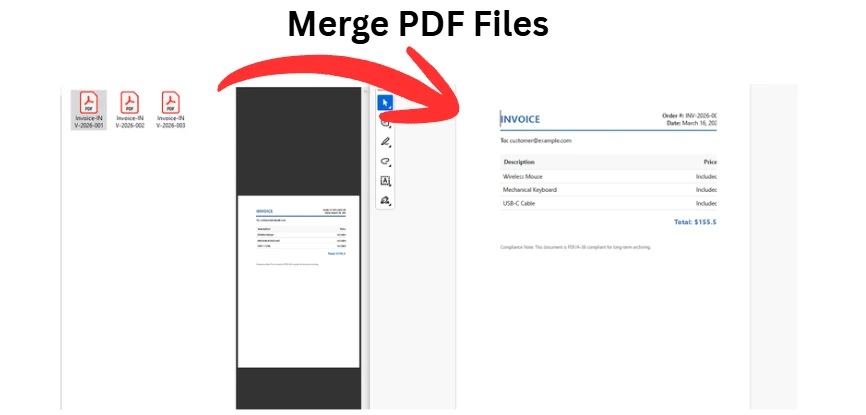
If you are in a rush and need files merged immediately without reading the full guide, here are the fastest zero-installation options for how to combine PDF files:
* **On macOS:** Open your first PDF in the native **Preview** app. Go to **View > Thumbnails** in the top menu. Simply drag and drop your other PDF files from your Finder directly into the left-hand thumbnail sidebar. Go to **File > Export as PDF** to save.
* **On Windows:** Because Windows lacks a native drag-and-drop PDF merger, the absolute fastest method is opening your web browser to a trusted, free tool like **Adobe Acrobat Online**. Drag your files into the browser window, arrange them, and click **Merge**.
However, while the PDF's rigid, baked-in formatting is great for viewing, it means these files are inherently difficult to edit, manipulate, or combine at scale compared to standard word processing documents. Whether you are an administrative professional compiling a massive end-of-year financial report from twenty different departmental submissions, a paralegal organizing hundreds of legal exhibits for discovery, or a software developer trying to automate daily invoice generation, knowing exactly how to handle complex PDF merging is a mandatory digital survival skill.
This comprehensive guide will walk you through every conceivable method for [merging PDF documents](/tutorials/organize-pdfs-complete-tutorial/). We will cover the native workflows for Windows and macOS in detail, the professional standard using Adobe Acrobat, command-line tricks for power users, and finally, robust programmatic solutions using C# and IronPDF.
## Understanding the Challenge: Why is Merging PDFs Difficult?
Before diving into the "how," it is helpful to understand the "why." Why can't you just copy and paste the contents of one PDF into another like you can with a .txt or .docx file?
A PDF is not just a stream of text. It is a highly complex, compiled database of objects. A single PDF file contains:
* **A Header:** Identifying the PDF version.
* **A Body:** Containing objects like text streams, embedded fonts, high-resolution vector images, rasterized images, and multimedia elements.
* **A Cross-Reference Table (xref):** A directory that tells the PDF reader exactly where every object is located within the file's binary data.
* **A Trailer:** Directing the reader application to the cross-reference table.
When you merge two PDFs, you are not just putting page 2 after page 1. The software merging the files must completely rewrite the cross-reference tables, resolve conflicts between identically named embedded fonts (e.g., if both documents use a subset of Arial but contain different characters), and ensure that internal hyperlinks and bookmarks do not break.
This complexity is why choosing the right tool for your specific use case is critical.
## Method 1: Combining PDFs on macOS (The Built-In "Preview" Method)
If you are using an Apple computer running macOS, you are in luck. Apple includes an incredibly powerful, native application called **Preview**. While most users treat Preview merely as a basic image viewer, it is actually a highly capable PDF manipulation engine.
You do not need to purchase any third-party software or upload your sensitive documents to a random website if you are on a Mac. Here is the definitive way to use Preview to merge files.
### Step-by-Step Guide for Mac Preview
**Step 1: Open Your Primary Document** Locate the first PDF file you want to serve as the beginning of your combined document. Double-click it. By default, it should open in the Preview app. If it opens in another program (like your web browser), close it, right-click (or Control-click) the file, and select **Open With > Preview**.
**Step 2: Reveal the Sidebar** To manipulate pages, you need to see them. Navigate to the top menu bar, click on **View**, and select **Thumbnails**. _Shortcut:_ You can also press Option + Command + 2 on your keyboard. A sidebar will appear on the left side of the Preview window, displaying numbered thumbnails of every page in your current document.
**Step 3: Drag and Drop the Second File** Open a separate Finder window and locate the second PDF file you wish to append. Click and drag the file icon from Finder directly into the Thumbnails sidebar in Preview.
* **Pro Tip for Placement:** If you drop the file _on top_ of an existing thumbnail, it will insert the new pages immediately after that page. If you drop it at the very bottom of the sidebar list, it will append the new document to the end.
**Step 4: Reorganize and Delete Unnecessary Pages** Now that both documents are combined in the sidebar, you can click and drag individual page thumbnails to reorder them however you see fit. If there is a blank page or a cover page you no longer need, simply click the thumbnail to highlight it and press the **Delete** key on your keyboard.
**Step 5: Exporting the Final Merged File** Do not just hit "Save," as this might overwrite your original first file depending on your macOS version and settings. Instead, ensure your new compilation is saved safely:
1. Go to **File > Export as PDF...** 2. In the dialog box, give your new combined document a unique name (e.g., Final_Q3_Report_Merged.pdf).
3. Choose your destination folder.
4. Click **Save**.
### Advanced Preview Trick: Inserting Specific Pages
What if you don't want to merge an entire 50-page document, but just page 7? Open _both_ PDFs in separate Preview windows. Enable the Thumbnails sidebar in both. Simply click and drag the thumbnail for page 7 from the source document's sidebar into the destination document's sidebar.
## Method 2: Combining PDFs on Windows (Native Workarounds)
Historically, Windows has been at a disadvantage compared to macOS regarding native PDF tools. Windows 10 and Windows 11 do not come with a dedicated, GUI-based PDF editor that allows for drag-and-drop merging.
However, there is a built-in workaround using the native "Microsoft Print to PDF" virtual printer. This method is best used when you want to combine several disparate file types (like a Word document, an Excel sheet, and a JPEG image) into a single PDF, though it can be clunky for merging existing PDFs.
### The "Microsoft Print to PDF" Approach
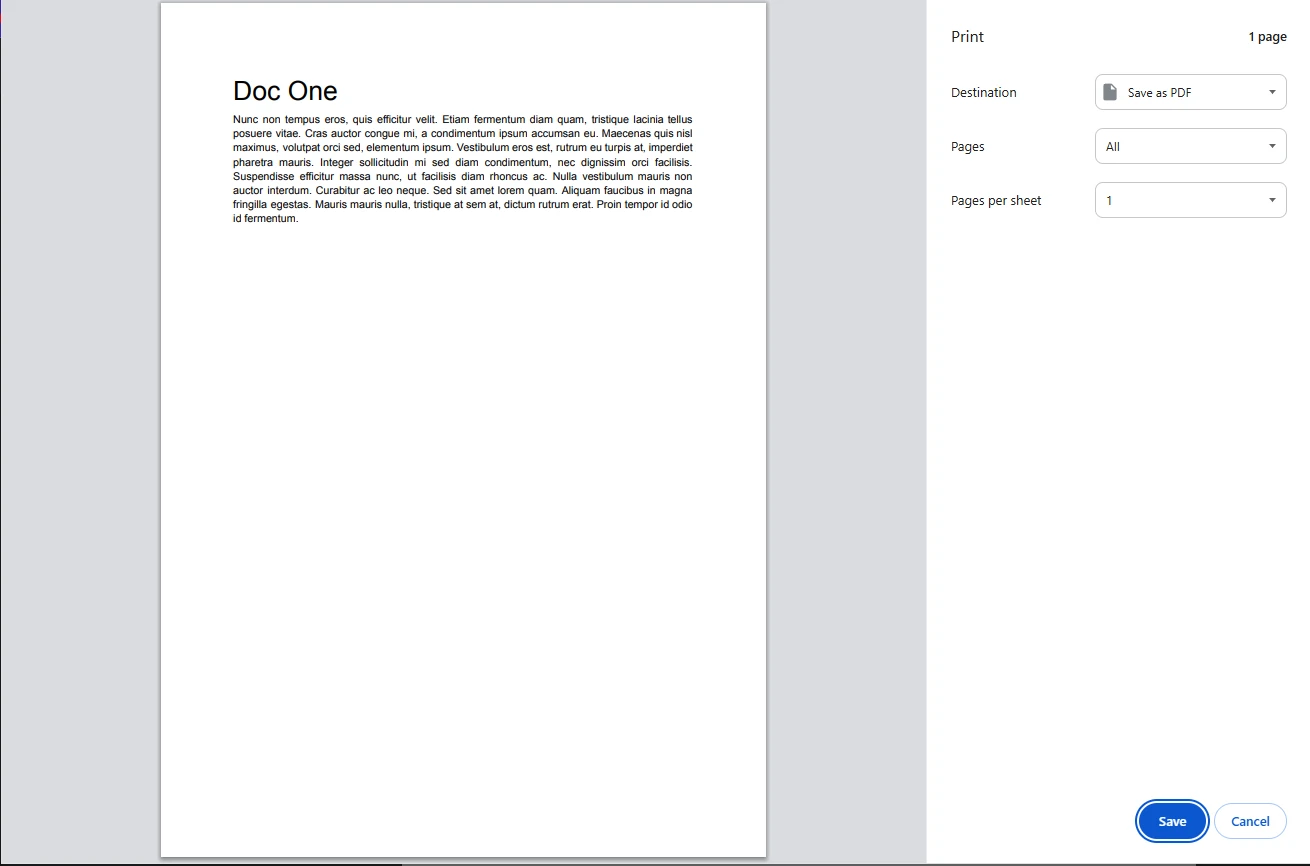
**Step 1: Open Your Files** Open all the files you want to combine in their respective default applications (e.g., open the Word doc in Microsoft Word, the image in Windows Photos).
**Step 2: Print the First Document** Go to your first document. Press Ctrl + P to open the Print dialog.
**Step 3: Select the Virtual Printer** In the "Printer" dropdown menu, change your physical office printer to **Microsoft Print to PDF**. Click **Print**. A "Save Print Output As" dialog will appear. Save this file as Part1.pdf on your desktop.
**Step 4: Repeat for Subsequent Documents** Repeat this process for your other documents, saving them as Part2.pdf, Part3.pdf, etc.
_Note: This natively converts documents to PDF, but Windows still lacks the built-in tool to staple Part1, Part2, and Part3 together. To finish the job without third-party desktop software, Windows users must rely on web-based tools or command-line utilities (covered in subsequent sections)._
### Using Microsoft Edge (Limited Functionality)
Microsoft Edge is the default PDF viewer for Windows. While it has excellent annotation tools (drawing, highlighting, text addition), it currently lacks a native "Combine Files" button. You can view PDFs side-by-side, but you cannot merge them without utilizing an extension or an online service.
## Method 3: Using Adobe Acrobat Pro (The Enterprise Standard)
If your daily workflow involves managing contracts, creating professional marketing portfolios, or handling sensitive legal documents, Adobe Acrobat Pro DC is the gold standard. While it requires a paid subscription, it handles the complex cross-reference tables and font subsets of PDF merging flawlessly.
### Step-by-Step Guide for Adobe Acrobat
**Step 1: Open the "Combine Files" Tool** Launch Adobe Acrobat. On the home screen, select the **Tools** tab located at the top left. Look for the icon labeled **Combine Files** (usually depicted as two overlapping pages) and click it.
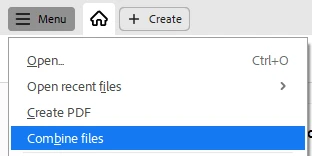
**Step 2: Add Your Documents** You will be greeted by a large, blank workspace. You can either:
* Click the **Add Files** button in the center and browse your hard drive.
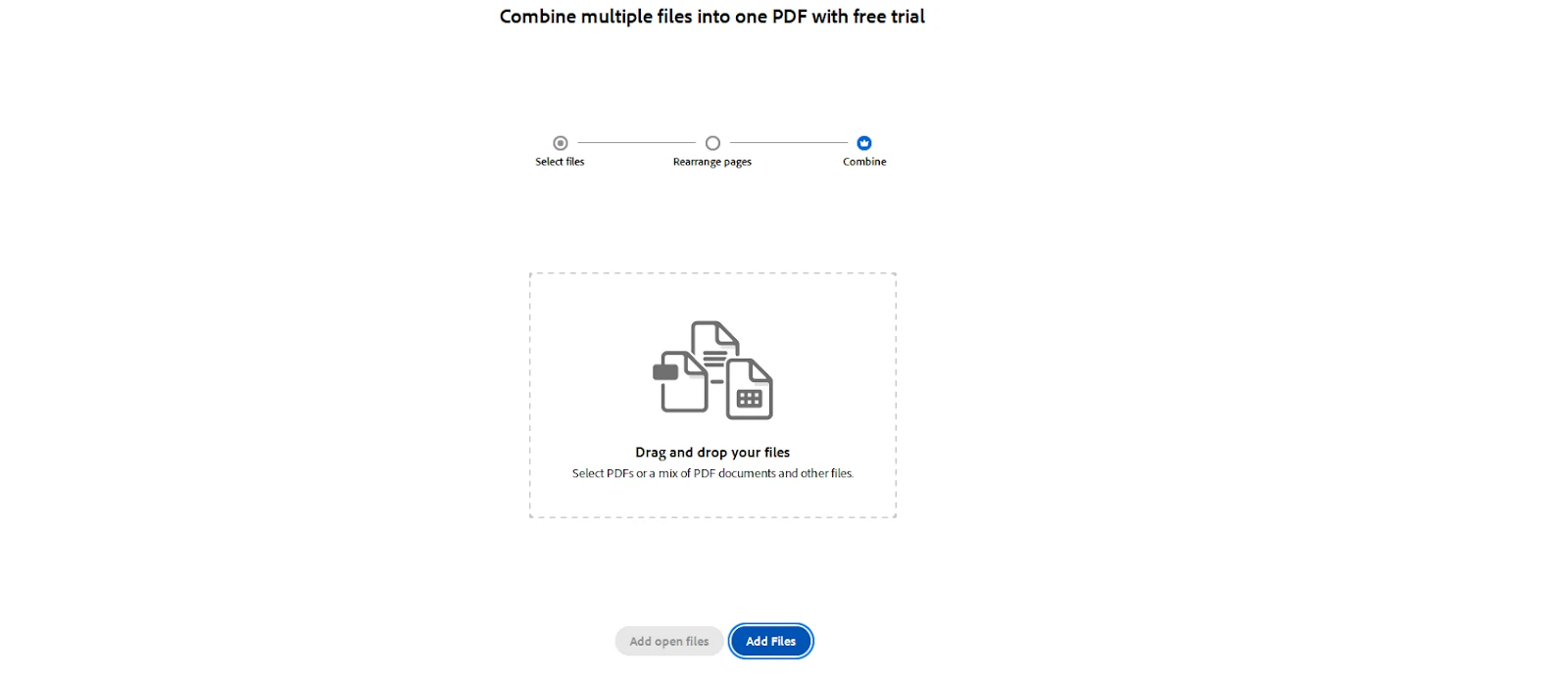
* Drag and drop multiple PDFs directly from File Explorer/Finder into the Acrobat window.
**Step 3: Organize and Expand** Once your files are imported, they will appear as large thumbnails.
* **Reordering:** Drag and drop the files to change the overall sequence.
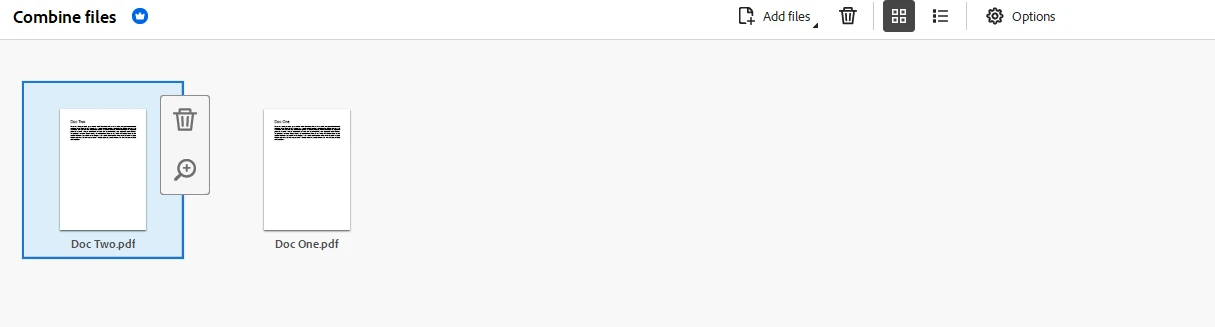
* **Expanding:** If you hover over a multi-page PDF thumbnail, a small "Expand" icon (two diverging arrows) will appear. Clicking this breaks the document down into individual pages, allowing you to delete specific pages or rearrange them at a granular level before merging.
**Step 4: Configure Output Settings** Click the **Options** gear icon at the top of the screen. Here, you can define the file size:

* **Smaller File Size:** Compresses images and rasterizes complex graphics. Great for email.
* **Default File Size:** Balances quality and size. Good for general office use.
* **Larger File Size:** Preserves high-resolution print quality. Essential for graphic designers sending files to a printing press.
**Step 5: Execute the Merge** Click the blue **Combine** button in the top right corner. Acrobat will process the files. Depending on the size and complexity of the documents, this could take a few seconds to a minute.
**Step 6: Save the Binder** Acrobat will automatically open your newly combined document under the temporary name Binder1.pdf. Review the document to ensure all pages are present and formatting is intact. Finally, navigate to **File > Save As...** to assign a permanent name and save it to your desired directory.
## Method 4: Free Online PDF Tools (Merge PDF Files Online)
For users who do not own Macs, do not have an Adobe subscription, and only need to merge PDFs occasionally, simple online tools are incredibly convenient. The most popular and reliable options include **Smallpdf**, **ILovePDF**, and **Adobe's free online Acrobat tools**.
### How to Use Web Mergers (Using ILovePDF as an Example)
1. Open your web browser and navigate to ilovepdf.com/merge_pdf.
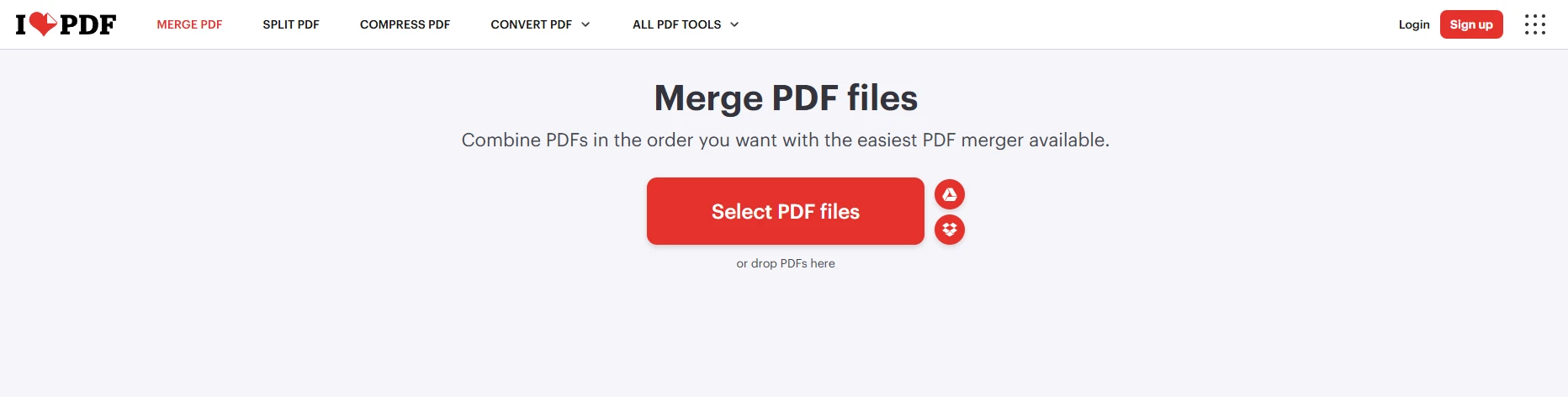
2. Click the giant **Select PDF files** button in the center of the screen, or drag and drop your files onto the webpage.
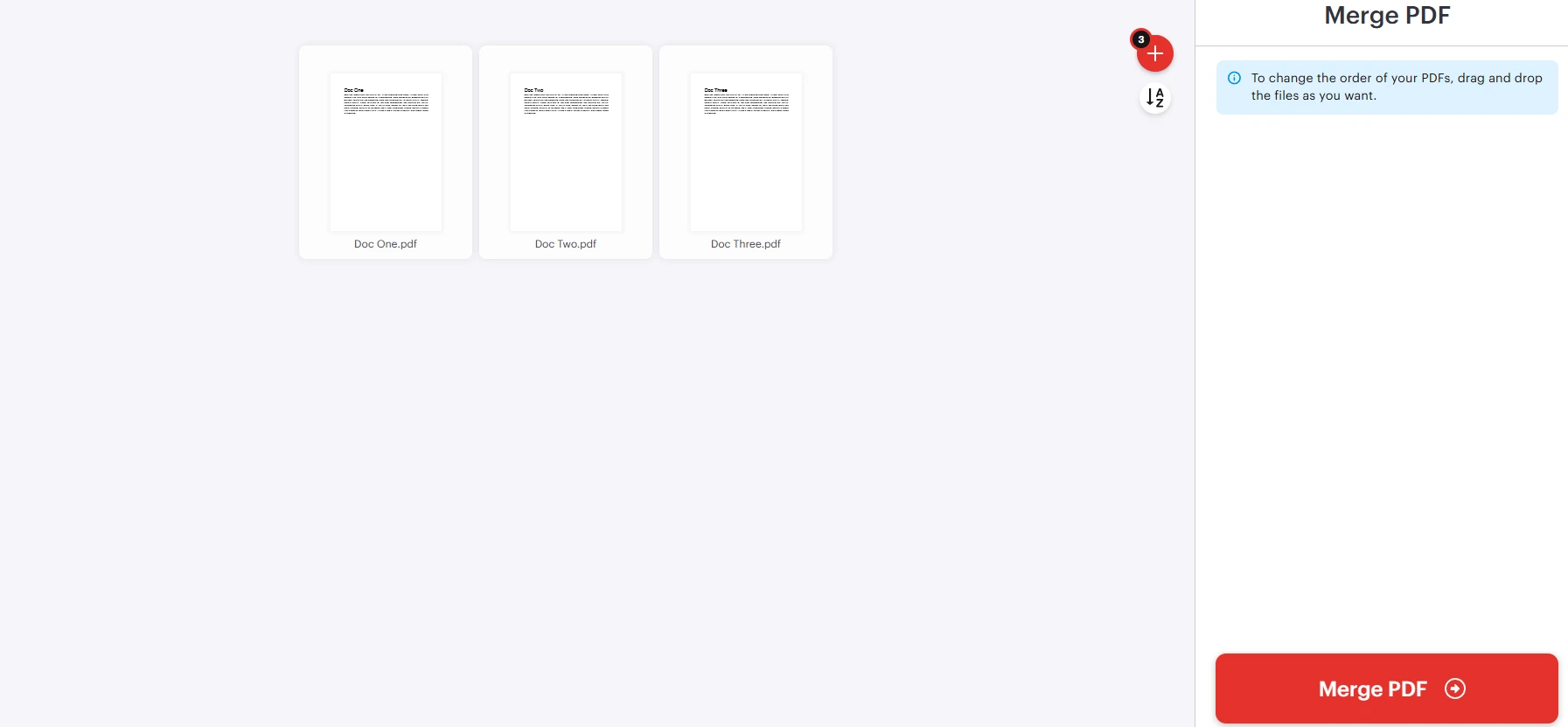
3. Once uploaded, the website will display thumbnails of your files. You can click and drag these to adjust the order.
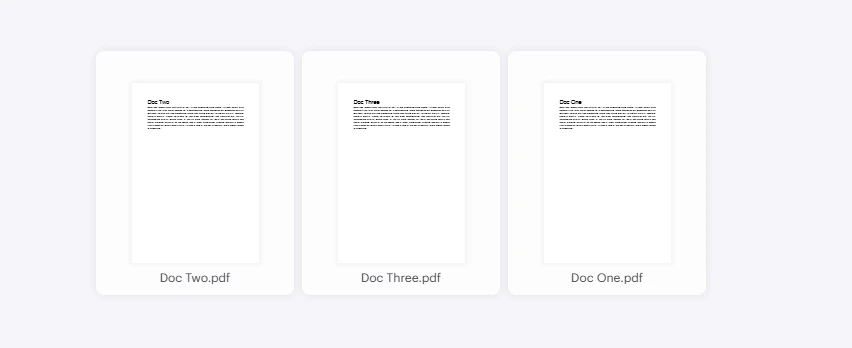
4. Click the **Merge PDF** button in the bottom right corner.
5. Wait for the server to process the files. Once complete, click **Download merged PDF**.
### Crucial Warnings Regarding Web-Based Merge PDF Tools
While incredibly convenient, web-based tools carry significant risks that professionals must consider:
1. **Data Privacy and Security:** When you use a free web tool, you are uploading your document to a third-party server. While reputable sites promise to delete files within 1-2 hours and use SSL encryption, **you should never upload documents containing Personally Identifiable Information (PII), financial data, healthcare records (HIPAA compliance), or corporate trade secrets.** Once it leaves your local machine, you lose control of the data.
2. **File Size Limits:** Most free tiers strictly cap uploads. For example, Smallpdf might limit you to files under 50MB, or restrict you to only two tasks per day without upgrading to a "Pro" account.
3. **Loss of Interactivity:** Some aggressive online compressors and mergers essentially take "screenshots" of your PDF pages and bind those images together. This destroys underlying text layers (making the document unsearchable) and permanently breaks all hyperlinks and bookmarks.
## Method 5: Merge Multiple PDFs with Command-Line Mastery (For Power Users)
For IT professionals, Linux users, or anyone comfortable with a terminal interface, combining PDFs via the command line is arguably the fastest and most lightweight method. It requires zero graphical overhead and can be executed via simple scripts.
The two heavyweights in this arena are **Ghostscript** and **PDFtk (The PDF Toolkit)**.
### Option A: Using Ghostscript
Ghostscript is a suite of software based on an interpreter for Adobe Systems' PostScript and Portable Document Format languages. It is incredibly robust and available on Windows, macOS, and Linux.
**Installation:**
* _macOS:_ Open Terminal and type brew install ghostscript (requires Homebrew).
* _Linux (Ubuntu/Debian):_ sudo apt-get install ghostscript
* _Windows:_ Download the installer from the official Ghostscript website and add the bin folder to your System PATH.
**The Merge Command:** Open your terminal, navigate to the directory containing your PDFs, and execute the following command:
```cs
gs -dBATCH -dNOPAUSE -q -sDEVICE=pdfwrite -sOutputFile=Combined_Report.pdf Section1.pdf Section2.pdf Appendix.pdf
```
**Breaking down the command:**
* gs: Invokes Ghostscript.
* -dBATCH: Tells Ghostscript to exit after processing the files, rather than waiting for interactive commands.
* -dNOPAUSE: Prevents Ghostscript from pausing and asking the user to press 'Enter' after every single page.
* -q: Stands for 'quiet'. Suppresses routine informational messages on the console.
* -sDEVICE=pdfwrite: Instructs Ghostscript that the desired output format is a PDF.
* -sOutputFile=Combined_Report.pdf: Defines the name of the final merged file.
* Section1.pdf Section2.pdf Appendix.pdf: The list of input files in the exact order you want them merged.
### Option B: Using PDFtk (PDF Toolkit)
PDFtk is widely considered the easiest CLI tool specifically designed for PDF manipulation.
**Installation:**
* _macOS:_ brew install pdftk-java
* _Linux:_ sudo apt-get install pdftk
* _Windows:_ Download the PDFtk Server installer.
**The Merge Command:** The syntax for PDFtk is much more readable for beginners. To merge three specific files:
```cs
pdftk Section1.pdf Section2.pdf Appendix.pdf cat output Combined_Report.pdf
```
**The Wildcard Trick (Merging a whole folder):** If you have a folder containing 50 PDFs and you want to combine them all into one file instantly in alphabetical order, you can use the wildcard * operator:
```cs
pdftk *.pdf cat output Everything_Merged.pdf
```
This single line of code can save hours of manual dragging and dropping.
## Method 6: For Developers - Automating PDF Merging with IronPDF
While the manual methods above are suitable for individuals handling occasional documents, they are entirely unscalable for enterprise environments.
Imagine a scenario where an eCommerce platform needs to generate a custom monthly invoice for 10,000 different clients. Each invoice consists of a standardized cover letter PDF, a dynamically generated data table PDF, and a generic terms-of-service PDF. Attempting to manage this with Adobe Acrobat or web uploads is impossible. This requires programmatic automation.
This is where [**IronPDF**](https://ironpdf.com) excels. IronPDF is a comprehensive C# library for .NET developers that allows for the creation, [manipulation](/tutorials/csharp-edit-pdf-complete-tutorial/), and reading of PDF documents without ever requiring Adobe Acrobat to be installed on the host server. It is incredibly fast, memory-efficient, and designed for high-throughput environments.
### Why Choose IronPDF for Document Manipulation?
1. **Server-Side Reliability:** It operates independently of any GUI. No pop-ups, no print dialogs.
2. **Formatting Preservation:** [IronPDF's merging](/how-to/merge-or-split-pdfs/) algorithm meticulously maintains the integrity of form fields, annotations, bookmarks, and digital signatures.
3. **Cross-Platform:** Works seamlessly on Windows, Linux, macOS, and Docker containers across .NET Framework, .NET Core, and .NET 5/6/7/8.
### Setting Up the Environment
First, ensure you have an active .NET project open in Visual Studio or JetBrains Rider. You will need to install the IronPDF NuGet package.
Open the NuGet Package Manager Console and execute:
```shell
:ProductInstall
```
Alternatively, search for "IronPdf" in the Visual Studio GUI Package Manager.
### Code Example: Merge Multiple PDF Files in C#
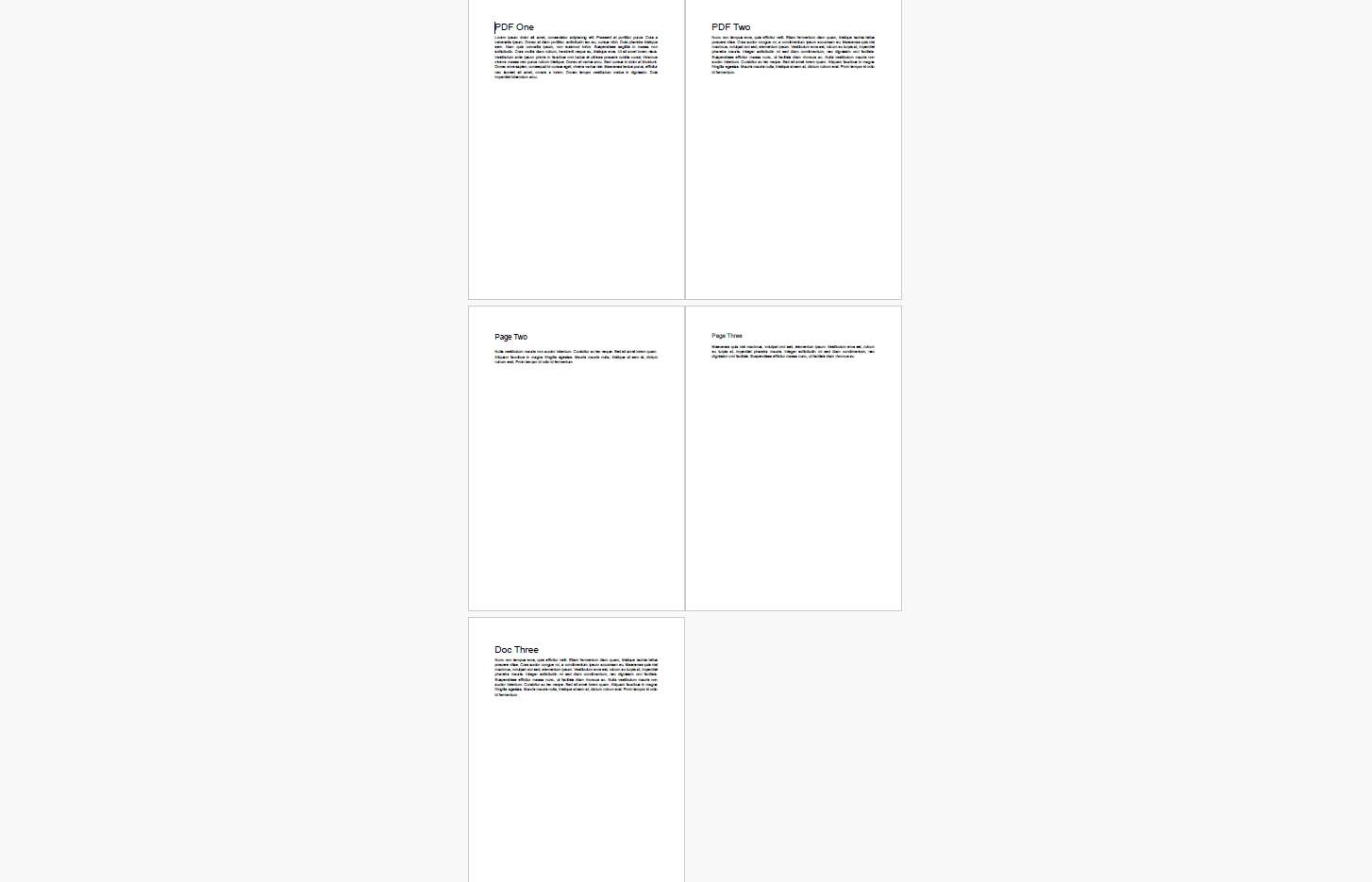
The following script demonstrates the simplest, most efficient way to combine multiple PDF files into a one, unified document using IronPDF.
```cs
using IronPdf;
using System.Collections.Generic;
using System;
namespace PdfAutomation
{
class Program
{
static void Main(string[] args)
{
// Apply your IronPDF License Key here to remove watermarks
License.LicenseKey = "YOUR_IRONPDF_LICENSE_KEY";
Console.WriteLine("Starting PDF Merge Process...");
try
{
// Step 1: Define the paths of the files you wish to merge.
// These can be absolute paths or relative to the project directory.
var pdfFilesToMerge = new List<string>
{
@"C:\Documents\Cover_Letter.pdf",
@"C:\Documents\Financial_Data.pdf",
@"C:\Documents\Standard_Terms.pdf"
};
// Step 2: Use the static PdfDocument.Merge method.
// This method takes an IEnumerable of file paths or an IEnumerable of PdfDocument objects.
// Passing paths directly is generally more memory efficient for simple concatenations.
Console.WriteLine("Stitching documents together...");
PdfDocument mergedDocument = PdfDocument.Merge(pdfFilesToMerge);
// Step 3: Define the output path and save the result.
string outputPath = @"C:\Documents\Final_Client_Package.pdf";
mergedDocument.SaveAs(outputPath);
// Step 4: Always explicitly dispose of the PdfDocument object to free up system memory immediately.
mergedDocument.Dispose();
Console.WriteLine($"Success! Merged document saved to: {outputPath}");
}
catch (Exception ex)
{
// Robust error handling is critical in production applications.
// This will catch issues like "File in use by another process" or "File not found".
Console.WriteLine($"An error occurred during the merge process: {ex.Message}");
}
}
}
}
```
#### Example Output
### Code Example: Advanced In-Memory Merging
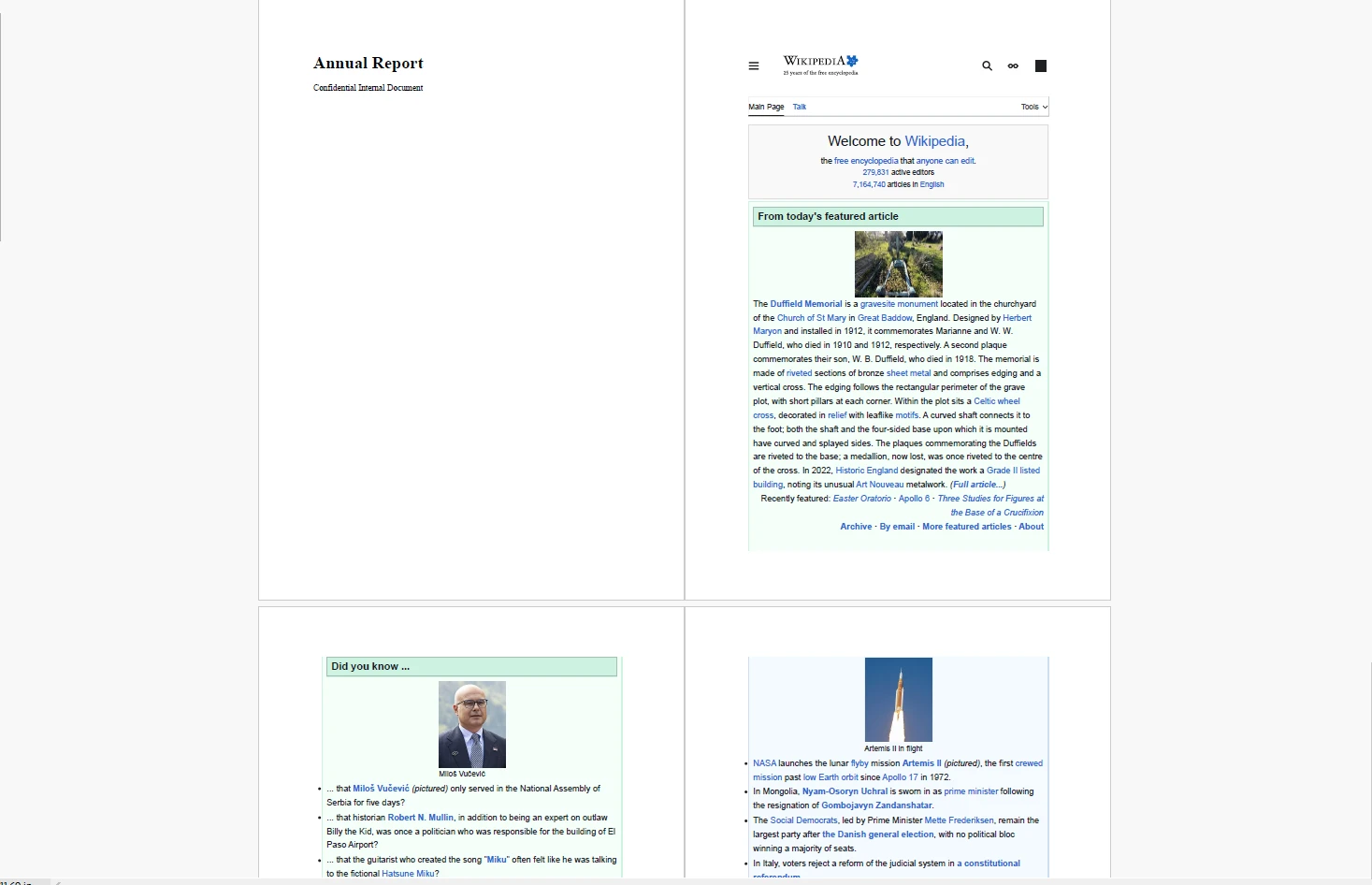
Often, in web applications (like an ASP.NET Core API), you don't want to save files to the hard drive at all. You might [generate PDFs from HTML](/tutorials/html-to-pdf/) strings in memory, merge them, and serve the final PDF directly to the user's browser as a download stream.
IronPDF handles this flawlessly:
```cs
using IronPdf;
using System.Collections.Generic;
public byte[] GenerateMergedReport()
{
// Initialize the HTML to PDF renderer
var renderer = new ChromePdfRenderer();
// Generate PDF objects directly from HTML strings in memory
PdfDocument coverPage = renderer.RenderHtmlAsPdf("<h1>Annual Report</h1><p>Confidential Internal Document</p>");
PdfDocument dataChart = renderer.RenderUrlAsPdf("https://internal.dashboard/report/12345");
// Add existing PdfDocument objects to a list
var documents = new List<PdfDocument> { coverPage, dataChart };
// Merge the in-memory objects
PdfDocument finalReport = PdfDocument.Merge(documents);
// Export the merged document as a Byte Array
byte[] pdfBytes = finalReport.BinaryData;
// Dispose of all objects to prevent memory leaks in the web server
coverPage.Dispose();
dataChart.Dispose();
finalReport.Dispose();
// This byte array can now be returned as a File() result in an MVC controller
return pdfBytes;
}
```
#### Example Output using a Random URL
By utilizing IronPDF, developers can abstract away the immense complexity of PDF cross-reference tables and font dictionary management, reducing a massive architectural headache into a single line of intuitive C# code: PdfDocument.Merge().
## Troubleshooting Common PDF Merging Issues
Even with the best tools, merging multiple PDF files into one can sometimes result in unexpected errors. Here is a definitive guide to troubleshooting the most common edge cases.
### Issue 1: "The Document is Password Protected"
**The Problem:** You attempt to merge multiple files into a single document, but your software throws an error stating one of the files is encrypted. **The Technical Reality:** PDFs have two types of passwords. A "User Password" restricts opening the file. An "Owner Password" restricts editing, printing, or _merging_ the file. If an Owner Password is in place, the internal objects are locked.
**The Solution:** You must unlock the file first. If you know the password, open the file in Adobe Acrobat, navigate to **File > Properties > Security**, and change the Security Method to "No Security" (you will be prompted to enter the password). Save the file, and _then_ merge it.
### Issue 2: Differing Page Sizes (The "Frankenstein" Document)
**The Problem:** You merge an A4-sized letter with a massive A1-sized architectural blueprint. When viewed at 100% zoom, the A4 pages look tiny, and scrolling through the document is jarring.
**The Solution:** You need to normalize the page dimensions before or after merging.
* **In Acrobat:** Open the merged file, go to **Print**, select "Adobe PDF" as the printer, and check the box for **"Shrink oversized pages"** or **"Fit to printable area"** while setting the paper size to your desired standard (e.g., Letter). This will force all pages into a uniform dimension.
* **In IronPDF:** Developers can utilize the PageSettings class to programmatically resize and scale individual pages before appending them.
### Issue 3: Missing Fonts or Scrambled Text
**The Problem:** After merging, the text on page 3 turns into Wingdings or overlapping gibberish.
**The Technical Reality:** This happens when Document A and Document B both use the "Helvetica" font, but neither completely embedded the font file. Instead, they embedded a "subset" (only the specific letters they used). When merged, the font dictionaries collide, and the PDF reader gets confused about which "Helvetica" to use.
**The Solution:** The best preventative measure is to ensure original documents are saved with "Embed All Fonts" checked in their creation software (like Microsoft Word). If you are stuck with a scrambled merged file, try "printing" the original files to PDF again, which often forces the system to re-embed or rasterize the text, and then merge those new copies.
### Issue 4: Exploding File Sizes
**The Problem:** You merge ten files that are 2MB each. You expect a 20MB file, but the output is 150MB.
**The Technical Reality:** This often happens when metadata is duplicated unnecessarily, or when vector graphics are rasterized (turned into pixels) during a sloppy merge process by lower-quality tools.
**The Solution:** Always run a compression pass after a large merge.
* **Acrobat:** File > Reduce File Size or File > Save as Other > Optimized PDF.
* **Mac Preview:** File > Export, click the "Quartz Filter" dropdown, and select Reduce File Size.
* **IronPDF:** Use the mergedDocument.CompressImages() method in your C# code to automatically scale down heavy JPEG assets within the document.
## Best Practices: The PDF/A Standard for Archiving
If you are combining documents for long-term storage such as legal compliance, historical archiving, or permanent HR records, you should not just stop at merging. You should convert the final merged document to the **PDF/A** format.
**What is PDF/A?** PDF/A is an ISO-standardized version of the Portable Document Format specialized for use in the archiving and long-term preservation of electronic documents.
**Why does it matter?** Standard PDFs allow for external references (linking to a font stored on your computer) and dynamic content (like JavaScript or audio/video). However, if you open that file 30 years from now, your future computer likely won't have that exact font, and the video player will be obsolete. The document will break.
PDF/A forces the document to be 100% self-contained. It strictly forbids external links, forces the absolute embedding of all fonts and color profiles, and strips out dynamic media. When you combine your crucial files, making the final step a conversion to PDF/A guarantees that your merged document will look identical today, tomorrow, and decades into the future. Professional tools like Adobe Acrobat and enterprise libraries like IronPDF offer built-in compliance checks and conversion methods for PDF/A.
## Conclusion
Combining PDF files into one document is a task that ranges from a simple drag-and-drop operation on a local desktop to a highly complex programmatic challenge involving binary data manipulation and server architecture.
For the everyday user, leveraging native OS capabilities like Mac's Preview or robust desktop software like Adobe Acrobat provides the visual control necessary to build clean, organized documents. For power users, command-line utilities like Ghostscript offer incredible speed without graphical bloat.
However, when document generation scales beyond manual human input, programmatic solutions become mandatory. By understanding the underlying mechanics of PDF objects and utilizing powerful libraries, development teams can automate away hours of tedious administrative work.
Ready to take complete control of your organization's document workflows? Whether you are generating invoices, merging compliance reports, or building custom data dashboards, having the right architectural tools is non-negotiable. [**Try IronPDF's free trial**](trial-license) today and discover how seamlessly you can integrate professional-grade PDF manipulation, merging, and rendering directly into your .NET applications.
In the modern digital workplace, the Portable Document Format (PDF) is the undisputed king of file sharing. Created by Adobe in the early 1990s, the PDF was designed with a single, revolutionary goal: to ensure that a document looks exactly the same on any screen, any operating system, and any printer.
The Absolute Quickest Way to Merge PDF Files
If you are in a rush and need files merged immediately without reading the full guide, here are the fastest zero-installation options for how to combine PDF files:
On macOS: Open your first PDF in the native Preview app. Go to View > Thumbnails in the top menu. Simply drag and drop your other PDF files from your Finder directly into the left-hand thumbnail sidebar. Go to File > Export as PDF to save.
On Windows: Because Windows lacks a native drag-and-drop PDF merger, the absolute fastest method is opening your web browser to a trusted, free tool like Adobe Acrobat Online. Drag your files into the browser window, arrange them, and click Merge.
However, while the PDF's rigid, baked-in formatting is great for viewing, it means these files are inherently difficult to edit, manipulate, or combine at scale compared to standard word processing documents. Whether you are an administrative professional compiling a massive end-of-year financial report from twenty different departmental submissions, a paralegal organizing hundreds of legal exhibits for discovery, or a software developer trying to automate daily invoice generation, knowing exactly how to handle complex PDF merging is a mandatory digital survival skill.
This comprehensive guide will walk you through every conceivable method for merging PDF documents. We will cover the native workflows for Windows and macOS in detail, the professional standard using Adobe Acrobat, command-line tricks for power users, and finally, robust programmatic solutions using C# and IronPDF.
Understanding the Challenge: Why is Merging PDFs Difficult?
Before diving into the "how," it is helpful to understand the "why." Why can't you just copy and paste the contents of one PDF into another like you can with a .txt or .docx file?
A PDF is not just a stream of text. It is a highly complex, compiled database of objects. A single PDF file contains:
A Header: Identifying the PDF version.
A Body: Containing objects like text streams, embedded fonts, high-resolution vector images, rasterized images, and multimedia elements.
A Cross-Reference Table (xref): A directory that tells the PDF reader exactly where every object is located within the file's binary data.
A Trailer: Directing the reader application to the cross-reference table.
When you merge two PDFs, you are not just putting page 2 after page 1. The software merging the files must completely rewrite the cross-reference tables, resolve conflicts between identically named embedded fonts (e.g., if both documents use a subset of Arial but contain different characters), and ensure that internal hyperlinks and bookmarks do not break.
This complexity is why choosing the right tool for your specific use case is critical.
Method 1: Combining PDFs on macOS (The Built-In "Preview" Method)
If you are using an Apple computer running macOS, you are in luck. Apple includes an incredibly powerful, native application called Preview. While most users treat Preview merely as a basic image viewer, it is actually a highly capable PDF manipulation engine.
You do not need to purchase any third-party software or upload your sensitive documents to a random website if you are on a Mac. Here is the definitive way to use Preview to merge files.
Step-by-Step Guide for Mac Preview
Step 1: Open Your Primary Document Locate the first PDF file you want to serve as the beginning of your combined document. Double-click it. By default, it should open in the Preview app. If it opens in another program (like your web browser), close it, right-click (or Control-click) the file, and select Open With > Preview.
Step 2: Reveal the Sidebar To manipulate pages, you need to see them. Navigate to the top menu bar, click on View, and select Thumbnails. Shortcut: You can also press Option + Command + 2 on your keyboard. A sidebar will appear on the left side of the Preview window, displaying numbered thumbnails of every page in your current document.
Step 3: Drag and Drop the Second File Open a separate Finder window and locate the second PDF file you wish to append. Click and drag the file icon from Finder directly into the Thumbnails sidebar in Preview.
Pro Tip for Placement: If you drop the file on top of an existing thumbnail, it will insert the new pages immediately after that page. If you drop it at the very bottom of the sidebar list, it will append the new document to the end.
Step 4: Reorganize and Delete Unnecessary Pages Now that both documents are combined in the sidebar, you can click and drag individual page thumbnails to reorder them however you see fit. If there is a blank page or a cover page you no longer need, simply click the thumbnail to highlight it and press the Delete key on your keyboard.
Step 5: Exporting the Final Merged File Do not just hit "Save," as this might overwrite your original first file depending on your macOS version and settings. Instead, ensure your new compilation is saved safely:
Go to File > Export as PDF... 2. In the dialog box, give your new combined document a unique name (e.g., Final_Q3_Report_Merged.pdf).
Choose your destination folder.
Click Save.
Advanced Preview Trick: Inserting Specific Pages
What if you don't want to merge an entire 50-page document, but just page 7? Open both PDFs in separate Preview windows. Enable the Thumbnails sidebar in both. Simply click and drag the thumbnail for page 7 from the source document's sidebar into the destination document's sidebar.
Method 2: Combining PDFs on Windows (Native Workarounds)
Historically, Windows has been at a disadvantage compared to macOS regarding native PDF tools. Windows 10 and Windows 11 do not come with a dedicated, GUI-based PDF editor that allows for drag-and-drop merging.
However, there is a built-in workaround using the native "Microsoft Print to PDF" virtual printer. This method is best used when you want to combine several disparate file types (like a Word document, an Excel sheet, and a JPEG image) into a single PDF, though it can be clunky for merging existing PDFs.
The "Microsoft Print to PDF" Approach
Step 1: Open Your Files Open all the files you want to combine in their respective default applications (e.g., open the Word doc in Microsoft Word, the image in Windows Photos).
Step 2: Print the First Document Go to your first document. Press Ctrl + P to open the Print dialog.
Step 3: Select the Virtual Printer In the "Printer" dropdown menu, change your physical office printer to Microsoft Print to PDF. Click Print. A "Save Print Output As" dialog will appear. Save this file as Part1.pdf on your desktop.
Step 4: Repeat for Subsequent Documents Repeat this process for your other documents, saving them as Part2.pdf, Part3.pdf, etc.
Note: This natively converts documents to PDF, but Windows still lacks the built-in tool to staple Part1, Part2, and Part3 together. To finish the job without third-party desktop software, Windows users must rely on web-based tools or command-line utilities (covered in subsequent sections).
Using Microsoft Edge (Limited Functionality)
Microsoft Edge is the default PDF viewer for Windows. While it has excellent annotation tools (drawing, highlighting, text addition), it currently lacks a native "Combine Files" button. You can view PDFs side-by-side, but you cannot merge them without utilizing an extension or an online service.
Method 3: Using Adobe Acrobat Pro (The Enterprise Standard)
If your daily workflow involves managing contracts, creating professional marketing portfolios, or handling sensitive legal documents, Adobe Acrobat Pro DC is the gold standard. While it requires a paid subscription, it handles the complex cross-reference tables and font subsets of PDF merging flawlessly.
Step-by-Step Guide for Adobe Acrobat
Step 1: Open the "Combine Files" Tool Launch Adobe Acrobat. On the home screen, select the Tools tab located at the top left. Look for the icon labeled Combine Files (usually depicted as two overlapping pages) and click it.
Step 2: Add Your Documents You will be greeted by a large, blank workspace. You can either:
Click the Add Files button in the center and browse your hard drive.
Drag and drop multiple PDFs directly from File Explorer/Finder into the Acrobat window.
Step 3: Organize and Expand Once your files are imported, they will appear as large thumbnails.
Reordering: Drag and drop the files to change the overall sequence.
Expanding: If you hover over a multi-page PDF thumbnail, a small "Expand" icon (two diverging arrows) will appear. Clicking this breaks the document down into individual pages, allowing you to delete specific pages or rearrange them at a granular level before merging.
Step 4: Configure Output Settings Click the Options gear icon at the top of the screen. Here, you can define the file size:
Smaller File Size: Compresses images and rasterizes complex graphics. Great for email.
Default File Size: Balances quality and size. Good for general office use.
Larger File Size: Preserves high-resolution print quality. Essential for graphic designers sending files to a printing press.
Step 5: Execute the Merge Click the blue Combine button in the top right corner. Acrobat will process the files. Depending on the size and complexity of the documents, this could take a few seconds to a minute.
Step 6: Save the Binder Acrobat will automatically open your newly combined document under the temporary name Binder1.pdf. Review the document to ensure all pages are present and formatting is intact. Finally, navigate to File > Save As... to assign a permanent name and save it to your desired directory.
Method 4: Free Online PDF Tools (Merge PDF Files Online)
For users who do not own Macs, do not have an Adobe subscription, and only need to merge PDFs occasionally, simple online tools are incredibly convenient. The most popular and reliable options include Smallpdf, ILovePDF, and Adobe's free online Acrobat tools.
How to Use Web Mergers (Using ILovePDF as an Example)
Open your web browser and navigate to ilovepdf.com/merge_pdf.
Click the giant Select PDF files button in the center of the screen, or drag and drop your files onto the webpage.
Once uploaded, the website will display thumbnails of your files. You can click and drag these to adjust the order.
Click the Merge PDF button in the bottom right corner.
Wait for the server to process the files. Once complete, click Download merged PDF.
Crucial Warnings Regarding Web-Based Merge PDF Tools
While incredibly convenient, web-based tools carry significant risks that professionals must consider:
Data Privacy and Security: When you use a free web tool, you are uploading your document to a third-party server. While reputable sites promise to delete files within 1-2 hours and use SSL encryption, you should never upload documents containing Personally Identifiable Information (PII), financial data, healthcare records (HIPAA compliance), or corporate trade secrets. Once it leaves your local machine, you lose control of the data.
File Size Limits: Most free tiers strictly cap uploads. For example, Smallpdf might limit you to files under 50MB, or restrict you to only two tasks per day without upgrading to a "Pro" account.
Loss of Interactivity: Some aggressive online compressors and mergers essentially take "screenshots" of your PDF pages and bind those images together. This destroys underlying text layers (making the document unsearchable) and permanently breaks all hyperlinks and bookmarks.
Method 5: Merge Multiple PDFs with Command-Line Mastery (For Power Users)
For IT professionals, Linux users, or anyone comfortable with a terminal interface, combining PDFs via the command line is arguably the fastest and most lightweight method. It requires zero graphical overhead and can be executed via simple scripts.
The two heavyweights in this arena are Ghostscript and PDFtk (The PDF Toolkit).
Option A: Using Ghostscript
Ghostscript is a suite of software based on an interpreter for Adobe Systems' PostScript and Portable Document Format languages. It is incredibly robust and available on Windows, macOS, and Linux.
Installation:
macOS: Open Terminal and type brew install ghostscript (requires Homebrew).
Linux (Ubuntu/Debian): sudo apt-get install ghostscript
Windows: Download the installer from the official Ghostscript website and add the bin folder to your System PATH.
The Merge Command: Open your terminal, navigate to the directory containing your PDFs, and execute the following command:
The provided code snippet is not C# code; it appears to be a command-line instruction forGhostscript, a tool used for processing PDF files. This command cannot be directly converted toVB.NET as it is not a programming construct but rather a shell command. If you need to execute this command from a VB.NETapplication, you would typically use the `Process` class to run it. Here's how you might do that:netThisVB.NET code uses the `Process` class to execute the Ghostscript command. Adjust the file paths and Ghostscript executable path as necessary for your environment.
The provided code snippet is not C# code; it appears to be a command-line instruction for Ghostscript, a tool used for processing PDF files. This command cannot be directly converted to VB.NET as it is not a programming construct but rather a shell command. If you need to execute this command from a VB.NET application, you would typically use the `Process` class to run it. Here's how you might do that:

net

This VB.NET code uses the `Process` class to execute the Ghostscript command. Adjust the file paths and Ghostscript executable path as necessary for your environment.
Breaking down the command:
gs: Invokes Ghostscript.
-dBATCH: Tells Ghostscript to exit after processing the files, rather than waiting for interactive commands.
-dNOPAUSE: Prevents Ghostscript from pausing and asking the user to press 'Enter' after every single page.
-q: Stands for 'quiet'. Suppresses routine informational messages on the console.
-sDEVICE=pdfwrite: Instructs Ghostscript that the desired output format is a PDF.
-sOutputFile=Combined_Report.pdf: Defines the name of the final merged file.
Section1.pdf Section2.pdf Appendix.pdf: The list of input files in the exact order you want them merged.
Option B: Using PDFtk (PDF Toolkit)
PDFtk is widely considered the easiest CLI tool specifically designed for PDF manipulation.
Installation:
macOS: brew install pdftk-java
Linux: sudo apt-get install pdftk
Windows: Download the PDFtk Server installer.
The Merge Command: The syntax for PDFtk is much more readable for beginners. To merge three specific files:
The provided C# code appears to be a command-line instruction for a tool called `pdftk`, rather than actual C# code. Therefore, it doesn't directly translate to VB.NET code. If you intended to execute this command from a VB.NET application, you would use the `Process` class to run the command. Here's how you might do it:net
The provided C# code appears to be a command-line instruction for a tool called `pdftk`, rather than actual C# code. Therefore, it doesn't directly translate to VB.NET code. If you intended to execute this command from a VB.NET application, you would use the `Process` class to run the command. Here's how you might do it:

net
The Wildcard Trick (Merging a whole folder): If you have a folder containing 50 PDFs and you want to combine them all into one file instantly in alphabetical order, you can use the wildcard * operator:
pdftk *.pdf cat output Everything_Merged.pdf
pdftk *.pdf cat output Everything_Merged.pdf
The provided C# code appears to be a command-line instruction rather than C# code. It uses `pdftk`, a command-line tool for manipulating PDF files, to merge all PDF files in the current directory into a single file named `Everything_Merged.pdf`.If you intended to provide C# code for conversion, please ensure the code is correctly formatted and resubmit it. If you need a VB.NET equivalent for executing a similar command-line operation, please clarify your request.
The provided C# code appears to be a command-line instruction rather than C# code. It uses `pdftk`, a command-line tool for manipulating PDF files, to merge all PDF files in the current directory into a single file named `Everything_Merged.pdf`.

If you intended to provide C# code for conversion, please ensure the code is correctly formatted and resubmit it. If you need a VB.NET equivalent for executing a similar command-line operation, please clarify your request.
This single line of code can save hours of manual dragging and dropping.
Method 6: For Developers - Automating PDF Merging with IronPDF
While the manual methods above are suitable for individuals handling occasional documents, they are entirely unscalable for enterprise environments.
Imagine a scenario where an eCommerce platform needs to generate a custom monthly invoice for 10,000 different clients. Each invoice consists of a standardized cover letter PDF, a dynamically generated data table PDF, and a generic terms-of-service PDF. Attempting to manage this with Adobe Acrobat or web uploads is impossible. This requires programmatic automation.
This is where IronPDF excels. IronPDF is a comprehensive C# library for .NET developers that allows for the creation, manipulation, and reading of PDF documents without ever requiring Adobe Acrobat to be installed on the host server. It is incredibly fast, memory-efficient, and designed for high-throughput environments.
Why Choose IronPDF for Document Manipulation?
Server-Side Reliability: It operates independently of any GUI. No pop-ups, no print dialogs.
Formatting Preservation:IronPDF's merging algorithm meticulously maintains the integrity of form fields, annotations, bookmarks, and digital signatures.
Cross-Platform: Works seamlessly on Windows, Linux, macOS, and Docker containers across .NET Framework, .NET Core, and .NET 5/6/7/8.
Setting Up the Environment
First, ensure you have an active .NET project open in Visual Studio or JetBrains Rider. You will need to install the IronPDF NuGet package.
Open the NuGet Package Manager Console and execute:
PM > Install-Package IronPdf
Install-Package IronPdf
Alternatively, search for "IronPdf" in the Visual Studio GUI Package Manager.
Code Example: Merge Multiple PDF Files in C#
The following script demonstrates the simplest, most efficient way to combine multiple PDF files into a one, unified document using IronPDF.
using IronPdf;using System.Collections.Generic;using System;namespace PdfAutomation{ class Program { static voidMain(string[] args) { // Apply your IronPDF License Key here to remove watermarksLicense.LicenseKey = "YOUR_IRONPDF_LICENSE_KEY";Console.WriteLine("Starting PDF Merge Process..."); try { // Step 1: Define the paths of the files you wish to merge. // These can be absolute paths or relative to the project directory. var pdfFilesToMerge = new List<string> { @"C:\Documents\Cover_Letter.pdf", @"C:\Documents\Financial_Data.pdf", @"C:\Documents\Standard_Terms.pdf" }; // Step 2: Use the static PdfDocument.Merge method. // This method takes an IEnumerable of file paths or an IEnumerable of PdfDocument objects. // Passing paths directly is generally more memory efficient for simple concatenations.Console.WriteLine("Stitching documents together..."); PdfDocument mergedDocument = PdfDocument.Merge(pdfFilesToMerge); // Step 3: Define the output path and save the result. string outputPath = @"C:\Documents\Final_Client_Package.pdf"; mergedDocument.SaveAs(outputPath); // Step 4: Always explicitly dispose of the PdfDocument object to free up system memory immediately. mergedDocument.Dispose();Console.WriteLine($"Success! Merged document saved to: {outputPath}"); } catch (Exception ex) { // Robust error handling is critical in production applications. // This will catch issues like "File in use by another process" or "File not found".Console.WriteLine($"An error occurred during the merge process: {ex.Message}"); } } }}
using IronPdf;
using System.Collections.Generic;
using System;
namespace PdfAutomation
{
    class Program
    {
        static void Main(string[] args)
        {
            // Apply your IronPDF License Key here to remove watermarks
            License.LicenseKey = "YOUR_IRONPDF_LICENSE_KEY";
            Console.WriteLine("Starting PDF Merge Process...");
            try
            {
                // Step 1: Define the paths of the files you wish to merge.
                // These can be absolute paths or relative to the project directory.
                var pdfFilesToMerge = new List<string>
                {
                    @"C:\Documents\Cover_Letter.pdf",
                    @"C:\Documents\Financial_Data.pdf",
                    @"C:\Documents\Standard_Terms.pdf"
                };
                // Step 2: Use the static PdfDocument.Merge method.
                // This method takes an IEnumerable of file paths or an IEnumerable of PdfDocument objects.
                // Passing paths directly is generally more memory efficient for simple concatenations.
                Console.WriteLine("Stitching documents together...");
                PdfDocument mergedDocument = PdfDocument.Merge(pdfFilesToMerge);
                // Step 3: Define the output path and save the result.
                string outputPath = @"C:\Documents\Final_Client_Package.pdf";
                mergedDocument.SaveAs(outputPath);
                // Step 4: Always explicitly dispose of the PdfDocument object to free up system memory immediately.
                mergedDocument.Dispose();
                Console.WriteLine($"Success! Merged document saved to: {outputPath}");
            }
            catch (Exception ex)
            {
                // Robust error handling is critical in production applications.
                // This will catch issues like "File in use by another process" or "File not found".
                Console.WriteLine($"An error occurred during the merge process: {ex.Message}");
            }
        }
    }
}
ImportsIronPdfImportsSystem.Collections.GenericImportsSystemNamespacePdfAutomation Class ProgramShared Sub Main(ByVal args AsString()) ' Apply your IronPDF License Key here to remove watermarksLicense.LicenseKey = "YOUR_IRONPDF_LICENSE_KEY"Console.WriteLine("Starting PDF Merge Process...")Try ' Step 1: Define the paths of the files you wish to merge. ' These can be absolute paths or relative to the project directory. Dim pdfFilesToMerge As New List(OfString) From { "C:\Documents\Cover_Letter.pdf", "C:\Documents\Financial_Data.pdf", "C:\Documents\Standard_Terms.pdf" } ' Step 2: Use the static PdfDocument.Merge method. ' This method takes an IEnumerable of file paths or an IEnumerable of PdfDocument objects. ' Passing paths directly is generally more memory efficient for simple concatenations.Console.WriteLine("Stitching documents together...") Dim mergedDocument AsPdfDocument = PdfDocument.Merge(pdfFilesToMerge) ' Step 3: Define the output path and save the result. Dim outputPath AsString = "C:\Documents\Final_Client_Package.pdf" mergedDocument.SaveAs(outputPath) ' Step 4: Always explicitly dispose of the PdfDocument object to free up system memory immediately. mergedDocument.Dispose()Console.WriteLine($"Success! Merged document saved to: {outputPath}")Catch ex AsException ' Robust error handling is critical in production applications. ' This will catch issues like "File in use by another process" or "File not found".Console.WriteLine($"An error occurred during the merge process: {ex.Message}")EndTry End Sub End ClassEndNamespace
Imports IronPdf
Imports System.Collections.Generic
Imports System

Namespace PdfAutomation
    Class Program
        Shared Sub Main(ByVal args As String())
            ' Apply your IronPDF License Key here to remove watermarks
            License.LicenseKey = "YOUR_IRONPDF_LICENSE_KEY"
            Console.WriteLine("Starting PDF Merge Process...")
            Try
                ' Step 1: Define the paths of the files you wish to merge.
                ' These can be absolute paths or relative to the project directory.
                Dim pdfFilesToMerge As New List(Of String) From {
                    "C:\Documents\Cover_Letter.pdf",
                    "C:\Documents\Financial_Data.pdf",
                    "C:\Documents\Standard_Terms.pdf"
                }
                ' Step 2: Use the static PdfDocument.Merge method.
                ' This method takes an IEnumerable of file paths or an IEnumerable of PdfDocument objects.
                ' Passing paths directly is generally more memory efficient for simple concatenations.
                Console.WriteLine("Stitching documents together...")
                Dim mergedDocument As PdfDocument = PdfDocument.Merge(pdfFilesToMerge)
                ' Step 3: Define the output path and save the result.
                Dim outputPath As String = "C:\Documents\Final_Client_Package.pdf"
                mergedDocument.SaveAs(outputPath)
                ' Step 4: Always explicitly dispose of the PdfDocument object to free up system memory immediately.
                mergedDocument.Dispose()
                Console.WriteLine($"Success! Merged document saved to: {outputPath}")
            Catch ex As Exception
                ' Robust error handling is critical in production applications.
                ' This will catch issues like "File in use by another process" or "File not found".
                Console.WriteLine($"An error occurred during the merge process: {ex.Message}")
            End Try
        End Sub
    End Class
End Namespace
Example Output
Code Example: Advanced In-Memory Merging
Often, in web applications (like an ASP.NET Core API), you don't want to save files to the hard drive at all. You might generate PDFs from HTML strings in memory, merge them, and serve the final PDF directly to the user's browser as a download stream.
IronPDF handles this flawlessly:
using IronPdf;using System.Collections.Generic;public byte[] GenerateMergedReport(){ // Initialize the HTML to PDF renderer var renderer = new ChromePdfRenderer(); // Generate PDF objects directly from HTML strings in memory PdfDocument coverPage = renderer.RenderHtmlAsPdf("<h1>Annual Report</h1><p>Confidential Internal Document</p>"); PdfDocument dataChart = renderer.RenderUrlAsPdf("https://internal.dashboard/report/12345"); // Add existing PdfDocument objects to a list var documents = new List<PdfDocument> { coverPage, dataChart }; // Merge the in-memory objects PdfDocument finalReport = PdfDocument.Merge(documents); // Export the merged document as a Byte Array byte[] pdfBytes = finalReport.BinaryData; // Dispose of all objects to prevent memory leaks in the web server coverPage.Dispose(); dataChart.Dispose(); finalReport.Dispose(); // This byte array can now be returned as a File() result in an MVC controller return pdfBytes;}
using IronPdf;
using System.Collections.Generic;
public byte[] GenerateMergedReport()
{
    // Initialize the HTML to PDF renderer
    var renderer = new ChromePdfRenderer();
    // Generate PDF objects directly from HTML strings in memory
    PdfDocument coverPage = renderer.RenderHtmlAsPdf("<h1>Annual Report</h1><p>Confidential Internal Document</p>");
    PdfDocument dataChart = renderer.RenderUrlAsPdf("https://internal.dashboard/report/12345");
    // Add existing PdfDocument objects to a list
    var documents = new List<PdfDocument> { coverPage, dataChart };
    // Merge the in-memory objects
    PdfDocument finalReport = PdfDocument.Merge(documents);
    // Export the merged document as a Byte Array
    byte[] pdfBytes = finalReport.BinaryData;
    // Dispose of all objects to prevent memory leaks in the web server
    coverPage.Dispose();
    dataChart.Dispose();
    finalReport.Dispose();
    // This byte array can now be returned as a File() result in an MVC controller
    return pdfBytes;
}
ImportsIronPdfImportsSystem.Collections.GenericPublic Function GenerateMergedReport() AsByte() ' Initialize the HTML to PDF renderer Dim renderer As New ChromePdfRenderer() ' Generate PDF objects directly from HTML strings in memory Dim coverPage AsPdfDocument = renderer.RenderHtmlAsPdf("<h1>Annual Report</h1><p>Confidential Internal Document</p>") Dim dataChart AsPdfDocument = renderer.RenderUrlAsPdf("https://internal.dashboard/report/12345") ' Add existing PdfDocument objects to a list Dim documents As New List(OfPdfDocument) From {coverPage, dataChart} ' Merge the in-memory objects Dim finalReport AsPdfDocument = PdfDocument.Merge(documents) ' Export the merged document as a Byte Array Dim pdfBytes AsByte() = finalReport.BinaryData ' Dispose of all objects to prevent memory leaks in the web server coverPage.Dispose() dataChart.Dispose() finalReport.Dispose() ' This byte array can now be returned as a File() result in an MVC controller Return pdfBytesEnd Function
Imports IronPdf
Imports System.Collections.Generic

Public Function GenerateMergedReport() As Byte()
    ' Initialize the HTML to PDF renderer
    Dim renderer As New ChromePdfRenderer()
    ' Generate PDF objects directly from HTML strings in memory
    Dim coverPage As PdfDocument = renderer.RenderHtmlAsPdf("<h1>Annual Report</h1><p>Confidential Internal Document</p>")
    Dim dataChart As PdfDocument = renderer.RenderUrlAsPdf("https://internal.dashboard/report/12345")
    ' Add existing PdfDocument objects to a list
    Dim documents As New List(Of PdfDocument) From {coverPage, dataChart}
    ' Merge the in-memory objects
    Dim finalReport As PdfDocument = PdfDocument.Merge(documents)
    ' Export the merged document as a Byte Array
    Dim pdfBytes As Byte() = finalReport.BinaryData
    ' Dispose of all objects to prevent memory leaks in the web server
    coverPage.Dispose()
    dataChart.Dispose()
    finalReport.Dispose()
    ' This byte array can now be returned as a File() result in an MVC controller
    Return pdfBytes
End Function
Example Output using a Random URL
By utilizing IronPDF, developers can abstract away the immense complexity of PDF cross-reference tables and font dictionary management, reducing a massive architectural headache into a single line of intuitive C# code: PdfDocument.Merge().
Troubleshooting Common PDF Merging Issues
Even with the best tools, merging multiple PDF files into one can sometimes result in unexpected errors. Here is a definitive guide to troubleshooting the most common edge cases.
Issue 1: "The Document is Password Protected"
The Problem: You attempt to merge multiple files into a single document, but your software throws an error stating one of the files is encrypted. The Technical Reality: PDFs have two types of passwords. A "User Password" restricts opening the file. An "Owner Password" restricts editing, printing, or merging the file. If an Owner Password is in place, the internal objects are locked.
The Solution: You must unlock the file first. If you know the password, open the file in Adobe Acrobat, navigate to File > Properties > Security, and change the Security Method to "No Security" (you will be prompted to enter the password). Save the file, and then merge it.
Issue 2: Differing Page Sizes (The "Frankenstein" Document)
The Problem: You merge an A4-sized letter with a massive A1-sized architectural blueprint. When viewed at 100% zoom, the A4 pages look tiny, and scrolling through the document is jarring.
The Solution: You need to normalize the page dimensions before or after merging.
In Acrobat: Open the merged file, go to Print, select "Adobe PDF" as the printer, and check the box for "Shrink oversized pages" or "Fit to printable area" while setting the paper size to your desired standard (e.g., Letter). This will force all pages into a uniform dimension.
In IronPDF: Developers can utilize the PageSettings class to programmatically resize and scale individual pages before appending them.
Issue 3: Missing Fonts or Scrambled Text
The Problem: After merging, the text on page 3 turns into Wingdings or overlapping gibberish.
The Technical Reality: This happens when Document A and Document B both use the "Helvetica" font, but neither completely embedded the font file. Instead, they embedded a "subset" (only the specific letters they used). When merged, the font dictionaries collide, and the PDF reader gets confused about which "Helvetica" to use.
The Solution: The best preventative measure is to ensure original documents are saved with "Embed All Fonts" checked in their creation software (like Microsoft Word). If you are stuck with a scrambled merged file, try "printing" the original files to PDF again, which often forces the system to re-embed or rasterize the text, and then merge those new copies.
Issue 4: Exploding File Sizes
The Problem: You merge ten files that are 2MB each. You expect a 20MB file, but the output is 150MB.
The Technical Reality: This often happens when metadata is duplicated unnecessarily, or when vector graphics are rasterized (turned into pixels) during a sloppy merge process by lower-quality tools.
The Solution: Always run a compression pass after a large merge.
Acrobat: File > Reduce File Size or File > Save as Other > Optimized PDF.
Mac Preview: File > Export, click the "Quartz Filter" dropdown, and select Reduce File Size.
IronPDF: Use the mergedDocument.CompressImages() method in your C# code to automatically scale down heavy JPEG assets within the document.
Best Practices: The PDF/A Standard for Archiving
If you are combining documents for long-term storage such as legal compliance, historical archiving, or permanent HR records, you should not just stop at merging. You should convert the final merged document to the PDF/A format.
What is PDF/A? PDF/A is an ISO-standardized version of the Portable Document Format specialized for use in the archiving and long-term preservation of electronic documents.
Why does it matter? Standard PDFs allow for external references (linking to a font stored on your computer) and dynamic content (like JavaScript or audio/video). However, if you open that file 30 years from now, your future computer likely won't have that exact font, and the video player will be obsolete. The document will break.
PDF/A forces the document to be 100% self-contained. It strictly forbids external links, forces the absolute embedding of all fonts and color profiles, and strips out dynamic media. When you combine your crucial files, making the final step a conversion to PDF/A guarantees that your merged document will look identical today, tomorrow, and decades into the future. Professional tools like Adobe Acrobat and enterprise libraries like IronPDF offer built-in compliance checks and conversion methods for PDF/A.
Conclusion
Combining PDF files into one document is a task that ranges from a simple drag-and-drop operation on a local desktop to a highly complex programmatic challenge involving binary data manipulation and server architecture.
For the everyday user, leveraging native OS capabilities like Mac's Preview or robust desktop software like Adobe Acrobat provides the visual control necessary to build clean, organized documents. For power users, command-line utilities like Ghostscript offer incredible speed without graphical bloat.
However, when document generation scales beyond manual human input, programmatic solutions become mandatory. By understanding the underlying mechanics of PDF objects and utilizing powerful libraries, development teams can automate away hours of tedious administrative work.
Ready to take complete control of your organization's document workflows? Whether you are generating invoices, merging compliance reports, or building custom data dashboards, having the right architectural tools is non-negotiable. Try IronPDF's free trial today and discover how seamlessly you can integrate professional-grade PDF manipulation, merging, and rendering directly into your .NET applications.
Curtis Chau holds a Bachelor’s degree in Computer Science (Carleton University) and specializes in front-end development with expertise in Node.js, TypeScript, JavaScript, and React. Passionate about crafting intuitive and aesthetically pleasing user interfaces, Curtis enjoys working with modern frameworks and creating well-structured, visually appealing manuals.