You have a PDF file and one or more pdf pages need to go. Maybe there is a blank page in the middle, a cover sheet that is no longer relevant, or confidential data on a page that should not be in the shared version. The fastest way to delete pdf pages without any software: open the PDF in Google Chrome, press Ctrl + P to open the print dialog, change the destination to Save as PDF, and enter specific page numbers in the Pages field to exclude the unwanted pages. Click Save, choose a location, and you have a new pdf file containing only the pages you kept.
That browser method is free and requires no account or installation. For anything more precise, such as selecting page thumbnails visually, removing multiple non-consecutive pages, or processing pdfs online in bulk, dedicated tools give you more control.
This article covers how to remove pages from a pdf using every reliable method: the browser print trick, online pdf page remover tools, Adobe Acrobat, Preview on Mac, and programmatic deletion for developers using IronPDF. A troubleshooting section handles the cases where delete pages options are greyed out or unavailable.
Method 1: Remove PDF Pages Using Your Browser (Free, No Install)
Removing pages from a pdf through the browser print dialog works on any operating system, including Windows, Mac, and Linux. It requires no account and no software beyond Chrome, Edge, or Firefox.
- Open your pdf file in Google Chrome by dragging it into a browser tab, or right-clicking and choosing Open with > Google Chrome.
- Press Ctrl + P (Windows/Linux) or Cmd + P (Mac) to open the print dialog.
- Change the Destination to Save as PDF using the drop-down.
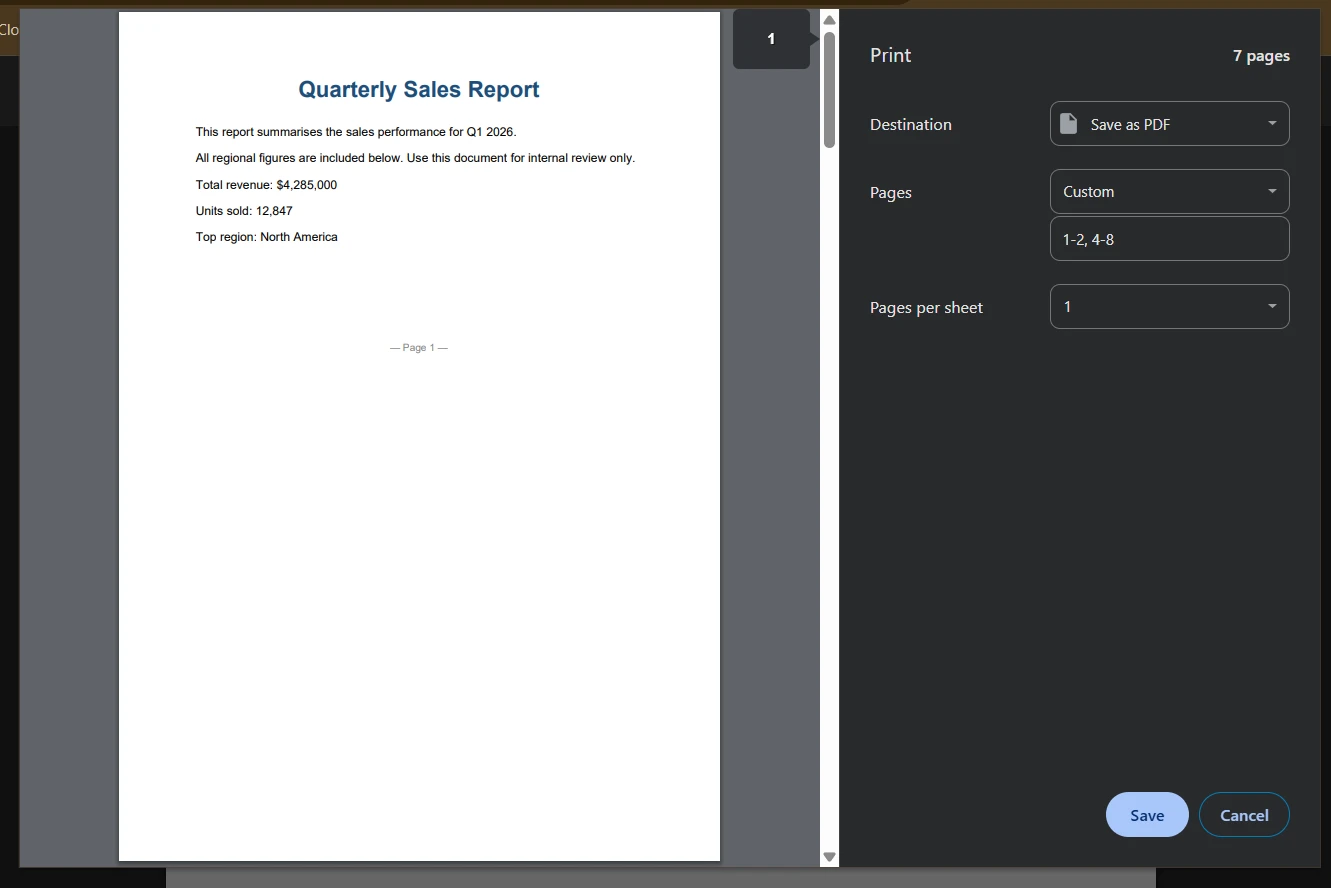
- In the Pages field, type the page numbers you want to keep. For example, if your document has 8 pages and you want to remove page 3, type 1-2, 4-8. If you want to remove pages 5 and 6, type 1-4, 7-8.
- Click Save, choose a file location, and confirm.
The new pdf file contains only the pages you specified. The original pdf file is untouched. In the screenshot below, the Chrome print dialog shows the Destination set to "Save as PDF" and the Pages field showing a custom page range that skips the unwanted page.
Important limitation: This method keeps pages, it does not let you select which pdf pages to remove by clicking on them. You have to work out the page numbers of the pages you want to keep and type those. For a visual approach where you can click on thumbnails to mark pages for deletion, use Method 2 or Method 3.
File size note: After deleting pages from a PDF, the file size may not decrease significantly because the deleted content can still exist in the file's structure, such as in the cross-reference table. Online tools and proper pdf editors typically do a better job of fully stripping removed content.
Method 2: Remove PDF Pages with an Online PDF Page Remover
Online pdf tools allow users to delete pages from pdf documents without the need for software installation, making them accessible from any device with a web browser. Most online pdf page remover services support drag and drop upload, visual thumbnail selection, and download in a single workflow.
Smallpdf (smallpdf.com/delete-pdf-pages)
One of the most used pdfs online tools for page removal.
- Go to smallpdf.com/delete-pdf-pages.
- Drag your pdf file onto the upload area, or click to browse.
- The tool displays all pdf pages as thumbnails across the top toolbar area.
- Hover over any page thumbnail and click the trash icon that appears to mark it for deletion.
- Click Apply Changes.
- Click the Download button to save the new pdf document.
ILovePDF (ilovepdf.com/remove-pdf-pages)
A free pdf editor with a clean interface and no signup required for basic use.
- Go to ilovepdf.com/remove-pages.
- Click Select PDF file or drag and drop your file.
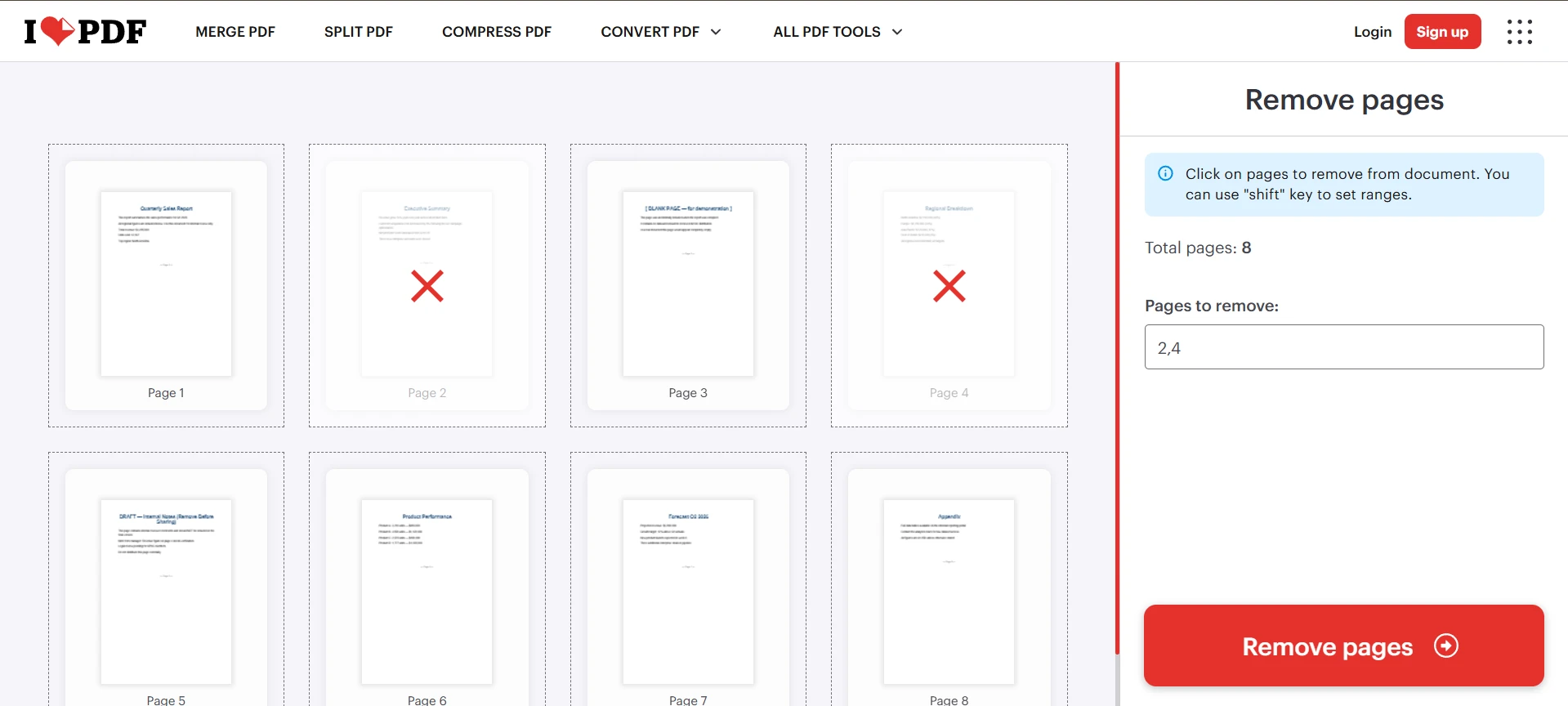
- All pdf pages appear as thumbnails. Click the pages you want to remove to select them. Selected pages show a red X icon in the corner.
- Click Remove PDF pages.
- Click Download PDF to save the modified file to a new file on your device.
If you also need to split a document before removing pages, navigate to the Split PDF section of the site first. The split pdf button divides the document at your chosen page, creating a new page boundary in each output file, which you can then clean up individually.
PDF24 (tools.pdf24.org/en/delete-pdf-pages)
A completely free pdf page remover with no usage limits.
- Go to tools.pdf24.org/en/delete-pdf-pages.
- Upload or drag your pdf file.
- Click the pages you want to delete from the thumbnail view.
- Click the delete icon or use the remover tool button.
- Save the new pdf file.
In the screenshot below, an online pdf page remover is showing a 8-page document as thumbnails. Pages 2 and 4 are selected with a red highlight, and the delete button in the top toolbar is ready to remove those selected pages.
Privacy consideration: Many online pdf tools do not actually remove the data from the document; they only hide the pages, which means that sensitive information may still be recoverable. For large files or sensitive data, desktop editors provide safer options for manipulating pdf pages without uploading files to cloud services. Some tools also let you convert, insert, or link pages from other documents in the same workflow, so check that the tool supports the full set of operations you need.. Files processed by online pdf tools are often encrypted during upload and download, but users should verify the security measures of the service to ensure their data is protected. It is important to choose a pdf tool that complies with security standards such as ISO/IEC 27001 and GDPR to ensure that personal data is handled securely.
Method 3: Delete PDF Pages in Adobe Acrobat
Adobe Acrobat is the most widely used desktop pdf editor and offers the most reliable way to delete pages with full control over what gets removed and what stays. Both Acrobat Pro and the free Acrobat Reader (with sign-in) support page deletion in recent versions.
- Open your pdf document in Adobe Acrobat.
- Click View > Page Panel > Thumbnails in the menu (or press F4) to open the page thumbnails panel on the left side.
- Click the thumbnail of the page you want to delete to select it. To select multiple pdf pages, hold Ctrl (Windows) or Cmd (Mac) and click each additional thumbnail. To select a range, click the first thumbnail, hold Shift, and click the last.
- Right-click any selected thumbnail and choose Delete Pages from the context menu. Alternatively, go to Edit > Delete.
- A confirmation dialog appears. Click OK.
- Go to File > Save or File > Save As to save the new pdf file.
In the screenshot below, the Acrobat thumbnails panel shows pages 3 and 5 highlighted in blue (selected), with the right-click context menu open showing "Delete Pages" highlighted.
Using the Organize Pages tool: In Acrobat Pro, go to Tools > Organize Pages. This opens a full-page thumbnail view where you can click any page thumbnail and press the trash icon below it to remove that page. The Organize Pages view makes it easier to see all pdf pages at once and perform multiple deletions in one session before saving. For a programmatic equivalent, the IronPDF rearrange pages guide shows how to reorder and delete pages in C# code.
Remove blank pages: The Organize Pages tool also shows clearly which pages are blank. You can remove blank pages by clicking their thumbnails and pressing Delete, which is much faster than identifying page numbers manually.
Method 4: Remove PDF Pages on Mac Using Preview
Mac users have a built-in pdf page remover in Preview, the default document viewer on macOS. No download is needed.
- Open your pdf file in Preview by double-clicking it (or right-click and select Open With > Preview).
- Go to View > Thumbnails to show the page thumbnails sidebar on the left.
- Click the thumbnail of the page you want to delete. Hold Cmd to select multiple pdf pages at once.
- Press the Delete key, or go to Edit > Delete from the menu bar.
- Go to File > Save (Cmd + S) to overwrite the original, or File > Export as PDF to create a new pdf file while keeping the original intact.
Common Preview issue: If the delete option is greyed out after clicking a thumbnail, you may have accidentally clicked in the document area after selecting the thumbnail, which deselects it. Click the thumbnail in the sidebar again as your very last action before pressing Delete or clicking Edit > Delete.
Mac print-to-PDF method: Mac also supports the browser method described in Method 1. Open the pdf in Safari or Chrome, press Cmd + P, choose Save as PDF as the printer, and specify page numbers in the Pages field. Both Windows and macOS have native methods to create a new version of a PDF that excludes unwanted pages through these printing options.
Method 5: Remove PDF Pages on Mobile (iOS and Android)
Mobile operating systems like iOS and Android have built-in functions to delete pages from PDFs via their respective file management apps or print options.
On iOS (iPhone/iPad):
- Open the pdf file in the Files app or in any app that supports PDF viewing.
- Tap the Share icon and choose Print.
- On the Print Preview screen, pinch outward on any page thumbnail to expand it to full screen, then pinch back to return to the thumbnail view.
- Long-press a page thumbnail and drag it to rearrange, or tap a page and use the delete option if your iOS version supports it.
- Alternatively, use the Files app on iOS 16+, which allows basic pdf page management by long-pressing the file and choosing Quick Actions > Remove Background (varies by version).
For reliable page deletion on iOS, apps like PDF Expert or Adobe Acrobat for iOS give you full thumbnail-based page management with a clear delete icon on each page.
On Android:
Most Android devices can open PDFs through Google Drive or the built-in Files app, but direct page deletion requires a dedicated app. Adobe Acrobat for Android and Xodo PDF Reader both offer page management tools with thumbnail views and delete options.
Common Errors and Troubleshooting
The delete option is greyed out in Acrobat
Errors in deleting pages may arise if the only page left in the document is being deleted, it is in a Protected View, or it is a specialized PDF/A file. If the document is in Protected View, go to Edit > Preferences > Security (Enhanced) and disable Protected View. PDF/A files are archival format files that restrict editing. Save a copy as a standard PDF first via File > Save As and change the format.
The PDF is password-protected
If the pdf file is password protected, you need to enter the password before any editing is allowed. Some PDFs have permissions passwords that specifically prevent page deletion even if you can open and read them. In that case, you need the original creator's permissions password to unlock editing.
The file size did not change after deleting pages
After deleting pages from a PDF, the file size may not decrease significantly because the deleted content can still exist in the file's structure. To force a proper size reduction, use File > Save As instead of File > Save in Acrobat (Save As rebuilds the file structure cleanly), or re-upload and re-download through an online pdf tool that optimizes the output.
Online tool shows an error when uploading
Most online pdf tools have file size limits, typically 10 to 100 MB for free users. If your file exceeds the limit, compress it first using a pdf compression tool, or use a desktop application that has no upload size constraint. Helpful resources for finding the right tool include websites like AlternativeTo, which lets you filter by operating system and feature such as the ability to rotate pages, extract individual pages to a new file, or customize the output before removing it. If you post a question in user forums, communities can help identify which tool fits your operating system and file type. If you need answers to specific questions about a tool's security practices, look for user forums or feedback sections on the provider's support pages.
Quick Reference: Which Method to Use
For Developers: Delete PDF Pages Programmatically with IronPDF
If your application processes PDF documents automatically, deleting pages manually for each file does not scale. IronPDF provides RemovePage() and RemovePages() methods that let you delete pdf pages in C# with a single line of code, with no Microsoft Office or Adobe installation required on the server.
Here's how to remove pdf pages from an existing file:
using IronPdf;
using System.Collections.Generic;
// Load the PDF file
PdfDocument pdf = PdfDocument.FromFile("full_report.pdf");
// Remove a single page (zero-based index: page 3 = index 2)
pdf.RemovePage(2);
// Remove multiple specific pages at once
pdf.RemovePages(new List<int> { 4, 7, 11 });
// Remove the last page
pdf.RemovePage(pdf.PageCount - 1);
// Remove blank pages by checking page content
for (int i = pdf.PageCount - 1; i >= 0; i--)
{
    if (string.IsNullOrWhiteSpace(pdf.Pages[i].Text))
    {
        pdf.RemovePage(i);
    }
}
// Save as a new PDF file
pdf.SaveAs("report_cleaned.pdf");
using IronPdf;
using System.Collections.Generic;
// Load the PDF file
PdfDocument pdf = PdfDocument.FromFile("full_report.pdf");
// Remove a single page (zero-based index: page 3 = index 2)
pdf.RemovePage(2);
// Remove multiple specific pages at once
pdf.RemovePages(new List<int> { 4, 7, 11 });
// Remove the last page
pdf.RemovePage(pdf.PageCount - 1);
// Remove blank pages by checking page content
for (int i = pdf.PageCount - 1; i >= 0; i--)
{
    if (string.IsNullOrWhiteSpace(pdf.Pages[i].Text))
    {
        pdf.RemovePage(i);
    }
}
// Save as a new PDF file
pdf.SaveAs("report_cleaned.pdf");
Imports IronPdf
Imports System.Collections.Generic
' Load the PDF file
Dim pdf As PdfDocument = PdfDocument.FromFile("full_report.pdf")
' Remove a single page (zero-based index: page 3 = index 2)
pdf.RemovePage(2)
' Remove multiple specific pages at once
pdf.RemovePages(New List(Of Integer) From {4, 7, 11})
' Remove the last page
pdf.RemovePage(pdf.PageCount - 1)
' Remove blank pages by checking page content
For i As Integer = pdf.PageCount - 1 To 0 Step -1
If String.IsNullOrWhiteSpace(pdf.Pages(i).Text) Then
pdf.RemovePage(i)
End If
Next
' Save as a new PDF file
pdf.SaveAs("report_cleaned.pdf")
Imports IronPdf
Imports System.Collections.Generic

' Load the PDF file
Dim pdf As PdfDocument = PdfDocument.FromFile("full_report.pdf")

' Remove a single page (zero-based index: page 3 = index 2)
pdf.RemovePage(2)

' Remove multiple specific pages at once
pdf.RemovePages(New List(Of Integer) From {4, 7, 11})

' Remove the last page
pdf.RemovePage(pdf.PageCount - 1)

' Remove blank pages by checking page content
For i As Integer = pdf.PageCount - 1 To 0 Step -1
    If String.IsNullOrWhiteSpace(pdf.Pages(i).Text) Then
        pdf.RemovePage(i)
    End If
Next

' Save as a new PDF file
pdf.SaveAs("report_cleaned.pdf")
Page indices in IronPDF are zero-based: the first page is index 0, the second is index 1, and so on. RemovePages() processes multiple page indices in descending order internally, so there is no need to worry about index shifting when removing multiple pdf pages. The removal process maintains the integrity of remaining pages, including bookmarks, annotations, and form fields.
For a full reference on page manipulation including merge, split, and copy operations, see the IronPDF add, copy and delete pages guide and the remove specific PDF pages code example. For editing other content in PDF documents, see the complete PDF editing tutorial.
IronPDF runs on Windows, Linux, and macOS with no Adobe or Office dependencies, making it suitable for server environments, Docker containers, and cloud deployments.
Getting started: Install via NuGet with Install-Package IronPdf and start your free trial to test in your environment. IronPDF runs on .NET 6+ and supports Azure and AWS.
Wrapping Up
Removing pages from a PDF is a straightforward process once you know which method fits your situation. For a quick one-off removal with no tools required, the browser print dialog handles it in under a minute on any operating system. For a visual approach where you can see all pdf pages as thumbnails and click to delete, any of the free online pdf page remover tools do the job reliably for non-sensitive documents. For sensitive files that should not leave your machine, Adobe Acrobat and Preview on Mac give you full local control. For developers automating this in a .NET application, IronPDF provides RemovePage and RemovePages methods that handle the process in a few lines of C# code.
Two things worth keeping in mind: always verify the result by opening the new pdf document and checking the page count and content before sharing it, and for sensitive data, prefer a desktop pdf editor over an online tool since online services vary significantly in how thoroughly they remove deleted page data from the file structure.