using IronPdf;

// Disable local disk access or cross-origin requests
Installation.EnableWebSecurity = true;

// Instantiate Renderer
var renderer = new ChromePdfRenderer();

// Create a PDF from a HTML string using C#
var pdf = renderer.RenderHtmlAsPdf("<h1>Hello World</h1>");

// Export to a file or Stream
pdf.SaveAs("output.pdf");

// Advanced Example with HTML Assets
// Load external html assets: Images, CSS and JavaScript.
// An optional BasePath 'C:\site\assets\' is set as the file location to load assets from
var myAdvancedPdf = renderer.RenderHtmlAsPdf("<img src='icons/iron.png'>", @"C:\site\assets\");
myAdvancedPdf.SaveAs("html-with-assets.pdf");
using IronPdf;// Disable local disk access or cross-origin requestsInstallation.EnableWebSecurity = true;// Instantiate Renderervar renderer = new ChromePdfRenderer();// Create a PDF from a HTML string using C#var pdf = renderer.RenderHtmlAsPdf("<h1>Hello World</h1>");// Export to a file or Streampdf.SaveAs("output.pdf");// Advanced Example with HTML Assets// Load external html assets: Images, CSS and JavaScript.// An optional BasePath 'C:\site\assets\' is set as the file location to load assets fromvar myAdvancedPdf = renderer.RenderHtmlAsPdf("<img src='icons/iron.png'>", @"C:\site\assets\");myAdvancedPdf.SaveAs("html-with-assets.pdf");
PM >Install-Package IronPdf
Install-Package IronPdf
USING IRONPDF
How to Create, Fill, and Extract PDF Forms in C# Using a .NET SDK
Interactive PDF forms turn static documents into data collection tools you can generate and process entirely in code. Whether building patient intake portals, automating loan applications, or generating thousands of pre-filled compliance forms from a database, [IronPDF](https://ironpdf.com/) gives .NET developers a single, consistent API for every form task - creation, field population, data extraction, and bulk processing.
This guide walks through each of those tasks with working C# code examples you can drop straight into a .NET 10 project.
## How Do You Get Started with IronPDF?
IronPDF is available on NuGet and takes about a minute to add to any .NET project. Open the Package Manager Console in Visual Studio and run:
```shell
:ProductInstall
```
You can also search for **IronPDF** in the NuGet Package Manager GUI, or add it from the .NET CLI with `dotnet add package IronPdf`. No additional runtime dependencies or configuration files are required - the library ships with everything it needs to render PDFs on Windows, Linux, macOS, Docker, and Kubernetes.
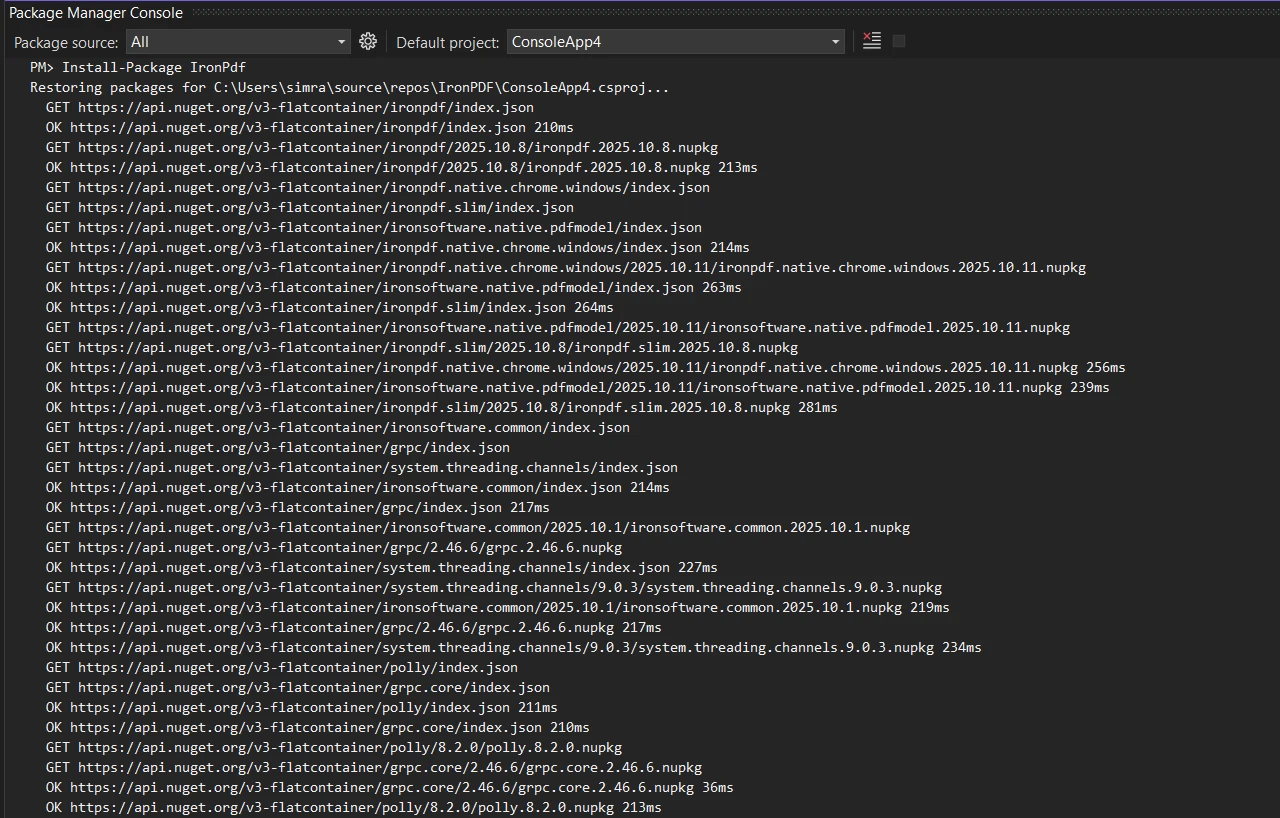
The package targets .NET Framework 4.6.2+ and all modern .NET versions including .NET 8, .NET 9, and .NET 10. Once the package is installed, add `using IronPdf;` at the top of your file and you are ready to generate your first PDF form.
Cross-platform deployment flexibility matters in production environments. IronPDF runs consistently whether your application targets Windows Server, a Linux container, or an Azure Function App - the same code produces the same output across every environment.
## What Makes PDF Forms Work? Understanding AcroForms
Before writing code, it helps to understand what you are building. The [AcroForm specification](https://opensource.adobe.com/dc-acrobat-sdk-docs/pdfstandards/PDF32000_2008.pdf) - part of the PDF standard since 1998 - defines interactive form fields that any standard PDF viewer can display and complete. AcroForms support text fields, checkboxes, radio buttons, dropdown lists, list boxes, and signature fields.
AcroForms are the format IronPDF creates and reads. Unlike XFA forms (an older, proprietary Adobe format), AcroForms work across Adobe Reader, browser-based PDF viewers, and mobile apps without compatibility issues. When you [create PDF forms](https://ironpdf.com/how-to/create-forms/) with IronPDF, the output is a standards-compliant AcroForm PDF that any viewer can open.
Each form field carries a name, a type, and a value. The name is the key you use when reading or writing data programmatically. Field names must be unique within a document - if you populate a form by name and the field name does not match exactly, the write silently has no effect, which is a common source of bugs when filling forms from a database schema.
Field types determine what values are accepted. Text fields take any string. Checkboxes accept "Yes" or "No." Radio buttons accept the string value of the selected option. Dropdowns accept the string value of the selected item, which must be one of the options defined when the field was created.
## How Do You Create a PDF Form from HTML?
The fastest way to build a fillable PDF form is to write it as standard HTML and convert it. Every HTML form element maps directly to its AcroForm equivalent: `<input type="text">` becomes a text field, `<input type="checkbox">` becomes a checkbox, `<select>` becomes a dropdown, and `<textarea>` becomes a multiline text field.
Enable form creation by setting `CreatePdfFormsFromHtml = true` on the renderer's `RenderingOptions`. Without that flag, HTML form elements render as static visual content - you can see them in the PDF, but they are not interactive fields.
```csharp
using IronPdf;

// HTML with form elements for PDF generation
string formHtml = @"
<html>
<body>
    <h2>Customer Registration</h2>
    <form>
        <label>Full Name:</label><br/>
        <input type='text' name='fullName'><br/>
        <label>Email Address:</label><br/>
        <input type='email' name='email'><br/>
        <label>Account Type:</label><br/>
        <select name='accountType'>
            <option value='personal'>Personal</option>
            <option value='business'>Business</option>
        </select><br/>
        <label>Newsletter:</label><br/>
        <input type='checkbox' name='newsletter' value='yes'>Subscribe<br/>
        <label>Comments:</label><br/>
        <textarea name='comments' rows='4' style='width:300px'></textarea>
    </form>
</body>
</html>";

// Enable form field generation from HTML
ChromePdfRenderer renderer = new ChromePdfRenderer();
renderer.RenderingOptions.CreatePdfFormsFromHtml = true;

// Render and save the PDF with interactive fields
PdfDocument pdf = renderer.RenderHtmlAsPdf(formHtml);
pdf.SaveAs("registration-form.pdf");
```
Each HTML input's `name` attribute becomes the field name in the PDF. That name is what you use later when reading or writing field values programmatically. Choose names that match your data model - if you are going to populate this form from a database object, name the fields after the object's properties.
### Output
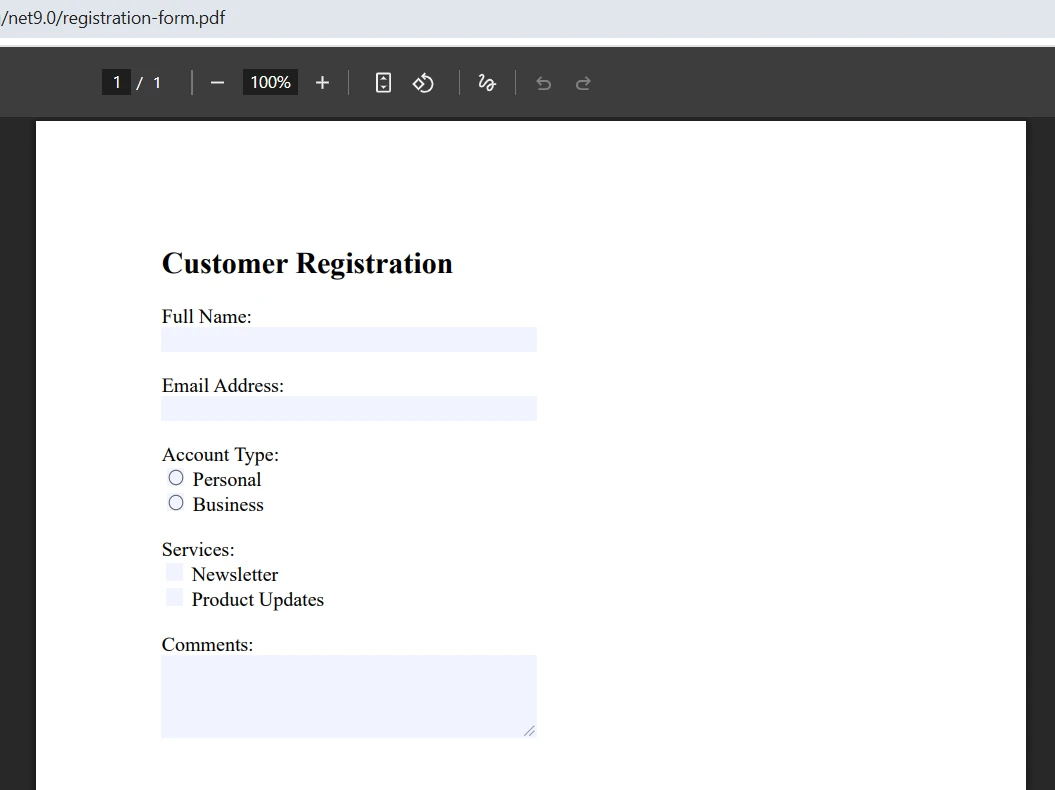
Text inputs and textareas render as editable text fields. Radio buttons with matching `name` attributes group together so only one can be selected. Checkboxes render as toggleable fields. The resulting PDF opens in any standard viewer with all form fields ready to complete.
This HTML-based approach works well when form designs already exist as web pages, when your team prefers maintaining forms in markup, or when you need to generate forms that match your application's existing HTML templates precisely. The renderer handles all PDF specification details.
## How Do You Add Form Fields to a PDF Programmatically?
When precise coordinate control is required, or when you are adding form fields to an existing PDF document, the [programmatic form field API](https://ironpdf.com/how-to/create-forms/) gives you direct control over every field's position, size, and default value.
Create field objects with explicit page coordinates. The origin `(0, 0)` is at the bottom-left corner of the page, with x increasing right and y increasing up - the same coordinate system used throughout the PDF specification.
```csharp
using IronPdf;
using IronSoftware.Forms;
// Generate a base PDF document to add fields to
ChromePdfRenderer renderer = new ChromePdfRenderer();
PdfDocument pdf = renderer.RenderHtmlAsPdf(
"<h1>Application Form</h1><p>Please complete all fields below.</p>");
// Text field: name, default value, page index, x, y, width, height
var nameField = new TextFormField("applicantName", "", 0, 50, 700, 200, 20);
pdf.Form.Add(nameField);
// Checkbox field with default unchecked state
var termsCheckbox = new CheckboxFormField("agreeTerms", "no", 0, 50, 650, 15, 15);
pdf.Form.Add(termsCheckbox);
// Dropdown with a defined list of options
var departmentCombo = new ComboboxFormField(
"department", "", 0, 50, 600, 150, 20,
new List<string> { "Engineering", "Marketing", "Sales", "Support" });
pdf.Form.Add(departmentCombo);
// Save the output document
pdf.SaveAs("application-with-fields.pdf");
```
`TextFormField` creates a single-line text input. `CheckboxFormField` places a toggleable checkbox. `ComboboxFormField` creates a dropdown restricted to the provided option list. Each class exposes additional properties for setting tab order, tooltip text, read-only state, and required field flags.
Both approaches - HTML conversion and programmatic field creation - can be combined. Generate the base layout from HTML for efficient template control, then add specialized fields with precise positioning using the API. The [fill and edit forms guide](https://ironpdf.com/how-to/edit-forms/) covers the full range of available field types.
## How Do You Fill an Existing PDF Form?
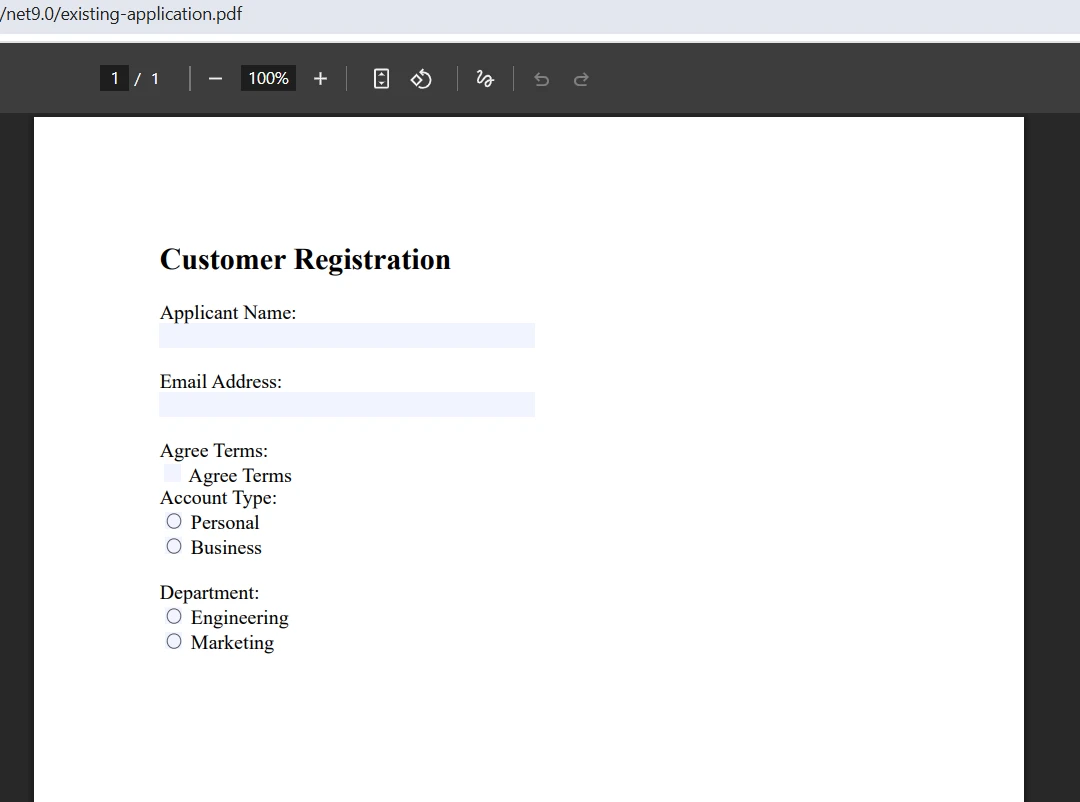
Many workflows start with a pre-existing PDF form - a government template, a vendor contract, or a standardized application your organization receives from partners. [Filling these forms programmatically](https://ironpdf.com/how-to/edit-forms/) lets you automate document generation without recreating the original design.
Load the existing PDF with `PdfDocument.FromFile`, locate each field by its name using `FindFormField`, and assign a value to the field's `Value` property.
```csharp
using IronPdf;
// Load the existing PDF containing AcroForm fields
PdfDocument pdf = PdfDocument.FromFile("existing-application.pdf");
// Fill text fields by exact field name
var nameField = pdf.Form.FindFormField("applicantName");
nameField.Value = "Sarah Johnson";
var emailField = pdf.Form.FindFormField("email");
emailField.Value = "sarah.johnson@example.com";
// Set checkbox and radio button values
var termsField = pdf.Form.FindFormField("agreeTerms");
termsField.Value = "Yes";
var accountTypeField = pdf.Form.FindFormField("accountType");
accountTypeField.Value = "business";
// Set dropdown selection to one of its defined options
var departmentField = pdf.Form.FindFormField("department");
departmentField.Value = "Engineering";
// Save the completed form
pdf.SaveAs("completed-application.pdf");
```
`FindFormField` locates fields by the name assigned during form creation. Field name matching is case-sensitive and exact - "applicantName" and "ApplicantName" are different fields. If you are filling a third-party form and are unsure of field names, iterate over `pdf.Form` to print each field's name before trying to fill by name.
### Input
### Output
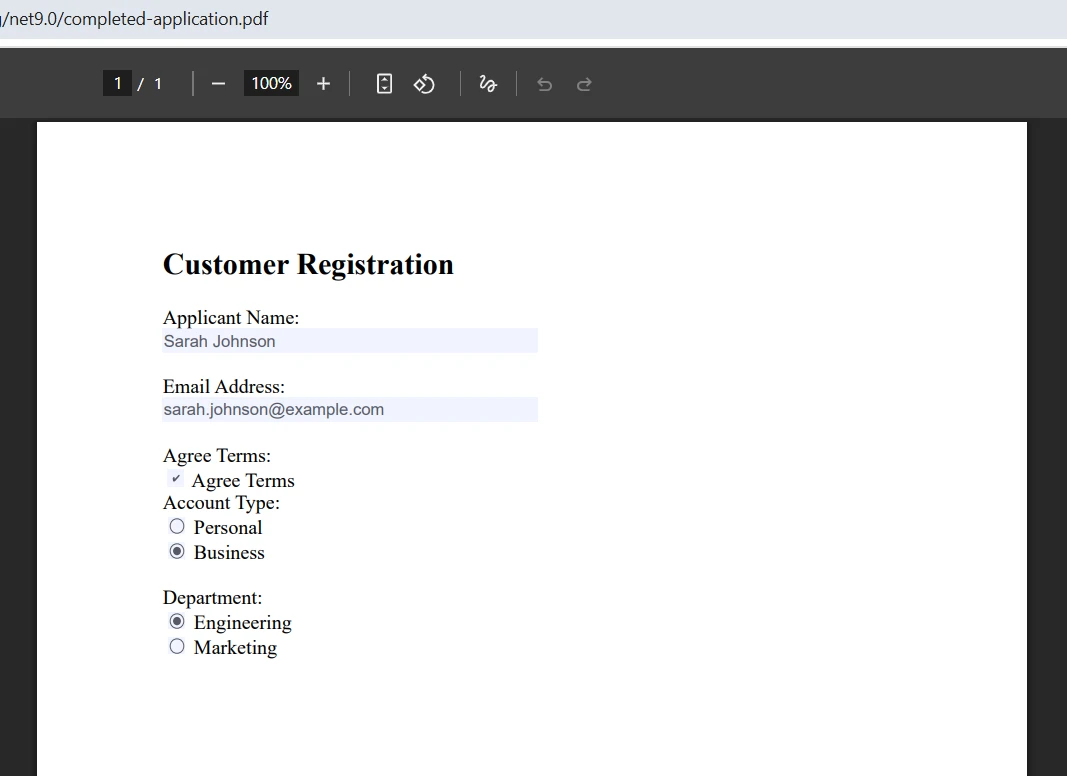
Different field types require appropriate value formats. Text fields accept any string. Checkboxes accept "Yes" or "No." Radio buttons accept the string value of the desired option. Dropdowns accept the string value of one of the defined options - setting a value that is not in the option list has no effect.
When processing forms with many fields, iterate over `pdf.Form` directly rather than calling `FindFormField` repeatedly. Iteration is more efficient for bulk operations and avoids repeated linear searches through the field collection.
## How Do You Read and Extract Form Field Data?
[Extracting form data](https://ironpdf.com/blog/using-ironpdf/csharp-read-pdf-form-fields/) from submitted PDFs is the reverse operation: load a completed form, then read each field's name and current value for downstream processing. This pattern powers automated intake workflows where users complete a PDF form, upload it, and the application processes the data without manual data entry.
```csharp
using IronPdf;
// Load the completed, submitted PDF form
PdfDocument pdf = PdfDocument.FromFile("submitted-form.pdf");
// Iterate all fields to extract names, values, and types
Console.WriteLine("Form Data Extraction:");
Console.WriteLine("----------------------");
foreach (var field in pdf.Form)
{
Console.WriteLine($"Field: {field.Name}");
Console.WriteLine($"Value: {field.Value}");
Console.WriteLine($"Type: {field.GetType().Name}");
Console.WriteLine();
}
// Or retrieve specific fields for targeted processing
var customerName = pdf.Form.FindFormField("applicantName")?.Value ?? "Not provided";
var customerEmail = pdf.Form.FindFormField("email")?.Value ?? "Not provided";
Console.WriteLine($"Customer: {customerName} ({customerEmail})");
```
The `Form` property exposes an enumerable collection of all fields in the document. Each field object provides its `Name`, current `Value`, and type information. Generic form processors use this pattern to handle any PDF form structure without hard-coded field names.
### Output
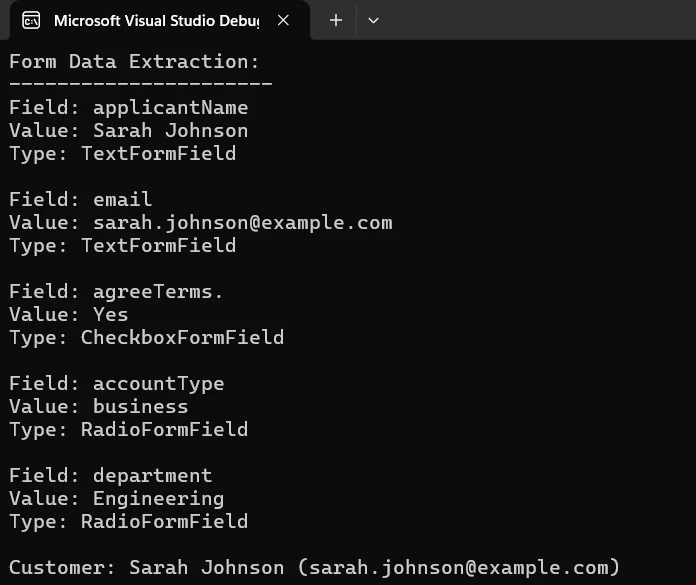
The null-conditional operator `?.` on `FindFormField` handles cases where an expected field is absent - useful when processing forms from multiple sources that may have slightly different field structures. Always supply a fallback value or null check rather than assuming the field exists.
Extracted data integrates directly with Entity Framework or ADO.NET for database writes, JSON serialization for API responses, and CSV generation for reporting. Pair IronPDF with [IronOCR](https://ironocr.com/) when you also need to extract data from scanned or image-based form submissions where fields were not filled digitally.
## How Do You Generate Personalized Forms at Scale?
The highest-volume use case for PDF form automation is batch generation - producing hundreds or thousands of forms pre-filled with data from a database, API, or CSV file. A simple loop handles this without any extra infrastructure.
```csharp
using IronPdf;
// Retrieve customer records from your data source
var customers = GetCustomersFromDatabase();
ChromePdfRenderer renderer = new ChromePdfRenderer();
renderer.RenderingOptions.CreatePdfFormsFromHtml = true;
foreach (var customer in customers)
{
// Build an HTML template with static data pre-filled and interactive fields for user input
string formHtml = $@"
<html><body>
<h2>Annual Review Form</h2>
<p>Customer: {customer.Name}</p>
<p>Account: {customer.AccountNumber}</p>
<label>Satisfaction Rating (1-5):</label><br/>
<input type='text' name='rating' maxlength='1'><br/>
<label>Feedback:</label><br/>
<textarea name='feedback' rows='5' style='width:100%'></textarea>
</body></html>";
PdfDocument pdf = renderer.RenderHtmlAsPdf(formHtml);
pdf.SaveAs($"review-form-{customer.AccountNumber}.pdf");
}
```
The HTML template embeds static customer data directly, so the recipient sees their name and account number pre-printed, and provides interactive fields for the data they need to supply. Batch processing hundreds of records completes in seconds rather than the hours manual preparation would require.
The loop structure works with any data source: [Entity Framework queries](https://learn.microsoft.com/en-us/ef/core/), API responses, or CSV imports. Each iteration produces a complete, ready-to-distribute PDF customized for that record. For high-throughput scenarios, use `async`/`await` with `Task.WhenAll` to render forms in parallel - IronPDF's `RenderHtmlAsPdfAsync` method supports fully asynchronous rendering.
After batch generation, forms are commonly packaged into a ZIP archive for distribution using [IronZIP](https://ironzip.com/), sent via email integration, uploaded to cloud storage, or routed to an electronic signature platform for binding completion.
## How Do You Flatten or Lock PDF Forms After Completion?
Once a form is fully completed and validated, you often need to lock it so the values can no longer be edited. Flattening converts all interactive form fields into static, non-editable visual content while preserving the exact appearance of the completed form.
```csharp
using IronPdf;
// Load a completed, signed form
PdfDocument pdf = PdfDocument.FromFile("completed-application.pdf");
// Flatten all form fields - converts interactive fields to static content
pdf.Form.Flatten();
// Save the locked, non-editable version
pdf.SaveAs("locked-application.pdf");
```
Flattening is the correct approach for archiving completed forms, generating PDF/A compliant documents for long-term storage, and producing final copies for distribution. After flattening, the form data is still visible but cannot be modified. The [PDF flatten guide](https://ironpdf.com/how-to/pdf-image-flatten-csharp/) covers additional flatten options including selective field flattening.
For scenarios requiring legally binding completion, IronPDF also supports [digital signatures](https://ironpdf.com/how-to/signing/), which cryptographically bind the signer's identity to the document. Digital signatures and form flattening serve different purposes - signatures prove authenticity, flattening prevents modification.
## What Are Your Next Steps?
PDF forms in .NET cover four core operations: creating forms from HTML or through the API, filling existing forms from data sources, extracting submitted data, and batch generating personalized copies at scale. IronPDF handles all four through a consistent API, with the same code running on Windows, Linux, macOS, and inside containers.
The [Create PDF Forms how-to guide](https://ironpdf.com/how-to/create-forms/) covers every available field type with code examples. The [Fill and Edit Forms guide](https://ironpdf.com/how-to/edit-forms/) goes deeper on bulk field updates, radio button groups, and list box handling. The [IronPDF documentation hub](https://ironpdf.com/docs/) provides the complete API reference and advanced topics including multi-page forms, form field validation, and performance tuning for high-volume pipelines.
[Start a free trial](https://ironpdf.com/licensing/#trial-license) to explore PDF form capabilities in your own project, or [review licensing options](https://ironpdf.com/licensing/) for production deployment.
Interactive PDF forms turn static documents into data collection tools you can generate and process entirely in code. Whether building patient intake portals, automating loan applications, or generating thousands of pre-filled compliance forms from a database, IronPDF gives .NET developers a single, consistent API for every form task - creation, field population, data extraction, and bulk processing.
This guide walks through each of those tasks with working C# code examples you can drop straight into a .NET 10 project.
How Do You Get Started with IronPDF?
IronPDF is available on NuGet and takes about a minute to add to any .NET project. Open the Package Manager Console in Visual Studio and run:
PM > Install-Package IronPdf
Install-Package IronPdf
You can also search for IronPDF in the NuGet Package Manager GUI, or add it from the .NET CLI with dotnet add package IronPdf. No additional runtime dependencies or configuration files are required - the library ships with everything it needs to render PDFs on Windows, Linux, macOS, Docker, and Kubernetes.
The package targets .NET Framework 4.6.2+ and all modern .NET versions including .NET 8, .NET 9, and .NET 10. Once the package is installed, add using IronPdf; at the top of your file and you are ready to generate your first PDF form.
Cross-platform deployment flexibility matters in production environments. IronPDF runs consistently whether your application targets Windows Server, a Linux container, or an Azure Function App - the same code produces the same output across every environment.
What Makes PDF Forms Work? Understanding AcroForms
Before writing code, it helps to understand what you are building. The AcroForm specification - part of the PDF standard since 1998 - defines interactive form fields that any standard PDF viewer can display and complete. AcroForms support text fields, checkboxes, radio buttons, dropdown lists, list boxes, and signature fields.
AcroForms are the format IronPDF creates and reads. Unlike XFA forms (an older, proprietary Adobe format), AcroForms work across Adobe Reader, browser-based PDF viewers, and mobile apps without compatibility issues. When you create PDF forms with IronPDF, the output is a standards-compliant AcroForm PDF that any viewer can open.
Each form field carries a name, a type, and a value. The name is the key you use when reading or writing data programmatically. Field names must be unique within a document - if you populate a form by name and the field name does not match exactly, the write silently has no effect, which is a common source of bugs when filling forms from a database schema.
Field types determine what values are accepted. Text fields take any string. Checkboxes accept "Yes" or "No." Radio buttons accept the string value of the selected option. Dropdowns accept the string value of the selected item, which must be one of the options defined when the field was created.
How Do You Create a PDF Form from HTML?
The fastest way to build a fillable PDF form is to write it as standard HTML and convert it. Every HTML form element maps directly to its AcroForm equivalent: <input type="text"> becomes a text field, <input type="checkbox"> becomes a checkbox, <select> becomes a dropdown, and <textarea> becomes a multiline text field.
Enable form creation by setting CreatePdfFormsFromHtml = true on the renderer's RenderingOptions. Without that flag, HTML form elements render as static visual content - you can see them in the PDF, but they are not interactive fields.
using IronPdf;// HTML with form elements for PDF generationstring formHtml = @"<html><body> <h2>Customer Registration</h2> <form> <label>Full Name:</label><br/> <input type='text' name='fullName'><br/> <label>Email Address:</label><br/> <input type='email' name='email'><br/> <label>Account Type:</label><br/> <select name='accountType'> <option value='personal'>Personal</option> <option value='business'>Business</option> </select><br/> <label>Newsletter:</label><br/> <input type='checkbox' name='newsletter' value='yes'>Subscribe<br/> <label>Comments:</label><br/> <textarea name='comments' rows='4' style='width:300px'></textarea> </form></body></html>";// Enable form field generation from HTMLChromePdfRenderer renderer = new ChromePdfRenderer();renderer.RenderingOptions.CreatePdfFormsFromHtml = true;// Render and save the PDF with interactive fieldsPdfDocument pdf = renderer.RenderHtmlAsPdf(formHtml);pdf.SaveAs("registration-form.pdf");
using IronPdf;

// HTML with form elements for PDF generation
string formHtml = @"
<html>
<body>
    <h2>Customer Registration</h2>
    <form>
        <label>Full Name:</label><br/>
        <input type='text' name='fullName'><br/>
        <label>Email Address:</label><br/>
        <input type='email' name='email'><br/>
        <label>Account Type:</label><br/>
        <select name='accountType'>
            <option value='personal'>Personal</option>
            <option value='business'>Business</option>
        </select><br/>
        <label>Newsletter:</label><br/>
        <input type='checkbox' name='newsletter' value='yes'>Subscribe<br/>
        <label>Comments:</label><br/>
        <textarea name='comments' rows='4' style='width:300px'></textarea>
    </form>
</body>
</html>";

// Enable form field generation from HTML
ChromePdfRenderer renderer = new ChromePdfRenderer();
renderer.RenderingOptions.CreatePdfFormsFromHtml = true;

// Render and save the PDF with interactive fields
PdfDocument pdf = renderer.RenderHtmlAsPdf(formHtml);
pdf.SaveAs("registration-form.pdf");
IRONVBCONVERTERERROR developers@ironsoftware.com
IRON VB CONVERTER ERROR developers@ironsoftware.com
Each HTML input's name attribute becomes the field name in the PDF. That name is what you use later when reading or writing field values programmatically. Choose names that match your data model - if you are going to populate this form from a database object, name the fields after the object's properties.
Output
Text inputs and textareas render as editable text fields. Radio buttons with matching name attributes group together so only one can be selected. Checkboxes render as toggleable fields. The resulting PDF opens in any standard viewer with all form fields ready to complete.
This HTML-based approach works well when form designs already exist as web pages, when your team prefers maintaining forms in markup, or when you need to generate forms that match your application's existing HTML templates precisely. The renderer handles all PDF specification details.
How Do You Add Form Fields to a PDF Programmatically?
When precise coordinate control is required, or when you are adding form fields to an existing PDF document, the programmatic form field API gives you direct control over every field's position, size, and default value.
Create field objects with explicit page coordinates. The origin (0, 0) is at the bottom-left corner of the page, with x increasing right and y increasing up - the same coordinate system used throughout the PDF specification.
using IronPdf;using IronSoftware.Forms;// Generate a base PDF document to add fields toChromePdfRenderer renderer = new ChromePdfRenderer();PdfDocument pdf = renderer.RenderHtmlAsPdf( "<h1>Application Form</h1><p>Please complete all fields below.</p>");// Text field: name, default value, page index, x, y, width, heightvar nameField = new TextFormField("applicantName", "", 0, 50, 700, 200, 20);pdf.Form.Add(nameField);// Checkbox field with default unchecked statevar termsCheckbox = new CheckboxFormField("agreeTerms", "no", 0, 50, 650, 15, 15);pdf.Form.Add(termsCheckbox);// Dropdown with a defined list of optionsvar departmentCombo = new ComboboxFormField( "department", "", 0, 50, 600, 150, 20, new List<string> { "Engineering", "Marketing", "Sales", "Support" });pdf.Form.Add(departmentCombo);// Save the output documentpdf.SaveAs("application-with-fields.pdf");
using IronPdf;
using IronSoftware.Forms;

// Generate a base PDF document to add fields to
ChromePdfRenderer renderer = new ChromePdfRenderer();
PdfDocument pdf = renderer.RenderHtmlAsPdf(
    "<h1>Application Form</h1><p>Please complete all fields below.</p>");

// Text field: name, default value, page index, x, y, width, height
var nameField = new TextFormField("applicantName", "", 0, 50, 700, 200, 20);
pdf.Form.Add(nameField);

// Checkbox field with default unchecked state
var termsCheckbox = new CheckboxFormField("agreeTerms", "no", 0, 50, 650, 15, 15);
pdf.Form.Add(termsCheckbox);

// Dropdown with a defined list of options
var departmentCombo = new ComboboxFormField(
    "department", "", 0, 50, 600, 150, 20,
    new List<string> { "Engineering", "Marketing", "Sales", "Support" });
pdf.Form.Add(departmentCombo);

// Save the output document
pdf.SaveAs("application-with-fields.pdf");
ImportsIronPdfImportsIronSoftware.Forms' Generate a base PDF document to add fields toDim renderer As New ChromePdfRenderer()Dim pdf AsPdfDocument = renderer.RenderHtmlAsPdf("<h1>Application Form</h1><p>Please complete all fields below.</p>")' Text field: name, default value, page index, x, y, width, heightDim nameField As New TextFormField("applicantName", "", 0, 50, 700, 200, 20)pdf.Form.Add(nameField)' Checkbox field with default unchecked stateDim termsCheckbox As New CheckboxFormField("agreeTerms", "no", 0, 50, 650, 15, 15)pdf.Form.Add(termsCheckbox)' Dropdown with a defined list of optionsDim departmentCombo As New ComboboxFormField("department", "", 0, 50, 600, 150, 20, New List(OfString) From {"Engineering", "Marketing", "Sales", "Support"})pdf.Form.Add(departmentCombo)' Save the output documentpdf.SaveAs("application-with-fields.pdf")
Imports IronPdf
Imports IronSoftware.Forms

' Generate a base PDF document to add fields to
Dim renderer As New ChromePdfRenderer()
Dim pdf As PdfDocument = renderer.RenderHtmlAsPdf("<h1>Application Form</h1><p>Please complete all fields below.</p>")

' Text field: name, default value, page index, x, y, width, height
Dim nameField As New TextFormField("applicantName", "", 0, 50, 700, 200, 20)
pdf.Form.Add(nameField)

' Checkbox field with default unchecked state
Dim termsCheckbox As New CheckboxFormField("agreeTerms", "no", 0, 50, 650, 15, 15)
pdf.Form.Add(termsCheckbox)

' Dropdown with a defined list of options
Dim departmentCombo As New ComboboxFormField("department", "", 0, 50, 600, 150, 20, New List(Of String) From {"Engineering", "Marketing", "Sales", "Support"})
pdf.Form.Add(departmentCombo)

' Save the output document
pdf.SaveAs("application-with-fields.pdf")
TextFormField creates a single-line text input. CheckboxFormField places a toggleable checkbox. ComboboxFormField creates a dropdown restricted to the provided option list. Each class exposes additional properties for setting tab order, tooltip text, read-only state, and required field flags.
Both approaches - HTML conversion and programmatic field creation - can be combined. Generate the base layout from HTML for efficient template control, then add specialized fields with precise positioning using the API. The fill and edit forms guide covers the full range of available field types.
How Do You Fill an Existing PDF Form?
Many workflows start with a pre-existing PDF form - a government template, a vendor contract, or a standardized application your organization receives from partners. Filling these forms programmatically lets you automate document generation without recreating the original design.
Load the existing PDF with PdfDocument.FromFile, locate each field by its name using FindFormField, and assign a value to the field's Value property.
using IronPdf;// Load the existing PDF containing AcroForm fieldsPdfDocument pdf = PdfDocument.FromFile("existing-application.pdf");// Fill text fields by exact field namevar nameField = pdf.Form.FindFormField("applicantName");nameField.Value = "Sarah Johnson";var emailField = pdf.Form.FindFormField("email");emailField.Value = "sarah.johnson@example.com";// Set checkbox and radio button valuesvar termsField = pdf.Form.FindFormField("agreeTerms");termsField.Value = "Yes";var accountTypeField = pdf.Form.FindFormField("accountType");accountTypeField.Value = "business";// Set dropdown selection to one of its defined optionsvar departmentField = pdf.Form.FindFormField("department");departmentField.Value = "Engineering";// Save the completed formpdf.SaveAs("completed-application.pdf");
using IronPdf;

// Load the existing PDF containing AcroForm fields
PdfDocument pdf = PdfDocument.FromFile("existing-application.pdf");

// Fill text fields by exact field name
var nameField = pdf.Form.FindFormField("applicantName");
nameField.Value = "Sarah Johnson";

var emailField = pdf.Form.FindFormField("email");
emailField.Value = "sarah.johnson@example.com";

// Set checkbox and radio button values
var termsField = pdf.Form.FindFormField("agreeTerms");
termsField.Value = "Yes";

var accountTypeField = pdf.Form.FindFormField("accountType");
accountTypeField.Value = "business";

// Set dropdown selection to one of its defined options
var departmentField = pdf.Form.FindFormField("department");
departmentField.Value = "Engineering";

// Save the completed form
pdf.SaveAs("completed-application.pdf");
ImportsIronPdf' Load the existing PDF containing AcroForm fieldsDim pdf AsPdfDocument = PdfDocument.FromFile("existing-application.pdf")' Fill text fields by exact field nameDim nameField = pdf.Form.FindFormField("applicantName")nameField.Value = "Sarah Johnson"Dim emailField = pdf.Form.FindFormField("email")emailField.Value = "sarah.johnson@example.com"' Set checkbox and radio button valuesDim termsField = pdf.Form.FindFormField("agreeTerms")termsField.Value = "Yes"Dim accountTypeField = pdf.Form.FindFormField("accountType")accountTypeField.Value = "business"' Set dropdown selection to one of its defined optionsDim departmentField = pdf.Form.FindFormField("department")departmentField.Value = "Engineering"' Save the completed formpdf.SaveAs("completed-application.pdf")
Imports IronPdf

' Load the existing PDF containing AcroForm fields
Dim pdf As PdfDocument = PdfDocument.FromFile("existing-application.pdf")

' Fill text fields by exact field name
Dim nameField = pdf.Form.FindFormField("applicantName")
nameField.Value = "Sarah Johnson"

Dim emailField = pdf.Form.FindFormField("email")
emailField.Value = "sarah.johnson@example.com"

' Set checkbox and radio button values
Dim termsField = pdf.Form.FindFormField("agreeTerms")
termsField.Value = "Yes"

Dim accountTypeField = pdf.Form.FindFormField("accountType")
accountTypeField.Value = "business"

' Set dropdown selection to one of its defined options
Dim departmentField = pdf.Form.FindFormField("department")
departmentField.Value = "Engineering"

' Save the completed form
pdf.SaveAs("completed-application.pdf")
FindFormField locates fields by the name assigned during form creation. Field name matching is case-sensitive and exact - "applicantName" and "ApplicantName" are different fields. If you are filling a third-party form and are unsure of field names, iterate over pdf.Form to print each field's name before trying to fill by name.
Input
Output
Different field types require appropriate value formats. Text fields accept any string. Checkboxes accept "Yes" or "No." Radio buttons accept the string value of the desired option. Dropdowns accept the string value of one of the defined options - setting a value that is not in the option list has no effect.
When processing forms with many fields, iterate over pdf.Form directly rather than calling FindFormField repeatedly. Iteration is more efficient for bulk operations and avoids repeated linear searches through the field collection.
How Do You Read and Extract Form Field Data?
Extracting form data from submitted PDFs is the reverse operation: load a completed form, then read each field's name and current value for downstream processing. This pattern powers automated intake workflows where users complete a PDF form, upload it, and the application processes the data without manual data entry.
using IronPdf;// Load the completed, submitted PDF formPdfDocument pdf = PdfDocument.FromFile("submitted-form.pdf");// Iterate all fields to extract names, values, and typesConsole.WriteLine("Form Data Extraction:");Console.WriteLine("----------------------");foreach (var field in pdf.Form){Console.WriteLine($"Field: {field.Name}");Console.WriteLine($"Value: {field.Value}");Console.WriteLine($"Type: {field.GetType().Name}");Console.WriteLine();}// Or retrieve specific fields for targeted processingvar customerName = pdf.Form.FindFormField("applicantName")?.Value ?? "Not provided";var customerEmail = pdf.Form.FindFormField("email")?.Value ?? "Not provided";Console.WriteLine($"Customer: {customerName} ({customerEmail})");
using IronPdf;

// Load the completed, submitted PDF form
PdfDocument pdf = PdfDocument.FromFile("submitted-form.pdf");

// Iterate all fields to extract names, values, and types
Console.WriteLine("Form Data Extraction:");
Console.WriteLine("----------------------");
foreach (var field in pdf.Form)
{
    Console.WriteLine($"Field: {field.Name}");
    Console.WriteLine($"Value: {field.Value}");
    Console.WriteLine($"Type:  {field.GetType().Name}");
    Console.WriteLine();
}

// Or retrieve specific fields for targeted processing
var customerName  = pdf.Form.FindFormField("applicantName")?.Value ?? "Not provided";
var customerEmail = pdf.Form.FindFormField("email")?.Value ?? "Not provided";
Console.WriteLine($"Customer: {customerName} ({customerEmail})");
ImportsIronPdf' Load the completed, submitted PDF formDim pdf AsPdfDocument = PdfDocument.FromFile("submitted-form.pdf")' Iterate all fields to extract names, values, and typesConsole.WriteLine("Form Data Extraction:")Console.WriteLine("----------------------")For Each field In pdf.FormConsole.WriteLine($"Field: {field.Name}")Console.WriteLine($"Value: {field.Value}")Console.WriteLine($"Type: {field.GetType().Name}")Console.WriteLine()Next' Or retrieve specific fields for targeted processingDim customerName AsString = If(pdf.Form.FindFormField("applicantName")?.Value, "Not provided")Dim customerEmail AsString = If(pdf.Form.FindFormField("email")?.Value, "Not provided")Console.WriteLine($"Customer: {customerName} ({customerEmail})")
Imports IronPdf

' Load the completed, submitted PDF form
Dim pdf As PdfDocument = PdfDocument.FromFile("submitted-form.pdf")

' Iterate all fields to extract names, values, and types
Console.WriteLine("Form Data Extraction:")
Console.WriteLine("----------------------")
For Each field In pdf.Form
    Console.WriteLine($"Field: {field.Name}")
    Console.WriteLine($"Value: {field.Value}")
    Console.WriteLine($"Type:  {field.GetType().Name}")
    Console.WriteLine()
Next

' Or retrieve specific fields for targeted processing
Dim customerName As String = If(pdf.Form.FindFormField("applicantName")?.Value, "Not provided")
Dim customerEmail As String = If(pdf.Form.FindFormField("email")?.Value, "Not provided")
Console.WriteLine($"Customer: {customerName} ({customerEmail})")
The Form property exposes an enumerable collection of all fields in the document. Each field object provides its Name, current Value, and type information. Generic form processors use this pattern to handle any PDF form structure without hard-coded field names.
Output
The null-conditional operator ?. on FindFormField handles cases where an expected field is absent - useful when processing forms from multiple sources that may have slightly different field structures. Always supply a fallback value or null check rather than assuming the field exists.
Extracted data integrates directly with Entity Framework or ADO.NET for database writes, JSON serialization for API responses, and CSV generation for reporting. Pair IronPDF with IronOCR when you also need to extract data from scanned or image-based form submissions where fields were not filled digitally.
How Do You Generate Personalized Forms at Scale?
The highest-volume use case for PDF form automation is batch generation - producing hundreds or thousands of forms pre-filled with data from a database, API, or CSV file. A simple loop handles this without any extra infrastructure.
using IronPdf;// Retrieve customer records from your data sourcevar customers = GetCustomersFromDatabase();ChromePdfRenderer renderer = new ChromePdfRenderer();renderer.RenderingOptions.CreatePdfFormsFromHtml = true;foreach (var customer in customers){ // Build an HTML template with static data pre-filled and interactive fields for user input string formHtml = $@" <html><body> <h2>Annual Review Form</h2> <p>Customer: {customer.Name}</p> <p>Account: {customer.AccountNumber}</p> <label>Satisfaction Rating (1-5):</label><br/> <input type='text' name='rating' maxlength='1'><br/> <label>Feedback:</label><br/> <textarea name='feedback' rows='5' style='width:100%'></textarea> </body></html>"; PdfDocument pdf = renderer.RenderHtmlAsPdf(formHtml); pdf.SaveAs($"review-form-{customer.AccountNumber}.pdf");}
using IronPdf;

// Retrieve customer records from your data source
var customers = GetCustomersFromDatabase();

ChromePdfRenderer renderer = new ChromePdfRenderer();
renderer.RenderingOptions.CreatePdfFormsFromHtml = true;

foreach (var customer in customers)
{
    // Build an HTML template with static data pre-filled and interactive fields for user input
    string formHtml = $@"
    <html><body>
        <h2>Annual Review Form</h2>
        <p>Customer: {customer.Name}</p>
        <p>Account:  {customer.AccountNumber}</p>
        <label>Satisfaction Rating (1-5):</label><br/>
        <input type='text' name='rating' maxlength='1'><br/>
        <label>Feedback:</label><br/>
        <textarea name='feedback' rows='5' style='width:100%'></textarea>
    </body></html>";

    PdfDocument pdf = renderer.RenderHtmlAsPdf(formHtml);
    pdf.SaveAs($"review-form-{customer.AccountNumber}.pdf");
}
ImportsIronPdf' Retrieve customer records from your data sourceDim customers = GetCustomersFromDatabase()Dim renderer As New ChromePdfRenderer()renderer.RenderingOptions.CreatePdfFormsFromHtml = TrueFor Each customer In customers ' Build an HTML template with static data pre-filled and interactive fields for user input Dim formHtml AsString = $" <html><body> <h2>Annual Review Form</h2> <p>Customer: {customer.Name}</p> <p>Account: {customer.AccountNumber}</p> <label>Satisfaction Rating (1-5):</label><br/> <input type='text' name='rating' maxlength='1'><br/> <label>Feedback:</label><br/> <textarea name='feedback' rows='5' style='width:100%'></textarea> </body></html>" Dim pdf AsPdfDocument = renderer.RenderHtmlAsPdf(formHtml) pdf.SaveAs($"review-form-{customer.AccountNumber}.pdf")Next
Imports IronPdf

' Retrieve customer records from your data source
Dim customers = GetCustomersFromDatabase()

Dim renderer As New ChromePdfRenderer()
renderer.RenderingOptions.CreatePdfFormsFromHtml = True

For Each customer In customers
    ' Build an HTML template with static data pre-filled and interactive fields for user input
    Dim formHtml As String = $"
    <html><body>
        <h2>Annual Review Form</h2>
        <p>Customer: {customer.Name}</p>
        <p>Account:  {customer.AccountNumber}</p>
        <label>Satisfaction Rating (1-5):</label><br/>
        <input type='text' name='rating' maxlength='1'><br/>
        <label>Feedback:</label><br/>
        <textarea name='feedback' rows='5' style='width:100%'></textarea>
    </body></html>"

    Dim pdf As PdfDocument = renderer.RenderHtmlAsPdf(formHtml)
    pdf.SaveAs($"review-form-{customer.AccountNumber}.pdf")
Next
The HTML template embeds static customer data directly, so the recipient sees their name and account number pre-printed, and provides interactive fields for the data they need to supply. Batch processing hundreds of records completes in seconds rather than the hours manual preparation would require.
The loop structure works with any data source: Entity Framework queries, API responses, or CSV imports. Each iteration produces a complete, ready-to-distribute PDF customized for that record. For high-throughput scenarios, use async/await with Task.WhenAll to render forms in parallel - IronPDF's RenderHtmlAsPdfAsync method supports fully asynchronous rendering.
After batch generation, forms are commonly packaged into a ZIP archive for distribution using IronZIP, sent via email integration, uploaded to cloud storage, or routed to an electronic signature platform for binding completion.
How Do You Flatten or Lock PDF Forms After Completion?
Once a form is fully completed and validated, you often need to lock it so the values can no longer be edited. Flattening converts all interactive form fields into static, non-editable visual content while preserving the exact appearance of the completed form.
using IronPdf;// Load a completed, signed formPdfDocument pdf = PdfDocument.FromFile("completed-application.pdf");// Flatten all form fields - converts interactive fields to static contentpdf.Form.Flatten();// Save the locked, non-editable versionpdf.SaveAs("locked-application.pdf");
using IronPdf;

// Load a completed, signed form
PdfDocument pdf = PdfDocument.FromFile("completed-application.pdf");

// Flatten all form fields - converts interactive fields to static content
pdf.Form.Flatten();

// Save the locked, non-editable version
pdf.SaveAs("locked-application.pdf");
ImportsIronPdf' Load a completed, signed formDim pdf AsPdfDocument = PdfDocument.FromFile("completed-application.pdf")' Flatten all form fields - converts interactive fields to static contentpdf.Form.Flatten()' Save the locked, non-editable versionpdf.SaveAs("locked-application.pdf")
Imports IronPdf

' Load a completed, signed form
Dim pdf As PdfDocument = PdfDocument.FromFile("completed-application.pdf")

' Flatten all form fields - converts interactive fields to static content
pdf.Form.Flatten()

' Save the locked, non-editable version
pdf.SaveAs("locked-application.pdf")
Flattening is the correct approach for archiving completed forms, generating PDF/A compliant documents for long-term storage, and producing final copies for distribution. After flattening, the form data is still visible but cannot be modified. The PDF flatten guide covers additional flatten options including selective field flattening.
For scenarios requiring legally binding completion, IronPDF also supports digital signatures, which cryptographically bind the signer's identity to the document. Digital signatures and form flattening serve different purposes - signatures prove authenticity, flattening prevents modification.
What Are Your Next Steps?
PDF forms in .NET cover four core operations: creating forms from HTML or through the API, filling existing forms from data sources, extracting submitted data, and batch generating personalized copies at scale. IronPDF handles all four through a consistent API, with the same code running on Windows, Linux, macOS, and inside containers.
The Create PDF Forms how-to guide covers every available field type with code examples. The Fill and Edit Forms guide goes deeper on bulk field updates, radio button groups, and list box handling. The IronPDF documentation hub provides the complete API reference and advanced topics including multi-page forms, form field validation, and performance tuning for high-volume pipelines.
Curtis Chau holds a Bachelor’s degree in Computer Science (Carleton University) and specializes in front-end development with expertise in Node.js, TypeScript, JavaScript, and React. Passionate about crafting intuitive and aesthetically pleasing user interfaces, Curtis enjoys working with modern frameworks and creating well-structured, visually appealing manuals.





















