IronPDF delivers a C# PDF library that integrates with UWP applications through .NET Standard 2.0. You can create PDFs, edit existing documents, merge multiple files, and manipulate PDFs with simple API calls while supporting containerized deployments.
Building a PDF editor in UWP applications opens doors to professional document workflows for Windows users. Whether you are generating reports, processing PDF forms, managing large documents with compression, or protecting PDF files with encryption, reliable PDF manipulation tools save significant development time across operating systems.
IronPDF provides a full-featured C# PDF library with capabilities that work alongside .NET Standard 2.0, making it accessible for UWP applications. The library handles everything from creating PDFs to editing existing PDF documents, including the ability to print and open PDF files programmatically through a clean API. It supports deployment to Azure and AWS environments, making it suitable for cloud-native applications.
How Do You Get Started with IronPDF in UWP?
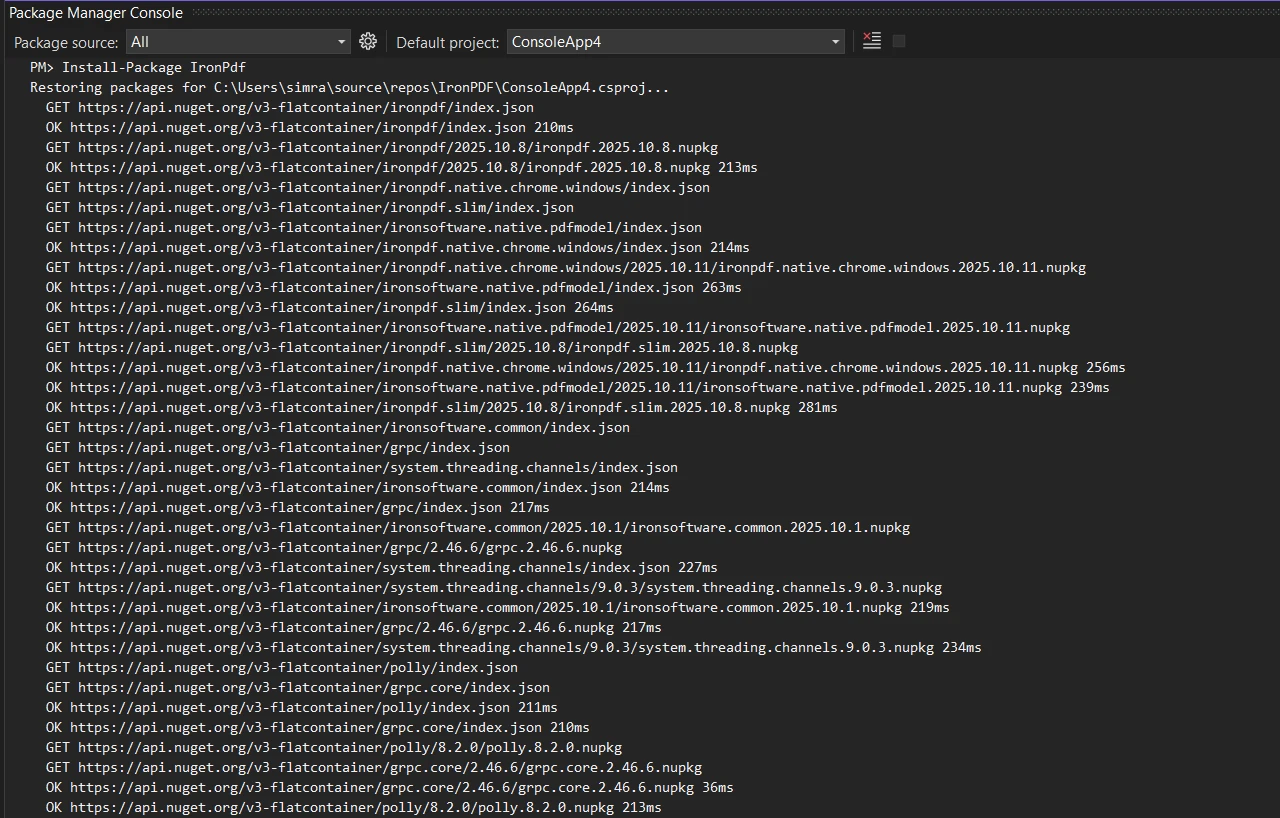
Adding PDF viewer and editor functionality to a UWP project starts with installing the IronPDF NuGet package. IronPDF targets .NET Standard 2.0, which UWP applications can reference directly via a .NET Standard 2.0 class library project. The Microsoft UWP documentation covers the project setup steps needed before adding third-party libraries. Open the Package Manager Console in Visual Studio and run the installation command shown below.
// Install via NuGet Package Manager Console:
Install-Package IronPdf
// Install via NuGet Package Manager Console:
Install-Package IronPdf
' Install via NuGet Package Manager Console:
Install-Package IronPdf
' Install via NuGet Package Manager Console:
Install-Package IronPdf
Once installed, generating a PDF from HTML content takes just a few lines. The example below shows how to render an HTML invoice to a PDF file and save it to disk. This pattern works for any HTML string, including fully styled templates with embedded CSS.
using IronPdf;

// Create a PDF from HTML content
var renderer = new ChromePdfRenderer();
var pdf = renderer.RenderHtmlAsPdf("<h1>Invoice #1001</h1><p>Total: $500.00</p>");
// Save to the app's local storage folder
pdf.SaveAs("document.pdf");

// For containerized environments, configure the renderer
renderer.RenderingOptions.PaperSize = IronPdf.Rendering.PdfPaperSize.A4;
renderer.Installation.TempFolderPath = "/app/temp";
renderer.Installation.ChromeGpuMode = IronPdf.Rendering.ChromeGpuMode.Disabled;
using IronPdf;

// Create a PDF from HTML content
var renderer = new ChromePdfRenderer();
var pdf = renderer.RenderHtmlAsPdf("<h1>Invoice #1001</h1><p>Total: $500.00</p>");
// Save to the app's local storage folder
pdf.SaveAs("document.pdf");

// For containerized environments, configure the renderer
renderer.RenderingOptions.PaperSize = IronPdf.Rendering.PdfPaperSize.A4;
renderer.Installation.TempFolderPath = "/app/temp";
renderer.Installation.ChromeGpuMode = IronPdf.Rendering.ChromeGpuMode.Disabled;
Imports IronPdf
' Create a PDF from HTML content
Dim renderer As New ChromePdfRenderer()
Dim pdf = renderer.RenderHtmlAsPdf("<h1>Invoice #1001</h1><p>Total: $500.00</p>")
' Save to the app's local storage folder
pdf.SaveAs("document.pdf")
' For containerized environments, configure the renderer
renderer.RenderingOptions.PaperSize = IronPdf.Rendering.PdfPaperSize.A4
renderer.Installation.TempFolderPath = "/app/temp"
renderer.Installation.ChromeGpuMode = IronPdf.Rendering.ChromeGpuMode.Disabled
Imports IronPdf

' Create a PDF from HTML content
Dim renderer As New ChromePdfRenderer()
Dim pdf = renderer.RenderHtmlAsPdf("<h1>Invoice #1001</h1><p>Total: $500.00</p>")
' Save to the app's local storage folder
pdf.SaveAs("document.pdf")

' For containerized environments, configure the renderer
renderer.RenderingOptions.PaperSize = IronPdf.Rendering.PdfPaperSize.A4
renderer.Installation.TempFolderPath = "/app/temp"
renderer.Installation.ChromeGpuMode = IronPdf.Rendering.ChromeGpuMode.Disabled
The ChromePdfRenderer class converts HTML content into PDF format with pixel-accurate results, handling static text, images, and hyperlinks consistently. This approach lets you apply existing HTML and CSS knowledge rather than learning complex PDF-specific APIs. The renderer handles fonts, layouts, and links across different environments. For production deployments, the renderer supports custom logging and performance optimization.
What Output Does HTML-to-PDF Conversion Produce?
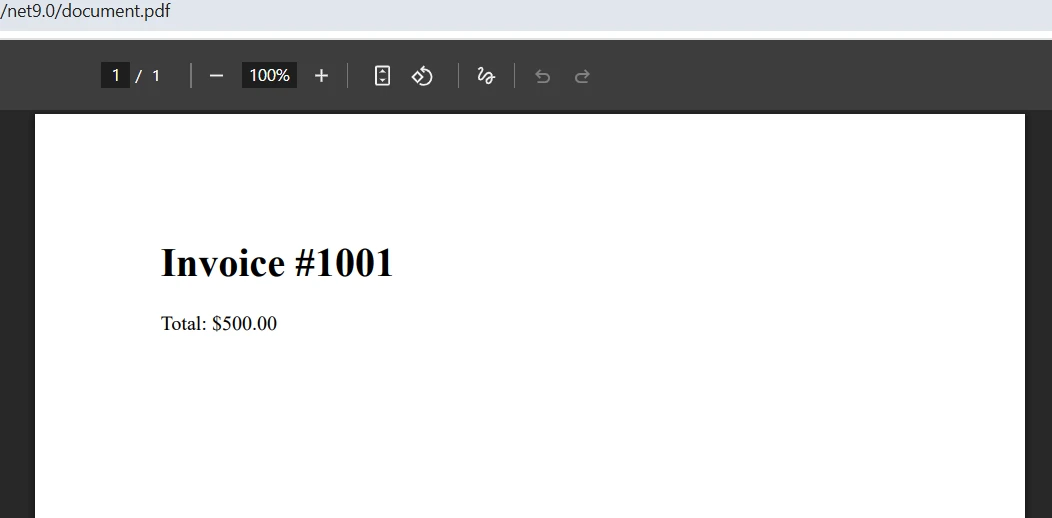
The rendered PDF matches the HTML source faithfully, preserving fonts, spacing, and colors. For invoice and report scenarios, this means the output looks identical to what a browser would display, without requiring any custom layout code specific to the PDF format. The Chromium rendering engine used internally ensures consistent typography across Windows, Linux, and macOS.
How Do You Handle File Storage and Printing in UWP?
For UWP applications, saving files typically involves the app's local storage folder or using file pickers to let users choose save locations. Once a PDF file loads in the application, IronPDF returns the document as a PdfDocument object that can be saved to streams or file paths. The library supports printing PDF documents directly through the print API and loads pages efficiently when navigating through large documents. It also supports exporting to PDF/A formats for long-term archival requirements, which is important for regulated industries.
What Document Manipulation Options Are Available for UWP PDF Projects?
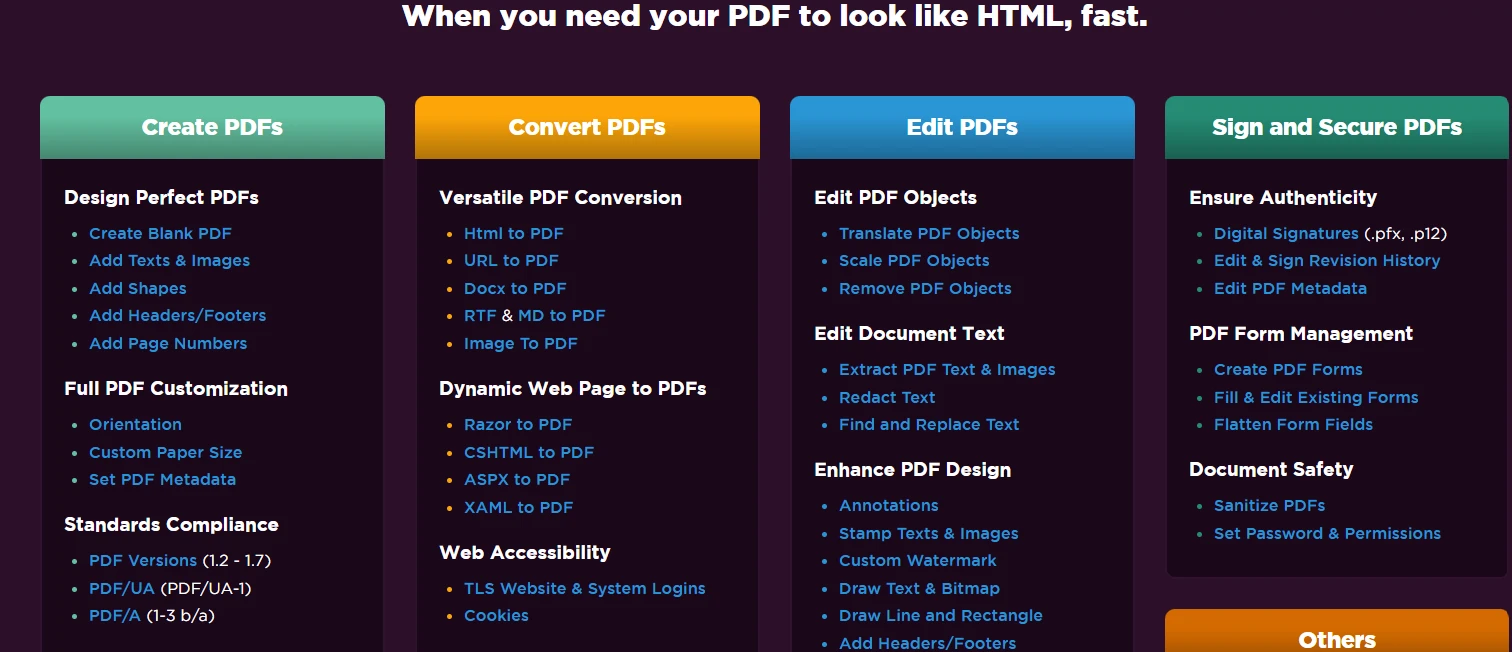
Real-world UWP applications often require combining PDF documents, extracting specific pages, or reorganizing content for easy navigation. IronPDF provides straightforward tools for merging and splitting PDFs without requiring deep knowledge of PDF internals. The library uses virtualized pages to hold only the minimum required pages at runtime, reducing memory consumption when working with large documents. For DevOps teams, the library supports Docker deployment and Linux environments without Windows compatibility layers.
using IronPdf;

// Load existing PDF files
var pdf1 = PdfDocument.FromFile("report-q1.pdf");
var pdf2 = PdfDocument.FromFile("report-q2.pdf");
// Merge into a single document
var combined = PdfDocument.Merge(pdf1, pdf2);
// Remove a specific page (zero-indexed)
combined.RemovePage(0);
// Copy select pages to a new document
var excerpt = combined.CopyPages(2, 4);
combined.SaveAs("annual-report.pdf");
excerpt.SaveAs("summary.pdf");

// For production environments, enable compression
var compressOptions = new CompressOptions
{
    CompressImages = true,
    ImageQuality = 90
};
combined.CompressSize(compressOptions);
using IronPdf;

// Load existing PDF files
var pdf1 = PdfDocument.FromFile("report-q1.pdf");
var pdf2 = PdfDocument.FromFile("report-q2.pdf");
// Merge into a single document
var combined = PdfDocument.Merge(pdf1, pdf2);
// Remove a specific page (zero-indexed)
combined.RemovePage(0);
// Copy select pages to a new document
var excerpt = combined.CopyPages(2, 4);
combined.SaveAs("annual-report.pdf");
excerpt.SaveAs("summary.pdf");

// For production environments, enable compression
var compressOptions = new CompressOptions
{
    CompressImages = true,
    ImageQuality = 90
};
combined.CompressSize(compressOptions);
IRON VB CONVERTER ERROR developers@ironsoftware.com
IRON VB CONVERTER ERROR developers@ironsoftware.com
The PdfDocument.Merge method accepts multiple PDFs and combines them sequentially. This proves useful for compiling reports from separate content sections or assembling document packages for distribution. The RemovePage and CopyPages methods enable precise control over document structure, letting developers edit pages efficiently. The library also supports page rotation and custom paper sizes for specialized output requirements.
Why Does Zero-Based Indexing Matter for Page Operations?
Page operations use zero-based indexing, so the first page is index 0. When copying a range with CopyPages, both the start and end indices are inclusive. These methods return new PdfDocument instances with reduced runtime memory overhead, leaving the originals unchanged for further processing. Pages load quickly even with large documents, due to optimizations that reduce initial load time. The library supports asynchronous operations for better performance in high-throughput environments.
Understanding the indexing behavior prevents off-by-one errors when building page-level editing features. For example, a 10-page document has pages indexed 0 through 9. Calling CopyPages(0, 4) produces a 5-page excerpt containing pages 1 through 5. This behavior aligns with standard .NET collection conventions, so it will feel familiar to developers working with arrays and lists.
How Do You Reduce File Size for Large PDF Documents?
IronPDF offers memory optimization techniques and supports custom temp paths to manage resource usage effectively. When working with documents that contain many high-resolution images, enabling compression during merge operations can reduce output file sizes substantially. The library includes built-in PDF compression capabilities that reduce file sizes by significant margins without visible quality loss for typical business documents.
The CompressOptions object gives granular control over the compression process. Setting ImageQuality to 90 preserves detail while reducing file size; values below 80 produce smaller files at the cost of some sharpness. For archival documents, keeping quality at 95 or above is recommended. Combining compression with PDF/A compliance ensures that long-term storage requirements are met while keeping file sizes manageable.
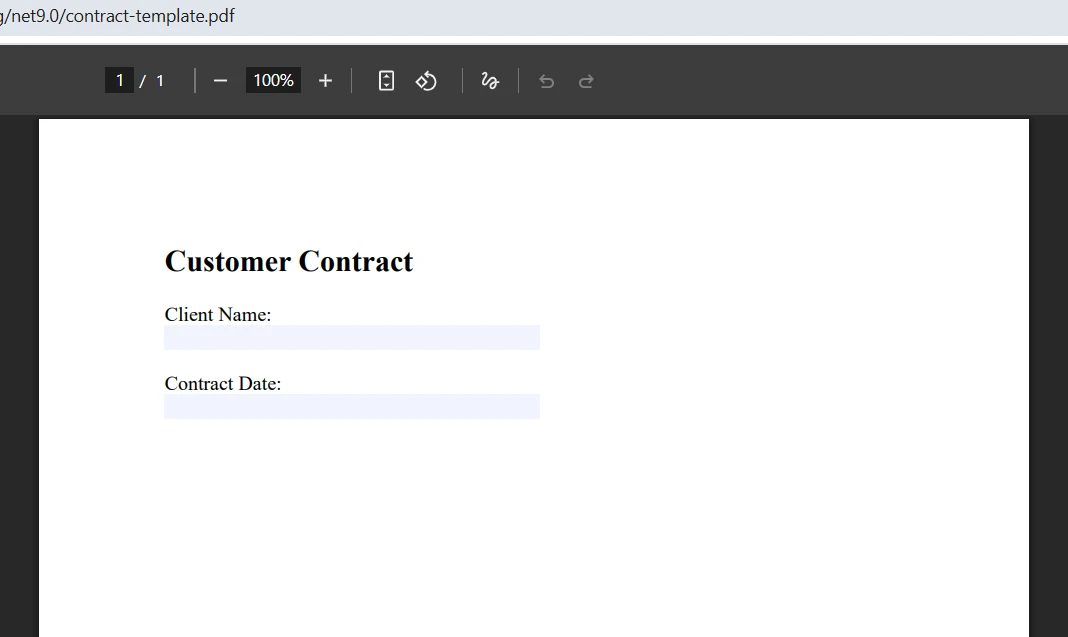
Interactive form filling and visual branding elements like watermarks add professional polish to PDF outputs. IronPDF supports both creating fillable forms from HTML and manipulating existing form fields programmatically. The form-filling support enables data collection workflows where users can save form fields directly. A UWP PDF viewer control can display these forms with annotation tools for markup. The library also supports digital signatures for document authenticity requirements in legal and financial contexts.
using IronPdf;

// Load a PDF with existing form fields
var pdf = PdfDocument.FromFile("contract-template.pdf");
// Fill form fields by name
pdf.Form.FindFormField("clientName").Value = "Acme Corporation";
pdf.Form.FindFormField("contractDate").Value = "2025-01-15";
// Apply a watermark across all pages
pdf.ApplyWatermark("<h2 style='color:gray; opacity:0.5'>DRAFT</h2>",
    rotation: 45,
    opacity: 30);

// Add production-ready security
pdf.SecuritySettings.OwnerPassword = Environment.GetEnvironmentVariable("PDF_OWNER_PASSWORD");
pdf.SecuritySettings.UserPassword = Environment.GetEnvironmentVariable("PDF_USER_PASSWORD");
pdf.SecuritySettings.AllowUserPrinting = IronPdf.Security.PdfPrintSecurity.NoPrint;
pdf.SecuritySettings.AllowUserCopyPasteContent = false;

// Apply digital signature for authenticity
var signature = new IronPdf.Signing.PdfSignature("certificate.pfx", "password")
{
    SigningContact = "legal@acmecorp.com",
    SigningLocation = "New York, NY"
};
pdf.Sign(signature);

pdf.SaveAs("completed-contract.pdf");
using IronPdf;

// Load a PDF with existing form fields
var pdf = PdfDocument.FromFile("contract-template.pdf");
// Fill form fields by name
pdf.Form.FindFormField("clientName").Value = "Acme Corporation";
pdf.Form.FindFormField("contractDate").Value = "2025-01-15";
// Apply a watermark across all pages
pdf.ApplyWatermark("<h2 style='color:gray; opacity:0.5'>DRAFT</h2>",
    rotation: 45,
    opacity: 30);

// Add production-ready security
pdf.SecuritySettings.OwnerPassword = Environment.GetEnvironmentVariable("PDF_OWNER_PASSWORD");
pdf.SecuritySettings.UserPassword = Environment.GetEnvironmentVariable("PDF_USER_PASSWORD");
pdf.SecuritySettings.AllowUserPrinting = IronPdf.Security.PdfPrintSecurity.NoPrint;
pdf.SecuritySettings.AllowUserCopyPasteContent = false;

// Apply digital signature for authenticity
var signature = new IronPdf.Signing.PdfSignature("certificate.pfx", "password")
{
    SigningContact = "legal@acmecorp.com",
    SigningLocation = "New York, NY"
};
pdf.Sign(signature);

pdf.SaveAs("completed-contract.pdf");
Imports IronPdf
' Load a PDF with existing form fields
Dim pdf = PdfDocument.FromFile("contract-template.pdf")
' Fill form fields by name
pdf.Form.FindFormField("clientName").Value = "Acme Corporation"
pdf.Form.FindFormField("contractDate").Value = "2025-01-15"
' Apply a watermark across all pages
pdf.ApplyWatermark("<h2 style='color:gray; opacity:0.5'>DRAFT</h2>", rotation:=45, opacity:=30)
' Add production-ready security
pdf.SecuritySettings.OwnerPassword = Environment.GetEnvironmentVariable("PDF_OWNER_PASSWORD")
pdf.SecuritySettings.UserPassword = Environment.GetEnvironmentVariable("PDF_USER_PASSWORD")
pdf.SecuritySettings.AllowUserPrinting = IronPdf.Security.PdfPrintSecurity.NoPrint
pdf.SecuritySettings.AllowUserCopyPasteContent = False
' Apply digital signature for authenticity
Dim signature = New IronPdf.Signing.PdfSignature("certificate.pfx", "password") With {
.SigningContact = "legal@acmecorp.com",
.SigningLocation = "New York, NY"
}
pdf.Sign(signature)
pdf.SaveAs("completed-contract.pdf")
Imports IronPdf

' Load a PDF with existing form fields
Dim pdf = PdfDocument.FromFile("contract-template.pdf")
' Fill form fields by name
pdf.Form.FindFormField("clientName").Value = "Acme Corporation"
pdf.Form.FindFormField("contractDate").Value = "2025-01-15"
' Apply a watermark across all pages
pdf.ApplyWatermark("<h2 style='color:gray; opacity:0.5'>DRAFT</h2>", rotation:=45, opacity:=30)

' Add production-ready security
pdf.SecuritySettings.OwnerPassword = Environment.GetEnvironmentVariable("PDF_OWNER_PASSWORD")
pdf.SecuritySettings.UserPassword = Environment.GetEnvironmentVariable("PDF_USER_PASSWORD")
pdf.SecuritySettings.AllowUserPrinting = IronPdf.Security.PdfPrintSecurity.NoPrint
pdf.SecuritySettings.AllowUserCopyPasteContent = False

' Apply digital signature for authenticity
Dim signature = New IronPdf.Signing.PdfSignature("certificate.pfx", "password") With {
    .SigningContact = "legal@acmecorp.com",
    .SigningLocation = "New York, NY"
}
pdf.Sign(signature)

pdf.SaveAs("completed-contract.pdf")
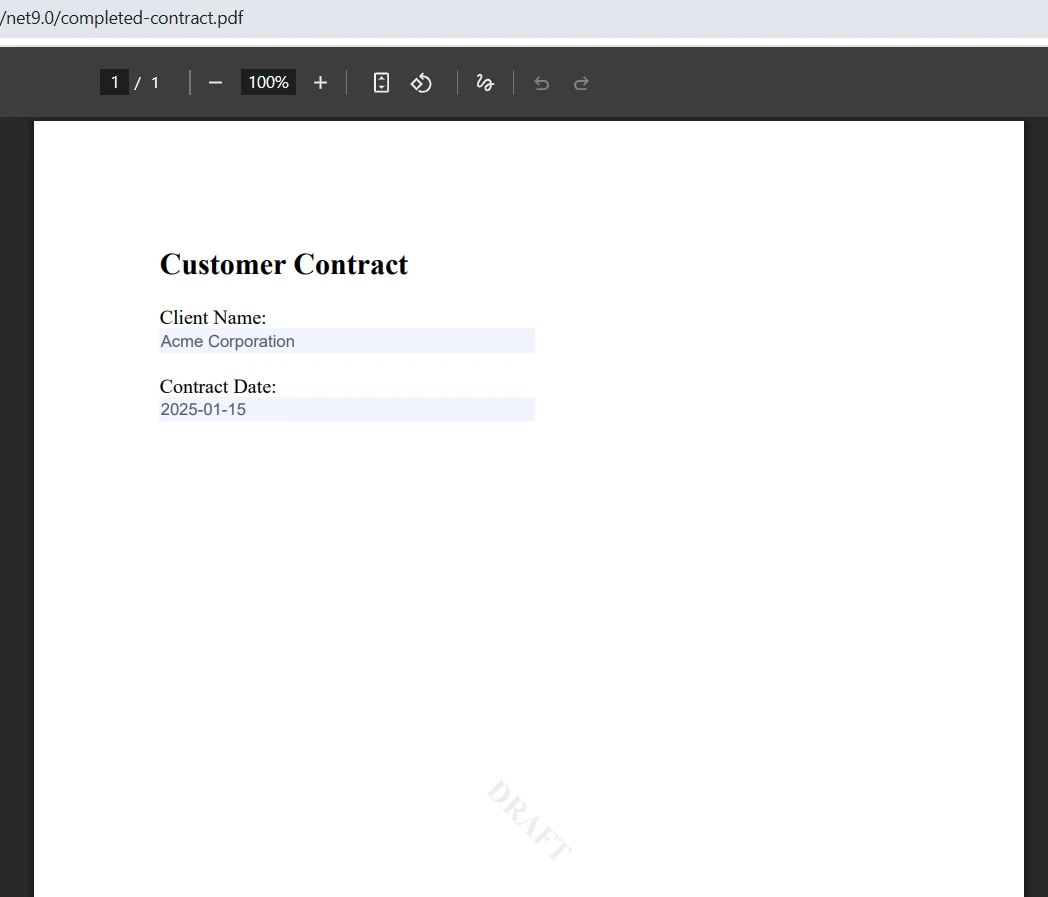
The Form property provides access to all interactive fields within a PDF document. Using FindFormField with the field name retrieves a specific field for reading or writing values. This works with text inputs, checkboxes, dropdowns, and other standard form elements for efficient data entry. The library supports extracting form data and flattening forms for final distribution, converting interactive fields into static content.
Watermarks accept HTML content, giving full control over styling through CSS. The opacity and rotation parameters adjust the watermark's visual prominence. Watermarks apply to all pages by default, making them suitable for marking documents as drafts or confidential, or adding company branding. Advanced watermarking includes image-based stamps and background overlays for more complex branding requirements.
What Annotation and Security Features Are Available?
The library includes annotation tools that let developers add ink annotations, draw freehand markings, and insert pop-up notes directly onto PDF pages. These annotations support external navigation and hyperlink content navigation. For applications requiring document security, IronPDF supports password-protected PDF files with encryption and digital signatures through dedicated API methods. Users can search and copy text, and navigate using touch gestures. The viewer displays thumbnails as miniature representations of actual pages for easy navigation. Additional features include redaction capabilities for removing sensitive content permanently.
Security settings control what end users can do with a PDF after it is generated. Disabling copy-paste and printing protects confidential content in scenarios like contract distribution or exam papers. Owner and user passwords follow the PDF security standard and are respected by all major PDF readers, including Adobe Acrobat. For documents requiring long-term integrity verification, combining password protection with a digital signature provides both access control and tamper detection.
The same codebase works across Windows, Linux, macOS, and containerized environments like Docker and Azure, providing flexibility for UWP applications that may expand beyond their initial platform. This matters for teams that start with a Windows-only target but later need to support a web-based or server-side rendering path. The library operations - from HTML-to-PDF conversion to document merging - behave consistently across all supported runtimes, so the same code passes integration tests on all platforms.
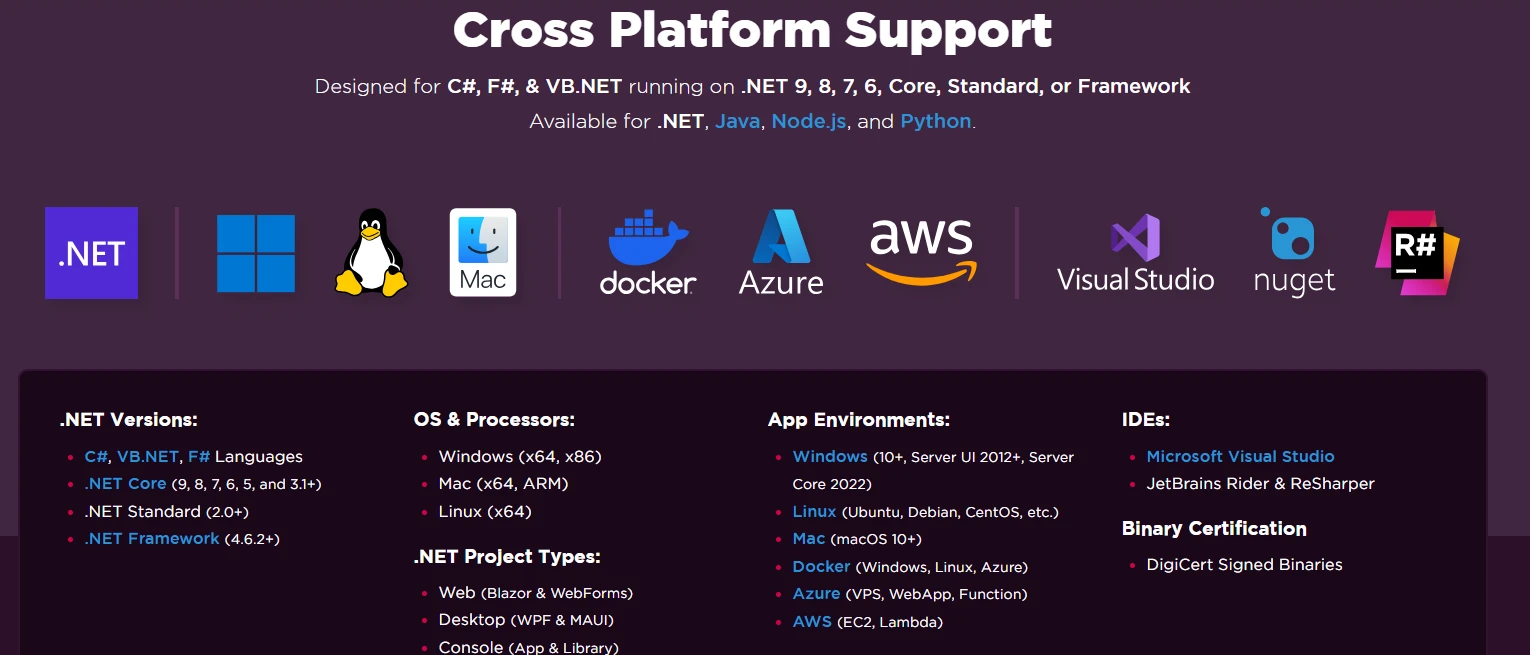
For DevOps teams, IronPDF provides Docker images and Kubernetes deployment guides for container-based deployments. The library includes native Linux support without requiring Windows compatibility layers and offers slim package options for reduced deployment size. Configuration options include custom logging, license key management, and environment-specific settings that can be controlled through environment variables rather than hard-coded values.
The PDF viewer supports all the operations needed including printing, bookmarks, and UTF-8 language options for international users. For teams building document-intensive applications, the performance optimization features and memory management tools reduce friction when scaling to large document volumes or serving many concurrent users.
What Are Your Next Steps?
IronPDF covers the PDF editor capabilities that UWP developers need without unnecessary complexity. From HTML-to-PDF conversion to document merging, PDF forms handling, and watermarking, the library covers core document workflows through a consistent API with MVVM support and custom toolbar options. The library includes full rendering options and supports JavaScript execution for dynamic content scenarios.
Explore IronPDF licensing options to find the right fit for your project. Get started with a free trial to evaluate what is possible with your specific document requirements before committing to a license.























