using IronPdf;

// Disable local disk access or cross-origin requests
Installation.EnableWebSecurity = true;

// Instantiate Renderer
var renderer = new ChromePdfRenderer();

// Create a PDF from a HTML string using C#
var pdf = renderer.RenderHtmlAsPdf("<h1>Hello World</h1>");

// Export to a file or Stream
pdf.SaveAs("output.pdf");

// Advanced Example with HTML Assets
// Load external html assets: Images, CSS and JavaScript.
// An optional BasePath 'C:\site\assets\' is set as the file location to load assets from
var myAdvancedPdf = renderer.RenderHtmlAsPdf("<img src='icons/iron.png'>", @"C:\site\assets\");
myAdvancedPdf.SaveAs("html-with-assets.pdf");
using IronPdf;// Disable local disk access or cross-origin requestsInstallation.EnableWebSecurity = true;// Instantiate Renderervar renderer = new ChromePdfRenderer();// Create a PDF from a HTML string using C#var pdf = renderer.RenderHtmlAsPdf("<h1>Hello World</h1>");// Export to a file or Streampdf.SaveAs("output.pdf");// Advanced Example with HTML Assets// Load external html assets: Images, CSS and JavaScript.// An optional BasePath 'C:\site\assets\' is set as the file location to load assets fromvar myAdvancedPdf = renderer.RenderHtmlAsPdf("<img src='icons/iron.png'>", @"C:\site\assets\");myAdvancedPdf.SaveAs("html-with-assets.pdf");
PM >Install-Package IronPdf
Install-Package IronPdf
USANDO IRONPDF
C# Extraer Texto De PDF (Ejemplo de Código Tutorial)
La mayoría de las personas abren PDFs en una computadora utilizando una aplicación de escritorio dedicada, pero los ingenieros de software también pueden usar IronPDF para crear, ver, abrir, leer y editar contenido PDF con C# de manera programática.
IronPDF resultó ser un complemento muy útil al leer archivos PDF en ASP.NET y C#.
Puedes descargar el [proyecto de demostración PDF en ASP.NET](https://ironpdf.com/downloads/how-to-view-pdf-file-in-asp-net-using-csharp.zip).
Es posible crear documentos PDF rápida y fácilmente usando C# con IronPDF.
Gran parte del diseño y la disposición de los documentos PDF pueden lograrse utilizando activos HTML existentes o delegando la tarea a empleados de diseño web; se ocupa de la tarea que consume tiempo de integrar la generación de PDFs en tu aplicación y automatiza la conversión de documentos preparados en PDFs. Con .NET, puedes:
* Convertir formularios web, páginas HTML locales y otros sitios web a formato PDF.
* Permitir a los usuarios descargar documentos, compartirlos con otros por correo electrónico o guardarlos en la nube.
* Facturar a clientes y proporcionar cotizaciones; preparar informes; negociar contratos y otros documentos.
* Trabajar con ASP.NET, ASP.NET Core, Web Forms, MVC, Web APIs en .NET Framework y .NET Core, y otros lenguajes de programación.
## Configuración de la biblioteca IronPDF
Hay dos maneras de instalar la biblioteca;
### Instalación con el gestor de paquetes NuGet
IronPDF se puede instalar a través del complemento de Visual Studio o el Administrador de Paquetes NuGet desde la línea de comandos. Navega a la Consola, escribe el siguiente comando en Visual Studio:
```shell
:ProductInstall
```
### Descargue el archivo DLL directamente del sitio web
Alternativamente, puedes obtener el DLL directamente desde el sitio web.
Recuerde incluir la siguiente directiva en la parte superior de cualquier archivo de clase `cs` que utilice IronPDF:
```cs
using IronPdf;
```
Consulta [Visión General de Características Detalladas de IronPDF](/features/).
IronPDF es un complemento imprescindible. Obtén el tuyo ahora y [pruébalo con el paquete NuGet de IronPDF](https://www.nuget.org/packages/IronPdf/).
## Create a PDF File From an HTML String in .NET C#
Crear un archivo PDF desde una cadena HTML en C# es un método eficiente y gratificante para crear un nuevo archivo PDF en C#.
La función `RenderHtmlAsPdf` de una `ChromePdfRenderer` proporciona una manera sencilla de convertir cualquier cadena HTML (HTML5) en un documento PDF, gracias a la versión integrada del motor Google Chromium en la DLL IronPDF .
```cs
// Create a renderer to convert HTML to PDF
var renderer = new ChromePdfRenderer();

// Convert an HTML string to a PDF
using var renderedPdf = renderer.RenderHtmlAsPdf("<h1>My First HTML to Pdf</h1>");

// Define the output path for the PDF
var outputPath = "My_First_Html.pdf";

// Save the rendered PDF to the specified path
renderedPdf.SaveAs(outputPath);

// Automatically open the newly created PDF
System.Diagnostics.Process.Start(outputPath);
```
`RenderHtmlAsPdf` es una herramienta poderosa que admite CSS, JavaScript e imágenes en su totalidad. Puede ser necesario establecer el segundo argumento de `RenderHtmlAsPdf` si estos materiales están almacenados en un disco duro.
El siguiente código generará un archivo PDF:
```cs
// Render HTML to PDF with a base path for local assets
var renderPdf = renderer.RenderHtmlAsPdf("<img src='image_1.png'/>", @"C:\Newproject");
```
Todas las hojas de estilo CSS, imágenes y archivos JavaScript referenciados serán relativos al `BaseUrlPath`, lo que permitirá mantener una estructura más organizada y lógica. Por supuesto, puedes hacer uso de imágenes, hojas de estilo y activos disponibles en internet, como Web Fonts, Google Fonts e incluso jQuery, si lo deseas.
## Crear un documento PDF utilizando una URL HTML existente
Las URLs existentes pueden ser representadas en PDFs de manera eficiente con C#; esto también permite a los equipos dividir el trabajo de diseño de PDF y representación de PDF en el back-end a través de varias secciones, lo cual es beneficioso.
El código a continuación demuestra cómo representar la página endeavorcreative.com desde su URL:
```cs
// Create a renderer for converting URLs to PDF
var renderer = new ChromePdfRenderer();
// Convert the specified URL to a PDF
using var renderedPdf = renderer.RenderUrlAsPdf("https://endeavorcreative.com/setting-up-wordpress-website-from-scratch/");
// Specify the output path for the PDF
var outputPath = "Url_pdf.pdf";
// Save the PDF to the specified path
renderedPdf.SaveAs(outputPath);
// Open the newly created PDF
System.Diagnostics.Process.Start(outputPath);
```
Como resultado, todos los hipervínculos (enlaces HTML) e incluso formularios HTML se mantienen en el PDF generado.
## Crear un documento PDF a partir de un documento HTML existente
Esta sección muestra cómo representar cualquier archivo HTML local. Parecerá que el archivo se ha abierto utilizando el protocolo file:/ para todos los activos relativos, como CSS, imágenes y JavaScript, entre otros.
```cs
// Create a renderer for existing HTML files
var renderer = new ChromePdfRenderer();
// Render an HTML file to PDF
using var renderedPdf = renderer.RenderHtmlFileAsPdf("Assets/test1.html");
// Specify the output path for the PDF
var outputPath = "test1_pdf.pdf";
// Save the PDF to the specified path
renderedPdf.SaveAs(outputPath);
// Open the newly created PDF
System.Diagnostics.Process.Start(outputPath);
```
La ventaja de esta estrategia es que permite a los desarrolladores probar contenido HTML en un navegador mientras lo crean. El motor de representación de IronPDF está construido sobre el navegador web Chrome. Por lo tanto, se recomienda utilizar [Conversión de XML a PDF](/how-to/xml-to-pdf/) ya que imprimir contenido XML en PDF se puede realizar usando plantillas XSLT.
## Convertir formularios web ASP.NET en un archivo PDF
Con una sola línea de código, puedes convertir formularios en línea de ASP.NET a formato PDF en lugar de HTML. Coloque la línea de código en el método `Page_Load` del archivo de código subyacente de la página para que aparezca en la página.
Las Aplicaciones Web de Formularios ASP.NET pueden ser creadas desde cero o abiertas desde una versión anterior.
Instala el paquete NuGet si aún no está instalado.
La palabra clave `using` debe usarse para importar el espacio de nombres `IronPdf`.
Navega al código detrás de la página que te gustaría convertir a PDF. Por ejemplo, el archivo **Default.aspx.cs** usando ASP.NET.
`RenderThisPageAsPdf` es un método de la clase `AspxToPdf`.
```cs
using IronPdf;
using System;
using System.Web.UI;
namespace WebApplication7
{
public partial class _Default : Page
{
protected void Page_Load(object sender, EventArgs e)
{
// Render the current page as a PDF in the browser
AspxToPdf.RenderThisPageAsPdf(AspxToPdf.FileBehavior.InBrowser);
}
}
}
```
Esto requiere que se instale el [Paquete NuGet IronPdf.Extensions.ASPX](https://www.nuget.org/packages/IronPdf.Extensions.ASPX/). No está disponible en .NET Core porque ASPX ha sido reemplazado por el modelo MVC.
## Aplicar plantillas HTML
Para los desarrolladores de Intranet y sitios web, la capacidad de diseñar o "producir en lote" PDFs es una necesidad estándar.
En lugar de crear una plantilla para un documento PDF, la Biblioteca IronPDF ofrece una manera de generar una plantilla para HTML aprovechando la tecnología existente y bien probada.
Un archivo PDF generado dinámicamente se crea cuando la plantilla HTML se complementa con datos de una cadena de consulta o una base de datos, como se muestra a continuación.
Como ejemplo, considera la clase String de C# y sus propiedades. El método Format funciona bien para operaciones básicas de "fusión de correo".
```cs
// Basic HTML String Formatting
string formattedString = String.Format("<h1>Hello {0}!</h1>", "World");
```
Debido a que los archivos HTML pueden ser bastante extensos, es común utilizar marcadores de posición arbitrarios, como [[NAME]], y luego reemplazarlos con los datos reales.
El siguiente ejemplo generará tres documentos PDF, cada uno de los cuales estará personalizado para un usuario diferente.
```cs
// Define an HTML template with a placeholder
var htmlTemplate = "<p>[[NAME]]</p>";
// Sample data to replace placeholders
var names = new[] { "John", "James", "Jenny" };
// Create a new PDF for each name
foreach (var name in names)
{
// Replace placeholder with actual name
var htmlInstance = htmlTemplate.Replace("[[NAME]]", name);
// Create a renderer and render the HTML as PDF
var renderer = new ChromePdfRenderer();
using var pdf = renderer.RenderHtmlAsPdf(htmlInstance);
// Save the PDF with the name in the filename
pdf.SaveAs($"{name}.pdf");
}
```
## Enrutamiento de ASP.NET MVC: Descargar la versión PDF de esta página
Con el marco ASP.NET MVC, puedes dirigir al usuario a un archivo PDF.
Al crear una nueva Aplicación MVC de ASP.NET o agregar un controlador MVC existente a una aplicación existente, selecciona esta opción. Inicia el asistente de nuevo proyecto de Visual Studio seleccionando Aplicación Web de ASP.NET (.NET Framework) > MVC del menú desplegable. Alternativamente, puedes abrir un proyecto MVC existente. Reemplaza el método Index en el archivo HomeController en la carpeta Controllers, o crea un nuevo controlador en la carpeta Controllers.
A continuación se muestra un ejemplo de cómo debe escribirse el código:
```cs
using IronPdf;
using System;
using System.Web.Mvc;
namespace WebApplication8.Controllers
{
public class HomeController : Controller
{
public ActionResult Index()
{
// Render a URL as PDF and return it in the response
using var pdf = HtmlToPdf.StaticRenderUrlAsPdf(new Uri("https://en.wikipedia.org"));
return File(pdf.BinaryData, "application/pdf", "Wiki.Pdf");
}
public ActionResult About()
{
ViewBag.Message = "Your application description page.";
return View();
}
public ActionResult Contact()
{
ViewBag.Message = "Your contact page.";
return View();
}
}
}
```
## Añadir una portada a un documento PDF
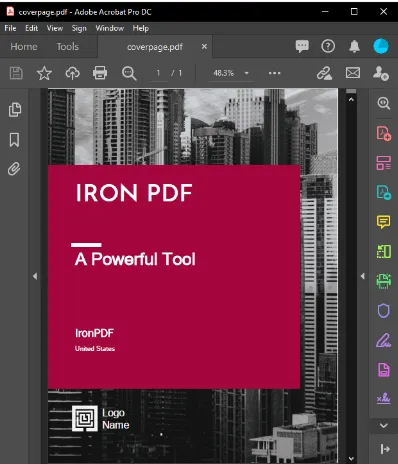 **Agregar una portada a un documento PDF**
IronPDF simplifica el proceso de combinar documentos PDF. La aplicación más común de esta técnica es agregar una página de portada o página posterior a un documento PDF ya renderizado que ha sido renderizado.
Para lograr esto, prepare una portada y luego utilice las capacidades de `PdfDocument`.
Para combinar los dos documentos, utilice el [`Merge PDF Documents Method`](/how-to/merge-or-split-pdfs/) .
```cs
// Create a renderer and render a PDF from a URL
var renderer = new ChromePdfRenderer();
using var pdf = renderer.RenderUrlAsPdf("https://www.nuget.org/packages/IronPdf/");
// Merge the cover page with the rendered PDF
using var merged = PdfDocument.Merge(new PdfDocument("CoverPage.pdf"), pdf);
// Save the merged document
merged.SaveAs("Combined.Pdf");
```
## Añada una marca de agua a su documento
Por último, pero no menos importante, agregar una marca de agua a los documentos PDF se puede lograr usando código C#; esto se puede usar para agregar un descargo de responsabilidad a cada página de un documento que indique que es "confidencial" o "una muestra".
```cs
// Prepare a stamper with HTML content for the watermark
HtmlStamper stamper = new HtmlStamper("<h2 style='color:red'>SAMPLE</h2>")
{
HorizontalOffset = new Length(-3, MeasurementUnit.Inch),
VerticalAlignment = VerticalAlignment.Bottom
};
// Create a renderer and render a PDF from a URL
var renderer = new ChromePdfRenderer();
using var pdf = renderer.RenderUrlAsPdf("https://www.nuget.org/packages/IronPdf");
// Apply the watermark to the PDF
pdf.ApplyStamp(stamper);
// Save the watermarked PDF
pdf.SaveAs(@"C:\PathToWatermarked.pdf");
```
## Su archivo PDF puede protegerse con una contraseña
Cuando estableces la propiedad de contraseña de un documento PDF, se cifrará y el usuario deberá proporcionar la contraseña correcta para leer el documento. Este ejemplo se puede usar en una Aplicación de Consola de .NET Core.
```cs
using IronPdf;
namespace ConsoleApp
{
class Program
{
static void Main(string[] args)
{
// Create a renderer and render a PDF from HTML
var renderer = new ChromePdfRenderer();
using var pdfDocument = renderer.RenderHtmlAsPdf("<h1>Hello World</h1>");
// Set password to protect the PDF
pdfDocument.Password = "strong!@#pass&^%word";
// Save the secured PDF
pdfDocument.SaveAs("secured.pdf");
}
}
}
```
Sin las ventajas mencionadas anteriormente, con IronPDF, también puedes:
* [Extraer imágenes y texto de PDFs](/how-to/extract-text-and-images/)
* [Editar el contenido HTML de PDFs](/how-to/javascript-to-pdf/)
* Mejorar [imágenes de fondo y primer plano](/how-to/background-foreground/)
* Agregar [firma digital a PDFs](/examples/digitally-sign-a-pdf/)
* Completa automáticamente tus [formularios PDF rápida y fácilmente](/how-to/create-forms/)
Crear PDFs es una tarea tan desafiante; algunas personas pueden no haber encontrado nunca las nociones fundamentales que deberían emplear para producir los documentos más destacados. Como resultado, IronPDF es extremadamente útil, ya que simplifica la creación de PDFs y, como resultado, mejora la presentación original de documentos creados a partir de PDFs y HTML.
Basado en la información proporcionada en la documentación y el análisis de competidores: IronPDF es la herramienta más efectiva para usar al crear PDFs, haciéndolo simple para cualquiera, incluidos aquellos que trabajan en oficinas o escuelas, para completar sus tareas eficientemente.
 **Cómo ver archivos PDF en ASP.NET usando C# y IronPDF**
IronPDF es una biblioteca de .NET imprescindible. Obtén el tuyo ahora y [pruébalo con el paquete NuGet de IronPDF](https://www.nuget.org/packages/IronPdf/).
La mayoría de las personas abren PDFs en una computadora utilizando una aplicación de escritorio dedicada, pero los ingenieros de software también pueden usar IronPDF para crear, ver, abrir, leer y editar contenido PDF con C# de manera programática.
IronPDF resultó ser un complemento muy útil al leer archivos PDF en ASP.NET y C#.
Es posible crear documentos PDF rápida y fácilmente usando C# con IronPDF.
Gran parte del diseño y la disposición de los documentos PDF pueden lograrse utilizando activos HTML existentes o delegando la tarea a empleados de diseño web; se ocupa de la tarea que consume tiempo de integrar la generación de PDFs en tu aplicación y automatiza la conversión de documentos preparados en PDFs. Con .NET, puedes:
Convertir formularios web, páginas HTML locales y otros sitios web a formato PDF.
Permitir a los usuarios descargar documentos, compartirlos con otros por correo electrónico o guardarlos en la nube.
Facturar a clientes y proporcionar cotizaciones; preparar informes; negociar contratos y otros documentos.
Trabajar con ASP.NET, ASP.NET Core, Web Forms, MVC, Web APIs en .NET Framework y .NET Core, y otros lenguajes de programación.
Configuración de la biblioteca IronPDF
Hay dos maneras de instalar la biblioteca;
Instalación con el gestor de paquetes NuGet
IronPDF se puede instalar a través del complemento de Visual Studio o el Administrador de Paquetes NuGet desde la línea de comandos. Navega a la Consola, escribe el siguiente comando en Visual Studio:
PM > Install-Package IronPdf
Install-Package IronPdf
Descargue el archivo DLL directamente del sitio web
Alternativamente, puedes obtener el DLL directamente desde el sitio web.
Recuerde incluir la siguiente directiva en la parte superior de cualquier archivo de clase cs que utilice IronPDF:
Crear un archivo PDF desde una cadena HTML en C# es un método eficiente y gratificante para crear un nuevo archivo PDF en C#.
La función RenderHtmlAsPdf de una ChromePdfRenderer proporciona una manera sencilla de convertir cualquier cadena HTML (HTML5) en un documento PDF, gracias a la versión integrada del motor Google Chromium en la DLL IronPDF .
// Create a renderer to convert HTML to PDFvar renderer = new ChromePdfRenderer();// Convert an HTML string to a PDFusing var renderedPdf = renderer.RenderHtmlAsPdf("<h1>My First HTML to Pdf</h1>");// Define the output path for the PDFvar outputPath = "My_First_Html.pdf";// Save the rendered PDF to the specified pathrenderedPdf.SaveAs(outputPath);// Automatically open the newly created PDFSystem.Diagnostics.Process.Start(outputPath);
// Create a renderer to convert HTML to PDF
var renderer = new ChromePdfRenderer();

// Convert an HTML string to a PDF
using var renderedPdf = renderer.RenderHtmlAsPdf("<h1>My First HTML to Pdf</h1>");

// Define the output path for the PDF
var outputPath = "My_First_Html.pdf";

// Save the rendered PDF to the specified path
renderedPdf.SaveAs(outputPath);

// Automatically open the newly created PDF
System.Diagnostics.Process.Start(outputPath);
' Create a renderer to convert HTML to PDFDim renderer = New ChromePdfRenderer()' Convert an HTML string to a PDFDim renderedPdf = renderer.RenderHtmlAsPdf("<h1>My First HTML to Pdf</h1>")' Define the output path for the PDFDim outputPath = "My_First_Html.pdf"' Save the rendered PDF to the specified pathrenderedPdf.SaveAs(outputPath)' Automatically open the newly created PDFSystem.Diagnostics.Process.Start(outputPath)
' Create a renderer to convert HTML to PDF
Dim renderer = New ChromePdfRenderer()

' Convert an HTML string to a PDF
Dim renderedPdf = renderer.RenderHtmlAsPdf("<h1>My First HTML to Pdf</h1>")

' Define the output path for the PDF
Dim outputPath = "My_First_Html.pdf"

' Save the rendered PDF to the specified path
renderedPdf.SaveAs(outputPath)

' Automatically open the newly created PDF
System.Diagnostics.Process.Start(outputPath)
RenderHtmlAsPdf es una herramienta poderosa que admite CSS, JavaScript e imágenes en su totalidad. Puede ser necesario establecer el segundo argumento de RenderHtmlAsPdf si estos materiales están almacenados en un disco duro.
El siguiente código generará un archivo PDF:
// Render HTML to PDF with a base path for local assetsvar renderPdf = renderer.RenderHtmlAsPdf("<img src='image_1.png'/>", @"C:\Newproject");
// Render HTML to PDF with a base path for local assets
var renderPdf = renderer.RenderHtmlAsPdf("<img src='image_1.png'/>", @"C:\Newproject");
' Render HTML to PDF with a base path for local assetsDim renderPdf = renderer.RenderHtmlAsPdf("<img src='image_1.png'/>", "C:\Newproject")
' Render HTML to PDF with a base path for local assets
Dim renderPdf = renderer.RenderHtmlAsPdf("<img src='image_1.png'/>", "C:\Newproject")
Todas las hojas de estilo CSS, imágenes y archivos JavaScript referenciados serán relativos al BaseUrlPath, lo que permitirá mantener una estructura más organizada y lógica. Por supuesto, puedes hacer uso de imágenes, hojas de estilo y activos disponibles en internet, como Web Fonts, Google Fonts e incluso jQuery, si lo deseas.
Crear un documento PDF utilizando una URL HTML existente
Las URLs existentes pueden ser representadas en PDFs de manera eficiente con C#; esto también permite a los equipos dividir el trabajo de diseño de PDF y representación de PDF en el back-end a través de varias secciones, lo cual es beneficioso.
El código a continuación demuestra cómo representar la página endeavorcreative.com desde su URL:
// Create a renderer for converting URLs to PDFvar renderer = new ChromePdfRenderer();// Convert the specified URL to a PDFusing var renderedPdf = renderer.RenderUrlAsPdf("https://endeavorcreative.com/setting-up-wordpress-website-from-scratch/");// Specify the output path for the PDFvar outputPath = "Url_pdf.pdf";// Save the PDF to the specified pathrenderedPdf.SaveAs(outputPath);// Open the newly created PDFSystem.Diagnostics.Process.Start(outputPath);
// Create a renderer for converting URLs to PDF
var renderer = new ChromePdfRenderer();

// Convert the specified URL to a PDF
using var renderedPdf = renderer.RenderUrlAsPdf("https://endeavorcreative.com/setting-up-wordpress-website-from-scratch/");

// Specify the output path for the PDF
var outputPath = "Url_pdf.pdf";

// Save the PDF to the specified path
renderedPdf.SaveAs(outputPath);

// Open the newly created PDF
System.Diagnostics.Process.Start(outputPath);
' Create a renderer for converting URLs to PDFDim renderer = New ChromePdfRenderer()' Convert the specified URL to a PDFDim renderedPdf = renderer.RenderUrlAsPdf("https://endeavorcreative.com/setting-up-wordpress-website-from-scratch/")' Specify the output path for the PDFDim outputPath = "Url_pdf.pdf"' Save the PDF to the specified pathrenderedPdf.SaveAs(outputPath)' Open the newly created PDFSystem.Diagnostics.Process.Start(outputPath)
' Create a renderer for converting URLs to PDF
Dim renderer = New ChromePdfRenderer()

' Convert the specified URL to a PDF
Dim renderedPdf = renderer.RenderUrlAsPdf("https://endeavorcreative.com/setting-up-wordpress-website-from-scratch/")

' Specify the output path for the PDF
Dim outputPath = "Url_pdf.pdf"

' Save the PDF to the specified path
renderedPdf.SaveAs(outputPath)

' Open the newly created PDF
System.Diagnostics.Process.Start(outputPath)
Como resultado, todos los hipervínculos (enlaces HTML) e incluso formularios HTML se mantienen en el PDF generado.
Crear un documento PDF a partir de un documento HTML existente
Esta sección muestra cómo representar cualquier archivo HTML local. Parecerá que el archivo se ha abierto utilizando el protocolo file:/ para todos los activos relativos, como CSS, imágenes y JavaScript, entre otros.
// Create a renderer for existing HTML filesvar renderer = new ChromePdfRenderer();// Render an HTML file to PDFusing var renderedPdf = renderer.RenderHtmlFileAsPdf("Assets/test1.html");// Specify the output path for the PDFvar outputPath = "test1_pdf.pdf";// Save the PDF to the specified pathrenderedPdf.SaveAs(outputPath);// Open the newly created PDFSystem.Diagnostics.Process.Start(outputPath);
// Create a renderer for existing HTML files
var renderer = new ChromePdfRenderer();

// Render an HTML file to PDF
using var renderedPdf = renderer.RenderHtmlFileAsPdf("Assets/test1.html");

// Specify the output path for the PDF
var outputPath = "test1_pdf.pdf";

// Save the PDF to the specified path
renderedPdf.SaveAs(outputPath);

// Open the newly created PDF
System.Diagnostics.Process.Start(outputPath);
' Create a renderer for existing HTML filesDim renderer = New ChromePdfRenderer()' Render an HTML file to PDFDim renderedPdf = renderer.RenderHtmlFileAsPdf("Assets/test1.html")' Specify the output path for the PDFDim outputPath = "test1_pdf.pdf"' Save the PDF to the specified pathrenderedPdf.SaveAs(outputPath)' Open the newly created PDFSystem.Diagnostics.Process.Start(outputPath)
' Create a renderer for existing HTML files
Dim renderer = New ChromePdfRenderer()

' Render an HTML file to PDF
Dim renderedPdf = renderer.RenderHtmlFileAsPdf("Assets/test1.html")

' Specify the output path for the PDF
Dim outputPath = "test1_pdf.pdf"

' Save the PDF to the specified path
renderedPdf.SaveAs(outputPath)

' Open the newly created PDF
System.Diagnostics.Process.Start(outputPath)
La ventaja de esta estrategia es que permite a los desarrolladores probar contenido HTML en un navegador mientras lo crean. El motor de representación de IronPDF está construido sobre el navegador web Chrome. Por lo tanto, se recomienda utilizar Conversión de XML a PDF ya que imprimir contenido XML en PDF se puede realizar usando plantillas XSLT.
Convertir formularios web ASP.NET en un archivo PDF
Con una sola línea de código, puedes convertir formularios en línea de ASP.NET a formato PDF en lugar de HTML. Coloque la línea de código en el método Page_Load del archivo de código subyacente de la página para que aparezca en la página.
Las Aplicaciones Web de Formularios ASP.NET pueden ser creadas desde cero o abiertas desde una versión anterior.
Instala el paquete NuGet si aún no está instalado.
La palabra clave using debe usarse para importar el espacio de nombres IronPdf.
Navega al código detrás de la página que te gustaría convertir a PDF. Por ejemplo, el archivo Default.aspx.cs usando ASP.NET.
RenderThisPageAsPdf es un método de la clase AspxToPdf.
using IronPdf;using System;using System.Web.UI;namespace WebApplication7{ public partial class _Default : Page { protected voidPage_Load(object sender, EventArgs e) { // Render the current page as a PDF in the browserAspxToPdf.RenderThisPageAsPdf(AspxToPdf.FileBehavior.InBrowser); } }}
using IronPdf;
using System;
using System.Web.UI;

namespace WebApplication7
{
    public partial class _Default : Page
    {
        protected void Page_Load(object sender, EventArgs e)
        {
            // Render the current page as a PDF in the browser
            AspxToPdf.RenderThisPageAsPdf(AspxToPdf.FileBehavior.InBrowser);
        }
    }
}
ImportsIronPdfImportsSystemImportsSystem.Web.UINamespaceWebApplication7PartialPublic Class _DefaultInheritsPageProtected Sub Page_Load(ByVal sender AsObject, ByVal e AsEventArgs) ' Render the current page as a PDF in the browserAspxToPdf.RenderThisPageAsPdf(AspxToPdf.FileBehavior.InBrowser) End Sub End ClassEndNamespace
Imports IronPdf
Imports System
Imports System.Web.UI

Namespace WebApplication7
	Partial Public Class _Default
		Inherits Page

		Protected Sub Page_Load(ByVal sender As Object, ByVal e As EventArgs)
			' Render the current page as a PDF in the browser
			AspxToPdf.RenderThisPageAsPdf(AspxToPdf.FileBehavior.InBrowser)
		End Sub
	End Class
End Namespace
Esto requiere que se instale el Paquete NuGet IronPdf.Extensions.ASPX. No está disponible en .NET Core porque ASPX ha sido reemplazado por el modelo MVC.
Aplicar plantillas HTML
Para los desarrolladores de Intranet y sitios web, la capacidad de diseñar o "producir en lote" PDFs es una necesidad estándar.
En lugar de crear una plantilla para un documento PDF, la Biblioteca IronPDF ofrece una manera de generar una plantilla para HTML aprovechando la tecnología existente y bien probada.
Un archivo PDF generado dinámicamente se crea cuando la plantilla HTML se complementa con datos de una cadena de consulta o una base de datos, como se muestra a continuación.
Como ejemplo, considera la clase String de C# y sus propiedades. El método Format funciona bien para operaciones básicas de "fusión de correo".
// Basic HTML String Formattingstring formattedString = String.Format("<h1>Hello {0}!</h1>", "World");
' Basic HTML String Formatting
Dim formattedString As String = String.Format("<h1>Hello {0}!</h1>", "World")
Debido a que los archivos HTML pueden ser bastante extensos, es común utilizar marcadores de posición arbitrarios, como [[NAME]], y luego reemplazarlos con los datos reales.
El siguiente ejemplo generará tres documentos PDF, cada uno de los cuales estará personalizado para un usuario diferente.
// Define an HTML template with a placeholdervar htmlTemplate = "<p>[[NAME]]</p>";// Sample data to replace placeholdersvar names = new[] { "John", "James", "Jenny" };// Create a new PDF for each nameforeach (var name in names){ // Replace placeholder with actual name var htmlInstance = htmlTemplate.Replace("[[NAME]]", name); // Create a renderer and render the HTML as PDF var renderer = new ChromePdfRenderer(); using var pdf = renderer.RenderHtmlAsPdf(htmlInstance); // Save the PDF with the name in the filename pdf.SaveAs($"{name}.pdf");}
// Define an HTML template with a placeholder
var htmlTemplate = "<p>[[NAME]]</p>";

// Sample data to replace placeholders
var names = new[] { "John", "James", "Jenny" };

// Create a new PDF for each name
foreach (var name in names)
{
    // Replace placeholder with actual name
    var htmlInstance = htmlTemplate.Replace("[[NAME]]", name);

    // Create a renderer and render the HTML as PDF
    var renderer = new ChromePdfRenderer();
    using var pdf = renderer.RenderHtmlAsPdf(htmlInstance);

    // Save the PDF with the name in the filename
    pdf.SaveAs($"{name}.pdf");
}
' Define an HTML template with a placeholderDim htmlTemplate = "<p>[[NAME]]</p>"' Sample data to replace placeholdersDim names = { "John", "James", "Jenny" }' Create a new PDF for each nameFor Each name In names ' Replace placeholder with actual name Dim htmlInstance = htmlTemplate.Replace("[[NAME]]", name) ' Create a renderer and render the HTML as PDF Dim renderer = New ChromePdfRenderer() Dim pdf = renderer.RenderHtmlAsPdf(htmlInstance) ' Save the PDF with the name in the filename pdf.SaveAs($"{name}.pdf")Next name
' Define an HTML template with a placeholder
Dim htmlTemplate = "<p>[[NAME]]</p>"

' Sample data to replace placeholders
Dim names = { "John", "James", "Jenny" }

' Create a new PDF for each name
For Each name In names
	' Replace placeholder with actual name
	Dim htmlInstance = htmlTemplate.Replace("[[NAME]]", name)

	' Create a renderer and render the HTML as PDF
	Dim renderer = New ChromePdfRenderer()
	Dim pdf = renderer.RenderHtmlAsPdf(htmlInstance)

	' Save the PDF with the name in the filename
	pdf.SaveAs($"{name}.pdf")
Next name
Enrutamiento de ASP.NET MVC: Descargar la versión PDF de esta página
Con el marco ASP.NET MVC, puedes dirigir al usuario a un archivo PDF.
Al crear una nueva Aplicación MVC de ASP.NET o agregar un controlador MVC existente a una aplicación existente, selecciona esta opción. Inicia el asistente de nuevo proyecto de Visual Studio seleccionando Aplicación Web de ASP.NET (.NET Framework) > MVC del menú desplegable. Alternativamente, puedes abrir un proyecto MVC existente. Reemplaza el método Index en el archivo HomeController en la carpeta Controllers, o crea un nuevo controlador en la carpeta Controllers.
A continuación se muestra un ejemplo de cómo debe escribirse el código:
using IronPdf;using System;using System.Web.Mvc;namespace WebApplication8.Controllers{ public class HomeController : Controller { public ActionResultIndex() { // Render a URL as PDF and return it in the response using var pdf = HtmlToPdf.StaticRenderUrlAsPdf(new Uri("https://en.wikipedia.org")); returnFile(pdf.BinaryData, "application/pdf", "Wiki.Pdf"); } public ActionResultAbout() {ViewBag.Message = "Your application description page."; returnView(); } public ActionResultContact() {ViewBag.Message = "Your contact page."; returnView(); } }}
using IronPdf;
using System;
using System.Web.Mvc;

namespace WebApplication8.Controllers
{
    public class HomeController : Controller
    {
        public ActionResult Index()
        {
            // Render a URL as PDF and return it in the response
            using var pdf = HtmlToPdf.StaticRenderUrlAsPdf(new Uri("https://en.wikipedia.org"));
            return File(pdf.BinaryData, "application/pdf", "Wiki.Pdf");
        }

        public ActionResult About()
        {
            ViewBag.Message = "Your application description page.";
            return View();
        }

        public ActionResult Contact()
        {
            ViewBag.Message = "Your contact page.";
            return View();
        }
    }
}
ImportsIronPdfImportsSystemImportsSystem.Web.MvcNamespaceWebApplication8.Controllers Public Class HomeControllerInheritsController Public Function Index() AsActionResult ' Render a URL as PDF and return it in the response Dim pdf = HtmlToPdf.StaticRenderUrlAsPdf(New Uri("https://en.wikipedia.org")) ReturnFile(pdf.BinaryData, "application/pdf", "Wiki.Pdf") End Function Public Function About() AsActionResultViewBag.Message = "Your application description page." ReturnView() End Function Public Function Contact() AsActionResultViewBag.Message = "Your contact page." ReturnView() End Function End ClassEndNamespace
Imports IronPdf
Imports System
Imports System.Web.Mvc

Namespace WebApplication8.Controllers
	Public Class HomeController
		Inherits Controller

		Public Function Index() As ActionResult
			' Render a URL as PDF and return it in the response
			Dim pdf = HtmlToPdf.StaticRenderUrlAsPdf(New Uri("https://en.wikipedia.org"))
			Return File(pdf.BinaryData, "application/pdf", "Wiki.Pdf")
		End Function

		Public Function About() As ActionResult
			ViewBag.Message = "Your application description page."
			Return View()
		End Function

		Public Function Contact() As ActionResult
			ViewBag.Message = "Your contact page."
			Return View()
		End Function
	End Class
End Namespace
Añadir una portada a un documento PDF
Agregar una portada a un documento PDF
IronPDF simplifica el proceso de combinar documentos PDF. La aplicación más común de esta técnica es agregar una página de portada o página posterior a un documento PDF ya renderizado que ha sido renderizado.
Para lograr esto, prepare una portada y luego utilice las capacidades de PdfDocument.
// Create a renderer and render a PDF from a URLvar renderer = new ChromePdfRenderer();using var pdf = renderer.RenderUrlAsPdf("https://www.nuget.org/packages/IronPdf/");// Merge the cover page with the rendered PDFusing var merged = PdfDocument.Merge(new PdfDocument("CoverPage.pdf"), pdf);// Save the merged documentmerged.SaveAs("Combined.Pdf");
// Create a renderer and render a PDF from a URL
var renderer = new ChromePdfRenderer();
using var pdf = renderer.RenderUrlAsPdf("https://www.nuget.org/packages/IronPdf/");

// Merge the cover page with the rendered PDF
using var merged = PdfDocument.Merge(new PdfDocument("CoverPage.pdf"), pdf);

// Save the merged document
merged.SaveAs("Combined.Pdf");
' Create a renderer and render a PDF from a URLDim renderer = New ChromePdfRenderer()Dim pdf = renderer.RenderUrlAsPdf("https://www.nuget.org/packages/IronPdf/")' Merge the cover page with the rendered PDFDim merged = PdfDocument.Merge(New PdfDocument("CoverPage.pdf"), pdf)' Save the merged documentmerged.SaveAs("Combined.Pdf")
' Create a renderer and render a PDF from a URL
Dim renderer = New ChromePdfRenderer()
Dim pdf = renderer.RenderUrlAsPdf("https://www.nuget.org/packages/IronPdf/")

' Merge the cover page with the rendered PDF
Dim merged = PdfDocument.Merge(New PdfDocument("CoverPage.pdf"), pdf)

' Save the merged document
merged.SaveAs("Combined.Pdf")
Añada una marca de agua a su documento
Por último, pero no menos importante, agregar una marca de agua a los documentos PDF se puede lograr usando código C#; esto se puede usar para agregar un descargo de responsabilidad a cada página de un documento que indique que es "confidencial" o "una muestra".
// Prepare a stamper with HTML content for the watermarkHtmlStamper stamper = new HtmlStamper("<h2 style='color:red'>SAMPLE</h2>"){HorizontalOffset = new Length(-3, MeasurementUnit.Inch),VerticalAlignment = VerticalAlignment.Bottom};// Create a renderer and render a PDF from a URLvar renderer = new ChromePdfRenderer();using var pdf = renderer.RenderUrlAsPdf("https://www.nuget.org/packages/IronPdf");// Apply the watermark to the PDFpdf.ApplyStamp(stamper);// Save the watermarked PDFpdf.SaveAs(@"C:\PathToWatermarked.pdf");
// Prepare a stamper with HTML content for the watermark
HtmlStamper stamper = new HtmlStamper("<h2 style='color:red'>SAMPLE</h2>")
{
    HorizontalOffset = new Length(-3, MeasurementUnit.Inch),
    VerticalAlignment = VerticalAlignment.Bottom
};

// Create a renderer and render a PDF from a URL
var renderer = new ChromePdfRenderer();
using var pdf = renderer.RenderUrlAsPdf("https://www.nuget.org/packages/IronPdf");

// Apply the watermark to the PDF
pdf.ApplyStamp(stamper);

// Save the watermarked PDF
pdf.SaveAs(@"C:\PathToWatermarked.pdf");
' Prepare a stamper with HTML content for the watermarkDim stamper As New HtmlStamper("<h2 style='color:red'>SAMPLE</h2>") With { .HorizontalOffset = New Length(-3, MeasurementUnit.Inch), .VerticalAlignment = VerticalAlignment.Bottom}' Create a renderer and render a PDF from a URLDim renderer = New ChromePdfRenderer()Dim pdf = renderer.RenderUrlAsPdf("https://www.nuget.org/packages/IronPdf")' Apply the watermark to the PDFpdf.ApplyStamp(stamper)' Save the watermarked PDFpdf.SaveAs("C:\PathToWatermarked.pdf")
' Prepare a stamper with HTML content for the watermark
Dim stamper As New HtmlStamper("<h2 style='color:red'>SAMPLE</h2>") With {
	.HorizontalOffset = New Length(-3, MeasurementUnit.Inch),
	.VerticalAlignment = VerticalAlignment.Bottom
}

' Create a renderer and render a PDF from a URL
Dim renderer = New ChromePdfRenderer()
Dim pdf = renderer.RenderUrlAsPdf("https://www.nuget.org/packages/IronPdf")

' Apply the watermark to the PDF
pdf.ApplyStamp(stamper)

' Save the watermarked PDF
pdf.SaveAs("C:\PathToWatermarked.pdf")
Su archivo PDF puede protegerse con una contraseña
Cuando estableces la propiedad de contraseña de un documento PDF, se cifrará y el usuario deberá proporcionar la contraseña correcta para leer el documento. Este ejemplo se puede usar en una Aplicación de Consola de .NET Core.
using IronPdf;namespace ConsoleApp{ class Program { static voidMain(string[] args) { // Create a renderer and render a PDF from HTML var renderer = new ChromePdfRenderer(); using var pdfDocument = renderer.RenderHtmlAsPdf("<h1>Hello World</h1>"); // Set password to protect the PDF pdfDocument.Password = "strong!@#pass&^%word"; // Save the secured PDF pdfDocument.SaveAs("secured.pdf"); } }}
using IronPdf;

namespace ConsoleApp
{
    class Program
    {
        static void Main(string[] args)
        {
            // Create a renderer and render a PDF from HTML
            var renderer = new ChromePdfRenderer();
            using var pdfDocument = renderer.RenderHtmlAsPdf("<h1>Hello World</h1>");

            // Set password to protect the PDF
            pdfDocument.Password = "strong!@#pass&^%word";

            // Save the secured PDF
            pdfDocument.SaveAs("secured.pdf");
        }
    }
}
ImportsIronPdfNamespaceConsoleAppFriend Class ProgramShared Sub Main(ByVal args() AsString) ' Create a renderer and render a PDF from HTML Dim renderer = New ChromePdfRenderer() Dim pdfDocument = renderer.RenderHtmlAsPdf("<h1>Hello World</h1>") ' Set password to protect the PDF pdfDocument.Password = "strong!@#pass&^%word" ' Save the secured PDF pdfDocument.SaveAs("secured.pdf") End Sub End ClassEndNamespace
Imports IronPdf

Namespace ConsoleApp
	Friend Class Program
		Shared Sub Main(ByVal args() As String)
			' Create a renderer and render a PDF from HTML
			Dim renderer = New ChromePdfRenderer()
			Dim pdfDocument = renderer.RenderHtmlAsPdf("<h1>Hello World</h1>")

			' Set password to protect the PDF
			pdfDocument.Password = "strong!@#pass&^%word"

			' Save the secured PDF
			pdfDocument.SaveAs("secured.pdf")
		End Sub
	End Class
End Namespace
Sin las ventajas mencionadas anteriormente, con IronPDF, también puedes:
Crear PDFs es una tarea tan desafiante; algunas personas pueden no haber encontrado nunca las nociones fundamentales que deberían emplear para producir los documentos más destacados. Como resultado, IronPDF es extremadamente útil, ya que simplifica la creación de PDFs y, como resultado, mejora la presentación original de documentos creados a partir de PDFs y HTML.
Basado en la información proporcionada en la documentación y el análisis de competidores: IronPDF es la herramienta más efectiva para usar al crear PDFs, haciéndolo simple para cualquiera, incluidos aquellos que trabajan en oficinas o escuelas, para completar sus tareas eficientemente.
Cómo ver archivos PDF en ASP.NET usando C# y IronPDF
Curtis Chau tiene una licenciatura en Ciencias de la Computación (Carleton University) y se especializa en el desarrollo front-end con experiencia en Node.js, TypeScript, JavaScript y React. Apasionado por crear interfaces de usuario intuitivas y estéticamente agradables, disfruta trabajando con frameworks modernos y creando manuales bien estructurados y visualmente atractivos.





 Agregar una portada a un documento PDF
 Cómo ver archivos PDF en ASP.NET usando C# y IronPDF

















