




更新日 2026年4月23日
Microsoft.Extensions.AIを使用した .NET での LLM 統合の簡素化
AI はソフトウェア開発を変革していますが、.NET への大規模言語モデル (LLM) の統合はこれまで複雑でした。IronPdf.AI を使用して AI 統合をさらに進め、OpenAI を活用した PDF 解析、データ抽出、およびコンテンツの要約を .NET アプリケーションにもたらします。
詳しく読む

吹き出しは、テキストを強調したり、ドキュメントに注釈を付けたり、PDFでコミックスタイルの効果を作成するのに最適です。 レポートにコメントを追加したり、指導ガイドを生成したり、インタラクティブなドキュメントを作成したりする場合でも、吹き出しはPDFの可読性と視覚的な魅力を高めることができます。
この記事では、IronPDFを使用して、C#で文字列変数を吹き出しに変換する方法を探ります。 IronPDFは強力な.NETライブラリで、HTMLとCSSを簡単にPDFに変換でき、任意のC#文字列から動的にスタイル吹き出しをレンダリングするのに理想的です。 では、始めましょう!
なぜIronPDFなのか? IronPDFは、プログラムでPDFファイルを扱いやすくするよう設計された強力なC#ライブラリです。 これを使用して、HTML、画像、DOCXファイルなどからPDFドキュメントを簡単に生成できます。 あるいは、PDFセキュリティを効率的かつ効果的に処理するツールや既存のPDFドキュメントを編集するツールをお探しの場合もあるかもしれません。 どんな作業でも、IronPDFがあなたをカバーしており、サードパーティのライブラリを必要とせず、あらゆるPDF関連の作業に対するソリューションを提供する包括的なライブラリとして機能します。
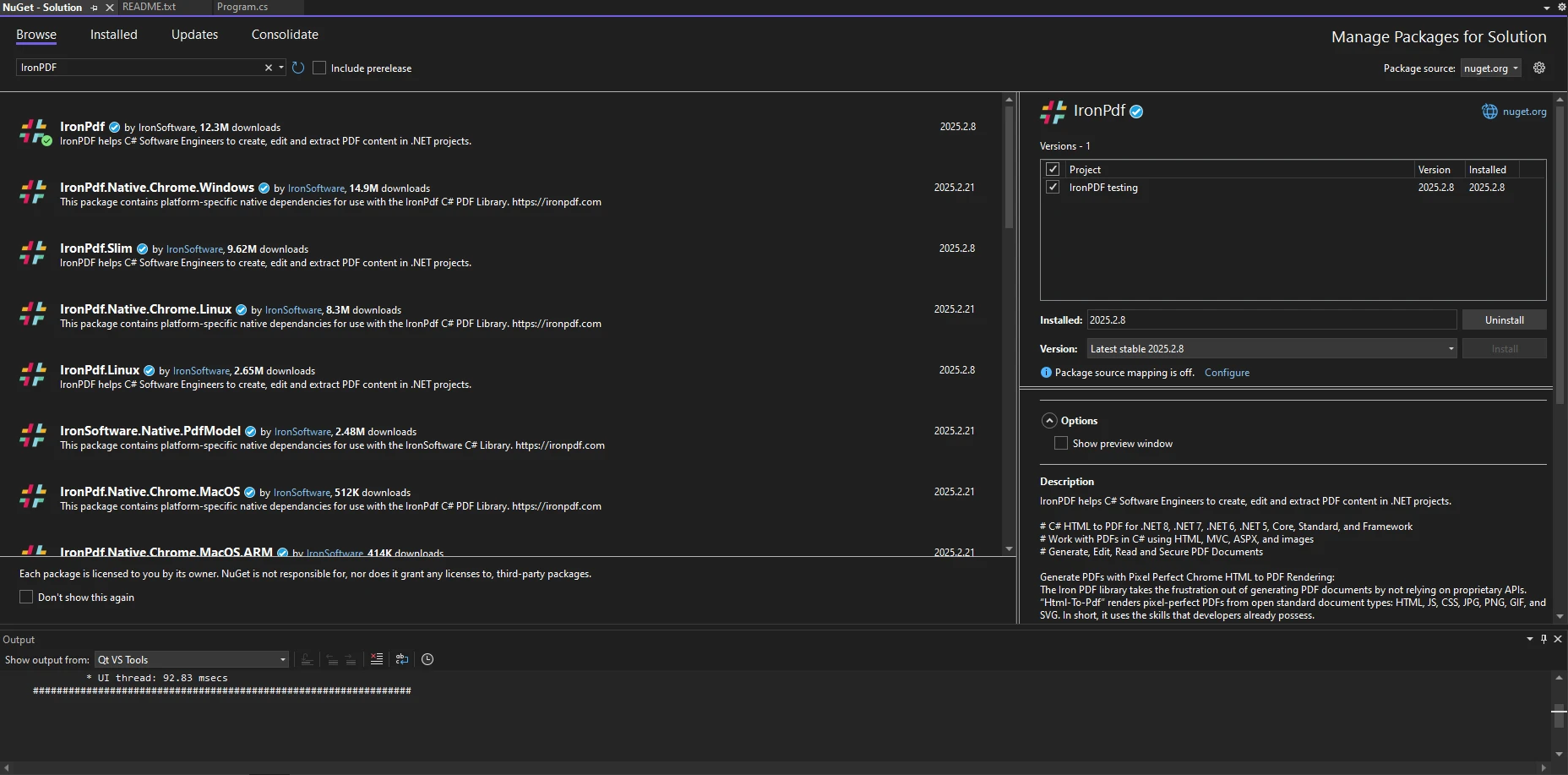
最初に、NuGetを介してIronPDFをインストールします。 Visual Studioでパッケージ マネージャー コンソールを開き、次を実行します:
あるいは、NuGet パッケージ マネージャーを使い、Visual StudioでIronPDFを検索し、"インストール"をクリックしてインストールすることも可能です。
インストールが完了したら、C#ファイルに次の名前空間が含まれていることを確認してください。
using IronPdf;Imports IronPdf吹き出しは通常、HTMLとCSSを使用して作成されます。 彼らは、円形のエッジを持つテキストコンテナと、話者を指す小さな尾部で構成されています。 IronPDFを使用して、これらの吹き出しをHTML要素として生成し、PDF内にレンダリングできます。
時には、吹き出しのサイズを動的に設定するために、ユーザー入力をダブル値に変換する必要があります。 これを実現するためにパースメソッドを使用できます。
string widthInput = "150.5";
double bubbleWidth = double.Parse(widthInput);Dim widthInput As String = "150.5"
Dim bubbleWidth As Double = Double.Parse(widthInput)これにより、ユーザー入力に基づいて吹き出しのサイズを動的に変更できます。
ブール値を使用して、吹き出しを表示するかどうかを切り替えることができます:
bool showBubble = true;
if (showBubble)
{
    Console.WriteLine("Speech bubble is visible");
}Dim showBubble As Boolean = True
If showBubble Then
Console.WriteLine("Speech bubble is visible")
End IfIronPDFはHTMLからPDFへの変換をサポートしているので、HTMLとCSSを使用して簡単な吹き出しを作成できます。 文字列変数をPDFドキュメントに変換するためには、まず新しいChromePdfRendererインスタンスを作成する必要があります。
using IronPdf;

class Program
{
    static void Main()
    {
        // Create a new PDF renderer instance
        ChromePdfRenderer renderer = new ChromePdfRenderer();

        // HTML and CSS content for the speech bubble
        string htmlContent =
            "<div class='bubble'>Hello, this is a speech bubble!</div>" +
            "<style>" +
            ".bubble { display: inline-block; background: #f0f0f0; border-radius: 10px; padding: 10px 15px; position: relative; font-family: Arial, sans-serif; }" +
            ".bubble::after { content: ''; position: absolute; bottom: -10px; left: 20px; border-width: 10px; border-style: solid; border-color: #f0f0f0 transparent transparent transparent; }" +
            "</style>";

        // Render the HTML to a PDF
        PdfDocument pdf = renderer.RenderHtmlAsPdf(htmlContent);

        // Save the PDF file
        pdf.SaveAs("speechBubble.pdf");
    }
}Imports IronPdf
Friend Class Program
Shared Sub Main()
' Create a new PDF renderer instance
Dim renderer As New ChromePdfRenderer()
' HTML and CSS content for the speech bubble
Dim htmlContent As String = "<div class='bubble'>Hello, this is a speech bubble!</div>" & "<style>" & ".bubble { display: inline-block; background: #f0f0f0; border-radius: 10px; padding: 10px 15px; position: relative; font-family: Arial, sans-serif; }" & ".bubble::after { content: ''; position: absolute; bottom: -10px; left: 20px; border-width: 10px; border-style: solid; border-color: #f0f0f0 transparent transparent transparent; }" & "</style>"
' Render the HTML to a PDF
Dim pdf As PdfDocument = renderer.RenderHtmlAsPdf(htmlContent)
' Save the PDF file
pdf.SaveAs("speechBubble.pdf")
End Sub
End Class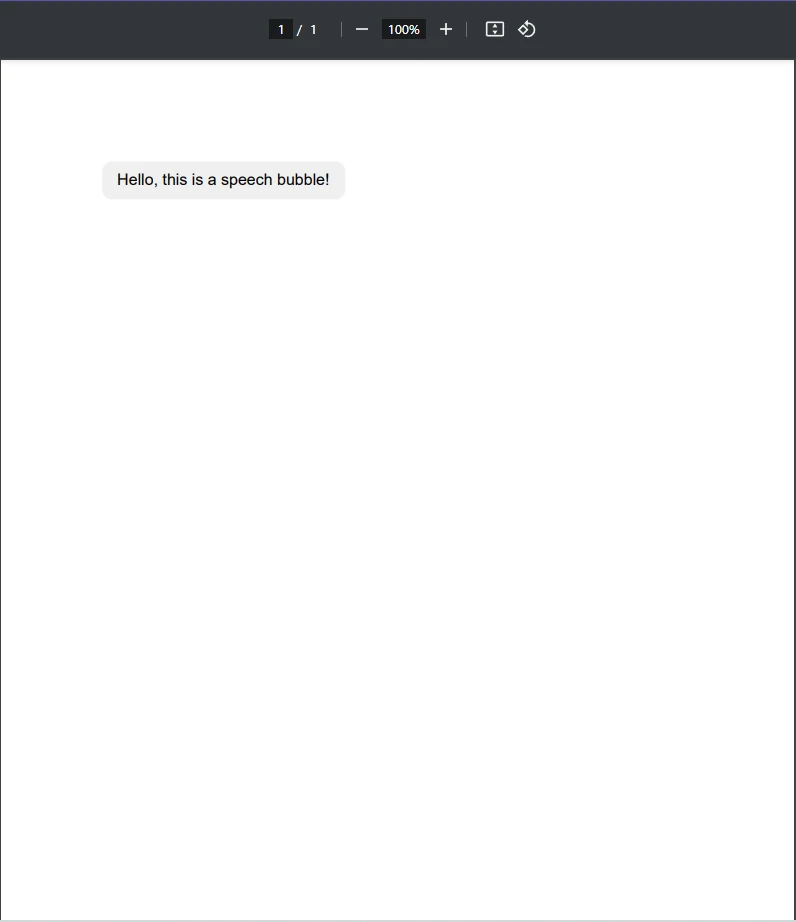
ご覧のとおり、PDFドキュメントに吹き出しをレンダリングするためのHTMLおよびCSSコンテンツを含む文字列変数を作成しました。 次に、ChromePdfRendererクラスのRenderHtmlAsPdfメソッドを使用して、この文字列をPDFドキュメントにレンダリングして保存しました。
これらの手順に従うことで、テキスト"こんにちは、これは吹き出しです!"を含む新しいPDFドキュメントを生成し、単純な文字列からPDFを生成する基本をマスターすることができます。
単にPDFに基本的な吹き出しを追加するだけでなく、何かもっとしたい場合は? CSSを使用して吹き出しをカスタマイズする方法を見てみましょう。 色、サイズ、および位置のCSSを調整することで、吹き出しが変更できます。 背景色とテキストサイズを変更する例を以下に示します:
.bubble {
  background: #ffcc00;
  color: #333;
  font-size: 16px;
}動的テキストが必要な場合は、静的テキストをC#変数に置き換えることができ、最終的なコードは次のようになります:
using IronPdf;

class Program
{
    static void Main()
    {
        // Create a new PDF renderer instance
        ChromePdfRenderer renderer = new ChromePdfRenderer();

        // User input for the dynamic speech bubble content
        string userInput = "This is a custom speech bubble!";

        // HTML and CSS content for the speech bubble with dynamic text
        string dynamicHtml =
            $"<div class='bubble'>{userInput}</div>" +
            "<style>" +
            ".bubble {background: #ffcc00; color: #333; font-size: 16px; }" +
            "</style>";

        // Render the HTML to a PDF
        PdfDocument pdf = renderer.RenderHtmlAsPdf(dynamicHtml);

        // Save the PDF file
        pdf.SaveAs("speechBubble.pdf");
    }
}Imports IronPdf
Friend Class Program
Shared Sub Main()
' Create a new PDF renderer instance
Dim renderer As New ChromePdfRenderer()
' User input for the dynamic speech bubble content
Dim userInput As String = "This is a custom speech bubble!"
' HTML and CSS content for the speech bubble with dynamic text
Dim dynamicHtml As String = $"<div class='bubble'>{userInput}</div>" & "<style>" & ".bubble {background: #ffcc00; color: #333; font-size: 16px; }" & "</style>"
' Render the HTML to a PDF
Dim pdf As PdfDocument = renderer.RenderHtmlAsPdf(dynamicHtml)
' Save the PDF file
pdf.SaveAs("speechBubble.pdf")
End Sub
End Class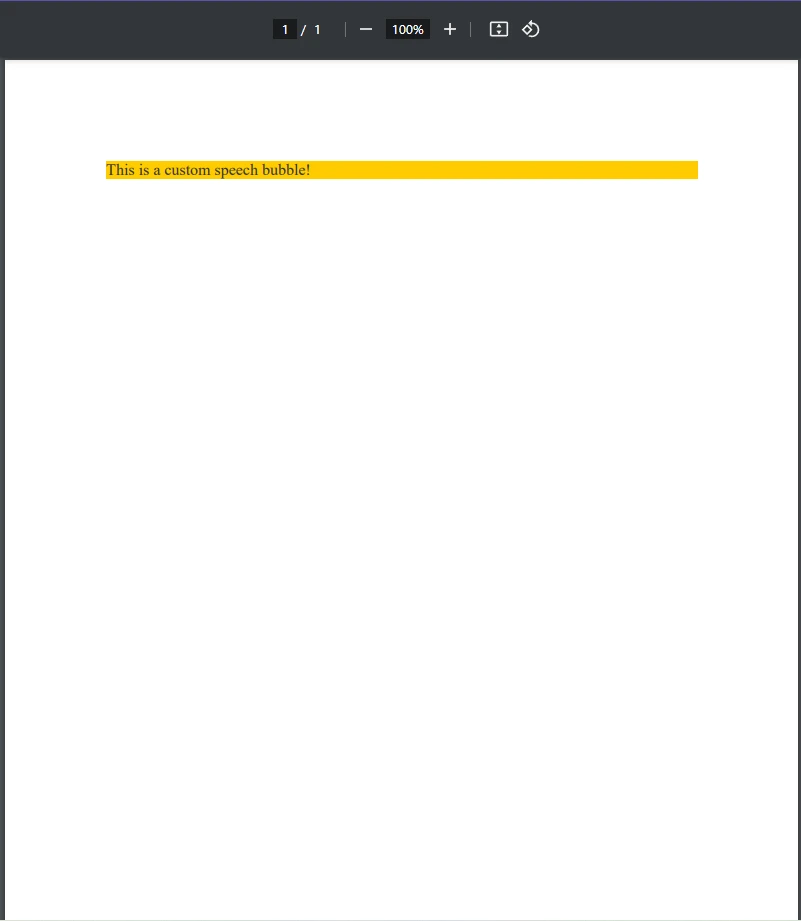
場合によっては、新しいPDFを生成するのではなく、既存のPDFに吹き出しを追加したい場合があります。 IronPDFを使用すると、既存のPDFに透かしとしてHTML要素をオーバーレイできます。
using IronPdf;

class Program
{
    public static void Main()
    {
        // Load an existing PDF document
        PdfDocument pdf = PdfDocument.FromFile("existing.pdf");

        // HTML and CSS content for the new speech bubble
        string newBubble =
            "<div class='bubble'>New Comment</div>" +
            "<style>" +
            ".bubble { display: inline-block; background: #f0f0f0; border-radius: 10px; padding: 10px 15px; position: relative; font-family: Arial, sans-serif; }" +
            ".bubble::after { content: ''; position: absolute; bottom: -10px; left: 20px; border-width: 10px; border-style: solid; border-color: #f0f0f0 transparent transparent transparent; }" +
            "</style>";

        // Apply the speech bubble as a watermark on the existing PDF
        pdf.ApplyWatermark(newBubble);

        // Save the updated PDF file
        pdf.SaveAs("updated.pdf");
    }
}Imports IronPdf
Friend Class Program
Public Shared Sub Main()
' Load an existing PDF document
Dim pdf As PdfDocument = PdfDocument.FromFile("existing.pdf")
' HTML and CSS content for the new speech bubble
Dim newBubble As String = "<div class='bubble'>New Comment</div>" & "<style>" & ".bubble { display: inline-block; background: #f0f0f0; border-radius: 10px; padding: 10px 15px; position: relative; font-family: Arial, sans-serif; }" & ".bubble::after { content: ''; position: absolute; bottom: -10px; left: 20px; border-width: 10px; border-style: solid; border-color: #f0f0f0 transparent transparent transparent; }" & "</style>"
' Apply the speech bubble as a watermark on the existing PDF
pdf.ApplyWatermark(newBubble)
' Save the updated PDF file
pdf.SaveAs("updated.pdf")
End Sub
End Class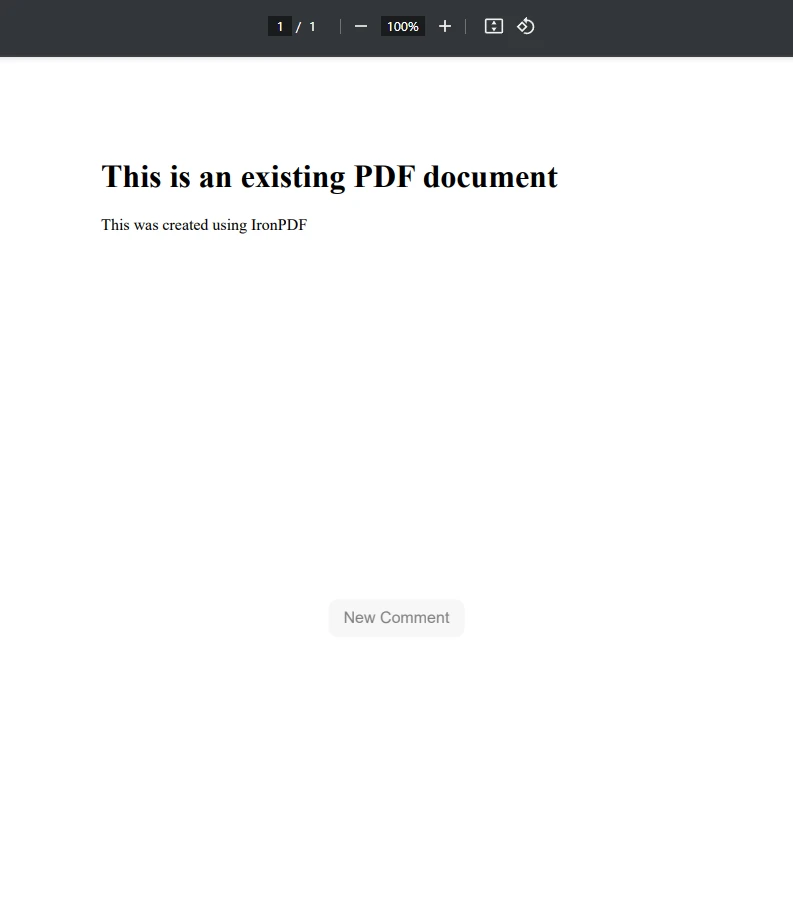
上記のコード例で示されるように、新しい吹き出しを追加する予定のPdfDocument.FromFile()を使用して既存のPDFドキュメントを読み込むことで開始します。 次に、シンプルなHTMLとCSSを使用して、newBubbleというHTMLコンテンツの文字列表現で吹き出しを作成しました。 最後に、この新しい吹き出しをPDFに適用するには、ApplyWatermarkメソッドを使用するだけで済みました。
IronPDFの透かしツールをこのように使用することで、開発者は既存のPDFドキュメントにHTMLコンテンツを簡単に適用できます。
ユーザー入力、データベース、またはAPIに基づいて吹き出しを動的に作成する必要がある場合は、データをループして複数の吹き出しを生成できます。
using IronPdf;

class Program
{
    static void Main()
    {
        // Create a new PDF renderer instance
        ChromePdfRenderer renderer = new ChromePdfRenderer();

        // List of messages to convert into speech bubbles
        List<string> messages = new List<string> { "Hello!", "How are you?", "This is IronPDF!" };
        string htmlBubbles = "";

        // Generate HTML for each message
        foreach (var msg in messages)
        {
            htmlBubbles += $"<div class='bubble'>{msg}</div>";
        }

        // Render the HTML to a PDF
        var pdf = renderer.RenderHtmlAsPdf(htmlBubbles);

        // Save the PDF file
        pdf.SaveAs("updated.pdf");
    }
}Imports IronPdf
Friend Class Program
Shared Sub Main()
' Create a new PDF renderer instance
Dim renderer As New ChromePdfRenderer()
' List of messages to convert into speech bubbles
Dim messages As New List(Of String) From {"Hello!", "How are you?", "This is IronPDF!"}
Dim htmlBubbles As String = ""
' Generate HTML for each message
For Each msg In messages
htmlBubbles &= $"<div class='bubble'>{msg}</div>"
Next msg
' Render the HTML to a PDF
Dim pdf = renderer.RenderHtmlAsPdf(htmlBubbles)
' Save the PDF file
pdf.SaveAs("updated.pdf")
End Sub
End Class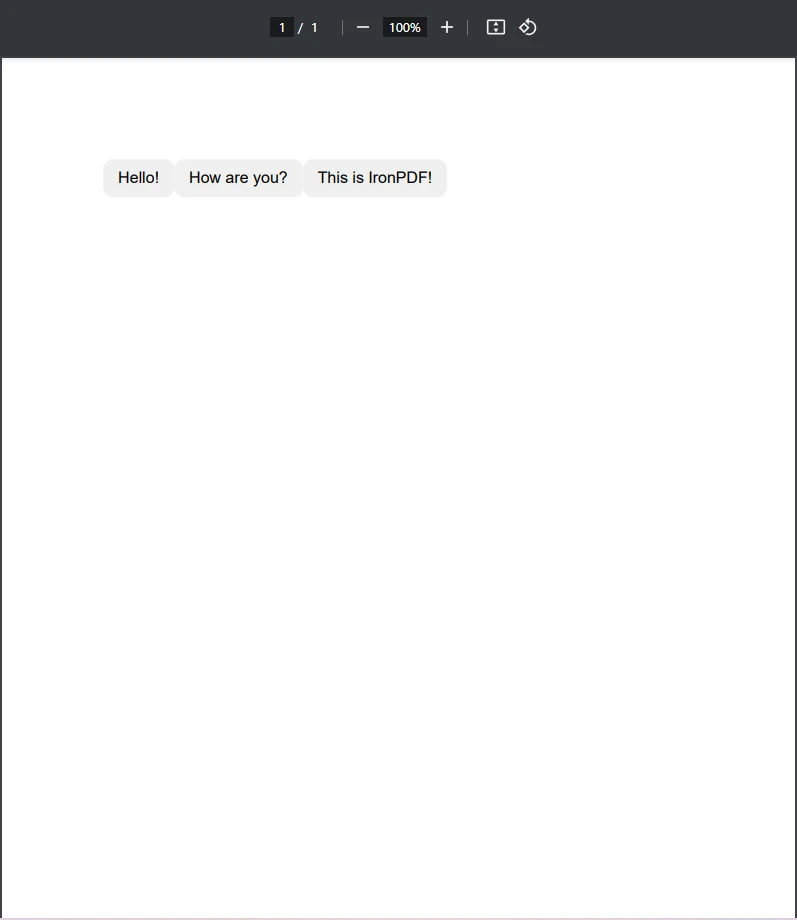
このコードは、Listからの文字列をforeachループを使って吹き出しに変換します。このようなメソッドを使用してPDFドキュメント上で文字列を吹き出しに変換することで、チャットログや通知、さらには自動化されたレポートなどのデータを簡単に表示可能な吹き出しに変えることができます。
ユーザー入力を解析する際には、特に数値について、文化特有のフォーマット情報を考慮する必要がある場合があります。
using System.Globalization;

string value = "1,234.56";
double number = double.Parse(value, CultureInfo.InvariantCulture);Imports System.Globalization
Private value As String = "1,234.56"
Private number As Double = Double.Parse(value, CultureInfo.InvariantCulture)これにより、地域設定に関係なく、一貫した数値フォーマットが保証されます。
int変数を宣言して、吹き出し用のカウンターを格納できます:
int i = 0;
for (i = 0; i < 5; i++)
{
    Console.WriteLine($"Generating speech bubble {i + 1}");
}Dim i As Integer = 0
For i = 0 To 4
Console.WriteLine($"Generating speech bubble {i + 1}")
Next i文字列入力をint の結果に解析する必要がある場合は、 parse メソッドを使用できます。
string input = "42";
int result = int.Parse(input);Dim input As String = "42"
Dim result As Integer = Integer.Parse(input)これにより、テキスト入力が使用可能な数値フォーマットの変数に変換され、正しいフォーマットに変換されます。
コードを構造化するために、吹き出し生成用のpublic classを定義できます。
public class SpeechBubbleGenerator
{
    // Method to generate HTML for a speech bubble
    public string GenerateBubble(string text)
    {
        return $"<div class='bubble'>{text}</div>";
    }
}Public Class SpeechBubbleGenerator
' Method to generate HTML for a speech bubble
Public Function GenerateBubble(ByVal text As String) As String
Return $"<div class='bubble'>{text}</div>"
End Function
End Classこのクラスを使用して、複数の吹き出しを効率的に作成できます。
吹き出しは、PDFに明確さとスタイルを加え、注釈、コメント、インタラクティブなドキュメントに最適です。 IronPDFを使用することで、HTMLおよびCSSで簡単にこれらの吹き出しを生成し、C#を利用してカスタマイズと自動化を行うことができます。 既存のPDFにオーバーレイする場合でも、動的ドキュメントを作成する場合でも、IronPDFは柔軟で効率的なアプローチを提供し、PDFドキュメント用の読みやすい吹き出しに文字列を簡単に変換できます。
もし.NETで強力なPDFソリューションを探しているなら、IronPDFを試して、動的で視覚的に魅力的なコンテンツでPDFを強化し始めてみてください!

ジェイコブ・メラーはIron Softwareの最高技術責任者(CTO)であり、C# PDFテクノロジーを開拓する先見的なエンジニアです。Iron Softwareのコアコードベースを支えるオリジナル開発者として、彼は創業以来、会社の製品アーキテクチャを形成し、CEOのCameron Rimingtonとともに、会社をNASA、Tesla、および世界的な政府機関にサービスを提供する50人以上の会社に変えました。1999年にロンドンで最初のソフトウェアビジネスを開業し、2005年に最初 for .NETコンポーネントを作成した後、Microsoftのエコシステム全体で複雑な問題を解決することを専門としました。



IronPDF はIRONSUITEの一部です
オフィス文書向けの.NET API製品10個

PDFがHTMLのように見える必要があるとき、迅速に。


