


IronPDFを使用して.NETでPDFを動的に生成する方法

IronPDF は、C# コードを通じて PDF ドキュメントを生成、変換、編集する.NET Coreおよび.NET 10 用の PDF API です。 NuGet パッケージをインストールし、ChromePdfRenderer インスタンスを作成して、数行で HTML 文字列、ライブ URL、または既存のファイルから PDF を生成します。
PDF 生成は、請求書、レポート、契約書、コンプライアンス ドキュメントなど for .NET Coreアプリケーションの標準要件です。 課題は、HTML を正確にレンダリングし、 ASP.NET CoreおよびBlazorときれいに統合し、Windows、Linux、macOS で一貫した出力を生成し、別のツールを必要とせずにデジタル署名やパスワード保護などの高度な操作を処理するライブラリを見つけることです。 このガイドでは、IronPDF for .NET Core PDF API のインストールから最も一般的なドキュメント操作までを、それぞれ実用的な C# コード例とともに説明します。
.NET CoreでIronPDFを使い始めるにはどうすればいいですか?
パッケージ マネージャー コンソールまたは.NET CLI を使用してNuGetからIronPDFをインストールします。
# Package Manager Console
Install-Package IronPdf

# .NET CLI
dotnet add package IronPdf
# Package Manager Console
Install-Package IronPdf
# .NET CLI
dotnet add package IronPdfインストール後、アプリケーション起動時にライセンスキーを Program.cs に追加します。
using IronPdf;

// Configure your license key before any IronPDF operations
License.LicenseKey = "YOUR-LICENSE-KEY";
using IronPdf;
// Configure your license key before any IronPDF operations
License.LicenseKey = "YOUR-LICENSE-KEY";Imports IronPdf
' Configure your license key before any IronPDF operations
License.LicenseKey = "YOUR-LICENSE-KEY"クレジットカードなしで評価できる無料トライアルをご利用いただけます。 IronPDF は、.NET 10、 .NET 9、 .NET 8、 .NET Framework 4.6.2+ 、およびすべての主要な.NET Coreバージョンをサポートしています。 このライブラリは、追加のランタイム依存関係なしで Windows、macOS、Linux 上で実行されるため、コンテナー化されたデプロイメントや、 Azure 、Docker、AWS などのクラウド環境に適しています。
ASP.NET Core プロジェクトの場合、アプリを構築する前に Program.cs に IronPDF サービスを登録し、標準の依存性注入コンテナを介して ChromePdfRenderer を注入します。 IronPDF は、Web API、MVC、 Razor Pages、 Blazor Server などのASP.NET Coreプロジェクト タイプと統合されます。 NuGetパッケージは、ネイティブ ランタイム ライブラリや外部実行可能ファイルを必要とせずに単一の依存関係としてインストールされるため、CI パイプラインとコンテナー イメージが簡単に維持されます。 Linux または macOS の展開では、標準 for .NET SDK 以外の追加の構成は必要ありません。
ChromePdfRenderer はスレッドセーフであるため、シングルトンとして登録し、リクエストハンドラー間で共有することができます。 高スループットのシナリオでは、レンダラーインスタンスのプールを作成するか、非同期レンダーメソッド (RenderHtmlAsPdfAsync, RenderUrlAsPdfAsync) を使用して、PDF生成中にリクエストスレッドをブロックしないようにします。 IronPDF のライセンス ページでは、運用環境におけるデプロイメント シートと同時スレッドの制限について説明しています。
HTMLからC#でPDFを生成するにはどうすればよいですか?
HTML から PDF への変換は、 .NET PDF API の最も一般的な用途です。 IronPDF のChromePdfRenderer は、Chrome でレンダリングされる CSS スタイル、フォント、 JavaScript出力、画像を保持しながら、HTML 文字列、ローカル ファイル、またはライブ URL を変換します。
using IronPdf;

// Create the renderer and define HTML content with full CSS support
var renderer = new ChromePdfRenderer();
var html = @"<html>
<head>
    <style>
        body { font-family: Arial; font-size: 14px; margin: 40px; }
        h1 { color: #2c3e50; border-bottom: 2px solid #3498db; }
        table { border-collapse: collapse; width: 100%; margin-top: 16px; }
        td, th { border: 1px solid #ddd; padding: 10px; text-align: left; }
        th { background: #3498db; color: white; }
    </style>
</head>
<body>
    <h1>Sales Report - Q4 2025</h1>
    <p>Generated on: " + DateTime.Now.ToString("MMMM dd, yyyy") + @"</p>
    <table>
        <tr><th>Product</th><th>Units Sold</th><th>Revenue</th></tr>
        <tr><td>Widget A</td><td>1,200</td><td>$24,000</td></tr>
        <tr><td>Widget B</td><td>850</td><td>$17,000</td></tr>
    </table>
</body>
</html>";

var document = renderer.RenderHtmlAsPdf(html);
document.SaveAs("sales-report.pdf");
using IronPdf;
// Create the renderer and define HTML content with full CSS support
var renderer = new ChromePdfRenderer();
var html = @"<html>
<head>
<style>
body { font-family: Arial; font-size: 14px; margin: 40px; }
h1 { color: #2c3e50; border-bottom: 2px solid #3498db; }
table { border-collapse: collapse; width: 100%; margin-top: 16px; }
td, th { border: 1px solid #ddd; padding: 10px; text-align: left; }
th { background: #3498db; color: white; }
</style>
</head>
<body>
<h1>Sales Report - Q4 2025</h1>
<p>Generated on: " + DateTime.Now.ToString("MMMM dd, yyyy") + @"</p>
<table>
<tr><th>Product</th><th>Units Sold</th><th>Revenue</th></tr>
<tr><td>Widget A</td><td>1,200</td><td>$24,000</td></tr>
<tr><td>Widget B</td><td>850</td><td>$17,000</td></tr>
</table>
</body>
</html>";
var document = renderer.RenderHtmlAsPdf(html);
document.SaveAs("sales-report.pdf");Imports IronPdf
' Create the renderer and define HTML content with full CSS support
Dim renderer As New ChromePdfRenderer()
Dim html As String = "<html>
<head>
<style>
body { font-family: Arial; font-size: 14px; margin: 40px; }
h1 { color: #2c3e50; border-bottom: 2px solid #3498db; }
table { border-collapse: collapse; width: 100%; margin-top: 16px; }
td, th { border: 1px solid #ddd; padding: 10px; text-align: left; }
th { background: #3498db; color: white; }
</style>
</head>
<body>
<h1>Sales Report - Q4 2025</h1>
<p>Generated on: " & DateTime.Now.ToString("MMMM dd, yyyy") & "</p>
<table>
<tr><th>Product</th><th>Units Sold</th><th>Revenue</th></tr>
<tr><td>Widget A</td><td>1,200</td><td>$24,000</td></tr>
<tr><td>Widget B</td><td>850</td><td>$17,000</td></tr>
</table>
</body>
</html>"
Dim document = renderer.RenderHtmlAsPdf(html)
document.SaveAs("sales-report.pdf")PDFドキュメントの出力
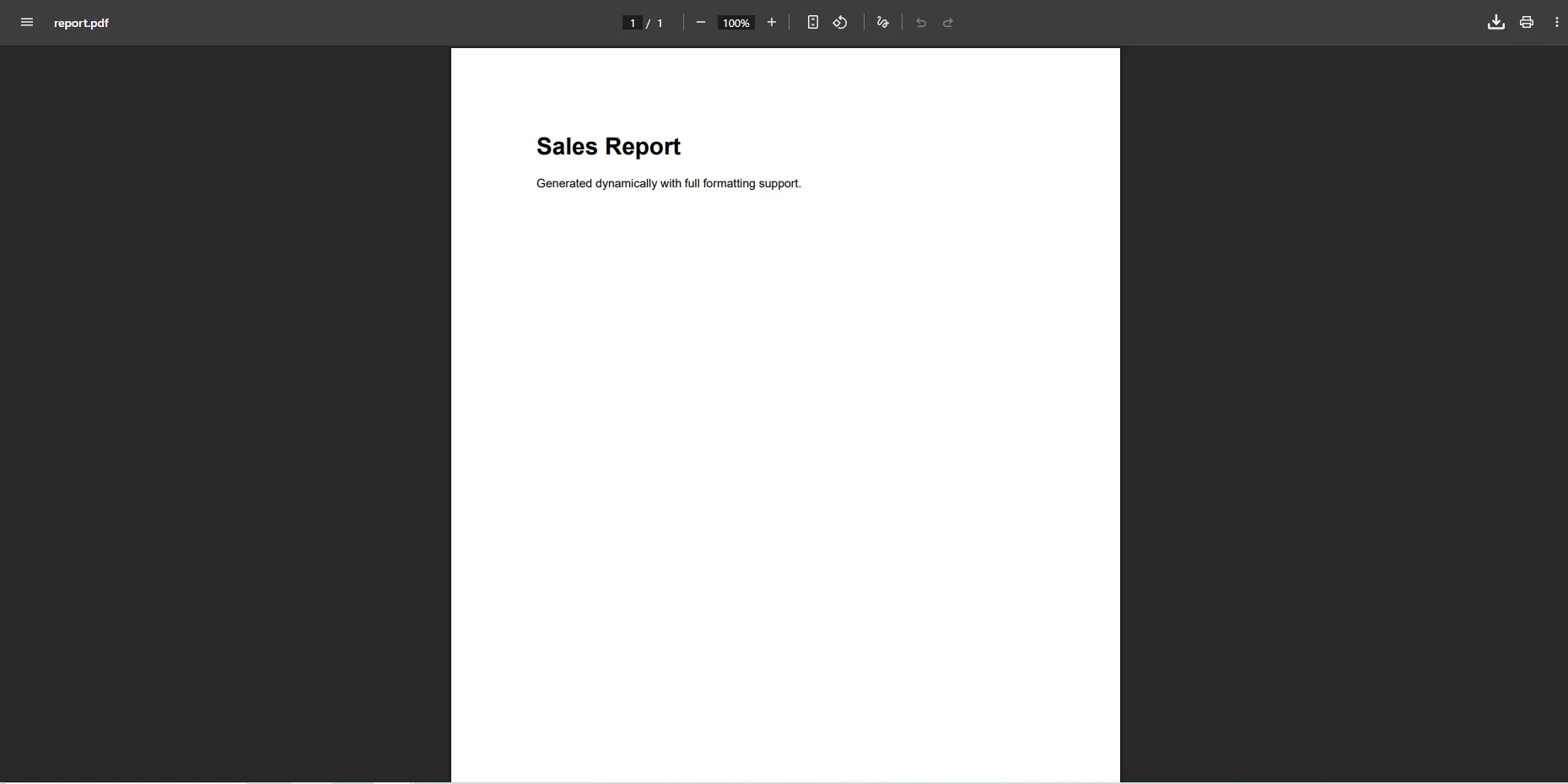
ChromePdfRenderer は、ファイルパスに保存したり、HTTPレスポンス用の byte[] にエクスポートしたり、メモリ内処理用の MemoryStream に書き込んだりできる PdfDocument オブジェクトを返します。 レンダラーはカスタムフォント、フレックスボックス、グリッドレイアウト、メディアクエリ、@page を含むすべての CSS プロパティを尊重し、余白とページサイズを制御します。 CSS と画像アセットと共にディスクに保存されている HTML テンプレートについては、インライン文字列を渡す代わりにファイルパスで RenderHtmlFileAsPdf を呼び出します。 IronPDF はファイルのディレクトリに対して相対アセット パスを解決するため、リンクされたスタイルシートとローカル イメージは追加の構成なしで出力に表示されます。
ライブウェブページをキャプチャする必要があるアプリケーションでは、RenderUrlAsPdfAsync を使用して JavaScript を実行しながら任意の URL のスクリーンショットを撮ります。
using IronPdf;

var renderer = new ChromePdfRenderer();

// Render a live URL including all JavaScript-rendered content
var document = await renderer.RenderUrlAsPdfAsync("https://example.com/monthly-report");
document.SaveAs("monthly-report.pdf");

// Return PDF bytes in an ASP.NET Core controller
byte[] pdfBytes = document.BinaryData;
return File(pdfBytes, "application/pdf", "report.pdf");
using IronPdf;
var renderer = new ChromePdfRenderer();
// Render a live URL including all JavaScript-rendered content
var document = await renderer.RenderUrlAsPdfAsync("https://example.com/monthly-report");
document.SaveAs("monthly-report.pdf");
// Return PDF bytes in an ASP.NET Core controller
byte[] pdfBytes = document.BinaryData;
return File(pdfBytes, "application/pdf", "report.pdf");Imports IronPdf
Dim renderer As New ChromePdfRenderer()
' Render a live URL including all JavaScript-rendered content
Dim document = Await renderer.RenderUrlAsPdfAsync("https://example.com/monthly-report")
document.SaveAs("monthly-report.pdf")
' Return PDF bytes in an ASP.NET Core controller
Dim pdfBytes As Byte() = document.BinaryData
Return File(pdfBytes, "application/pdf", "report.pdf")URL レンダリングは、キャプチャする前にJavaScriptが完了するまで待機します。これにより、動的に読み込まれたグラフ、表、およびデータ視覚化が出力 PDF に正しく表示されます。 レンダリング オプションを構成して、ページの余白、用紙サイズ、向き、 JavaScript実行タイムアウトを設定できます。 認証 Cookie とカスタム HTTP ヘッダーをレンダリング前にリクエストに挿入することも可能で、これによりログインセッションを必要とするページのキャプチャがサポートされます。
PDF のページレイアウトとレンダリング オプションをどのように構成しますか?
RenderingOptions プロパティは、レンダーコールが実行される前にページの寸法、余白、傾き、および JavaScript の待機動作を制御します。 これらのプロパティをレンダラー インスタンスで 1 回設定すると、レンダラー インスタンスが生成するすべてのドキュメントに適用されます。
using IronPdf;

var renderer = new ChromePdfRenderer();

// Configure page layout before rendering
renderer.RenderingOptions.PaperSize = IronPdf.Rendering.PdfPaperSize.A4;
renderer.RenderingOptions.PaperOrientation = IronPdf.Rendering.PdfPaperOrientation.Landscape;
renderer.RenderingOptions.MarginTop = 15;
renderer.RenderingOptions.MarginBottom = 15;
renderer.RenderingOptions.MarginLeft = 20;
renderer.RenderingOptions.MarginRight = 20;

// Wait for dynamic JavaScript content before capturing
renderer.RenderingOptions.WaitFor.RenderDelay(500);

var document = renderer.RenderHtmlAsPdf("<h1>Landscape Report</h1><p>Body content here.</p>");
document.SaveAs("landscape-report.pdf");
using IronPdf;
var renderer = new ChromePdfRenderer();
// Configure page layout before rendering
renderer.RenderingOptions.PaperSize = IronPdf.Rendering.PdfPaperSize.A4;
renderer.RenderingOptions.PaperOrientation = IronPdf.Rendering.PdfPaperOrientation.Landscape;
renderer.RenderingOptions.MarginTop = 15;
renderer.RenderingOptions.MarginBottom = 15;
renderer.RenderingOptions.MarginLeft = 20;
renderer.RenderingOptions.MarginRight = 20;
// Wait for dynamic JavaScript content before capturing
renderer.RenderingOptions.WaitFor.RenderDelay(500);
var document = renderer.RenderHtmlAsPdf("<h1>Landscape Report</h1><p>Body content here.</p>");
document.SaveAs("landscape-report.pdf");Imports IronPdf
Dim renderer As New ChromePdfRenderer()
' Configure page layout before rendering
renderer.RenderingOptions.PaperSize = IronPdf.Rendering.PdfPaperSize.A4
renderer.RenderingOptions.PaperOrientation = IronPdf.Rendering.PdfPaperOrientation.Landscape
renderer.RenderingOptions.MarginTop = 15
renderer.RenderingOptions.MarginBottom = 15
renderer.RenderingOptions.MarginLeft = 20
renderer.RenderingOptions.MarginRight = 20
' Wait for dynamic JavaScript content before capturing
renderer.RenderingOptions.WaitFor.RenderDelay(500)
Dim document = renderer.RenderHtmlAsPdf("<h1>Landscape Report</h1><p>Body content here.</p>")
document.SaveAs("landscape-report.pdf")用紙サイズの値は、A4、A3、レター、リーガルなどの標準形式と、ミリメートル単位で指定されたカスタム寸法をカバーします。 余白プロパティはミリメートル単位で値を受け入れ、各エッジに個別に適用されます。 WaitFor API は JavaScript の実行タイミングを制御し、HTML が非同期にデータをロードしチャートや計算されたテーブル値をレンダリングする前に役立ちます。 CSS @page ルールを使用するページについては、IronPDF がこれらの宣言を尊重し、直接適用します。 ズーム係数、背景色、PDF バージョンの選択を含む完全なプロパティ リストについては、完全なレンダリング オプション リファレンスを参照してください。
DOCX ファイルと画像を PDF に変換するにはどうすればよいですか?
IronPDF はHTML 以外にも、DOCX ドキュメント、一般的な画像形式、Markdown ファイルを PDF に変換します。 これは、複数の入力タイプを受け入れる処理パイプラインをサポートします。
using IronPdf;

// Convert a Word document to PDF while preserving its formatting
var docxPdf = new DocxToPdfRenderer().RenderDocxAsPdf("contract.docx");
docxPdf.SaveAs("contract.pdf");

// Combine multiple images into a single multi-page PDF
var images = new[] { "page1.png", "page2.png", "page3.png" };
var imagePdf = ImageToPdfConverter.ImageToPdf(images);
imagePdf.SaveAs("scanned-document.pdf");
using IronPdf;
// Convert a Word document to PDF while preserving its formatting
var docxPdf = new DocxToPdfRenderer().RenderDocxAsPdf("contract.docx");
docxPdf.SaveAs("contract.pdf");
// Combine multiple images into a single multi-page PDF
var images = new[] { "page1.png", "page2.png", "page3.png" };
var imagePdf = ImageToPdfConverter.ImageToPdf(images);
imagePdf.SaveAs("scanned-document.pdf");Imports IronPdf
' Convert a Word document to PDF while preserving its formatting
Dim docxPdf = New DocxToPdfRenderer().RenderDocxAsPdf("contract.docx")
docxPdf.SaveAs("contract.pdf")
' Combine multiple images into a single multi-page PDF
Dim images = {"page1.png", "page2.png", "page3.png"}
Dim imagePdf = ImageToPdfConverter.ImageToPdf(images)
imagePdf.SaveAs("scanned-document.pdf")入力DOCXと出力PDFの例

DOCX から PDF への変換機能では、ソースの Word 文書の段落スタイル、表、ヘッダー、フッター、埋め込み画像、リストが保持されます。 画像から PDF へのコンバーターは、 JPEG、PNG、TIFF、BMP、GIF を受け入れ、出力ファイル サイズを自動的に最適化し、複数の画像を 1 つのページ区切りのドキュメントに結合することをサポートします。 どちらのコンバーターも標準の PdfDocument インスタンスを返し、編集、マージ、サイン、ウォーターマークなどの操作と連携できます。 Microsoft Wordによって生成された DOCX ファイルの場合、コンバーターは元の段落と見出しの階層を維持しながら、複雑な表構造と埋め込み画像を処理します。
デジタル署名とフォーム フィールドを追加するにはどうすればよいですか?
制作ドキュメントのワークフローでは、信頼性を確保するために暗号署名とデータ収集のためのインタラクティブなフォーム フィールドが必要になることがよくあります。 IronPDF は、同じ API を通じてデジタル署名とPDF フォームのサポートを提供します。
using IronPdf;
using IronPdf.Signing;

// Load an existing PDF and apply a digital signature using an X.509 certificate
var pdf = PdfDocument.FromFile("agreement.pdf");
var signature = new PdfSignature("certificate.pfx", "pfx-password");
pdf.Sign(signature);

// Populate named form fields with dynamic application data
pdf.Form.FindFormField("CustomerName").Value = "Acme Corporation";
pdf.Form.FindFormField("ContractDate").Value = DateTime.Now.ToString("yyyy-MM-dd");
pdf.Form.FindFormField("Amount").Value = "$12,500.00";

pdf.SaveAs("signed-agreement.pdf");
using IronPdf;
using IronPdf.Signing;
// Load an existing PDF and apply a digital signature using an X.509 certificate
var pdf = PdfDocument.FromFile("agreement.pdf");
var signature = new PdfSignature("certificate.pfx", "pfx-password");
pdf.Sign(signature);
// Populate named form fields with dynamic application data
pdf.Form.FindFormField("CustomerName").Value = "Acme Corporation";
pdf.Form.FindFormField("ContractDate").Value = DateTime.Now.ToString("yyyy-MM-dd");
pdf.Form.FindFormField("Amount").Value = "$12,500.00";
pdf.SaveAs("signed-agreement.pdf");Imports IronPdf
Imports IronPdf.Signing
' Load an existing PDF and apply a digital signature using an X.509 certificate
Dim pdf = PdfDocument.FromFile("agreement.pdf")
Dim signature = New PdfSignature("certificate.pfx", "pfx-password")
pdf.Sign(signature)
' Populate named form fields with dynamic application data
pdf.Form.FindFormField("CustomerName").Value = "Acme Corporation"
pdf.Form.FindFormField("ContractDate").Value = DateTime.Now.ToString("yyyy-MM-dd")
pdf.Form.FindFormField("Amount").Value = "$12,500.00"
pdf.SaveAs("signed-agreement.pdf")検証済み署名の例
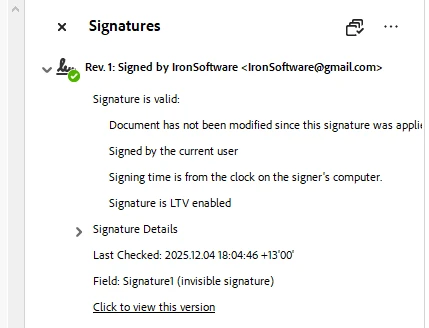
デジタル署名は PFX 形式の X.509 証明書を使用し、Adobe Acrobat やその他の PDF ビューアで認識される PDF 署名標準に準拠しています。 Acrobat の署名パネルでは、証明書の発行者、署名時刻、整合性ステータスを確認します。 PDF フォーム API は、テキスト フィールド、チェック ボックス、ラジオ ボタン、ドロップダウン メニューをサポートします。 プログラムでフォーム テンプレートを作成し、実行時にデータを入力して、入力されたドキュメントから送信されたフィールド値を読み取ることができます。 このパターンは、契約管理、HR オンボーディング、および同じ PDF テンプレートが異なるフィールド値を持つ多くのトランザクション間で再利用される自動データ収集パイプラインに役立ちます。
タイムスタンプベースの署名には、署名の時間をローカルシステムクロックではなく信頼できる第三機関が認証するように、タイムスタンプサーバー URI で構成された PdfSignature インスタンスを渡します。 署名ガイドでは、目に見える署名画像、複数の連続署名者、および証明書検証オプションについて説明します。
既存の PDF ドキュメントを編集および操作するにはどうすればよいですか?
IronPDF を使用すると、HTML から再構築せずに PDF ファイルを変更できます。 プログラムによってヘッダー、フッター、透かし、注釈を追加したり、ページを結合したり分割したりできます。
using IronPdf;

var document = PdfDocument.FromFile("report.pdf");

// Add a semi-transparent watermark using HTML
document.ApplyWatermark("<h2 style='color:red; opacity:0.4; transform:rotate(-30deg)'>CONFIDENTIAL</h2>",
    rotation: 30, opacity: 50);

// Add a branded header to every page
document.AddHtmlHeaders(new HtmlHeaderFooter
{
    HtmlFragment = "<div style='text-align:right; font-size:10px; color:#666'>Internal Use Only - Page {page} of {total-pages}</div>"
});

// Append supplementary pages from a second document
var appendix = PdfDocument.FromFile("appendix.pdf");
document.AppendPdf(appendix);

document.SaveAs("final-report.pdf");

// Export to bytes for HTTP streaming
byte[] pdfBytes = document.BinaryData;
using IronPdf;
var document = PdfDocument.FromFile("report.pdf");
// Add a semi-transparent watermark using HTML
document.ApplyWatermark("<h2 style='color:red; opacity:0.4; transform:rotate(-30deg)'>CONFIDENTIAL</h2>",
rotation: 30, opacity: 50);
// Add a branded header to every page
document.AddHtmlHeaders(new HtmlHeaderFooter
{
HtmlFragment = "<div style='text-align:right; font-size:10px; color:#666'>Internal Use Only - Page {page} of {total-pages}</div>"
});
// Append supplementary pages from a second document
var appendix = PdfDocument.FromFile("appendix.pdf");
document.AppendPdf(appendix);
document.SaveAs("final-report.pdf");
// Export to bytes for HTTP streaming
byte[] pdfBytes = document.BinaryData;Imports IronPdf
Dim document = PdfDocument.FromFile("report.pdf")
' Add a semi-transparent watermark using HTML
document.ApplyWatermark("<h2 style='color:red; opacity:0.4; transform:rotate(-30deg)'>CONFIDENTIAL</h2>", rotation:=30, opacity:=50)
' Add a branded header to every page
document.AddHtmlHeaders(New HtmlHeaderFooter With {
.HtmlFragment = "<div style='text-align:right; font-size:10px; color:#666'>Internal Use Only - Page {page} of {total-pages}</div>"
})
' Append supplementary pages from a second document
Dim appendix = PdfDocument.FromFile("appendix.pdf")
document.AppendPdf(appendix)
document.SaveAs("final-report.pdf")
' Export to bytes for HTTP streaming
Dim pdfBytes As Byte() = document.BinaryData出力例
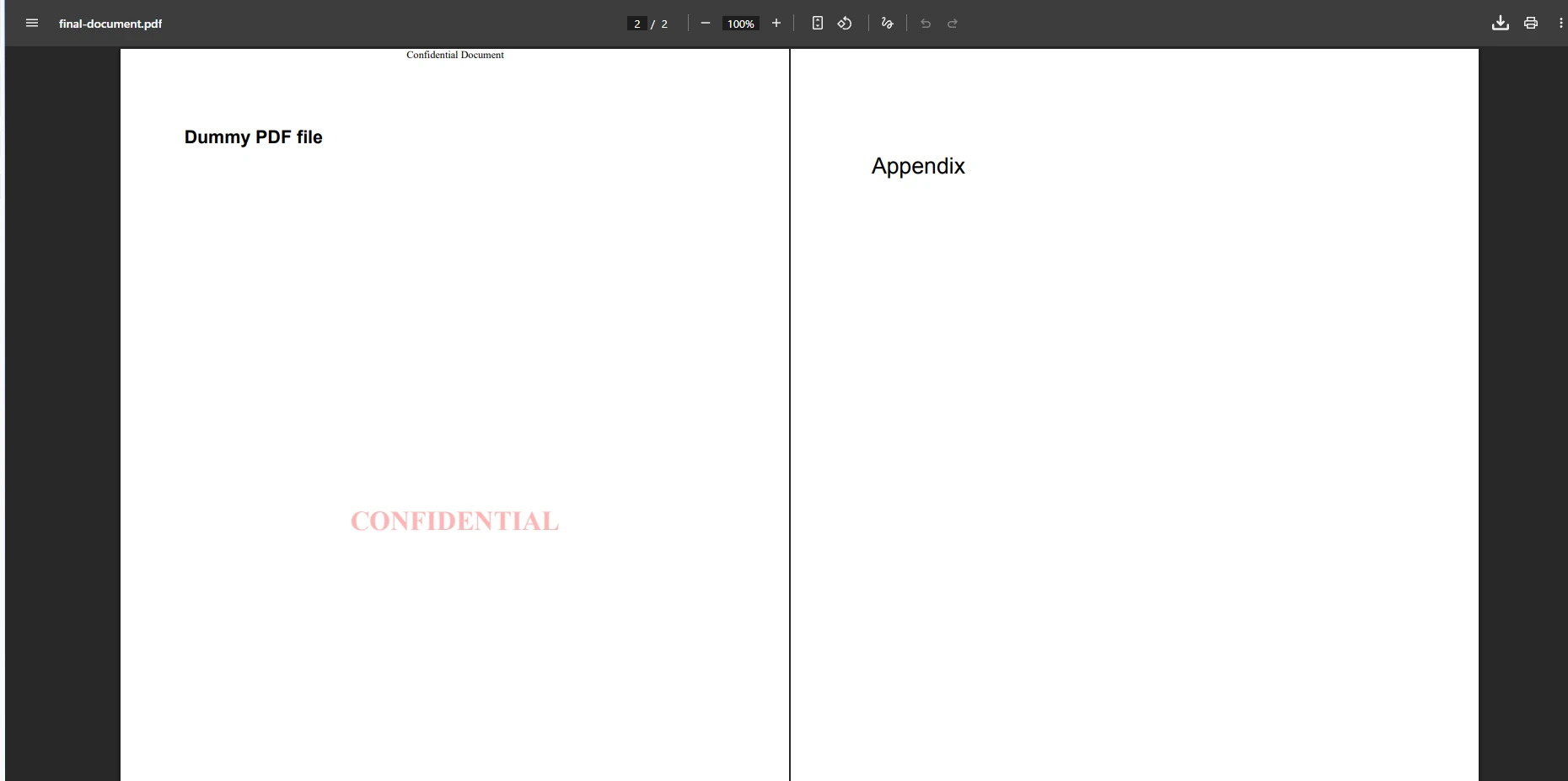
HTML ヘッダーとフッターの API は、動的コンテンツのための {page}, {total-pages}, {date} のテンプレート変数をサポートしています。 カスタム ウォーターマーク メソッドはHTML フラグメントを受け入れるため、1 回の呼び出しで、スタイル設定され、回転された半透明のオーバーレイをすべてのページに適用できます。 また、 PDF をページ範囲で分割したり、複数のドキュメントを結合したり、任意の PDF から埋め込まれた画像やテキスト コンテンツを抽出したりすることもできます。 テキスト抽出では、列やテーブル全体の読み取り順序が維持されるため、検索インデックス作成、コンテンツの移行、またはデータ検証ワークフローの下流処理が簡素化されます。
パスワード保護とセキュリティ設定をどのように適用しますか?
PDF ドキュメントをパスワードと権限フラグで保護することは、財務レポート、法的文書、人事記録の標準的な要件です。
using IronPdf;
using IronPdf.Security;

var pdf = PdfDocument.FromFile("financial-report.pdf");

// Set passwords: UserPassword controls opening, OwnerPassword controls editing
pdf.SecuritySettings.UserPassword = "viewer-password";
pdf.SecuritySettings.OwnerPassword = "admin-password";

// Configure fine-grained permissions
pdf.SecuritySettings.AllowUserPrinting = PdfPrintSecurity.PrintLowResolution;
pdf.SecuritySettings.AllowUserCopyPasteContent = false;
pdf.SecuritySettings.AllowUserAnnotations = false;
pdf.SecuritySettings.AllowUserFormData = false;

pdf.SaveAs("protected-report.pdf");
using IronPdf;
using IronPdf.Security;
var pdf = PdfDocument.FromFile("financial-report.pdf");
// Set passwords: UserPassword controls opening, OwnerPassword controls editing
pdf.SecuritySettings.UserPassword = "viewer-password";
pdf.SecuritySettings.OwnerPassword = "admin-password";
// Configure fine-grained permissions
pdf.SecuritySettings.AllowUserPrinting = PdfPrintSecurity.PrintLowResolution;
pdf.SecuritySettings.AllowUserCopyPasteContent = false;
pdf.SecuritySettings.AllowUserAnnotations = false;
pdf.SecuritySettings.AllowUserFormData = false;
pdf.SaveAs("protected-report.pdf");Imports IronPdf
Imports IronPdf.Security
Dim pdf = PdfDocument.FromFile("financial-report.pdf")
' Set passwords: UserPassword controls opening, OwnerPassword controls editing
pdf.SecuritySettings.UserPassword = "viewer-password"
pdf.SecuritySettings.OwnerPassword = "admin-password"
' Configure fine-grained permissions
pdf.SecuritySettings.AllowUserPrinting = PdfPrintSecurity.PrintLowResolution
pdf.SecuritySettings.AllowUserCopyPasteContent = False
pdf.SecuritySettings.AllowUserAnnotations = False
pdf.SecuritySettings.AllowUserFormData = False
pdf.SaveAs("protected-report.pdf")PDF セキュリティ設定 API は、 128 ビットまたは 256 ビットの AES 暗号化を適用します。 UserPassword を設定すると、任意の PDF ビューアでファイルを開く際に読者がパスワードを入力する必要があります。 OwnerPassword を設定すると、プログラムによる変更と所有者レベルの操作が制限されます。 権限フラグは、印刷品質、テキスト選択、注釈、フォーム フィールドへのアクセスを個別に制御します。 セキュリティ設定を適用した後、BinaryData プロパティはストレージまたは HTTP 送信用の暗号化された PDF バイトを返します。 これらの設定は PDF 仕様のアクセス制御モデルに準拠しているため、保護されたドキュメントは Adobe Acrobat、ブラウザベースの PDF ビューア、モバイル リーダー アプリケーションで正しく開きます。
所有するドキュメントから保護を削除するには、オーナーパスワードをパラメータとして PdfDocument.FromFile に読み込み、セキュリティ設定を適用せずに保存します。 これにより、パスワードで保護されたファイルが入力として到着し、再配布前に変換する必要があるサーバー側ワークフローでプログラムによるドキュメント処理が可能になります。
次のステップは何ですか?
IronPDF for .NET Core用 PDF API は、HTML 文字列と URL からの生成、DOCX および画像ファイルの変換、ページ レイアウトとレンダリング オプションの構成、透かし、ヘッダー、フッターの編集、デジタル署名の適用、暗号化によるドキュメントの保護など、C# でのドキュメント ライフサイクル全体を処理します。 すべての操作では、Windows、macOS、Linux 上 for .NET 8、 .NET 9、 .NET 10 全体で一貫した API が使用されます。
無料トライアルを開始して、独自のドキュメントでIronPDF を評価してください。 その他のシナリオについては、 HTML から PDF へのレンダリング オプション ガイド、 PDF の圧縮と最適化、およびIronPDF の完全な機能の概要を参照してください。 実稼働展開のライセンス オプションを確認します。
よくある質問
IronPDF for .NET Core向けPDF APIとは何ですか?
IronPDFは、C#アプリケーションでPDF文書を生成、変換、編集する.NETライブラリです。それは単一のNuGetパッケージとしてインストールされ、.NET 10、.NET 9、.NET 8、.NET Framework 4.6.2以降をサポートします。
HTMLから.NET CoreでPDFを生成する方法は?
ChromePdfRendererインスタンスを作成し、HTML文字列を使ってRenderHtmlAsPdfを呼び出すか、URLを使ってRenderUrlAsPdfAsyncを呼び出してください。レンダラーは、HTML、CSS、およびJavaScriptの出力をPdfDocumentオブジェクトに変換し、保存またはストリームすることができます。
IronPDFでページサイズとマージンをどのように設定しますか?
レンダー方法を呼び出す前にレンダラー.RenderingOptionsでプロパティを設定します。標準形式にはPaperSize、ポートレートまたはランドスケープにはPaperOrientation、ミリメートル単位のマージンにはMarginTop、MarginBottom、MarginLeft、MarginRightを使用します。
IronPDFは.NET CoreでDOCXファイルをPDFに変換できますか?
はい。ファイルパスを提供してDocxToPdfRenderer.RenderDocxAsPdfを使用します。コンバーターは、元のWord文書から段落スタイル、テーブル、ヘッダー、フッター、および埋め込み画像を保存します。
C#でPDFにデジタル署名を追加する方法は?
PdfDocument.FromFileでPDFをロードし、PFX証明書パスとパスワードを使用してPdfSignatureを作成し、pdf.Sign(signature)を呼び出します。結果の文書はAdobe Acrobatや準拠PDFビューアで検証済みとして表示されます。
IronPDFを使用してPDFをパスワード保護する方法は?
pdf.SecuritySettings.UserPasswordを開くためのパスワードとpdf.SecuritySettings.OwnerPasswordを所有者パスワードとして設定します。AllowUserPrinting、AllowUserCopyPasteContent、および関連フラグを使用して個別の権限を制御します。
ASP.NET Coreで生成されたPDFをHTTPレスポンスとして返すにはどうすればよいですか?
PdfDocumentインスタンスのBinaryDataプロパティにアクセスしてPDFをバイト配列として取得し、それをASP.NET CoreコントローラアクションでFile(pdfBytes, 'application/pdf', 'filename.pdf')として返します。
IronPDFは.NET CoreアプリケーションでLinuxとmacOSで動作しますか?
はい。IronPDFはWindows、macOS、Linuxで追加のネイティブランタイム依存関係なしに動作します。Docker、Azure、AWSへのコンテナ化されたデプロイをプラットフォーム固有の設定なしでサポートします。
IronPDFでPDFにヘッダーとフッターを追加するにはどうすればよいですか?
HtmlHeaderFooterオブジェクトのHtmlFragmentにヘッダーのマークアップを含むdocument.AddHtmlHeadersを呼び出します。動的な値には{page}、{total-pages}、{date}のテンプレート変数を使用します。同じAPIがフッターにも適用されます。
IronPDFはASP.NET Coreで使用するのにスレッドセーフですか?
ChromePdfRendererはスレッドセーフであり、依存性注入コンテナでシングルトンとして登録できます。高スループットのワークロードでは、リクエストスレッドをブロックしないように同期レンダーメソッド(RenderHtmlAsPdfAsync、RenderUrlAsPdfAsync)を使用します。








 無料で始めましょう
 無料で始めましょう
 無料ライブデモを予約
















