


IronPDF vs BitMiracle.Docotic.Pdf: 완전한 .NET PDF 라이브러리 비교

PDF 파일은 청구서 발행 및 다양한 문서 유형 생성과 같은 작업에 여러 분야에서 널리 사용됩니다. 이는 클라이언트의 요구를 효과적으로 충족합니다. .NET 애플리케이션 개발 시 PDF 생성이 필요한 경우, 적절한 라이브러리 선택은 개발 속도, 출력 품질, 장기 유지관리 비용에 크게 영향을 미칠 수 있습니다. 개발자가 자주 고려하는 두 가지 라이브러리는 ChromePdfRenderer와 ABCpdf입니다. 어느 것이 진정한 특정 요구에 더 나은 결과를 제공할까요?
이 철저한 비교는 HTML에서 PDF로의 변환 정확도부터 라이선스 모델까지 두 라이브러리의 기능을 조사하여 정보에 입각한 결정을 내리는 데 도움을 줍니다. 실제 성능 지표, API 디자인 철학 및 각 라이브러리의 강점과 한계를 보여주는 실용적 코드 예제를 살펴볼 것입니다. 매일 수천 개의 청구서를 생성하는 SaaS 플랫폼을 구축하거나 정밀한 문서 렌더링이 필요한 Enterprise 애플리케이션을 구축하든, 이러한 차이를 이해하는 것은 프로젝트 성공에 필수적입니다.
ChromePdfRenderer 란 무엇인가요?
ChromePdfRenderer는 PDF 문서를 편집하고 추출하며 생성하는 데 도움을 주는 상업용 등급의 PDF 생성 라이브러리입니다. Chrome 기반 렌더링 엔진을 중심으로 구축된 ChromePdfRenderer는 웹 페이지를 Google Chrome에서 인쇄할 때 기대할 수 있는 동일한 충실도로 HTML, CSS 및 JavaScript를 PDF로 변환합니다.
ChromePdfRenderer 의 주요 기능
ChromePdfRenderer .NET Chromium 엔진을 사용하여 HTML 페이지를 PDF 파일로 렌더링합니다. HTML에서 PDF로 변환할 때 복잡한 API를 사용하여 PDF를 배치하거나 설계할 필요가 없습니다. ChromePdfRenderer는 표준 웹 문서(HTML, ASPX, JS, CSS 및 이미지)를 지원합니다. 라이브러리의 아키텍처는 개발자 경험을 우선시하면서도 전문적 등급의 출력 품질을 유지합니다.
HTML에서 PDF로의 변환 우수성
- HTML5 시맨틱 요소를 포함한 HTML의 완전한 지원
- Flexbox, Grid 및 최신 레이아웃 기술을 포함한 CSS3의 완전한 지원
- 동적 콘텐츠 렌더링을 위한 JavaScript 실행
- 웹 폰트 지원 Google 글꼴 및 사용자 정의
@font-face선언 포함 - 뷰포트 제어를 통한 반응형 디자인 렌더링
- 구성 가능한 대기 시간으로 AJAX 콘텐츠 로딩
문서 조작 기능
- 병합 및 분할: 단일 메서드 호출로 여러 PDF를 결합하거나 특정 페이지 추출
- 헤더 및 푸터: 페이지 번호, 날짜 및 사용자 정의 HTML을 포함한 동적 콘텐츠 추가
- 워터마킹: 불투명도 및 위치 제어와 함께 텍스트 또는 이미지 워터마크 적용
- 양식 관리: HTML 양식 요소에서 자동으로 작성 가능한 PDF 양식 생성
- 디지털 서명: 인증서 관리를 통해 암호화 서명 적용
- 암호화: 세부 권한으로 128비트 및 256비트 AES 암호화 구현
고급 렌더링 기능
- 멀티스레드 처리: 높은 성능 시나리오를 위한 네이티브 async/await 지원
- 배치 작업: 여러 문서를 동시에 처리하기 위한 최적화된 메서드
- 메모리 효율성: 전체 PDF를 메모리에 로드하지 않고 대형 문서 생성 스트리밍 지원
- 클라우드 최적화: Docker, Azure 및 AWS의 컨테이너화된 배포를 위해 설계됨
크로스 플랫폼 아키텍처
ChromePdfRenderer는 다양한 환경에서 일관된 동작을 유지합니다:
- Windows (x86/x64)
- Linux (최소한의 Docker 이미지를 위한 Alpine 포함)
- macOS (인텔 및 애플 실리콘)
- Azure App Service, Functions, 및 Container Instances
- AWS Lambda 및 EC2
- Google Cloud Platform
ABCpdf란 무엇입니까?
ABCpdf .NET C# PDF 라이브러리는 Adobe PDF 문서의 동적 읽기, 쓰기, 변환 및 조작 for .NET 구성 요소입니다. WebSupergoo에서 개발한 ABCpdf는 20년 넘게 .NET 커뮤니티에 서비스를 제공하며, 다양한 HTML 렌더링 엔진과 종합적인 PDF 처리 기능을 제공합니다.
ABCpdf의 주요 기능
ABCpdf는 HTML/CSS 및 JavaScript, SVG, AJAX, Font Awesome과 같은 관련 기술을 완벽하게 지원합니다. 라이브러리는 개발자에게 고수준의 편리한 메서드와 저수준의 PDF 객체 접근을 제공합니다.
다중 렌더링 엔진
ABCpdf의 독특한 접근 방식은 여러 렌더링 엔진을 제공합니다:
- ABCChrome 엔진: 최신 웹 표준을 위한 Chromium 기반 (x64 전용)
- Gecko 엔진: 호환성 테스트를 위한 여러 버전
- MSHTML 엔진: Internet Explorer 기반 렌더링
- ABCWebKit 엔진: WebKit 기반 렌더링 (x64 전용)
이 다중 엔진 접근 방식은 개발자가 특정 콘텐츠에 가장 적합한 렌더러를 선택할 수 있도록 하지만, 배포 및 테스트에 복잡성을 추가합니다.
문서 가져오기 기능
ABCpdf는 OpenOffice.org와 같은 도우미 응용 프로그램이 설치된 경우 다양한 문서 형식을 읽을 수 있습니다. 지원되는 형식은 다음과 같습니다:
- Microsoft Office 문서 (Word, Excel, PowerPoint)
- PostScript 및 EPS 파일
- XPS (XML Paper Specification)
- SVG (확장 가능한 벡터 그래픽)
- TIFF, JPEG 2000, RAW 포맷을 포함한 다양한 이미지 포맷
저수준 PDF 처리
- PDF 객체 모델에 대한 직접 접근
- 여러 알고리즘을 사용한 스트림 압축/해제
- 폰트 서브세팅 및 임베딩 제어
- 색상 공간 관리 및 변환
- 콘텐츠 스트림 조작
성능 기능
ABCpdf는 완전히 멀티스레드 되어 있어 C#, ASPX, VB를 포함한 다양한 .NET 환경에서 유연하게 사용할 수 있으며, 고성능 멀티스레드 설정에서 테스트되었습니다. 라이브러리는 다음을 포함합니다:
- 매우 큰 문서를 위한 GigaPDF™ 지원
- 서버 환경에 대한 최적화된 메모리 사용
- 효율적인 폰트 캐시 메커니즘
- 백그라운드 스레드 처리 기능
현대 CSS 프레임워크 지원
현대 웹 애플리케이션 작업 시, Bootstrap 기반 레이아웃 및 기타 현대 CSS 프레임워크를 PDF로 변환하는 능력이 점점 중요해지고 있습니다. 많은 기업 애플리케이션 및 SaaS 플랫폼이 이제 UI 일관성을 위해 Bootstrap에 의존하며, PDF 생성 시 이러한 레이아웃을 완벽하게 보존할 필요가 있습니다.
ChromePdfRenderer: 완전한 Bootstrap 및 현대 프레임워크 지원
ChromePdfRenderer의 Chromium 렌더링 엔진은 현대 CSS 프레임워크에 대한 포괄적인 지원을 제공합니다:
- Bootstrap 5: 플렉스박스 기반 레이아웃, 그리드 시스템 및 반응형 유틸리티에 대한 완전한 지원
- Bootstrap 4: 플렉스박스 카드 데크, 네비게이션 바, 양식 레이아웃과의 완전한 호환성
- Tailwind CSS: 최신 유틸리티 우선 CSS 프레임워크는 완벽하게 렌더링
- Foundation: 모든 그리드 및 구성 요소 시스템 지원
- Modern CSS3: 플렉스박스, CSS 그리드, 애니메이션, 전환 및 사용자 정의 속성
실제 예제: Bootstrap 홈페이지와 Bootstrap 템플릿이 픽셀 단위로 정확하게 PDF로 변환됩니다.
코드 예제: 전자상거래 제품 그리드
using IronPdf;

var renderer = new ChromePdfRenderer();

string bootstrapProductGrid = @"
<!DOCTYPE html>
<html>
<head>
    <link href='https://cdn.jsdelivr.net/npm/bootstrap@5.3.0/dist/css/bootstrap.min.css' rel='stylesheet'>
</head>
<body>
    <div class='container my-5'>
        <h1 class='mb-4'>Product Catalog</h1>
        <div class='row row-cols-1 row-cols-md-3 g-4'>
            <div class='col'>
                <div class='card h-100'>
                    <img src='https://via.placeholder.com/300x200' class='card-img-top' alt='Product 1'>
                    <div class='card-body d-flex flex-column'>
                        <h5 class='card-title'>Premium Widget</h5>
                        <p class='card-text flex-grow-1'>High-quality widget with advanced features and excellent durability.</p>
                        <div class='d-flex justify-content-between align-items-center mt-auto'>
                            <span class='h4 mb-0 text-primary'>$99.99</span>
                            <button class='btn btn-primary'>Add to Cart</button>
                        </div>
                    </div>
                </div>
            </div>
            <div class='col'>
                <div class='card h-100'>
                    <img src='https://via.placeholder.com/300x200' class='card-img-top' alt='Product 2'>
                    <div class='card-body d-flex flex-column'>
                        <h5 class='card-title'>Standard Widget</h5>
                        <p class='card-text flex-grow-1'>Reliable widget perfect for everyday use with great value.</p>
                        <div class='d-flex justify-content-between align-items-center mt-auto'>
                            <span class='h4 mb-0 text-primary'>$49.99</span>
                            <button class='btn btn-primary'>Add to Cart</button>
                        </div>
                    </div>
                </div>
            </div>
            <div class='col'>
                <div class='card h-100'>
                    <img src='https://via.placeholder.com/300x200' class='card-img-top' alt='Product 3'>
                    <div class='card-body d-flex flex-column'>
                        <h5 class='card-title'>Basic Widget</h5>
                        <p class='card-text flex-grow-1'>Entry-level widget with essential features at an affordable price.</p>
                        <div class='d-flex justify-content-between align-items-center mt-auto'>
                            <span class='h4 mb-0 text-primary'>$29.99</span>
                            <button class='btn btn-primary'>Add to Cart</button>
                        </div>
                    </div>
                </div>
            </div>
        </div>
    </div>
</body>
</html>";

var pdf = renderer.RenderHtmlAsPdf(bootstrapProductGrid);
pdf.SaveAs("product-catalog.pdf");
using IronPdf;
var renderer = new ChromePdfRenderer();
string bootstrapProductGrid = @"
<!DOCTYPE html>
<html>
<head>
<link href='https://cdn.jsdelivr.net/npm/bootstrap@5.3.0/dist/css/bootstrap.min.css' rel='stylesheet'>
</head>
<body>
<div class='container my-5'>
<h1 class='mb-4'>Product Catalog</h1>
<div class='row row-cols-1 row-cols-md-3 g-4'>
<div class='col'>
<div class='card h-100'>
<img src='https://via.placeholder.com/300x200' class='card-img-top' alt='Product 1'>
<div class='card-body d-flex flex-column'>
<h5 class='card-title'>Premium Widget</h5>
<p class='card-text flex-grow-1'>High-quality widget with advanced features and excellent durability.</p>
<div class='d-flex justify-content-between align-items-center mt-auto'>
<span class='h4 mb-0 text-primary'>$99.99</span>
<button class='btn btn-primary'>Add to Cart</button>
</div>
</div>
</div>
</div>
<div class='col'>
<div class='card h-100'>
<img src='https://via.placeholder.com/300x200' class='card-img-top' alt='Product 2'>
<div class='card-body d-flex flex-column'>
<h5 class='card-title'>Standard Widget</h5>
<p class='card-text flex-grow-1'>Reliable widget perfect for everyday use with great value.</p>
<div class='d-flex justify-content-between align-items-center mt-auto'>
<span class='h4 mb-0 text-primary'>$49.99</span>
<button class='btn btn-primary'>Add to Cart</button>
</div>
</div>
</div>
</div>
<div class='col'>
<div class='card h-100'>
<img src='https://via.placeholder.com/300x200' class='card-img-top' alt='Product 3'>
<div class='card-body d-flex flex-column'>
<h5 class='card-title'>Basic Widget</h5>
<p class='card-text flex-grow-1'>Entry-level widget with essential features at an affordable price.</p>
<div class='d-flex justify-content-between align-items-center mt-auto'>
<span class='h4 mb-0 text-primary'>$29.99</span>
<button class='btn btn-primary'>Add to Cart</button>
</div>
</div>
</div>
</div>
</div>
</div>
</body>
</html>";
var pdf = renderer.RenderHtmlAsPdf(bootstrapProductGrid);
pdf.SaveAs("product-catalog.pdf");Imports IronPdf
Dim renderer As New ChromePdfRenderer()
Dim bootstrapProductGrid As String = "
<!DOCTYPE html>
<html>
<head>
<link href='https://cdn.jsdelivr.net/npm/bootstrap@5.3.0/dist/css/bootstrap.min.css' rel='stylesheet'>
</head>
<body>
<div class='container my-5'>
<h1 class='mb-4'>Product Catalog</h1>
<div class='row row-cols-1 row-cols-md-3 g-4'>
<div class='col'>
<div class='card h-100'>
<img src='https://via.placeholder.com/300x200' class='card-img-top' alt='Product 1'>
<div class='card-body d-flex flex-column'>
<h5 class='card-title'>Premium Widget</h5>
<p class='card-text flex-grow-1'>High-quality widget with advanced features and excellent durability.</p>
<div class='d-flex justify-content-between align-items-center mt-auto'>
<span class='h4 mb-0 text-primary'>$99.99</span>
<button class='btn btn-primary'>Add to Cart</button>
</div>
</div>
</div>
</div>
<div class='col'>
<div class='card h-100'>
<img src='https://via.placeholder.com/300x200' class='card-img-top' alt='Product 2'>
<div class='card-body d-flex flex-column'>
<h5 class='card-title'>Standard Widget</h5>
<p class='card-text flex-grow-1'>Reliable widget perfect for everyday use with great value.</p>
<div class='d-flex justify-content-between align-items-center mt-auto'>
<span class='h4 mb-0 text-primary'>$49.99</span>
<button class='btn btn-primary'>Add to Cart</button>
</div>
</div>
</div>
</div>
<div class='col'>
<div class='card h-100'>
<img src='https://via.placeholder.com/300x200' class='card-img-top' alt='Product 3'>
<div class='card-body d-flex flex-column'>
<h5 class='card-title'>Basic Widget</h5>
<p class='card-text flex-grow-1'>Entry-level widget with essential features at an affordable price.</p>
<div class='d-flex justify-content-between align-items-center mt-auto'>
<span class='h4 mb-0 text-primary'>$29.99</span>
<button class='btn btn-primary'>Add to Cart</button>
</div>
</div>
</div>
</div>
</div>
</div>
</body>
</html>"
Dim pdf = renderer.RenderHtmlAsPdf(bootstrapProductGrid)
pdf.SaveAs("product-catalog.pdf")출력: Bootstrap 5의 카드 그리드 시스템, 플렉스박스 정렬, 반응형 간격으로 멋지게 포맷된 제품 카탈로그가 PDF로 보존됩니다.
ABCpdf: 프레임워크 제한이 있는 다중 엔진 접근법
ABCpdf의 최신 CSS 프레임워크 지원은 선택한 렌더링 엔진에 따라 크게 다릅니다:
- ABCChrome 엔진 (x64 전용): ChromePdfRenderer와 유사한 좋은 Bootstrap 지원, 특수한 64비트 플랫폼 구성 필요
- ABCWebKit 엔진 (x64 전용): 제한된 플렉스박스 지원, Bootstrap 4+ 레이아웃이 제대로 렌더링되지 않을 수 있음
- Gecko 엔진: 중간 정도의 CSS3 지원, Bootstrap 3이 Bootstrap 4/5보다 잘 작동함
- MSHTML 엔진: 구식 Internet Explorer 렌더링, Bootstrap 2.x만 지원, 최신 애플리케이션에 권장되지 않음
주요 고려 사항:
- 엔진 선택의 복잡성은 배포 오버헤드를 증가시킴
- 64비트 전용 엔진(ABCChrome, ABCWebKit)은 배포 유연성을 제한함
- 일관된 Bootstrap 렌더링을 위해 엔진 전반의 테스트 필요
- 엔진 선택에 따라 프레임워크 호환성이 크게 다름
ABCpdf의 다중 엔진 아키텍처는 유연성을 제공하지만, 정확한 Bootstrap 레이아웃 렌더링 보장을 위해 엔진 선택과 테스트에 주의가 필요합니다. Bootstrap 또는 최신 CSS 프레임워크에 많이 투자한 애플리케이션의 경우, ABCChrome 엔진이 최고의 결과를 제공하지만 x64 전용 배포 제약이 있음.
Bootstrap 프레임워크 호환성에 대한 자세한 내용은 Bootstrap & Flexbox CSS 가이드를 참조하세요.
철저한 기능 비교
| 범주 | 특징/측면 | ChromePdfRenderer | ABCpdf | 핵심 이점 |
|---|---|---|---|---|
| 핵심 아키텍처 | 디자인 철학 | 단순성 우선, 직관적 API | 유연성 우선, 다중 엔진 | ChromePdfRenderer: 빠른 개발 |
| API 복잡성 | RenderHtmlAsPdf()와 같은 간단한 메서드 |
Doc 클래스와 객체 지향 | ChromePdfRenderer: 더 간단한 API | |
| 학습 곡선 | 낮은, 단일 엔진 설계 | 높은, 다중 엔진 구성 필요 | ChromePdfRenderer: 빠른 채택 | |
| 플랫폼 지원 | 크로스 플랫폼 | 네이티브 지원, 단일 패키지 | 주로 Windows, 제한된 Linux 지원 | ChromePdfRenderer: 진정한 크로스 플랫폼 |
| .NET 버전 | .NET 10, 9, 8, 7, 6, 5, Core 3.1 이상, Framework 4.6.2 이상 | .NET 10, 9, 8, 7, 6, 5, Core 3.0+, Framework 4.0+ | 둘 다: 최신 프레임워크 지원 | |
| 운영 체제 | Windows, Linux, macOS, Docker 네이티브 지원 | Windows, 제한된 Linux 지원 | ChromePdfRenderer: 더 넓은 OS 지원 | |
| HTML을 PDF로 변환 | 렌더링 엔진 | Chrome V127+ 엔진 | 다중 엔진 (Chrome 123, Gecko, MSHTML) | ABCpdf: 엔진 유연성 |
| CSS3/HTML5 지원 | Chrome 호환 (V8 엔진) | 엔진에 따라 다름 (70-100%) | ChromePdfRenderer: 일관된 렌더링 | |
| JavaScript 실행 | 완전한 V8 JavaScript 지원 | 엔진 의존적 | ChromePdfRenderer: 현대적인 JS 기능 | |
| 웹 폰트 | Google Fonts, @font-face, 시스템 폰트 | ABCChrome으로 지원됨 | 둘 다: 웹 폰트 지원 | |
| 성능 | 단일 페이지 렌더링 | 문서 복잡성에 따라 다릅니다 | 엔진 및 문서 복잡성에 따라 다릅니다 | 둘 다: 엔진에 의존적 |
| 일괄 처리 | 최적화된 병렬 처리 | 멀티 스레드 가능 | ChromePdfRenderer: 더 나은 비동기 지원 | |
| 메모리 사용량 | 높은 (전체 Chrome 엔진) | 낮은 (가벼운 엔진 가능) | ABCpdf: 비 Chrome 엔진으로 메모리 사용량이 적습니다 | |
| 개발자 경험 | 문서 | 광범위한 튜토리얼, 비디오, 예제 | 포괄적인 API 문서 | ChromePdfRenderer: 더 많은 학습 자료 |
| 코드 예제 | 100개 이상의 실행 가능한 샘플 | 광범위한 예제 | 둘 다: 풍부한 예제 | |
| IntelliSense 지원 | 전체 XML 문서 | 포괄적인 IntelliSense | 둘 다: IDE 통합 | |
| Licensing & Pricing | 입문 수준 | Lite: $999 (1 개발자, 1 프로젝트) | 표준: $329 (1 개발자, 32비트 전용) | ABCpdf: 더 낮은 초기 비용 |
| Professional | Professional: $2,999 (10 개발자, 10 프로젝트) | Professional: $479 (1 개발자, 64비트) | ChromePdfRenderer: 더 나은 팀 라이선싱 | |
| 재배포 | +$2,999 로열티 프리 | $4,790 Enterprise 라이선스 | ChromePdfRenderer: 더 경제적임 | |
| 지원하다 | 지원 포함 | 예, 24/5 엔지니어링 지원 | 예, 이메일 지원 | ChromePdfRenderer: 라이브 채팅 지원 |
| 응답 시간 | < 1분 (라이브 채팅) | 보통 24-48시간 | ChromePdfRenderer: 더 빠른 응답 | |
| 가장 적합한 대상 | 사용 사례 | 현대 웹 앱, SaaS, 클라우드 네이티브 | Windows 데스크톱, 레거시 시스템 | 상황에 따라 다름 |
Visual Studio에서 새 프로젝트 생성하기
코드 예제를 시작하기 전에 적절한 개발 환경을 설정합시다. Visual Studio를 열고 새 프로젝트를 생성하세요:
- 파일 > 새로 만들기 > 프로젝트로 이동
- "콘솔 애플리케이션" 선택 (.NET Core 또는 .NET Framework)
- 대상 프레임워크 선택 (.NET 6.0 이상 권장)
- 프로젝트 이름 지정 (예: "PdfLibraryComparison")
- 생성 클릭
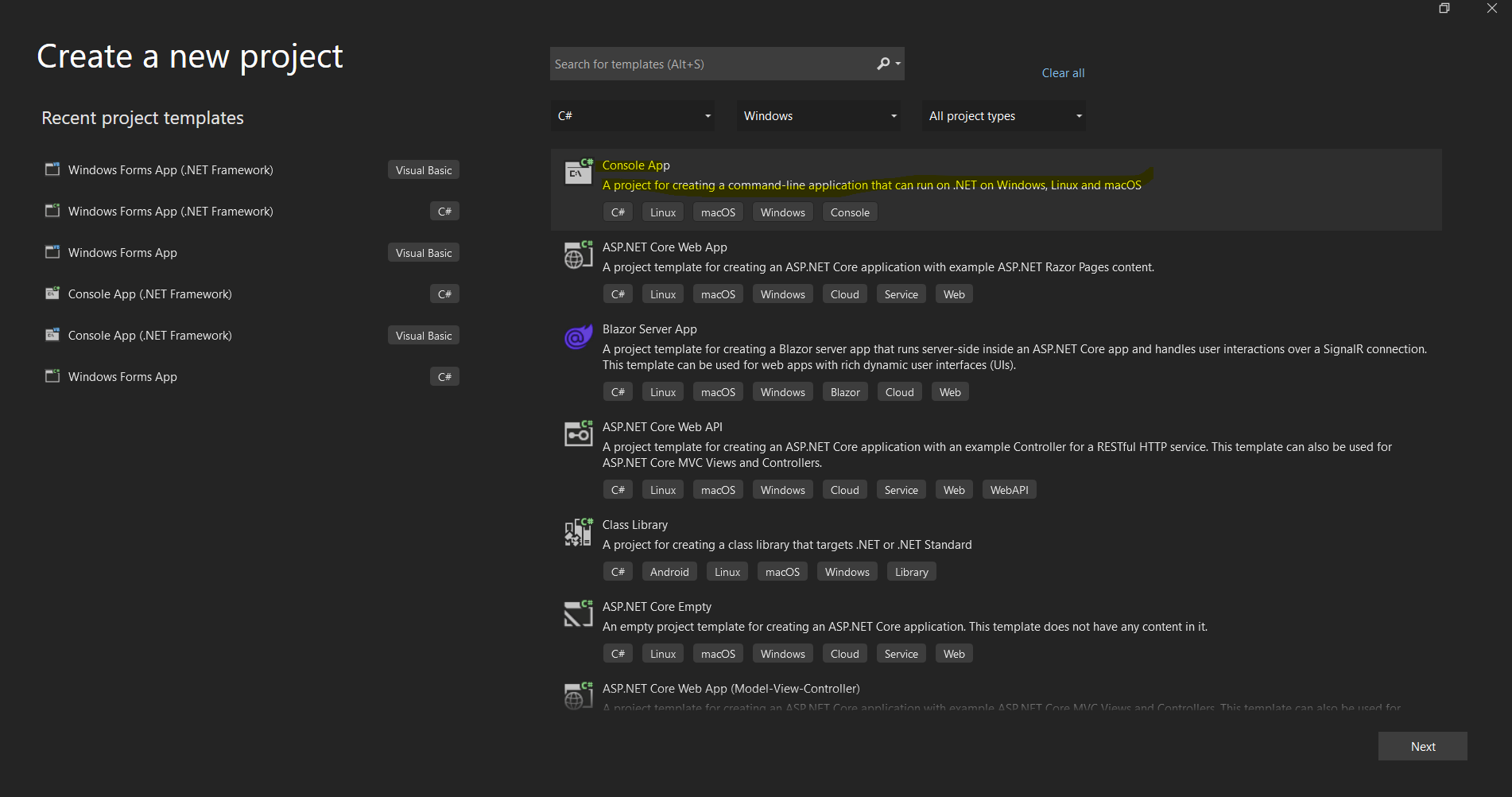 새 .NET 애플리케이션 설정을 위한 Visual Studio의 프로젝트 생성 대화 상자
ChromePdfRenderer C# 라이브러리 설치
설치 방법
ChromePdfRenderer는 다양한 개발 워크플로를 수용하기 위해 여러 설치 방법을 제공합니다:
방법 1: NuGet 패키지 관리자 사용 (권장)
가장 간단한 방법은 Visual Studio의 통합된 NuGet 패키지 관리자를 통해 가능합니다:
- 솔루션 탐색기에서 프로젝트를 오른쪽 클릭합니다.
- "NuGet 패키지 관리"를 선택합니다.
- "찾아보기"를 클릭하고 "ChromePdfRenderer"를 검색합니다
- 공식 ChromePdfRenderer 패키지에서 설치 클릭
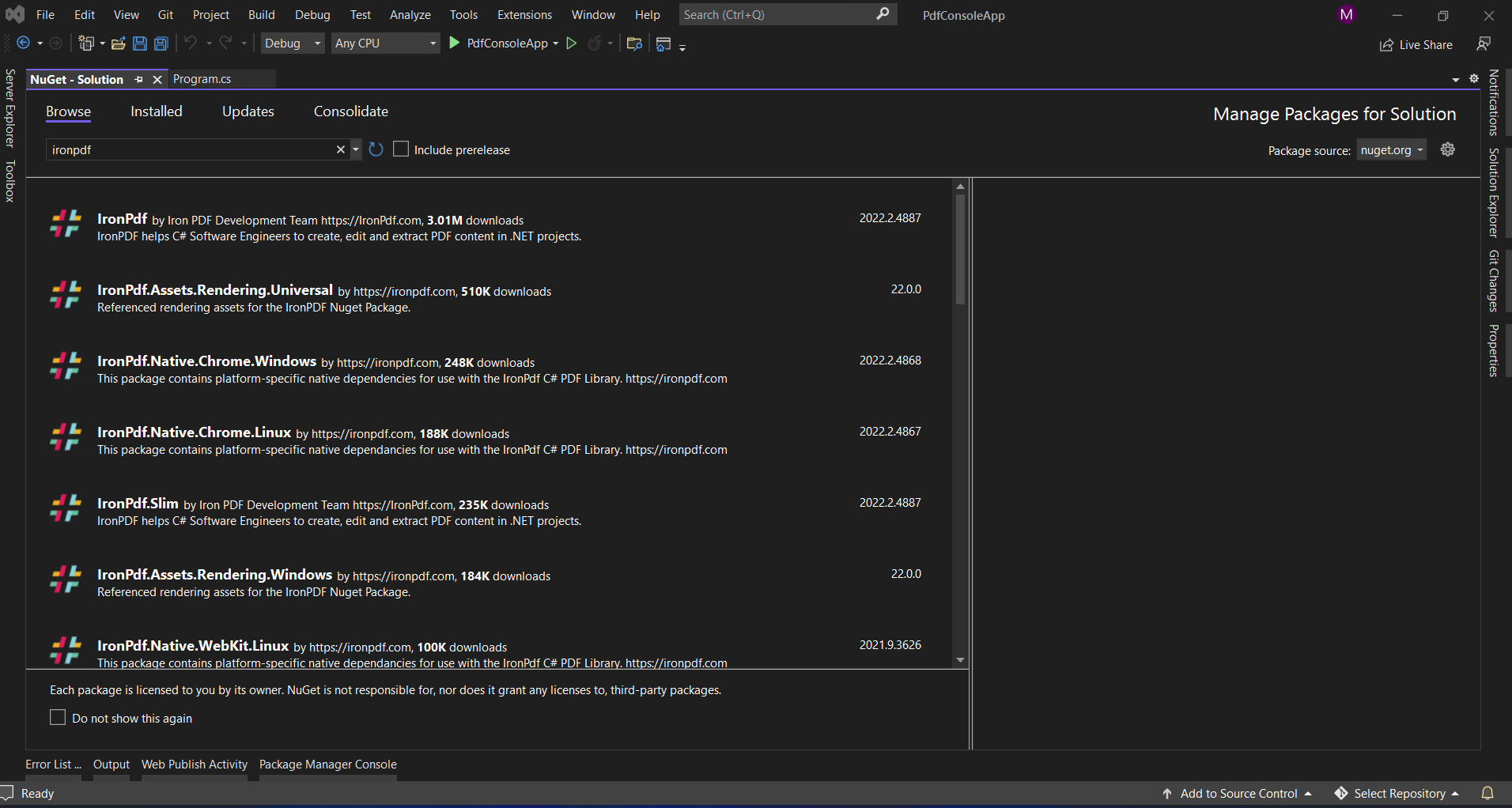 Visual Studio의 NuGet 패키지 관리자 인터페이스를 통해 ChromePdfRenderer 설치
방법 2: 패키지 관리자 콘솔
명령-라인 도구를 선호하는 개발자를 위해:
Install-Package IronPdf
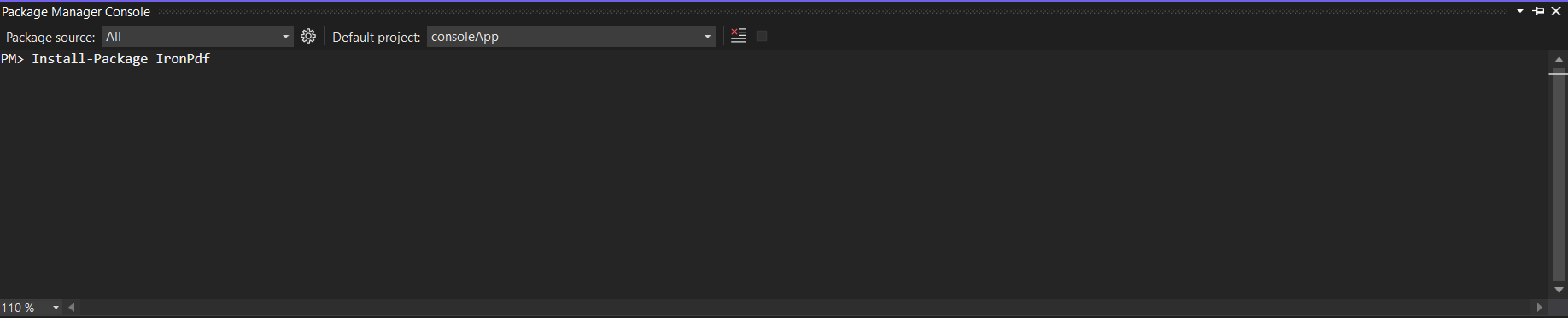 패키지 관리자 콘솔을 사용하여 단일 명령으로 ChromePdfRenderer 설치
방법 3: 직접 다운로드
인터넷 액세스가 제한된 환경의 경우:
- NuGet.org에서 다운로드 .nupkg 파일을 로컬 NuGet 피드에 추가
- 로컬 피드에서 설치
방법 4: .NET CLI
.NET Core/5+ 프로젝트의 경우:
dotnet add package IronPdf
ABCpdf 설치
설치 방법
ABCpdf는 몇 가지 추가 고려 사항과 함께 유사한 설치 옵션을 제공합니다:
방법 1: NuGet 설치
Install-Package ABCpdf -Version 13.0.0.0
ABCpdf에는 다른 에디션을 위한 별도의 패키지가 있음을 유의하세요:
ABCpdf- 표준판 (32비트만)ABCpdf.ABCChrome64- 64비트에서 Chrome 렌더링에 필요ABCpdf.ABCGecko- Gecko 렌더링 엔진용
방법 2: 수동 설치
- WebSupergoo 웹사이트에서 다운로드
- ZIP 파일 추출
- 적절한 DLL에 대한 참조 추가
- 네이티브 종속성을 출력 디렉토리에 복사
플랫폼별 고려 사항
ABCpdf는 비-Windows 플랫폼에 추가 설정이 필요합니다:
<PackageReference Include="ABCpdf.Linux" Version="13.0.0.0" />
<PackageReference Include="ABCpdf.Linux" Version="13.0.0.0" />이 라이브러리들은 HTML을 PDF로 어떻게 변환할까요?
각 라이브러리가 HTML을 PDF로 변환하는 접근 방식의 근본적인 차이를 이해하면 기능 및 성능 특성이 어떻게 다른지 설명하는 데 도움이 됩니다.
ChromePdfRenderer의 접근법: Chrome 우선 아키텍처
ChromePdfRenderer는 전체 Chrome 브라우저 엔진을 사용하여 여러 가지 장점을 제공합니다:
using IronPdf;

// ChromePdfRenderer's approach - Chrome rendering with full browser capabilities
var renderer = new ChromePdfRenderer();

// Configure rendering to match Chrome's print preview exactly
renderer.RenderingOptions = ChromePdfRenderOptions.DefaultChrome;

// Or customize for specific needs
renderer.RenderingOptions.CssMediaType = PdfCssMediaType.Screen;
renderer.RenderingOptions.EnableJavaScript = true;
renderer.RenderingOptions.WaitFor.RenderDelay(500); // Wait for JS execution

// Convert complex HTML with modern CSS and JavaScript
string complexHtml = @"
<!DOCTYPE html>
<html>
<head>
    <style>
        @import url('https://fonts.googleapis.com/css2?family=Roboto:wght@300;700&display=swap');

        .container {
            display: grid;
            grid-template-columns: repeat(auto-fit, minmax(250px, 1fr));
            gap: 20px;
            font-family: 'Roboto', sans-serif;
        }

        .card {
            background: linear-gradient(135deg, #667eea 0%, #764ba2 100%);
            border-radius: 10px;
            padding: 20px;
            color: white;
            box-shadow: 0 10px 20px rgba(0,0,0,0.19);
            transform: translateY(0);
            transition: transform 0.3s;
        }

        @media print {
            .card { break-inside: avoid; }
        }
    </style>
</head>
<body>
    <div class='container'>
        <div class='card'>
            <h2>Modern CSS Support</h2>
            <p>Grid, Flexbox, Gradients, Shadows - all rendered perfectly</p>
        </div>
        <div class='card'>
            <h2>웹 폰트</h2>
            <p>Google Fonts and custom fonts work seamlessly</p>
        </div>
    </div>
    <script>
        // Dynamic content generation
        document.addEventListener('DOMContentLoaded', function() {
            const container = document.querySelector('.container');
            const dynamicCard = document.createElement('div');
            dynamicCard.className = 'card';
            dynamicCard.innerHTML = '<h2>JavaScript Generated</h2><p>This card was added by JavaScript</p>';
            container.appendChild(dynamicCard);
        });
    </script>
</body>
</html>";

var pdf = renderer.RenderHtmlAsPdf(complexHtml);
pdf.SaveAs("modern-web-features.pdf");
using IronPdf;
// ChromePdfRenderer's approach - Chrome rendering with full browser capabilities
var renderer = new ChromePdfRenderer();
// Configure rendering to match Chrome's print preview exactly
renderer.RenderingOptions = ChromePdfRenderOptions.DefaultChrome;
// Or customize for specific needs
renderer.RenderingOptions.CssMediaType = PdfCssMediaType.Screen;
renderer.RenderingOptions.EnableJavaScript = true;
renderer.RenderingOptions.WaitFor.RenderDelay(500); // Wait for JS execution
// Convert complex HTML with modern CSS and JavaScript
string complexHtml = @"
<!DOCTYPE html>
<html>
<head>
<style>
@import url('https://fonts.googleapis.com/css2?family=Roboto:wght@300;700&display=swap');
.container {
display: grid;
grid-template-columns: repeat(auto-fit, minmax(250px, 1fr));
gap: 20px;
font-family: 'Roboto', sans-serif;
}
.card {
background: linear-gradient(135deg, #667eea 0%, #764ba2 100%);
border-radius: 10px;
padding: 20px;
color: white;
box-shadow: 0 10px 20px rgba(0,0,0,0.19);
transform: translateY(0);
transition: transform 0.3s;
}
@media print {
.card { break-inside: avoid; }
}
</style>
</head>
<body>
<div class='container'>
<div class='card'>
<h2>Modern CSS Support</h2>
<p>Grid, Flexbox, Gradients, Shadows - all rendered perfectly</p>
</div>
<div class='card'>
<h2>웹 폰트</h2>
<p>Google Fonts and custom fonts work seamlessly</p>
</div>
</div>
<script>
// Dynamic content generation
document.addEventListener('DOMContentLoaded', function() {
const container = document.querySelector('.container');
const dynamicCard = document.createElement('div');
dynamicCard.className = 'card';
dynamicCard.innerHTML = '<h2>JavaScript Generated</h2><p>This card was added by JavaScript</p>';
container.appendChild(dynamicCard);
});
</script>
</body>
</html>";
var pdf = renderer.RenderHtmlAsPdf(complexHtml);
pdf.SaveAs("modern-web-features.pdf");Imports IronPdf
' ChromePdfRenderer's approach - Chrome rendering with full browser capabilities
Dim renderer As New ChromePdfRenderer()
' Configure rendering to match Chrome's print preview exactly
renderer.RenderingOptions = ChromePdfRenderOptions.DefaultChrome
' Or customize for specific needs
renderer.RenderingOptions.CssMediaType = PdfCssMediaType.Screen
renderer.RenderingOptions.EnableJavaScript = True
renderer.RenderingOptions.WaitFor.RenderDelay(500) ' Wait for JS execution
' Convert complex HTML with modern CSS and JavaScript
Dim complexHtml As String = "
<!DOCTYPE html>
<html>
<head>
<style>
@import url('https://fonts.googleapis.com/css2?family=Roboto:wght@300;700&display=swap');
.container {
display: grid;
grid-template-columns: repeat(auto-fit, minmax(250px, 1fr));
gap: 20px;
font-family: 'Roboto', sans-serif;
}
.card {
background: linear-gradient(135deg, #667eea 0%, #764ba2 100%);
border-radius: 10px;
padding: 20px;
color: white;
box-shadow: 0 10px 20px rgba(0,0,0,0.19);
transform: translateY(0);
transition: transform 0.3s;
}
@media print {
.card { break-inside: avoid; }
}
</style>
</head>
<body>
<div class='container'>
<div class='card'>
<h2>Modern CSS Support</h2>
<p>Grid, Flexbox, Gradients, Shadows - all rendered perfectly</p>
</div>
<div class='card'>
<h2>웹 폰트</h2>
<p>Google Fonts and custom fonts work seamlessly</p>
</div>
</div>
<script>
' Dynamic content generation
document.addEventListener('DOMContentLoaded', function() {
const container = document.querySelector('.container');
const dynamicCard = document.createElement('div');
dynamicCard.className = 'card';
dynamicCard.innerHTML = '<h2>JavaScript Generated</h2><p>This card was added by JavaScript</p>';
container.appendChild(dynamicCard);
});
</script>
</body>
</html>"
Dim pdf = renderer.RenderHtmlAsPdf(complexHtml)
pdf.SaveAs("modern-web-features.pdf")이 코드는 ChromePdfRenderer의 Chrome 기반 접근 방식의 여러 주요 장점을 보여줍니다:
- 현대 CSS 지원: 그리드 레이아웃, 플렉스박스, 그라디언트 및 변형은 Chrome에서 작동하는 그대로입니다
- 웹 폰트 통합: Google Fonts가 추가 구성 없이 자동으로 로드됩니다
- JavaScript 실행: 동적 내용 생성이 PDF 렌더링 전에 발생함
- 미디어 쿼리: 인쇄 전용 스타일이 제대로 적용됨
ABCpdf의 접근법: 다중 엔진 유연성
ABCpdf는 다양한 기능을 가진 여러 렌더링 엔진을 제공합니다:
using WebSupergoo.ABCpdf13;

// Method 1: Using ABCChrome engine (most modern)
Doc chromeDoc = new Doc();
chromeDoc.HtmlOptions.Engine = EngineType.Chrome;
chromeDoc.HtmlOptions.Chrome.SetUserAgent("Mozilla/5.0 (Windows NT 10.0; Win64; x64) AppleWebKit/537.36");

// Chrome engine supports modern web standards
int chromeId = chromeDoc.AddImageUrl("https://example.com");

// Chain pages if content overflows
while (chromeDoc.Chainable(chromeId))
{
    chromeDoc.Page = chromeDoc.AddPage();
    chromeId = chromeDoc.AddImageToChain(chromeId);
}

chromeDoc.Save("chrome-engine-output.pdf");

// Method 2: Using Gecko engine (Firefox-based)
Doc geckoDoc = new Doc();
geckoDoc.HtmlOptions.Engine = EngineType.Gecko;
geckoDoc.HtmlOptions.UseScript = true; // Enable JavaScript

// Gecko provides good standards support with lower resource usage
string html = "<html><body><h1>Gecko Rendered Content</h1></body></html>";
geckoDoc.AddImageHtml(html);
geckoDoc.Save("gecko-engine-output.pdf");

// Method 3: Using MSHTML engine (IE-based, legacy support)
Doc ieDoc = new Doc();
ieDoc.HtmlOptions.Engine = EngineType.MSHtml;

// MSHTML is faster but with limited modern CSS support
ieDoc.AddImageUrl("https://legacy-app.example.com");
ieDoc.Save("ie-engine-output.pdf");
using WebSupergoo.ABCpdf13;
// Method 1: Using ABCChrome engine (most modern)
Doc chromeDoc = new Doc();
chromeDoc.HtmlOptions.Engine = EngineType.Chrome;
chromeDoc.HtmlOptions.Chrome.SetUserAgent("Mozilla/5.0 (Windows NT 10.0; Win64; x64) AppleWebKit/537.36");
// Chrome engine supports modern web standards
int chromeId = chromeDoc.AddImageUrl("https://example.com");
// Chain pages if content overflows
while (chromeDoc.Chainable(chromeId))
{
chromeDoc.Page = chromeDoc.AddPage();
chromeId = chromeDoc.AddImageToChain(chromeId);
}
chromeDoc.Save("chrome-engine-output.pdf");
// Method 2: Using Gecko engine (Firefox-based)
Doc geckoDoc = new Doc();
geckoDoc.HtmlOptions.Engine = EngineType.Gecko;
geckoDoc.HtmlOptions.UseScript = true; // Enable JavaScript
// Gecko provides good standards support with lower resource usage
string html = "<html><body><h1>Gecko Rendered Content</h1></body></html>";
geckoDoc.AddImageHtml(html);
geckoDoc.Save("gecko-engine-output.pdf");
// Method 3: Using MSHTML engine (IE-based, legacy support)
Doc ieDoc = new Doc();
ieDoc.HtmlOptions.Engine = EngineType.MSHtml;
// MSHTML is faster but with limited modern CSS support
ieDoc.AddImageUrl("https://legacy-app.example.com");
ieDoc.Save("ie-engine-output.pdf");Imports WebSupergoo.ABCpdf13
' Method 1: Using ABCChrome engine (most modern)
Private chromeDoc As New Doc()
chromeDoc.HtmlOptions.Engine = EngineType.Chrome
chromeDoc.HtmlOptions.Chrome.SetUserAgent("Mozilla/5.0 (Windows NT 10.0; Win64; x64) AppleWebKit/537.36")
' Chrome engine supports modern web standards
Dim chromeId As Integer = chromeDoc.AddImageUrl("https://example.com")
' Chain pages if content overflows
Do While chromeDoc.Chainable(chromeId)
chromeDoc.Page = chromeDoc.AddPage()
chromeId = chromeDoc.AddImageToChain(chromeId)
Loop
chromeDoc.Save("chrome-engine-output.pdf")
' Method 2: Using Gecko engine (Firefox-based)
Dim geckoDoc As New Doc()
geckoDoc.HtmlOptions.Engine = EngineType.Gecko
geckoDoc.HtmlOptions.UseScript = True ' Enable JavaScript
' Gecko provides good standards support with lower resource usage
Dim html As String = "<html><body><h1>Gecko Rendered Content</h1></body></html>"
geckoDoc.AddImageHtml(html)
geckoDoc.Save("gecko-engine-output.pdf")
' Method 3: Using MSHTML engine (IE-based, legacy support)
Dim ieDoc As New Doc()
ieDoc.HtmlOptions.Engine = EngineType.MSHtml
' MSHTML is faster but with limited modern CSS support
ieDoc.AddImageUrl("https://legacy-app.example.com")
ieDoc.Save("ie-engine-output.pdf")다중 엔진 접근 방식은 유연성을 제공하지만 신중한 고려가 필요합니다:
- 엔진 선택: 개발자가 콘텐츠에 적합한 엔진을 선택해야 합니다
- 기능 동격: 서로 다른 엔진은 서로 다른 HTML/CSS 기능을 지원합니다
- 배포 복잡성: 각 엔진은 서로 다른 실행 요구사항을 가질 수 있습니다
- 테스트 부담: 출력이 엔진마다 다를 수 있어 더 많은 테스트가 필요합니다
URL에서 PDF 문서 만들기
PDF 라이브러리의 가장 일반적인 용례 중 하나는 실시간 웹 페이지를 PDF 문서로 변환하는 것입니다. 각 라이브러리가 이 작업을 어떻게 처리하는지 살펴봅시다.
ChromePdfRenderer 사용하기
ChromePdfRenderer의 URL을 PDF로 변환하는 것은 전체 Chrome 브라우저 엔진을 활용합니다:
using IronPdf;
using System;
using System.Threading.Tasks;

public class UrlToPdfConverter
{
    public static async Task ConvertUrlToPdfAsync()
    {
        var renderer = new ChromePdfRenderer();

        // Configure for optimal web page capture
        renderer.RenderingOptions = new ChromePdfRenderOptions
        {
            // Viewport and scaling
            ViewPortWidth = 1920,
            ViewPortHeight = 1080,
            ZoomLevel = 100,

            // Paper and margins
            PaperSize = PdfPaperSize.A4,
            MarginTop = 10,
            MarginBottom = 10,
            MarginLeft = 10,
            MarginRight = 10,

            // Rendering behavior
            CssMediaType = PdfCssMediaType.Screen,
            PrintHtmlBackgrounds = true,
            CreatePdfFormsFromHtml = true,

            // JavaScript and timing
            EnableJavaScript = true,
            WaitFor = new WaitFor
            {
                // Wait strategies for dynamic content
                RenderDelay = 500, // milliseconds
                JavaScriptFinishDelay = 100,
                AllowedExecutionTime = 30000 // 30 seconds max
            }
        };

        // Handle authentication if needed
        renderer.RenderingOptions.HttpOptions.HttpHeaders.Add("Authorization", "Bearer your-token");

        // Convert with error handling
        try
        {
            // Async conversion for better performance
            var pdf = await renderer.RenderUrlAsPdfAsync("https://github.com/trending");

            // Add metadata
            pdf.MetaData.Author = "ChromePdfRenderer Example";
            pdf.MetaData.Title = "GitHub Trending Projects";
            pdf.MetaData.CreationDate = DateTime.Now;

            // Add watermark
            pdf.ApplyWatermark("<h2 style='color:red;opacity:0.5'>CONFIDENTIAL</h2>",
                30, VerticalAlignment.Middle, HorizontalAlignment.Center);

            pdf.SaveAs("github-trending.pdf");
            Console.WriteLine("PDF created successfully!");
        }
        catch (Exception ex)
        {
            Console.WriteLine($"Error creating PDF: {ex.Message}");
        }
    }
}
using IronPdf;
using System;
using System.Threading.Tasks;
public class UrlToPdfConverter
{
public static async Task ConvertUrlToPdfAsync()
{
var renderer = new ChromePdfRenderer();
// Configure for optimal web page capture
renderer.RenderingOptions = new ChromePdfRenderOptions
{
// Viewport and scaling
ViewPortWidth = 1920,
ViewPortHeight = 1080,
ZoomLevel = 100,
// Paper and margins
PaperSize = PdfPaperSize.A4,
MarginTop = 10,
MarginBottom = 10,
MarginLeft = 10,
MarginRight = 10,
// Rendering behavior
CssMediaType = PdfCssMediaType.Screen,
PrintHtmlBackgrounds = true,
CreatePdfFormsFromHtml = true,
// JavaScript and timing
EnableJavaScript = true,
WaitFor = new WaitFor
{
// Wait strategies for dynamic content
RenderDelay = 500, // milliseconds
JavaScriptFinishDelay = 100,
AllowedExecutionTime = 30000 // 30 seconds max
}
};
// Handle authentication if needed
renderer.RenderingOptions.HttpOptions.HttpHeaders.Add("Authorization", "Bearer your-token");
// Convert with error handling
try
{
// Async conversion for better performance
var pdf = await renderer.RenderUrlAsPdfAsync("https://github.com/trending");
// Add metadata
pdf.MetaData.Author = "ChromePdfRenderer Example";
pdf.MetaData.Title = "GitHub Trending Projects";
pdf.MetaData.CreationDate = DateTime.Now;
// Add watermark
pdf.ApplyWatermark("<h2 style='color:red;opacity:0.5'>CONFIDENTIAL</h2>",
30, VerticalAlignment.Middle, HorizontalAlignment.Center);
pdf.SaveAs("github-trending.pdf");
Console.WriteLine("PDF created successfully!");
}
catch (Exception ex)
{
Console.WriteLine($"Error creating PDF: {ex.Message}");
}
}
}Imports IronPdf
Imports System
Imports System.Threading.Tasks
Public Class UrlToPdfConverter
Public Shared Async Function ConvertUrlToPdfAsync() As Task
Dim renderer = New ChromePdfRenderer()
' Configure for optimal web page capture
renderer.RenderingOptions = New ChromePdfRenderOptions With {
' Viewport and scaling
.ViewPortWidth = 1920,
.ViewPortHeight = 1080,
.ZoomLevel = 100,
' Paper and margins
.PaperSize = PdfPaperSize.A4,
.MarginTop = 10,
.MarginBottom = 10,
.MarginLeft = 10,
.MarginRight = 10,
' Rendering behavior
.CssMediaType = PdfCssMediaType.Screen,
.PrintHtmlBackgrounds = True,
.CreatePdfFormsFromHtml = True,
' JavaScript and timing
.EnableJavaScript = True,
.WaitFor = New WaitFor With {
' Wait strategies for dynamic content
.RenderDelay = 500, ' milliseconds
.JavaScriptFinishDelay = 100,
.AllowedExecutionTime = 30000 ' 30 seconds max
}
}
' Handle authentication if needed
renderer.RenderingOptions.HttpOptions.HttpHeaders.Add("Authorization", "Bearer your-token")
' Convert with error handling
Try
' Async conversion for better performance
Dim pdf = Await renderer.RenderUrlAsPdfAsync("https://github.com/trending")
' Add metadata
pdf.MetaData.Author = "ChromePdfRenderer Example"
pdf.MetaData.Title = "GitHub Trending Projects"
pdf.MetaData.CreationDate = DateTime.Now
' Add watermark
pdf.ApplyWatermark("<h2 style='color:red;opacity:0.5'>CONFIDENTIAL</h2>",
30, VerticalAlignment.Middle, HorizontalAlignment.Center)
pdf.SaveAs("github-trending.pdf")
Console.WriteLine("PDF created successfully!")
Catch ex As Exception
Console.WriteLine($"Error creating PDF: {ex.Message}")
End Try
End Function
End Class주요 기능들:
- 뷰포트 제어: 반응형 테스트를 위한 다양한 화면 크기 시뮬레이션
- 인증 지원: 보호된 리소스를 위한 헤더 추가
- 동적 콘텐츠 처리: JavaScript를 많이 사용하는 페이지에 대한 대기 전략
- 후처리: 변환 후 메타데이터 및 워터마크 추가
ABCpdf 사용하기
페이지 체인을 사용하는 ABCpdf의 URL 변환:
using WebSupergoo.ABCpdf13;
using System;

public class ABCpdfUrlConverter
{
    public static void ConvertUrlWithABCpdf()
    {
        using (Doc theDoc = new Doc())
        {
            // Configure the HTML engine
            theDoc.HtmlOptions.Engine = EngineType.Chrome;
            theDoc.HtmlOptions.Chrome.LoadDelay = 1000; // Wait 1 second

            // Set viewport size
            theDoc.HtmlOptions.BrowserWidth = 1200;

            // Authentication
            theDoc.HtmlOptions.HttpAdditionalHeaders = "Authorization: Bearer your-token";

            // Page setup
            theDoc.Rect.Inset(20, 20);
            theDoc.Page = theDoc.AddPage();

            // Add the URL
            int theID = theDoc.AddImageUrl("https://github.com/trending");

            // Chain pages for overflow content
            while (true)
            {
                if (!theDoc.Chainable(theID))
                    break;
                theDoc.Page = theDoc.AddPage();
                theID = theDoc.AddImageToChain(theID);
            }

            // Reduce file size
            for (int i = 1; i <= theDoc.PageCount; i++)
            {
                theDoc.PageNumber = i;
                theDoc.Flatten();
            }

            // Save
            theDoc.Save("abcpdf-github.pdf");
        }
    }
}
using WebSupergoo.ABCpdf13;
using System;
public class ABCpdfUrlConverter
{
public static void ConvertUrlWithABCpdf()
{
using (Doc theDoc = new Doc())
{
// Configure the HTML engine
theDoc.HtmlOptions.Engine = EngineType.Chrome;
theDoc.HtmlOptions.Chrome.LoadDelay = 1000; // Wait 1 second
// Set viewport size
theDoc.HtmlOptions.BrowserWidth = 1200;
// Authentication
theDoc.HtmlOptions.HttpAdditionalHeaders = "Authorization: Bearer your-token";
// Page setup
theDoc.Rect.Inset(20, 20);
theDoc.Page = theDoc.AddPage();
// Add the URL
int theID = theDoc.AddImageUrl("https://github.com/trending");
// Chain pages for overflow content
while (true)
{
if (!theDoc.Chainable(theID))
break;
theDoc.Page = theDoc.AddPage();
theID = theDoc.AddImageToChain(theID);
}
// Reduce file size
for (int i = 1; i <= theDoc.PageCount; i++)
{
theDoc.PageNumber = i;
theDoc.Flatten();
}
// Save
theDoc.Save("abcpdf-github.pdf");
}
}
}Imports WebSupergoo.ABCpdf13
Imports System
Public Class ABCpdfUrlConverter
Public Shared Sub ConvertUrlWithABCpdf()
Using theDoc As New Doc()
' Configure the HTML engine
theDoc.HtmlOptions.Engine = EngineType.Chrome
theDoc.HtmlOptions.Chrome.LoadDelay = 1000 ' Wait 1 second
' Set viewport size
theDoc.HtmlOptions.BrowserWidth = 1200
' Authentication
theDoc.HtmlOptions.HttpAdditionalHeaders = "Authorization: Bearer your-token"
' Page setup
theDoc.Rect.Inset(20, 20)
theDoc.Page = theDoc.AddPage()
' Add the URL
Dim theID As Integer = theDoc.AddImageUrl("https://github.com/trending")
' Chain pages for overflow content
Do
If Not theDoc.Chainable(theID) Then
Exit Do
End If
theDoc.Page = theDoc.AddPage()
theID = theDoc.AddImageToChain(theID)
Loop
' Reduce file size
For i As Integer = 1 To theDoc.PageCount
theDoc.PageNumber = i
theDoc.Flatten()
Next i
' Save
theDoc.Save("abcpdf-github.pdf")
End Using
End Sub
End Class주요 차이점:
- 페이지 체이닝: 다중 페이지 콘텐츠의 수동 처리
- 엔진 구성: 렌더링 엔진을 명시적으로 선택해야 함
- 리소스 관리:
using문장으로 적절히 처리 필요
HTML 문자열에서 PDF 만들기
양쪽 라이브러리 모두 HTML 문자열을 PDF로 변환하는 데 능숙하지만 접근 방식이 크게 다릅니다.
ChromePdfRenderer 사용하기
ChromePdfRenderer의 HTML 문자열 변환과 고급 기능:
using IronPdf;
using System.IO;

public class HtmlStringToPdf
{
    public static void GenerateInvoicePdf()
    {
        var renderer = new ChromePdfRenderer();

        // Configure for print-quality output
        renderer.RenderingOptions = new ChromePdfRenderOptions
        {
            PaperSize = PdfPaperSize.A4,
            DPI = 300, // High quality print
            CssMediaType = PdfCssMediaType.Print,
            PaperFit = new PaperFit
            {
                UseFitToPageRendering = true,
                RenderScale = 100
            }
        };

        // Professional invoice HTML
        string invoiceHtml = @"
<!DOCTYPE html>
<html>
<head>
    <meta charset='UTF-8'>
    <style>
        @page {
            size: A4;
            margin: 0;
        }

        body {
            font-family: 'Segoe UI', Arial, sans-serif;
            margin: 0;
            padding: 20mm;
            color: #333;
        }

        .invoice-header {
            display: flex;
            justify-content: space-between;
            align-items: start;
            margin-bottom: 30px;
            border-bottom: 2px solid #0066cc;
            padding-bottom: 20px;
        }

        .company-info h1 {
            color: #0066cc;
            margin: 0;
            font-size: 28px;
        }

        .invoice-details {
            text-align: right;
        }

        .invoice-details h2 {
            color: #666;
            margin: 0 0 10px 0;
            font-size: 24px;
        }

        .invoice-table {
            width: 100%;
            border-collapse: collapse;
            margin-top: 30px;
        }

        .invoice-table th {
            background-color: #0066cc;
            color: white;
            padding: 12px;
            text-align: left;
        }

        .invoice-table td {
            padding: 12px;
            border-bottom: 1px solid #ddd;
        }

        .invoice-table tr:hover {
            background-color: #f5f5f5;
        }

        .total-section {
            margin-top: 30px;
            text-align: right;
        }

        .total-section .total-row {
            display: flex;
            justify-content: flex-end;
            margin: 5px 0;
        }

        .total-section .label {
            font-weight: bold;
            margin-right: 20px;
            min-width: 100px;
        }

        .total-section .grand-total {
            font-size: 20px;
            color: #0066cc;
            border-top: 2px solid #0066cc;
            padding-top: 10px;
            margin-top: 10px;
        }

        @media print {
            .no-print { display: none; }
        }
    </style>
</head>
<body>
    <div class='invoice-header'>
        <div class='company-info'>
            <h1>ACME Corporation</h1>
            <p>123 Business Street<br>
            New York, NY 10001<br>
            Phone: (555) 123-4567<br>
            Email: billing@acme.com</p>
        </div>
        <div class='invoice-details'>
            <h2>INVOICE</h2>
            <p><strong>Invoice #:</strong> INV-2025-001<br>
            <strong>Date:</strong> " + DateTime.Now.ToString("MMMM dd, yyyy") + @"<br>
            <strong>Due Date:</strong> " + DateTime.Now.AddDays(30).ToString("MMMM dd, yyyy") + @"</p>
        </div>
    </div>

    <div class='billing-info'>
        <h3>Bill To:</h3>
        <p>John Doe<br>
        456 Client Avenue<br>
        Los Angeles, CA 90001</p>
    </div>

    <table class='invoice-table'>
        <thead>
            <tr>
                <th>Description</th>
                <th>Quantity</th>
                <th>Unit Price</th>
                <th>Total</th>
            </tr>
        </thead>
        <tbody>
            <tr>
                <td>Professional Services - Web Development</td>
                <td>40 hours</td>
                <td>$150.00</td>
                <td>$6,000.00</td>
            </tr>
            <tr>
                <td>Hosting Services (Annual)</td>
                <td>1</td>
                <td>$1,200.00</td>
                <td>$1,200.00</td>
            </tr>
            <tr>
                <td>Domain Registration</td>
                <td>2</td>
                <td>$15.00</td>
                <td>$30.00</td>
            </tr>
        </tbody>
    </table>

    <div class='total-section'>
        <div class='total-row'>
            <span class='label'>Subtotal:</span>
            <span>$7,230.00</span>
        </div>
        <div class='total-row'>
            <span class='label'>Tax (8%):</span>
            <span>$578.40</span>
        </div>
        <div class='total-row grand-total'>
            <span class='label'>Total Due:</span>
            <span>$7,808.40</span>
        </div>
    </div>

    <div class='footer' style='margin-top: 50px; padding-top: 20px; border-top: 1px solid #ddd; text-align: center; color: #666;'>
        <p>Thank you for your business!<br>
        Payment is due within 30 days. Please include invoice number with payment.</p>
    </div>
</body>
</html>";

        // Generate PDF with base path for local assets
        var pdf = renderer.RenderHtmlAsPdf(invoiceHtml, @"C:\Assets\");

        // Add security
        pdf.SecuritySettings.AllowUserEditing = false;
        pdf.SecuritySettings.AllowUserPrinting = PdfPrintSecurity.FullPrintRights;
        pdf.SecuritySettings.OwnerPassword = "admin123";

        // Save with optimization
        pdf.CompressImages(60); // 60% quality for smaller file size
        pdf.SaveAs("professional-invoice.pdf");
    }
}
using IronPdf;
using System.IO;
public class HtmlStringToPdf
{
public static void GenerateInvoicePdf()
{
var renderer = new ChromePdfRenderer();
// Configure for print-quality output
renderer.RenderingOptions = new ChromePdfRenderOptions
{
PaperSize = PdfPaperSize.A4,
DPI = 300, // High quality print
CssMediaType = PdfCssMediaType.Print,
PaperFit = new PaperFit
{
UseFitToPageRendering = true,
RenderScale = 100
}
};
// Professional invoice HTML
string invoiceHtml = @"
<!DOCTYPE html>
<html>
<head>
<meta charset='UTF-8'>
<style>
@page {
size: A4;
margin: 0;
}
body {
font-family: 'Segoe UI', Arial, sans-serif;
margin: 0;
padding: 20mm;
color: #333;
}
.invoice-header {
display: flex;
justify-content: space-between;
align-items: start;
margin-bottom: 30px;
border-bottom: 2px solid #0066cc;
padding-bottom: 20px;
}
.company-info h1 {
color: #0066cc;
margin: 0;
font-size: 28px;
}
.invoice-details {
text-align: right;
}
.invoice-details h2 {
color: #666;
margin: 0 0 10px 0;
font-size: 24px;
}
.invoice-table {
width: 100%;
border-collapse: collapse;
margin-top: 30px;
}
.invoice-table th {
background-color: #0066cc;
color: white;
padding: 12px;
text-align: left;
}
.invoice-table td {
padding: 12px;
border-bottom: 1px solid #ddd;
}
.invoice-table tr:hover {
background-color: #f5f5f5;
}
.total-section {
margin-top: 30px;
text-align: right;
}
.total-section .total-row {
display: flex;
justify-content: flex-end;
margin: 5px 0;
}
.total-section .label {
font-weight: bold;
margin-right: 20px;
min-width: 100px;
}
.total-section .grand-total {
font-size: 20px;
color: #0066cc;
border-top: 2px solid #0066cc;
padding-top: 10px;
margin-top: 10px;
}
@media print {
.no-print { display: none; }
}
</style>
</head>
<body>
<div class='invoice-header'>
<div class='company-info'>
<h1>ACME Corporation</h1>
<p>123 Business Street<br>
New York, NY 10001<br>
Phone: (555) 123-4567<br>
Email: billing@acme.com</p>
</div>
<div class='invoice-details'>
<h2>INVOICE</h2>
<p><strong>Invoice #:</strong> INV-2025-001<br>
<strong>Date:</strong> " + DateTime.Now.ToString("MMMM dd, yyyy") + @"<br>
<strong>Due Date:</strong> " + DateTime.Now.AddDays(30).ToString("MMMM dd, yyyy") + @"</p>
</div>
</div>
<div class='billing-info'>
<h3>Bill To:</h3>
<p>John Doe<br>
456 Client Avenue<br>
Los Angeles, CA 90001</p>
</div>
<table class='invoice-table'>
<thead>
<tr>
<th>Description</th>
<th>Quantity</th>
<th>Unit Price</th>
<th>Total</th>
</tr>
</thead>
<tbody>
<tr>
<td>Professional Services - Web Development</td>
<td>40 hours</td>
<td>$150.00</td>
<td>$6,000.00</td>
</tr>
<tr>
<td>Hosting Services (Annual)</td>
<td>1</td>
<td>$1,200.00</td>
<td>$1,200.00</td>
</tr>
<tr>
<td>Domain Registration</td>
<td>2</td>
<td>$15.00</td>
<td>$30.00</td>
</tr>
</tbody>
</table>
<div class='total-section'>
<div class='total-row'>
<span class='label'>Subtotal:</span>
<span>$7,230.00</span>
</div>
<div class='total-row'>
<span class='label'>Tax (8%):</span>
<span>$578.40</span>
</div>
<div class='total-row grand-total'>
<span class='label'>Total Due:</span>
<span>$7,808.40</span>
</div>
</div>
<div class='footer' style='margin-top: 50px; padding-top: 20px; border-top: 1px solid #ddd; text-align: center; color: #666;'>
<p>Thank you for your business!<br>
Payment is due within 30 days. Please include invoice number with payment.</p>
</div>
</body>
</html>";
// Generate PDF with base path for local assets
var pdf = renderer.RenderHtmlAsPdf(invoiceHtml, @"C:\Assets\");
// Add security
pdf.SecuritySettings.AllowUserEditing = false;
pdf.SecuritySettings.AllowUserPrinting = PdfPrintSecurity.FullPrintRights;
pdf.SecuritySettings.OwnerPassword = "admin123";
// Save with optimization
pdf.CompressImages(60); // 60% quality for smaller file size
pdf.SaveAs("professional-invoice.pdf");
}
}Imports IronPdf
Imports System.IO
Public Class HtmlStringToPdf
Public Shared Sub GenerateInvoicePdf()
Dim renderer = New ChromePdfRenderer()
' Configure for print-quality output
renderer.RenderingOptions = New ChromePdfRenderOptions With {
.PaperSize = PdfPaperSize.A4,
.DPI = 300,
.CssMediaType = PdfCssMediaType.Print,
.PaperFit = New PaperFit With {
.UseFitToPageRendering = True,
.RenderScale = 100
}
}
' Professional invoice HTML
Dim invoiceHtml As String = "
<!DOCTYPE html>
<html>
<head>
<meta charset='UTF-8'>
<style>
@page {
size: A4;
margin: 0;
}
body {
font-family: 'Segoe UI', Arial, sans-serif;
margin: 0;
padding: 20mm;
color: #333;
}
.invoice-header {
display: flex;
justify-content: space-between;
align-items: start;
margin-bottom: 30px;
border-bottom: 2px solid #0066cc;
padding-bottom: 20px;
}
.company-info h1 {
color: #0066cc;
margin: 0;
font-size: 28px;
}
.invoice-details {
text-align: right;
}
.invoice-details h2 {
color: #666;
margin: 0 0 10px 0;
font-size: 24px;
}
.invoice-table {
width: 100%;
border-collapse: collapse;
margin-top: 30px;
}
.invoice-table th {
background-color: #0066cc;
color: white;
padding: 12px;
text-align: left;
}
.invoice-table td {
padding: 12px;
border-bottom: 1px solid #ddd;
}
.invoice-table tr:hover {
background-color: #f5f5f5;
}
.total-section {
margin-top: 30px;
text-align: right;
}
.total-section .total-row {
display: flex;
justify-content: flex-end;
margin: 5px 0;
}
.total-section .label {
font-weight: bold;
margin-right: 20px;
min-width: 100px;
}
.total-section .grand-total {
font-size: 20px;
color: #0066cc;
border-top: 2px solid #0066cc;
padding-top: 10px;
margin-top: 10px;
}
@media print {
.no-print { display: none; }
}
</style>
</head>
<body>
<div class='invoice-header'>
<div class='company-info'>
<h1>ACME Corporation</h1>
<p>123 Business Street<br>
New York, NY 10001<br>
Phone: (555) 123-4567<br>
Email: billing@acme.com</p>
</div>
<div class='invoice-details'>
<h2>INVOICE</h2>
<p><strong>Invoice #:</strong> INV-2025-001<br>
<strong>Date:</strong> " & DateTime.Now.ToString("MMMM dd, yyyy") & "<br>
<strong>Due Date:</strong> " & DateTime.Now.AddDays(30).ToString("MMMM dd, yyyy") & "</p>
</div>
</div>
<div class='billing-info'>
<h3>Bill To:</h3>
<p>John Doe<br>
456 Client Avenue<br>
Los Angeles, CA 90001</p>
</div>
<table class='invoice-table'>
<thead>
<tr>
<th>Description</th>
<th>Quantity</th>
<th>Unit Price</th>
<th>Total</th>
</tr>
</thead>
<tbody>
<tr>
<td>Professional Services - Web Development</td>
<td>40 hours</td>
<td>$150.00</td>
<td>$6,000.00</td>
</tr>
<tr>
<td>Hosting Services (Annual)</td>
<td>1</td>
<td>$1,200.00</td>
<td>$1,200.00</td>
</tr>
<tr>
<td>Domain Registration</td>
<td>2</td>
<td>$15.00</td>
<td>$30.00</td>
</tr>
</tbody>
</table>
<div class='total-section'>
<div class='total-row'>
<span class='label'>Subtotal:</span>
<span>$7,230.00</span>
</div>
<div class='total-row'>
<span class='label'>Tax (8%):</span>
<span>$578.40</span>
</div>
<div class='total-row grand-total'>
<span class='label'>Total Due:</span>
<span>$7,808.40</span>
</div>
</div>
<div class='footer' style='margin-top: 50px; padding-top: 20px; border-top: 1px solid #ddd; text-align: center; color: #666;'>
<p>Thank you for your business!<br>
Payment is due within 30 days. Please include invoice number with payment.</p>
</div>
</body>
</html>"
' Generate PDF with base path for local assets
Dim pdf = renderer.RenderHtmlAsPdf(invoiceHtml, "C:\Assets\")
' Add security
pdf.SecuritySettings.AllowUserEditing = False
pdf.SecuritySettings.AllowUserPrinting = PdfPrintSecurity.FullPrintRights
pdf.SecuritySettings.OwnerPassword = "admin123"
' Save with optimization
pdf.CompressImages(60) ' 60% quality for smaller file size
pdf.SaveAs("professional-invoice.pdf")
End Sub
End Class이 예제는 다음을 보여줍니다:
- 전문적 레이아웃: Flexbox와 Grid을 포함한 복잡한 CSS
- 동적 콘텐츠: 날짜 계산 및 포맷팅
- 인쇄 최적화: 인쇄 전용 스타일링을 위한 미디어 쿼리
- 보안 기능: 암호 보호 및 권한 설정
- 파일 최적화: 더 작은 파일 크기를 위한 이미지 압축
ABCpdf 사용하기
스타일이 적용된 텍스트를 사용하는 ABCpdf의 HTML 문자열 처리:
using WebSupergoo.ABCpdf13;

public class ABCpdfHtmlString
{
    public static void CreateStyledDocument()
    {
        using (Doc theDoc = new Doc())
        {
            // Set up the document
            theDoc.Rect.Inset(40, 40);
            theDoc.Color.String = "0 0 0"; // Black text

            // Add styled HTML content
            theDoc.FontSize = 48;
            string styledHtml = @"
                <h1 style='color: #0066cc'>ABCpdf Document</h1>
                <p style='font-size: 14pt; line-height: 1.5'>
                    This demonstrates <b>bold text</b>, <i>italic text</i>,
                    and <span style='color: red'>colored text</span>.
                </p>
                <ul style='margin-left: 20px'>
                    <li>First item</li>
                    <li>Second item</li>
                    <li>Third item</li>
                </ul>";

            // Add HTML with automatic text flow
            int theID = theDoc.AddImageHtml(styledHtml);

            // Continue on new pages if needed
            while (true)
            {
                if (!theDoc.Chainable(theID))
                    break;
                theDoc.Page = theDoc.AddPage();
                theID = theDoc.AddImageToChain(theID);
            }

            // Apply compression
            theDoc.Encryption.Type = 2; // 128-bit encryption
            theDoc.Encryption.CanPrint = true;
            theDoc.Encryption.CanModify = false;

            theDoc.Save("styled-abcpdf.pdf");
        }
    }
}
using WebSupergoo.ABCpdf13;
public class ABCpdfHtmlString
{
public static void CreateStyledDocument()
{
using (Doc theDoc = new Doc())
{
// Set up the document
theDoc.Rect.Inset(40, 40);
theDoc.Color.String = "0 0 0"; // Black text
// Add styled HTML content
theDoc.FontSize = 48;
string styledHtml = @"
<h1 style='color: #0066cc'>ABCpdf Document</h1>
<p style='font-size: 14pt; line-height: 1.5'>
This demonstrates <b>bold text</b>, <i>italic text</i>,
and <span style='color: red'>colored text</span>.
</p>
<ul style='margin-left: 20px'>
<li>First item</li>
<li>Second item</li>
<li>Third item</li>
</ul>";
// Add HTML with automatic text flow
int theID = theDoc.AddImageHtml(styledHtml);
// Continue on new pages if needed
while (true)
{
if (!theDoc.Chainable(theID))
break;
theDoc.Page = theDoc.AddPage();
theID = theDoc.AddImageToChain(theID);
}
// Apply compression
theDoc.Encryption.Type = 2; // 128-bit encryption
theDoc.Encryption.CanPrint = true;
theDoc.Encryption.CanModify = false;
theDoc.Save("styled-abcpdf.pdf");
}
}
}Imports WebSupergoo.ABCpdf13
Public Class ABCpdfHtmlString
Public Shared Sub CreateStyledDocument()
Using theDoc As New Doc()
' Set up the document
theDoc.Rect.Inset(40, 40)
theDoc.Color.String = "0 0 0" ' Black text
' Add styled HTML content
theDoc.FontSize = 48
Dim styledHtml As String = "
<h1 style='color: #0066cc'>ABCpdf Document</h1>
<p style='font-size: 14pt; line-height: 1.5'>
This demonstrates <b>bold text</b>, <i>italic text</i>,
and <span style='color: red'>colored text</span>.
</p>
<ul style='margin-left: 20px'>
<li>First item</li>
<li>Second item</li>
<li>Third item</li>
</ul>"
' Add HTML with automatic text flow
Dim theID As Integer = theDoc.AddImageHtml(styledHtml)
' Continue on new pages if needed
Do
If Not theDoc.Chainable(theID) Then
Exit Do
End If
theDoc.Page = theDoc.AddPage()
theID = theDoc.AddImageToChain(theID)
Loop
' Apply compression
theDoc.Encryption.Type = 2 ' 128-bit encryption
theDoc.Encryption.CanPrint = True
theDoc.Encryption.CanModify = False
theDoc.Save("styled-abcpdf.pdf")
End Using
End Sub
End Class성능 벤치마킹
성능 특성을 이해하면 특정 용례에 적합한 라이브러리를 선택하는 데 도움이 됩니다.
벤치마크 테스트 설정
using BenchmarkDotNet.Attributes;
using BenchmarkDotNet.Running;
using IronPdf;
using WebSupergoo.ABCpdf13;

[MemoryDiagnoser]
[SimpleJob(warmupCount: 3, targetCount: 10)]
public class PdfGenerationBenchmark
{
    private string _simpleHtml;
    private string _complexHtml;
    private ChromePdfRenderer _ironPdfRenderer;
    private Doc _abcPdfDoc;

    [GlobalSetup]
    public void Setup()
    {
        _simpleHtml = "<h1>Simple Document</h1><p>Basic paragraph text.</p>";
        _complexHtml = File.ReadAllText("complex-page.html"); // 50KB HTML with CSS/JS

        _ironPdfRenderer = new ChromePdfRenderer();
        _abcPdfDoc = new Doc();
        _abcPdfDoc.HtmlOptions.Engine = EngineType.Chrome;
    }

    [Benchmark]
    public void ChromePdfRenderer_SimpleHtml()
    {
        var pdf = _ironPdfRenderer.RenderHtmlAsPdf(_simpleHtml);
        pdf.SaveAs("temp_iron_simple.pdf");
    }

    [Benchmark]
    public void ABCpdf_SimpleHtml()
    {
        _abcPdfDoc.Clear();
        _abcPdfDoc.AddImageHtml(_simpleHtml);
        _abcPdfDoc.Save("temp_abc_simple.pdf");
    }

    [Benchmark]
    public void ChromePdfRenderer_ComplexHtml()
    {
        var pdf = _ironPdfRenderer.RenderHtmlAsPdf(_complexHtml);
        pdf.SaveAs("temp_iron_complex.pdf");
    }

    [Benchmark]
    public void ABCpdf_ComplexHtml()
    {
        _abcPdfDoc.Clear();
        int id = _abcPdfDoc.AddImageHtml(_complexHtml);
        while (_abcPdfDoc.Chainable(id))
        {
            _abcPdfDoc.Page = _abcPdfDoc.AddPage();
            id = _abcPdfDoc.AddImageToChain(id);
        }
        _abcPdfDoc.Save("temp_abc_complex.pdf");
    }
}
using BenchmarkDotNet.Attributes;
using BenchmarkDotNet.Running;
using IronPdf;
using WebSupergoo.ABCpdf13;
[MemoryDiagnoser]
[SimpleJob(warmupCount: 3, targetCount: 10)]
public class PdfGenerationBenchmark
{
private string _simpleHtml;
private string _complexHtml;
private ChromePdfRenderer _ironPdfRenderer;
private Doc _abcPdfDoc;
[GlobalSetup]
public void Setup()
{
_simpleHtml = "<h1>Simple Document</h1><p>Basic paragraph text.</p>";
_complexHtml = File.ReadAllText("complex-page.html"); // 50KB HTML with CSS/JS
_ironPdfRenderer = new ChromePdfRenderer();
_abcPdfDoc = new Doc();
_abcPdfDoc.HtmlOptions.Engine = EngineType.Chrome;
}
[Benchmark]
public void ChromePdfRenderer_SimpleHtml()
{
var pdf = _ironPdfRenderer.RenderHtmlAsPdf(_simpleHtml);
pdf.SaveAs("temp_iron_simple.pdf");
}
[Benchmark]
public void ABCpdf_SimpleHtml()
{
_abcPdfDoc.Clear();
_abcPdfDoc.AddImageHtml(_simpleHtml);
_abcPdfDoc.Save("temp_abc_simple.pdf");
}
[Benchmark]
public void ChromePdfRenderer_ComplexHtml()
{
var pdf = _ironPdfRenderer.RenderHtmlAsPdf(_complexHtml);
pdf.SaveAs("temp_iron_complex.pdf");
}
[Benchmark]
public void ABCpdf_ComplexHtml()
{
_abcPdfDoc.Clear();
int id = _abcPdfDoc.AddImageHtml(_complexHtml);
while (_abcPdfDoc.Chainable(id))
{
_abcPdfDoc.Page = _abcPdfDoc.AddPage();
id = _abcPdfDoc.AddImageToChain(id);
}
_abcPdfDoc.Save("temp_abc_complex.pdf");
}
}Imports BenchmarkDotNet.Attributes
Imports BenchmarkDotNet.Running
Imports IronPdf
Imports WebSupergoo.ABCpdf13
<MemoryDiagnoser>
<SimpleJob(warmupCount:=3, targetCount:=10)>
Public Class PdfGenerationBenchmark
Private _simpleHtml As String
Private _complexHtml As String
Private _ironPdfRenderer As ChromePdfRenderer
Private _abcPdfDoc As Doc
<GlobalSetup>
Public Sub Setup()
_simpleHtml = "<h1>Simple Document</h1><p>Basic paragraph text.</p>"
_complexHtml = File.ReadAllText("complex-page.html") ' 50KB HTML with CSS/JS
_ironPdfRenderer = New ChromePdfRenderer()
_abcPdfDoc = New Doc()
_abcPdfDoc.HtmlOptions.Engine = EngineType.Chrome
End Sub
<Benchmark>
Public Sub ChromePdfRenderer_SimpleHtml()
Dim pdf = _ironPdfRenderer.RenderHtmlAsPdf(_simpleHtml)
pdf.SaveAs("temp_iron_simple.pdf")
End Sub
<Benchmark>
Public Sub ABCpdf_SimpleHtml()
_abcPdfDoc.Clear()
_abcPdfDoc.AddImageHtml(_simpleHtml)
_abcPdfDoc.Save("temp_abc_simple.pdf")
End Sub
<Benchmark>
Public Sub ChromePdfRenderer_ComplexHtml()
Dim pdf = _ironPdfRenderer.RenderHtmlAsPdf(_complexHtml)
pdf.SaveAs("temp_iron_complex.pdf")
End Sub
<Benchmark>
Public Sub ABCpdf_ComplexHtml()
_abcPdfDoc.Clear()
Dim id As Integer = _abcPdfDoc.AddImageHtml(_complexHtml)
While _abcPdfDoc.Chainable(id)
_abcPdfDoc.Page = _abcPdfDoc.AddPage()
id = _abcPdfDoc.AddImageToChain(id)
End While
_abcPdfDoc.Save("temp_abc_complex.pdf")
End Sub
End Class벤치마크 고려사항
위의 벤치마크 코드는 기본 프레임워크로 BenchmarkDotNet을 사용합니다. 실제 결과는 하드웨어, 문서 복잡성, .NET 런타임 버전, 및 엔진 구성에 따라 크게 다릅니다. 커뮤니티 보고서의 주요 일반 관찰 사항:
- ChromePdfRenderer의 Chrome 엔진은 ABCpdf의 더 가벼운 엔진 (Gecko, MSHTML)보다 더 많은 메모리를 사용합니다
- ABCpdf의 ABCChrome 엔진은 ChromePdfRenderer와 유사한 메모리 오버헤드를 가집니다
- 두 라이브러리 모두 문서 복잡성에 따라 확장가능
- ChromePdfRenderer의 Chrome 기반 렌더링은 추가적인 리소스 사용 비용을 대가로 더 높은 CSS/JS 충실도를 제공합니다
정확한 비교를 위한 등장 문서들에 대해 자신의 벤치마크를 실행하십시오.
고급 기능 비교
디지털 서명 및 보안
ChromePdfRenderer 디지털 서명 구현
using IronPdf;
using IronPdf.Signing;
using System.Security.Cryptography.X509Certificates;

public class SecurityFeatures
{
    public static void ApplyDigitalSignature()
    {
        // Load existing PDF
        var pdf = PdfDocument.FromFile("unsigned-document.pdf");

        // Load certificate
        var cert = new X509Certificate2("certificate.pfx", "password");

        // Create signature
        var signature = new PdfSignature(cert)
        {
            // Visual signature appearance
            SignatureImage = new PdfSignature.SignatureImage
            {
                ImagePath = "signature.png",
                Width = 200,
                Height = 100
            },

            // Signature position
            PageIndex = 0,
            X = 400,
            Y = 100,

            // Signature details
            Reason = "Document approved",
            Location = "New York, NY",
            ContactInfo = "john.doe@company.com"
        };

        // Apply signature
        pdf.Sign(signature);

        // Additional security
        pdf.SecuritySettings = new SecuritySettings
        {
            AllowUserPrinting = true,
            AllowUserCopyPasteContent = false,
            AllowUserEditing = false,
            AllowUserFormData = true,
            OwnerPassword = "owner123",
            UserPassword = "user123",
            EncryptionLevel = EncryptionLevel.AES256
        };

        pdf.SaveAs("signed-secured.pdf");
    }
}
using IronPdf;
using IronPdf.Signing;
using System.Security.Cryptography.X509Certificates;
public class SecurityFeatures
{
public static void ApplyDigitalSignature()
{
// Load existing PDF
var pdf = PdfDocument.FromFile("unsigned-document.pdf");
// Load certificate
var cert = new X509Certificate2("certificate.pfx", "password");
// Create signature
var signature = new PdfSignature(cert)
{
// Visual signature appearance
SignatureImage = new PdfSignature.SignatureImage
{
ImagePath = "signature.png",
Width = 200,
Height = 100
},
// Signature position
PageIndex = 0,
X = 400,
Y = 100,
// Signature details
Reason = "Document approved",
Location = "New York, NY",
ContactInfo = "john.doe@company.com"
};
// Apply signature
pdf.Sign(signature);
// Additional security
pdf.SecuritySettings = new SecuritySettings
{
AllowUserPrinting = true,
AllowUserCopyPasteContent = false,
AllowUserEditing = false,
AllowUserFormData = true,
OwnerPassword = "owner123",
UserPassword = "user123",
EncryptionLevel = EncryptionLevel.AES256
};
pdf.SaveAs("signed-secured.pdf");
}
}Imports IronPdf
Imports IronPdf.Signing
Imports System.Security.Cryptography.X509Certificates
Public Class SecurityFeatures
Public Shared Sub ApplyDigitalSignature()
' Load existing PDF
Dim pdf = PdfDocument.FromFile("unsigned-document.pdf")
' Load certificate
Dim cert = New X509Certificate2("certificate.pfx", "password")
' Create signature
Dim signature = New PdfSignature(cert) With {
.SignatureImage = New PdfSignature.SignatureImage With {
.ImagePath = "signature.png",
.Width = 200,
.Height = 100
},
.PageIndex = 0,
.X = 400,
.Y = 100,
.Reason = "Document approved",
.Location = "New York, NY",
.ContactInfo = "john.doe@company.com"
}
' Apply signature
pdf.Sign(signature)
' Additional security
pdf.SecuritySettings = New SecuritySettings With {
.AllowUserPrinting = True,
.AllowUserCopyPasteContent = False,
.AllowUserEditing = False,
.AllowUserFormData = True,
.OwnerPassword = "owner123",
.UserPassword = "user123",
.EncryptionLevel = EncryptionLevel.AES256
}
pdf.SaveAs("signed-secured.pdf")
End Sub
End ClassABCpdf 디지털 서명 구현
using WebSupergoo.ABCpdf13;
using WebSupergoo.ABCpdf13.Objects;

public class ABCpdfSecurity
{
    public static void SignDocument()
    {
        using (Doc theDoc = new Doc())
        {
            theDoc.Read("unsigned-document.pdf");

            // Create signature field
            Field signatureField = theDoc.Form.AddFieldSignature("AuthorSignature");
            signatureField.Page = 1;
            signatureField.Rect = "400 100 600 200";

            // Configure signature
            Signature theSig = signatureField.Sign();
            theSig.Reason = "Document approved";
            theSig.Location = "New York, NY";
            theSig.ContactInfo = "john.doe@company.com";

            // Load certificate
            theSig.LoadCertificate("certificate.pfx", "password");

            // Apply visual signature
            theSig.Visible = true;
            theSig.Image = theDoc.AddImageFile("signature.png");

            // Sign and save
            theDoc.Save("abcpdf-signed.pdf");
        }
    }
}
using WebSupergoo.ABCpdf13;
using WebSupergoo.ABCpdf13.Objects;
public class ABCpdfSecurity
{
public static void SignDocument()
{
using (Doc theDoc = new Doc())
{
theDoc.Read("unsigned-document.pdf");
// Create signature field
Field signatureField = theDoc.Form.AddFieldSignature("AuthorSignature");
signatureField.Page = 1;
signatureField.Rect = "400 100 600 200";
// Configure signature
Signature theSig = signatureField.Sign();
theSig.Reason = "Document approved";
theSig.Location = "New York, NY";
theSig.ContactInfo = "john.doe@company.com";
// Load certificate
theSig.LoadCertificate("certificate.pfx", "password");
// Apply visual signature
theSig.Visible = true;
theSig.Image = theDoc.AddImageFile("signature.png");
// Sign and save
theDoc.Save("abcpdf-signed.pdf");
}
}
}Imports WebSupergoo.ABCpdf13
Imports WebSupergoo.ABCpdf13.Objects
Public Class ABCpdfSecurity
Public Shared Sub SignDocument()
Using theDoc As New Doc()
theDoc.Read("unsigned-document.pdf")
' Create signature field
Dim signatureField As Field = theDoc.Form.AddFieldSignature("AuthorSignature")
signatureField.Page = 1
signatureField.Rect = "400 100 600 200"
' Configure signature
Dim theSig As Signature = signatureField.Sign()
theSig.Reason = "Document approved"
theSig.Location = "New York, NY"
theSig.ContactInfo = "john.doe@company.com"
' Load certificate
theSig.LoadCertificate("certificate.pfx", "password")
' Apply visual signature
theSig.Visible = True
theSig.Image = theDoc.AddImageFile("signature.png")
' Sign and save
theDoc.Save("abcpdf-signed.pdf")
End Using
End Sub
End Class폼 처리 및 데이터 추출
ChromePdfRenderer 폼 관리
public class FormHandling
{
    public static void WorkWithForms()
    {
        // Create PDF with form fields from HTML
        var renderer = new ChromePdfRenderer();
        renderer.RenderingOptions.CreatePdfFormsFromHtml = true;

        string formHtml = @"
        <form>
            <label>Name: <input type='text' name='fullname' required></label><br>
            <label>Email: <input type='email' name='email' required></label><br>
            <label>Subscribe: <input type='checkbox' name='subscribe' value='yes'></label><br>
            <label>Country:
                <select name='country'>
                    <option>USA</option>
                    <option>Canada</option>
                    <option>UK</option>
                </select>
            </label><br>
            <button type='submit'>Submit</button>
        </form>";

        var pdf = renderer.RenderHtmlAsPdf(formHtml);

        // Fill form programmatically
        pdf.Form.Fields["fullname"].Value = "John Doe";
        pdf.Form.Fields["email"].Value = "john@example.com";
        pdf.Form.Fields["subscribe"].Value = "yes";
        pdf.Form.Fields["country"].Value = "USA";

        // Extract form data
        foreach (var field in pdf.Form.Fields)
        {
            Console.WriteLine($"{field.Name}: {field.Value}");
        }

        // Flatten form (make non-editable)
        pdf.Form.Flatten();
        pdf.SaveAs("filled-form.pdf");
    }
}
public class FormHandling
{
public static void WorkWithForms()
{
// Create PDF with form fields from HTML
var renderer = new ChromePdfRenderer();
renderer.RenderingOptions.CreatePdfFormsFromHtml = true;
string formHtml = @"
<form>
<label>Name: <input type='text' name='fullname' required></label><br>
<label>Email: <input type='email' name='email' required></label><br>
<label>Subscribe: <input type='checkbox' name='subscribe' value='yes'></label><br>
<label>Country:
<select name='country'>
<option>USA</option>
<option>Canada</option>
<option>UK</option>
</select>
</label><br>
<button type='submit'>Submit</button>
</form>";
var pdf = renderer.RenderHtmlAsPdf(formHtml);
// Fill form programmatically
pdf.Form.Fields["fullname"].Value = "John Doe";
pdf.Form.Fields["email"].Value = "john@example.com";
pdf.Form.Fields["subscribe"].Value = "yes";
pdf.Form.Fields["country"].Value = "USA";
// Extract form data
foreach (var field in pdf.Form.Fields)
{
Console.WriteLine($"{field.Name}: {field.Value}");
}
// Flatten form (make non-editable)
pdf.Form.Flatten();
pdf.SaveAs("filled-form.pdf");
}
}Public Class FormHandling
Public Shared Sub WorkWithForms()
' Create PDF with form fields from HTML
Dim renderer = New ChromePdfRenderer()
renderer.RenderingOptions.CreatePdfFormsFromHtml = True
Dim formHtml As String = "
<form>
<label>Name: <input type='text' name='fullname' required></label><br>
<label>Email: <input type='email' name='email' required></label><br>
<label>Subscribe: <input type='checkbox' name='subscribe' value='yes'></label><br>
<label>Country:
<select name='country'>
<option>USA</option>
<option>Canada</option>
<option>UK</option>
</select>
</label><br>
<button type='submit'>Submit</button>
</form>"
Dim pdf = renderer.RenderHtmlAsPdf(formHtml)
' Fill form programmatically
pdf.Form.Fields("fullname").Value = "John Doe"
pdf.Form.Fields("email").Value = "john@example.com"
pdf.Form.Fields("subscribe").Value = "yes"
pdf.Form.Fields("country").Value = "USA"
' Extract form data
For Each field In pdf.Form.Fields
Console.WriteLine($"{field.Name}: {field.Value}")
Next field
' Flatten form (make non-editable)
pdf.Form.Flatten()
pdf.SaveAs("filled-form.pdf")
End Sub
End Class일괄 처리 및 최적화
ChromePdfRenderer 일괄 처리
using System.Threading.Tasks;
using System.Collections.Concurrent;

public class BatchProcessing
{
    public static async Task ProcessMultipleDocumentsAsync(List<string> htmlFiles)
    {
        var renderer = new ChromePdfRenderer();
        renderer.RenderingOptions.PaperSize = PdfPaperSize.A4;

        // Use concurrent processing
        var pdfResults = new ConcurrentBag<(string filename, byte[] data)>();

        await Parallel.ForEachAsync(htmlFiles, async (htmlFile, ct) =>
        {
            try
            {
                var html = await File.ReadAllTextAsync(htmlFile);
                var pdf = await renderer.RenderHtmlAsPdfAsync(html);

                // Optimize each PDF
                pdf.CompressImages(70);

                var filename = Path.GetFileNameWithoutExtension(htmlFile) + ".pdf";
                var data = pdf.BinaryData;

                pdfResults.Add((filename, data));
            }
            catch (Exception ex)
            {
                Console.WriteLine($"Error processing {htmlFile}: {ex.Message}");
            }
        });

        // Merge all PDFs into one
        var finalPdf = new PdfDocument();
        foreach (var (filename, data) in pdfResults.OrderBy(x => x.filename))
        {
            var pdf = new PdfDocument(data);
            finalPdf.AppendPdf(pdf);
        }

        finalPdf.SaveAs("batch-processed.pdf");
    }
}
using System.Threading.Tasks;
using System.Collections.Concurrent;
public class BatchProcessing
{
public static async Task ProcessMultipleDocumentsAsync(List<string> htmlFiles)
{
var renderer = new ChromePdfRenderer();
renderer.RenderingOptions.PaperSize = PdfPaperSize.A4;
// Use concurrent processing
var pdfResults = new ConcurrentBag<(string filename, byte[] data)>();
await Parallel.ForEachAsync(htmlFiles, async (htmlFile, ct) =>
{
try
{
var html = await File.ReadAllTextAsync(htmlFile);
var pdf = await renderer.RenderHtmlAsPdfAsync(html);
// Optimize each PDF
pdf.CompressImages(70);
var filename = Path.GetFileNameWithoutExtension(htmlFile) + ".pdf";
var data = pdf.BinaryData;
pdfResults.Add((filename, data));
}
catch (Exception ex)
{
Console.WriteLine($"Error processing {htmlFile}: {ex.Message}");
}
});
// Merge all PDFs into one
var finalPdf = new PdfDocument();
foreach (var (filename, data) in pdfResults.OrderBy(x => x.filename))
{
var pdf = new PdfDocument(data);
finalPdf.AppendPdf(pdf);
}
finalPdf.SaveAs("batch-processed.pdf");
}
}Imports System.Threading.Tasks
Imports System.Collections.Concurrent
Public Class BatchProcessing
Public Shared Async Function ProcessMultipleDocumentsAsync(ByVal htmlFiles As List(Of String)) As Task
Dim renderer = New ChromePdfRenderer()
renderer.RenderingOptions.PaperSize = PdfPaperSize.A4
' Use concurrent processing
Dim pdfResults = New ConcurrentBag(Of (filename As String, data As Byte()))()
Await Parallel.ForEachAsync(htmlFiles, Async Sub(htmlFile, ct)
Try
Dim html = Await File.ReadAllTextAsync(htmlFile)
Dim pdf = Await renderer.RenderHtmlAsPdfAsync(html)
' Optimize each PDF
pdf.CompressImages(70)
Dim filename = Path.GetFileNameWithoutExtension(htmlFile) & ".pdf"
Dim data = pdf.BinaryData
pdfResults.Add((filename, data))
Catch ex As Exception
Console.WriteLine($"Error processing {htmlFile}: {ex.Message}")
End Try
End Sub)
' Merge all PDFs into one
Dim finalPdf = New PdfDocument()
foreach var(filename, data) In pdfResults.OrderBy(Function(x) x.filename)
Dim pdf = New PdfDocument(data)
finalPdf.AppendPdf(pdf)
Next
finalPdf.SaveAs("batch-processed.pdf")
End Function
End Class실제 사용 사례 시나리오
어떤 라이브러리가 프로젝트에 더 적합한가요?
ChromePdfRenderer를 선택할 때:
-
클라우드 네이티브 애플리케이션 빌딩
- 최소한의 구성으로 네이티브 Docker 지원
- Azure Functions 및 AWS Lambda 호환성
- 모든 클라우드 플랫폼에서 일관된 동작
-
픽셀 완벽한 HTML 렌더링 필요
- 복잡한 CSS 레이아웃 (Grid, Flexbox)
- JavaScript 중심 단일 페이지 애플리케이션
- 웹 폰트 요구사항
-
크로스 플랫폼 솔루션 개발
- Windows, Linux, macOS를 타겟으로 하는 애플리케이션
- 마이크로서비스 구조
- 컨테이너 기반 배포
- 개발자 경험 우선
- 빠른 프로토타이핑 필요
- 소규모 개발 팀
- 제한된 PDF 전문성
ABCpdf를 선택할 때:
-
레거시 시스템과의 작업
- Windows 전용 환경
- 기존 ABCpdf 구현
- IE 호환 콘텐츠 요구사항
-
특정 렌더링 엔진 필요
- 다양한 브라우저에서 테스트
- 엔진 특정 최적화
- 레거시 브라우저 지원
-
고급 PDF 조작
- 저수준 PDF 객체 접근
- 맞춤형 PDF 연산자
- 복잡한 문서 병합 시나리오
- 예산을 고려한 프로젝트
- 낮은 진입 가격
- 단일 개발자 라이선스
- 32비트 환경 호환성
일반적인 문제 해결
ChromePdfRenderer 일반 문제 및 해결책
public class IronPdfTroubleshooting
{
    // Issue: Fonts not rendering correctly
    public static void FixFontIssues()
    {
        var renderer = new ChromePdfRenderer();

        // Solution 1: Wait for fonts to load
        renderer.RenderingOptions.WaitFor.RenderDelay(1000);

        // Solution 2: Use system fonts fallback
        renderer.RenderingOptions.CssMediaType = PdfCssMediaType.Print;
    }

    // Issue: JavaScript not executing
    public static void FixJavaScriptIssues()
    {
        var renderer = new ChromePdfRenderer();

        // Enable JavaScript and wait for execution
        renderer.RenderingOptions.EnableJavaScript = true;
        renderer.RenderingOptions.WaitFor.JavaScriptFinishDelay = 2000;
        renderer.RenderingOptions.WaitFor.AllowedExecutionTime = 30000;
    }

    // Issue: Memory usage in Docker
    public static void OptimizeForDocker()
    {
        var renderer = new ChromePdfRenderer();

        // Use single-threaded mode for containers
        IronPdf.Installation.SingleThreaded = true;

        // Reduce memory footprint
        renderer.RenderingOptions.ViewPortWidth = 1024;
        renderer.RenderingOptions.EnableGrayscale = true;
    }
}
public class IronPdfTroubleshooting
{
// Issue: Fonts not rendering correctly
public static void FixFontIssues()
{
var renderer = new ChromePdfRenderer();
// Solution 1: Wait for fonts to load
renderer.RenderingOptions.WaitFor.RenderDelay(1000);
// Solution 2: Use system fonts fallback
renderer.RenderingOptions.CssMediaType = PdfCssMediaType.Print;
}
// Issue: JavaScript not executing
public static void FixJavaScriptIssues()
{
var renderer = new ChromePdfRenderer();
// Enable JavaScript and wait for execution
renderer.RenderingOptions.EnableJavaScript = true;
renderer.RenderingOptions.WaitFor.JavaScriptFinishDelay = 2000;
renderer.RenderingOptions.WaitFor.AllowedExecutionTime = 30000;
}
// Issue: Memory usage in Docker
public static void OptimizeForDocker()
{
var renderer = new ChromePdfRenderer();
// Use single-threaded mode for containers
IronPdf.Installation.SingleThreaded = true;
// Reduce memory footprint
renderer.RenderingOptions.ViewPortWidth = 1024;
renderer.RenderingOptions.EnableGrayscale = true;
}
}Public Class IronPdfTroubleshooting
' Issue: Fonts not rendering correctly
Public Shared Sub FixFontIssues()
Dim renderer = New ChromePdfRenderer()
' Solution 1: Wait for fonts to load
renderer.RenderingOptions.WaitFor.RenderDelay(1000)
' Solution 2: Use system fonts fallback
renderer.RenderingOptions.CssMediaType = PdfCssMediaType.Print
End Sub
' Issue: JavaScript not executing
Public Shared Sub FixJavaScriptIssues()
Dim renderer = New ChromePdfRenderer()
' Enable JavaScript and wait for execution
renderer.RenderingOptions.EnableJavaScript = True
renderer.RenderingOptions.WaitFor.JavaScriptFinishDelay = 2000
renderer.RenderingOptions.WaitFor.AllowedExecutionTime = 30000
End Sub
' Issue: Memory usage in Docker
Public Shared Sub OptimizeForDocker()
Dim renderer = New ChromePdfRenderer()
' Use single-threaded mode for containers
IronPdf.Installation.SingleThreaded = True
' Reduce memory footprint
renderer.RenderingOptions.ViewPortWidth = 1024
renderer.RenderingOptions.EnableGrayscale = True
End Sub
End ClassABCpdf 일반 문제 및 해결책
public class ABCpdfTroubleshooting
{
    // Issue: Page breaks in wrong places
    public static void FixPageBreaks()
    {
        using (Doc theDoc = new Doc())
        {
            // Use HTML page break controls
            theDoc.HtmlOptions.BreakZoneSize = 100; // pixels
            theDoc.HtmlOptions.UseScript = true;

            string html = @"
                <style>
                    .page-break { page-break-after: always; }
                    .no-break { page-break-inside: avoid; }
                </style>
                <div class='no-break'>Keep this content together</div>
                <div class='page-break'></div>
                <div>New page content</div>";

            theDoc.AddImageHtml(html);
            theDoc.Save("fixed-breaks.pdf");
        }
    }

    // Issue: Images not loading
    public static void FixImageLoading()
    {
        using (Doc theDoc = new Doc())
        {
            // Set timeout and authentication
            theDoc.HtmlOptions.Timeout = 60000; // 60 seconds
            theDoc.HtmlOptions.RetryCount = 3;

            // For local images, set base directory
            theDoc.HtmlOptions.BaseUrl = @"file:///C:/Images/";

            theDoc.AddImageHtml("<img src='logo.png'>");
            theDoc.Save("with-images.pdf");
        }
    }
}
public class ABCpdfTroubleshooting
{
// Issue: Page breaks in wrong places
public static void FixPageBreaks()
{
using (Doc theDoc = new Doc())
{
// Use HTML page break controls
theDoc.HtmlOptions.BreakZoneSize = 100; // pixels
theDoc.HtmlOptions.UseScript = true;
string html = @"
<style>
.page-break { page-break-after: always; }
.no-break { page-break-inside: avoid; }
</style>
<div class='no-break'>Keep this content together</div>
<div class='page-break'></div>
<div>New page content</div>";
theDoc.AddImageHtml(html);
theDoc.Save("fixed-breaks.pdf");
}
}
// Issue: Images not loading
public static void FixImageLoading()
{
using (Doc theDoc = new Doc())
{
// Set timeout and authentication
theDoc.HtmlOptions.Timeout = 60000; // 60 seconds
theDoc.HtmlOptions.RetryCount = 3;
// For local images, set base directory
theDoc.HtmlOptions.BaseUrl = @"file:///C:/Images/";
theDoc.AddImageHtml("<img src='logo.png'>");
theDoc.Save("with-images.pdf");
}
}
}Public Class ABCpdfTroubleshooting
' Issue: Page breaks in wrong places
Public Shared Sub FixPageBreaks()
Using theDoc As New Doc()
' Use HTML page break controls
theDoc.HtmlOptions.BreakZoneSize = 100 ' pixels
theDoc.HtmlOptions.UseScript = True
Dim html As String = "
<style>
.page-break { page-break-after: always; }
.no-break { page-break-inside: avoid; }
</style>
<div class='no-break'>Keep this content together</div>
<div class='page-break'></div>
<div>New page content</div>"
theDoc.AddImageHtml(html)
theDoc.Save("fixed-breaks.pdf")
End Using
End Sub
' Issue: Images not loading
Public Shared Sub FixImageLoading()
Using theDoc As New Doc()
' Set timeout and authentication
theDoc.HtmlOptions.Timeout = 60000 ' 60 seconds
theDoc.HtmlOptions.RetryCount = 3
' For local images, set base directory
theDoc.HtmlOptions.BaseUrl = "file:///C:/Images/"
theDoc.AddImageHtml("<img src='logo.png'>")
theDoc.Save("with-images.pdf")
End Using
End Sub
End Class마이그레이션 가이드: 라이브러리 간 이동
ABCpdf에서 ChromePdfRenderer로 마이그레이션
public class MigrationHelper
{
    // ABCpdf code
    public void OldABCpdfMethod()
    {
        Doc theDoc = new Doc();
        theDoc.AddImageUrl("https://example.com");
        theDoc.Save("output.pdf");
        theDoc.Dispose();
    }

    // Equivalent ChromePdfRenderer code
    public void NewIronPdfMethod()
    {
        var renderer = new ChromePdfRenderer();
        var pdf = renderer.RenderUrlAsPdf("https://example.com");
        pdf.SaveAs("output.pdf");
    }

    // Migration wrapper for gradual transition
    public class PdfWrapper
    {
        private bool _useIronPdf;

        public PdfWrapper(bool useIronPdf = true)
        {
            _useIronPdf = useIronPdf;
        }

        public void ConvertUrlToPdf(string url, string outputPath)
        {
            if (_useIronPdf)
            {
                var renderer = new ChromePdfRenderer();
                var pdf = renderer.RenderUrlAsPdf(url);
                pdf.SaveAs(outputPath);
            }
            else
            {
                using (var doc = new Doc())
                {
                    doc.AddImageUrl(url);
                    doc.Save(outputPath);
                }
            }
        }
    }
}
public class MigrationHelper
{
// ABCpdf code
public void OldABCpdfMethod()
{
Doc theDoc = new Doc();
theDoc.AddImageUrl("https://example.com");
theDoc.Save("output.pdf");
theDoc.Dispose();
}
// Equivalent ChromePdfRenderer code
public void NewIronPdfMethod()
{
var renderer = new ChromePdfRenderer();
var pdf = renderer.RenderUrlAsPdf("https://example.com");
pdf.SaveAs("output.pdf");
}
// Migration wrapper for gradual transition
public class PdfWrapper
{
private bool _useIronPdf;
public PdfWrapper(bool useIronPdf = true)
{
_useIronPdf = useIronPdf;
}
public void ConvertUrlToPdf(string url, string outputPath)
{
if (_useIronPdf)
{
var renderer = new ChromePdfRenderer();
var pdf = renderer.RenderUrlAsPdf(url);
pdf.SaveAs(outputPath);
}
else
{
using (var doc = new Doc())
{
doc.AddImageUrl(url);
doc.Save(outputPath);
}
}
}
}
}Imports System
Public Class MigrationHelper
' ABCpdf code
Public Sub OldABCpdfMethod()
Dim theDoc As New Doc()
theDoc.AddImageUrl("https://example.com")
theDoc.Save("output.pdf")
theDoc.Dispose()
End Sub
' Equivalent ChromePdfRenderer code
Public Sub NewIronPdfMethod()
Dim renderer As New ChromePdfRenderer()
Dim pdf = renderer.RenderUrlAsPdf("https://example.com")
pdf.SaveAs("output.pdf")
End Sub
' Migration wrapper for gradual transition
Public Class PdfWrapper
Private _useIronPdf As Boolean
Public Sub New(Optional useIronPdf As Boolean = True)
_useIronPdf = useIronPdf
End Sub
Public Sub ConvertUrlToPdf(url As String, outputPath As String)
If _useIronPdf Then
Dim renderer As New ChromePdfRenderer()
Dim pdf = renderer.RenderUrlAsPdf(url)
pdf.SaveAs(outputPath)
Else
Using doc As New Doc()
doc.AddImageUrl(url)
doc.Save(outputPath)
End Using
End If
End Sub
End Class
End Class라이선스와 총 소유 비용
프로젝트를 위한 ROI 계산
PDF 라이브러리를 평가할 때, 라이선스 가격 이상의 전체 비용을 고려하십시오:
ChromePdfRenderer 비용 분석
- 개발 시간을 절약하는 방법: 간단한 API는 구현 시간을 줄입니다
- 지원 비용: 24/5 엔지니어링 지원 포함
- 유지보수: 플랫폼 간 통합 API
- 확장성: 여러 배포에 단일 라이선스 적용
ABCpdf 비용 분석
- 초기 비용: 낮은 진입 가격
- 숨겨진 비용:
- 별도의 64비트 라이선스
- 여러 엔진 요구 사항
- 플랫폼 전용 테스트
- 추가 지원 비용
라이선스 비교 계산기
public class LicenseCostCalculator
{
    public static void CalculateTotalCost()
    {
        // Scenario: 5-developer team, 3-year project
        // Note: Prices are illustrative. Verify current pricing at vendor websites.

        // ChromePdfRenderer Professional (see ironpdf.com/licensing/for current prices)
        var ironPdfCost = new
        {
            License = 2999, // 10 developers, 10 projects — verify current price
            Support = 0,    // Included in license
            Training = 0,   // Simple API reduces training overhead
        };

        // ABCpdf equivalent setup (see websupergoo.com for current prices)
        var abcPdfCost = new
        {
            ProfessionalLicenses = 479 * 5, // 5 Professional (64-bit) licenses
            RedistributionLicense = 4790,   // Enterprise/재배포 license
            // Training costs may apply due to multi-engine configuration
        };

        // Perform your own TCO calculation based on your team size, support contracts,
        // and training requirements. Check vendor websites for current pricing.
        Console.WriteLine("Verify current prices before calculating TCO.");
    }
}
public class LicenseCostCalculator
{
public static void CalculateTotalCost()
{
// Scenario: 5-developer team, 3-year project
// Note: Prices are illustrative. Verify current pricing at vendor websites.
// ChromePdfRenderer Professional (see ironpdf.com/licensing/for current prices)
var ironPdfCost = new
{
License = 2999, // 10 developers, 10 projects — verify current price
Support = 0, // Included in license
Training = 0, // Simple API reduces training overhead
};
// ABCpdf equivalent setup (see websupergoo.com for current prices)
var abcPdfCost = new
{
ProfessionalLicenses = 479 * 5, // 5 Professional (64-bit) licenses
RedistributionLicense = 4790, // Enterprise/재배포 license
// Training costs may apply due to multi-engine configuration
};
// Perform your own TCO calculation based on your team size, support contracts,
// and training requirements. Check vendor websites for current pricing.
Console.WriteLine("Verify current prices before calculating TCO.");
}
}Public Class LicenseCostCalculator
Public Shared Sub CalculateTotalCost()
' Scenario: 5-developer team, 3-year project
' Note: Prices are illustrative. Verify current pricing at vendor websites.
' ChromePdfRenderer Professional (see ironpdf.com/licensing/for current prices)
Dim ironPdfCost = New With {
.License = 2999, ' 10 developers, 10 projects — verify current price
.Support = 0, ' Included in license
.Training = 0 ' Simple API reduces training overhead
}
' ABCpdf equivalent setup (see websupergoo.com for current prices)
Dim abcPdfCost = New With {
.ProfessionalLicenses = 479 * 5, ' 5 Professional (64-bit) licenses
.RedistributionLicense = 4790 ' Enterprise/재배포 license
' Training costs may apply due to multi-engine configuration
}
' Perform your own TCO calculation based on your team size, support contracts,
' and training requirements. Check vendor websites for current pricing.
Console.WriteLine("Verify current prices before calculating TCO.")
End Sub
End Class결론
두 라이브러리에 대한 철저한 분석 후, 몇 가지 주요 차별점이 나타납니다:
ChromePdfRenderer는 다음에서 뛰어납니다:
- Chrome 기반 렌더링을 통한 최신 웹 기술 지원
- 크로스 플랫폼 일관성과 클라우드 네이티브 배포
- 직관적인 APIs로 개발자 생산성 향상
- 포괄적인 지원 및 문서
- 성장하는 팀을 위한 더 나은 장기적 가치
ABCpdf는 다음에서 장점을 제공합니다:
- Windows 전용 기본 프로젝트에 대한 낮은 초기 비용
- 다중 렌더링 엔진 옵션
- 레거시 시스템 호환성
- 간단한 문서에 대한 낮은 메모리 사용량
ChromePdfRenderer는 모든 PDF 문제에 대한 단일 솔루션을 제공합니다. ChromePdfRenderer를 구입하면 추가적인 종속성 없이 한 개의 라이브러리에서 모든 변환과 PDF 문서 관련 작업을 포함하여 얻게 됩니다. 이 통합된 접근 방식은 Chrome 기반 렌더링 품질과 크로스 플랫폼 지원 일관성과 결합하여 ChromePdfRenderer를 대부분의 현대 .NET 응용 프로그램에서 강력한 선택으로 만듭니다.
빠른 개발, 플랫폼 간 일관된 결과, 장기 유지 가능성을 우선시하는 팀에게는, ChromePdfRenderer의 더 높은 초기 비용이 줄어든 개발 시간, 더 나은 지원, 더 적은 호환성 문제로 상계됩니다.
ChromePdfRenderer 시작하기
차이를 직접 경험해 볼 준비가 되셨나요? 무료 체험을 시작하십시오 오늘:
// Get started in minutes
// Install-Package IronPdf

// Your first PDF in 3 lines
var renderer = new ChromePdfRenderer();
var pdf = renderer.RenderHtmlAsPdf("<h1>Hello World</h1>");
pdf.SaveAs("my-first-pdf.pdf");
// Get started in minutes
// Install-Package IronPdf
// Your first PDF in 3 lines
var renderer = new ChromePdfRenderer();
var pdf = renderer.RenderHtmlAsPdf("<h1>Hello World</h1>");
pdf.SaveAs("my-first-pdf.pdf");' Get started in minutes
' Install-Package IronPdf
' Your first PDF in 3 lines
Dim renderer As New ChromePdfRenderer()
Dim pdf = renderer.RenderHtmlAsPdf("<h1>Hello World</h1>")
pdf.SaveAs("my-first-pdf.pdf")포괄적인 문서를 방문하거나, 코드 예제를 탐색하거나, PDF 생성 요구에 대한 맞춤 지침을 위해 저희 엔지니어링 팀과 채팅하십시오.
자주 묻는 질문
IronPDF와 ABCpdf의 주요 차이점은 무엇인가요?
IronPDF는 ABCpdf에 비해 더 사용자 친화적인 API와 뛰어난 HTML to PDF 변환 품질을 제공합니다. 게다가, IronPDF는 종종 .NET 환경에서 더 나은 성능 벤치마크를 보여줍니다.
IronPDF는 .NET 응용 프로그램에서 ABCpdf보다 비용 효율적인가요?
네, IronPDF는 유연한 라이선스 옵션으로 경쟁력 있는 가격을 제공하여 ABCpdf보다 장기적인 유지 보수 비용을 낮출 수 있습니다.
IronPDF는 HTML to PDF 변환을 ABCpdf와 비교했을 때 어떻게 처리하나요?
IronPDF는 고품질 HTML to PDF 변환으로 유명하며, PDF 형식으로 웹 페이지의 정확한 표현을 보장하여 종종 ABCpdf보다 효율적입니다.
어떤 라이브러리가 개발자 지원에 더 뛰어난가요, IronPDF 아니면 ABCpdf?
IronPDF는 뛰어난 고객 지원과 광범위한 문서로 칭찬받으며, 개발자가 통합하고 문제를 해결하기 더 쉽게 만듭니다.
IronPDF는 다양한 문서 유형에서 PDF 파일을 효과적으로 생성할 수 있나요?
네, IronPDF는 HTML, 이미지 등을 포함한 다양한 문서 유형에서 PDF 파일을 생성할 수 있어 다양한 응용 프로그램 요구에 유연성을 제공합니다.
IronPDF의 성능이 ABCpdf에 비해 .NET 응용 프로그램에서 뛰어난가요?
IronPDF는 .NET 응용 프로그램에서 종종 ABCpdf를 능가하며, 더 빠른 처리 속도와 효율적인 자원 관리를 제공합니다.
IronPDF가 C#에서 PDF 생성에 선호되는 이유는 무엇인가요?
IronPDF의 강력한 기능, 사용의 용이성, 우수한 출력 품질은 C# 프로젝트에서 PDF 생성이 필요한 개발자에게 선호되는 선택이 되게 합니다.
IronPDF를 .NET에서 사용하는 코드 예제가 있나요?
네, IronPDF는 다수의 코드 예제와 포괄적인 API 레퍼런스를 제공하여 개발자가 .NET 응용 프로그램에서 PDF 생성을 빠르게 구현할 수 있도록 돕습니다.
IronPDF 출력 품질이 ABCpdf와 비교하여 어떤가요?
IronPDF는 원본 콘텐츠의 무결성을 유지하는 고품질 PDF 출력으로 알려져 있으며, 종종 ABCpdf의 출력 품질을 능가합니다.
IronPDF가 평가를 위한 체험판 버전을 제공하나요?
네, IronPDF는 체험판 버전을 제공하며, 개발자가 구매 결정을 내리기 전에 기능과 성능을 평가할 수 있도록 합니다.









 무료로 시작하세요
 무료로 시작하세요
 무료 라이브 데모 예약하기





 신용카드나 계정 생성은 필요하지 않습니다.










