IronPDF 대 iText / iText
포괄적인 .NET PDF 라이브러리 비교 - 증거 기반 문맥으로 기능별 비교
iText / iText
13
20가지 기능 중
10 예7 복잡함3 아니오
IronPDF ✦
20
20가지 기능 중
20 예0 복잡함0 아니오
공식 iText 문서, PDF 협회 목록 및 NuGet 패키지 참조에서 가져온 데이터.
iText는 강력하지만 AGPL 라이선스 복잡성과 다중 패키지 설정 오버헤드를 수반합니다.
IronPDF는 더 간단한 설정으로 완전한 커버리지를 제공합니다 - 30
일 동안 무료로 체험해 보세요.
PDF는 Adobe Acrobat Reader가 만든 포터블 문서 형식으로, 인터넷을 통해 디지털로 정보를 공유하는 데 널리 사용됩니다. 데이터의 서식을 유지하고 보안 권한 설정 및 비밀번호 보호와 같은 기능을 제공합니다. C# 개발자로서 소프트웨어 애플리케이션에 PDF 기능을 통합해야 하는 경우를 접했을 수 있습니다. 처음부터 구축하는 것은 시간이 많이 걸리고 번거로운 작업이 될 수 있습니다. 따라서 애플리케이션의 성능, 효과 및 효율성을 고려할 때, 처음부터 새로운 서비스를 만드는 것과 사전 구축된 라이브러리를 사용하는 것 사이의 절충은 중요합니다.
C#을 위한 여러 PDF 라이브러리가 있습니다. 이 기사에서는 C#에서 PDF 문서를 읽기 위한 가장 인기 있는 두 가지 PDF 라이브러리를 탐구할 것입니다.
iText 소프트웨어
iText, 이전에는 iText Core로 알려졌으며, .NET C# 및 Java에서 PDF 문서를 프로그래밍하기 위한 PDF 라이브러리입니다. 오픈 소스 라이센스(AGPL)로 제공되며 상업용 애플리케이션을 위해 라이센스 취득할 수 있습니다.
iText Core는 모든 가능한 방법으로 PDF를 생성하고 편집하는 간단한 메서드를 제공하는 고급 API입니다. iText Core를 사용하면 PDF 파일에서 양식을 분할, 병합, 주석 처리, 채울 수 있으며 디지털 서명도 가능합니다. iText는 HTML to PDF 변환기를 제공합니다.
IronPDF
IronPDF에 대해 더 알아보기는 URL, HTML 파일 또는 HTML 문자열에서 HTML, CSS, JavaScript로 PDF 문서를 생성하는 데 사용되는 .NET 및 .NET Framework C# 및 Java API입니다. IronPDF는 파일 분할, 병합, 주석 처리, 디지털 서명 등 기존 PDF 파일을 조작할 수 있습니다.
IronPDF는 PDF 파일을 생성, 읽기, 편집하기 위한 50개 이상의 기능을 갖추고 있습니다. Adobe Acrobat Reader로 고품질, 픽셀 완벽의 전문 PDF 파일을 전달해야 할 때 속도, 사용 편의성 및 정확성을 우선시합니다. API는 잘 문서화되어 있고, 많은 예제 소스 코드를 코드 예제 페이지에서 찾을 수 있습니다.
콘솔 애플리케이션 만들기
우리는 애플리케이션 제작을 위해 Visual Studio 2022 IDE를 사용할 것입니다. Visual Studio는 C# 개발의 공식 IDE이며 설치되어 있어야 합니다. 설치되지 않은 경우 Microsoft Visual Studio 웹사이트에서 다운로드할 수 있습니다.
다음 단계는 "DemoApp"이라는 새 프로젝트를 만드는 것입니다.
-
Visual Studio를 열고 "새 프로젝트 만들기"를 클릭합니다.
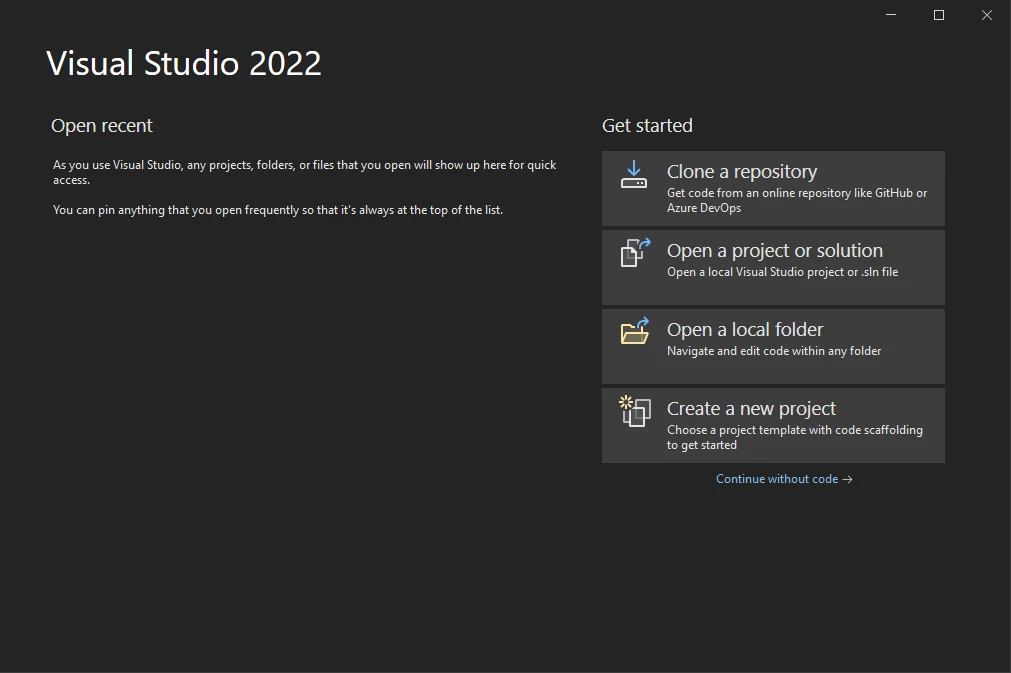
-
"콘솔 애플리케이션"을 선택하고 "다음"을 클릭합니다.
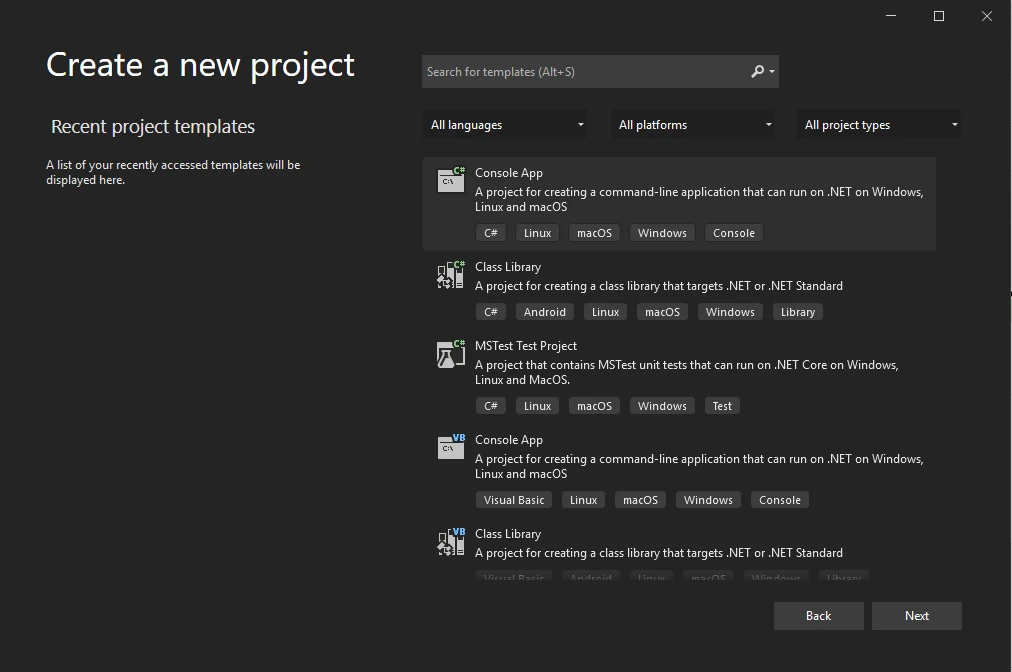
-
프로젝트의 이름을 설정합니다.
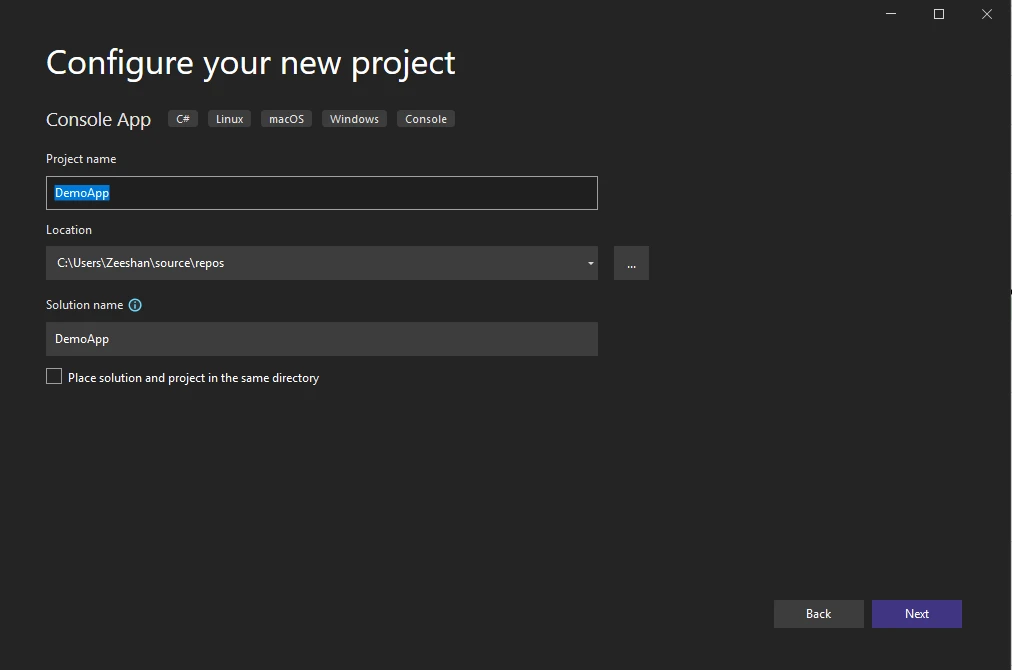
-
.NET 버전을 선택하세요. 안정된 버전 .NET 6.0을 선택하십시오.
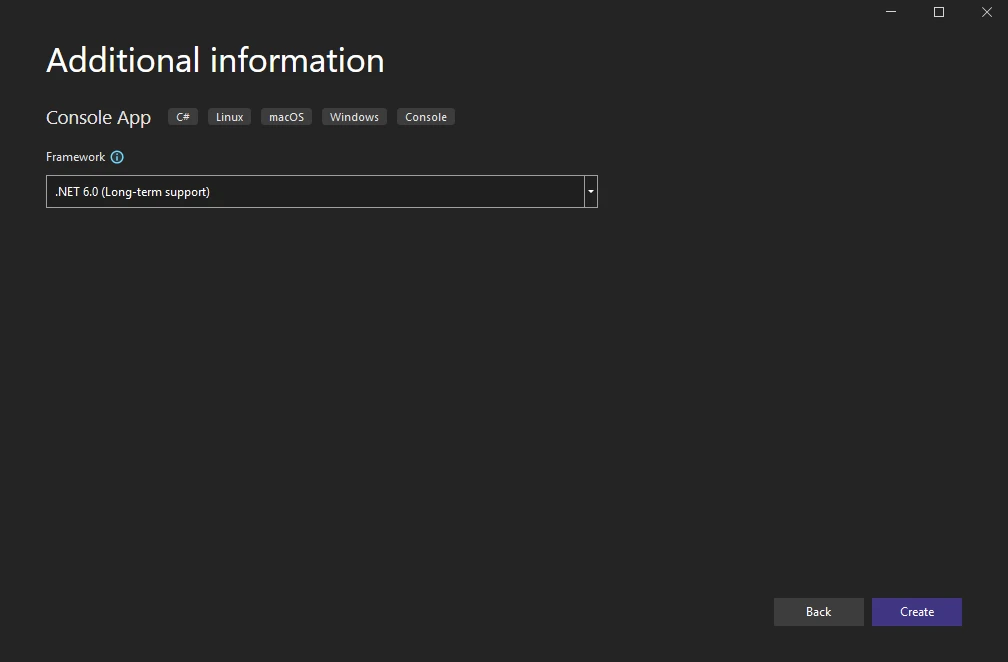
IronPDF 라이브러리를 설치하세요
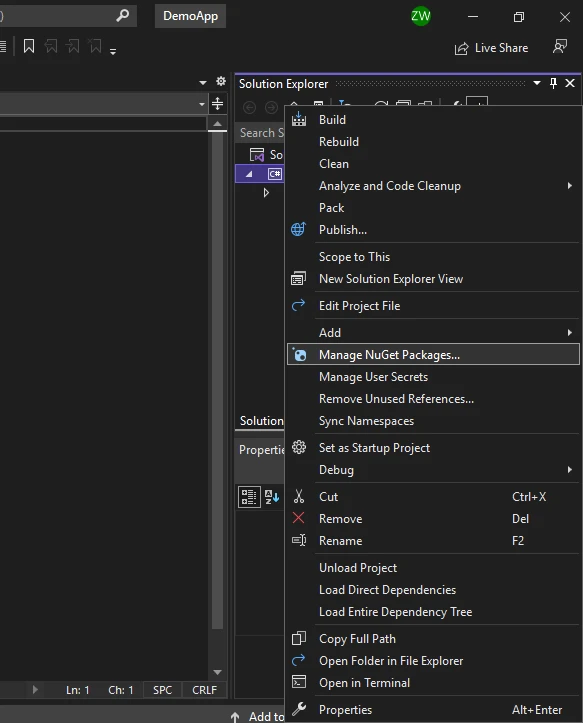
프로젝트가 생성되면 IronPDF 라이브러리를 프로젝트에 설치해야 사용 가능합니다. 다음 단계에 따라 설치하세요.
-
솔루션 탐색기 또는 도구에서 NuGet 패키지 관리자를 엽니다.
-
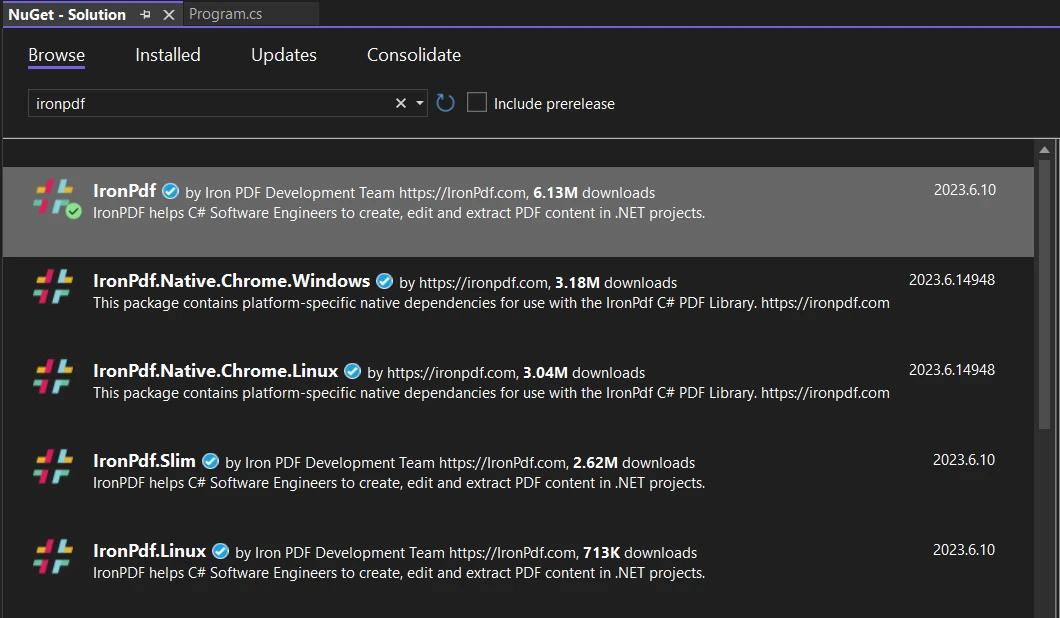
IronPDF 라이브러리를 찾아 현재 프로젝트에 선택합니다. 설치를 클릭합니다.
Program.cs 파일 상단에 다음 네임스페이스를 추가합니다:
using IronPdf;
using IronPdf;
Imports IronPdf
Imports IronPdf
iText 라이브러리 설치
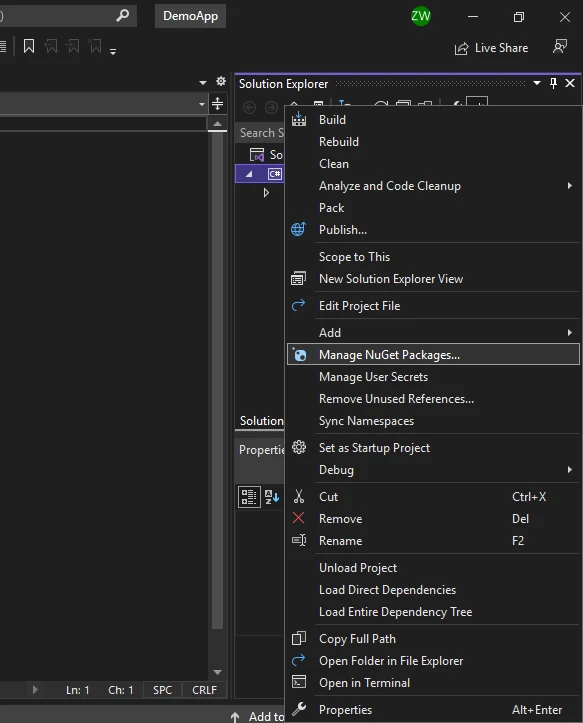
프로젝트가 만들어지면 iText 라이브러리를 프로젝트에 설치하여 사용해야 합니다. 설치를 위해 다음 단계를 따르세요.
-
솔루션 탐색기 또는 도구에서 NuGet 패키지 관리자를 엽니다.
-
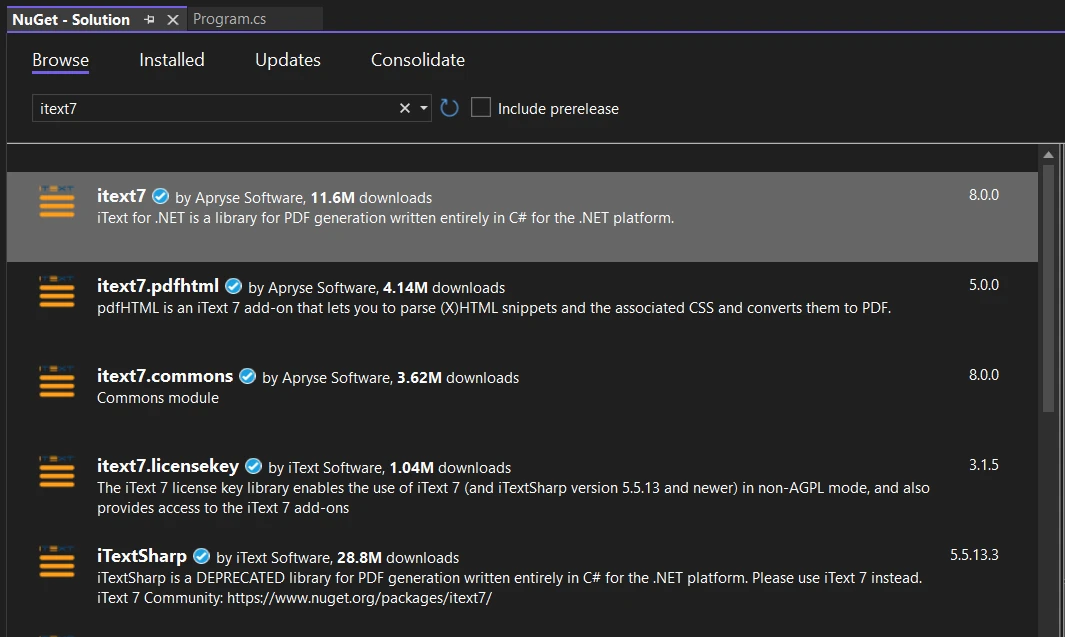
iText 라이브러리를 찾아 현재 프로젝트에 선택합니다. 설치를 클릭하세요.
Program.cs 파일 상단에 다음 네임스페이스를 추가합니다:
using iText.Kernel.Pdf.Canvas.Parser.Listener;
using iText.Kernel.Pdf.Canvas.Parser;
using iText.Kernel.Pdf;
using iText.Kernel.Pdf.Canvas.Parser.Listener;
using iText.Kernel.Pdf.Canvas.Parser;
using iText.Kernel.Pdf;
Imports iText.Kernel.Pdf.Canvas.Parser.Listener
Imports iText.Kernel.Pdf.Canvas.Parser
Imports iText.Kernel.Pdf
Imports iText.Kernel.Pdf.Canvas.Parser.Listener
Imports iText.Kernel.Pdf.Canvas.Parser
Imports iText.Kernel.Pdf
PDF 파일 열기
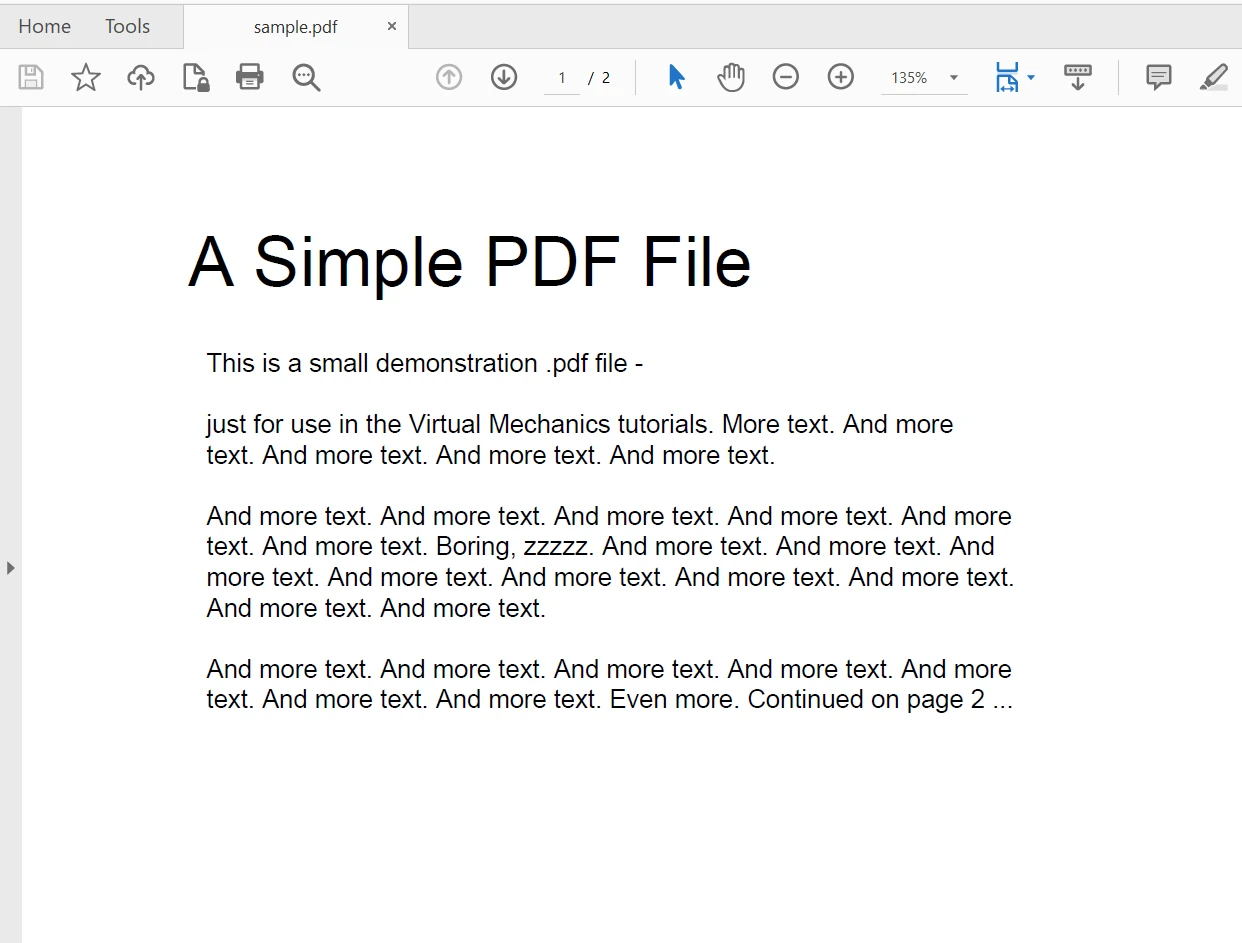
이제 텍스트를 추출하기 위해 다음 PDF 파일을 사용할 것입니다. 이것은 두 페이지로 구성된 PDF 문서입니다.
iText 라이브러리 사용
iText 라이브러리를 사용하여 PDF 파일을 열기 위한 절차는 두 단계로 이루어집니다. 먼저, PdfReader 객체를 생성하고 파일 위치를 매개변수로 전달합니다. 그런 다음 PdfDocument 클래스를 사용하여 새 PDF 문서를 생성합니다. 코드는 다음과 같습니다.
// Initialize a reader instance by specifying the path of the PDF file
PdfReader pdfReader = new PdfReader("sample.pdf");

// Initialize a document instance using the PdfReader
PdfDocument pdfDoc = new PdfDocument(pdfReader);
// Initialize a reader instance by specifying the path of the PDF file
PdfReader pdfReader = new PdfReader("sample.pdf");

// Initialize a document instance using the PdfReader
PdfDocument pdfDoc = new PdfDocument(pdfReader);
' Initialize a reader instance by specifying the path of the PDF file
Dim pdfReader As New PdfReader("sample.pdf")
' Initialize a document instance using the PdfReader
Dim pdfDoc As New PdfDocument(pdfReader)
' Initialize a reader instance by specifying the path of the PDF file
Dim pdfReader As New PdfReader("sample.pdf")

' Initialize a document instance using the PdfReader
Dim pdfDoc As New PdfDocument(pdfReader)
IronPDF 사용하기
IronPDF를 사용하여 PDF 파일을 여는 것은 쉽습니다. PdfDocument 클래스의 FromFile 메서드를 사용하여 PDF를 파일 위치에서 엽니다. 다음의 한 줄 코드로 데이터를 읽기 위해 PDF 파일을 엽니다:
// Open a PDF file using IronPDF and create a PdfDocument instance
var pdf = PdfDocument.FromFile("sample.pdf");
// Open a PDF file using IronPDF and create a PdfDocument instance
var pdf = PdfDocument.FromFile("sample.pdf");
' Open a PDF file using IronPDF and create a PdfDocument instance
Dim pdf = PdfDocument.FromFile("sample.pdf")
' Open a PDF file using IronPDF and create a PdfDocument instance
Dim pdf = PdfDocument.FromFile("sample.pdf")
PDF 파일에서 데이터 읽기
iText 라이브러리 사용
iText 라이브러리에서 PDF 데이터를 읽는 것은 그리 간단하지 않습니다. PDF 문서의 각 페이지를 수동으로 순회하여 각 페이지에서 텍스트를 추출해야 합니다. 다음 소스 코드는 PDF 문서에서 페이지별로 텍스트를 추출하는 데 도움이 됩니다:
// Iterate through each page and extract text
for (int page = 1; page <= pdfDoc.GetNumberOfPages(); page++)
{
    // Define the text extraction strategy
    ITextExtractionStrategy strategy = new SimpleTextExtractionStrategy();

    // Extract text from the current page using the strategy
    string pageContent = PdfTextExtractor.GetTextFromPage(pdfDoc.GetPage(page), strategy);

    // Output the extracted text to the console
    Console.WriteLine(pageContent);
}

// Close document and reader to release resources
pdfDoc.Close();
pdfReader.Close();
// Iterate through each page and extract text
for (int page = 1; page <= pdfDoc.GetNumberOfPages(); page++)
{
    // Define the text extraction strategy
    ITextExtractionStrategy strategy = new SimpleTextExtractionStrategy();

    // Extract text from the current page using the strategy
    string pageContent = PdfTextExtractor.GetTextFromPage(pdfDoc.GetPage(page), strategy);

    // Output the extracted text to the console
    Console.WriteLine(pageContent);
}

// Close document and reader to release resources
pdfDoc.Close();
pdfReader.Close();
' Iterate through each page and extract text
For page As Integer = 1 To pdfDoc.GetNumberOfPages()
' Define the text extraction strategy
Dim strategy As ITextExtractionStrategy = New SimpleTextExtractionStrategy()
' Extract text from the current page using the strategy
Dim pageContent As String = PdfTextExtractor.GetTextFromPage(pdfDoc.GetPage(page), strategy)
' Output the extracted text to the console
Console.WriteLine(pageContent)
Next
' Close document and reader to release resources
pdfDoc.Close()
pdfReader.Close()
' Iterate through each page and extract text
For page As Integer = 1 To pdfDoc.GetNumberOfPages()
    ' Define the text extraction strategy
    Dim strategy As ITextExtractionStrategy = New SimpleTextExtractionStrategy()

    ' Extract text from the current page using the strategy
    Dim pageContent As String = PdfTextExtractor.GetTextFromPage(pdfDoc.GetPage(page), strategy)

    ' Output the extracted text to the console
    Console.WriteLine(pageContent)
Next

' Close document and reader to release resources
pdfDoc.Close()
pdfReader.Close()
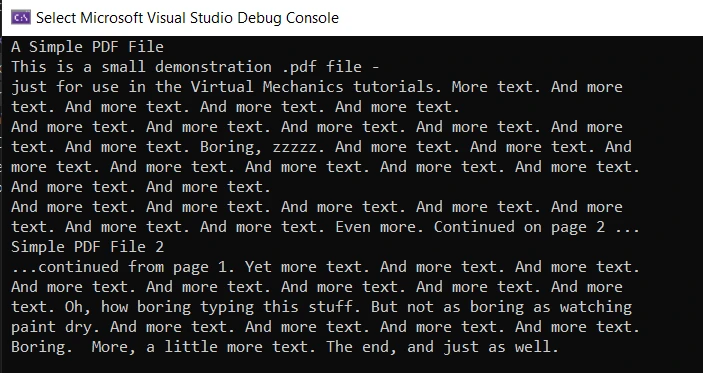
위 코드에는 많은 내용이 포함되어 있습니다. 먼저 텍스트 추출 전략을 선언한 다음 PdfExtractor 클래스의 GetTextFromPage 메서드를 사용하여 텍스트를 읽습니다. 이 메소드는 두 개의 매개변수를 받습니다: 첫 번째는 PDF 문서 페이지이고, 두 번째는 전략입니다. PDF 문서 페이지를 얻으려면 PdfDocument의 인스턴스를 사용하여 GetPage 메서드를 호출하고 페이지 번호를 매개변수로 전달합니다. 출력은 문자열로 반환되며, 이는 콘솔 출력 화면에 표시됩니다. 마지막으로 PDFReader 및 PdfDocument 객체가 닫힙니다. iText를 사용하여 PDF에서 텍스트를 추출하는 다음 코드 예제도 참조하십시오.
산출
IronPDF 사용하기
PDF 파일을 여는 것이 한 줄의 코드였던 것처럼, PDF 파일에서 텍스트를 읽는 것도 한 줄의 절차입니다. PDFDocument 클래스는 PDF에서 전체 내용을 읽기 위한 ExtractAllText 메서드를 제공합니다. Console.WriteLine는 화면에 텍스트를 인쇄하는 데 사용됩니다. 코드는 다음과 같습니다.
// Extract all text from the PDF document
string text = pdf.ExtractAllText();

// Display the extracted text
Console.WriteLine(text);
// Extract all text from the PDF document
string text = pdf.ExtractAllText();

// Display the extracted text
Console.WriteLine(text);
' Extract all text from the PDF document
Dim text As String = pdf.ExtractAllText()

' Display the extracted text
Console.WriteLine(text)
' Extract all text from the PDF document
Dim text As String = pdf.ExtractAllText()

' Display the extracted text
Console.WriteLine(text)
산출
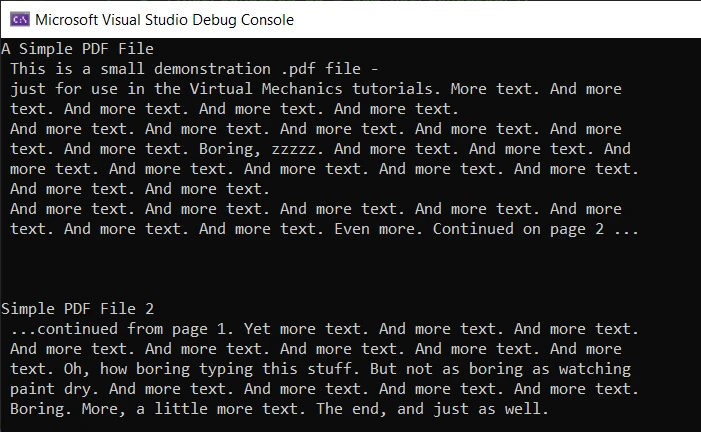
출력은 정확하고 오류가 없습니다. 그러나 ExtractAllText 메서드를 사용하려면 라이선스가 필요하며 이는 프로덕션 모드에서만 작동합니다. 30일 동안 IronPDF 체험판 라이센스 페이지에서 체험판 라이선스 키를 받을 수 있습니다.
비교
비교해보면, 두 라이브러리 모두 PDF 문서에서 텍스트를 추출할 때 정확한 결과를 제공합니다. 텍스트 추출 정확성 면에서 비슷합니다. 그러나 IronPDF는 코드 가독성과 개발자 편의성 면에서 더 효율적입니다.
IronPDF는 iText와 동일한 작업을 수행하는데 코드 두 줄만 필요합니다. 추가적인 로직을 구현할 필요 없이 바로 사용할 수 있는 텍스트 추출 메서드를 제공합니다. iText 코드는 조금 까다롭고, PDF 문서를 열 때 생성된 두 인스턴스를 닫아야 합니다. 반면, IronPDF는 작업이 수행되면 자동으로 메모리를 정리합니다.
요약
이 문서에서는 C#에서 iText 라이브러리를 사용하여 PDF 문서를 읽는 방법을 살펴보고 IronPDF와 비교했습니다. 두 라이브러리는 정확한 결과를 제공하며 작업할 수 있는 다양한 PDF 조작 메서드를 제공합니다. 이 두 라이브러리를 사용하여 PDF 파일에서 데이터를 생성, 편집 및 읽을 수 있습니다.
iText는 오픈 소스이며 사용이 무료이지만 제한이 있습니다. 상업적 사용을 위해 라이센스를 구매할 수 있습니다. IronPDF는 또한 무료로 사용할 수 있으며, 30일 무료 체험판이 제공되며 상업적 활동을 위한 라이센스를 받을 수 있습니다.
IronPDF를 다운로드하고 사용해 보세요.
iText는 해당 소유자의 등록 상표입니다. 이 사이트는 iText와 관련이 없고, 승인받지 않았으며, 후원받지 않았습니다. 모든 제품명, 로고 및 브랜드는 해당 소유자의 자산입니다. 비교는 정보 제공 목적으로만 사용되며, 작성 시점에 공개적으로 이용 가능한 정보를 반영합니다.













