




업데이트됨 2026년 5월 8일
월별 계정 명세서를 PDF 문서로 생성하기
개발자는 IronPDF C# PDF 라이브러리를 사용하여 외부 서비스에 의존하지 않고도 .NET 프로젝트 내에서 HTML을 신뢰할 수 있는 PDF 파일로 변환할 수 있습니다.
더 읽어보기

PDF 문서에서 구조화된 테이블 데이터를 추출하는 것은 데이터 분석, 보고서 작성 또는 다른 시스템으로 정보 통합을 위해 C# 개발자들에게 자주 필요합니다. 하지만 PDF는 일관된 시각적 표현을 위해 주로 설계되어 간단한 데이터 추출에는 적합하지 않습니다. 이는 C#으로 프로그래밍 방식으로 PDF 파일에서 테이블을 읽기를 어렵게 만들 수 있습니다. 특히 테이블은 단순한 텍스트 기반 그리드에서 합쳐진 셀의 복잡한 레이아웃, 심지어 스캔된 문서에 이미지로 내장된 테이블에 이르기까지 다양할 수 있습니다.
이 가이드는 IronPDF를 사용한 PDF 테이블 추출에 대한 포괄적인 C# 튜토리얼을 제공합니다. 주로 IronPDF의 강력한 텍스트 추출 기능을 활용하여 텍스트 기반 PDF에서 표 데이터를 액세스하고 이를 구문 분석하는 방법을 탐구할 것입니다. 이 방법의 효과성을 논의하고, 파싱을 위한 전략을 제공하며, 추출된 정보를 처리하는 통찰을 제공합니다. 추가적으로 스캔된 PDF를 포함한 더 복잡한 시나리오를 다루기 위한 전략을 언급할 것입니다.
C#에서 PDF에서 테이블 데이터를 추출하는 주요 단계
RenderHtmlAsPdf을(를) 사용하여 HTML 문자열로부터 표가 포함된 샘플 PDF를 생성합니다. (섹션 참조: (데모 단계) 테이블 데이터가 포함된 PDF 문서 작성)ExtractAllText 메소드를 사용하여 원시 텍스트 콘텐츠를 가져옵니다. (See section: Extract All Text Containing Table Data from the PDF)IronPDF는 개발자가 소프트웨어 응용 프로그램에서 PDF 문서를 쉽게 읽고, 생성하고, 편집할 수 있도록 돕는 .NET를 위한 C# .NET 라이브러리 솔루션입니다. (https://ironpdf.com/) 견고한 Chromium 엔진을 통해 HTML에서 PDF 문서를 높은 정확도와 속도로 렌더링합니다. 개발자가 다양한 형식에서 PDF로, 그리고 역으로 부드럽게 변환할 수 있게 합니다. .NET 7, .NET 6, 5, 4, .NET Core 및 표준을 포함한 최신 .NET Framework를 지원합니다.
또한 IronPDF .NET API는 개발자가 PDF를 조작하고 편집하며, 헤더와 푸터를 추가하고, 중요한 것은 텍스트, 이미지, (다음에 볼) PDF에서 테이블 데이터를 쉽게 추출할 수 있도록 합니다.
PDF 문서에서 테이블 데이터를 추출하기 위해 C# 프로젝트를 설정할 것입니다:
Visual Studio: Visual Studio(예: 2022)가 설치되어 있는지 확인하세요. Visual Studio 웹사이트(https://visualstudio.microsoft.com/downloads/)에서 다운로드하세요.
프로젝트 생성:
Visual Studio 2022를 열고 새 프로젝트 생성을 클릭하세요.
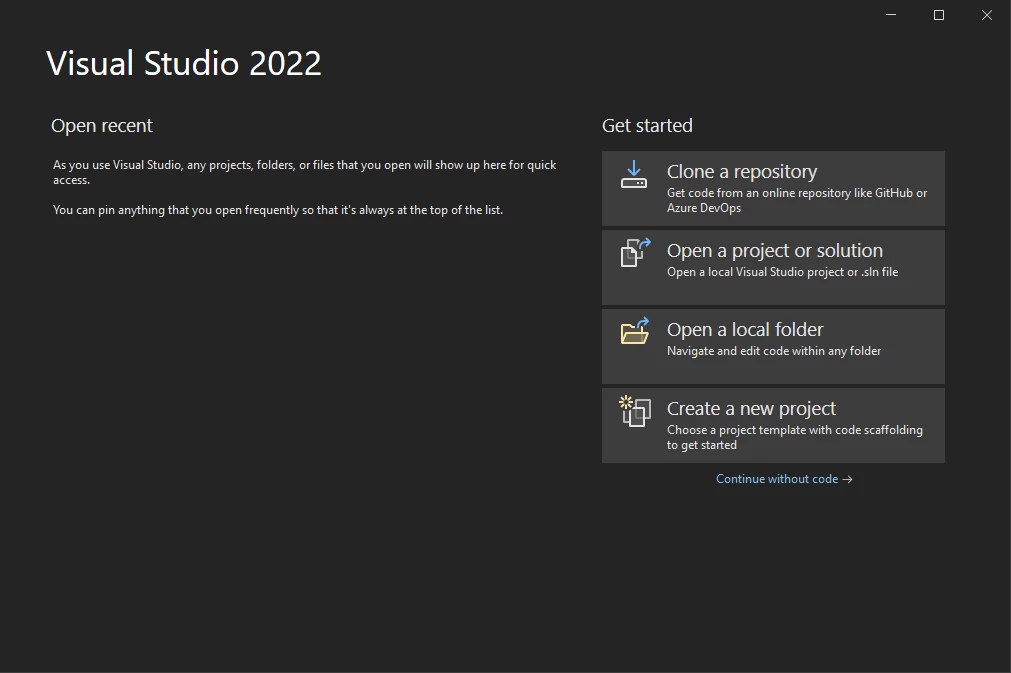 Visual Studio의 시작 화면
"콘솔 앱"(또는 선호하는 C# 프로젝트 유형)을 선택하고 다음을 클릭하세요.
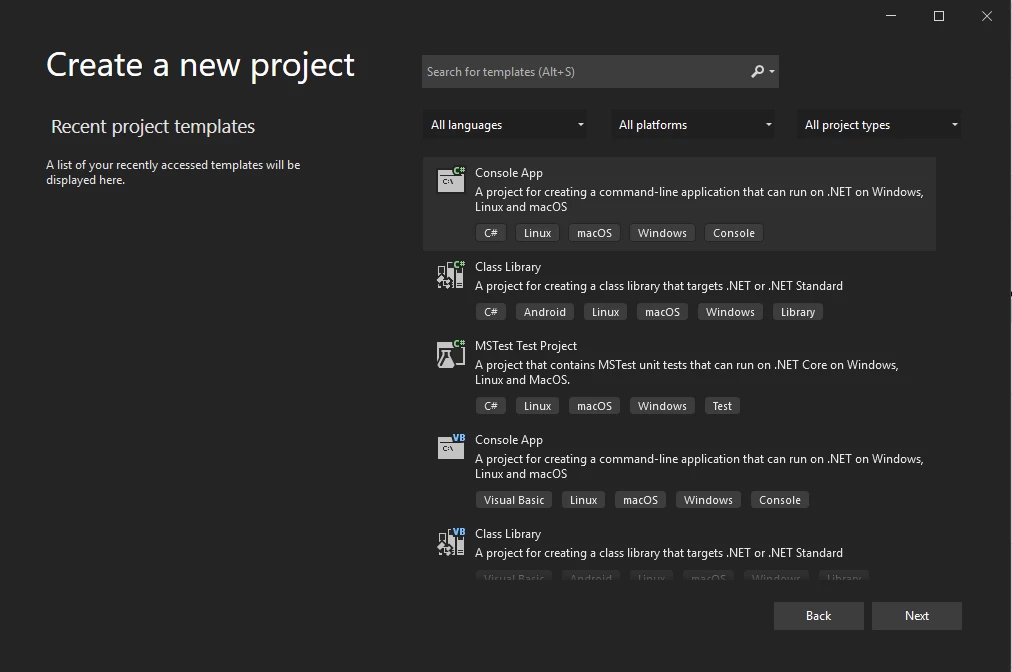 Visual Studio에서 새로운 콘솔 애플리케이션 생성
프로젝트 이름(예: "ReadPDFTableDemo")을 지정하고 다음을 클릭하세요.
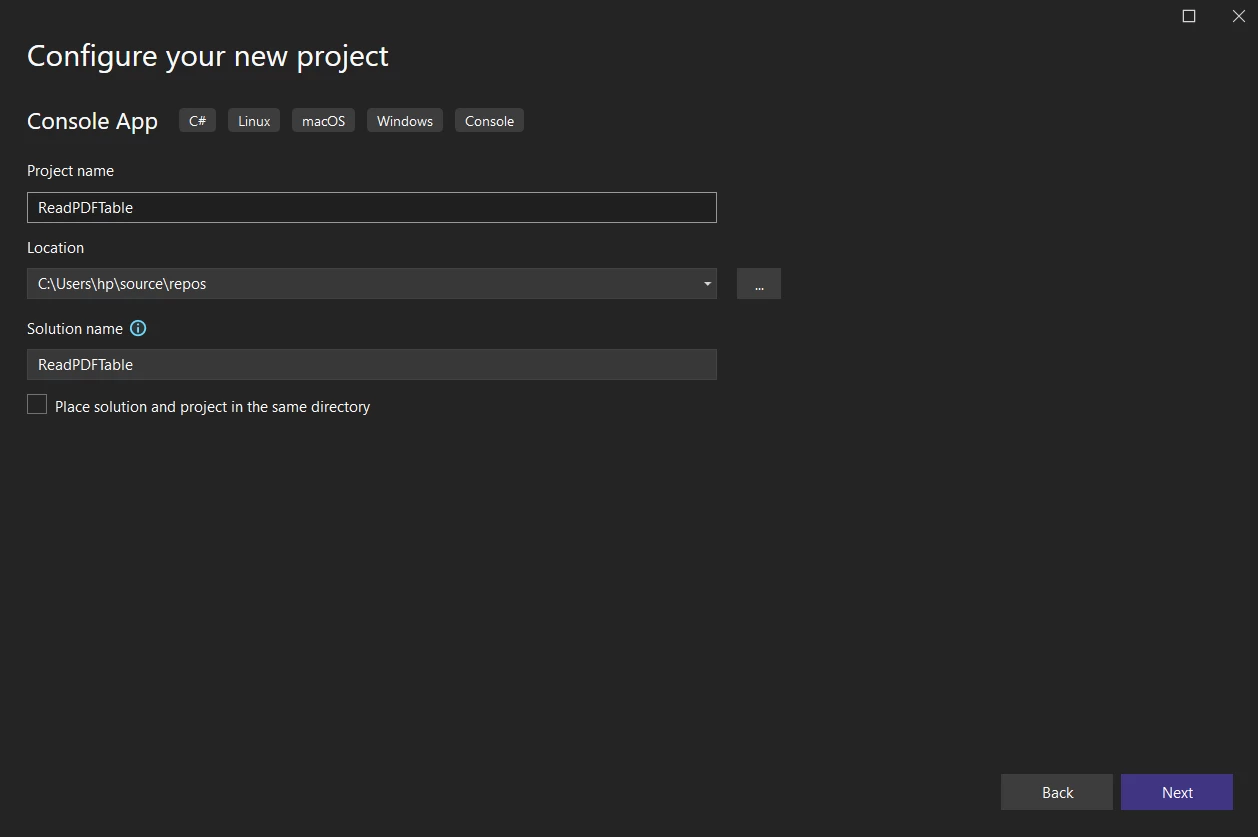 새로 생성된 애플리케이션 구성
원하는 .NET Framework(예: .NET 6 이상)를 선택하세요.
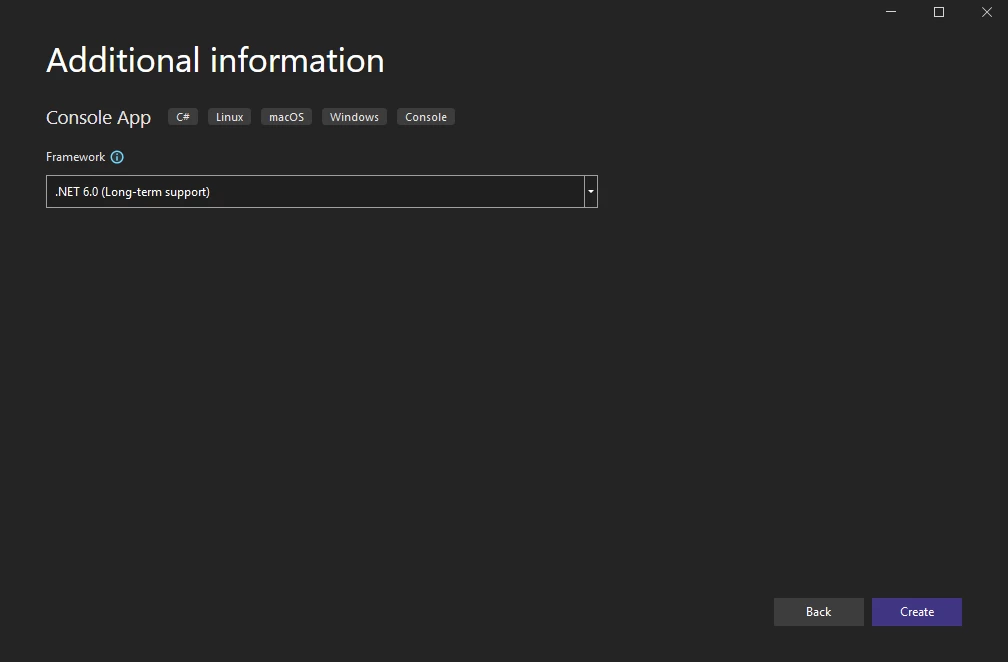 .NET Framework 선택
생성을 클릭하세요. 콘솔 프로젝트가 생성됩니다.
IronPDF 설치:
Visual Studio NuGet 패키지 관리자 사용:
솔루션 탐색기에서 프로젝트를 마우스 오른쪽 버튼으로 클릭하고 'NuGet 패키지 관리...'를 선택합니다.
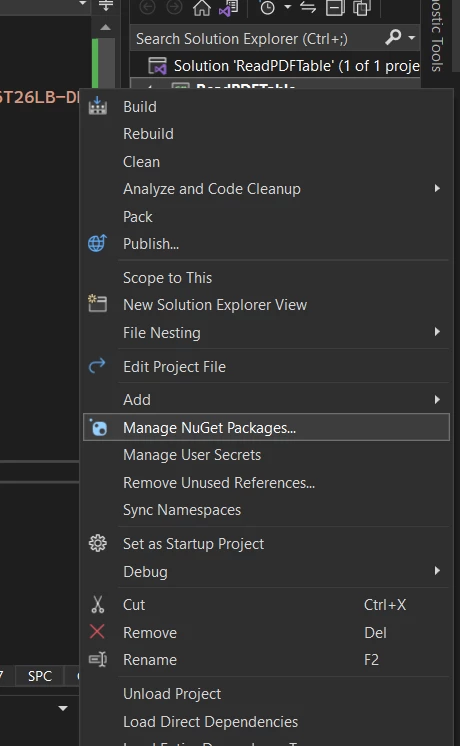 도구 및 NuGet 패키지 관리
NuGet 패키지 관리자에서 'IronPDF'를 검색하고 '설치'를 클릭하세요.
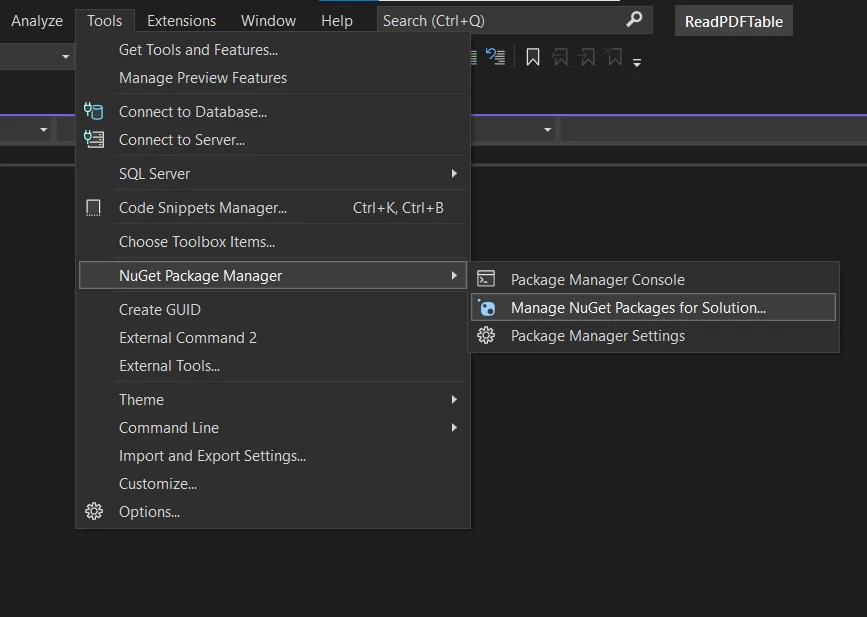 도구 및 NuGet 패키지 관리
이번 튜토리얼에서는 HTML 문자열에서 간단한 테이블을 포함한 샘플 PDF를 먼저 생성합니다. 이는 추출 프로세스를 시연하기 위한 알려진 PDF 구조를 제공합니다. 현실 세계의 시나리오에서는 기존의 PDF 파일을 로드합니다.
IronPDF 네임스페이스를 추가하고 필요에 따라 라이선스 키를 설정합니다(IronPDF는 개발에 무료이지만 상업적 배포에서 워터마크를 제거하려면 라이선스가 필요합니다).
using IronPdf;
using System;       // For StringSplitOptions, Console
using System.IO;    // For StreamWriter

// Apply your license key if you have one. Otherwise, IronPDF runs in trial mode.
// License.LicenseKey = "YOUR-TRIAL/PURCHASED-LICENSE-KEY";Imports IronPdf
Imports System ' For StringSplitOptions, Console
Imports System.IO ' For StreamWriter
' Apply your license key if you have one. Otherwise, IronPDF runs in trial mode.
' License.LicenseKey = "YOUR-TRIAL/PURCHASED-LICENSE-KEY";다음은 샘플 테이블을 위한 HTML 문자열입니다:
string HTML = "<html>" +
        "<style>" +
            "table, th, td {" +
                "border:1px solid black;" +
            "}" +
        "</style>" +
        "<body>" +
            "<h1>A Simple table example</h1>" + // Corrected typo: h1 not h2
            "<table>" +
                "<tr>" +
                    "<th>Company</th>" +
                    "<th>Contact</th>" +
                    "<th>Country</th>" +
               "</tr>" +
                "<tr>" +
                    "<td>Alfreds Futterkiste</td>" +
                    "<td>Maria Anders</td>" +
                    "<td>Germany</td>" +
                "</tr>" +
                "<tr>" +
                    "<td>Centro comercial Moctezuma</td>" +
                    "<td>Francisco Chang</td>" +
                    "<td>Mexico</td>" +
                "</tr>" +
            "</table>" +
            "<p>To understand the example better, we have added borders to the table.</p>" +
        "</body>" +
"</html>";이제 ChromePdfRenderer을(를) 사용하여 이 HTML로부터 PDF를 생성하세요:
var renderer = new ChromePdfRenderer();
PdfDocument pdfDocument = renderer.RenderHtmlAsPdf(HTML);
pdfDocument.SaveAs("table_example.pdf");
Console.WriteLine("Sample PDF 'table_example.pdf' created.");Dim renderer = New ChromePdfRenderer()
Dim pdfDocument As PdfDocument = renderer.RenderHtmlAsPdf(HTML)
pdfDocument.SaveAs("table_example.pdf")
Console.WriteLine("Sample PDF 'table_example.pdf' created.")SaveAs 메소드는 PDF를 저장합니다. 생성된 table_example.pdf는 다음과 같이 보일 것입니다 (HTML을 기반으로 한 개념 이미지):
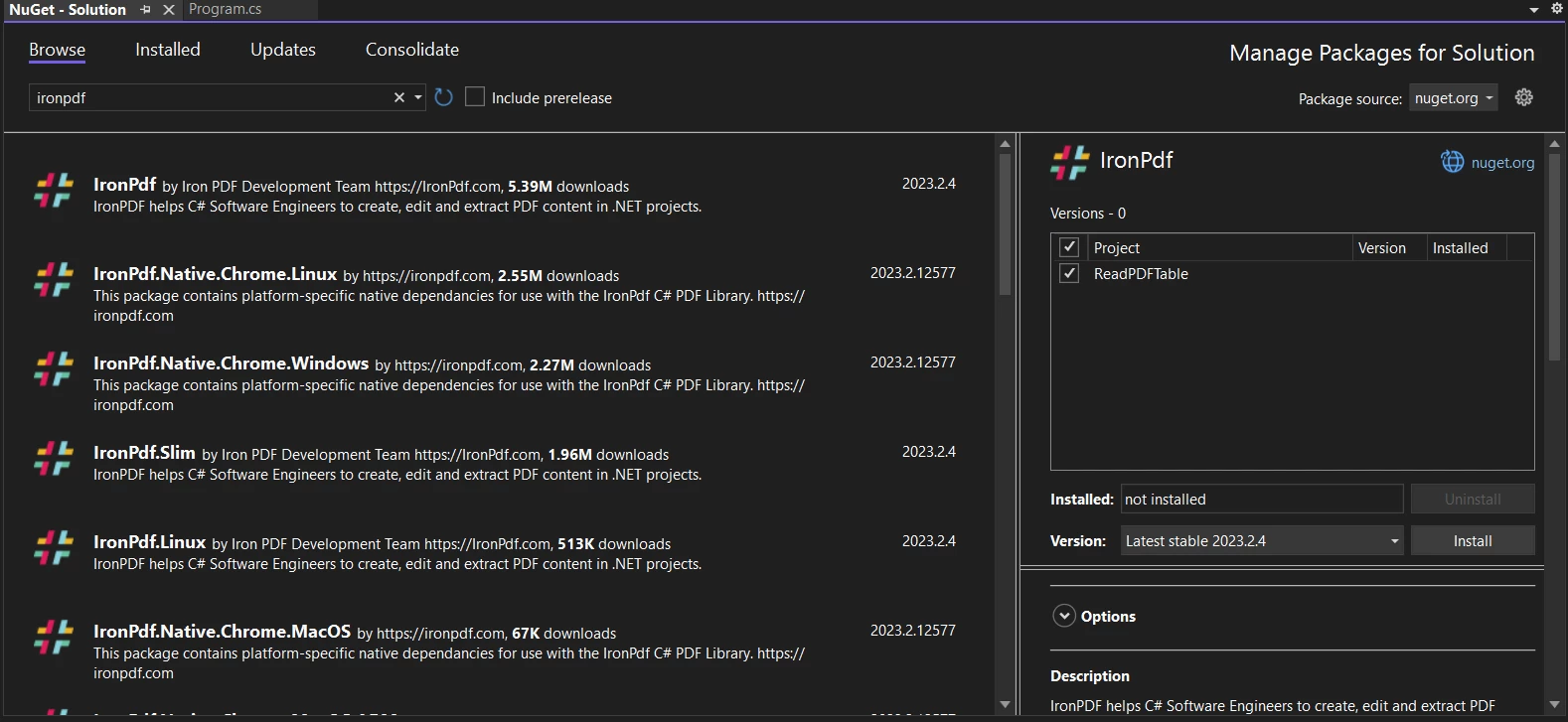 NuGet 패키지 관리자 UI에서 IronPDF 검색
표 데이터를 추출하기 위해, 우리는 먼저 PDF를 로드합니다 (갓 생성한 것 또는 기존의 PDF) 그리고 ExtractAllText 메소드를 사용합니다. 이 메서드는 PDF 페이지의 모든 텍스트 콘텐츠를 검색합니다.
// Load the PDF (if you just created it, it's already loaded in pdfDocument)
// If loading an existing PDF:
// PdfDocument pdfDocument = PdfDocument.FromFile("table_example.pdf");
// Or use the one created above:
string allText = pdfDocument.ExtractAllText();' Load the PDF (if you just created it, it's already loaded in pdfDocument)
' If loading an existing PDF:
' PdfDocument pdfDocument = PdfDocument.FromFile("table_example.pdf");
' Or use the one created above:
Dim allText As String = pdfDocument.ExtractAllText()allText 변수는 이제 PDF 전체 텍스트 내용을 보유하고 있습니다. 이를 표시하여 원시 추출 결과를 볼 수 있습니다:
Console.WriteLine("\n--- Raw Extracted Text ---");
Console.WriteLine(allText);Imports Microsoft.VisualBasic
Console.WriteLine(vbLf & "--- Raw Extracted Text ---")
Console.WriteLine(allText)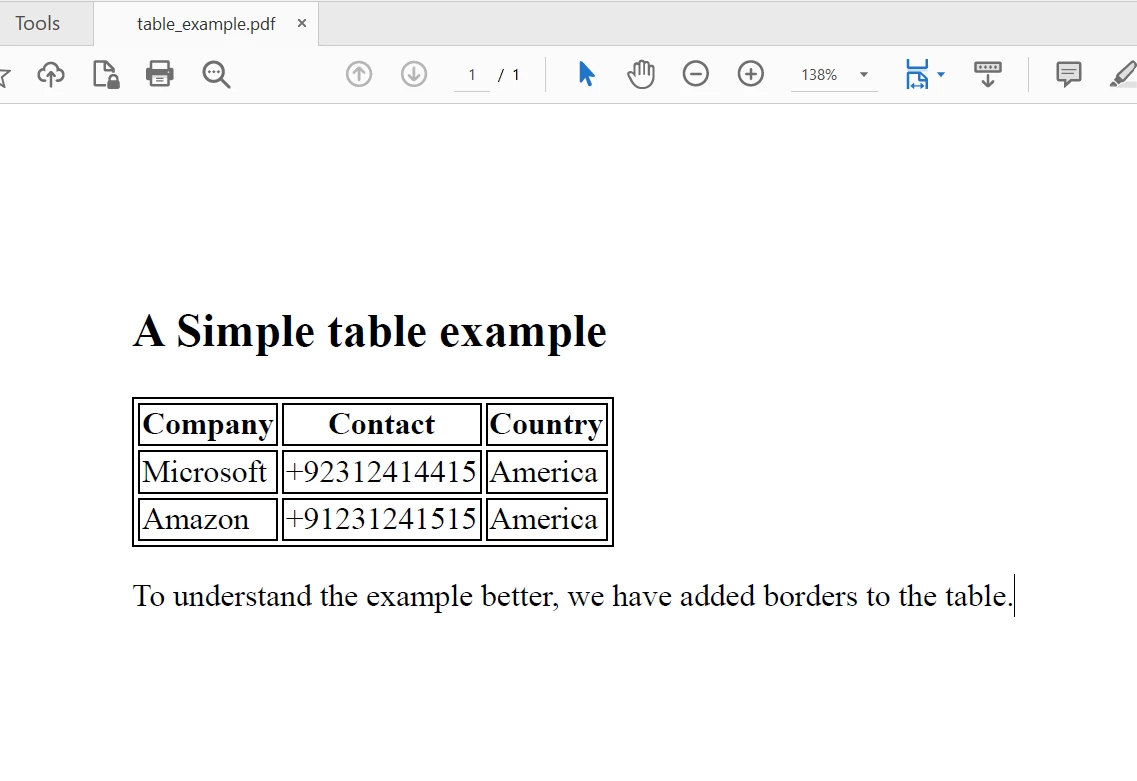 텍스트를 추출할 PDF 파일
원시 텍스트를 추출한 후, 다음 과제는 이 문자열을 파싱하여 표 데이터의 구조를 식별하고 구성하는 것입니다. 이 단계는 PDF에 있는 테이블의 일관성과 형식에 크게 의존합니다.
일반적인 파싱 전략:
\n 또는 \r\n)는 일반적인 행 구분자입니다.ExtractAllText 메소드는 모든 텍스트를 가져옵니다. 테이블을 실제로 구성하는 텍스트를 격리하기 위한 논리가 필요합니다. 이를 위해 헤더 키워드를 찾거나 프리앰블/포스트앰블 텍스트를 건너뛰어야 할 수 있습니다.C# String.Split 메소드는 이것을 위한 기본 도구입니다. 다음은 샘플에서 테이블 라인만 추출하려는 예제이며, 점이 있는 라인을 필터링합니다 (이 특정 예제를 위한 간단한 휴리스틱).
Console.WriteLine("\n--- Parsed Table Data (Simple Heuristic) ---");
string[] textLines = allText.Split(new[] { '\r', '\n' }, StringSplitOptions.RemoveEmptyEntries);
foreach (string line in textLines)
{
    // Simple filter: skip lines with a period, assuming they are not table data in this example
    // and skip lines that are too short or headers if identifiable
    if (line.Contains(".") || line.Contains("A Simple table example") || line.Length < 5)
    {
        continue;
    }
    else
    {
        // Further split line into cells based on expected delimiters (e.g., multiple spaces)
        // This part requires careful adaptation to your PDF's table structure
        // Example: string[] cells = line.Split(new[] { "  ", "\t" }, StringSplitOptions.None);
        Console.WriteLine(line); // For now, just print the filtered line
    }
}Imports Microsoft.VisualBasic
Console.WriteLine(vbLf & "--- Parsed Table Data (Simple Heuristic) ---")
Dim textLines() As String = allText.Split( { ControlChars.Cr, ControlChars.Lf }, StringSplitOptions.RemoveEmptyEntries)
For Each line As String In textLines
' Simple filter: skip lines with a period, assuming they are not table data in this example
' and skip lines that are too short or headers if identifiable
If line.Contains(".") OrElse line.Contains("A Simple table example") OrElse line.Length < 5 Then
Continue For
Else
' Further split line into cells based on expected delimiters (e.g., multiple spaces)
' This part requires careful adaptation to your PDF's table structure
' Example: string[] cells = line.Split(new[] { " ", "\t" }, StringSplitOptions.None);
Console.WriteLine(line) ' For now, just print the filtered line
End If
Next line이 코드는 텍스트를 줄로 분할합니다. if 조건은 이 특정 예제의 비표 텍스트에 대한 매우 기본적인 필터입니다. 현실 세계의 시나리오에서는 테이블 행과 셀을 정확하게 식별하고 분석하기 위한 보다 견고한 논리가 필요합니다.
간단한 필터링된 텍스트의 출력:
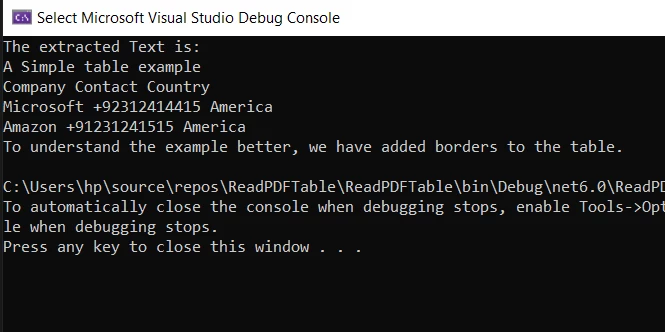 콘솔에 표시된 추출된 텍스트
텍스트 파싱 방법에 대한 중요한 고려 사항:
선택적으로 필터링된 라인(테이블 행을 이상적으로 나타내는)을 CSV 파일에 저장할 수 있습니다:
using (StreamWriter file = new StreamWriter("parsed_table_data.csv", false))
{
    file.WriteLine("Company,Contact,Country"); // Write CSV Header
    foreach (string line in textLines)
    {
        if (line.Contains(".") || line.Contains("A Simple table example") || line.Length < 5)
        {
            continue;
        }
        else
        {
            // For a real CSV, you'd split 'line' into cells and join with commas
            // E.g., string[] cells = line.Split(new[] {"  "}, StringSplitOptions.RemoveEmptyEntries);
            // string csvLine = string.Join(",", cells);
            // file.WriteLine(csvLine);
            file.WriteLine(line.Replace("  ", ",").Trim()); // Basic replacement for this example
        }
    }
}
Console.WriteLine("\nFiltered table data saved to parsed_table_data.csv");Imports Microsoft.VisualBasic
Using file As New StreamWriter("parsed_table_data.csv", False)
file.WriteLine("Company,Contact,Country") ' Write CSV Header
For Each line As String In textLines
If line.Contains(".") OrElse line.Contains("A Simple table example") OrElse line.Length < 5 Then
Continue For
Else
' For a real CSV, you'd split 'line' into cells and join with commas
' E.g., string[] cells = line.Split(new[] {" "}, StringSplitOptions.RemoveEmptyEntries);
' string csvLine = string.Join(",", cells);
' file.WriteLine(csvLine);
file.WriteLine(line.Replace(" ", ",").Trim()) ' Basic replacement for this example
End If
Next line
End Using
Console.WriteLine(vbLf & "Filtered table data saved to parsed_table_data.csv")복잡하거나 이미지 기반 PDF 테이블에서 데이터를 추출하려면 단순 텍스트 구문 분석보다 고급 기술이 필요합니다. IronPDF는 다음과 같은 기능을 제공합니다:
ExtractAllText() 만으로는 이를 캡처할 수 없습니다. IronOCR의 텍스트 감지 기능은 이러한 이미지를 먼저 텍스트로 변환할 수 있습니다.// Conceptual OCR usage (refer to IronOCR's documentation for detailed implementation)
// Install Package IronOcr
using IronOcr;
using (var ocrInput = new OcrInput("scanned_pdf_with_table.pdf"))
{
ocrInput.TargetDPI = 300; // Good DPI for OCR accuracy
var ocrResult = new IronOcr().Read(ocrInput);
string ocrExtractedText = ocrResult.Text;
// Now, apply parsing logic to 'ocrExtractedText'
Console.WriteLine("\n--- OCR Extracted Text for Table Parsing ---");
Console.WriteLine(ocrExtractedText);
}' Conceptual OCR usage (refer to IronOCR's documentation for detailed implementation)
' Install Package IronOcr
Imports Microsoft.VisualBasic
Imports IronOcr
Using ocrInput As New OcrInput("scanned_pdf_with_table.pdf")
ocrInput.TargetDPI = 300 ' Good DPI for OCR accuracy
Dim ocrResult = (New IronOcr()).Read(ocrInput)
Dim ocrExtractedText As String = ocrResult.Text
' Now, apply parsing logic to 'ocrExtractedText'
Console.WriteLine(vbLf & "--- OCR Extracted Text for Table Parsing ---")
Console.WriteLine(ocrExtractedText)
End Using자세한 안내는 IronOCR 문서(https://ironsoftware.com/csharp/ocr/)를 참조하십시오. OCR 후에는 결과 텍스트 문자열을 구문 분석합니다.
좌표 기반 텍스트 추출 (고급): IronPDF의 ExtractAllText()은 텍스트 스트림을 제공하는 반면, 몇몇 시나리오는 각 텍스트 조각의 x,y 좌표를 아는 것이 유익할 수 있습니다. IronPDF가 텍스트 및 패닝 박스 정보를 얻는 API를 제공하는지(현재 문서를 확인하십시오), 이는 시각적 정렬을 기반으로 테이블을 재구성하기 위한 더 정교한 공간 구문 분석을 허용할 수 있습니다.
PDF를 다른 형식으로 변환: IronPDF는 PDF를 HTML과 같은 구조화된 형식으로 변환할 수 있습니다. 종종 HTML 테이블을 구문 분석하는 것이 원시 PDF 텍스트를 구문 분석하는 것보다 더 간단합니다.
PdfDocument pdfToConvert = PdfDocument.FromFile("your_document.pdf");
string htmlOutput = pdfToConvert.ToHtmlString();
// Then use an HTML parsing library (e.g., HtmlAgilityPack) to extract tables from htmlOutput.Dim pdfToConvert As PdfDocument = PdfDocument.FromFile("your_document.pdf")
Dim htmlOutput As String = pdfToConvert.ToHtmlString()
' Then use an HTML parsing library (e.g., HtmlAgilityPack) to extract tables from htmlOutput.올바른 전략을 선택하는 것은 원본 PDF의 복잡성과 일관성에 따라 다릅니다. 텍스트 기반 테이블이 포함된 많은 일반적인 비즈니스 문서의 경우, IronPDF의 ExtractAllText은 스마트 C# 파싱 로직과 결합하여 매우 효과적일 수 있습니다. 이미지 기반 테이블의 경우, OCR 기능이 필수적입니다.
이 글은 C#에서 IronPDF을 사용하여 PDF 문서에서 테이블 데이터를 추출하는 방법을 보여주었으며, 주로 ExtractAllText() 메소드와 그 후의 문자열 파싱을 활용하는 데 중점을 두었습니다. 이 접근법이 텍스트 기반 테이블에 대해서는 강력하지만, 이미지 기반 테이블과 같은 더 복잡한 시나리오는 IronPDF의 OCR 기능을 사용하거나 PDF를 다른 형식으로 먼저 변환하여 해결할 수 있음을 보았습니다.
IronPDF는 .NET 개발자를 위한 다기능 툴킷을 제공하여 생성 및 편집은 물론이고 포괄적인 데이터 추출까지 많은 PDF 관련 작업을 간소화합니다. 페이지 전용 추출을 위한 ExtractTextFromPage와 같은 메소드를 제공하며 마크다운 또는 DOCX에서 PDF로의 변환을 지원합니다.
IronPDF는 개발을 위해 무료로 제공되며, 전체 상업 기능을 테스트할 수 있는 무료 체험 라이선스를 제공합니다. 생산 배포를 위한 다양한 라이선스 옵션이 제공됩니다.
추가 세부 사항 및 고급 사용 사례에 대해서는 공식 IronPDF 문서 및 예제를 탐색하십시오(https://ironpdf.com/)

커티스 차우는 칼턴 대학교에서 컴퓨터 과학 학사 학위를 취득했으며, Node.js, TypeScript, JavaScript, React를 전문으로 하는 프론트엔드 개발자입니다. 직관적이고 미적으로 뛰어난 사용자 인터페이스를 만드는 데 열정을 가진 그는 최신 프레임워크를 활용하고, 잘 구성되고 시각적으로 매력적인 매뉴얼을 제작하는 것을 즐깁니다.



IronPDF는 IRON SUITE 의 일부입니다.
10개의 .NET API 제품, 당신의 사무 문서를 위해











PDF 파일을 HTML처럼 빠르게 변환해야 할 때.


