




업데이트됨 2026년 9월 4일
월별 계정 명세서를 PDF 문서로 생성하기
개발자는 IronPDF C# PDF 라이브러리를 사용하여 외부 서비스에 의존하지 않고도 .NET 프로젝트 내에서 HTML을 신뢰할 수 있는 PDF 파일로 변환할 수 있습니다.
더 읽어보기

IronPDF의 RasterizeToImageFiles 메서드를 사용하여 C#에서 PDF 파일을JPG이미지로 변환하는 데 코드 3줄만 필요합니다. 이 튜토리얼은 단일 페이지를 추출하고 전체 문서를 일괄 처리하며, 품질 설정을 조정하여 전문적인 이미지 출력을 만드는 방법을 보여줍니다.
C#에서 PDF 파일을JPG이미지로 변환하는 것은 IronPDF의 렌더링 엔진을 사용하면 간단해집니다. 썸네일을 생성하거나 이미지 미리보기를 만들거나, 전체 페이지를 웹 디스플레이에 변환할 때 이 튜토리얼은 깨끗하고 간단한 코드를 사용하여 고품질 JPEG 이미지를 생성하는 방법을 시연합니다. 데스크톱 애플리케이션 또는 최신 .NET 프로젝트를 구축할 때 이 과정이 작동합니다.
VB.NET 개발자는 거의 동일한 패턴으로 동일한 IronPDF API를 적용할 수 있습니다. 이 가이드의 모든 예제는 .NET 10 최상위 문장을 사용하는 C#로 작성되었지만, 기본적인 메서드 호출은 VB.NET 구문으로도 직접 변환됩니다.
C#에서 PDF를 JPG로 변환하는 가장 직접적인 방법은 IronPDF의 RasterizeToImageFiles 메서드를 사용하는 것입니다. 이 메서드는 전체 변환 프로세스를 처리하여, 각 PDF 페이지를 사용자가 지정할 수 있는 품질 설정을 통해 개별 이미지 파일로 변환합니다. 형식 옵션은 JPG를 넘어 PNG, BMP, TIFF까지 확장되어 다양한 사용 사례에 적합합니다. 라이브러리의 Chrome 렌더링 엔진은 정확한 시각적 재생산을 보장합니다.
using IronPdf;

// Load the PDF document
PdfDocument pdf = PdfDocument.FromFile("input.pdf");

// Convert PDF toJPGimages with default settings
pdf.RasterizeToImageFiles("output_page_*.jpg");

// The * wildcard creates numbered files for each page
Console.WriteLine("PDF pages converted toJPGsuccessfully!");Imports IronPdf
' Load the PDF document
Dim pdf As PdfDocument = PdfDocument.FromFile("input.pdf")
' Convert PDF to JPG images with default settings
pdf.RasterizeToImageFiles("output_page_*.jpg")
' The * wildcard creates numbered files for each page
Console.WriteLine("PDF pages converted to JPG successfully!")이 코드 조각은 기본적인 변환 패턴을 보여줍니다. FromFile 메서드는 PDF를 메모리에 로드하고, RasterizeToImageFiles는 변환을 수행합니다. 출력 파일 이름의 별표(*)는 자리 표시자로 작동하여 각 페이지에 대해 순차적으로 번호가 매겨진JPG파일을 자동으로 생성합니다.
시스템은 IronPDF의 Chromium 기반 엔진을 사용하여 픽셀 단위까지 완벽한 결과를 보장하며 복잡한 렌더링을 내부적으로 처리합니다. 엔진은 소스 문서의 CSS 스타일링과 JavaScript 렌더링을 보존합니다. 비동기 작동이 필요한 애플리케이션을 위해 IronPDF는 다중 스레드 생성 패턴도 지원합니다.
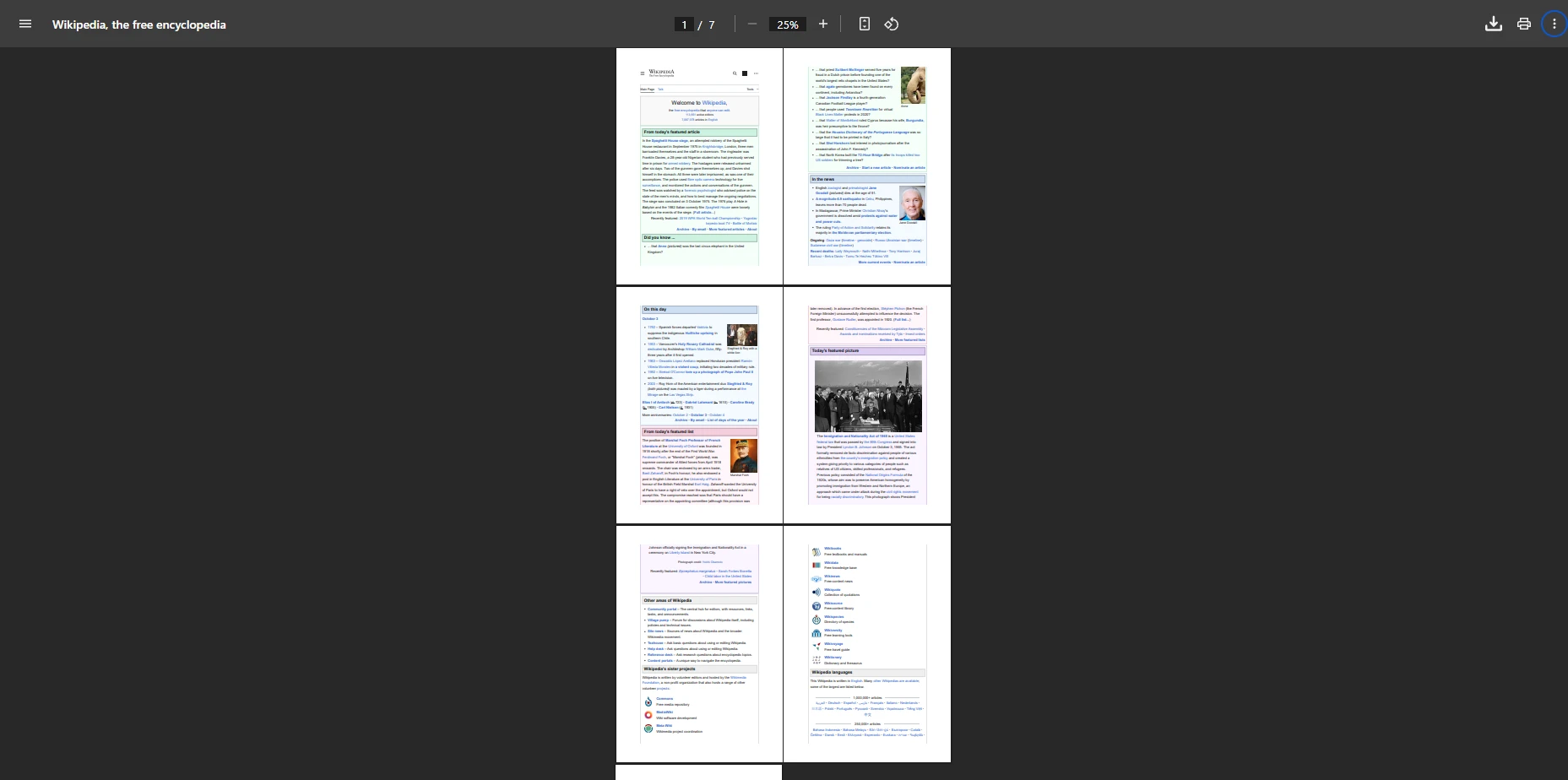
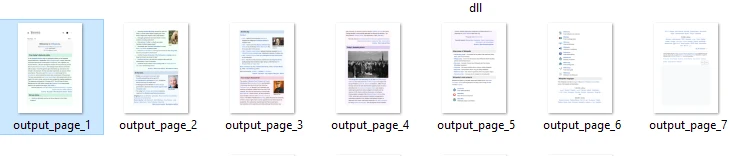
.NET 프로젝트에서 PDF를 JPG로 변환을 구현하기 전에 NuGet을 통해 IronPDF를 설치해야 합니다. 라이브러리는 .NET Framework와 최신 .NET 버전 모두와 통합됩니다. Windows, Linux, macOS 환경을 지원하며, Docker 컨테이너와도 작동합니다.
프로젝트에 IronPDF를 추가하려면 다음 명령 중 하나를 실행하십시오:
또는 Visual Studio의 패키지 관리자 UI를 사용하여 "IronPDF"를 검색하여 직접 설치할 수 있습니다. 설치 후 모든 변환 기능에 접근하기 위해 using IronPdf; 문을 추가하십시오. 라이브러리는 이미지 생성에 필요한 렌더링 엔진 구성 요소를 포함한 의존성을 자동으로 처리합니다. ASP.NET 애플리케이션, 데스크톱 프로그램, Azure에서의 클라우드 배포와 함께 이 설정이 작동합니다.
자주 문서 전체를 처리하는 대신 PDF 페이지를 선택적으로 변환할 필요가 있습니다. 애플리케이션이 특정 페이지 이미지를 업로드하거나 미리보기할 때 유용합니다. IronPDF는 단일 페이지 또는 커스텀 범위를 처리할 수 있는 유연한 메서드를 제공합니다. 페이지 조작 기능은 단순한 변환을 넘어서 복잡한 문서 워크플로를 지원합니다.
using IronPdf;

PdfDocument pdf = PdfDocument.FromFile("input.pdf");

// Convert only the first page to JPEG
int[] pageIndexes = { 0 }; // Page indexes start at 0
pdf.RasterizeToImageFiles("first_page_*.jpg", pageIndexes, IronPdf.Imaging.ImageType.Jpeg);

// Convert specific page range (pages 2-5)
int[] rangeIndexes = { 1, 2, 3, 4 };
pdf.RasterizeToImageFiles("selected_*.jpg", rangeIndexes);Imports IronPdf
Dim pdf As PdfDocument = PdfDocument.FromFile("input.pdf")
' Convert only the first page to JPEG
Dim pageIndexes As Integer() = {0} ' Page indexes start at 0
pdf.RasterizeToImageFiles("first_page_*.jpg", pageIndexes, IronPdf.Imaging.ImageType.Jpeg)
' Convert specific page range (pages 2-5)
Dim rangeIndexes As Integer() = {1, 2, 3, 4}
pdf.RasterizeToImageFiles("selected_*.jpg", rangeIndexes)이 샘플은 첫 페이지를 JPEG 파일로 추출한 후 특정 범위를 변환하는 방법을 보여줍니다. 페이지 색인은 0부터 시작하여 정확히 처리할 콘텐츠를 선택하기 쉽게 합니다. 이 접근 방식은 처리해야 할 섹션만 변환이 필요한 대규모 PDF 문서를 다룰 때 매우 귀중합니다. 라이브러리는 변환 전 페이지 회전 및 변형도 지원합니다.
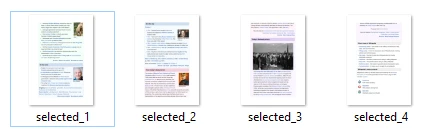
출력 품질 제어는 파일 크기와 시각적 선명도에 직접적인 영향을 미칩니다. IronPDF는 구성 옵션을 통해 JPEG 품질과 해상도에 대한 정밀한 제어를 제공합니다. 라이브러리는 다양한 이미지 형식을 지원하며, 최적의 결과를 위한 압축 설정을 제공합니다. DPI 설정을 이해하면 파일 크기와 시각적 충실도 사이의 적절한 균형을 달성하는 데 도움이 됩니다:
using IronPdf;
using IronSoftware.Drawing;

PdfDocument pdf = PdfDocument.FromFile("document.pdf");

// 1. Creating high-quality images for print at 300 DPI
AnyBitmap[] images = pdf.ToBitmapHighQuality(300, false);

int pageCount = 1;
foreach (AnyBitmap image in images)
{
    string outputPath = $"high_quality_{pageCount}.jpg";
    image.SaveAs(outputPath);
    pageCount++;
}

// 2. For web thumbnails, use lower DPI settings
pdf.RasterizeToImageFiles("thumbnail_*.jpg", IronPdf.Imaging.ImageType.Jpeg, 150, true);Imports IronPdf
Imports IronSoftware.Drawing
Dim pdf As PdfDocument = PdfDocument.FromFile("document.pdf")
' 1. Creating high-quality images for print at 300 DPI
Dim images As AnyBitmap() = pdf.ToBitmapHighQuality(300, False)
Dim pageCount As Integer = 1
For Each image As AnyBitmap In images
Dim outputPath As String = $"high_quality_{pageCount}.jpg"
image.SaveAs(outputPath)
pageCount += 1
Next
' 2. For web thumbnails, use lower DPI settings
pdf.RasterizeToImageFiles("thumbnail_*.jpg", IronPdf.Imaging.ImageType.Jpeg, 150, True)이 코드 샘플은 두 가지 품질 설정을 사용하여 PDF 페이지를 이미지로 변환하는 방법을 보여줍니다. 첫 번째 접근 방식은 pdf.ToBitmapHighQuality(300, false) 호출하여 인쇄물용 고품질 이미지를 생성합니다. 이 방식은 페이지를 300 DPI로 렌더링하고 메모리에 AnyBitmap 객체를 반환하므로 각 이미지를 저장하기 위한 루프가 필요합니다. 비트맵 렌더링은 전문 인쇄 요구를 위해 정밀한 디테일을 유지합니다.
반면 두 번째 접근 방식은 pdf.RasterizeToImageFiles()를 사용하여 150 DPI의 웹 썸네일을 빠르게 생성합니다. 낮은 DPI 및 품질은 사진 콘텐츠에 대해 더 나은 압축을 제공합니다. 그레이스케일 변환을 위해 추가 최적화 옵션을 사용할 수 있습니다.
전체 PDF 파일을 변환해야 할 때, IronPDF는 다중 페이지 문서를 자동으로 처리합니다. 다음 예시는 정리된 출력 디렉토리를 생성하면서 모든 페이지를 처리합니다. 대형 문서의 경우, 배치 처리가 시스템 응답성을 유지합니다:
using IronPdf;

PdfDocument pdf = PdfDocument.FromFile("manual.pdf");

// Create output directory if needed
string outputDir = "converted_images";
if (!Directory.Exists(outputDir))
{
    Directory.CreateDirectory(outputDir);
}

// Convert all pages with custom naming
string outputPath = Path.Combine(outputDir, "page_*.jpg");
pdf.RasterizeToImageFiles(outputPath);

Console.WriteLine($"Converted {pdf.PageCount} pages toJPGformat");Imports IronPdf
Dim pdf As PdfDocument = PdfDocument.FromFile("manual.pdf")
' Create output directory if needed
Dim outputDir As String = "converted_images"
If Not Directory.Exists(outputDir) Then
Directory.CreateDirectory(outputDir)
End If
' Convert all pages with custom naming
Dim outputPath As String = Path.Combine(outputDir, "page_*.jpg")
pdf.RasterizeToImageFiles(outputPath)
Console.WriteLine($"Converted {pdf.PageCount} pages to JPG format")이 코드는 문서 변환을 자동으로 처리하여 결과 JPEG 이미지를 위한 정리된 출력 디렉토리를 생성합니다. 이 과정은 두 페이지 메모든 백 페이지 보고서든 상관 없이 확장 가능합니다. 각 페이지는 별도의JPG파일이 되어 IronPDF의 렌더링을 통해 원래 레이아웃을 유지합니다. 뷰포트 설정은 다양한 페이지 크기에 대해 적절한 스케일링을 보장합니다.
여러 글꼴, 특수 문자 또는 국제 언어가 포함된 문서의 경우, 렌더링 엔진이 형식을 정확하게 보존합니다. 라이브러리는 변환 중 임베디드 이미지 및 벡터 그래픽을 처리합니다. 암호로 보호된 PDF를 처리할 때, 적절한 인증이 변환 액세스를 가능하게 합니다.
대형 PDF 문서를 처리할 때 성능 향상을 위해서는 이 메모리 관리 실습을 고려하세요. IronPDF는 대부분의 최적화를 내부적으로 처리하지만, 적절한 리소스 처분이 안정적인 작동을 보장합니다. 라이브러리는 UI 애플리케이션에서 향상된 응답성을 위한 비동기 작업을 지원합니다:
using IronPdf;

// Use using statement for automatic disposal
using (PdfDocument pdf = PdfDocument.FromFile("large_file.pdf"))
{
    int batchSize = 10;
    int pageCount = pdf.PageCount;

    for (int i = 0; i < pageCount; i += batchSize)
    {
        int endIndex = Math.Min(i + batchSize - 1, pageCount - 1);
        var batchPages = new List<int>();

        for (int j = i; j <= endIndex; j++)
        {
            batchPages.Add(j);
        }

        pdf.RasterizeToImageFiles($"batch_{i}_*.jpg", batchPages.ToArray());
    }
} // Automatically disposes resourcesImports IronPdf
' Use Using block for automatic disposal
Using pdf As PdfDocument = PdfDocument.FromFile("large_file.pdf")
Dim batchSize As Integer = 10
Dim pageCount As Integer = pdf.PageCount
For i As Integer = 0 To pageCount - 1 Step batchSize
Dim endIndex As Integer = Math.Min(i + batchSize - 1, pageCount - 1)
Dim batchPages As New List(Of Integer)()
For j As Integer = i To endIndex
batchPages.Add(j)
Next
pdf.RasterizeToImageFiles($"batch_{i}_*.jpg", batchPages.ToArray())
Next
End Using ' Automatically disposes resources이 방법은 큰 변환 작업을 관리 가능한 조각으로 나누어 과도한 메모리 사용을 방지합니다. using 문은 적절한 리소스 정리를 보장하며, 많은 문서를 배치 처리하여 성능을 유지합니다. 수백 페이지에 달하는 PDF의 경우, 이 방법은 시스템 안정성을 상당히 개선합니다. IronPDF 성능 가이드는 까다로운 업무량을 위한 추가 기법을 다룹니다.
Azure Functions 또는 AWS Lambda를 사용할 때, 특정 구성은 클라우드 성능을 향상시킵니다. Linux 배포의 경우, 메모리 관리가 특히 중요해집니다. 사용자 지정 로깅 옵션은 고용량 파이프라인에서 변환 진행률을 모니터링하고 병목 현상을 식별하는데 도움을 줍니다.
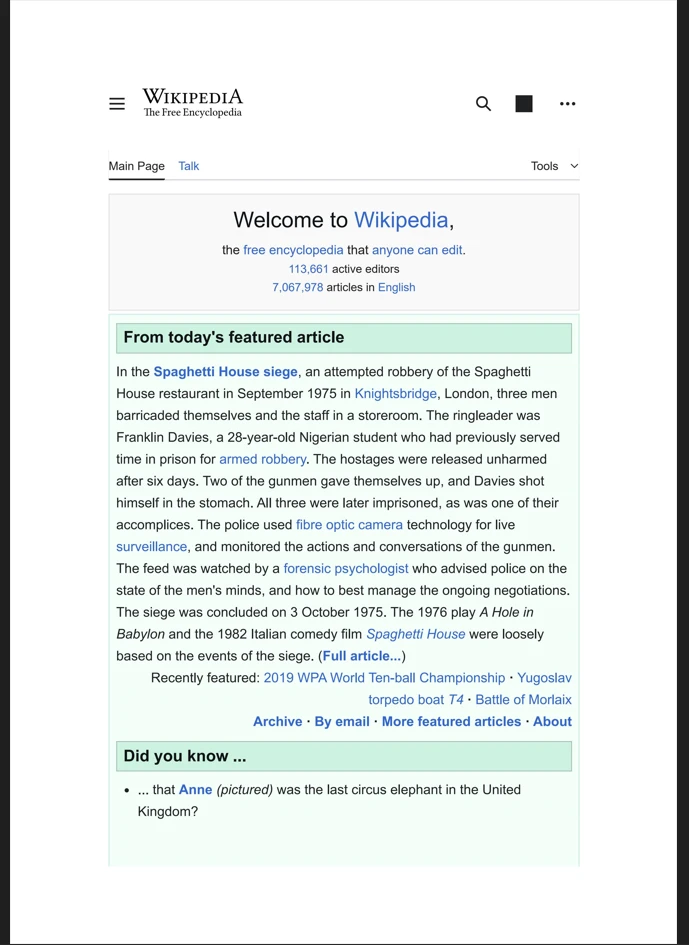
신뢰할 수 있는 오류 처리 및 모니터링이 필요한 생산 환경에서는 전체 변환 파이프라인을 구현하십시오. Enterprise 애플리케이션은 신뢰성과 상세한 로깅을 요구합니다. 다음 패턴은 페이지별 오류 복구와 함께 일반적인 생산 문제를 해결합니다:
using IronPdf;
using System.Drawing.Imaging;

bool ConvertWithErrorHandling(string pdfPath, string outputDir)
{
    try
    {
        if (!File.Exists(pdfPath))
            throw new FileNotFoundException("PDF file not found", pdfPath);

        var options = new ChromePdfRenderOptions
        {
            RenderDelay = 500 // Wait for JavaScript
        };

        using (PdfDocument pdf = PdfDocument.FromFile(pdfPath))
        {
            Console.WriteLine($"Processing {pdf.PageCount} pages from {Path.GetFileName(pdfPath)}");

            for (int i = 0; i < pdf.PageCount; i++)
            {
                try
                {
                    string pageOutput = Path.Combine(outputDir, $"page_{i + 1}.jpg");
                    pdf.RasterizeToImageFiles(pageOutput, new[] { i });
                }
                catch (Exception ex)
                {
                    Console.WriteLine($"Error converting page {i + 1}: {ex.Message}");
                    // Continue with other pages
                }
            }

            return true;
        }
    }
    catch (Exception ex)
    {
        Console.WriteLine($"Conversion failed: {ex.Message}");
        return false;
    }
}

ConvertWithErrorHandling("input.pdf", "output_pages");Imports IronPdf
Imports System.Drawing.Imaging
Imports System.IO
Function ConvertWithErrorHandling(pdfPath As String, outputDir As String) As Boolean
Try
If Not File.Exists(pdfPath) Then
Throw New FileNotFoundException("PDF file not found", pdfPath)
End If
Dim options As New ChromePdfRenderOptions With {
.RenderDelay = 500 ' Wait for JavaScript
}
Using pdf As PdfDocument = PdfDocument.FromFile(pdfPath)
Console.WriteLine($"Processing {pdf.PageCount} pages from {Path.GetFileName(pdfPath)}")
For i As Integer = 0 To pdf.PageCount - 1
Try
Dim pageOutput As String = Path.Combine(outputDir, $"page_{i + 1}.jpg")
pdf.RasterizeToImageFiles(pageOutput, {i})
Catch ex As Exception
Console.WriteLine($"Error converting page {i + 1}: {ex.Message}")
' Continue with other pages
End Try
Next
Return True
End Using
Catch ex As Exception
Console.WriteLine($"Conversion failed: {ex.Message}")
Return False
End Try
End Function
ConvertWithErrorHandling("input.pdf", "output_pages")이 생산 준비 코드는 오류 처리, 로깅 기능 및 맞춤형 렌더 설정을 포함합니다. 이 구현은 JavaScript가 많은 콘텐츠에 대한 렌더링 지연을 지원하고 처리 중 상세한 피드백을 제공합니다. Enterprise 배포의 경우, 이러한 신뢰할 수 있는 오류 처리가 필수적입니다. 보안 기능은 생산 환경에서 안전한 문서 처리를 보장합니다.
다른 변환 접근법은 각기 다른 요구사항에 적합합니다. 아래 표는 IronPDF의 C# API에서 제공하는 주요 방법을 비교합니다:
| 방법 | 사용 사례 | 출력 유형 | DPI 제어 | 최적 대상 |
|---|---|---|---|---|
RasterizeToImageFiles | 파일 기반 배치 변환 | JPG, PNG, BMP, TIFF | 예 | 대량 처리, 디스크 출력 |
ToBitmapHighQuality | 메모리내 고해상도 이미지 | AnyBitmap 배열 | 예 (300+ DPI) | 인쇄 품질 출력 |
| 페이지 인덱스 오버로드 | 선택적 페이지 변환 | JPG, PNG | 예 | 단일 페이지 또는 범위 추출 |
배치 루프와 using | 대형 문서 처리 | JPG | 예 | 메모리 제약 환경 |
IronPDF는 C#에서 PDF를 JPG로 변환하는 복잡한 작업을 간단한 작업으로 바꿉니다. 전체 크기 렌더링 기능, 사용자 지정 압축 옵션, 단일 페이지 및 전체 문서를 효율적으로 처리하여 전문적인 PDF 이미지 추출을 위한 모든 도구를 제공합니다. 라이브러리는 흰색 배경 요소와 정확한 텍스트 렌더링을 유지하여 변환된 이미지가 원래 모습을 유지하도록 합니다. 추가 PDF 조작 기능을 보려면 전체 API 참조 및 기능 개요를 탐색하십시오.
라이브러리의 광범위한 기능에는 PDF 생성, 수정 기능, 문서 구성 및 보안 옵션이 포함됩니다. 디지털 서명, 양식 처리, 워터마크 또는 메타데이터 관리가 필요하든 IronPDF는 완전한 솔루션을 제공합니다. 렌더링 엔진은 CSS3 및 JavaScript 프레임워크를 포함한 최신 웹 표준을 지원합니다. 접근성 준수를 위해 PDF/A 변환 및 PDF/UA 지원을 탐색하십시오.
IronPDF의 전체 기능을 탐색하기 위해 무료 체험판을 시작하거나 상업적 배포를 위해 라이센스를 구매하십시오. 라이브러리는 PNG, TIFF 및 BMP를 포함한 추가 이미지 형식을 지원하여 모든 PDF에서 이미지로 변환 요구사항에 대한 다목적 솔루션을 제공합니다. 커뮤니티 지원을 찾는 개발자는 Stack Overflow, .NET GitHub 저장소, NuGet 패키지 페이지에서 유용한 정보를 찾을 수 있습니다.
전문 지원 옵션은 성공적인 구현을 보장하며, 완전한 문서 및 코드 예제는 개발을 가속화합니다. 라이브러리의 크로스 플랫폼 호환성과 클라우드 준비 아키텍처는 현대적 배포 시나리오에 적합합니다. 정기적인 업데이트와 보안 패치 덕분에 IronPDF는 Enterprise PDF 처리 요구사항에 대해 신뢰할 수 있는 선택입니다.

커티스 차우는 칼턴 대학교에서 컴퓨터 과학 학사 학위를 취득했으며, Node.js, TypeScript, JavaScript, React를 전문으로 하는 프론트엔드 개발자입니다. 직관적이고 미적으로 뛰어난 사용자 인터페이스를 만드는 데 열정을 가진 그는 최신 프레임워크를 활용하고, 잘 구성되고 시각적으로 매력적인 매뉴얼을 제작하는 것을 즐깁니다.



IronPDF는 IRON SUITE 의 일부입니다.
10개의 .NET API 제품, 당신의 사무 문서를 위해

PDF 파일을 HTML처럼 빠르게 변환해야 할 때.


