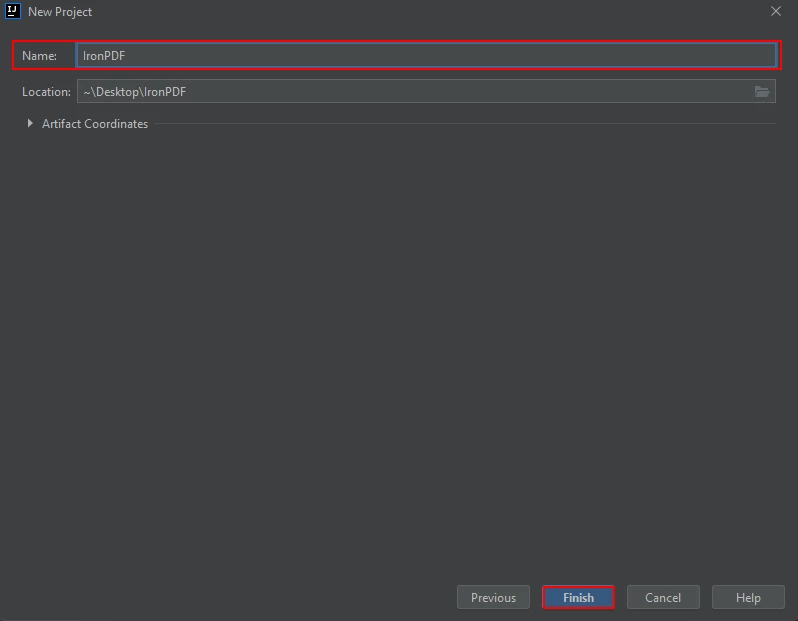
JAVA용 IRONPDF 사용 Java로 PDF에서 이미지를 추출하는 방법 커티스 차우 업데이트됨:7월 28, 2025 다운로드 IronPDF 메이븐 다운로드 JAR 다운로드 무료 체험 시작하기 LLM용 사본 LLM용 사본 LLM용 마크다운 형식으로 페이지를 복사하세요 ChatGPT에서 열기 ChatGPT에 이 페이지에 대해 문의하세요 제미니에서 열기 제미니에게 이 페이지에 대해 문의하세요 Grok에서 열기 Grok에게 이 페이지에 대해 문의하세요 혼란 속에서 열기 Perplexity에게 이 페이지에 대해 문의하세요 공유하다 페이스북에 공유하기 트위터에 공유하기 LinkedIn에 공유하기 URL 복사 이메일로 기사 보내기 This article will explore how to extract images from an existing PDF document and save them in a single folder using the Java programming language. For this purpose, the IronPDF for Java library is used to extract images. ## How to Extract Image From PDF in Java Install Java library to extract images from PDF Load the PDF file or render from URL Utilize extractAllImages method to extract the images Save the extracted images to files or streams in Java Check the extracted images in the specified directory IronPDF Java PDF Library IronPDF is a Java library designed to help developers generate, modify, and extract data from PDF files within their Java applications. With IronPDF, you can create PDF documents from a range of sources, such as HTML, images, and more. Additionally, you have the ability to merge, split, and manipulate existing PDFs. IronPDF also includes security features, such as password protection and digital signatures. Developed and maintained by Iron Software, IronPDF is known for its ability to extract text from PDFs, HTML, and URLs. This makes it a versatile and powerful tool for a variety of applications, whether you're creating PDFs from scratch or working with existing ones. Prerequisites Before using IronPDF to extract data from a PDF file, there are a few prerequisites that must be met: Java installation: Ensure that Java is installed on your system and that its path has been set in the environment variables. If you haven't installed Java yet, follow the instructions at the following download page from Java website. Java IDE: Have either Eclipse or IntelliJ installed as your Java IDE. You can download Eclipse from this link and IntelliJ from this download page. IronPDF library: Download and add the IronPDF library to your project as a dependency. For setup instructions, visit the IronPDF website. Maven installation: Make sure Maven is installed and integrated with your IDE before starting the PDF conversion process. Follow the tutorial at the following guide from JetBrains for assistance with installing and integrating Maven. IronPDF for Java Installation Installing IronPDF for Java is a straightforward process, provided all the requirements are met. This guide will use the JetBrains IntelliJ IDEA to demonstrate the installation and run some sample code. Launch IntelliJ IDEA: Open JetBrains IntelliJ IDEA on your system. Create a Maven Project: In IntelliJ IDEA, create a new Maven project. This will provide a suitable environment for the installation of IronPDF for Java. Create a new Maven project A new window will appear. Enter the name of the project and click on Finish. Enter the name of the project After you click Finish, a new project will open to a pom.xml file to add the Maven dependencies of IronPDF for Java. Next, add the following dependencies in the pom.xml file or you can download the JAR file from the following Maven repository. <dependency> <groupId>com.ironsoftware</groupId> <artifactId>ironpdf</artifactId> <version>YOUR_VERSION_HERE</version> </dependency> <dependency> <groupId>com.ironsoftware</groupId> <artifactId>ironpdf</artifactId> <version>YOUR_VERSION_HERE</version> </dependency> XML Once you place the dependencies in the pom.xml file, a small icon will appear in the right top corner of the file. The pom.xml file with a small icon to install dependencies Click on this icon to install the Maven dependencies of IronPDF for Java. This will only take a few minutes depending on your internet connection. Extract Images You can extract images from a PDF document using IronPDF with a single method called [extractAllImages](/java/object-reference/api/com/ironsoftware/ironpdf/PdfDocument.html#extractAllImages()). This method returns all the images available in a PDF file. After that, you can save all the extracted images to the file path of your choice using the ImageIO.write method by providing the path and format of the output image. 5.1. Extract Images from PDF document In the example below, the images from a PDF document will be extracted and saved into the file system as PNG images. import com.ironsoftware.ironpdf.PdfDocument; import javax.imageio.ImageIO; import java.awt.image.BufferedImage; import java.nio.file.Files; import java.nio.file.Paths; import java.util.List; public class Main { public static void main(String[] args) throws Exception { // Load PDF document from file PdfDocument pdf = PdfDocument.fromFile(Paths.get("Final Project Report Craft Arena.pdf")); // Extract all images from the PDF document List<BufferedImage> images = pdf.extractAllImages(); int i = 0; // Save each extracted image to the filesystem as a PNG for (BufferedImage image : images) { ImageIO.write(image, "PNG", Files.newOutputStream(Paths.get("image" + ++i + ".png"))); } } } import com.ironsoftware.ironpdf.PdfDocument; import javax.imageio.ImageIO; import java.awt.image.BufferedImage; import java.nio.file.Files; import java.nio.file.Paths; import java.util.List; public class Main { public static void main(String[] args) throws Exception { // Load PDF document from file PdfDocument pdf = PdfDocument.fromFile(Paths.get("Final Project Report Craft Arena.pdf")); // Extract all images from the PDF document List<BufferedImage> images = pdf.extractAllImages(); int i = 0; // Save each extracted image to the filesystem as a PNG for (BufferedImage image : images) { ImageIO.write(image, "PNG", Files.newOutputStream(Paths.get("image" + ++i + ".png"))); } } } JAVA The program above opens the "Final Project Report Craft Arena.pdf" file and uses the extractAllImages method to extract all images in the file into a list of BufferedImage objects. It then saves each new file image to separate PNG files with a unique name. Image Extraction from PDF Output Extract Images from URL This section will discuss how to extract images directly from URLs. In the below code, the URL is converted to a PDF page and then toggle navigation to extract images from the PDF. import com.ironsoftware.ironpdf.PdfDocument; import javax.imageio.ImageIO; import java.awt.image.BufferedImage; import java.io.IOException; import java.nio.file.Files; import java.nio.file.Paths; import java.util.List; public class Main { public static void main(String[] args) throws IOException { // Render PDF from a URL PdfDocument pdf = PdfDocument.renderUrlAsPdf("https://www.amazon.com/?tag=hp2-brobookmark-us-20"); // Extract all images from the rendered PDF document List<BufferedImage> images = pdf.extractAllImages(); int i = 0; // Save each extracted image to the filesystem as a PNG for (BufferedImage image : images) { ImageIO.write(image, "PNG", Files.newOutputStream(Paths.get("image" + ++i + ".png"))); } } } import com.ironsoftware.ironpdf.PdfDocument; import javax.imageio.ImageIO; import java.awt.image.BufferedImage; import java.io.IOException; import java.nio.file.Files; import java.nio.file.Paths; import java.util.List; public class Main { public static void main(String[] args) throws IOException { // Render PDF from a URL PdfDocument pdf = PdfDocument.renderUrlAsPdf("https://www.amazon.com/?tag=hp2-brobookmark-us-20"); // Extract all images from the rendered PDF document List<BufferedImage> images = pdf.extractAllImages(); int i = 0; // Save each extracted image to the filesystem as a PNG for (BufferedImage image : images) { ImageIO.write(image, "PNG", Files.newOutputStream(Paths.get("image" + ++i + ".png"))); } } } JAVA In the above code, the Amazon homepage URL is provided as an input, and it returns 74 images. Image Extraction from PDF Output Conclusion Extracting images from a PDF document can be done in Java using the IronPDF library. To install IronPDF, you need to have Java, a Java IDE (Eclipse or IntelliJ), Maven, and the IronPDF library installed and integrated with your project. The process of extracting images from a PDF document using IronPDF is simple and it requires just a single method call to extractAllImages. You can then save the images to a file path of your choice using the ImageIO.write method. This article provides a step-by-step guide on how to extract images from a PDF document using Java and the IronPDF library. More details, including information about how to extract text from PDFs, can be found in the Extract Text Code Example. IronPDF is a library with a commercial license, starting at $799. However, you can evaluate it in production with a free trial. 자주 묻는 질문 Java를 사용하여 PDF에서 이미지를 추출하려면 어떻게 하나요? Java를 사용하여 PDF에서 이미지를 추출하려면 IronPDF 라이브러리를 활용하세요. 먼저 PDF 문서를 로드한 다음 extractAllImages 메서드를 사용합니다. 그런 다음 추출된 이미지를 ImageIO.write와 같은 메서드를 사용하여 저장할 수 있습니다. Java로 PDF에서 이미지를 추출하려면 어떤 전제 조건이 필요하나요? Java를 사용하여 PDF에서 이미지를 추출하려면 Eclipse 또는 IntelliJ IDEA와 같은 Java IDE와 함께 Java가 설치되어 있는지 확인하세요. 또한 종속성을 관리하고 프로젝트에 IronPDF 라이브러리를 포함하도록 Maven을 구성하세요. PDF 이미지 추출을 위해 Java에 라이브러리를 설치하려면 어떻게 해야 하나요? IronPDF 라이브러리를 설치하려면 IntelliJ IDEA와 같은 Java IDE 내에서 Maven 프로젝트를 만듭니다. pom.xml 파일에 IronPDF 종속성을 추가하고 Maven을 사용하여 다운로드하여 프로젝트에 포함하세요. Java의 URL에서 생성된 PDF에서 이미지를 추출할 수 있나요? 예, IronPDF의 renderUrlAsPdf 메서드를 사용하여 URL을 PDF로 변환한 다음 extractAllImages 메서드를 사용하여 결과 PDF에서 이미지를 추출할 수 있습니다. Java PDF 라이브러리에 대한 평가판이 있나요? IronPDF는 무료 평가판을 제공하여 Java에서 PDF 관리 및 이미지 추출을 위한 기능 및 특징을 살펴볼 수 있습니다. IronPDF를 사용하기에 적합한 Java IDE는 무엇인가요? PDF 처리를 위해 IronPDF 라이브러리를 활용하는 Java 애플리케이션을 개발하는 데 권장되는 IDE는 Eclipse와 IntelliJ IDEA입니다. Java를 사용하여 PDF에서 추출한 이미지를 저장하려면 어떻게 해야 하나요? IronPDF를 사용하여 PDF에서 이미지를 추출한 후에는 원하는 파일 경로와 이미지 형식을 지정하여 ImageIO.write 메서드를 사용하여 저장할 수 있습니다. Java로 PDF 파일에서 이미지를 추출하는 데는 어떤 방법이 사용되나요? IronPDF에서는 PDF 문서에서 모든 이미지를 추출하는 데 extractAllImages 메서드가 사용됩니다. 이 메서드는 추가 처리하거나 저장할 수 있는 이미지 목록을 반환합니다. PDF에서 추출한 이미지를 저장할 때 어떤 이미지 형식을 사용할 수 있나요? 추출된 이미지는 Java에서 ImageIO.write 메서드를 사용하여 PNG와 같은 다양한 형식으로 저장할 수 있습니다. Java에서 PDF 관리 라이브러리는 어떤 기능을 제공하나요? IronPDF는 개발자가 PDF 파일에서 데이터를 생성, 수정 및 추출할 수 있는 포괄적인 Java용 라이브러리입니다. 여기에는 텍스트 추출, 병합, 분할, 보안 조치 적용과 같은 기능이 포함되어 있습니다. 커티스 차우 지금 바로 엔지니어링 팀과 채팅하세요 기술 문서 작성자 커티스 차우는 칼턴 대학교에서 컴퓨터 과학 학사 학위를 취득했으며, Node.js, TypeScript, JavaScript, React를 전문으로 하는 프론트엔드 개발자입니다. 직관적이고 미적으로 뛰어난 사용자 인터페이스를 만드는 데 열정을 가진 그는 최신 프레임워크를 활용하고, 잘 구성되고 시각적으로 매력적인 매뉴얼을 제작하는 것을 즐깁니다. 커티스는 개발 분야 외에도 사물 인터넷(IoT)에 깊은 관심을 가지고 있으며, 하드웨어와 소프트웨어를 통합하는 혁신적인 방법을 연구합니다. 여가 시간에는 게임을 즐기거나 디스코드 봇을 만들면서 기술에 대한 애정과 창의성을 결합합니다. 관련 기사 업데이트됨 6월 22, 2025 Java에서 TIFF를 PDF로 변환하는 방법 이 포괄적인 가이드는 IronPDF를 사용하여 Java에서 TIFF 이미지를 PDF로 원활하게 변환하는 방법에 대한 단계를 안내합니다. 더 읽어보기 업데이트됨 7월 28, 2025 Java에서 PDF를 PDFA로 변환하는 방법 이 문서에서는 IronPDF를 사용하여 Java에서 PDF 파일을 PDF/A 형식으로 변환하는 방법을 살펴봅니다. 더 읽어보기 업데이트됨 7월 28, 2025 Java로 PDF 문서를 만드는 방법 이 문서에서는 주요 개념, 최고의 라이브러리 및 예제를 다루는 Java에서 PDF 작업에 대한 포괄적인 가이드를 제공합니다. 더 읽어보기 Java로 PDF를 생성하는 방법Java로 PDF에서 데이터를 추...

업데이트됨 6월 22, 2025 Java에서 TIFF를 PDF로 변환하는 방법 이 포괄적인 가이드는 IronPDF를 사용하여 Java에서 TIFF 이미지를 PDF로 원활하게 변환하는 방법에 대한 단계를 안내합니다. 더 읽어보기
업데이트됨 7월 28, 2025 Java에서 PDF를 PDFA로 변환하는 방법 이 문서에서는 IronPDF를 사용하여 Java에서 PDF 파일을 PDF/A 형식으로 변환하는 방법을 살펴봅니다. 더 읽어보기
업데이트됨 7월 28, 2025 Java로 PDF 문서를 만드는 방법 이 문서에서는 주요 개념, 최고의 라이브러리 및 예제를 다루는 Java에서 PDF 작업에 대한 포괄적인 가이드를 제공합니다. 더 읽어보기