




已更新 2026年4月23日
在 .NET 中用 Microsoft.Extensions.AI 簡化 LLM 整合
AI 正在改變軟體開發,但將大型語言模型 (LLM) 整合到 .NET 中一直很複雜。利用 IronPdf.AI 將 AI 整合推向更遠,為 .NET 應用程式帶來由 OpenAI 驅動的 PDF 解析、資料擷取和內容總結。
閱讀更多

在電子郵件伺服器通訊領域中,Internet Message Access Protocol (IMAP) 物件在促進無縫存取儲存在郵件伺服器上的電子郵件資訊方面發揮著至關重要的作用。 將.NET Framework支援的新IMAP伺服器功能整合到C#應用程式中,能夠讓開發者建立強大的電子郵件客戶端、自動化電子郵件處理任務,並提高生產力。 本全方位指南探討了在C#中整合IMAP協議的基礎知識,涵蓋了關鍵概念、IMAP實現技術、閒置擴展以及實用的程式碼範例,以幫助開發人員在其應用程式中充分利用IMAP客戶端的功能。 本指南還探討了如何使用IronPDF - 一個強大的C#用於PDF生成和操作的程式庫和來自Rebex的C# IMAP功能資料來建立PDF文件。
IMAP是一個用於存取和管理儲存在遠程郵件伺服器上的電子郵件資訊的廣泛使用的協議。 與較舊的POP3協議不同,POP3協議將電子郵件下載到本地電子郵件客戶端,隨後從電子郵件伺服器中刪除,而IMAP伺服器讓使用者能夠直接在伺服器上查看、組織和操作電子郵件。 這使得電子郵件在多個裝置之間的同步成為可能,同時提供了一種更加靈活的電子郵件管理方法。
為了將IMAP功能整合到C#應用程式中,開發者可以利用如MailKit或OpenPop.NET等第三方程式庫,這些程式庫提供了全面支持的IMAP操作。 讓我們探討一個如何使用MailKit連接使用者到IMAP伺服器、檢索電子郵件資訊並執行基本操作的簡單範例。
在進行程式碼範例之前,有一些步驟需要完成以獲得應用程式密碼,這是使用IMAP伺服器存取您的電子郵件所必需的。
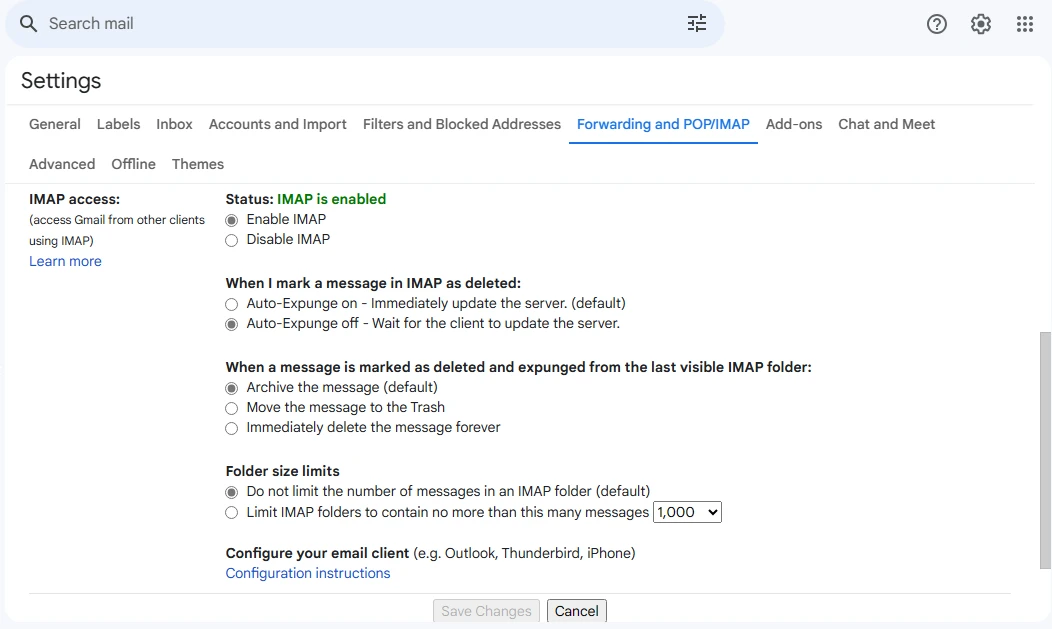
前往您的Gmail帳戶並點擊設定。
在設定中,前往IMAP部分並啟用以下勾選框。
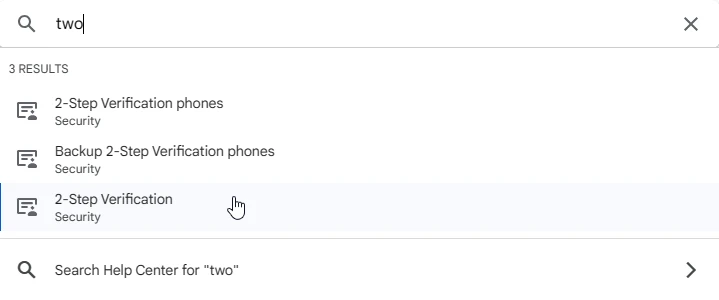
接下來,前往您的Google帳戶並找到兩步驟驗證。
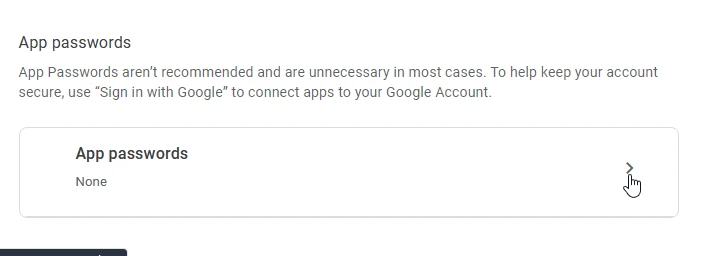
在兩步驟驗證頁面,滾動到最底部找到應用程式密碼。
接下來,寫下您的應用程式名稱並點擊建立按鈕。
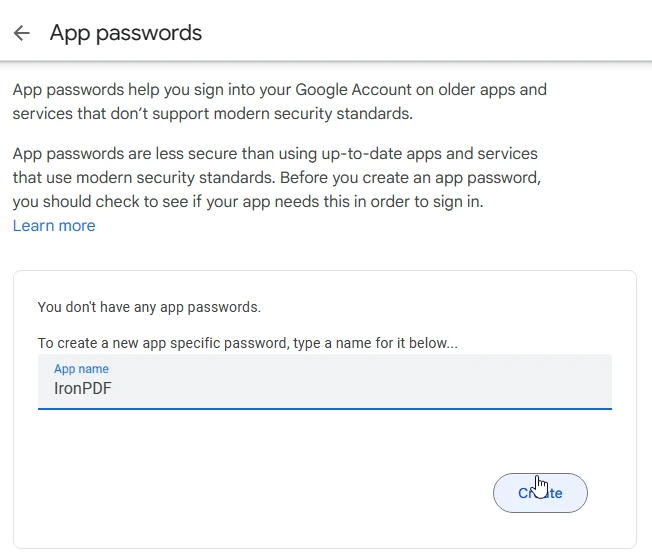
應用程式密碼已成功生成。
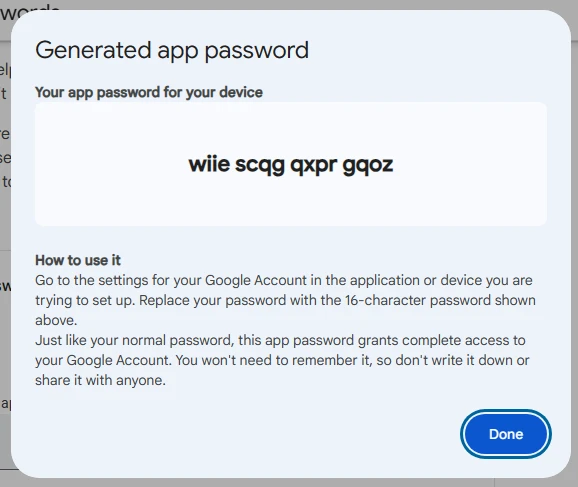
一旦配置完成且應用程式密碼建立成功後,讓您深入掌握程式碼。
// This example demonstrates how to connect to an IMAP server using MailKit and retrieve unread email messages.
// Install the MailKit package using the following command:
// dotnet add package MailKit

using System;
using MailKit.Net.Imap;
using MailKit.Search;
using MimeKit;

class Program
{
    static void Main(string[] args)
    {
        // IMAP server settings
        string imapServer = "imap.gmail.com";
        int imapPort = 993;
        bool useSsl = true;

        // IMAP credentials
        string username = "your-email@gmail.com"; // Replace with your email address
        string password = "your-app-password"; // Replace with the generated app password

        try
        {
            using (var client = new ImapClient())
            {
                // Connect to the IMAP server
                client.Connect(imapServer, imapPort, useSsl);

                // Authenticate with the server
                client.Authenticate(username, password);

                // Select the INBOX folder or any special folder
                client.Inbox.Open(FolderAccess.ReadOnly);

                // Search for unread messages
                var searchQuery = SearchQuery.NotSeen;
                var uids = client.Inbox.Search(searchQuery);

                foreach (var uid in uids)
                {
                    // Retrieve the message by UID
                    var message = client.Inbox.GetMessage(uid);

                    // Display message details
                    Console.WriteLine($"From: {message.From}");
                    Console.WriteLine($"Subject: {message.Subject}");
                    Console.WriteLine($"Date: {message.Date}");
                    Console.WriteLine($"Body: {message.TextBody}");
                    Console.WriteLine();
                }

                // Disconnect from the server
                client.Disconnect(true);
            }
        }
        catch (Exception ex)
        {
            Console.WriteLine($"Error: {ex.Message}");
        }
    }
}' This example demonstrates how to connect to an IMAP server using MailKit and retrieve unread email messages.
' Install the MailKit package using the following command:
' dotnet add package MailKit
Imports System
Imports MailKit.Net.Imap
Imports MailKit.Search
Imports MimeKit
Module Program
Sub Main(args As String())
' IMAP server settings
Dim imapServer As String = "imap.gmail.com"
Dim imapPort As Integer = 993
Dim useSsl As Boolean = True
' IMAP credentials
Dim username As String = "your-email@gmail.com" ' Replace with your email address
Dim password As String = "your-app-password" ' Replace with the generated app password
Try
Using client As New ImapClient()
' Connect to the IMAP server
client.Connect(imapServer, imapPort, useSsl)
' Authenticate with the server
client.Authenticate(username, password)
' Select the INBOX folder or any special folder
client.Inbox.Open(FolderAccess.ReadOnly)
' Search for unread messages
Dim searchQuery = SearchQuery.NotSeen
Dim uids = client.Inbox.Search(searchQuery)
For Each uid In uids
' Retrieve the message by UID
Dim message = client.Inbox.GetMessage(uid)
' Display message details
Console.WriteLine($"From: {message.From}")
Console.WriteLine($"Subject: {message.Subject}")
Console.WriteLine($"Date: {message.Date}")
Console.WriteLine($"Body: {message.TextBody}")
Console.WriteLine()
Next
' Disconnect from the server
client.Disconnect(True)
End Using
Catch ex As Exception
Console.WriteLine($"Error: {ex.Message}")
End Try
End Sub
End Module在此程式碼範例中,我們使用MailKit連接到IMAP伺服器,通過提供的憑據驗證與伺服器的連接,並從收件箱文件夾中檢索未讀的電子郵件資訊。 然後我們迭代未讀資訊UID列表,根據UID檢索每條資訊,並顯示其細節,包括發件人、主題、日期和內容。
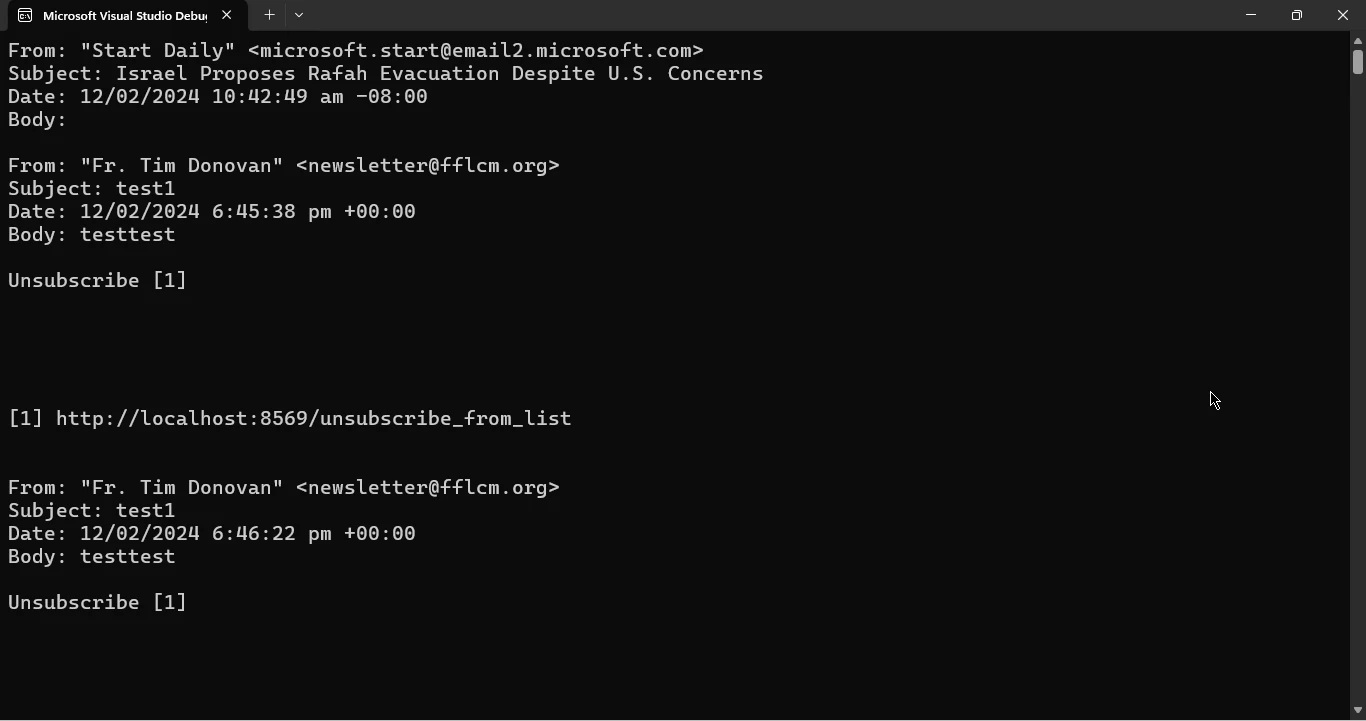
IronPDF是一個強大的C#程式庫,旨在簡化在.NET應用程式中建立、操作和渲染PDF文件。 憑藉其直觀的API和廣泛的功能集,IronPDF能夠讓開發人員無縫生成、編輯和操作PDF文件,從而增強其應用程式的多功能性和功能。 無論您是需要生成動態報告、將HTML內容轉換為PDF、從現有PDF中提取文字和圖片,還是數位簽署文件,IronPDF都提供了滿足您PDF處理需求的全方位工具套件。 通過運用IronPDF,開發者可簡化其PDF相關任務,並輕鬆提供高質量的文件解決方案。
IronPDF在HTML到PDF轉換方面表現出色,確保精確保留原始設計和樣式。 它非常適合從基於網路的內容如報告、發票和文件中建立PDF。 IronPDF支持HTML文件、URLs和原始HTML字串,輕鬆生成高品質的PDF文件。
// This example demonstrates how to convert HTML content to a PDF using IronPDF.
// Install the IronPdf package using the following command:
// dotnet add package IronPdf

using IronPdf;

class Program
{
    static void Main(string[] args)
    {
        var renderer = new ChromePdfRenderer();

        // 1. Convert HTML String to PDF
        var htmlContent = "<h1>Hello, IronPDF!</h1><p>This is a PDF from an HTML string.</p>";
        var pdfFromHtmlString = renderer.RenderHtmlAsPdf(htmlContent);
        pdfFromHtmlString.SaveAs("HTMLStringToPDF.pdf");

        // 2. Convert HTML File to PDF
        var htmlFilePath = "path_to_your_html_file.html"; // Specify the path to your HTML file
        var pdfFromHtmlFile = renderer.RenderHtmlFileAsPdf(htmlFilePath);
        pdfFromHtmlFile.SaveAs("HTMLFileToPDF.pdf");

        // 3. Convert URL to PDF
        var url = "http://ironpdf.com"; // Specify the URL
        var pdfFromUrl = renderer.RenderUrlAsPdf(url);
        pdfFromUrl.SaveAs("URLToPDF.pdf");
    }
}' This example demonstrates how to convert HTML content to a PDF using IronPDF.
' Install the IronPdf package using the following command:
' dotnet add package IronPdf
Imports IronPdf
Friend Class Program
Shared Sub Main(ByVal args() As String)
Dim renderer = New ChromePdfRenderer()
' 1. Convert HTML String to PDF
Dim htmlContent = "<h1>Hello, IronPDF!</h1><p>This is a PDF from an HTML string.</p>"
Dim pdfFromHtmlString = renderer.RenderHtmlAsPdf(htmlContent)
pdfFromHtmlString.SaveAs("HTMLStringToPDF.pdf")
' 2. Convert HTML File to PDF
Dim htmlFilePath = "path_to_your_html_file.html" ' Specify the path to your HTML file
Dim pdfFromHtmlFile = renderer.RenderHtmlFileAsPdf(htmlFilePath)
pdfFromHtmlFile.SaveAs("HTMLFileToPDF.pdf")
' 3. Convert URL to PDF
Dim url = "http://ironpdf.com" ' Specify the URL
Dim pdfFromUrl = renderer.RenderUrlAsPdf(url)
pdfFromUrl.SaveAs("URLToPDF.pdf")
End Sub
End ClassIronPDF可以通過運行以下命令使用NuGet程式包管理器來安裝。
// This example demonstrates how to connect to an IMAP server, retrieve unread email messages, and generate a PDF report using IronPDF.

using System;
using System.Collections.Generic;
using MailKit.Net.Imap;
using MailKit.Search;
using IronPdf;

class Program
{
    static void Main(string[] args)
    {
        // IMAP server settings
        string imapServer = "imap.gmail.com";
        int imapPort = 993;
        bool useSsl = true;

        // IMAP credentials
        string username = "your-email@gmail.com"; // Replace with your email address
        string password = "your-app-password"; // Replace with the generated app password

        try
        {
            using (var client = new ImapClient())
            {
                // Connect to the IMAP server
                client.Connect(imapServer, imapPort, useSsl);

                // Authenticate with the server
                client.Authenticate(username, password);

                // Select the INBOX folder
                client.Inbox.Open(FolderAccess.ReadOnly);

                // Search for unread messages
                var searchQuery = SearchQuery.NotSeen;
                var uids = client.Inbox.Search(searchQuery);

                // Create a list to store message details
                var messages = new List<string>();

                // Retrieve details for the first 100 unread messages
                for (int i = 0; i < Math.Min(uids.Count, 100); i++)
                {
                    var uid = uids[i];
                    var message = client.Inbox.GetMessage(uid);

                    // Add message details to the list
                    messages.Add($"From: {message.From}");
                    messages.Add($"Subject: {message.Subject}");
                    messages.Add($"Date: {message.Date}");
                    messages.Add($"Body: {message.TextBody}");
                    messages.Add(""); // Add an empty line for separation
                }

                // Generate PDF report
                GeneratePdfReport(messages);

                // Disconnect from the server
                client.Disconnect(true);
            }
        }
        catch (Exception ex)
        {
            Console.WriteLine($"Error: {ex.Message}");
        }
    }

    static void GeneratePdfReport(List<string> messages)
    {
        try
        {
            var pdf = new ChromePdfRenderer();

            // Convert message details to HTML format
            string htmlContent = "<h1>Not Seen Emails</h1><hr/>";
            foreach (var message in messages)
            {
                htmlContent += $"<p style='padding-top:30px;'>{message}</p>";
            }

            // Render HTML content to PDF
            var pdfOutput = pdf.RenderHtmlAsPdf(htmlContent);

            // Save PDF to file
            var outputPath = "Email_Report.pdf";
            pdfOutput.SaveAs(outputPath);

            Console.WriteLine($"PDF report generated successfully: {outputPath}");
        }
        catch (Exception ex)
        {
            Console.WriteLine($"Error generating PDF report: {ex.Message}");
        }
    }
}' This example demonstrates how to connect to an IMAP server, retrieve unread email messages, and generate a PDF report using IronPDF.
Imports System
Imports System.Collections.Generic
Imports MailKit.Net.Imap
Imports MailKit.Search
Imports IronPdf
Friend Class Program
Shared Sub Main(ByVal args() As String)
' IMAP server settings
Dim imapServer As String = "imap.gmail.com"
Dim imapPort As Integer = 993
Dim useSsl As Boolean = True
' IMAP credentials
Dim username As String = "your-email@gmail.com" ' Replace with your email address
Dim password As String = "your-app-password" ' Replace with the generated app password
Try
Using client = New ImapClient()
' Connect to the IMAP server
client.Connect(imapServer, imapPort, useSsl)
' Authenticate with the server
client.Authenticate(username, password)
' Select the INBOX folder
client.Inbox.Open(FolderAccess.ReadOnly)
' Search for unread messages
Dim searchQuery = SearchQuery.NotSeen
Dim uids = client.Inbox.Search(searchQuery)
' Create a list to store message details
Dim messages = New List(Of String)()
' Retrieve details for the first 100 unread messages
For i As Integer = 0 To Math.Min(uids.Count, 100) - 1
Dim uid = uids(i)
Dim message = client.Inbox.GetMessage(uid)
' Add message details to the list
messages.Add($"From: {message.From}")
messages.Add($"Subject: {message.Subject}")
messages.Add($"Date: {message.Date}")
messages.Add($"Body: {message.TextBody}")
messages.Add("") ' Add an empty line for separation
Next i
' Generate PDF report
GeneratePdfReport(messages)
' Disconnect from the server
client.Disconnect(True)
End Using
Catch ex As Exception
Console.WriteLine($"Error: {ex.Message}")
End Try
End Sub
Private Shared Sub GeneratePdfReport(ByVal messages As List(Of String))
Try
Dim pdf = New ChromePdfRenderer()
' Convert message details to HTML format
Dim htmlContent As String = "<h1>Not Seen Emails</h1><hr/>"
For Each message In messages
htmlContent &= $"<p style='padding-top:30px;'>{message}</p>"
Next message
' Render HTML content to PDF
Dim pdfOutput = pdf.RenderHtmlAsPdf(htmlContent)
' Save PDF to file
Dim outputPath = "Email_Report.pdf"
pdfOutput.SaveAs(outputPath)
Console.WriteLine($"PDF report generated successfully: {outputPath}")
Catch ex As Exception
Console.WriteLine($"Error generating PDF report: {ex.Message}")
End Try
End Sub
End Class您可以通過將IMAP伺服器的預設設定和憑據替換為您的實際伺服器資訊並運行程式來測試此程式碼。 它將連接到IMAP伺服器,檢索前100封未讀電子郵件的詳細資訊,生成包含這些詳細資訊的PDF報告,並將其保存為文件。
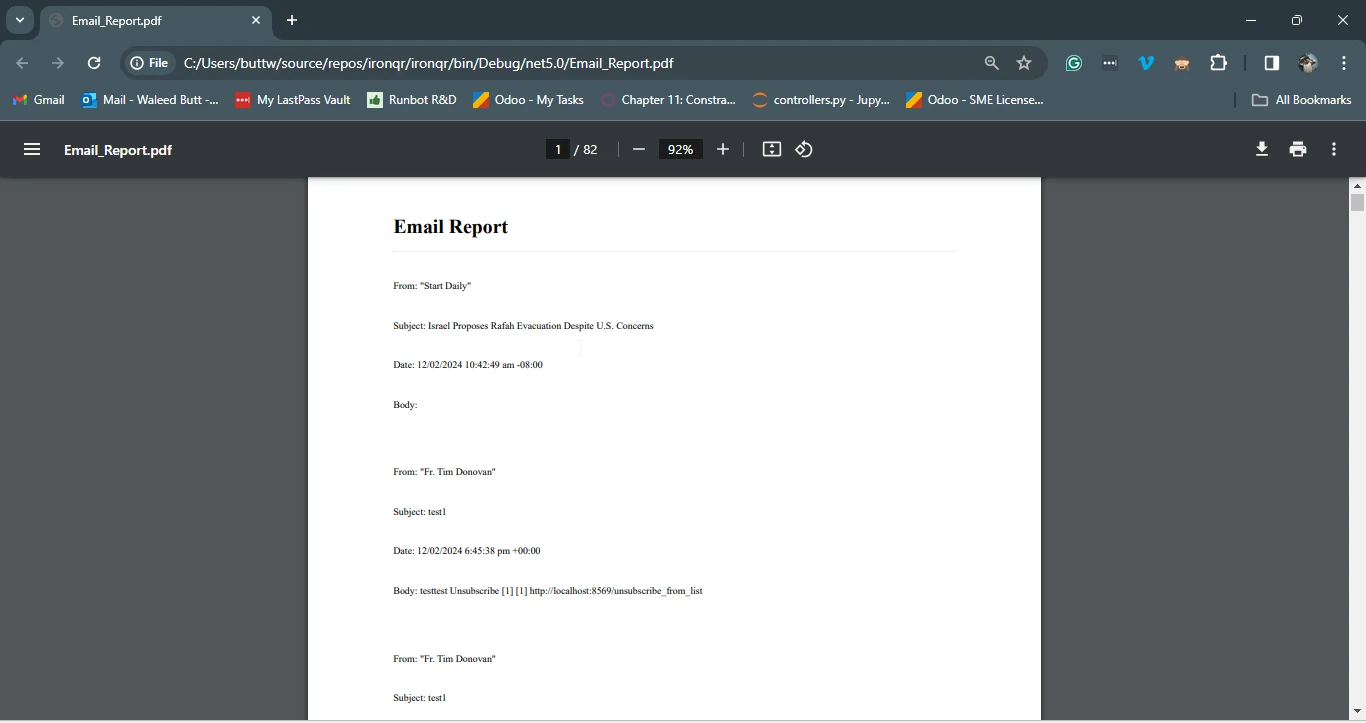
將IMAP功能整合到C#應用程式中為電子郵件通訊、自動化和生產力提升開啟了一個新世界。 通過了解IMAP的基本知識並利用像MailKit .NET這樣強大的程式庫,開發者可以構建功能豐富的電子郵件客戶端,自動化電子郵件處理任務,並輕鬆簡化通訊工作流程。
借助本指南中提供的實用知識和程式碼範例,開發者可以在其C#應用程式中充分利用IMAP整合的力量,並發掘創新及效率提升的電子郵件通訊新機會。 借助於IronPDF這一多功能PDF處理程式庫,您可以將附件保存為PDF,將電子郵件匯入為PDF文件,或將電子郵件儲存到PDF文件中。
要了解有關IronPDF及其功能的更多資訊,請存取官方IronPDF文件頁面。

Jacob Mellor是Iron Software的首席技術官,一位在C# PDF技術上開創先河的遠見工程師。作為Iron Software核心程式碼庫的原開發者,他從創立以來就一直在塑造公司的產品架構,與首席執行官Cameron Rimington一起將公司轉變為服務於NASA、特斯拉和全球政府公司的50多名人員的公司。



IronPDF 是 IRONSUITE 的一部分
10 款適用於辦公室文件的 .NET API 產品

當您需要您的PDF看起來像HTML一樣快速。












