




已更新 2026年4月23日
在 .NET 中用 Microsoft.Extensions.AI 簡化 LLM 整合
AI 正在改變軟體開發,但將大型語言模型 (LLM) 整合到 .NET 中一直很複雜。利用 IronPdf.AI 將 AI 整合推向更遠,為 .NET 應用程式帶來由 OpenAI 驅動的 PDF 解析、資料擷取和內容總結。
閱讀更多

ASP.NET開發者經常尋找有效的方法來顯示具有排序、搜尋和分頁等進階功能的表格資料或HTML表格。 DataTables.NET 是一個強大的jQuery JavaScript程式庫和高度靈活的工具,可以方便地在網頁應用程式中建立互動性強且功能豐富的表格。 在本文中,我們將探討如何在ASP.NET專案中整合DataTables.NET發行檔案,這是一個增強表格的程式庫,用於伺服器端處理,以提升表格資料的顯示和使用者體驗。
DataTables.NET是一個jQuery JavaScript程式庫,允許您在.NET應用程式中建立和操作互動式表格。 它基於jQuery DataTables外掛程式,提供了廣泛的API功能,如分頁、排序、篩選和滾動,適用於動態及靜態HTML表格。 它是一個提升表格功能的程式庫,可以與各種資料來源一起使用,如SQL資料庫、AJAX或記憶體中的物件。
假設有一個API端點提供大量產品資料集。 標準方法涉及jQuery DataTables向此API發送AJAX呼叫,獲取JSON格式的產品列表並渲染HTML表格。 這被稱為客戶端處理,對於較小的資料集(約100到1000條記錄)非常有效。 然而,當資料集擴展到10,000條記錄甚至更多時會發生什麼?
當處理大量記錄時,一次將整個資料集發送到瀏覽器是不切實際的。 一次傳輸10,000條記錄不僅帶寬浪費,而且也會給瀏覽器資源帶來壓力。 在這種情況下,替代方法即伺服器端處理在性能優化方面變得至關重要。
在伺服器端處理中,API不會發送整個資料集,而是以可管理的塊傳輸資料,通常每頁分頁大約50條記錄。 這樣做大大提高了載入時間,因為jQuery DataTables現在載入的只有大約50條記錄,而不是一次處理整個資料集。 此方法減少了CPU和帶寬使用,實現了API和DataTable之間更有效的互動。
在本文中,我們將探討在ASP.NET Razor Page應用程式中實現伺服器端處理的過程,展示如何有效地處理和顯示龐大資料集,同時提升您的網頁應用程式的整體性能。
要開始,我們需要將DataTables.NET客戶端程式庫新增到我們的專案中。 本文將使用ASP.NET Core Web App (Razor Pages)專案和.NET 8。您可以根據需要使用任何Web App專案。
若要新增客戶端程式庫,請右鍵點擊解決方案>新增> 客戶端程式庫,然後搜尋下圖所示的資料表。
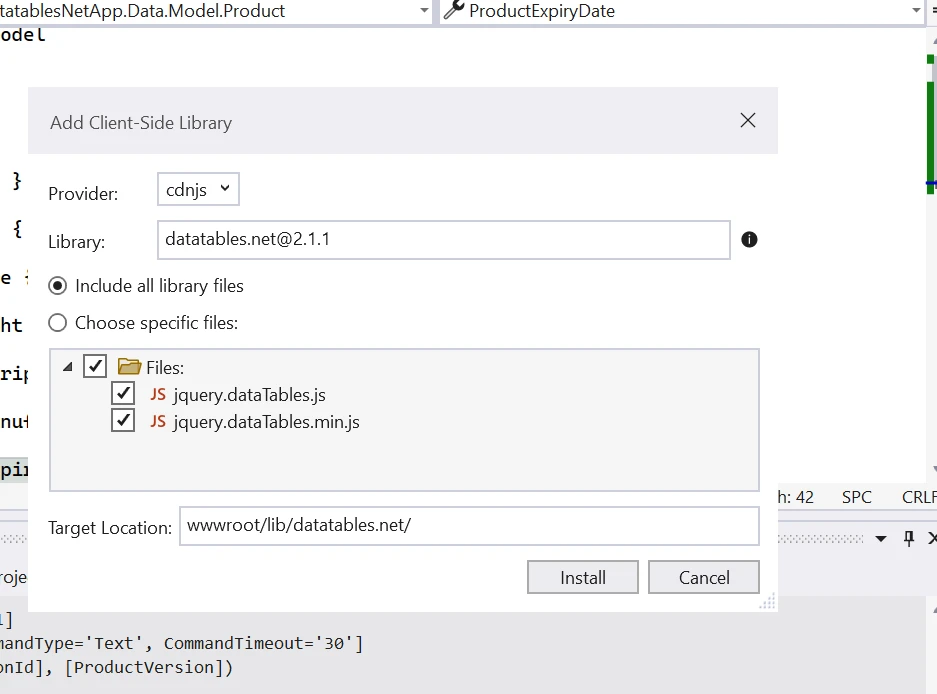
現在,我們需要新增模型類、DB上下文、控制器、HTML表格和AJAX呼叫。
但在此之前,我們需要安裝EntityFramework NuGet Packages以連接我們的應用程式與資料庫。 本文將使用Code First方法,您可以根據偏好使用Database first。
安裝以下本地託管套件:
使用Nessage Package Manager Console中的install-package命令安裝上面的套件,也可以從NuGet Package Manager解決方案中搜尋安裝。
我在此範例中使用Product模型類,您可以根據需要使用。
public class Product
{
    public int Id { get; set; }
    public string ProductName { get; set; } = string.Empty;
    public string ProductPrice { get; set; } = string.Empty;
    public string ProductWeight { get; set; } = string.Empty;
    public string ProductDescription { get; set; } = string.Empty;
    public DateTime ProductManufacturingDate { get; set; }
    public DateTime ProductExpiryDate { get; set; }
}Public Class Product
Public Property Id() As Integer
Public Property ProductName() As String = String.Empty
Public Property ProductPrice() As String = String.Empty
Public Property ProductWeight() As String = String.Empty
Public Property ProductDescription() As String = String.Empty
Public Property ProductManufacturingDate() As DateTime
Public Property ProductExpiryDate() As DateTime
End Classpublic class ApplicationDBContext : DbContext
{
public ApplicationDBContext(DbContextOptions<ApplicationDBContext> options) : base(options)
{
}
public DbSet<Product> Products { get; set; }
}Public Class ApplicationDBContext
Inherits DbContext
Public Sub New(ByVal options As DbContextOptions(Of ApplicationDBContext))
MyBase.New(options)
End Sub
Public Property Products() As DbSet(Of Product)
End Class我們將在ProductDatatables.js以新增進階控制,例如分頁、搜尋等。
// Initialize the DataTables plugin for the HTML element with 'productDatatable' ID
$(document).ready(function () {
    $("#productDatatable").DataTable({
        "processing": true, // Enable processing indicator
        "serverSide": true, // Enable server-side processing
        "ajax": {
            "url": "/api/Product", // API endpoint for fetching product data
            "type": "POST",
            "datatype": "json"
        },
        "columnDefs": [{
            // Define properties for columns
            "targets": [0],
            "visible": false, // Hide the 'Id' column
            "searchable": false // Disable searching for the 'Id' column
        }],
        "columns": [
            { "data": "id", "name": "Id", "autoWidth": true },
            { "data": "productName", "name": "ProductName", "autoWidth": true },
            { "data": "productPrice", "name": "ProductPrice", "autoWidth": true },
            { "data": "productWeight", "name": "ProductWeight", "autoWidth": true },
            { "data": "productDescription", "name": "ProductDescription", "autoWidth": true },
            { "data": "productManufacturingDate", "name": "ProductManufacturingDate", "autoWidth": true },
            { "data": "productExpiryDate", "name": "ProductExpiryDate", "autoWidth": true },
            {
                // Add a 'Delete' button with an onclick event for deleting the product
                "render": function (data, type, row) {
                    return "<a href='#' class='btn btn-danger' onclick=DeleteProduct('" + row.id + "');>Delete</a>";
                }
            }
        ]
    });
});現在,我們需要新增HTML表格。
在index.cshtml檔案中寫下以下程式碼以新增靜態HTML頁面。
@page
@model IndexModel
@{
    ViewData["Title"] = "Home page";
}
<link href="~/lib/datatables/css/dataTables.bootstrap4.min.css" rel="stylesheet" />
<div class="container">
    <br />
    <div style="width:90%; margin:0 auto;">
        <table id="productDatatable" class="table table-striped table-bordered dt-responsive nowrap" width="100%" cellspacing="0">
            <thead>
                <tr>
                    <th>Id</th>
                    <th>Product Name</th>
                    <th>Product Price</th>
                    <th>Product Weight</th>
                    <th>Product Description</th>
                    <th>Product Manufacturing Date</th>
                    <th>Product Expiry Date</th>
                    <th>Actions</th>
                </tr>
            </thead>
        </table>
    </div>
</div>

@section Scripts {
    <script src="~/lib/datatables/js/jquery.dataTables.min.js"></script>
    <script src="~/lib/datatables/js/dataTables.bootstrap4.min.js"></script>
    <script src="~/js/ProductDatatable.js"></script>
}我們需要新增控制器。
新增產品控制器以建立端點並直接拉取請求。
[Route("api/[controller]")]
[ApiController]
public class ProductController : ControllerBase
{
    private readonly ApplicationDBContext context;
    public ProductController(ApplicationDBContext context)
    {
        this.context = context;
    }

    [HttpPost]
    public IActionResult GetProducts()
    {
        try
        {
            var draw = Request.Form["draw"].FirstOrDefault();
            var start = Request.Form["start"].FirstOrDefault();
            var length = Request.Form["length"].FirstOrDefault();
            var searchValue = Request.Form["search[value]"].FirstOrDefault();
            int pageSize = length != null ? Convert.ToInt32(length) : 0;
            int skip = start != null ? Convert.ToInt32(start) : 0;
            int recordsTotal = 0;
            var productData = context.Products.ToLis();

            // Filtering data based on provided search value
            if (!string.IsNullOrEmpty(searchValue))
            {
                productData = productData.Where(m => m.ProductName.Contains(searchValue)
                                            || m.ProductDescription.Contains(searchValue)
                                            || m.Id.ToString().Contains(searchValue)).ToList();
            }

            recordsTotal = productData.Count();
            var data = productData.Skip(skip).Take(pageSize).ToList();
            var jsonData = new { draw = draw, recordsFiltered = recordsTotal, recordsTotal = recordsTotal, data = data };
            return Ok(jsonData);
        }
        catch (Exception)
        {
            throw;
        }
    }
}<Route("api/[controller]")>
<ApiController>
Public Class ProductController
Inherits ControllerBase
Private ReadOnly context As ApplicationDBContext
Public Sub New(context As ApplicationDBContext)
Me.context = context
End Sub
<HttpPost>
Public Function GetProducts() As IActionResult
Try
Dim draw = Request.Form("draw").FirstOrDefault()
Dim start = Request.Form("start").FirstOrDefault()
Dim length = Request.Form("length").FirstOrDefault()
Dim searchValue = Request.Form("search[value]").FirstOrDefault()
Dim pageSize As Integer = If(length IsNot Nothing, Convert.ToInt32(length), 0)
Dim skip As Integer = If(start IsNot Nothing, Convert.ToInt32(start), 0)
Dim recordsTotal As Integer = 0
Dim productData = context.Products.ToList()
' Filtering data based on provided search value
If Not String.IsNullOrEmpty(searchValue) Then
productData = productData.Where(Function(m) m.ProductName.Contains(searchValue) OrElse
m.ProductDescription.Contains(searchValue) OrElse
m.Id.ToString().Contains(searchValue)).ToList()
End If
recordsTotal = productData.Count()
Dim data = productData.Skip(skip).Take(pageSize).ToList()
Dim jsonData = New With {Key .draw = draw, Key .recordsFiltered = recordsTotal, Key .recordsTotal = recordsTotal, Key .data = data}
Return Ok(jsonData)
Catch ex As Exception
Throw
End Try
End Function
End Class在這裡,我們在伺服器端實現了分頁和搜尋。
現在,我們需要設置資料庫並新增配置到Program.cs類中。 如果您使用的是.NET 5或更低版本,您可能需要在Startup.cs類中。
首先,在appsettings.json檔案中新增以下連接字串。
"ConnectionStrings": {
   "ProductDB": "Server=localserver\\SQLEXPRESS;Database=ProductDB;Trusted_Connection=True;MultipleActiveResultSets=true;TrustServerCertificate=True;"
}現在將以下程式碼新增到Program.cs類中。
public static void Main(string[] args)
{
    var builder = WebApplication.CreateBuilder(args);
    builder.Services.AddDbContext<ApplicationDBContext>(options =>
    {
         options.UseSqlServer(builder.Configuration.GetConnectionString("ProductDB"));
    });
    builder.Services.AddControllers();
    // Add services to the container.
    builder.Services.AddRazorPages();
    var app = builder.Build();
    // Configure the HTTP request pipeline.
    if (!app.Environment.IsDevelopment())
    {
         app.UseExceptionHandler("/Error");
         // The default HSTS value is 30 days.
         app.UseHsts();
    }
    app.UseHttpsRedirection();
    app.UseStaticFiles();
    app.UseRouting();
    app.UseAuthorization();
    app.MapControllers();
    app.MapRazorPages();
    app.Run();
}Public Shared Sub Main(ByVal args() As String)
Dim builder = WebApplication.CreateBuilder(args)
builder.Services.AddDbContext(Of ApplicationDBContext)(Sub(options)
options.UseSqlServer(builder.Configuration.GetConnectionString("ProductDB"))
End Sub)
builder.Services.AddControllers()
' Add services to the container.
builder.Services.AddRazorPages()
Dim app = builder.Build()
' Configure the HTTP request pipeline.
If Not app.Environment.IsDevelopment() Then
app.UseExceptionHandler("/Error")
' The default HSTS value is 30 days.
app.UseHsts()
End If
app.UseHttpsRedirection()
app.UseStaticFiles()
app.UseRouting()
app.UseAuthorization()
app.MapControllers()
app.MapRazorPages()
app.Run()
End Sub我們需要運行遷移,因為我們使用的是程式碼優先方法。
在Package Manager Console中運行以下命令。
Add-Migration init以上命令將建立一個遷移。 現在我們需要將這些遷移應用到資料庫中。 在Package Manager Console中運行以下命令。
Update-Database以上命令會在我們的資料庫中建立表格。 在產品表中新增虛擬資料; 您可以從Mockaroo生成隨機資料。
現在,建置並運行此應用程式。
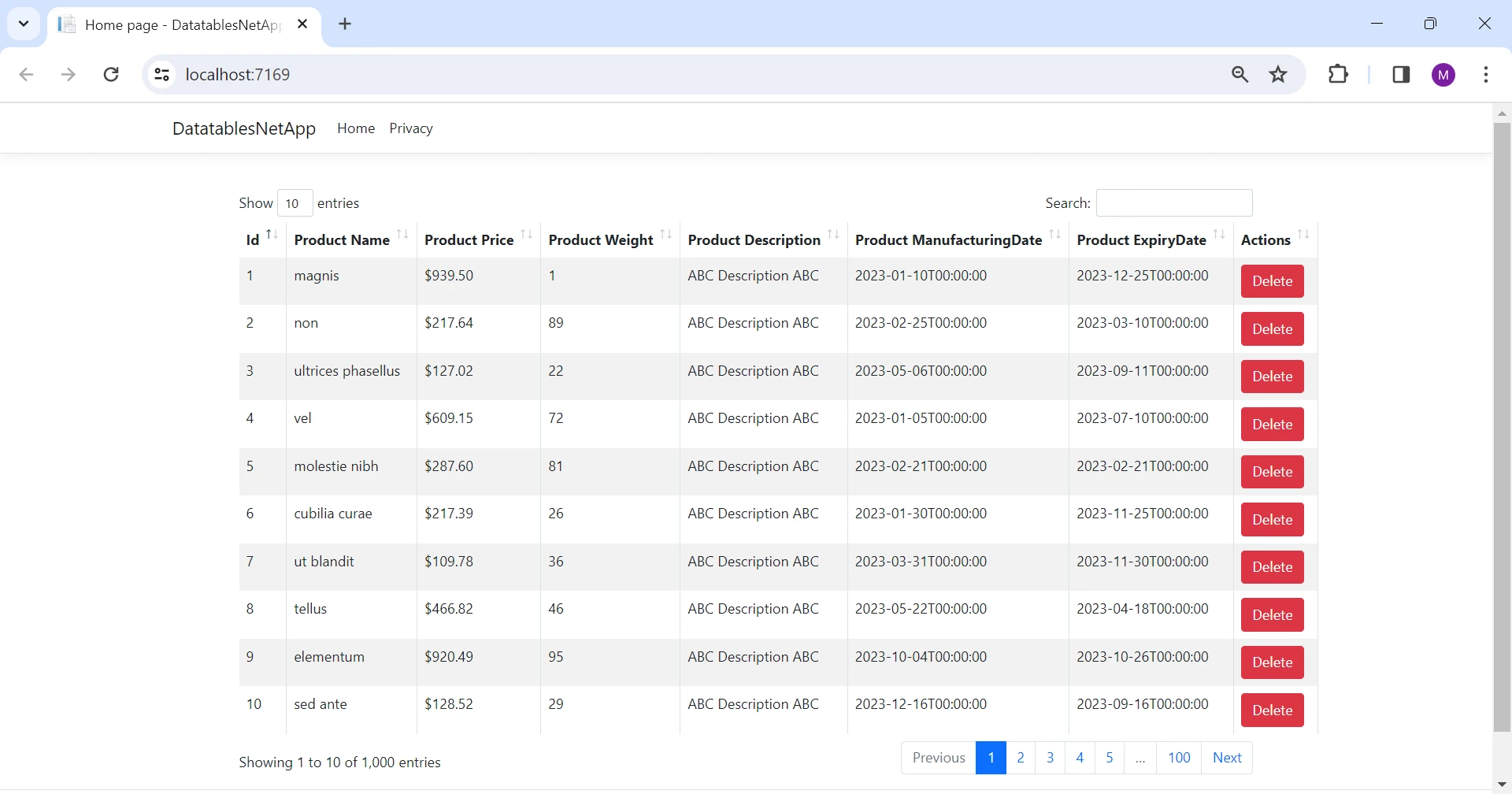
我們可以看到,我們有一個非常互動的UI,具有進階的互動控制。
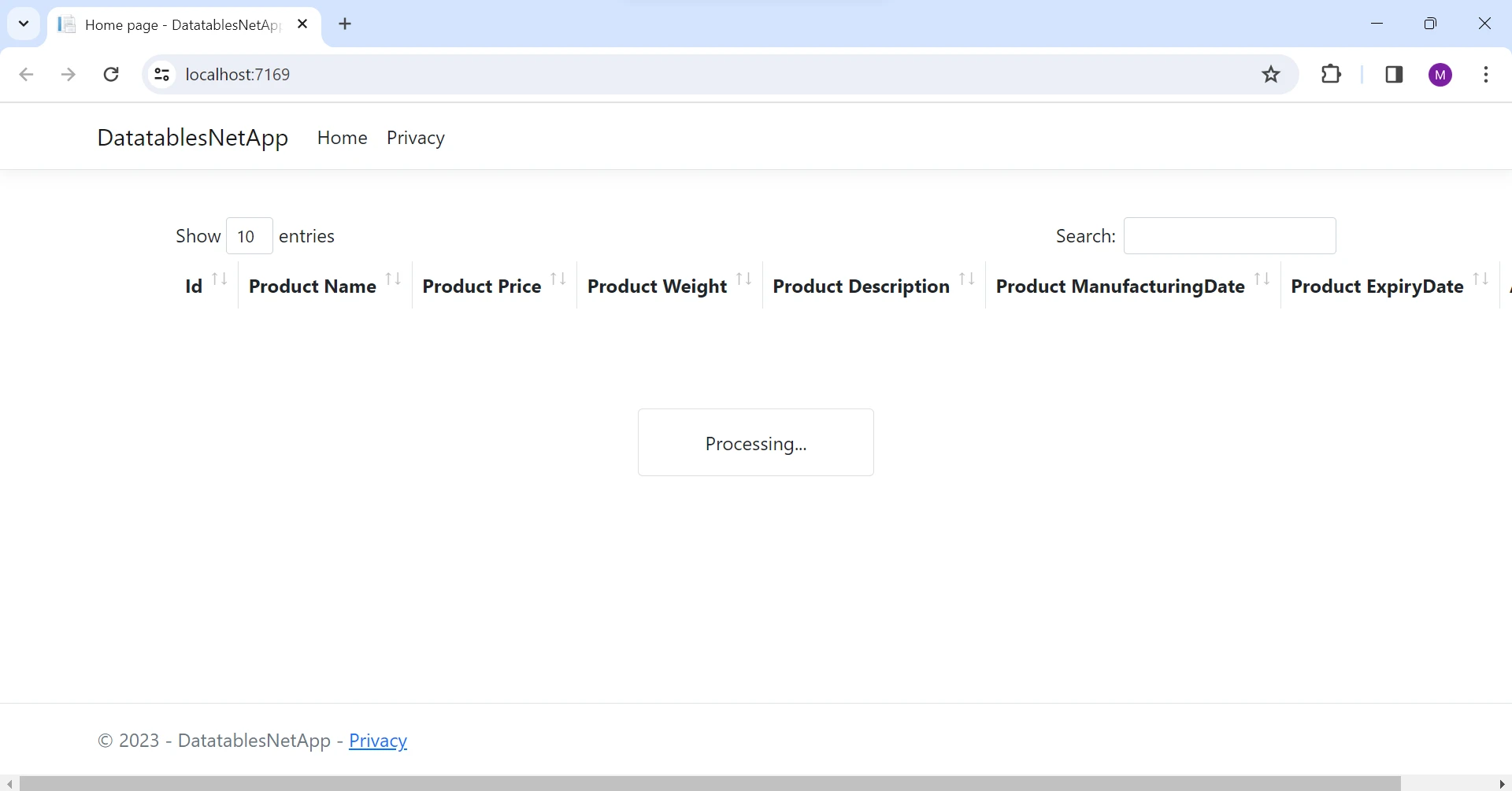
現在,伺服器端已實施分頁,如下所示。
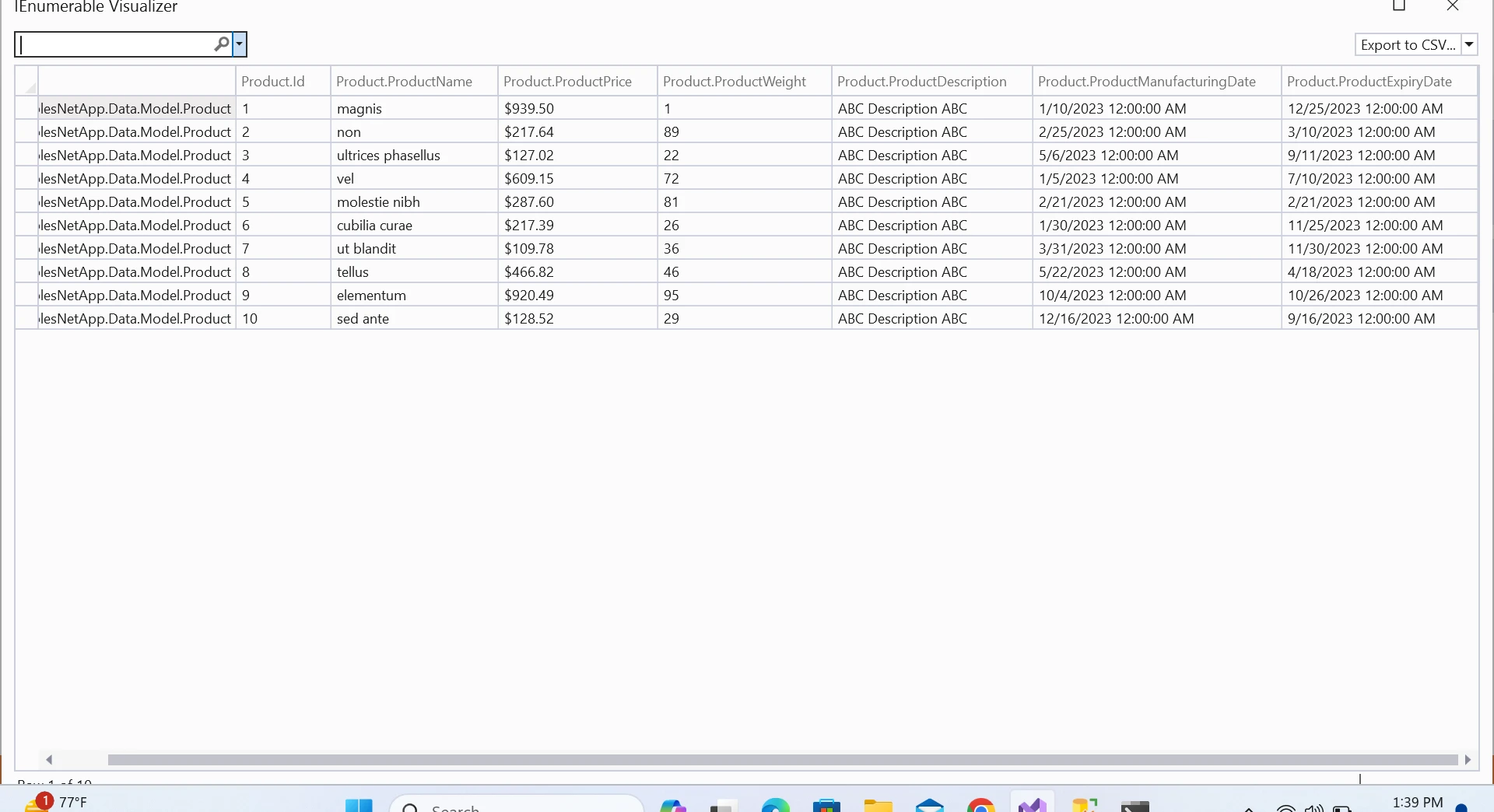
然後在客戶端渲染資料,具有豐富的UI控制。
您可以通過點擊explore DataTables.NET documentation探索更多關於DataTables.NET的文件。
IronXL - Excel Library for .NET 是一個允許您在.NET應用程式中處理Excel檔案的程式庫。 它可以建立Excel電子表格、讀取CSV檔案、編輯Excel檔案,並以不同格式(如XLS、XLSX、CSV和TSV)匯出為Excel。它不需要安裝Microsoft Office或Excel Interop。 支援.NET 8、7、6、5、Core、Framework和Azure。
我們經常需要將資料匯出到Excel或CSV檔案中。 在這種情況下,IronXL是最佳選擇。 現在,我們將寫程式碼將我們的資料匯出到Excel文件中。
在我們的項目中通過在Package Manager Console輸入以下命令來安裝IronXL程式庫。
這將在我們的專案中安裝IronXL及其所需的相依項。
我們來編寫一個程式碼,將我們的產品列表轉換為Excel文件。
public void ExportToExcel(List<Product> productList)
{
    WorkBook wb = WorkBook.Create(ExcelFileFormat.XLSX); // Create a new workbook instance
    WorkSheet ws = wb.DefaultWorkSheet; // Access the default worksheet
    int rowCount = 1;

    // Iterate over the product list and fill the worksheet
    foreach (Product product in productList)
    {
        ws["A" + rowCount].Value = product.Id.ToString();
        ws["B" + rowCount].Value = product.ProductName;
        ws["C" + rowCount].Value = product.ProductDescription;
        ws["D" + rowCount].Value = product.ProductPrice;
        ws["E" + rowCount].Value = product.ProductWeight;
        ws["F" + rowCount].Value = product.ProductManufacturingDate;
        ws["G" + rowCount].Value = product.ProductExpiryDate;
        rowCount++;
    }
    wb.SaveAs("product.xlsx"); // Save the workbook as an Excel file
}Public Sub ExportToExcel(ByVal productList As List(Of Product))
Dim wb As WorkBook = WorkBook.Create(ExcelFileFormat.XLSX) ' Create a new workbook instance
Dim ws As WorkSheet = wb.DefaultWorkSheet ' Access the default worksheet
Dim rowCount As Integer = 1
' Iterate over the product list and fill the worksheet
For Each product As Product In productList
ws("A" & rowCount).Value = product.Id.ToString()
ws("B" & rowCount).Value = product.ProductName
ws("C" & rowCount).Value = product.ProductDescription
ws("D" & rowCount).Value = product.ProductPrice
ws("E" & rowCount).Value = product.ProductWeight
ws("F" & rowCount).Value = product.ProductManufacturingDate
ws("G" & rowCount).Value = product.ProductExpiryDate
rowCount += 1
Next product
wb.SaveAs("product.xlsx") ' Save the workbook as an Excel file
End Sub我們已經以非常簡單便捷的方式從列表中建立了Excel文件。
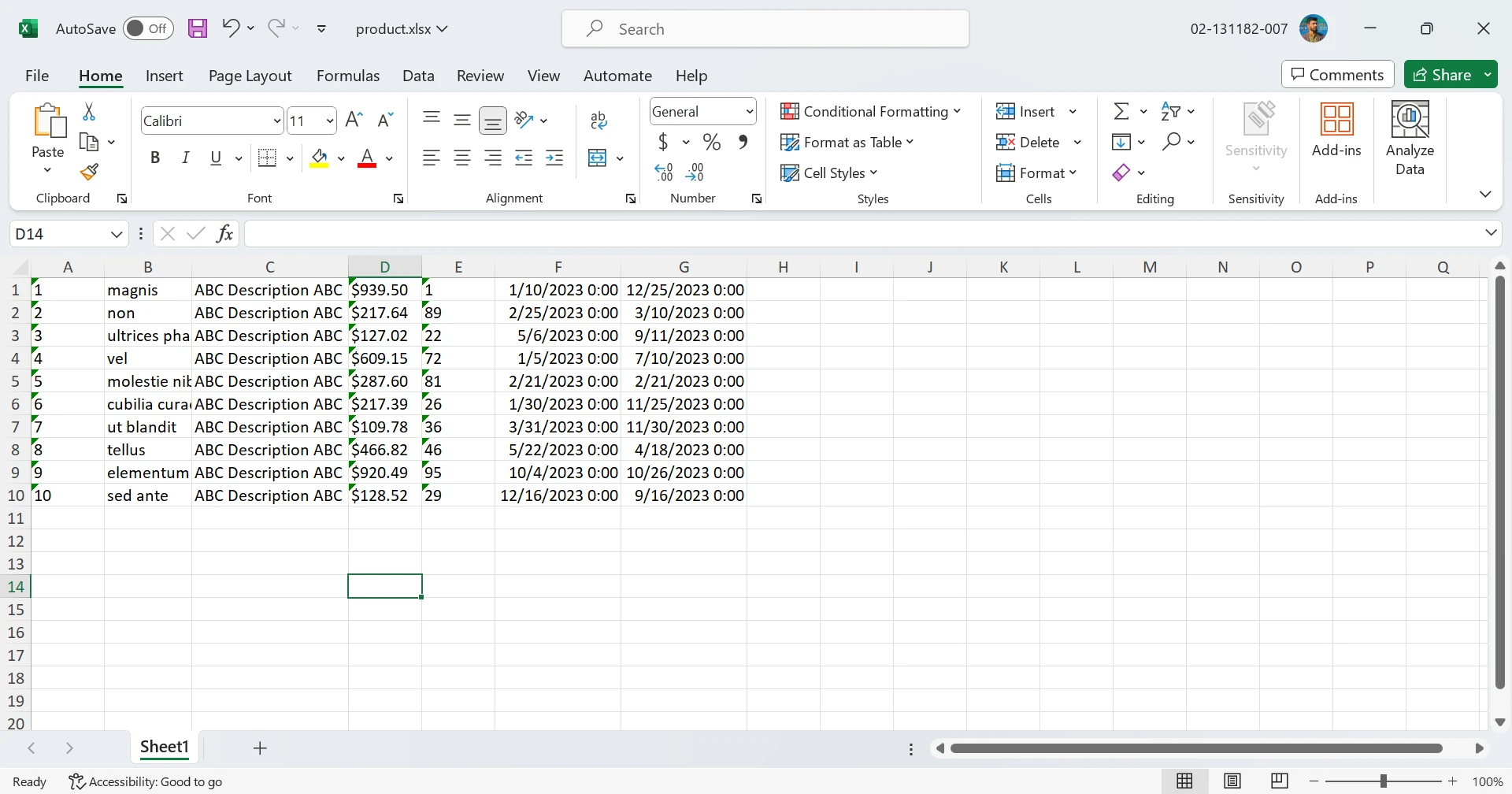
IronXL提供了豐富的XLSX文件教程、讀取Excel的程式碼範例和API文件以便最佳利用其豐富的API。
在優化ASP.NET性能方面,我們完全依靠僅核心軟體,確保一個精簡和高效的開發環境。 利用DataTables.NET作爲本地託管包進一步增強了響應能力,最小化外部依賴以簡化資料處理和Excel導出。 此外,在這個優化和自包含的生態系統中,高效地貢獻程式碼變得順暢無比。
IronPDF是用於將網頁、URL和HTML轉換為PDF文件的解決方案。 生成的PDF保留了來源網頁的原始格式和風格元素。 該工具特別適合建立報告和帳單等基於網頁內容的PDF再現。
using IronPdf;

class Program
{
    static void Main(string[] args)
    {
        var renderer = new ChromePdfRenderer();

        // 1. Convert HTML String to PDF
        var htmlContent = "<h1>Hello, IronPDF!</h1><p>This is a PDF from an HTML string.</p>";
        var pdfFromHtmlString = renderer.RenderHtmlAsPdf(htmlContent);
        pdfFromHtmlString.SaveAs("HTMLStringToPDF.pdf");

        // 2. Convert HTML File to PDF
        var htmlFilePath = "path_to_your_html_file.html"; // Specify the path to your HTML file
        var pdfFromHtmlFile = renderer.RenderHtmlFileAsPdf(htmlFilePath);
        pdfFromHtmlFile.SaveAs("HTMLFileToPDF.pdf");

        // 3. Convert URL to PDF
        var url = "http://ironpdf.com"; // Specify the URL
        var pdfFromUrl = renderer.RenderUrlAsPdf(url);
        pdfFromUrl.SaveAs("URLToPDF.pdf");
    }
}Imports IronPdf
Friend Class Program
Shared Sub Main(ByVal args() As String)
Dim renderer = New ChromePdfRenderer()
' 1. Convert HTML String to PDF
Dim htmlContent = "<h1>Hello, IronPDF!</h1><p>This is a PDF from an HTML string.</p>"
Dim pdfFromHtmlString = renderer.RenderHtmlAsPdf(htmlContent)
pdfFromHtmlString.SaveAs("HTMLStringToPDF.pdf")
' 2. Convert HTML File to PDF
Dim htmlFilePath = "path_to_your_html_file.html" ' Specify the path to your HTML file
Dim pdfFromHtmlFile = renderer.RenderHtmlFileAsPdf(htmlFilePath)
pdfFromHtmlFile.SaveAs("HTMLFileToPDF.pdf")
' 3. Convert URL to PDF
Dim url = "http://ironpdf.com" ' Specify the URL
Dim pdfFromUrl = renderer.RenderUrlAsPdf(url)
pdfFromUrl.SaveAs("URLToPDF.pdf")
End Sub
End Class總之,利用DataTables.NET進行ASP.NET發行儲存庫專案中的伺服器端處理被證明是一種高效處理大量資料集的良好策略。 此方法通過將資料分為可管理的片段,減少帶寬使用,並增強使用者體驗,從而確保優化的性能。 IronXL的整合進一步拓展了應用程式的能力,使得將表格資料輕鬆匯出到Excel,以進行全面的資料分析和報告變得輕而易舉。
通過採用這些技術,開發者可以建立在豐富的互動性和資源效率之間尋求平衡的網頁應用程式,為使用者提供無縫和響應迅速的體驗,特別是在涉及大型資料集的場景中。 IronXL提供了不同數量的開發人員,專案和再分發需求的IronXL授權選項。 這些授權是永久性的,並包含免費的支援和更新。

Jacob Mellor是Iron Software的首席技術官,一位在C# PDF技術上開創先河的遠見工程師。作為Iron Software核心程式碼庫的原開發者,他從創立以來就一直在塑造公司的產品架構,與首席執行官Cameron Rimington一起將公司轉變為服務於NASA、特斯拉和全球政府公司的50多名人員的公司。



IronPDF 是 IRONSUITE 的一部分
10 款適用於辦公室文件的 .NET API 產品

當您需要您的PDF看起來像HTML一樣快速。












