


Stripe .NET(對於開發者的運行原理)

Stripe.Net 與 IronPDF 的整合
Stripe.Net 是一個功能強大的 .NET 程式庫,可讓開發人員將 Stripe 的支付處理功能整合到 .NET 應用程式中。 Stripe 是一款受歡迎的支付網關,使企業能夠在線上收款。透過 Stripe API 提供的強大功能,開發者可以管理交易、客戶、訂閱等資訊。 本文將討論如何使用 Stripe 搭配 IronPDF 來建立 PDF。
開始使用 Stripe.Net
建立新的 Visual Studio 專案
要開始使用 Stripe.Net,我們需要建立一個新的 Visual Studio 專案或開啟一個現有的專案。 在本教程中,我們將使用 Console Application 專案。
1.開啟 Visual Studio 並按一下"建立新專案"。
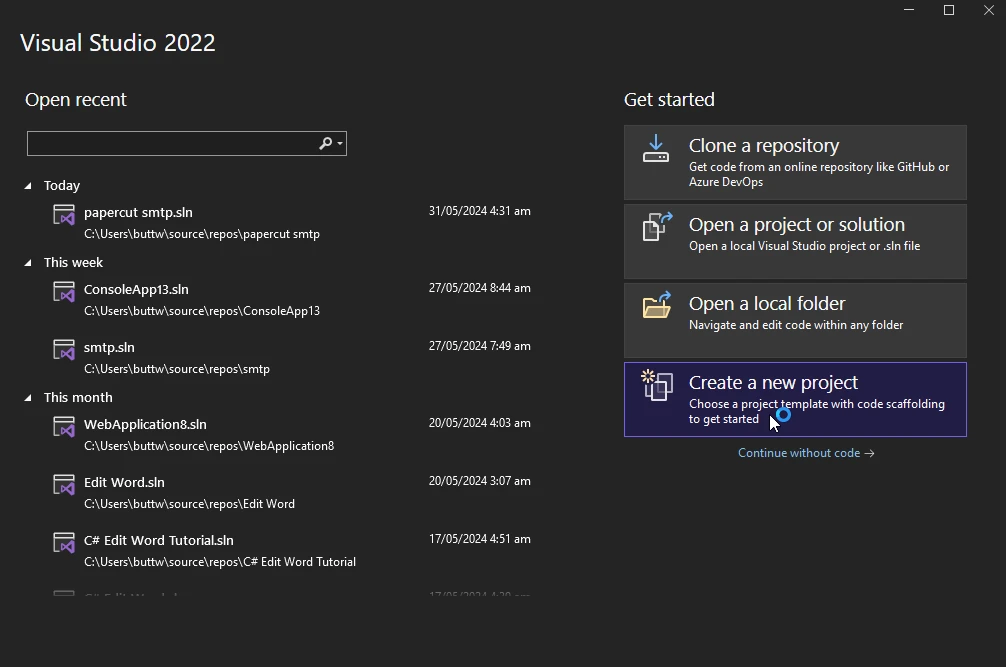2.將會出現新視窗。 選擇控制台應用程式,然後按一下下一步。
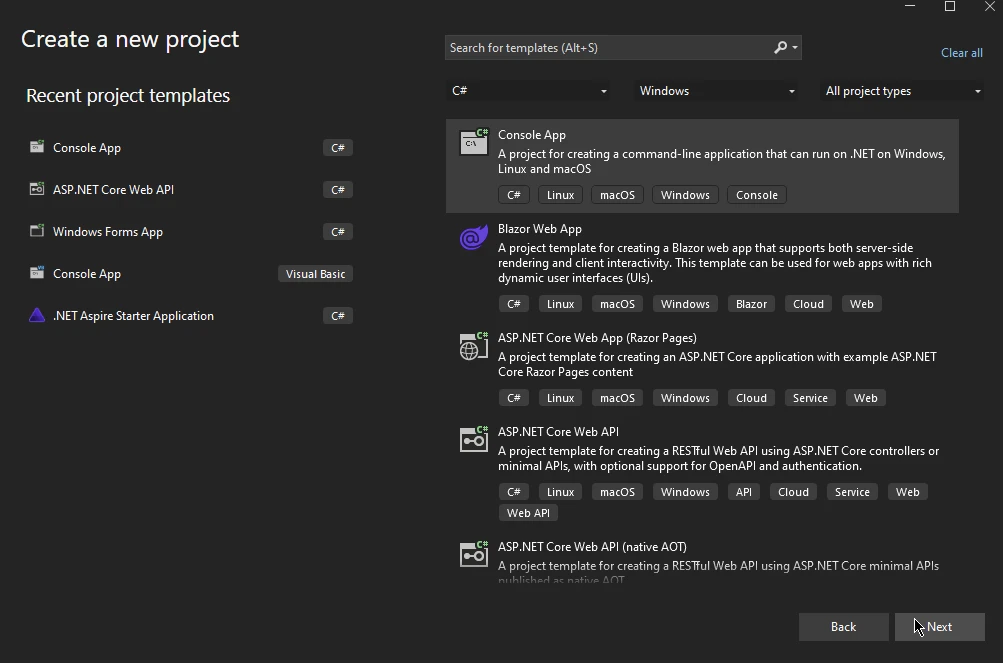3.在下一個視窗中,輸入專案名稱並選擇位置,然後按一下下一步。
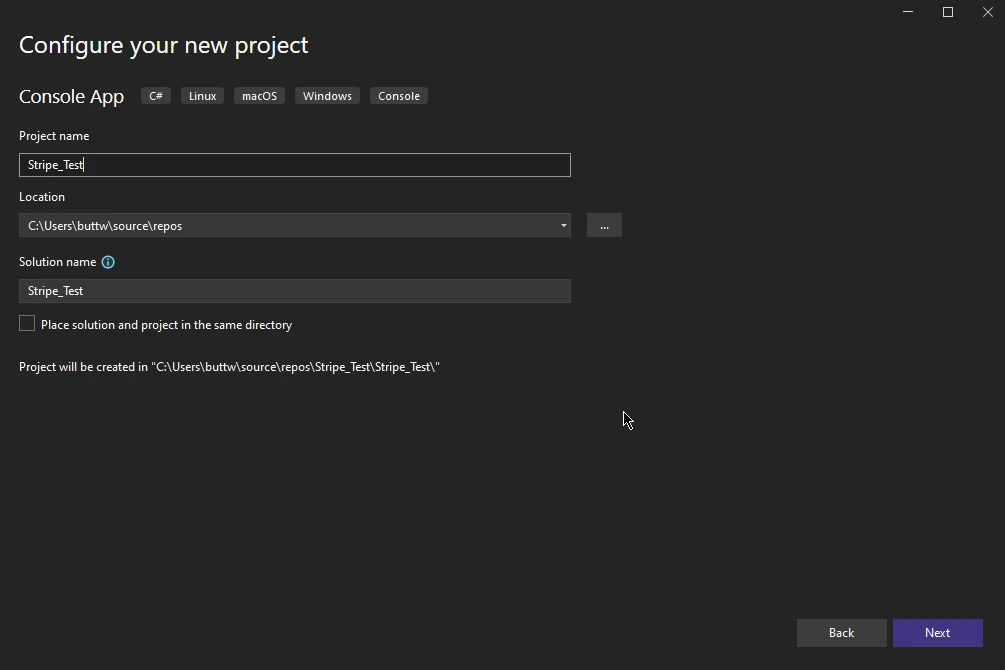4.在下一個視窗中,選擇框架,然後按一下建立。
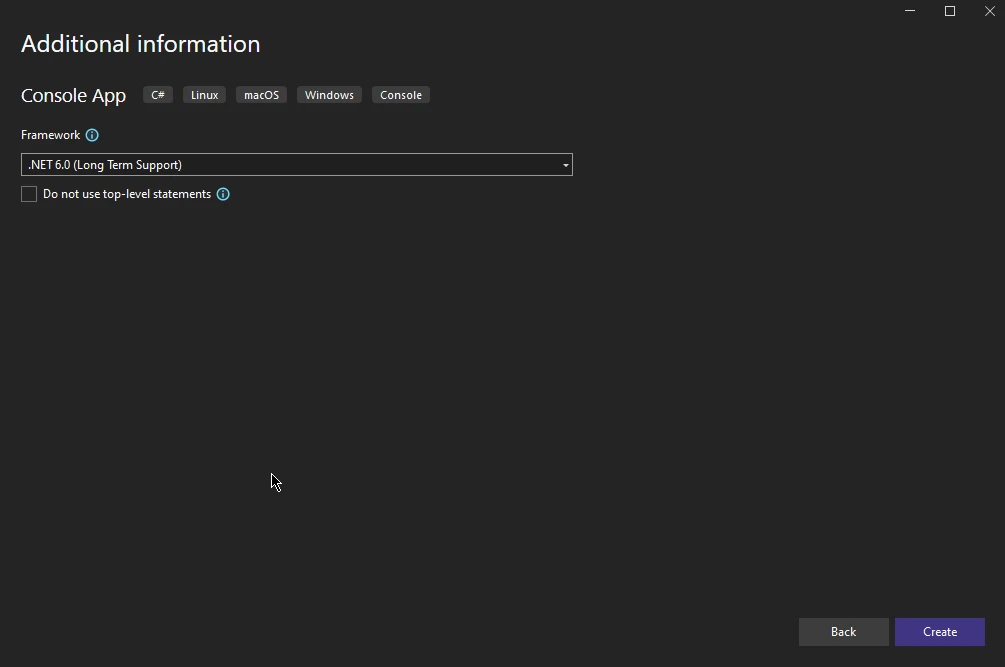就這樣,您的新 Visual Studio Console Application 專案就建立了。
安裝
要開始在您的專案中使用 Stripe.Net,您需要透過 NuGet 安裝 Stripe.Net 套件。 您可以使用套件管理員控制台或 Visual Studio 中的 NuGet 套件管理員來完成此工作。
使用套件管理員控制台:
Install-Package Stripe.net
或
dotnet add package Stripe.net
使用 NuGet Package Manager,搜尋"Stripe.net"並安裝套件。
設定
安裝完成後,您需要設定 Stripe API 金鑰,您可以在 Stripe 帳戶中找到該金鑰。 此密鑰對於驗證您對 Stripe API 的請求非常重要。 通常,為了安全起見,此金鑰會儲存在設定檔或環境變數中。
以下是如何設定 API 金鑰的範例:
StripeConfiguration.ApiKey = "your_secret_api_key";StripeConfiguration.ApiKey = "your_secret_api_key";StripeConfiguration.ApiKey = "your_secret_api_key"Stripe.Net 的基本操作
建立客戶
建立客戶是使用 Stripe.Net 時的基本操作之一。 客戶可與付款方式和訂閱相關聯。
var options = new CustomerCreateOptions
{
    Email = "customer@example.com",
    Name = "John Doe",
};
var service = new CustomerService();
Customer customer = service.Create(options);
var options = new CustomerCreateOptions
{
Email = "customer@example.com",
Name = "John Doe",
};
var service = new CustomerService();
Customer customer = service.Create(options);Dim options = New CustomerCreateOptions With {
.Email = "customer@example.com",
.Name = "John Doe"
}
Dim service = New CustomerService()
Dim customer As Customer = service.Create(options)輸出 Stripe 控制面板
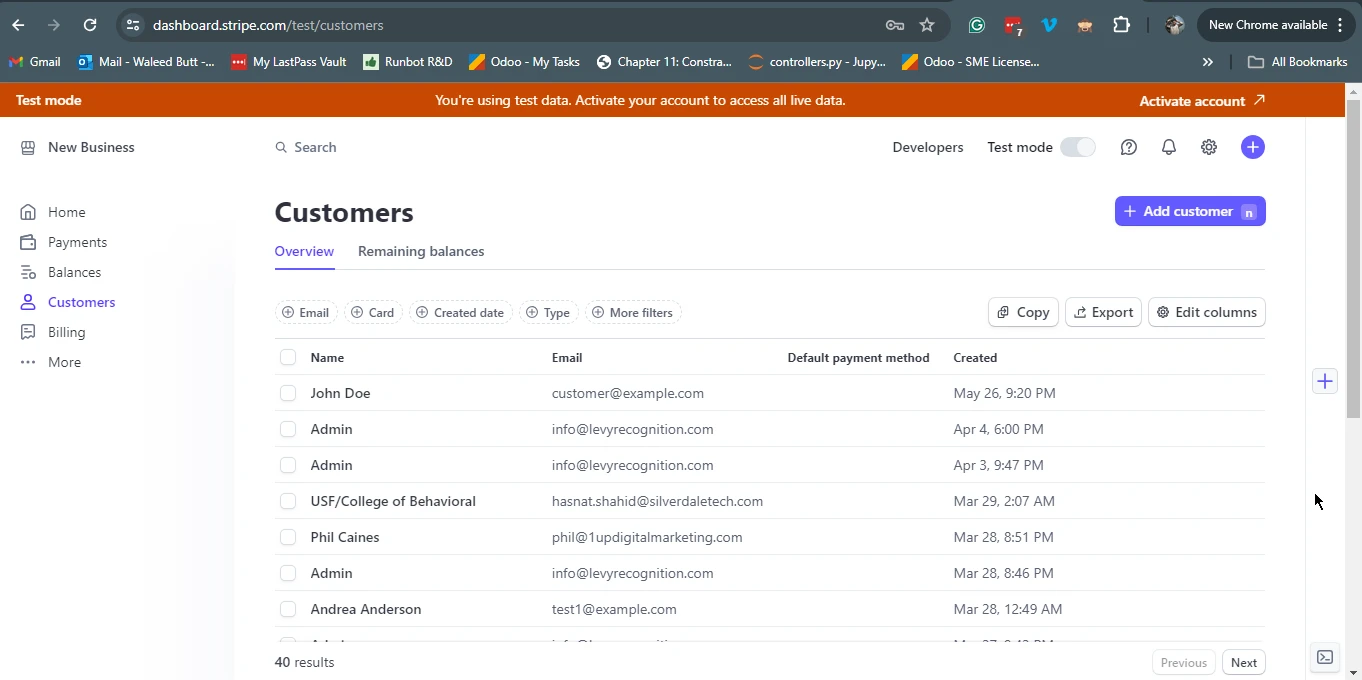
建立付款意向
PaymentIntent 是代表 Stripe 支付流程的對象。它旨在追蹤支付從創建到完成的整個生命週期。
var options = new PaymentIntentCreateOptions
{
    Amount = 2000,
    Currency = "usd",
    PaymentMethodTypes = new List<string>
    {
        "card",
    },
};
var service = new PaymentIntentService();
PaymentIntent paymentIntent = service.Create(options);
var options = new PaymentIntentCreateOptions
{
Amount = 2000,
Currency = "usd",
PaymentMethodTypes = new List<string>
{
"card",
},
};
var service = new PaymentIntentService();
PaymentIntent paymentIntent = service.Create(options);Dim options = New PaymentIntentCreateOptions With {
.Amount = 2000,
.Currency = "usd",
.PaymentMethodTypes = New List(Of String) From {"card"}
}
Dim service = New PaymentIntentService()
Dim paymentIntent As PaymentIntent = service.Create(options)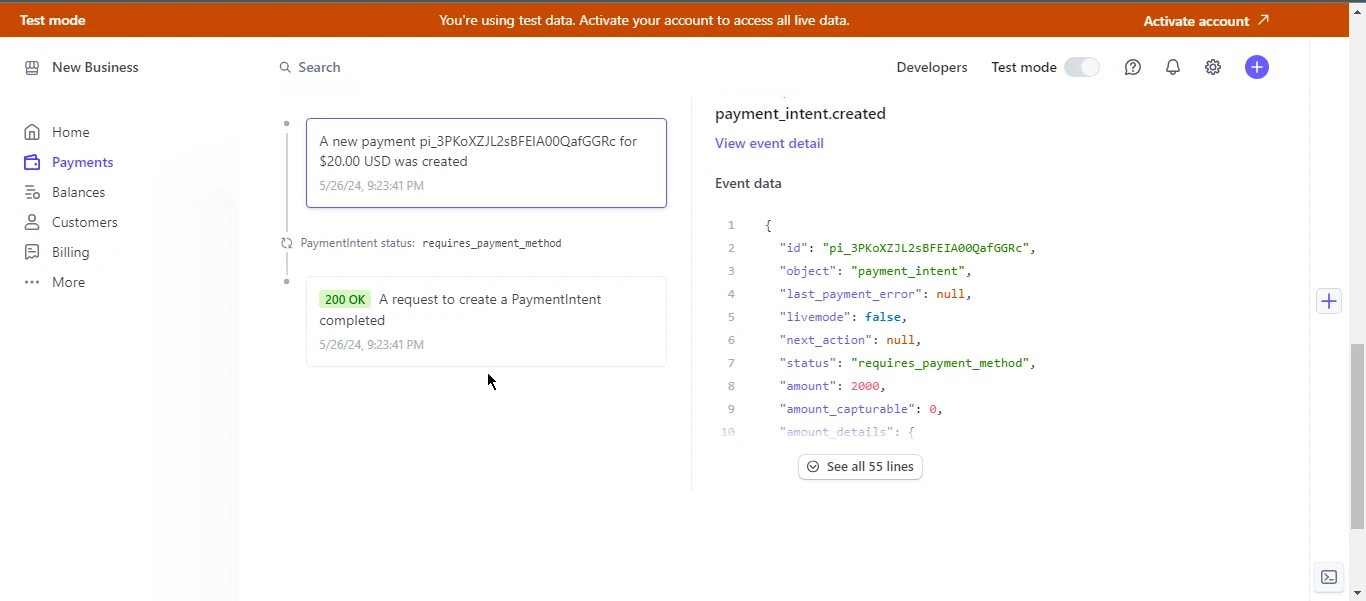
進階功能
訂閱
Stripe 支援各種訂閱模式,透過 Stripe.Net 管理訂閱非常簡單。 您可以建立、更新及取消訂閱。
var options = new SubscriptionCreateOptions
{
    Customer = "cus_123456789",
    Items = new List<SubscriptionItemOptions>
    {
        new SubscriptionItemOptions
        {
            Plan = "plan_123456789",
        },
    },
};
var service = new SubscriptionService();
Subscription subscription = service.Create(options);
var options = new SubscriptionCreateOptions
{
Customer = "cus_123456789",
Items = new List<SubscriptionItemOptions>
{
new SubscriptionItemOptions
{
Plan = "plan_123456789",
},
},
};
var service = new SubscriptionService();
Subscription subscription = service.Create(options);Dim options = New SubscriptionCreateOptions With {
.Customer = "cus_123456789",
.Items = New List(Of SubscriptionItemOptions) From {
New SubscriptionItemOptions With {.Plan = "plan_123456789"}
}
}
Dim service = New SubscriptionService()
Dim subscription As Subscription = service.Create(options)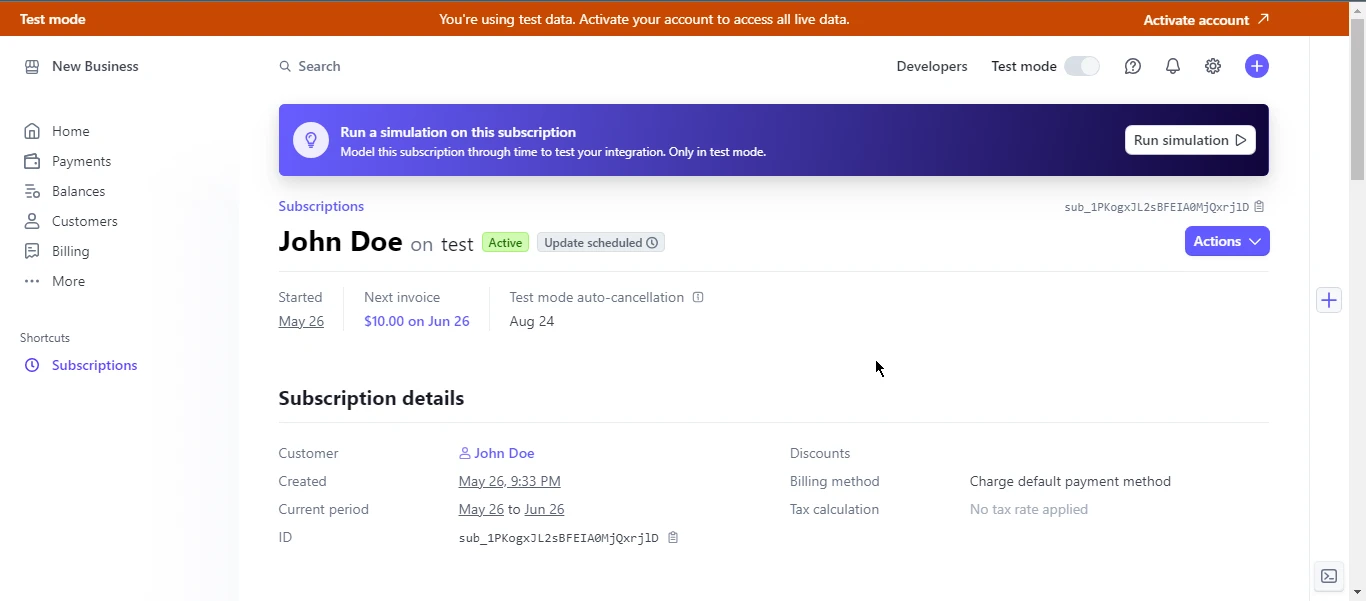
處理爭議
當客戶向銀行或信用卡公司質疑某項收費時,就會發生爭議。 Stripe.Net 讓您列出、檢索和回覆爭議。
var service = new DisputeService();
Dispute dispute = service.Get("dp_123456789");
var service = new DisputeService();
Dispute dispute = service.Get("dp_123456789");Dim service = New DisputeService()
Dim dispute As Dispute = service.Get("dp_123456789")最佳實務
1.安全性:務必保護您的 API 金鑰,切勿將其硬編碼到原始檔案中。
2.錯誤處理:實作強大的錯誤處理機制來管理異常和失敗的 API 呼叫。
3.測試:使用 Stripe 的測試模式並提供測試卡號,徹底測試您的整合。
4.文件:請參閱 Stripe API 官方文件和 Stripe.Net 庫文檔以取得最新資訊和範例。
Introducing IronPDF for C#
IronPDF 是一個 C# 函式庫,允許開發人員建立、編輯和提取 PDF 文件中的內容。 無論是報告、發票或其他文件需求,它都是在 .NET 應用程式中產生 PDF 的理想工具。
IronPDF 可以準確地將網頁、URL 和 HTML 轉換為 PDF 格式,使其成為從線上內容(如報告和發票)建立 PDF 文件的完美工具。
using IronPdf;

class Program
{
    static void Main(string[] args)
    {
        var renderer = new ChromePdfRenderer();

        // 1. Convert HTML String to PDF
        var htmlContent = "<h1>Hello, IronPDF!</h1><p>This is a PDF from an HTML string.</p>";
        var pdfFromHtmlString = renderer.RenderHtmlAsPdf(htmlContent);
        pdfFromHtmlString.SaveAs("HTMLStringToPDF.pdf");

        // 2. Convert HTML File to PDF
        var htmlFilePath = "path_to_your_html_file.html"; // Specify the path to your HTML file
        var pdfFromHtmlFile = renderer.RenderHtmlFileAsPdf(htmlFilePath);
        pdfFromHtmlFile.SaveAs("HTMLFileToPDF.pdf");

        // 3. Convert URL to PDF
        var url = "http://ironpdf.com"; // Specify the URL
        var pdfFromUrl = renderer.RenderUrlAsPdf(url);
        pdfFromUrl.SaveAs("URLToPDF.pdf");
    }
}
using IronPdf;
class Program
{
static void Main(string[] args)
{
var renderer = new ChromePdfRenderer();
// 1. Convert HTML String to PDF
var htmlContent = "<h1>Hello, IronPDF!</h1><p>This is a PDF from an HTML string.</p>";
var pdfFromHtmlString = renderer.RenderHtmlAsPdf(htmlContent);
pdfFromHtmlString.SaveAs("HTMLStringToPDF.pdf");
// 2. Convert HTML File to PDF
var htmlFilePath = "path_to_your_html_file.html"; // Specify the path to your HTML file
var pdfFromHtmlFile = renderer.RenderHtmlFileAsPdf(htmlFilePath);
pdfFromHtmlFile.SaveAs("HTMLFileToPDF.pdf");
// 3. Convert URL to PDF
var url = "http://ironpdf.com"; // Specify the URL
var pdfFromUrl = renderer.RenderUrlAsPdf(url);
pdfFromUrl.SaveAs("URLToPDF.pdf");
}
}Imports IronPdf
Friend Class Program
Shared Sub Main(ByVal args() As String)
Dim renderer = New ChromePdfRenderer()
' 1. Convert HTML String to PDF
Dim htmlContent = "<h1>Hello, IronPDF!</h1><p>This is a PDF from an HTML string.</p>"
Dim pdfFromHtmlString = renderer.RenderHtmlAsPdf(htmlContent)
pdfFromHtmlString.SaveAs("HTMLStringToPDF.pdf")
' 2. Convert HTML File to PDF
Dim htmlFilePath = "path_to_your_html_file.html" ' Specify the path to your HTML file
Dim pdfFromHtmlFile = renderer.RenderHtmlFileAsPdf(htmlFilePath)
pdfFromHtmlFile.SaveAs("HTMLFileToPDF.pdf")
' 3. Convert URL to PDF
Dim url = "http://ironpdf.com" ' Specify the URL
Dim pdfFromUrl = renderer.RenderUrlAsPdf(url)
pdfFromUrl.SaveAs("URLToPDF.pdf")
End Sub
End Class主要功能
1. HTML 至 PDF
IronPDF 可將 HTML 字串、URL 和 HTML 檔案轉換為 PDF,讓開發人員輕鬆建立 PDF 文件。
2.PDF 編輯
輕鬆編輯現有的 PDF 文件。 IronPDF 可讓您操作現有的 PDF,使用者可在特定索引處新增頁面、複製或刪除頁面、分割 PDF,以及抽取頁面以建立新的 PDF 等。
3.PDF 合併
IronPDF 的合併功能可讓開發人員將兩個或兩個以上的 PDF 文件合併為一。
4.PDF安全性
IronPDF 可讓使用者在 PDF 上加入密碼和權限,以加強 PDF 的安全性。
5.PDF 加密和解密
IronPDF 支援對 PDF 文件進行 128 位元加密、解密和密碼保護。
6.以數位方式簽署 PDF 文件
開發人員可以使用 IronPDF 程式化地為 PDF 新增數位簽章。 它支援使用 .pfx 和 .p12 格式的數位簽章憑證對 PDF 進行多種簽章方式。
範例:使用 Stripe.Net 和 IronPDF 生成 PDF 發票
讓我們建立一個實際範例,在處理付款後使用 IronPDF 產生 PDF 發票 Stripe.Net。
安裝 IronPDF for .NET 函式庫
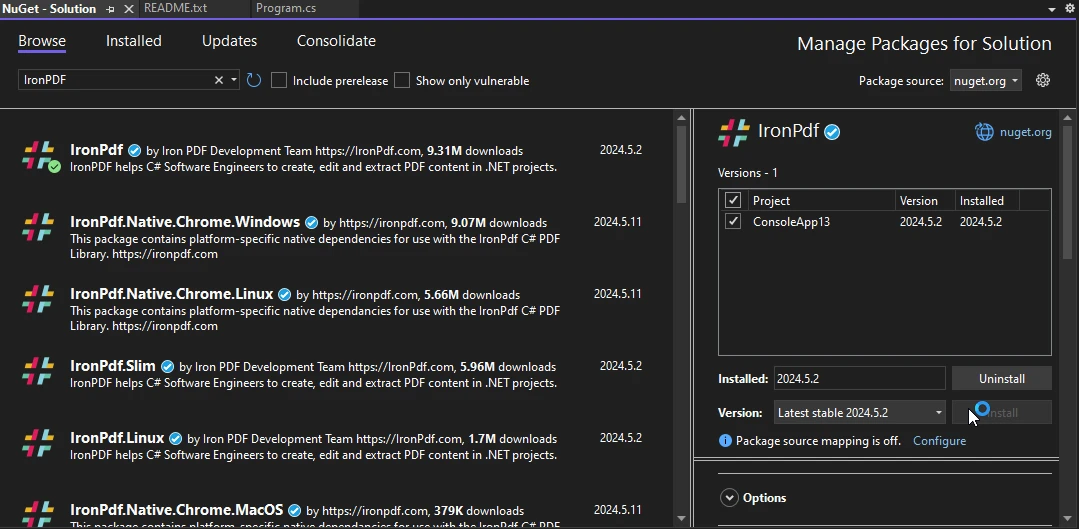
使用 NuGet Package Manager 安裝 IronPDF 的步驟:
1.在 Visual Studio 中開啟您的 ASP.NET 專案,並導航至"工具"功能表。 2.選擇 "NuGet Package Manager",然後按一下 "Manage NuGet Packages for Solution"。 3.在"瀏覽"標籤中,搜尋"IronPDF"並選擇所需版本。 按一下"安裝"即可將套件新增至您的專案。 IronPDF for .NET 及其相依性將會自動下載與整合,讓您可以在 ASP.NET 應用程式中無縫地開始運用其功能。
處理付款並產生發票
以下是一個完整的範例,示範如何使用 Stripe.Net API 建立新付款,並使用 IronPDF 產生 PDF 發票。
using Stripe;
using IronPdf;
using System;
using System.Collections.Generic;

public class PaymentService
{
    public void ProcessPaymentAndGenerateInvoice()
    {
        // Configure Stripe API key
        StripeConfiguration.ApiKey = "your_secret_key";

        // Create a PaymentIntent
        var paymentIntentOptions = new PaymentIntentCreateOptions
        {
            Amount = 2000, // Amount in cents
            Currency = "usd",
            PaymentMethodTypes = new List<string> { "card" },
        };
        var paymentIntentService = new PaymentIntentService();
        PaymentIntent paymentIntent = paymentIntentService.Create(paymentIntentOptions);

        // Assuming payment succeeded, create a PDF invoice
        GeneratePdfInvoice(paymentIntent);
    }

    private void GeneratePdfInvoice(PaymentIntent paymentIntent)
    {
        // Create HTML content for the invoice
        var htmlContent = $@"
        <html>
        <head>
            <title>Invoice</title>
        </head>
        <body>
            <h1>Invoice</h1>
            <p>Payment ID: {paymentIntent.Id}</p>
            <p>Amount: {paymentIntent.Amount / 100.0:C}</p>
            <p>Status: {paymentIntent.Status}</p>
        </body>
        </html>";

        // Convert the HTML content to a PDF document
        var renderer = new ChromePdfRenderer();
        var pdfDocument = renderer.RenderHtmlAsPdf(htmlContent);

        // Save the PDF document to a file
        var filePath = "invoice.pdf";
        pdfDocument.SaveAs(filePath);
        Console.WriteLine($"Invoice saved to {filePath}");
    }
}

class Program
{
    static void Main(string[] args)
    {
        var service = new PaymentService();
        service.ProcessPaymentAndGenerateInvoice();
    }
}
using Stripe;
using IronPdf;
using System;
using System.Collections.Generic;
public class PaymentService
{
public void ProcessPaymentAndGenerateInvoice()
{
// Configure Stripe API key
StripeConfiguration.ApiKey = "your_secret_key";
// Create a PaymentIntent
var paymentIntentOptions = new PaymentIntentCreateOptions
{
Amount = 2000, // Amount in cents
Currency = "usd",
PaymentMethodTypes = new List<string> { "card" },
};
var paymentIntentService = new PaymentIntentService();
PaymentIntent paymentIntent = paymentIntentService.Create(paymentIntentOptions);
// Assuming payment succeeded, create a PDF invoice
GeneratePdfInvoice(paymentIntent);
}
private void GeneratePdfInvoice(PaymentIntent paymentIntent)
{
// Create HTML content for the invoice
var htmlContent = $@"
<html>
<head>
<title>Invoice</title>
</head>
<body>
<h1>Invoice</h1>
<p>Payment ID: {paymentIntent.Id}</p>
<p>Amount: {paymentIntent.Amount / 100.0:C}</p>
<p>Status: {paymentIntent.Status}</p>
</body>
</html>";
// Convert the HTML content to a PDF document
var renderer = new ChromePdfRenderer();
var pdfDocument = renderer.RenderHtmlAsPdf(htmlContent);
// Save the PDF document to a file
var filePath = "invoice.pdf";
pdfDocument.SaveAs(filePath);
Console.WriteLine($"Invoice saved to {filePath}");
}
}
class Program
{
static void Main(string[] args)
{
var service = new PaymentService();
service.ProcessPaymentAndGenerateInvoice();
}
}Imports Stripe
Imports IronPdf
Imports System
Imports System.Collections.Generic
Public Class PaymentService
Public Sub ProcessPaymentAndGenerateInvoice()
' Configure Stripe API key
StripeConfiguration.ApiKey = "your_secret_key"
' Create a PaymentIntent
Dim paymentIntentOptions = New PaymentIntentCreateOptions With {
.Amount = 2000,
.Currency = "usd",
.PaymentMethodTypes = New List(Of String) From {"card"}
}
Dim paymentIntentService As New PaymentIntentService()
Dim paymentIntent As PaymentIntent = paymentIntentService.Create(paymentIntentOptions)
' Assuming payment succeeded, create a PDF invoice
GeneratePdfInvoice(paymentIntent)
End Sub
Private Sub GeneratePdfInvoice(ByVal paymentIntent As PaymentIntent)
' Create HTML content for the invoice
'INSTANT VB WARNING: Instant VB cannot determine whether both operands of this division are integer types - if they are then you should use the VB integer division operator:
Dim htmlContent = $"
<html>
<head>
<title>Invoice</title>
</head>
<body>
<h1>Invoice</h1>
<p>Payment ID: {paymentIntent.Id}</p>
<p>Amount: {paymentIntent.Amount / 100.0:C}</p>
<p>Status: {paymentIntent.Status}</p>
</body>
</html>"
' Convert the HTML content to a PDF document
Dim renderer = New ChromePdfRenderer()
Dim pdfDocument = renderer.RenderHtmlAsPdf(htmlContent)
' Save the PDF document to a file
Dim filePath = "invoice.pdf"
pdfDocument.SaveAs(filePath)
Console.WriteLine($"Invoice saved to {filePath}")
End Sub
End Class
Friend Class Program
Shared Sub Main(ByVal args() As String)
Dim service = New PaymentService()
service.ProcessPaymentAndGenerateInvoice()
End Sub
End Class輸出
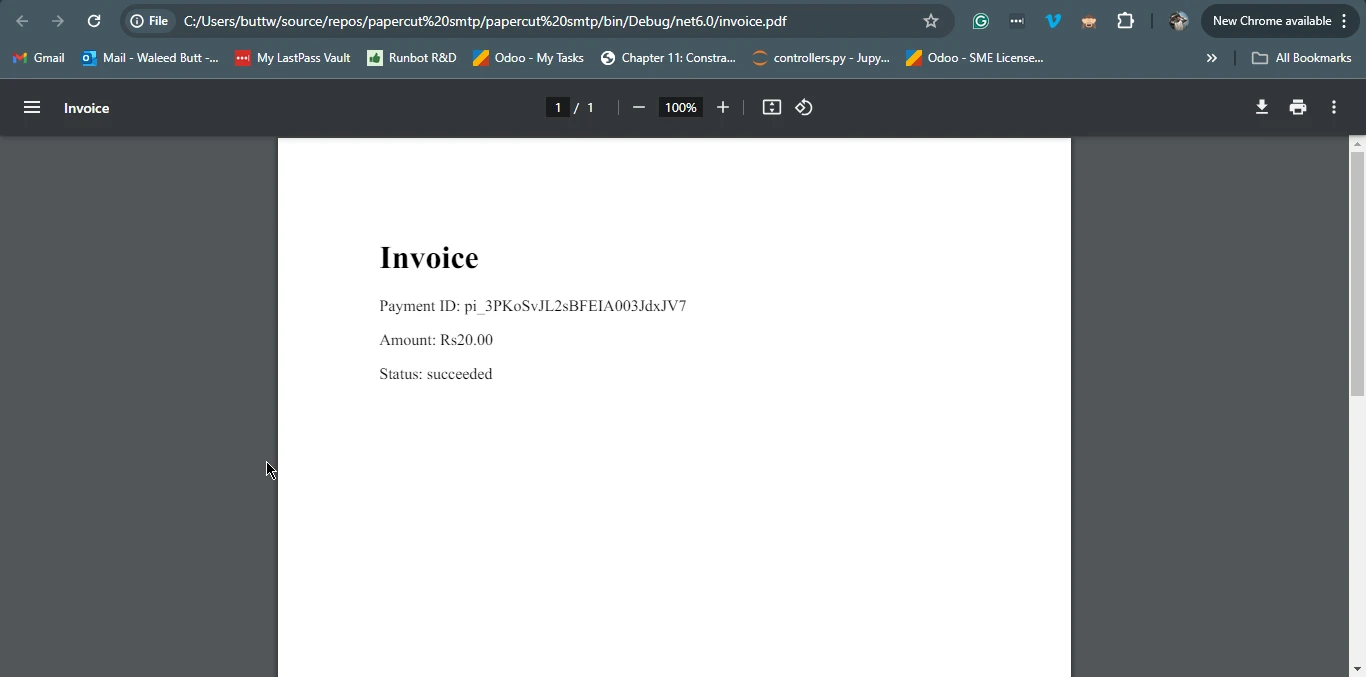
結論
Stripe.Net 是一個全面且強大的庫,可簡化將 Stripe 的支付處理整合到 .NET 應用程式中的過程。 其功能範圍從基本的交易處理到管理訂閱和糾紛,涵蓋了廣泛的付款相關需求。
IronPDF 與 Stripe.Net 相輔相成,使開發人員能夠產生、編輯和管理 PDF 文件。 這些函式庫一起提供了強大的解決方案,可在 .NET 應用程式中處理付款並產生相對應的文件。
透過利用 Stripe.Net 和 IronPDF 的功能,開發人員可以創建無縫且高效的工作流程,處理從支付處理到文件生成的一切,從而增強應用程式的整體功能和使用者體驗。
IronPDF 提供 免費試用 IronPDF 的機會,讓開發人員測試其豐富的功能。
IronPDF 提供客戶支援和更新,以及程式碼範例和詳盡的說明文件,協助使用者充分發揮。 若要進一步探討這個主題,請參考我們廣泛的教學 使用 IronPDF 將 HTML 轉換為 PDF 。
常見問題解答
我如何將支付處理集成到.NET應用程式中?
您可以使用`Stripe.Net`庫將支付處理集成到.NET應用程式中,該庫允許您在應用程式中管理支付、創建客戶和處理賬單。
設置Stripe.Net在一個新的Visual Studio專案中涉及哪些步驟?
要在一個新的Visual Studio專案中設置Stripe.Net,首先創建一個新專案,通過NuGet安裝`Stripe.Net`包,並配置您的Stripe API金鑰以驗證API請求。
我如何在.NET應用程式中處理訂閱管理?
Stripe.Net提供了內建的方法來管理訂閱,允許您通過API直接創建、更新和取消訂閱。
在Stripe.Net中保護API金鑰的最佳做法是什麼?
在Stripe.Net中保護API金鑰的最佳做法包括使用環境變數或配置文件安全儲存金鑰,並確保它們不會被硬編碼在源代碼中。
在.NET應用程式中處理支付後我如何生成文檔或發票?
使用Stripe.Net處理支付後,您可以使用IronPDF將HTML內容轉換為PDF文件,以專業的輸出形式滿足您的賬單需求。
使用C# PDF庫與Stripe.Net有哪些好處?
使用像IronPDF這樣的C# PDF庫與Stripe.Net能讓您輕鬆創建、管理和自定義PDF文檔,如發票,增強您的.NET應用程式的功能。
我如何在Stripe.Net中創建PaymentIntent?
要在Stripe.Net中創建PaymentIntent,請使用`PaymentIntentService`類與`PaymentIntentCreateOptions`指定支付詳情並跟蹤支付生命周期。
在整合Stripe.Net時如何解決常見問題?
整合Stripe.Net時的常見問題可以通過檢查API金鑰配置、確保正確使用Stripe庫方法和查看錯誤信息以獲取具體指導來解決。
Stripe.Net提供了一些什麼高級功能?
Stripe.Net提供的高級功能包括處理支付爭議、管理經常性賬單和實施安全支付處理及強大的錯誤處理。
在.NET應用程式中如何將HTML內容轉換為PDF?
您可以使用IronPDF的方法,例如RenderHtmlAsPdf將HTML字符串或RenderHtmlFileAsPdf將HTML文件轉換為PDF。


















 免費開始使用
 免費開始使用
 預約免費現場演示





 無需信用卡或創建帳戶










