跳過到頁腳內容
使用IRONPDF

如何在C#中不使用庫將HTML轉換為PDF

When it comes to converting HTML to PDF in C#, developers might consider using native .NET features without relying on external libraries. While this approach can be viable in certain scenarios, it comes with its own set of advantages and challenges. This article will explore the process, the pros and cons, and discuss why a library like IronPDF might be a better option.

How It Works

Using built-in .NET tools, you can achieve HTML to PDF conversion by rendering the HTML content and printing it using the WebBrowser control and the PrintDocument class. Here's a simplified workflow:

  1. Write the HTML content to a temporary file.
  2. Load the HTML into a WebBrowser control for rendering.
  3. Use the PrintDocument class to create a print job that outputs the rendered content.

While this approach avoids external dependencies, it involves working with low-level components and manually defining printing logic.

If you want to convert HTML to PDF in C# without using any external libraries, you can use the built-in .NET features like System.IO and System.Drawing.Printing to render the HTML and then create a PDF. Below is a basic example to help you get started:

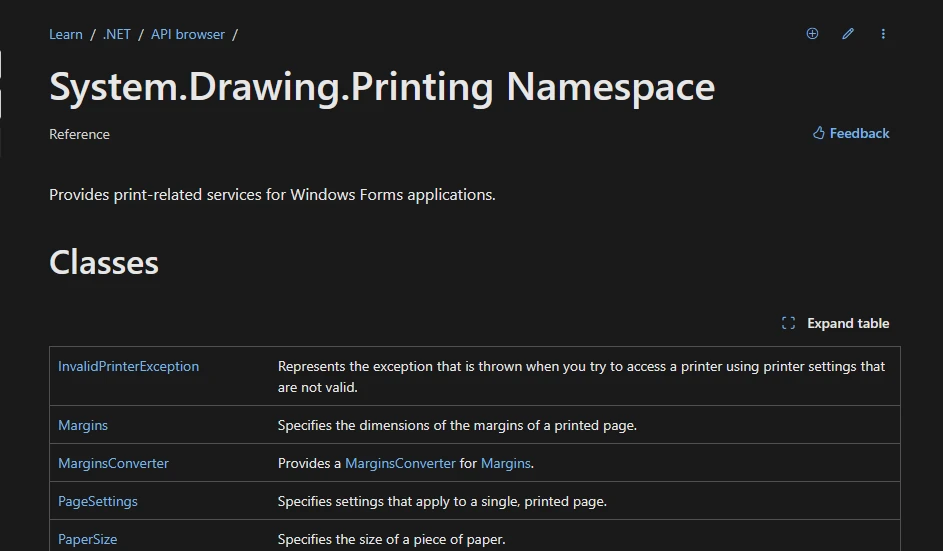
How to convert HTML to PDF C# without library

How to Convert HTML to PDF C# Without Library: Figure 1

using System;
using System.IO;
using System.Windows.Forms; // You need to add a reference to System.Windows.Forms
using System.Drawing.Printing;

class Program
{
    [STAThread] // Required for using WebBrowser control
    static void Main()
    {
        // HTML content to be converted
        string htmlContent = "<html><body><h1>Hello, World!</h1></body></html>";

        // Write HTML content to a temporary file
        string tempFilePath = Path.Combine(Path.GetTempPath(), "temp.html");
        File.WriteAllText(tempFilePath, htmlContent);

        // Initialize a WebBrowser to render HTML
        WebBrowser webBrowser = new WebBrowser();
        webBrowser.DocumentCompleted += (sender, e) => 
        {
            // Create a PrintDocument for the printing task
            PrintDocument printDoc = new PrintDocument();
            printDoc.PrintPage += (s, args) =>
            {
                // Render the HTML content onto the Graphics object of PrintPageEventArgs
                args.Graphics.DrawString(htmlContent, new Font("Arial", 12), Brushes.Black, new PointF(100, 100));
            };

            // Use a standard print controller for silent printing
            printDoc.PrintController = new StandardPrintController(); 

            // Trigger the printing process
            printDoc.Print(); 

            // Exit the application once printing is complete
            Application.ExitThread(); 
        };

        // Load the HTML file into the WebBrowser control
        webBrowser.Url = new Uri(tempFilePath);

        // Run the application, which processes events like HTML rendering
        Application.Run();
    }
}
using System;
using System.IO;
using System.Windows.Forms; // You need to add a reference to System.Windows.Forms
using System.Drawing.Printing;

class Program
{
    [STAThread] // Required for using WebBrowser control
    static void Main()
    {
        // HTML content to be converted
        string htmlContent = "<html><body><h1>Hello, World!</h1></body></html>";

        // Write HTML content to a temporary file
        string tempFilePath = Path.Combine(Path.GetTempPath(), "temp.html");
        File.WriteAllText(tempFilePath, htmlContent);

        // Initialize a WebBrowser to render HTML
        WebBrowser webBrowser = new WebBrowser();
        webBrowser.DocumentCompleted += (sender, e) => 
        {
            // Create a PrintDocument for the printing task
            PrintDocument printDoc = new PrintDocument();
            printDoc.PrintPage += (s, args) =>
            {
                // Render the HTML content onto the Graphics object of PrintPageEventArgs
                args.Graphics.DrawString(htmlContent, new Font("Arial", 12), Brushes.Black, new PointF(100, 100));
            };

            // Use a standard print controller for silent printing
            printDoc.PrintController = new StandardPrintController(); 

            // Trigger the printing process
            printDoc.Print(); 

            // Exit the application once printing is complete
            Application.ExitThread(); 
        };

        // Load the HTML file into the WebBrowser control
        webBrowser.Url = new Uri(tempFilePath);

        // Run the application, which processes events like HTML rendering
        Application.Run();
    }
}
Imports System
Imports System.IO
Imports System.Windows.Forms ' You need to add a reference to System.Windows.Forms
Imports System.Drawing.Printing

Friend Class Program
	<STAThread>
	Shared Sub Main()
		' HTML content to be converted
		Dim htmlContent As String = "<html><body><h1>Hello, World!</h1></body></html>"

		' Write HTML content to a temporary file
		Dim tempFilePath As String = Path.Combine(Path.GetTempPath(), "temp.html")
		File.WriteAllText(tempFilePath, htmlContent)

		' Initialize a WebBrowser to render HTML
		Dim webBrowser As New WebBrowser()
		AddHandler webBrowser.DocumentCompleted, Sub(sender, e)
			' Create a PrintDocument for the printing task
			Dim printDoc As New PrintDocument()
			AddHandler printDoc.PrintPage, Sub(s, args)
				' Render the HTML content onto the Graphics object of PrintPageEventArgs
				args.Graphics.DrawString(htmlContent, New Font("Arial", 12), Brushes.Black, New PointF(100, 100))
			End Sub

			' Use a standard print controller for silent printing
			printDoc.PrintController = New StandardPrintController()

			' Trigger the printing process
			printDoc.Print()

			' Exit the application once printing is complete
			Application.ExitThread()
		End Sub

		' Load the HTML file into the WebBrowser control
		webBrowser.Url = New Uri(tempFilePath)

		' Run the application, which processes events like HTML rendering
		Application.Run()
	End Sub
End Class
$vbLabelText   $csharpLabel

Code Explanation

  1. The WebBrowser control is used to render the HTML.
  2. The PrintDocument class is used to define the printing behavior.
  3. This example doesn't directly create a PDF; you would need to extend it to integrate raw PDF creation logic, such as drawing text and shapes manually or work with streams.

This approach is limited and can become complex for large or styled HTML documents. If your use case allows, using a library like IronPDF is usually much more efficient and feature-rich.

Pros and Cons of Using Built-In .NET Features

Pros

  • No External Dependencies: Avoiding external libraries can reduce the complexity of managing third-party dependencies in your project.
  • Free of Cost: Since this method uses only native .NET components, there are no licensing fees or additional costs.
  • Fine-Tuned Control: You have complete control over how the content is rendered and printed, which allows for custom handling.

Cons

  • Limited Features: The built-in .NET tools lack the capabilities to accurately render complex HTML, CSS, or JavaScript. Advanced layouts, responsive designs, or dynamic content may not be supported.
  • Time-Consuming Implementation: You need to write custom code to handle rendering, pagination, and PDF creation, which could lead to higher development costs.
  • Low Scalability: For large-scale or high-performance applications, this approach may be inefficient and prone to bottlenecks.
  • No Native PDF Support: The workflow does not directly create PDFs; you would need to implement custom logic to generate a PDF file from the print output.

Introduction to IronPDF

How to Convert HTML to PDF C# Without Library: Figure 2

IronPDF is a .NET library that allows developers to convert HTML to PDF with ease. It supports a wide range of features, including CSS, JavaScript, and even embedded images. With IronPDF, you can create PDFs that look exactly like your HTML web pages, ensuring a seamless transition between formats. This library is particularly useful for web applications that need to generate dynamic PDF documents on the fly.

IronPDF allows developers to seamlessly integrate PDF functionality into .NET applications without needing to manually manage PDF file structures. IronPDF leverages the Chrome-based rendering engine to convert HTML pages (including complex CSS, JavaScript, and images) into well-structured PDF documents. It can be used for generating reports, invoices, eBooks, or any type of document that needs to be presented in PDF format.

IronPDF is versatile, offering functionality that not only renders PDFs but also provides a wide range of PDF manipulation options like editing, form handling, encryption, and more.

Key Features of IronPDF

  1. HTML to PDF Conversion

    • HTML Rendering: IronPDF can convert HTML file format documents or web pages (including HTML with CSS, images, and JavaScript) directly into a PDF document. It can also convert using an HTML template. This is ideal for generating PDFs from dynamic web content.

    • Support for Modern HTML/CSS: IronPDF handles modern HTML5, CSS3, and JavaScript, ensuring that your web-based content is rendered accurately as a PDF, preserving the layout, fonts, and interactive elements.

    • Advanced Rendering: It uses Chrome’s rendering engine (via Chromium) for accurate, high-quality PDF generation, making it more reliable than many other HTML-to-PDF libraries.

    • Website URL to PDF: IronPDF can take a string URL of the website as input and convert it to PDF.
  2. Custom Headers and Footers

    • IronPDF allows developers to add custom headers and footers to PDF documents, which can include dynamic content such as page numbers, document title, or custom text.

    • Headers and footers can be added to individual pages, or as consistent elements across the entire document.
  3. Support for JavaScript in PDFs

    • IronPDF enables JavaScript execution within the HTML content before PDF generation. This allows for dynamic content rendering, such as form calculations or interactivity in the generated PDFs.

    • JavaScript is useful when creating PDFs from dynamic web pages or generating reports that require client-side logic.
  4. Edit Existing PDFs

    • IronPDF provides the ability to edit existing PDFs. You can modify text, images, and add annotations to existing PDF files. This feature is useful for watermarking documents, adding signatures, or updating content within PDF files.

    • Text extraction and modification allow you to manipulate content within a PDF document programmatically.
  5. Merge and Split PDFs

    • IronPDF allows you to merge multiple PDF files into a single document or split a large PDF into smaller files. This is ideal for workflows where documents need to be combined or broken down into more manageable parts.
  6. Support for Interactive Forms

    • You can create, fill, and manipulate PDF forms using IronPDF. It provides full support for interactive forms (like text fields, checkboxes, and radio buttons) and allows you to pre-fill forms with data.

    • IronPDF also allows for extracting form data from existing PDFs, making it easy to read and process the form data programmatically.
  7. Page Manipulation

    • IronPDF offers various methods for manipulating individual pages within a PDF document, such as rotating pages, deleting pages, or reordering them. This helps in customizing the structure of the final document.

    • You can also add new pages to an existing PDF, or remove unwanted pages.
  8. Security and Encryption

    • IronPDF allows you to apply password protection and encryption to PDFs, ensuring that your documents are secure. You can set user permissions, such as preventing printing, copying, or editing the PDF.

    • Digital signatures can also be added to PDFs to verify authenticity, providing a layer of security for sensitive documents.
  9. Watermarking and Branding

    • Adding watermarks to PDF documents is easy with IronPDF. You can overlay text or images as watermarks onto pages, providing protection against unauthorized copying or distributing of your documents.

    • This feature is often used for branding, where the logo or text needs to appear consistently across all pages of a document.
  10. Text and Image Extraction

    • IronPDF allows for text and image extraction from PDF documents, enabling developers to extract data for processing or reuse.

    • This is helpful for scenarios where you need to analyze the contents of a PDF, extract information from forms, or retrieve images for further use.
  11. Unicode and Multi-language Support

    • IronPDF has robust Unicode support, meaning it can handle international characters and fonts, making it ideal for generating PDFs in multiple languages.

    • It supports languages such as Chinese, Arabic, Russian, and more, allowing for the creation of multilingual PDF documents.
  12. Optimized for Performance

    • IronPDF is optimized for performance, capable of handling large PDF documents and high volumes of requests. The library ensures that even when working with large datasets or images, PDF generation remains fast and efficient.
  13. API and Developer-Friendly Tools

    • IronPDF comes with a comprehensive and easy-to-use API. Developers can quickly get started by using simple method calls to perform complex tasks.

    • The API is well-documented, making it easy to integrate IronPDF into any C# or .NET application.
  14. Cross-Platform Support

    • IronPDF is cross-platform compatible, meaning it can be used on both Windows and Linux environments, allowing you to generate and manipulate PDFs across different operating systems.

How to convert HTML to PDF using IronPDF

using IronPdf;

class Program
{
    static void Main()
    {
        // Specify license key
        License.LicenseKey = "Your Key";

        // Create a new ChromePdfRenderer object
        var Renderer = new ChromePdfRenderer();

        // Define the HTML string to be converted
        string htmlContent = "<html><body><h1>IronPDF: Easily Convert HTML to PDF</h1></body></html>";

        // Convert the HTML string to a PDF document
        var document = Renderer.RenderHtmlAsPdf(htmlContent);

        // Save the PDF document to a file
        document.SaveAs("html2Pdf.pdf");
    }
}
using IronPdf;

class Program
{
    static void Main()
    {
        // Specify license key
        License.LicenseKey = "Your Key";

        // Create a new ChromePdfRenderer object
        var Renderer = new ChromePdfRenderer();

        // Define the HTML string to be converted
        string htmlContent = "<html><body><h1>IronPDF: Easily Convert HTML to PDF</h1></body></html>";

        // Convert the HTML string to a PDF document
        var document = Renderer.RenderHtmlAsPdf(htmlContent);

        // Save the PDF document to a file
        document.SaveAs("html2Pdf.pdf");
    }
}
Imports IronPdf

Friend Class Program
	Shared Sub Main()
		' Specify license key
		License.LicenseKey = "Your Key"

		' Create a new ChromePdfRenderer object
		Dim Renderer = New ChromePdfRenderer()

		' Define the HTML string to be converted
		Dim htmlContent As String = "<html><body><h1>IronPDF: Easily Convert HTML to PDF</h1></body></html>"

		' Convert the HTML string to a PDF document
		Dim document = Renderer.RenderHtmlAsPdf(htmlContent)

		' Save the PDF document to a file
		document.SaveAs("html2Pdf.pdf")
	End Sub
End Class
$vbLabelText   $csharpLabel

Code Snippet Explanation

1. License Key Setup

The program starts by setting the IronPDF license key, which is required to unlock the full functionality of the library.

2. Creating the Renderer

An instance of ChromePdfRenderer is initialized. This component is responsible for converting HTML content into a PDF document, acting as a bridge between the raw HTML and the final output.

3. Defining HTML Content

A string variable, htmlContent, is created to store the HTML structure that will be converted into a PDF. In this example, it contains a simple heading.

4. Converting HTML to PDF

The RenderHtmlAsPdf() method is called on the ChromePdfRenderer instance, passing the HTML string as input. This function processes the content and transforms it into a PDF document.

5. Saving the PDF

Finally, the generated PDF is saved to a file named "html2Pdf.pdf" using the SaveAs() method, storing it on the disk for future access.

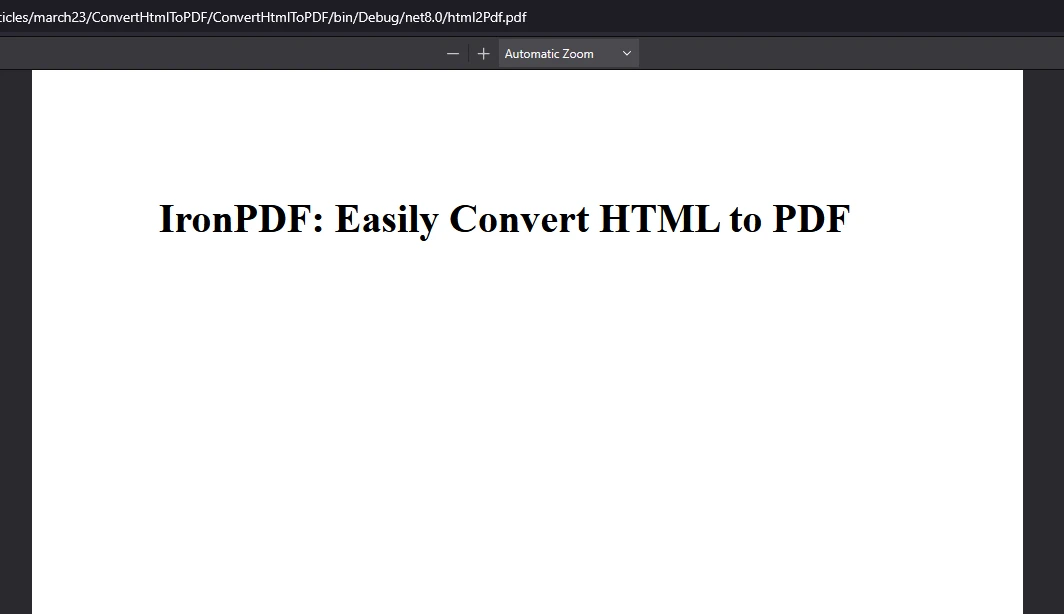
輸出

How to Convert HTML to PDF C# Without Library: Figure 3

License Information (Trial Available)

IronPDF requires a valid license key for full functionality. You can obtain a trial license from the official website. Before using the IronPDF library, set the license key as follows:

IronPdf.License.LicenseKey = "your key";
IronPdf.License.LicenseKey = "your key"
$vbLabelText   $csharpLabel

This ensures that the library operates without limitations.

結論

While using built-in .NET features for HTML to PDF conversion might be a feasible solution for simple use cases, it often requires significant effort and lacks modern capabilities. In contrast, libraries like IronPDF offer robust functionality, faster development, and support for advanced HTML rendering, making them the go-to choice for most developers. The decision ultimately depends on your project requirements, budget, and development priorities.

常見問題解答

使用 .NET 原生功能進行 HTML 轉 PDF 轉換有哪些優點?

使用 .NET 原生功能可以避免外部依賴和額外成本,從而對渲染和列印過程進行高度控制。

開發者在不使用函式庫的情況下,用 C# 將 HTML 轉換為 PDF 時可能會面臨哪些挑戰?

挑戰包括內建方法的功能有限、處理樣式化或大型 HTML 文件的複雜性,以及在建立 PDF 時需要額外的自訂邏輯。

開發者如何在不使用第三方函式庫的情況下,使用 .NET 將 HTML 轉換為 PDF?

開發人員可以將 HTML 內容寫入臨時文件,使用 WebBrowser 控制項渲染它,並使用 PrintDocument 類別建立用於 PDF 轉換的列印作業。

.NET 函式庫有哪些特性使其成為 HTML 轉 PDF 的更佳選擇?

像 IronPDF 這樣的 .NET 庫為現代 HTML、CSS、JavaScript 和圖像提供了廣泛的支持,以及 PDF 編輯、合併、分割、表單處理和安全功能。

為什麼 IronPDF 可能比使用原生 .NET 方法更受歡迎?

IronPDF 透過 JavaScript 執行、自訂標頭以及高效處理動態和複雜的 Web 內容等功能簡化了轉換過程,提供了一個強大且可擴展的解決方案。

IronPDF 能否處理 PDF 中的互動式表單和複雜版面?

是的,IronPDF 支援互動式表單,並且能夠準確地渲染複雜的佈局,因此適合從 Web 內容建立專業品質的 PDF。

IronPDF 是否針對大量 PDF 產生進行了最佳化?

是的,IronPDF 旨在有效處理大型 PDF 文件和大量請求,使其成為大規模應用的理想選擇。

IronPDF是否提供跨平台支援?

IronPDF 與包括 Windows 和 Linux 在內的多種作業系統相容,為各種開發環境提供了靈活性。

IronPDF 如何確保 PDF 文件的安全性?

IronPDF 提供密碼保護、加密、使用者權限和數位簽章等選項,以保護 PDF 文件的安全。

要使用 IronPDF 的所有功能,需要哪些條件?

要解鎖 IronPDF 的全部功能,需要一個有效的許可證密鑰。開發者可以從官方網站取得試用許可證。

IronPDF 是否支援 .NET 10?在 .NET 10 專案中使用它時,有哪些特殊注意事項?

是的,IronPDF 完全相容於 .NET 10——它以原生模式支援 .NET 10(及更早版本),包括其所有現代 API,無需特殊配置或變通方法。您可以透過 NuGet 安裝它,並像在早期 .NET 版本中一樣使用基於 Chrome 的渲染、JS 執行和響應式 CSS 等功能。

使用 .NET 原生功能將 HTML 轉換為 PDF 時,以 .NET 10 為目標平台與以更早的 .NET 版本為目標平台有何不同?

面向 .NET 10 通常能帶來更好的效能、更完善的 API 和更可預測的行為——尤其是在桌面或 Windows Forms 環境中。然而,手動渲染(例如使用 WebBrowser 和 PrintDocument)的限制依然存在。與針對 .NET 10 最佳化的 IronPDF 不同,原生方法缺乏對現代 HTML/CSS/JS 的支持,需要更多自訂工作才能處理各種內容。

Curtis Chau
技術作家

Curtis Chau 擁有卡爾頓大學計算機科學學士學位,專注於前端開發,擅長於 Node.js、TypeScript、JavaScript 和 React。Curtis 熱衷於創建直觀且美觀的用戶界面,喜歡使用現代框架並打造結構良好、視覺吸引人的手冊。

除了開發之外,Curtis 對物聯網 (IoT) 有著濃厚的興趣,探索將硬體和軟體結合的創新方式。在閒暇時間,他喜愛遊戲並構建 Discord 機器人,結合科技與創意的樂趣。