


如何在C#中保存PDF 文件(初學者教程)

在PDF上蓋章文字和圖像涉及將額外內容疊加到現有的PDF文件上。 此內容通常被稱為"章",可以是文字、圖像或兩者的組合。 通常,使用者使用章在PDF中新增資訊、標籤、浮水印或註釋。
- 文字章: 文字章是向PDF中新增描述性文字的解決方案。 無論是您在增強現有文件、將文字放置在同一頁面上,還是整合來自其他PDF文件的細節,這個章允許您自訂檔案的描述和資訊。
- 圖像章: 圖像章是您在PDF中放置圖像的首選工具。 無論是用於文件描述的標誌、現有文件的插圖,還是用於同一頁面或其他PDF文件的視覺元素,這個章確保圖像的無縫整合。
- Html章: Html章將自訂提升到新層次,允許您在PDF中蓋HTML內容的章。 這包括建立動態元素,如互動性內容、描述和文件規格,提供超越傳統PDF自訂的靈活性。
- 條碼章以蓋條碼: 條碼章簡化了在PDF中新增條碼的過程。 無論是在簽署文件、臨時文件或文件附件中用於追蹤目的,這個章確保條碼在PDF中高效整合。
- 條碼章以蓋QR碼: 條碼章還專門用於在PDF中放置QR碼。 非常適合建立互動式內容或文件附件,這個章允許您在同一頁面或其他PDF文件中嵌入QR碼,確保輕鬆存取其他資訊。
這些專門的章類別方便使用者輕鬆增強PDF文件,從基本文字到複雜的HTML設計和動態條碼。 這篇文章將探討三個主要章的功能:使用文字章新增文字、使用圖像章放置圖像,以及與Html章整合HTML。 HTML章特別強大,因為它可以利用所有HTML功能,配合CSS樣式,為蓋章過程增加了一層多樣性。
如何在PDF上蓋章文字和圖像
- 下載用於蓋章文字和圖像的C#程式庫。
- 建立並配置所需的章類。
- 使用'ApplyStamp'方法將章應用於PDF。
- 使用'ApplyMultipleStamps'方法應用多個章。
- 指定特定頁面以應用章。
在PDF中配置和應用文字章
首先,從文字章類建立一個物件來支援在PDF中蓋章文字。 這個類的物件包含所有配置以指定文字章的呈現方式。 將textStamper物件傳遞給'ApplyStamp'方法。 Text屬性定義要在PDF上顯示的內容。
此外,可以指定字型家族、字型樣式以及章的位置。這種自訂可延伸到互動元素、文件描述和同一或其他PDF的現有內容。 然後,以實際的檔名匯出PDF。
完成配置後,以指定檔名匯出輸出PDF檔,封裝所有設定,為您的文件提供專業的觸感。
using IronPdf;
using IronPdf.Editing;

// Initialize the PDF renderer
ChromePdfRenderer renderer = new ChromePdfRenderer();

// Create a PDF document from HTML content
PdfDocument pdf = renderer.RenderHtmlAsPdf("<h1>Example HTML Document!</h1>");

// Create a TextStamper object and configure its properties
TextStamper textStamper = new TextStamper()
{
    Text = "Text Stamper!",
    FontFamily = "Bungee Spice",
    UseGoogleFont = true,
    FontSize = 30,
    IsBold = true,
    IsItalic = true,
    VerticalAlignment = VerticalAlignment.Top,
};

// Apply the text stamp to the PDF document
pdf.ApplyStamp(textStamper);

// Save the modified PDF document
pdf.SaveAs("stampText.pdf");
using IronPdf;
using IronPdf.Editing;
// Initialize the PDF renderer
ChromePdfRenderer renderer = new ChromePdfRenderer();
// Create a PDF document from HTML content
PdfDocument pdf = renderer.RenderHtmlAsPdf("<h1>Example HTML Document!</h1>");
// Create a TextStamper object and configure its properties
TextStamper textStamper = new TextStamper()
{
Text = "Text Stamper!",
FontFamily = "Bungee Spice",
UseGoogleFont = true,
FontSize = 30,
IsBold = true,
IsItalic = true,
VerticalAlignment = VerticalAlignment.Top,
};
// Apply the text stamp to the PDF document
pdf.ApplyStamp(textStamper);
// Save the modified PDF document
pdf.SaveAs("stampText.pdf");Imports IronPdf
Imports IronPdf.Editing
' Initialize the PDF renderer
Private renderer As New ChromePdfRenderer()
' Create a PDF document from HTML content
Private pdf As PdfDocument = renderer.RenderHtmlAsPdf("<h1>Example HTML Document!</h1>")
' Create a TextStamper object and configure its properties
Private textStamper As New TextStamper() With {
.Text = "Text Stamper!",
.FontFamily = "Bungee Spice",
.UseGoogleFont = True,
.FontSize = 30,
.IsBold = True,
.IsItalic = True,
.VerticalAlignment = VerticalAlignment.Top
}
' Apply the text stamp to the PDF document
pdf.ApplyStamp(textStamper)
' Save the modified PDF document
pdf.SaveAs("stampText.pdf")在PDF中配置和應用圖像章
類似於文字章,從ImageStamper類建立一個物件,然後使用ImageStamper Apply方法將圖像應用於文件。 該方法的第二個參數也可以容納一個頁面索引,使章應用於單個或多個頁面。 這個特定的實例可以指示系統將圖像應用為章,特別是在PDF的第一頁上。
所有頁面索引均遵循零基索引。
using IronPdf;
using IronPdf.Editing;

// Initialize the PDF renderer
ChromePdfRenderer renderer = new ChromePdfRenderer();

// Create a PDF document from HTML content
PdfDocument pdf = renderer.RenderHtmlAsPdf("<h1>Example HTML Document!</h1>");

// Create an ImageStamper object with the image URL
ImageStamper imageStamper = new ImageStamper(new Uri("https://ironpdf.com/img/svgs/iron-pdf-logo.svg"))
{
    VerticalAlignment = VerticalAlignment.Top,
};

// Apply the image stamp to the first page of the PDF document
pdf.ApplyStamp(imageStamper, 0);

// Save the modified PDF document
pdf.SaveAs("stampImage.pdf");
using IronPdf;
using IronPdf.Editing;
// Initialize the PDF renderer
ChromePdfRenderer renderer = new ChromePdfRenderer();
// Create a PDF document from HTML content
PdfDocument pdf = renderer.RenderHtmlAsPdf("<h1>Example HTML Document!</h1>");
// Create an ImageStamper object with the image URL
ImageStamper imageStamper = new ImageStamper(new Uri("https://ironpdf.com/img/svgs/iron-pdf-logo.svg"))
{
VerticalAlignment = VerticalAlignment.Top,
};
// Apply the image stamp to the first page of the PDF document
pdf.ApplyStamp(imageStamper, 0);
// Save the modified PDF document
pdf.SaveAs("stampImage.pdf");Imports IronPdf
Imports IronPdf.Editing
' Initialize the PDF renderer
Private renderer As New ChromePdfRenderer()
' Create a PDF document from HTML content
Private pdf As PdfDocument = renderer.RenderHtmlAsPdf("<h1>Example HTML Document!</h1>")
' Create an ImageStamper object with the image URL
Private imageStamper As New ImageStamper(New Uri("https://ironpdf.com/img/svgs/iron-pdf-logo.svg")) With {.VerticalAlignment = VerticalAlignment.Top}
' Apply the image stamp to the first page of the PDF document
pdf.ApplyStamp(imageStamper, 0)
' Save the modified PDF document
pdf.SaveAs("stampImage.pdf")應用多個章
要向一個文件新增多個章,請在IronPDF中使用應用多個章的方法,傳遞一個章陣列。 它允許您在一次操作中新增各種元素,如文字、圖像或標籤。 在此範例中,建立了兩個不同文字和排列的文字章,pdf.ApplyMultipleStamps 將兩個章應用於PDF,最終文件則標保存為multipleStamps.pdf。 這個方法簡化了新增各種章的過程,提供了一種便捷的方式來使用多個元素增強您的PDF,無論是在同一頁面上、另一個PDF中,甚至是在空白頁面上。
using IronPdf;
using IronPdf.Editing;

// Initialize the PDF renderer
ChromePdfRenderer renderer = new ChromePdfRenderer();

// Create a PDF document from HTML content
PdfDocument pdf = renderer.RenderHtmlAsPdf("<h1>Example HTML Document!</h1>");

// Create two TextStamper objects with different configurations
TextStamper stamper1 = new TextStamper()
{
    Text = "Text stamp 1",
    VerticalAlignment = VerticalAlignment.Top,
    HorizontalAlignment = HorizontalAlignment.Left,
};

TextStamper stamper2 = new TextStamper()
{
    Text = "Text stamp 2",
    VerticalAlignment = VerticalAlignment.Top,
    HorizontalAlignment = HorizontalAlignment.Right,
};

// Add the stampers to an array
Stamper[] stampersToApply = { stamper1, stamper2 };

// Apply multiple stamps to the PDF document
pdf.ApplyMultipleStamps(stampersToApply);

// Save the modified PDF document
pdf.SaveAs("multipleStamps.pdf");
using IronPdf;
using IronPdf.Editing;
// Initialize the PDF renderer
ChromePdfRenderer renderer = new ChromePdfRenderer();
// Create a PDF document from HTML content
PdfDocument pdf = renderer.RenderHtmlAsPdf("<h1>Example HTML Document!</h1>");
// Create two TextStamper objects with different configurations
TextStamper stamper1 = new TextStamper()
{
Text = "Text stamp 1",
VerticalAlignment = VerticalAlignment.Top,
HorizontalAlignment = HorizontalAlignment.Left,
};
TextStamper stamper2 = new TextStamper()
{
Text = "Text stamp 2",
VerticalAlignment = VerticalAlignment.Top,
HorizontalAlignment = HorizontalAlignment.Right,
};
// Add the stampers to an array
Stamper[] stampersToApply = { stamper1, stamper2 };
// Apply multiple stamps to the PDF document
pdf.ApplyMultipleStamps(stampersToApply);
// Save the modified PDF document
pdf.SaveAs("multipleStamps.pdf");Imports IronPdf
Imports IronPdf.Editing
' Initialize the PDF renderer
Private renderer As New ChromePdfRenderer()
' Create a PDF document from HTML content
Private pdf As PdfDocument = renderer.RenderHtmlAsPdf("<h1>Example HTML Document!</h1>")
' Create two TextStamper objects with different configurations
Private stamper1 As New TextStamper() With {
.Text = "Text stamp 1",
.VerticalAlignment = VerticalAlignment.Top,
.HorizontalAlignment = HorizontalAlignment.Left
}
Private stamper2 As New TextStamper() With {
.Text = "Text stamp 2",
.VerticalAlignment = VerticalAlignment.Top,
.HorizontalAlignment = HorizontalAlignment.Right
}
' Add the stampers to an array
Private stampersToApply() As Stamper = { stamper1, stamper2 }
' Apply multiple stamps to the PDF document
pdf.ApplyMultipleStamps(stampersToApply)
' Save the modified PDF document
pdf.SaveAs("multipleStamps.pdf")在PDF文件上指定章位置
要定義章的位置,請使用一個3x3網格,具有三個水平列和三個垂直行。 您可以選擇水平對齊:左、中、右和垂直對齊:上、中、下。 您可以為每個位置調整水平和垂直偏移,以增加精確性。 請參考下方的圖像以獲取此概念的視覺呈現。
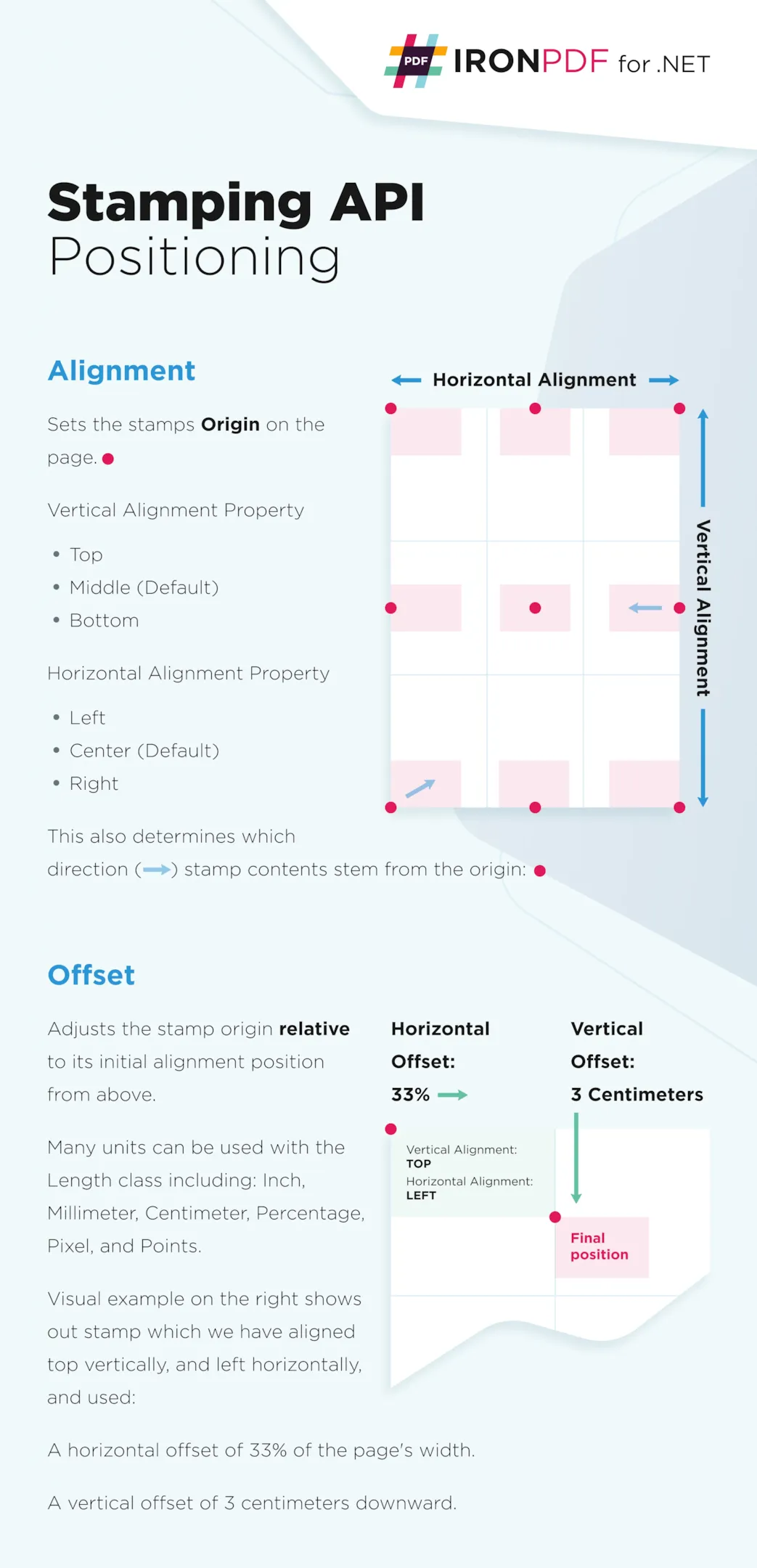 PDF章的位置
- 水平對齊:章相對於頁面的水平對齊。
- 垂直對齊:章相對於頁面的垂直對齊。
- 水平偏移:水平偏移。 預設值為0,預設單位是IronPdf.Editing.MeasurementUnit.Percentage。 正值表示偏移向右,負值表示偏移向左。
- 垂直偏移:垂直偏移。 預設值為0,預設單位是IronPdf.Editing.MeasurementUnit.Percentage。 正值表示偏移向下,負值表示偏移向上。
要指定VerticalOffset屬性,請實例化指定長度類以進行詳細測量。 Length 的預設測量單位是百分比,但它也可以使用如英寸、毫米、厘米、像素和點等測量單位。
using IronPdf.Editing;

// Create an ImageStamper object with an image URL
ImageStamper imageStamper = new ImageStamper(new Uri("https://ironpdf.com/img/svgs/iron-pdf-logo.svg"))
{
    HorizontalAlignment = HorizontalAlignment.Center,
    VerticalAlignment = VerticalAlignment.Top,

    // Specify offsets for precise positioning
    HorizontalOffset = new Length(10), // 10% offset to the right
    VerticalOffset = new Length(10), // 10% offset downward
};
using IronPdf.Editing;
// Create an ImageStamper object with an image URL
ImageStamper imageStamper = new ImageStamper(new Uri("https://ironpdf.com/img/svgs/iron-pdf-logo.svg"))
{
HorizontalAlignment = HorizontalAlignment.Center,
VerticalAlignment = VerticalAlignment.Top,
// Specify offsets for precise positioning
HorizontalOffset = new Length(10), // 10% offset to the right
VerticalOffset = new Length(10), // 10% offset downward
};Imports IronPdf.Editing
' Create an ImageStamper object with an image URL
Private imageStamper As New ImageStamper(New Uri("https://ironpdf.com/img/svgs/iron-pdf-logo.svg")) With {
.HorizontalAlignment = HorizontalAlignment.Center,
.VerticalAlignment = VerticalAlignment.Top,
.HorizontalOffset = New Length(10),
.VerticalOffset = New Length(10)
}在PDF中配置和應用HTML章
還有另一種章類,可用於蓋章文字和圖像。 HTML章類以便整合HTML可以渲染帶有CSS樣式的HTML設計並將其蓋在PDF文件上。 InnerHtmlBaseUrl屬性用於指定HTML字串資產的基本URL,如CSS和圖像文件。
HtmlStamper 類應用於PDF。 這個章物件包括圖像和文字,您可以在要蓋在PDF上的HTML片段中定義這些。 所有對JavaScript、CSS和圖像文件的外部參考都將相對於內部Html屬性。 此程式碼允許您根據HTML內容中提到的具體文件規格自定義PDF。 最後,修改後的PDF以檔名'stampHtml.pdf'保存。
using IronPdf;
using IronPdf.Editing;

// Initialize the PDF renderer
ChromePdfRenderer renderer = new ChromePdfRenderer();

// Create a PDF document from HTML content
PdfDocument pdf = renderer.RenderHtmlAsPdf("<h1>Example HTML Document!</h1>");

// Create an HtmlStamper object and configure its properties
HtmlStamper htmlStamper = new HtmlStamper()
{
    Html = @"<img src='https://ironpdf.com/img/svgs/iron-pdf-logo.svg'>
    <h1>Iron Software</h1>",
    VerticalAlignment = VerticalAlignment.Top,
};

// Apply the HTML stamp to the PDF document
pdf.ApplyStamp(htmlStamper);

// Save the modified PDF document
pdf.SaveAs("stampHtml.pdf");
using IronPdf;
using IronPdf.Editing;
// Initialize the PDF renderer
ChromePdfRenderer renderer = new ChromePdfRenderer();
// Create a PDF document from HTML content
PdfDocument pdf = renderer.RenderHtmlAsPdf("<h1>Example HTML Document!</h1>");
// Create an HtmlStamper object and configure its properties
HtmlStamper htmlStamper = new HtmlStamper()
{
Html = @"<img src='https://ironpdf.com/img/svgs/iron-pdf-logo.svg'>
<h1>Iron Software</h1>",
VerticalAlignment = VerticalAlignment.Top,
};
// Apply the HTML stamp to the PDF document
pdf.ApplyStamp(htmlStamper);
// Save the modified PDF document
pdf.SaveAs("stampHtml.pdf");Imports IronPdf
Imports IronPdf.Editing
' Initialize the PDF renderer
Private renderer As New ChromePdfRenderer()
' Create a PDF document from HTML content
Private pdf As PdfDocument = renderer.RenderHtmlAsPdf("<h1>Example HTML Document!</h1>")
' Create an HtmlStamper object and configure its properties
Private htmlStamper As New HtmlStamper() With {
.Html = "<img src='https://ironpdf.com/img/svgs/iron-pdf-logo.svg'>
<h1>Iron Software</h1>",
.VerticalAlignment = VerticalAlignment.Top
}
' Apply the HTML stamp to the PDF document
pdf.ApplyStamp(htmlStamper)
' Save the modified PDF document
pdf.SaveAs("stampHtml.pdf")HTML章選項
除了上面提到和解釋的選項外,下面還有更多可供章類使用的選項。
- 不透明度:允許章具有透明。 0是完全不可見,100是完全不透明。
- 旋轉:根據指定的從0到360度順時針旋轉章。
- 最大寬度:輸出章的最大寬度。
- 最大高度:輸出章的最大高度。
- 最小寬度:輸出章的最小寬度。
- 最小高度:輸出章的最小高度。
- 超連結:使此章的蓋章元素具有可點擊的超連結。 注意:由連結(a)標籤建立的HTML連結不會在最終輸出中被蓋章保留。
- 縮放:對章應用百分比縮放使其變大或變小。 預設為100(百分比),無效果。
- IsStampBehindContent:設置為true以在內容後應用章。 如果內容是不透明的,章可能是不可見的。
- WaitFor:一個方便的包裝器,用於等待各種事件或某個時間。
- 超時:渲染超時設定(以秒計)。 預設值為60。
IronPDF的章選項提供了高級自訂,允許使用者以透明度、精確旋轉和控製尺寸增強PDF。 如超連結和縮放的功能促進了所有互動元素的整合,遵循文件規格並僅強調內容。 IsStampBehindContent選項策略性地將章放置,確保它們是同一物件的一部分,而不是字段。 同時,WaitFor特徵有效地管理渲染事件,使IronPDF成為PDF自訂的多功能工具,包括原始頁面旋轉。
總結
總之,IronPDF的章功能提供了一個多功能且使用者友好的解決方案來增強PDF文件。 無論是新增簡單文字標籤、整合圖像,還是利用HTMLStamper的HTML和CSS的威力,IronPDF都能滿足廣泛的自訂需求。
易於使用的實用範例展示了文字和圖像章的應用,對於具有不同技術專業知識的使用者來說是可訪的。包括不透明度、旋轉和縮放在內的章選項,有助於使用者尋求輕鬆自定義PDF的全面工具包。 IronPDF的章功能作為可靠且高效的工具脫穎而出,賦予使用者輕鬆提升其PDF文件的能力。
實質上,掌握IronPDF進行PDF增強輕鬆提升PDF以滿足基本及高級需求,包括提取嵌入文字和圖像、處理PDF表單的簡易、高效合併或拆分PDF文件,以及以自訂標頭和頁尾格式化PDF程式化地。 如有任何疑問或功能請求,IronPDF支援團隊隨時為您提供協助。
常見問題
什麼是 PDF 蓋章以及如何在 C# 中使用?
PDF 蓋章涉及將文字、圖片或 HTML 等內容新增到現有 PDF 文件中。在 C# 中,您可以使用 IronPDF 的蓋章類別如 TextStamper 和 ImageStamper 來有效地應用這些元素。
有哪些蓋章類別可提供 PDF 自訂?
IronPDF 提供多個專用的蓋章類別,包括用於文字的 TextStamper、用於圖片的 ImageStamper、用於 HTML 內容的 HtmlStamper,以及用於條碼及 QR 碼的 BarcodeStamper。
如何使用 C# 將文字蓋章應用於 PDF?
要應用文字蓋章,建立一個 TextStamper 物件,設置文字內容和字體等屬性,然後通過 ApplyStamp 方法將其應用於 PDF。
我可以將 HTML 內容嵌入 PDF 文件中嗎?
可以,使用 IronPDF 的 HtmlStamper,您可以將 HTML 內容嵌入 PDF 文件中,允許動態和樣式化的元素。
我如何控制 PDF 頁面上蓋章的位置?
IronPDF 允許您使用 3x3 網格系統進行對齊和精確調整與水平和垂直偏移控制蓋章位置。
有哪些自訂 PDF 蓋章的選項?
在 IronPDF 中,您可以通過選項如不透明度、旋轉、縮放、超連結及能夠在現有內容後層排列蓋章來自訂 PDF 蓋章。
我如何將多種型別的蓋章應用到單個 PDF 文件中?
using IronPDF,您可以使用 ApplyMultipleStamps 方法有效地將各種蓋章型別如文字和圖片應用於單個 PDF 文件。
可以在 PDF 中新增 QR 碼嗎?
可以,您可以使用 IronPDF 的 BarcodeStamper 將 QR 碼加入 PDF,用於互動和資訊目的。
Stamper 抽象類在 PDF 蓋章中扮演什麼角色?
IronPDF 中的 Stamper 抽象類對建立專門的蓋章類別至關重要,提供蓋章操作的共同功能。
如何使用 C# 將圖片蓋章應用於 PDF?
建立一個 ImageStamper 物件,配置其屬性,並使用 ApplyStamp 方法,選擇性地指定頁面索引,將圖片蓋在 PDF 文件上。
IronPDF 是否支援 .NET 10 使用 PDF 蓋章類別?
是的,IronPDF 完全與 .NET 10 相容。該程式庫支援 .NET 10 以及較早版本如 .NET 9, .NET 8, .NET Core, .NET Standard 和 .NET Framework。這意味着所有蓋章類別——包括 TextStamper, ImageStamper, HtmlStamper, 和 BarcodeStamper——在 .NET 10 專案中不需要更改便可以運行。










 免費開始
免費開始 免費開始
免費開始 預訂免費直播演示
















