




更新日 2026年9月4日
月次口座明細書をPDF文書として生成する
IronPDF C# PDFライブラリを使用することで、開発者は外部サービスに依存することなく、.NETプロジェクト内でHTMLを信頼性の高いPDFファイルに変換することができます。
詳しく読む

PDFフォームを扱うことは、開発者にとって非常に困難なことがあります。 求人の応募処理、アンケートの回答、保険請求の処理に関わらず、手動でフォームデータをコピーするのは非常に時間がかかり、間違いが生じやすいものです。 IronPDFを使用すると、そのような面倒な作業を省略し、コードを数行書くだけでPDFドキュメント内のインタラクティブフォームフィールドから値を取得できます。 以前は時間がかかっていた作業を数秒でできます。
この記事では、C#のフォームオブジェクトを使用して簡単なフォームのすべてのフィールドを取得する方法を紹介します。 サンプルコードでは、各フィールドをループしてその値を抽出する方法を示しています。 それは簡単で、複雑なPDFビューアと戦ったり隠れた書式の問題に対処する必要はありません。
PDFフォームフィールド抽出のためのIronPDFのセットアップには最小限の構成が必要です。 NuGetパッケージマネージャーを使用してライブラリをインストールしてください:
またはVisual StudioのパッケージマネージャーUIを通して。 IronPDFはWindows、Linux、macOS、およびDockerコンテナをサポートし、さまざまな展開シナリオに柔軟に対応します。 IronPDFのドキュメントを参照して、詳細なセットアップ手順をご覧ください。
次のコードは、IronPDFを使用して既存のPDFファイルからすべてのフィールドを読み取る方法を示しています。
using IronPdf;
using System;
class Program
{
    static void Main(string[] args)
    {
        // Load the PDF document containing interactive form fields
        PdfDocument pdf = PdfDocument.FromFile("application_form.pdf");
        // Access the form object and iterate through all fields
        var form = pdf.Form;
        foreach (var field in form)
        {
            Console.WriteLine($"Field Name: {field.Name}");
            Console.WriteLine($"Field Value: {field.Value}");
            Console.WriteLine($"Field Type: {field.GetType().Name}");
            Console.WriteLine("---");
        }
    }
}Imports IronPdf
Imports System
Class Program
Shared Sub Main(args As String())
' Load the PDF document containing interactive form fields
Dim pdf As PdfDocument = PdfDocument.FromFile("application_form.pdf")
' Access the form object and iterate through all fields
Dim form = pdf.Form
For Each field In form
Console.WriteLine($"Field Name: {field.Name}")
Console.WriteLine($"Field Value: {field.Value}")
Console.WriteLine($"Field Type: {field.GetType().Name}")
Console.WriteLine("---")
Next
End Sub
End Classこのコードは、簡単なフォームを含むPDFファイルをロードし、各フォームフィールドを反復処理し、フィールド名、フィールド値、およびフィールドタイプを出力します。 PdfDocument.FromFile()メソッドはPDFドキュメントを解析し、Formプロパティはすべてのインタラクティブフォームフィールドにアクセスを提供します。 各フィールドは、そのフィールドタイプに特有の他のプロパティを公開しており、正確なデータ抽出を可能にしています。 より複雑なシナリオについては、高度なフォーム操作メソッドのためにIronPDF APIリファレンスを探索してください。
PDFフォームにはさまざまなフィールドタイプがあり、それぞれに特定の取り扱いが必要です。 IronPDFはフィールドタイプを自動的に識別し、特定のアクセスを提供します。
using IronPdf;
PdfDocument pdf = PdfDocument.FromFile("complex_form.pdf");
// Text fields - standard input boxes
var nameField = pdf.Form.FindFormField("fullName");
string userName = nameField.Value;
// Checkboxes - binary selections
var agreeCheckbox = pdf.Form.FindFormField("termsAccepted.");
bool isChecked = agreeCheckbox.Value == "Yes";
// Radio buttons - single choice from group
var genderRadio = pdf.Form.FindFormField("gender");
string selectedGender = genderRadio.Value;
// Dropdown lists (ComboBox) - predefined options
var countryDropdown = pdf.Form.FindFormField("country");
string selectedCountry = countryDropdown.Value;
// Access all available options
var availableCountries = countryDropdown.Choices;
// Multi-line text areas
var commentsField = pdf.Form.FindFormField("comments_part1_513");
string userComments = commentsField.Value;
// Grab all fields that start with "interests_"
var interestFields = pdf.Form
    .Where(f => f.Name.StartsWith("interests_"));
// Collect checked interests
List<string> selectedInterests = new List<string>();
foreach (var field in interestFields)
{
    if (field.Value == "Yes")  // checkboxes are "Yes" if checked
    {
        // Extract the interest name from the field name
        string interestName = field.Name.Replace("interests_", "");
        selectedInterests.Add(interestName);
    }
}Imports IronPdf
Dim pdf As PdfDocument = PdfDocument.FromFile("complex_form.pdf")
' Text fields - standard input boxes
Dim nameField = pdf.Form.FindFormField("fullName")
Dim userName As String = nameField.Value
' Checkboxes - binary selections
Dim agreeCheckbox = pdf.Form.FindFormField("termsAccepted.")
Dim isChecked As Boolean = agreeCheckbox.Value = "Yes"
' Radio buttons - single choice from group
Dim genderRadio = pdf.Form.FindFormField("gender")
Dim selectedGender As String = genderRadio.Value
' Dropdown lists (ComboBox) - predefined options
Dim countryDropdown = pdf.Form.FindFormField("country")
Dim selectedCountry As String = countryDropdown.Value
' Access all available options
Dim availableCountries = countryDropdown.Choices
' Multi-line text areas
Dim commentsField = pdf.Form.FindFormField("comments_part1_513")
Dim userComments As String = commentsField.Value
' Grab all fields that start with "interests_"
Dim interestFields = pdf.Form.Where(Function(f) f.Name.StartsWith("interests_"))
' Collect checked interests
Dim selectedInterests As New List(Of String)()
For Each field In interestFields
If field.Value = "Yes" Then ' checkboxes are "Yes" if checked
' Extract the interest name from the field name
Dim interestName As String = field.Name.Replace("interests_", "")
selectedInterests.Add(interestName)
End If
NextFindFormField()メソッドを使用すると、指定されたフィールド名に直接アクセスでき、すべてのフォームフィールドを反復処理する必要がなくなります。 チェックボックスはチェックされた場合"Yes"を返し、ラジオボタンは選択された値を返します。 ドロップダウンやリストボックスなどのチョイスフィールドは、フィールド値とともにChoicesプロパティを通じてすべての利用可能なオプションを提供します。 この包括的なメソッドのセットにより、開発者は複雑なインタラクティブフォームからデータへのアクセスと抽出が可能になります。 複雑なフォームを扱う際には、プログラム的に抽出する前にフィールド値を入力または変更するためにIronPDFのフォーム編集機能の使用を検討してください。
ここで、IronPDFがより複雑なフォームを取り扱ってフォームフィールドの値からデータを抽出することができる様子をご覧ください:
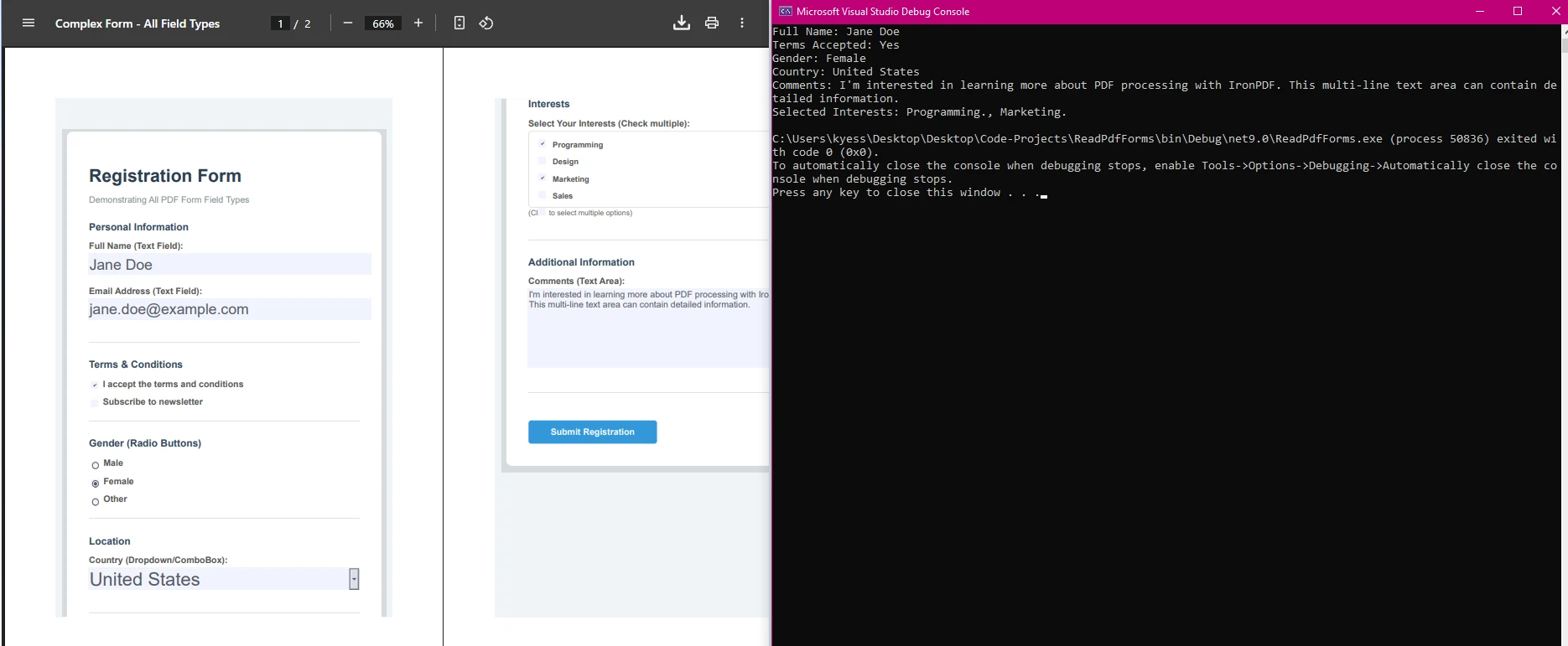
顧客調査から数百のPDFフォームを処理する必要があるシナリオを考えてみましょう。 以下のコードは、IronPDFを使用したバッチ処理を示しています:
using IronPdf;
using System;
using System.Text;
using System.IO;
using System.Collections.Generic;
public class SurveyProcessor
{
    static void Main(string[] args)
    {
        ProcessSurveyBatch(@"C:\Surveys");
    }
    public static void ProcessSurveyBatch(string folderPath)
    {
        StringBuilder csvData = new StringBuilder();
        csvData.AppendLine("Date,Name,Email,Rating,Feedback");
        foreach (string pdfFile in Directory.GetFiles(folderPath, "*.pdf"))
        {
            try
            {
                PdfDocument survey = PdfDocument.FromFile(pdfFile);
                string date = survey.Form.FindFormField("surveyDate")?.Value ?? "";
                string name = survey.Form.FindFormField("customerName")?.Value ?? "";
                string email = survey.Form.FindFormField("email")?.Value ?? "";
                string rating = survey.Form.FindFormField("satisfaction")?.Value ?? "";
                string feedback = survey.Form.FindFormField("comments")?.Value ?? "";
                feedback = feedback.Replace("\n", " ").Replace("\"", "\"\"");
                csvData.AppendLine($"{date},{name},{email},{rating},\"{feedback}\"");
            }
            catch (Exception ex)
            {
                Console.WriteLine($"Error processing {pdfFile}: {ex.Message}");
            }
        }
        File.WriteAllText("survey_results.csv", csvData.ToString());
        Console.WriteLine("Survey processing complete!");
    }
}Imports IronPdf
Imports System
Imports System.Text
Imports System.IO
Imports System.Collections.Generic
Public Class SurveyProcessor
Shared Sub Main(args As String())
ProcessSurveyBatch("C:\Surveys")
End Sub
Public Shared Sub ProcessSurveyBatch(folderPath As String)
Dim csvData As New StringBuilder()
csvData.AppendLine("Date,Name,Email,Rating,Feedback")
For Each pdfFile As String In Directory.GetFiles(folderPath, "*.pdf")
Try
Dim survey As PdfDocument = PdfDocument.FromFile(pdfFile)
Dim [date] As String = If(survey.Form.FindFormField("surveyDate")?.Value, "")
Dim name As String = If(survey.Form.FindFormField("customerName")?.Value, "")
Dim email As String = If(survey.Form.FindFormField("email")?.Value, "")
Dim rating As String = If(survey.Form.FindFormField("satisfaction")?.Value, "")
Dim feedback As String = If(survey.Form.FindFormField("comments")?.Value, "")
feedback = feedback.Replace(vbLf, " ").Replace("""", """""")
csvData.AppendLine($"{[date]},{name},{email},{rating},""{feedback}""")
Catch ex As Exception
Console.WriteLine($"Error processing {pdfFile}: {ex.Message}")
End Try
Next
File.WriteAllText("survey_results.csv", csvData.ToString())
Console.WriteLine("Survey processing complete!")
End Sub
End Classこの方法は、指定されたフォルダー内のPDFファイルのすべてのPDFインタラクティブフォームフィールドを処理し、アンケートの回答を抽出し、それらをCSVファイルにコンパイルします。null合併演算子(??)は、フィールドが存在しない場合に空文字列を提供し、例外を防ぎます。 フィードバックテキストは、引用符をエスケープし改行を削除してCSV形式で適切に処理されます。 エラー処理により、破損したファイルが処理全体を停止させないようにします。

PDFフォームを扱う際に注意すべき点:
IronPDFを使用すると、単純なフォームを作成したり、トグルボタンフィールド、リストボックス、ラジオボタン、チェックボックスにアクセスしたり、インタラクティブフォームフィールドをプログラムで操作したりすることができます。 包括的なエラー処理戦略については、Microsoftの例外処理に関するドキュメントを参照してください。
IronPDFはC#でPDFフォームフィールドを読み取るのを簡略化し、チェックボックス、ラジオボタン、リストボックス、トグルボタンフィールド、テキストフィールドなど、さまざまなフィールドタイプに直感的にアクセスできます。 上のstatic void Mainスニペットのようなサンプルコードを使用することで、開発者はPDFフォームから効率的にデータを抽出し、Visual Studioプロジェクトに統合し、Adobe Readerに依存せずにドキュメントワークフローを自動化できます。
手動でのデータ入力をワークフローから排除する準備はできていますか? ニーズに応じてスケールする無料トライアルを始めましょう。

Curtis Chauは、カールトン大学でコンピュータサイエンスの学士号を取得し、Node.js、TypeScript、JavaScript、およびReactに精通したフロントエンド開発を専門としています。直感的で美しいユーザーインターフェースを作成することに情熱を持ち、Curtisは現代のフレームワークを用いた開発や、構造の良い視覚的に魅力的なマニュアルの作成を楽しんでいます。

IronPDF はIRONSUITEの一部です
オフィス文書向けの.NET API製品10個

PDFがHTMLのように見える必要があるとき、迅速に。














