




업데이트됨 2026년 9월 4일
월별 계정 명세서를 PDF 문서로 생성하기
개발자는 IronPDF C# PDF 라이브러리를 사용하여 외부 서비스에 의존하지 않고도 .NET 프로젝트 내에서 HTML을 신뢰할 수 있는 PDF 파일로 변환할 수 있습니다.
더 읽어보기

개발자에게 PDF 양식 작업은 정말로 골칫거리일 수 있습니다. 구직 신청서, 설문 조사 응답 또는 보험 청구를 처리하는 경우, 수기로 양식 데이터를 복사하는 것은 시간이 오래 걸리고 실수가 발생하기 쉽습니다. IronPDF를 사용하면 이러한 번거로운 작업을 모두 건너뛰고 PDF 문서의 상호작용 양식 필드에서 몇 줄의 코드로 필드 값을 가져올 수 있습니다. 시간이 걸리던 작업을 몇 초로 단축시킵니다.
이번 기사에서는 C#에서 폼 객체를 사용하여 간단한 폼의 모든 필드를 가져오는 방법을 알려드리겠습니다. 예제 코드는 각 필드를 루프하여 값 없이 추출하는 방법을 보여줍니다. 이것은 간단하며 까다로운 PDF 뷰어나 숨겨진 서식 문제로 싸울 필요가 없습니다.
PDF 양식 필드 추출을 위해 IronPDF를 설정하는 것은 최소한의 구성이 필요합니다. NuGet 패키지 관리자를 통해 라이브러리를 설치하십시오:
또는 Visual Studio의 패키지 관리자 UI를 통해 설치하십시오. IronPDF는 Windows, Linux, macOS, 그리고 Docker 컨테이너를 지원하여 여러 배포 시나리오에 적합합니다. 자세한 설정 지침은 IronPDF 문서를 참조하십시오.
다음 코드는 IronPDF를 사용하여 기존 PDF 파일의 모든 필드를 읽는 방법을 보여줍니다:
using IronPdf;
using System;
class Program
{
    static void Main(string[] args)
    {
        // Load the PDF document containing interactive form fields
        PdfDocument pdf = PdfDocument.FromFile("application_form.pdf");
        // Access the form object and iterate through all fields
        var form = pdf.Form;
        foreach (var field in form)
        {
            Console.WriteLine($"Field Name: {field.Name}");
            Console.WriteLine($"Field Value: {field.Value}");
            Console.WriteLine($"Field Type: {field.GetType().Name}");
            Console.WriteLine("---");
        }
    }
}Imports IronPdf
Imports System
Class Program
Shared Sub Main(args As String())
' Load the PDF document containing interactive form fields
Dim pdf As PdfDocument = PdfDocument.FromFile("application_form.pdf")
' Access the form object and iterate through all fields
Dim form = pdf.Form
For Each field In form
Console.WriteLine($"Field Name: {field.Name}")
Console.WriteLine($"Field Value: {field.Value}")
Console.WriteLine($"Field Type: {field.GetType().Name}")
Console.WriteLine("---")
Next
End Sub
End Class이 코드는 간단한 양식을 포함하는 PDF 파일을 로드하고, 각 양식 필드를 반복하여 필드 이름, 필드 값 및 필드 유형을 인쇄합니다. PdfDocument.FromFile() 메서드는 PDF 문서를 구문 분석하고, Form 속성은 모든 대화형 폼 필드에 접근할 수 있게 합니다. 각 필드는 필드 유형에 따라 다른 속성을 노출하여 정밀한 데이터 추출을 가능하게 합니다. 보다 복잡한 시나리오의 경우 IronPDF API 참조를 탐색하여 고급 폼 조작 방법을 확인하세요.
PDF 양식에는 다양한 필드 유형이 포함되어 있으며 각각 특별한 처리가 필요합니다. IronPDF는 필드 유형을 자동으로 식별하고 맞춤형 액세스를 제공합니다:
using IronPdf;
PdfDocument pdf = PdfDocument.FromFile("complex_form.pdf");
// Text fields - standard input boxes
var nameField = pdf.Form.FindFormField("fullName");
string userName = nameField.Value;
// Checkboxes - binary selections
var agreeCheckbox = pdf.Form.FindFormField("termsAccepted.");
bool isChecked = agreeCheckbox.Value == "Yes";
// Radio buttons - single choice from group
var genderRadio = pdf.Form.FindFormField("gender");
string selectedGender = genderRadio.Value;
// Dropdown lists (ComboBox) - predefined options
var countryDropdown = pdf.Form.FindFormField("country");
string selectedCountry = countryDropdown.Value;
// Access all available options
var availableCountries = countryDropdown.Choices;
// Multi-line text areas
var commentsField = pdf.Form.FindFormField("comments_part1_513");
string userComments = commentsField.Value;
// Grab all fields that start with "interests_"
var interestFields = pdf.Form
    .Where(f => f.Name.StartsWith("interests_"));
// Collect checked interests
List<string> selectedInterests = new List<string>();
foreach (var field in interestFields)
{
    if (field.Value == "Yes")  // checkboxes are "Yes" if checked
    {
        // Extract the interest name from the field name
        string interestName = field.Name.Replace("interests_", "");
        selectedInterests.Add(interestName);
    }
}Imports IronPdf
Dim pdf As PdfDocument = PdfDocument.FromFile("complex_form.pdf")
' Text fields - standard input boxes
Dim nameField = pdf.Form.FindFormField("fullName")
Dim userName As String = nameField.Value
' Checkboxes - binary selections
Dim agreeCheckbox = pdf.Form.FindFormField("termsAccepted.")
Dim isChecked As Boolean = agreeCheckbox.Value = "Yes"
' Radio buttons - single choice from group
Dim genderRadio = pdf.Form.FindFormField("gender")
Dim selectedGender As String = genderRadio.Value
' Dropdown lists (ComboBox) - predefined options
Dim countryDropdown = pdf.Form.FindFormField("country")
Dim selectedCountry As String = countryDropdown.Value
' Access all available options
Dim availableCountries = countryDropdown.Choices
' Multi-line text areas
Dim commentsField = pdf.Form.FindFormField("comments_part1_513")
Dim userComments As String = commentsField.Value
' Grab all fields that start with "interests_"
Dim interestFields = pdf.Form.Where(Function(f) f.Name.StartsWith("interests_"))
' Collect checked interests
Dim selectedInterests As New List(Of String)()
For Each field In interestFields
If field.Value = "Yes" Then ' checkboxes are "Yes" if checked
' Extract the interest name from the field name
Dim interestName As String = field.Name.Replace("interests_", "")
selectedInterests.Add(interestName)
End If
NextFindFormField() 메서드를 사용하면 이름으로 특정 필드에 직접 접근할 수 있어 모든 폼 필드를 반복할 필요가 없습니다. 체크박스는 선택된 경우 "예"를 반환하고, 라디오 버튼은 선택된 값을 반환합니다. 드롭다운 및 리스트 박스와 같은 선택 필드는 Choices 속성을 통해 필드 값과 사용 가능한 모든 옵션을 제공합니다. 이 포괄적인 메소드 세트는 개발자가 복잡한 상호작용 양식에서 데이터를 액세스하고 추출할 수 있도록 합니다. 복잡한 폼을 다룰 때는 IronPDF의 폼 편집 기능을 사용하여 프로그래밍적으로 추출하기 전에 필드 값을 채우거나 수정하는 것을 고려해보세요.
여기에서 IronPDF가 더 복잡한 양식을 가져와 양식 필드 값에서 데이터를 추출하는 방법을 볼 수 있습니다:
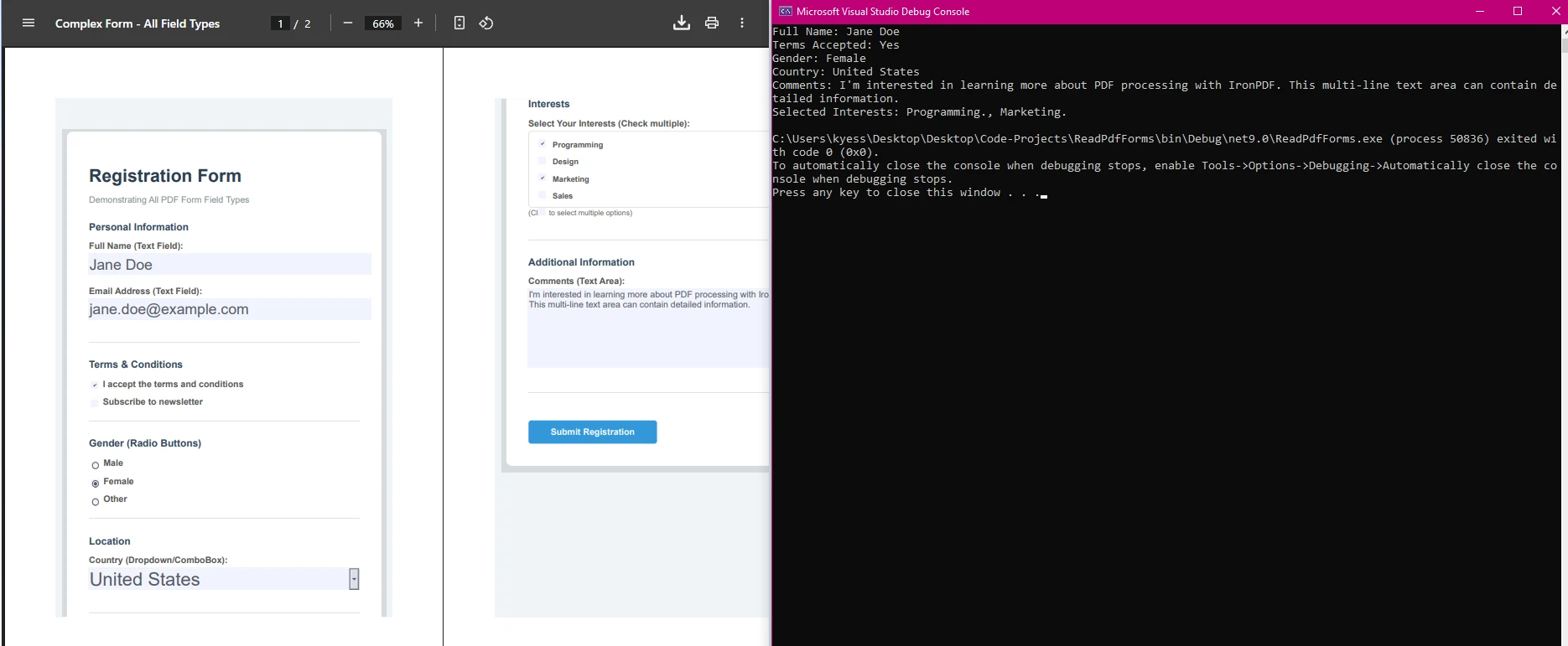
고객 설문 조사에서 수백 개의 PDF 양식을 처리해야 하는 시나리오를 고려하십시오. 다음 코드는 IronPDF를 사용한 배치 처리를 보여줍니다:
using IronPdf;
using System;
using System.Text;
using System.IO;
using System.Collections.Generic;
public class SurveyProcessor
{
    static void Main(string[] args)
    {
        ProcessSurveyBatch(@"C:\Surveys");
    }
    public static void ProcessSurveyBatch(string folderPath)
    {
        StringBuilder csvData = new StringBuilder();
        csvData.AppendLine("Date,Name,Email,Rating,Feedback");
        foreach (string pdfFile in Directory.GetFiles(folderPath, "*.pdf"))
        {
            try
            {
                PdfDocument survey = PdfDocument.FromFile(pdfFile);
                string date = survey.Form.FindFormField("surveyDate")?.Value ?? "";
                string name = survey.Form.FindFormField("customerName")?.Value ?? "";
                string email = survey.Form.FindFormField("email")?.Value ?? "";
                string rating = survey.Form.FindFormField("satisfaction")?.Value ?? "";
                string feedback = survey.Form.FindFormField("comments")?.Value ?? "";
                feedback = feedback.Replace("\n", " ").Replace("\"", "\"\"");
                csvData.AppendLine($"{date},{name},{email},{rating},\"{feedback}\"");
            }
            catch (Exception ex)
            {
                Console.WriteLine($"Error processing {pdfFile}: {ex.Message}");
            }
        }
        File.WriteAllText("survey_results.csv", csvData.ToString());
        Console.WriteLine("Survey processing complete!");
    }
}Imports IronPdf
Imports System
Imports System.Text
Imports System.IO
Imports System.Collections.Generic
Public Class SurveyProcessor
Shared Sub Main(args As String())
ProcessSurveyBatch("C:\Surveys")
End Sub
Public Shared Sub ProcessSurveyBatch(folderPath As String)
Dim csvData As New StringBuilder()
csvData.AppendLine("Date,Name,Email,Rating,Feedback")
For Each pdfFile As String In Directory.GetFiles(folderPath, "*.pdf")
Try
Dim survey As PdfDocument = PdfDocument.FromFile(pdfFile)
Dim [date] As String = If(survey.Form.FindFormField("surveyDate")?.Value, "")
Dim name As String = If(survey.Form.FindFormField("customerName")?.Value, "")
Dim email As String = If(survey.Form.FindFormField("email")?.Value, "")
Dim rating As String = If(survey.Form.FindFormField("satisfaction")?.Value, "")
Dim feedback As String = If(survey.Form.FindFormField("comments")?.Value, "")
feedback = feedback.Replace(vbLf, " ").Replace("""", """""")
csvData.AppendLine($"{[date]},{name},{email},{rating},""{feedback}""")
Catch ex As Exception
Console.WriteLine($"Error processing {pdfFile}: {ex.Message}")
End Try
Next
File.WriteAllText("survey_results.csv", csvData.ToString())
Console.WriteLine("Survey processing complete!")
End Sub
End Class이 방법은 지정된 폴더의 PDF 파일에서 모든 PDF 대화형 폼 필드를 처리하고, 설문조사 응답을 추출하여 CSV 파일로 컴파일합니다. 널 병합 연산자(??)는 누락된 필드에 대해 빈 문자열을 제공하여 예외를 방지합니다. 피드백 텍스트는 따옴표를 이스케이프하고 줄 바꿈을 제거하여 CSV 형식에 맞게 정리됩니다. 오류 처리는 하나의 손상된 파일로 인해 전체 배치 프로세스가 중단되지 않도록 보장합니다.

PDF 폼 작업 시 주의할 사항:
IronPDF를 사용하여 간단한 폼을 생성하거나, 토글 버튼 필드, 리스트 박스, 라디오 버튼, 체크박스를 접근하거나, 대화형 폼 필드를 프로그래밍적으로 조작할 수 있습니다. 포괄적인 오류 처리 전략을 위해서는 Microsoft의 예외 처리 문서를 참조하세요.
IronPDF는 C#에서 PDF 폼 필드를 읽는 것을 간소화하고, 체크박스, 라디오 버튼, 리스트 박스, 토글 버튼 필드부터 텍스트 필드에 이르기까지 다양한 필드 유형에 직관적으로 접근할 수 있게 합니다. 위의 static void Main 코드 스니펫을 사용하여 개발자는 PDF 폼에서 데이터를 효율적으로 추출하고, 이를 Visual Studio 프로젝트에 통합하며, Adobe Reader에 의존하지 않고 문서 워크플로를 자동화할 수 있습니다.
워크플로우에서 수작업 데이터 입력을 제거할 준비가 되셨나요? 필요에 따라 확장되는 무료 체험으로 시작하세요.

커티스 차우는 칼턴 대학교에서 컴퓨터 과학 학사 학위를 취득했으며, Node.js, TypeScript, JavaScript, React를 전문으로 하는 프론트엔드 개발자입니다. 직관적이고 미적으로 뛰어난 사용자 인터페이스를 만드는 데 열정을 가진 그는 최신 프레임워크를 활용하고, 잘 구성되고 시각적으로 매력적인 매뉴얼을 제작하는 것을 즐깁니다.



IronPDF는 IRON SUITE 의 일부입니다.
10개의 .NET API 제품, 당신의 사무 문서를 위해

PDF 파일을 HTML처럼 빠르게 변환해야 할 때.


