
已更新 2026年5月8日
生成每月账户报表(PDF 文档)
using IronPDF C# PDF 库,开发人员可以在 .NET 项目中将 HTML 转换为可靠的 PDF 文件,而无需依赖外部服务。
阅读更多

与 PDF 表单工作可能是开发人员的真正头疼问题。 无论您是在处理求职申请、调查反馈还是保险索赔,手动复制表单数据都需要很长时间,而且容易出错。 使用 IronPDF,您可以跳过所有繁琐工作,只需几行代码即可从 PDF 文档中的交互式表单字段提取字段值。 这将过去需要数小时的工作缩短到几秒钟。
在本文中,我将向您展示如何使用 C# 中的表单对象抓取简单表单中的所有字段。 示例代码演示了如何遍历每个字段并提取其值而不费力。 这非常简单,而且您不需要与棘手的 PDF 查看器斗争或处理隐藏的格式问题。
设置 IronPDF 以提取 PDF 表单字段所需的配置很少。 通过 NuGet 包管理器安装库:
或通过 Visual Studio 的包管理器界面安装。 IronPDF 支持 Windows、Linux、macOS 和 Docker 容器,使其在各种部署场景中灵活使用。 有关详细的设置说明,请参考 IronPDF 文档。
以下代码展示了如何使用 IronPDF 读取现有 PDF 文件中的所有字段:
using IronPdf;
using System;
class Program
{
    static void Main(string[] args)
    {
        // Load the PDF document containing interactive form fields
        PdfDocument pdf = PdfDocument.FromFile("application_form.pdf");
        // Access the form object and iterate through all fields
        var form = pdf.Form;
        foreach (var field in form)
        {
            Console.WriteLine($"Field Name: {field.Name}");
            Console.WriteLine($"Field Value: {field.Value}");
            Console.WriteLine($"Field Type: {field.GetType().Name}");
            Console.WriteLine("---");
        }
    }
}Imports IronPdf
Imports System
Class Program
Shared Sub Main(args As String())
' Load the PDF document containing interactive form fields
Dim pdf As PdfDocument = PdfDocument.FromFile("application_form.pdf")
' Access the form object and iterate through all fields
Dim form = pdf.Form
For Each field In form
Console.WriteLine($"Field Name: {field.Name}")
Console.WriteLine($"Field Value: {field.Value}")
Console.WriteLine($"Field Type: {field.GetType().Name}")
Console.WriteLine("---")
Next
End Sub
End Class此代码加载包含简单表单的 PDF 文件,迭代每个表单字段,并打印字段名称、字段值和字段类型。 PdfDocument.FromFile() 方法解析 PDF 文档,而 Form 属性提供对所有交互式表单字段的访问。 每个字段都通过特定于其字段类型的其他属性,支持精确的数据提取。 对于更复杂的场景,请探索 IronPDF API 参考以获得高级表单操作方法。
PDF 表单包含各种字段类型,每种类型都需要特定的处理。 IronPDF 自动识别字段类型并提供量身定制的访问:
using IronPdf;
PdfDocument pdf = PdfDocument.FromFile("complex_form.pdf");
// Text fields - standard input boxes
var nameField = pdf.Form.FindFormField("fullName");
string userName = nameField.Value;
// Checkboxes - binary selections
var agreeCheckbox = pdf.Form.FindFormField("termsAccepted.");
bool isChecked = agreeCheckbox.Value == "Yes";
// Radio buttons - single choice from group
var genderRadio = pdf.Form.FindFormField("gender");
string selectedGender = genderRadio.Value;
// Dropdown lists (ComboBox) - predefined options
var countryDropdown = pdf.Form.FindFormField("country");
string selectedCountry = countryDropdown.Value;
// Access all available options
var availableCountries = countryDropdown.Choices;
// Multi-line text areas
var commentsField = pdf.Form.FindFormField("comments_part1_513");
string userComments = commentsField.Value;
// Grab all fields that start with "interests_"
var interestFields = pdf.Form
    .Where(f => f.Name.StartsWith("interests_"));
// Collect checked interests
List<string> selectedInterests = new List<string>();
foreach (var field in interestFields)
{
    if (field.Value == "Yes")  // checkboxes are "Yes" if checked
    {
        // Extract the interest name from the field name
        string interestName = field.Name.Replace("interests_", "");
        selectedInterests.Add(interestName);
    }
}Imports IronPdf
Dim pdf As PdfDocument = PdfDocument.FromFile("complex_form.pdf")
' Text fields - standard input boxes
Dim nameField = pdf.Form.FindFormField("fullName")
Dim userName As String = nameField.Value
' Checkboxes - binary selections
Dim agreeCheckbox = pdf.Form.FindFormField("termsAccepted.")
Dim isChecked As Boolean = agreeCheckbox.Value = "Yes"
' Radio buttons - single choice from group
Dim genderRadio = pdf.Form.FindFormField("gender")
Dim selectedGender As String = genderRadio.Value
' Dropdown lists (ComboBox) - predefined options
Dim countryDropdown = pdf.Form.FindFormField("country")
Dim selectedCountry As String = countryDropdown.Value
' Access all available options
Dim availableCountries = countryDropdown.Choices
' Multi-line text areas
Dim commentsField = pdf.Form.FindFormField("comments_part1_513")
Dim userComments As String = commentsField.Value
' Grab all fields that start with "interests_"
Dim interestFields = pdf.Form.Where(Function(f) f.Name.StartsWith("interests_"))
' Collect checked interests
Dim selectedInterests As New List(Of String)()
For Each field In interestFields
If field.Value = "Yes" Then ' checkboxes are "Yes" if checked
' Extract the interest name from the field name
Dim interestName As String = field.Name.Replace("interests_", "")
selectedInterests.Add(interestName)
End If
NextFindFormField() 方法允许通过名称直接访问特定字段,消除了遍历所有表单字段的需要。 复选框选中时返回 "Yes",而单选按钮返回选定值。 选择字段,如下拉列表和列表框,通过 Choices 属性提供字段值和所有可用选项。 这套全面的方法使开发人员能够访问和提取复杂交互式表单中的数据。 在处理复杂表单时,考虑使用 IronPDF 的表单编辑功能以在提取前以编程方式填写或修改字段值。
在这里,您可以看到 IronPDF 如何处理更加复杂的表单并从表单字段值中提取数据:
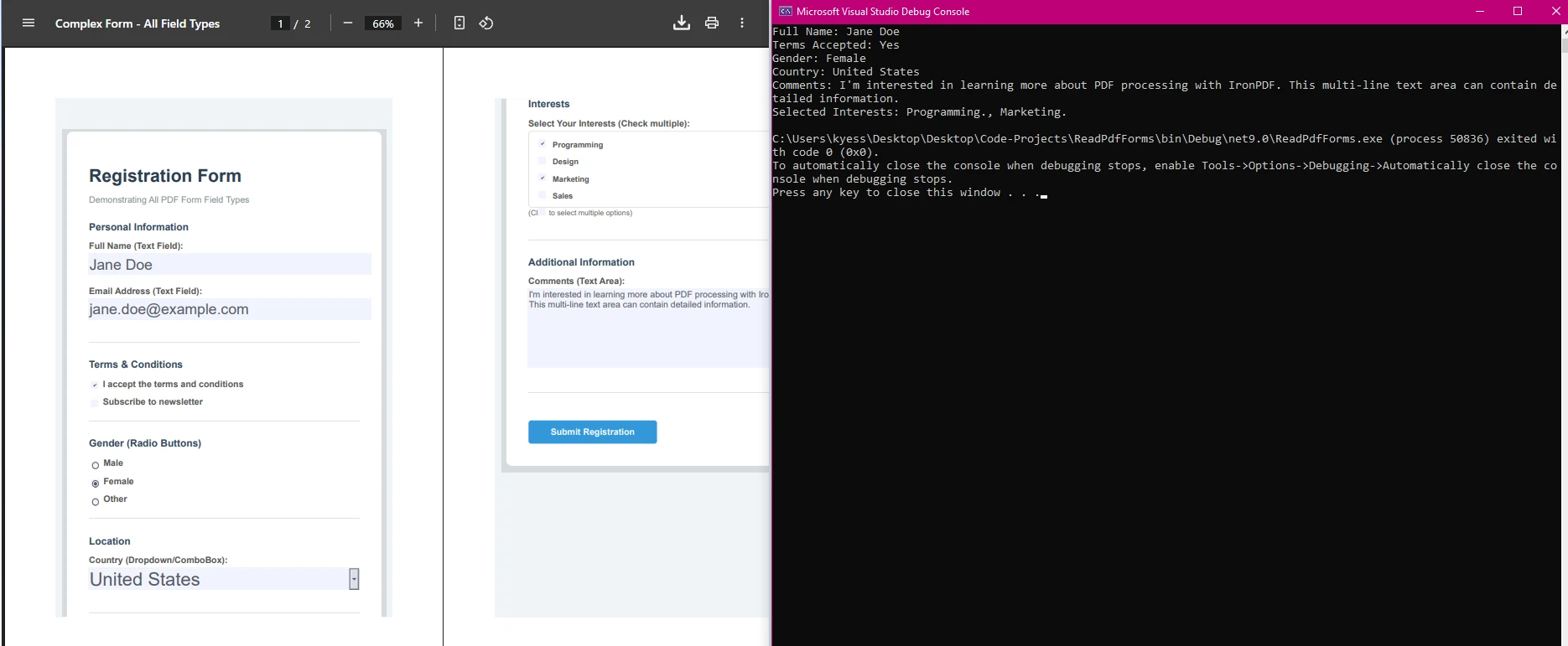
考虑一个场景,您需要处理来自客户调查的数百份 PDF 表单。 以下代码演示了使用 IronPDF 的批处理:
using IronPdf;
using System;
using System.Text;
using System.IO;
using System.Collections.Generic;
public class SurveyProcessor
{
    static void Main(string[] args)
    {
        ProcessSurveyBatch(@"C:\Surveys");
    }
    public static void ProcessSurveyBatch(string folderPath)
    {
        StringBuilder csvData = new StringBuilder();
        csvData.AppendLine("Date,Name,Email,Rating,Feedback");
        foreach (string pdfFile in Directory.GetFiles(folderPath, "*.pdf"))
        {
            try
            {
                PdfDocument survey = PdfDocument.FromFile(pdfFile);
                string date = survey.Form.FindFormField("surveyDate")?.Value ?? "";
                string name = survey.Form.FindFormField("customerName")?.Value ?? "";
                string email = survey.Form.FindFormField("email")?.Value ?? "";
                string rating = survey.Form.FindFormField("satisfaction")?.Value ?? "";
                string feedback = survey.Form.FindFormField("comments")?.Value ?? "";
                feedback = feedback.Replace("\n", " ").Replace("\"", "\"\"");
                csvData.AppendLine($"{date},{name},{email},{rating},\"{feedback}\"");
            }
            catch (Exception ex)
            {
                Console.WriteLine($"Error processing {pdfFile}: {ex.Message}");
            }
        }
        File.WriteAllText("survey_results.csv", csvData.ToString());
        Console.WriteLine("Survey processing complete!");
    }
}Imports IronPdf
Imports System
Imports System.Text
Imports System.IO
Imports System.Collections.Generic
Public Class SurveyProcessor
Shared Sub Main(args As String())
ProcessSurveyBatch("C:\Surveys")
End Sub
Public Shared Sub ProcessSurveyBatch(folderPath As String)
Dim csvData As New StringBuilder()
csvData.AppendLine("Date,Name,Email,Rating,Feedback")
For Each pdfFile As String In Directory.GetFiles(folderPath, "*.pdf")
Try
Dim survey As PdfDocument = PdfDocument.FromFile(pdfFile)
Dim [date] As String = If(survey.Form.FindFormField("surveyDate")?.Value, "")
Dim name As String = If(survey.Form.FindFormField("customerName")?.Value, "")
Dim email As String = If(survey.Form.FindFormField("email")?.Value, "")
Dim rating As String = If(survey.Form.FindFormField("satisfaction")?.Value, "")
Dim feedback As String = If(survey.Form.FindFormField("comments")?.Value, "")
feedback = feedback.Replace(vbLf, " ").Replace("""", """""")
csvData.AppendLine($"{[date]},{name},{email},{rating},""{feedback}""")
Catch ex As Exception
Console.WriteLine($"Error processing {pdfFile}: {ex.Message}")
End Try
Next
File.WriteAllText("survey_results.csv", csvData.ToString())
Console.WriteLine("Survey processing complete!")
End Sub
End Class该方法处理在指定文件夹中的所有 PDF 文件中的交互式表单字段,提取调查反馈,并将其编译成 CSV 文件。空合运算符 (??) 为丢失字段提供空字符串,防止异常。 反馈文本通过转义引号和删除换行符来清理以适应 CSV 格式。 错误处理确保一个损坏的文件不会停止整个批处理过程。

在处理 PDF 表单时,请注意:
密码保护的 PDF 文件:PdfDocument.FromFile("secured.pdf", "password")。 PDF 表单字段中的丢失或相同名称:通过空检查检查 pdf.Form 集合。 扁平化表单:有时 PDF 表单数据会在 PDF 查看器中呈现,此时可能需要使用 文本提取方法 而不是读取表单字段 using IronPDF,您可以创建简单的表单,访问按钮字段、列表框、单选按钮和复选框,甚至可以以编程方式操作交互式表单字段。 有关全面的错误处理策略,请查阅 Microsoft 文档中的异常处理。
IronPDF 简化了在 C# 中读取 PDF 表单字段,通过提供对各种字段类型的直观访问,从复选框、单选按钮、列表框、按钮字段到文本字段。 通过使用如上所述的静态 void Main 示例代码,开发人员可以高效地从 PDF 表单中提取数据,将其集成到 Visual Studio 项目中,并无需依赖 Adobe Reader 自动化文档工作流。
准备好从工作流中消除手动数据输入了吗? 以一个适合您需求的免费试用开始。

Curtis Chau 拥有卡尔顿大学的计算机科学学士学位,专注于前端开发,精通 Node.js、TypeScript、JavaScript 和 React。他热衷于打造直观且美观的用户界面,喜欢使用现代框架并创建结构良好、视觉吸引力强的手册。

当您需要PDF看起来像HTML时,速度快。