




已更新 2026年9月4日
產生每月帳戶報表(PDF 文件)
using IronPDF C# PDF 庫,開發人員可以在 .NET 專案中將 HTML 轉換為可靠的 PDF 文件,而無需依賴外部服務。
閱讀更多

處理PDF表單對開發者來說可以是個真正的頭痛問題。 無論您是在處理工作申請、調查回應還是保險索賠,手動複製表單資料都需要很長時間,且容易出錯。 使用IronPDF,您可以略過所有繁雜的工作,並僅需幾行程式碼即可從PDF文件中的互動表單欄位提取欄位值。 這將以前需要數小時的工作縮短至幾秒。
在本文中,我將向您展示如何使用C#中的表單物件抓取簡單表單中的所有欄位。 範例程式碼演示了如何迴圈遍歷每個欄位並提取其值,無需費心。 這非常簡單,且您不需要與棘手的PDF查看器鬥爭或處理隱藏的格式問題。
設定IronPDF以提取PDF表單欄位所需的配置非常少。 通過NuGet套件管理器安裝程式庫:
或者通過Visual Studio的套件管理器UI。 IronPDF支持Windows、Linux、macOS和Docker容器,因此能夠適應各種部署情景。 有關詳細的安裝說明,請參閱IronPDF文件。
以下程式碼演示了如何使用IronPDF從現有的PDF文件中讀取所有欄位:
using IronPdf;
using System;
class Program
{
    static void Main(string[] args)
    {
        // Load the PDF document containing interactive form fields
        PdfDocument pdf = PdfDocument.FromFile("application_form.pdf");
        // Access the form object and iterate through all fields
        var form = pdf.Form;
        foreach (var field in form)
        {
            Console.WriteLine($"Field Name: {field.Name}");
            Console.WriteLine($"Field Value: {field.Value}");
            Console.WriteLine($"Field Type: {field.GetType().Name}");
            Console.WriteLine("---");
        }
    }
}Imports IronPdf
Imports System
Class Program
Shared Sub Main(args As String())
' Load the PDF document containing interactive form fields
Dim pdf As PdfDocument = PdfDocument.FromFile("application_form.pdf")
' Access the form object and iterate through all fields
Dim form = pdf.Form
For Each field In form
Console.WriteLine($"Field Name: {field.Name}")
Console.WriteLine($"Field Value: {field.Value}")
Console.WriteLine($"Field Type: {field.GetType().Name}")
Console.WriteLine("---")
Next
End Sub
End Class此程式碼載入包含簡單表單的PDF文件,迴圈遍歷每個表單欄位,並列印欄位名稱、欄位值和欄位型別。 PdfDocument.FromFile()方法解析PDF文件,而Form屬性提供對所有互動表單欄位的存取。 每個欄位都暴露了對應欄位型別的其他屬性,使得精確的資料提取成為可能。 對於更複雜的場景,請探索IronPDF API參考以獲取高級表單操作方法。
PDF表單包含多種欄位型別,每一型別都需要特定的處理。 IronPDF自動識別欄位型別並提供專門的存取:
using IronPdf;
PdfDocument pdf = PdfDocument.FromFile("complex_form.pdf");
// Text fields - standard input boxes
var nameField = pdf.Form.FindFormField("fullName");
string userName = nameField.Value;
// Checkboxes - binary selections
var agreeCheckbox = pdf.Form.FindFormField("termsAccepted.");
bool isChecked = agreeCheckbox.Value == "Yes";
// Radio buttons - single choice from group
var genderRadio = pdf.Form.FindFormField("gender");
string selectedGender = genderRadio.Value;
// Dropdown lists (ComboBox) - predefined options
var countryDropdown = pdf.Form.FindFormField("country");
string selectedCountry = countryDropdown.Value;
// Access all available options
var availableCountries = countryDropdown.Choices;
// Multi-line text areas
var commentsField = pdf.Form.FindFormField("comments_part1_513");
string userComments = commentsField.Value;
// Grab all fields that start with "interests_"
var interestFields = pdf.Form
    .Where(f => f.Name.StartsWith("interests_"));
// Collect checked interests
List<string> selectedInterests = new List<string>();
foreach (var field in interestFields)
{
    if (field.Value == "Yes")  // checkboxes are "Yes" if checked
    {
        // Extract the interest name from the field name
        string interestName = field.Name.Replace("interests_", "");
        selectedInterests.Add(interestName);
    }
}Imports IronPdf
Dim pdf As PdfDocument = PdfDocument.FromFile("complex_form.pdf")
' Text fields - standard input boxes
Dim nameField = pdf.Form.FindFormField("fullName")
Dim userName As String = nameField.Value
' Checkboxes - binary selections
Dim agreeCheckbox = pdf.Form.FindFormField("termsAccepted.")
Dim isChecked As Boolean = agreeCheckbox.Value = "Yes"
' Radio buttons - single choice from group
Dim genderRadio = pdf.Form.FindFormField("gender")
Dim selectedGender As String = genderRadio.Value
' Dropdown lists (ComboBox) - predefined options
Dim countryDropdown = pdf.Form.FindFormField("country")
Dim selectedCountry As String = countryDropdown.Value
' Access all available options
Dim availableCountries = countryDropdown.Choices
' Multi-line text areas
Dim commentsField = pdf.Form.FindFormField("comments_part1_513")
Dim userComments As String = commentsField.Value
' Grab all fields that start with "interests_"
Dim interestFields = pdf.Form.Where(Function(f) f.Name.StartsWith("interests_"))
' Collect checked interests
Dim selectedInterests As New List(Of String)()
For Each field In interestFields
If field.Value = "Yes" Then ' checkboxes are "Yes" if checked
' Extract the interest name from the field name
Dim interestName As String = field.Name.Replace("interests_", "")
selectedInterests.Add(interestName)
End If
NextFindFormField()方法允許通過名稱直接存取特定欄位,從而無需迴圈遍歷所有表單欄位。 勾選框返回"Yes"表示已勾選,而單選按鈕返回選擇的值。 選擇欄位,如下拉框和列表框,通過Choices屬性提供欄位值和所有可用選項。 這一全面的方法集使開發者能夠從複雜的互動表單中存取並提取資料。 在處理複雜表單時,請考慮使用IronPDF的表單編輯功能來按程式填寫或修改欄位值後再提取。
在這裡,您可以看到IronPDF如何從更複雜的表單中提取表單欄位值的資料:
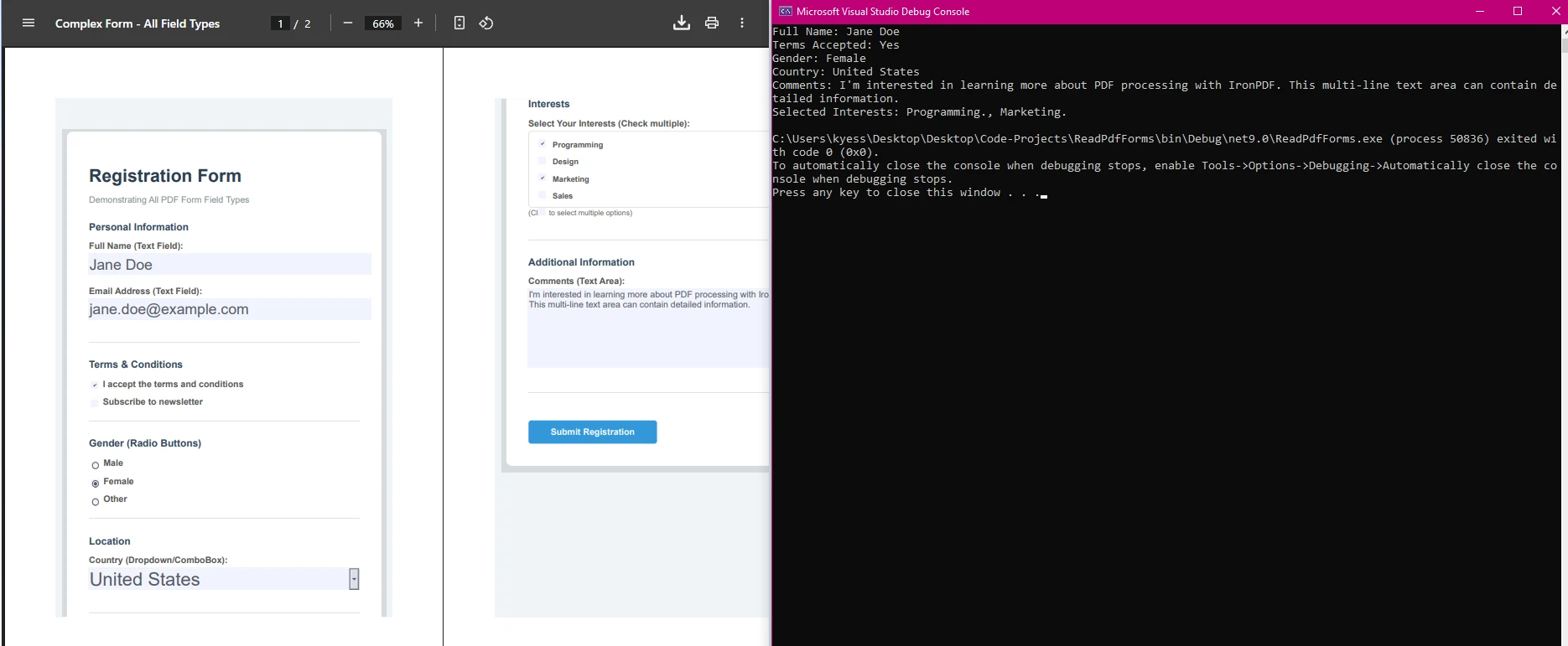
請考慮一個情景,您需要處理數百份來自客戶調查的PDF表單。 以下程式碼展示了使用IronPDF的批量處理:
using IronPdf;
using System;
using System.Text;
using System.IO;
using System.Collections.Generic;
public class SurveyProcessor
{
    static void Main(string[] args)
    {
        ProcessSurveyBatch(@"C:\Surveys");
    }
    public static void ProcessSurveyBatch(string folderPath)
    {
        StringBuilder csvData = new StringBuilder();
        csvData.AppendLine("Date,Name,Email,Rating,Feedback");
        foreach (string pdfFile in Directory.GetFiles(folderPath, "*.pdf"))
        {
            try
            {
                PdfDocument survey = PdfDocument.FromFile(pdfFile);
                string date = survey.Form.FindFormField("surveyDate")?.Value ?? "";
                string name = survey.Form.FindFormField("customerName")?.Value ?? "";
                string email = survey.Form.FindFormField("email")?.Value ?? "";
                string rating = survey.Form.FindFormField("satisfaction")?.Value ?? "";
                string feedback = survey.Form.FindFormField("comments")?.Value ?? "";
                feedback = feedback.Replace("\n", " ").Replace("\"", "\"\"");
                csvData.AppendLine($"{date},{name},{email},{rating},\"{feedback}\"");
            }
            catch (Exception ex)
            {
                Console.WriteLine($"Error processing {pdfFile}: {ex.Message}");
            }
        }
        File.WriteAllText("survey_results.csv", csvData.ToString());
        Console.WriteLine("Survey processing complete!");
    }
}Imports IronPdf
Imports System
Imports System.Text
Imports System.IO
Imports System.Collections.Generic
Public Class SurveyProcessor
Shared Sub Main(args As String())
ProcessSurveyBatch("C:\Surveys")
End Sub
Public Shared Sub ProcessSurveyBatch(folderPath As String)
Dim csvData As New StringBuilder()
csvData.AppendLine("Date,Name,Email,Rating,Feedback")
For Each pdfFile As String In Directory.GetFiles(folderPath, "*.pdf")
Try
Dim survey As PdfDocument = PdfDocument.FromFile(pdfFile)
Dim [date] As String = If(survey.Form.FindFormField("surveyDate")?.Value, "")
Dim name As String = If(survey.Form.FindFormField("customerName")?.Value, "")
Dim email As String = If(survey.Form.FindFormField("email")?.Value, "")
Dim rating As String = If(survey.Form.FindFormField("satisfaction")?.Value, "")
Dim feedback As String = If(survey.Form.FindFormField("comments")?.Value, "")
feedback = feedback.Replace(vbLf, " ").Replace("""", """""")
csvData.AppendLine($"{[date]},{name},{email},{rating},""{feedback}""")
Catch ex As Exception
Console.WriteLine($"Error processing {pdfFile}: {ex.Message}")
End Try
Next
File.WriteAllText("survey_results.csv", csvData.ToString())
Console.WriteLine("Survey processing complete!")
End Sub
End Class該方法處理指定夾中的所有PDF互動表單欄位,提取調查回應,並將它們彙編成CSV文件。空合操作符(??)為缺失欄位提供空字串,防止出現異常。 將反饋文字轉換為CSV格式時,通過轉義引號和移除換行符來進行清理。 錯誤處理確保一個損壞的文件不會停止整個批處理過程。

在處理PDF表單時,請注意:
使用IronPDF,您可以建立簡單的表單,存取切換按鈕欄位、列表框、單選按鈕和勾選框,甚至可以以程式化方式操作互動表單欄位。 如需全面的錯誤處理策略,請參考Microsoft的異常處理文件。
IronPDF簡化了在C#中讀取PDF表單欄位,提供對各種欄位型別的直觀存取,從勾選框、單選按鈕、列表框和切換按鈕欄位到文字欄位。 通過使用如上所述的靜態void Main程式程式碼範例,開發者可以高效地從PDF表單提取資料,將其整合到Visual Studio專案中,並自動化文件工作流,無需依賴Adobe Reader。
準備好從您的工作流程中消除手動資料輸入了嗎? 從免費試用開始,滿足您的需求。

Curtis Chau擁有Carleton大學的電腦科學學士學位,專精於前端開發,擁有Node.js、TypeScript、JavaScript和React的專業知識。Curtis熱衷於建立直觀且美觀的使用者介面,喜愛使用現代框架並建立結構良好、視覺吸引力的手冊。

IronPDF 是 IRONSUITE 的一部分
10 款適用於辦公室文件的 .NET API 產品

當您需要您的PDF看起來像HTML一樣快速。














