PDF (포터블 도큐먼트 포맷)는 문서 서식, 보안 및 휴대성을 유지할 수 있는 능력으로 인해 널리 사용되는 문서 형식입니다.
PDF 파일은 세계에서 가장 널리 사용되는 문서 형식 중 하나가 되었으며, C# 언어에서 PDF를 만들고 조작하기 위한 여러 라이브러리가 제공됩니다.
IronPDF 및 iText를 사용하여 C#에서 PDF 파일을 수정하는 방법을 알아보십시오 이 강력한 라이브러리를 활용하여 작업을 간단하게 만듭니다.
이 기사에서는 C#에서 PDF 조작을 위한 두 가지 인기 있는 라이브러리인 iText 및 IronPDF를 비교할 것입니다. 두 라이브러리를 사용하여 PDF 파일을 수정하는 방법을 논의한 다음 출력 인쇄, 성능, 가격 등에서 IronPDF가 iText보다 뛰어난 옵션인 이유를 조사할 것입니다.
iText DLL과 IronPDF 라이브러리 소개
개발자가 C#에서 PDF 파일을 효율적으로 작업할 수 있도록 iText 및 IronPDF 기능 및 체험 정보를 제공합니다. 두 라이브러리는 PDF 문서를 생성, 편집 및 조작하기 위한 광범위한 기능과 기능을 제공합니다.
iText DLL은 Java 기반 iText 라이브러리의 C# 포트입니다. PDF 문서를 생성하고 조작하기 위한 간단하고 사용하기 쉬운 API를 제공합니다. iText는 AGPL 라이선스 하에 사용 가능한 오픈소스 라이브러리입니다.
IronPDF는 C#을 사용하여 PDF 파일을 생성, 편집 및 조작하도록 설계된 .NET 라이브러리입니다. 이는 PDF 문서 작업을 위한 현대적이고 직관적인 API를 제공합니다. IronPDF는 상업용 라이브러리로서 체험판 버전과 구독 옵션이 함께 제공되어 더 광범위한 사용이 가능합니다.
iText와 IronPDF 라이브러리 비교
iText와 IronPDF 라이브러리는 모두 PDF 문서를 생성, 수정 및 조작하기 위한 다양한 기능과 기능을 제공합니다. 그러나 IronPDF는 iText보다 많은 이점을 제공하여 C#에서 PDF 문서를 작업하는 데 선호되는 선택이 됩니다.
iText 및 IronPDF를 사용한 PDF 파일 편집
이제 iText와 IronPDF의 차이점을 논의했으니 두 라이브러리를 사용하여 PDF 파일을 수정하는 방법을 살펴보겠습니다. iText와 IronPDF를 사용하여 기존 PDF 문서에 텍스트 추가, 폼 필드 추가 및 양식 채우기 등 예제를 살펴볼 것입니다.
iText를 사용하여 PDF 파일 수정
사전 준비
시작하기 전에 다음이 필요합니다:
- 머신에 Visual Studio가 설치되어 있어야 합니다.
- C# 프로그래밍 언어에 대한 기본 지식.
- 프로젝트에 iText 라이브러리가 설치되었습니다.
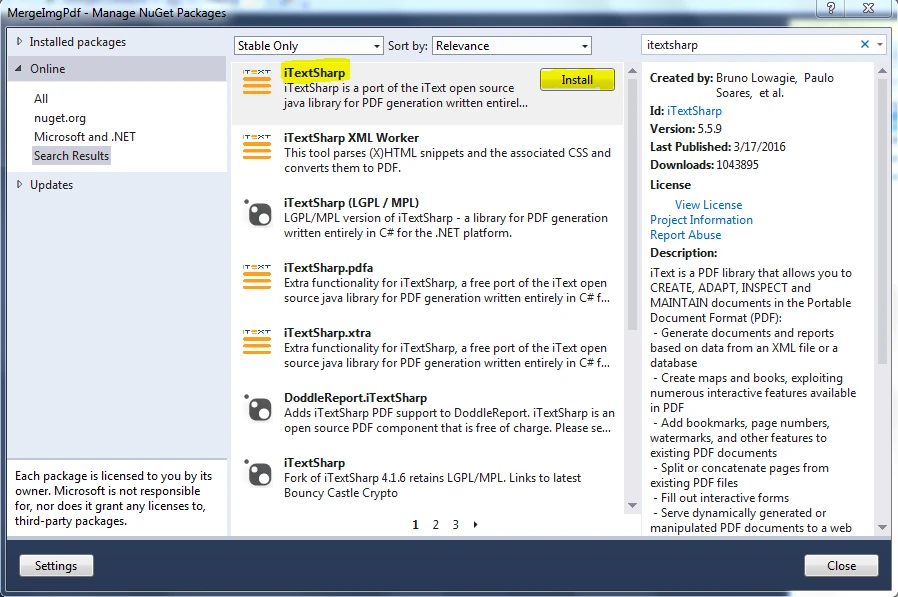
프로젝트에 iText 라이브러리를 설치하려면 NuGet 패키지 관리자를 사용할 수 있습니다. Visual Studio 프로젝트를 열고 솔루션 탐색기에서 프로젝트 이름을 오른쪽 클릭합니다. 컨텍스트 메뉴에서 'NuGet 패키지 관리'를 선택합니다. NuGet 패키지 관리자에서 "iText"를 검색하여 최신 버전의 패키지를 설치하십시오.
새 PDF 파일 생성
iText를 사용하여 새로운 PDF 파일을 생성하려면 "Document" 클래스의 새 인스턴스를 생성하고 생성자에 새 FileStream 객체를 전달해야 합니다. 다음은 예시입니다.
using iText.Kernel.Pdf;
using iText.Layout;
using iText.Layout.Element;
using iText.Layout.Properties;
using System.IO;

// Create a new PDF document
using (var writer = new PdfWriter(new FileStream("newfile.pdf", FileMode.Create)))
{
    using (var pdf = new PdfDocument(writer))
    {
        var document = new Document(pdf);

        // Create a header paragraph
        Paragraph header = new Paragraph("HEADER")
            .SetTextAlignment(TextAlignment.CENTER)
            .SetFontSize(16);

        // Add the header to the document
        document.Add(header);

        // Loop through pages and align header text
        for (int i = 1; i <= pdf.GetNumberOfPages(); i++)
        {
            Rectangle pageSize = pdf.GetPage(i).GetPageSize();
            float x = pageSize.GetWidth() / 2;
            float y = pageSize.GetTop() - 20;

            // Add the header text to each page
            document.ShowTextAligned(header, x, y, i, TextAlignment.LEFT, VerticalAlignment.BOTTOM, 0);
        }

        // Set the margins
        document.SetTopMargin(50);
        document.SetBottomMargin(50);
    }
}
using iText.Kernel.Pdf;
using iText.Layout;
using iText.Layout.Element;
using iText.Layout.Properties;
using System.IO;

// Create a new PDF document
using (var writer = new PdfWriter(new FileStream("newfile.pdf", FileMode.Create)))
{
    using (var pdf = new PdfDocument(writer))
    {
        var document = new Document(pdf);

        // Create a header paragraph
        Paragraph header = new Paragraph("HEADER")
            .SetTextAlignment(TextAlignment.CENTER)
            .SetFontSize(16);

        // Add the header to the document
        document.Add(header);

        // Loop through pages and align header text
        for (int i = 1; i <= pdf.GetNumberOfPages(); i++)
        {
            Rectangle pageSize = pdf.GetPage(i).GetPageSize();
            float x = pageSize.GetWidth() / 2;
            float y = pageSize.GetTop() - 20;

            // Add the header text to each page
            document.ShowTextAligned(header, x, y, i, TextAlignment.LEFT, VerticalAlignment.BOTTOM, 0);
        }

        // Set the margins
        document.SetTopMargin(50);
        document.SetBottomMargin(50);
    }
}
Imports iText.Kernel.Pdf
Imports iText.Layout
Imports iText.Layout.Element
Imports iText.Layout.Properties
Imports System.IO
' Create a new PDF document
Using writer = New PdfWriter(New FileStream("newfile.pdf", FileMode.Create))
Using pdf = New PdfDocument(writer)
Dim document As New Document(pdf)
' Create a header paragraph
Dim header As Paragraph = (New Paragraph("HEADER")).SetTextAlignment(TextAlignment.CENTER).SetFontSize(16)
' Add the header to the document
document.Add(header)
' Loop through pages and align header text
Dim i As Integer = 1
Do While i <= pdf.GetNumberOfPages()
Dim pageSize As Rectangle = pdf.GetPage(i).GetPageSize()
'INSTANT VB WARNING: Instant VB cannot determine whether both operands of this division are integer types - if they are then you should use the VB integer division operator:
Dim x As Single = pageSize.GetWidth() / 2
Dim y As Single = pageSize.GetTop() - 20
' Add the header text to each page
document.ShowTextAligned(header, x, y, i, TextAlignment.LEFT, VerticalAlignment.BOTTOM, 0)
i += 1
Loop
' Set the margins
document.SetTopMargin(50)
document.SetBottomMargin(50)
End Using
End Using
Imports iText.Kernel.Pdf
Imports iText.Layout
Imports iText.Layout.Element
Imports iText.Layout.Properties
Imports System.IO

' Create a new PDF document
Using writer = New PdfWriter(New FileStream("newfile.pdf", FileMode.Create))
	Using pdf = New PdfDocument(writer)
		Dim document As New Document(pdf)

		' Create a header paragraph
		Dim header As Paragraph = (New Paragraph("HEADER")).SetTextAlignment(TextAlignment.CENTER).SetFontSize(16)

		' Add the header to the document
		document.Add(header)

		' Loop through pages and align header text
		Dim i As Integer = 1
		Do While i <= pdf.GetNumberOfPages()
			Dim pageSize As Rectangle = pdf.GetPage(i).GetPageSize()
'INSTANT VB WARNING: Instant VB cannot determine whether both operands of this division are integer types - if they are then you should use the VB integer division operator:
			Dim x As Single = pageSize.GetWidth() / 2
			Dim y As Single = pageSize.GetTop() - 20

			' Add the header text to each page
			document.ShowTextAligned(header, x, y, i, TextAlignment.LEFT, VerticalAlignment.BOTTOM, 0)
			i += 1
		Loop

		' Set the margins
		document.SetTopMargin(50)
		document.SetBottomMargin(50)
	End Using
End Using
위 코드에서는 'newfile.pdf'라는 새 PDF 파일을 생성하고 단락 헤더를 추가했습니다.
기존 PDF 파일 편집
iText를 사용하여 기존 PDF 파일을 수정하려면 기존 PDF 문서를 읽기 위한 PdfReader 객체와 이를 수정하기 위한 PdfStamper 객체가 필요합니다. 다음은 예시입니다.
using iText.Kernel.Pdf;
using iText.Layout;
using iText.Layout.Element;
using iText.Layout.Properties;
using iText.Html2pdf;
using System.IO;

/**
 * iText URL to PDF
 * anchor-itext-url-to-pdf
 **/
private void ExistingWebURL()
{
    // Initialize PDF writer
    PdfWriter writer = new PdfWriter("wikipedia.pdf");

    // Initialize PDF document
    using PdfDocument pdf = new PdfDocument(writer);

    ConverterProperties properties = new ConverterProperties();
    properties.SetBaseUri("https://en.wikipedia.org/wiki/Portable_Document_Format");

    // Convert HTML to PDF
    Document document = HtmlConverter.ConvertToDocument(
        new FileStream("Test_iText7_1.pdf", FileMode.Open), pdf, properties);

    // Create and add a header paragraph
    Paragraph header = new Paragraph("HEADER")
        .SetTextAlignment(TextAlignment.CENTER)
        .SetFontSize(16);

    document.Add(header);

    // Align header text for each page
    for (int i = 1; i <= pdf.GetNumberOfPages(); i++)
    {
        Rectangle pageSize = pdf.GetPage(i).GetPageSize();
        float x = pageSize.GetWidth() / 2;
        float y = pageSize.GetTop() - 20;

        // Add header text aligned at the top
        document.ShowTextAligned(header, x, y, i, TextAlignment.LEFT, VerticalAlignment.BOTTOM, 0);
    }

    // Set the top and bottom margins
    document.SetTopMargin(50);
    document.SetBottomMargin(50);
    document.Close();
}
using iText.Kernel.Pdf;
using iText.Layout;
using iText.Layout.Element;
using iText.Layout.Properties;
using iText.Html2pdf;
using System.IO;

/**
 * iText URL to PDF
 * anchor-itext-url-to-pdf
 **/
private void ExistingWebURL()
{
    // Initialize PDF writer
    PdfWriter writer = new PdfWriter("wikipedia.pdf");

    // Initialize PDF document
    using PdfDocument pdf = new PdfDocument(writer);

    ConverterProperties properties = new ConverterProperties();
    properties.SetBaseUri("https://en.wikipedia.org/wiki/Portable_Document_Format");

    // Convert HTML to PDF
    Document document = HtmlConverter.ConvertToDocument(
        new FileStream("Test_iText7_1.pdf", FileMode.Open), pdf, properties);

    // Create and add a header paragraph
    Paragraph header = new Paragraph("HEADER")
        .SetTextAlignment(TextAlignment.CENTER)
        .SetFontSize(16);

    document.Add(header);

    // Align header text for each page
    for (int i = 1; i <= pdf.GetNumberOfPages(); i++)
    {
        Rectangle pageSize = pdf.GetPage(i).GetPageSize();
        float x = pageSize.GetWidth() / 2;
        float y = pageSize.GetTop() - 20;

        // Add header text aligned at the top
        document.ShowTextAligned(header, x, y, i, TextAlignment.LEFT, VerticalAlignment.BOTTOM, 0);
    }

    // Set the top and bottom margins
    document.SetTopMargin(50);
    document.SetBottomMargin(50);
    document.Close();
}
Imports iText.Kernel.Pdf
Imports iText.Layout
Imports iText.Layout.Element
Imports iText.Layout.Properties
Imports iText.Html2pdf
Imports System.IO
''' <summary>
''' iText URL to PDF
''' anchor-itext-url-to-pdf
''' </summary>
Private Sub ExistingWebURL()
' Initialize PDF writer
Dim writer As New PdfWriter("wikipedia.pdf")
' Initialize PDF document
Using pdf As New PdfDocument(writer)
Dim properties As New ConverterProperties()
properties.SetBaseUri("https://en.wikipedia.org/wiki/Portable_Document_Format")
' Convert HTML to PDF
Dim document As Document = HtmlConverter.ConvertToDocument(New FileStream("Test_iText7_1.pdf", FileMode.Open), pdf, properties)
' Create and add a header paragraph
Dim header As New Paragraph("HEADER") _
.SetTextAlignment(TextAlignment.CENTER) _
.SetFontSize(16)
document.Add(header)
' Align header text for each page
For i As Integer = 1 To pdf.GetNumberOfPages()
Dim pageSize As Rectangle = pdf.GetPage(i).GetPageSize()
Dim x As Single = pageSize.GetWidth() / 2
Dim y As Single = pageSize.GetTop() - 20
' Add header text aligned at the top
document.ShowTextAligned(header, x, y, i, TextAlignment.LEFT, VerticalAlignment.BOTTOM, 0)
Next
' Set the top and bottom margins
document.SetTopMargin(50)
document.SetBottomMargin(50)
document.Close()
End Using
End Sub
Imports iText.Kernel.Pdf
Imports iText.Layout
Imports iText.Layout.Element
Imports iText.Layout.Properties
Imports iText.Html2pdf
Imports System.IO

''' <summary>
''' iText URL to PDF
''' anchor-itext-url-to-pdf
''' </summary>
Private Sub ExistingWebURL()
    ' Initialize PDF writer
    Dim writer As New PdfWriter("wikipedia.pdf")

    ' Initialize PDF document
    Using pdf As New PdfDocument(writer)
        Dim properties As New ConverterProperties()
        properties.SetBaseUri("https://en.wikipedia.org/wiki/Portable_Document_Format")

        ' Convert HTML to PDF
        Dim document As Document = HtmlConverter.ConvertToDocument(New FileStream("Test_iText7_1.pdf", FileMode.Open), pdf, properties)

        ' Create and add a header paragraph
        Dim header As New Paragraph("HEADER") _
            .SetTextAlignment(TextAlignment.CENTER) _
            .SetFontSize(16)

        document.Add(header)

        ' Align header text for each page
        For i As Integer = 1 To pdf.GetNumberOfPages()
            Dim pageSize As Rectangle = pdf.GetPage(i).GetPageSize()
            Dim x As Single = pageSize.GetWidth() / 2
            Dim y As Single = pageSize.GetTop() - 20

            ' Add header text aligned at the top
            document.ShowTextAligned(header, x, y, i, TextAlignment.LEFT, VerticalAlignment.BOTTOM, 0)
        Next

        ' Set the top and bottom margins
        document.SetTopMargin(50)
        document.SetBottomMargin(50)
        document.Close()
    End Using
End Sub
이 코드에서는 기존 PDF를 열고 페이지에 적절한 텍스트 정렬으로 헤더를 추가합니다.
IronPDF를 사용하여 PDF 문서 편집
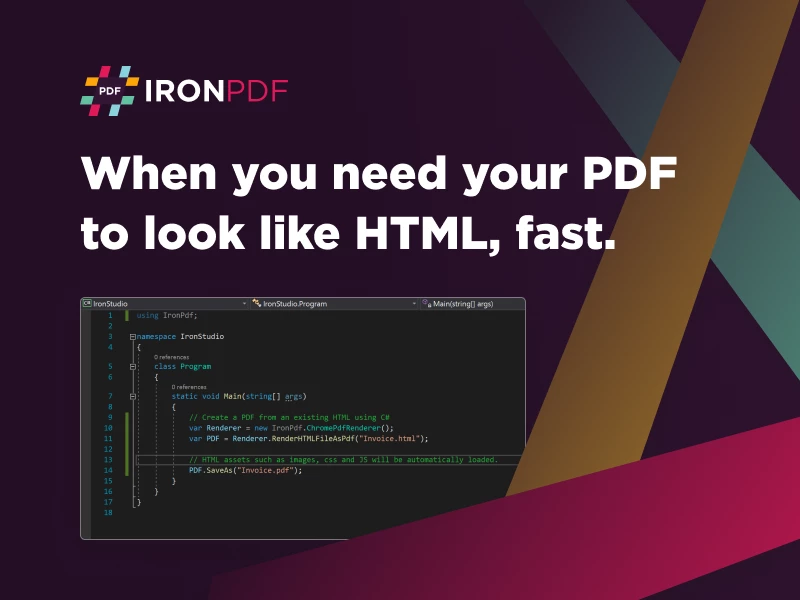
IronPDF는 C#을 위한 강력한 PDF 라이브러리로 PDF 문서 편집을 용이하게 합니다. 이 튜토리얼은 새로운 PDF 문서 생성, 페이지 추가, PDF 병합 등을 포함하여 기존 PDF 파일을 편집하는 방법을 단계별로 안내합니다.
사전 준비
다음을 확인하십시오:
- Visual Studio IDE
- IronPDF 라이브러리
1단계: 새 프로젝트 만들기
Visual Studio에서 새 C# 프로젝트를 생성합니다. '콘솔 애플리케이션' 프로젝트 유형을 선택합니다.
2단계: IronPDF 설치
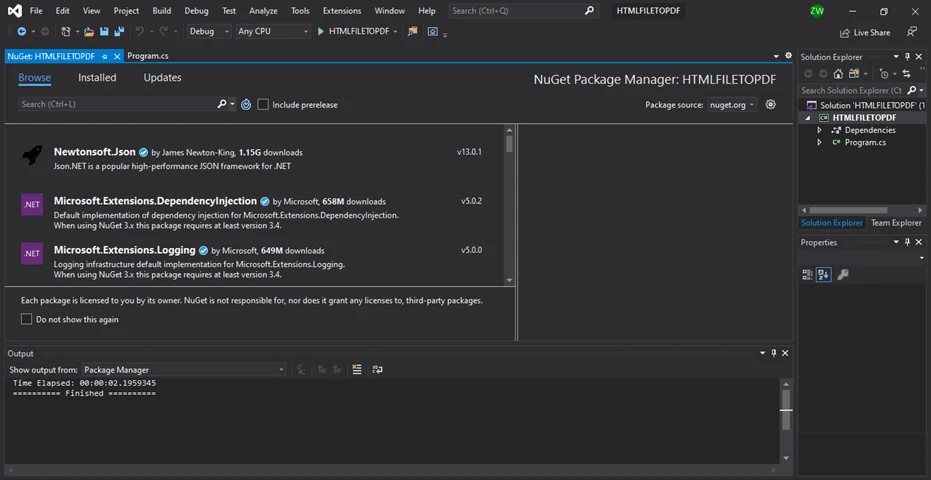
NuGet 패키지 관리자를 사용하여 프로젝트에 IronPDF 라이브러리를 설치합니다.
// Execute this command in the Package Manager Console
Install-Package IronPdf
// Execute this command in the Package Manager Console
Install-Package IronPdf
SHELL
3단계: 기존 PDF 문서 불러오기
PdfDocument 클래스를 사용하여 기존 PDF 문서를 로드하십시오:
using IronPdf;

// Path to an existing PDF file
var existingPdf = @"C:\path\to\existing\pdf\document.pdf";

// Load the PDF document
var pdfDoc = PdfDocument.FromFile(existingPdf);
using IronPdf;

// Path to an existing PDF file
var existingPdf = @"C:\path\to\existing\pdf\document.pdf";

// Load the PDF document
var pdfDoc = PdfDocument.FromFile(existingPdf);
Imports IronPdf

' Path to an existing PDF file
Private existingPdf = "C:\path\to\existing\pdf\document.pdf"

' Load the PDF document
Private pdfDoc = PdfDocument.FromFile(existingPdf)
Imports IronPdf

' Path to an existing PDF file
Private existingPdf = "C:\path\to\existing\pdf\document.pdf"

' Load the PDF document
Private pdfDoc = PdfDocument.FromFile(existingPdf)
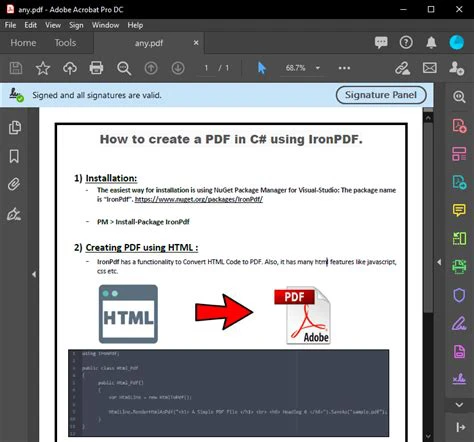
4단계: 기존 PDF 문서에 새 페이지 추가
새 페이지를 추가하려면:
// Add a new page with default size
var newPage = pdfDoc.AddPage();
newPage.Size = PageSize.Letter;
// Add a new page with default size
var newPage = pdfDoc.AddPage();
newPage.Size = PageSize.Letter;
' Add a new page with default size
Dim newPage = pdfDoc.AddPage()
newPage.Size = PageSize.Letter
' Add a new page with default size
Dim newPage = pdfDoc.AddPage()
newPage.Size = PageSize.Letter
5단계: 웹사이트에서 PDF 생성
웹페이지 URL에서 직접 PDF를 생성합니다. 다음은 예시입니다.
using IronPdf;

/**
 * IronPDF URL to PDF
 * anchor-ironpdf-website-to-pdf
 **/
private void ExistingWebURL()
{
    // Create PDF from a webpage
    var Renderer = new IronPdf.ChromePdfRenderer();

    // Set rendering options
    Renderer.RenderingOptions.MarginTop = 50; // millimeters
    Renderer.RenderingOptions.MarginBottom = 50;
    Renderer.RenderingOptions.CssMediaType = IronPdf.Rendering.PdfCssMediaType.Print;
    Renderer.RenderingOptions.TextHeader = new TextHeaderFooter()
    {
        CenterText = "{pdf-title}",
        DrawDividerLine = true,
        FontSize = 16
    };
    Renderer.RenderingOptions.TextFooter = new TextHeaderFooter()
    {
        LeftText = "{date} {time}",
        RightText = "Page {page} of {total-pages}",
        DrawDividerLine = true,
        FontSize = 14
    };
    Renderer.RenderingOptions.EnableJavaScript = true;
    Renderer.RenderingOptions.RenderDelay = 500; // milliseconds

    // Render URL as PDF
    using var PDF = Renderer.RenderUrlAsPdf("https://en.wikipedia.org/wiki/Portable_Document_Format");
    PDF.SaveAs("wikipedia.pdf");
}
using IronPdf;

/**
 * IronPDF URL to PDF
 * anchor-ironpdf-website-to-pdf
 **/
private void ExistingWebURL()
{
    // Create PDF from a webpage
    var Renderer = new IronPdf.ChromePdfRenderer();

    // Set rendering options
    Renderer.RenderingOptions.MarginTop = 50; // millimeters
    Renderer.RenderingOptions.MarginBottom = 50;
    Renderer.RenderingOptions.CssMediaType = IronPdf.Rendering.PdfCssMediaType.Print;
    Renderer.RenderingOptions.TextHeader = new TextHeaderFooter()
    {
        CenterText = "{pdf-title}",
        DrawDividerLine = true,
        FontSize = 16
    };
    Renderer.RenderingOptions.TextFooter = new TextHeaderFooter()
    {
        LeftText = "{date} {time}",
        RightText = "Page {page} of {total-pages}",
        DrawDividerLine = true,
        FontSize = 14
    };
    Renderer.RenderingOptions.EnableJavaScript = true;
    Renderer.RenderingOptions.RenderDelay = 500; // milliseconds

    // Render URL as PDF
    using var PDF = Renderer.RenderUrlAsPdf("https://en.wikipedia.org/wiki/Portable_Document_Format");
    PDF.SaveAs("wikipedia.pdf");
}
Imports IronPdf
'''
''' * IronPDF URL to PDF
''' * anchor-ironpdf-website-to-pdf
''' *
Private Sub ExistingWebURL()
' Create PDF from a webpage
Dim Renderer = New IronPdf.ChromePdfRenderer()
' Set rendering options
Renderer.RenderingOptions.MarginTop = 50 ' millimeters
Renderer.RenderingOptions.MarginBottom = 50
Renderer.RenderingOptions.CssMediaType = IronPdf.Rendering.PdfCssMediaType.Print
Renderer.RenderingOptions.TextHeader = New TextHeaderFooter() With {
.CenterText = "{pdf-title}",
.DrawDividerLine = True,
.FontSize = 16
}
Renderer.RenderingOptions.TextFooter = New TextHeaderFooter() With {
.LeftText = "{date} {time}",
.RightText = "Page {page} of {total-pages}",
.DrawDividerLine = True,
.FontSize = 14
}
Renderer.RenderingOptions.EnableJavaScript = True
Renderer.RenderingOptions.RenderDelay = 500 ' milliseconds
' Render URL as PDF
Dim PDF = Renderer.RenderUrlAsPdf("https://en.wikipedia.org/wiki/Portable_Document_Format")
PDF.SaveAs("wikipedia.pdf")
End Sub
Imports IronPdf

'''
''' * IronPDF URL to PDF
''' * anchor-ironpdf-website-to-pdf
''' *
Private Sub ExistingWebURL()
	' Create PDF from a webpage
	Dim Renderer = New IronPdf.ChromePdfRenderer()

	' Set rendering options
	Renderer.RenderingOptions.MarginTop = 50 ' millimeters
	Renderer.RenderingOptions.MarginBottom = 50
	Renderer.RenderingOptions.CssMediaType = IronPdf.Rendering.PdfCssMediaType.Print
	Renderer.RenderingOptions.TextHeader = New TextHeaderFooter() With {
		.CenterText = "{pdf-title}",
		.DrawDividerLine = True,
		.FontSize = 16
	}
	Renderer.RenderingOptions.TextFooter = New TextHeaderFooter() With {
		.LeftText = "{date} {time}",
		.RightText = "Page {page} of {total-pages}",
		.DrawDividerLine = True,
		.FontSize = 14
	}
	Renderer.RenderingOptions.EnableJavaScript = True
	Renderer.RenderingOptions.RenderDelay = 500 ' milliseconds

	' Render URL as PDF
	Dim PDF = Renderer.RenderUrlAsPdf("https://en.wikipedia.org/wiki/Portable_Document_Format")
	PDF.SaveAs("wikipedia.pdf")
End Sub
iText와 IronPDF의 차이점
iText는 C#에서 PDF 문서를 생성, 조작 및 데이터 추출하기 위한 인기 있는 오픈소스 라이브러리입니다. 이는 잘 문서화되어 있으며 널리 사용되고 있습니다. IronPDF는 보다 현대적이며, 추가 기능과 이점이 있어 개발자에게 더 나은 선택이 됩니다.
HTML 입력 문자열로부터 PDF 생성
IronPDF를 사용하여 HTML에서 PDF를 생성하는 방법은 다음과 같습니다:
using IronPdf;

/**
 * IronPDF HTML to PDF
 * anchor-ironpdf-document-from-html
 **/
private void HTMLString()
{
    // Render HTML to PDF
    var Renderer = new IronPdf.ChromePdfRenderer();
    using var PDF = Renderer.RenderHtmlAsPdf("<h1>Hello IronPdf</h1>");
    Renderer.RenderingOptions.TextFooter = new HtmlHeaderFooter()
    {
        HtmlFragment = "<div style='text-align:right'><em style='color:pink'>page {page} of {total-pages}</em></div>"
    };
    var OutputPath = "ChromeHtmlToPdf.pdf";
    PDF.SaveAs(OutputPath);
}
using IronPdf;

/**
 * IronPDF HTML to PDF
 * anchor-ironpdf-document-from-html
 **/
private void HTMLString()
{
    // Render HTML to PDF
    var Renderer = new IronPdf.ChromePdfRenderer();
    using var PDF = Renderer.RenderHtmlAsPdf("<h1>Hello IronPdf</h1>");
    Renderer.RenderingOptions.TextFooter = new HtmlHeaderFooter()
    {
        HtmlFragment = "<div style='text-align:right'><em style='color:pink'>page {page} of {total-pages}</em></div>"
    };
    var OutputPath = "ChromeHtmlToPdf.pdf";
    PDF.SaveAs(OutputPath);
}
Imports IronPdf
'''
''' * IronPDF HTML to PDF
''' * anchor-ironpdf-document-from-html
''' *
Private Sub HTMLString()
' Render HTML to PDF
Dim Renderer = New IronPdf.ChromePdfRenderer()
Dim PDF = Renderer.RenderHtmlAsPdf("<h1>Hello IronPdf</h1>")
Renderer.RenderingOptions.TextFooter = New HtmlHeaderFooter() With {.HtmlFragment = "<div style='text-align:right'><em style='color:pink'>page {page} of {total-pages}</em></div>"}
Dim OutputPath = "ChromeHtmlToPdf.pdf"
PDF.SaveAs(OutputPath)
End Sub
Imports IronPdf

'''
''' * IronPDF HTML to PDF
''' * anchor-ironpdf-document-from-html
''' *
Private Sub HTMLString()
	' Render HTML to PDF
	Dim Renderer = New IronPdf.ChromePdfRenderer()
	Dim PDF = Renderer.RenderHtmlAsPdf("<h1>Hello IronPdf</h1>")
	Renderer.RenderingOptions.TextFooter = New HtmlHeaderFooter() With {.HtmlFragment = "<div style='text-align:right'><em style='color:pink'>page {page} of {total-pages}</em></div>"}
	Dim OutputPath = "ChromeHtmlToPdf.pdf"
	PDF.SaveAs(OutputPath)
End Sub
iText HTML을 PDF로 변환하기
iText를 사용하여 HTML 텍스트를 PDF로 변환하십시오:
using iText.Html2pdf;
using System.IO;

/**
 * iText HTML to PDF
 * anchor-itext-html-to-pdf
 **/
private void HTMLString()
{
    HtmlConverter.ConvertToPdf("<h1>Hello iText7</h1>", new FileStream("iText7HtmlToPdf.pdf", FileMode.Create));
}
using iText.Html2pdf;
using System.IO;

/**
 * iText HTML to PDF
 * anchor-itext-html-to-pdf
 **/
private void HTMLString()
{
    HtmlConverter.ConvertToPdf("<h1>Hello iText7</h1>", new FileStream("iText7HtmlToPdf.pdf", FileMode.Create));
}
Imports iText.Html2pdf
Imports System.IO
'''
''' * iText HTML to PDF
''' * anchor-itext-html-to-pdf
''' *
Private Sub HTMLString()
HtmlConverter.ConvertToPdf("<h1>Hello iText7</h1>", New FileStream("iText7HtmlToPdf.pdf", FileMode.Create))
End Sub
Imports iText.Html2pdf
Imports System.IO

'''
''' * iText HTML to PDF
''' * anchor-itext-html-to-pdf
''' *
Private Sub HTMLString()
	HtmlConverter.ConvertToPdf("<h1>Hello iText7</h1>", New FileStream("iText7HtmlToPdf.pdf", FileMode.Create))
End Sub
성능
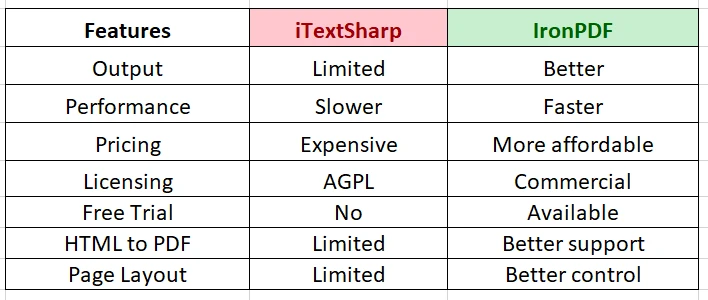
IronPDF는 iText보다 더 빠르고 효율적으로 설계되어 적은 자원으로 PDF를 빠르게 생성할 수 있습니다. 이 효율성은 크거나 복잡한 문서에 매우 중요합니다.
가격
iText는 특정 사용 사례에 대해 상업용 라이선스가 필요하며, 이는 비용이 많이 들 수 있습니다. 그러나 IronPDF는 다양한 필요와 예산에 맞춘 더 저렴한 가격 모델을 제공합니다.
라이선스 및 가격
iText와 IronPDF의 주요 차이점 중 하나는 라이선스와 가격 책정 모델입니다.
- iText: AGPL 라이선스로, 오픈소스 프로젝트가 아닌 경우 상업용 라이선스가 필요합니다. 상업적 라이선스는 비용이 다릅니다.
- IronPDF: 무료 체험판과 개발자 및 서버 라이선스를 포함한 유연한 라이선스를 제공하여 상업적 사용에 적합합니다.
결론
결론적으로, iText와 IronPDF는 C#에서 PDF 조작을 처리할 수 있지만, IronPDF는 더 다재다능하고 효율적인 선택으로 눈에 띄며 고급 기능, 직관적인 API, 더 나은 성능을 제공합니다. 유연한 가격 정책은 상업적 프로젝트와 대규모 조직에 적합합니다.
IronPDF의 우수한 HTML to PDF 변환 덕분에 개발자는 부유한 미디어나 상호작용 가능 콘텐츠를 가진 보고서나 문서를 쉽게 생성할 수 있습니다. 비용 효율적인 가격과 결합하여 IronPDF는 강력하고 효율적인 PDF 라이브러리가 필요한 C# 프로젝트 개발자에게 탁월한 선택입니다.
iText는 해당 소유자의 등록 상표입니다. 이 사이트는 iText와 관련이 없고, 승인받지 않았으며, 후원받지 않았습니다. 모든 제품명, 로고 및 브랜드는 해당 소유자의 자산입니다. 비교는 정보 제공 목적으로만 사용되며, 작성 시점에 공개적으로 이용 가능한 정보를 반영합니다.













