




업데이트됨 2026년 5월 8일
월별 계정 명세서를 PDF 문서로 생성하기
개발자는 IronPDF C# PDF 라이브러리를 사용하여 외부 서비스에 의존하지 않고도 .NET 프로젝트 내에서 HTML을 신뢰할 수 있는 PDF 파일로 변환할 수 있습니다.
더 읽어보기

IronPDF는 서버 측에서 PDF를 생성하고 브라우저의 내장 PDF 뷰어를 활용하여 ASP.NET Core 응용 프로그램에서 매끄럽게 PDF 뷰어를 사용할 수 있게 해줍니다. 이는 플러그인 필요 없이 Docker 컨테이너와 클라우드 환경에서의 크로스 플랫폼 배포를 지원합니다.
웹 브라우저에서 PDF 문서를 직접 표시하는 것은 현대적인 ASP.NET Core 웹 응용 프로그램에 필수 요구 사항이 되었습니다. 송장, 보고서 또는 계약서를 생성하든, 사용자들은 파일을 다운로드하거나 Adobe Acrobat Reader를 설치할 필요 없이 매끄러운 PDF 뷰잉을 기대합니다. 이 튜토리얼은 강력한 Chrome 기반 렌더링 엔진을 통해 IronPDF가 ASP.NET Core 뷰어에서 PDF 표시, 저장 및 인쇄를 어떻게 간단하게 하는지를 보여줍니다.
현대 브라우저에는 올바른 MIME 유형을 가진 PDF 파일을 수신할 때 활성화되는 내장 PDF 뷰어가 포함되어 있습니다 (application/pdf). ASP.NET Core 응용 프로그램이 적절한 헤더와 함께 PDF 문서를 반환할 때, 브라우저는 자동으로 인라인으로 표시합니다. 이로 인해 외부 플러그인, Adobe Acrobat Reader, 복잡한 JavaScript 라이브러리가 필요하지 않습니다. MDN Web Docs에 따르면, 브라우저가 파일 다운로드 및 표시를 처리하는 방법을 제어하기 위해 적절한 헤더 구성이 필수적입니다.
IronPDF는 서버 측에서 고품질 PDF를 생성하여 이 브라우저 기능을 활용합니다 ChromePdfRenderer 클래스. 렌더러는 현대 CSS, JavaScript, 디지털 서명, 웹 글꼴에 대한 완전한 지원으로 의도한 대로 문서를 정확하게 표시하는 완전한 Chrome 엔진을 내부적으로 사용합니다. 간단한 문서 뷰어와 달리, IronPDF는 PDF 처리 및 렌더링에 대한 완벽한 제어를 제공합니다.
프로젝트 유형에 따라 불과 몇 단계만으로 ASP.NET Core 프로젝트에 IronPDF 설치를 설정할 수 있습니다. 먼저 Visual Studio 또는 명령 줄에서 새 프로젝트를 만듭니다. Visual Studio를 열고 ASP.NET Core 웹 응용 프로그램 프로젝트 템플릿을 선택하세요:
dotnet new mvc -n PdfViewerApp
cd PdfViewerApp프로젝트의 NuGet 패키지 관리자에서 IronPDF를 설치하세요:
또는 솔루션 탐색기에서 프로젝트를 마우스 오른쪽 버튼으로 클릭하고 'NuGet 패키지 관리'를 선택합니다. 적절한 패키지 소스를 선택하고 IronPDF를 검색하세요.
이것이 필요한 모든 설정입니다. IronPDF는 ASP.NET Core 3.1부터(.NET 6, 7, 8을 포함하여)(장기 지원 버전들)과 매끄럽게 작동합니다. 라이브러리는 최신 프레임워크와 호환성을 보장하기 위해 빈번한 업데이트를 받습니다. 자세한 설치 지침은 IronPDF 설치 가이드를 참조하세요. 패키지에는 PDF 생성, 편집, 및 처리에 필요한 모든 구성 요소가 포함되어 있습니다. Docker 배포의 경우, IronPDF는 배포 복잡성을 최소화하는 최적화된 컨테이너 이미지를 제공하여 컨테이너 환경을 관리하는 DevOps 엔지니어에게 중요합니다.
PDF를 브라우저에 생성하고 표시하는 데 몇 줄의 코드만 필요합니다. 다음은 HTML에서 PDF를 생성하고 인라인으로 표시하는 완전한 컨트롤러 액션입니다:
using IronPdf;
using Microsoft.AspNetCore.Mvc;

public class PdfController : Controller
{
    public IActionResult ViewPdf()
    {
        var renderer = new ChromePdfRenderer();
        // Configure rendering options for the PDF viewer
        renderer.RenderingOptions.PrintHtmlBackgrounds = true;
        renderer.RenderingOptions.CreatePdfFormsFromHtml = true;
        renderer.RenderingOptions.EnableJavaScript = true;
        // Generate PDF from HTML string
        var html = @"
            <html>
            <head>
                <style>
                    body { font-family: Arial, sans-serif; padding: 20px; }
                    h1 { color: #2c3e50; }
                    .content { line-height: 1.6; width: 100%; }
                </style>
            </head>
            <body>
                <h1>Invoice #12345</h1>
                <div class='content'>
                    <p>Date: " + DateTime.Now.ToString("yyyy-MM-dd") + @"</p>
                    <p>Thank you for your business!</p>
                </div>
            </body>
            </html>";
        var pdf = renderer.RenderHtmlAsPdf(html);
        // Return PDF for inline viewing in the browser
        return File(pdf.BinaryData, "application/pdf");
    }
}Imports IronPdf
Imports Microsoft.AspNetCore.Mvc
Public Class PdfController
Inherits Controller
Public Function ViewPdf() As IActionResult
Dim renderer = New ChromePdfRenderer()
' Configure rendering options for the PDF viewer
renderer.RenderingOptions.PrintHtmlBackgrounds = True
renderer.RenderingOptions.CreatePdfFormsFromHtml = True
renderer.RenderingOptions.EnableJavaScript = True
' Generate PDF from HTML string
Dim html = "
<html>
<head>
<style>
body { font-family: Arial, sans-serif; padding: 20px; }
h1 { color: #2c3e50; }
.content { line-height: 1.6; width: 100%; }
</style>
</head>
<body>
<h1>Invoice #12345</h1>
<div class='content'>
<p>Date: " & DateTime.Now.ToString("yyyy-MM-dd") & "</p>
<p>Thank you for your business!</p>
</div>
</body>
</html>"
Dim pdf = renderer.RenderHtmlAsPdf(html)
' Return PDF for inline viewing in the browser
Return File(pdf.BinaryData, "application/pdf")
End Function
End Class코드는 ChromePdfRenderer 인스턴스를 생성하고 배경색을 포함하고 HTML 양식을 PDF 양식으로 변환하도록 구성합니다. RenderHtmlAsPdf 메서드는 HTML 문자열을 PDF로 변환합니다. application/pdf MIME 유형으로 PDF를 반환하면 브라우저가 다운로드하는 대신 인라인으로 표시하도록 지시합니다. 이 서버 측 접근 방식은 모든 브라우저 및 플랫폼에서 일관된 렌더링을 보장하여 Azure 배포 및 AWS Lambda 환경에서의 신뢰성을 유지하는 데 필수적입니다.
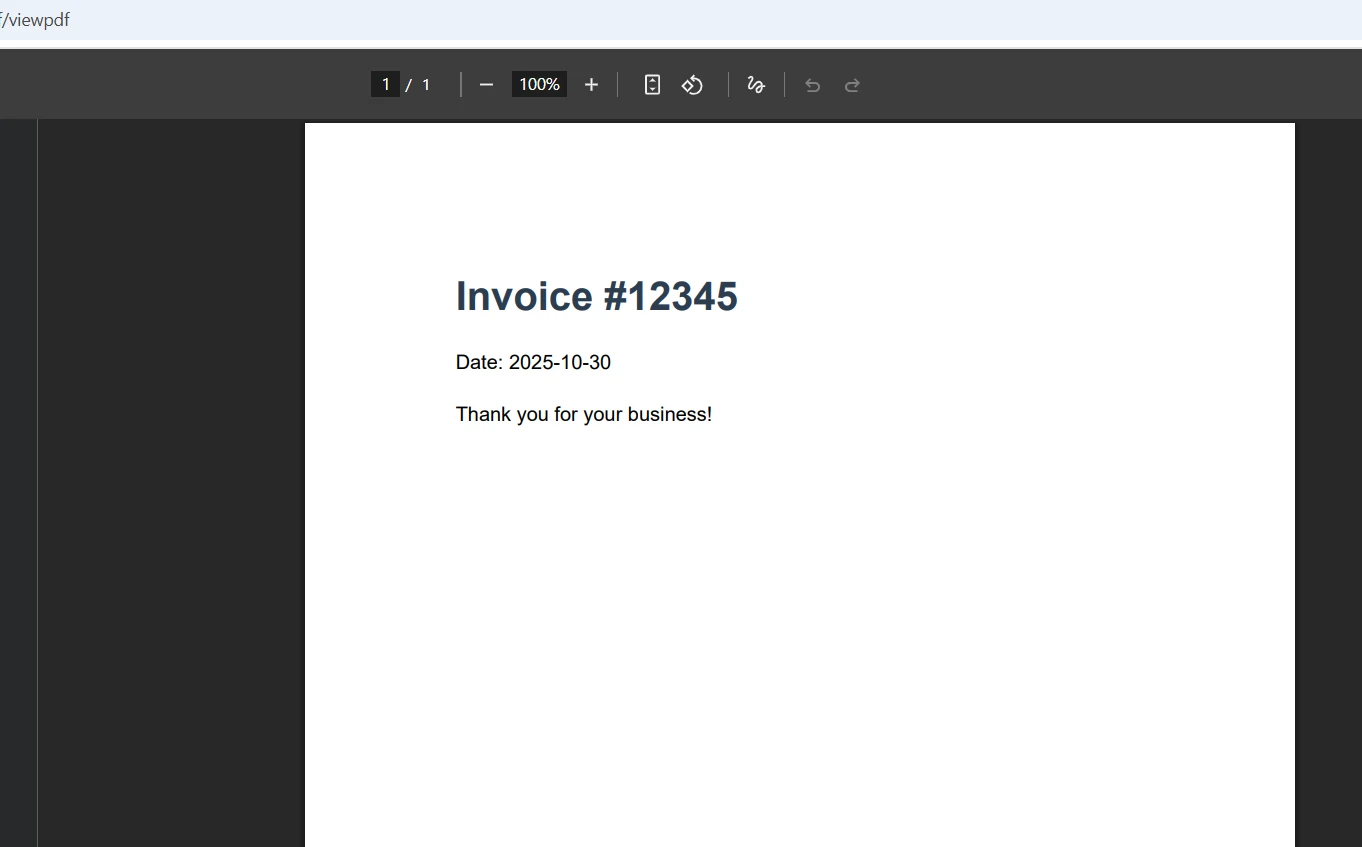
기존 HTML 파일 또는 Razor 페이지의 경우, 대체 렌더링 방법을 사용할 수 있습니다.
// Render from URL - useful for complex pages
var pdf = renderer.RenderUrlAsPdf("___PROTECTED_URL_58___");
// Render from HTML file in the same location
var pdf = renderer.RenderHtmlFileAsPdf("Views/Invoice.html");
// Render from wwwroot folder
var pdf = renderer.RenderHtmlFileAsPdf("wwwroot/templates/report.html");
// For containerized applications, use environment-specific paths
var basePath = Environment.GetEnvironmentVariable("APP_BASE_PATH") ?? "wwwroot";
var pdf = renderer.RenderHtmlFileAsPdf($"{basePath}/templates/report.html");' Render from URL - useful for complex pages
Dim pdf = renderer.RenderUrlAsPdf("___PROTECTED_URL_58___")
' Render from HTML file in the same location
pdf = renderer.RenderHtmlFileAsPdf("Views/Invoice.html")
' Render from wwwroot folder
pdf = renderer.RenderHtmlFileAsPdf("wwwroot/templates/report.html")
' For containerized applications, use environment-specific paths
Dim basePath = If(Environment.GetEnvironmentVariable("APP_BASE_PATH"), "wwwroot")
pdf = renderer.RenderHtmlFileAsPdf($"{basePath}/templates/report.html")이 방법들은 고품질의 PDF 출력을 유지하면서 HTML 콘텐츠를 소싱하는 데 유연성을 제공합니다. 또한 IronPDF의 종합적인 기능을 사용하여 기존의 PDF 문서를 로드, PDF를 편집, Word (DOCX 파일) 및 Excel 형식으로 작업할 수 있습니다. 문서에서 HTML을 PDF로 변환하는 옵션에 대해 더 알아보세요. 고급 처리 및 편집 기능을 위해, API 참조를 확인해보세요.
DevOps 엔지니어에게 마이크로서비스 아키텍처를 관리하기 위해, IronPDF의 네이티브 대 원격 엔진 아키텍처는 배포 유연성을 제공합니다. 원격 엔진 옵션은 PDF 렌더링을 전용 서비스로 분리하여 자원 활용을 개선하고 수평 확장을 가능케 합니다.
사용자가 인라인으로 보기 대신 PDF를 다운로드할 수 있도록 하려면 Content-Disposition 헤더를 수정하세요. 이 기능은 사용자가 오프라인 액세스를 필요로 하는 애플리케이션에 필수적입니다:
public IActionResult DownloadPdf()
{
    var renderer = new ChromePdfRenderer();
    // Create PDF with CSS styling and images
    var html = @"<h1>Download Me</h1>
                 <img src='logo.png' width='100' />";
    var pdf = renderer.RenderHtmlAsPdf(html, @"wwwroot/images");
    // Force download with custom filename
    return File(pdf.BinaryData, "application/pdf", "invoice-2024.pdf");
}

// Health check endpoint for container orchestration
[HttpGet("/health/pdf-generator")]
public IActionResult HealthCheck()
{
    try
    {
        var renderer = new ChromePdfRenderer();
        var pdf = renderer.RenderHtmlAsPdf("<p>Health Check</p>");
        return Ok(new { status = "healthy", timestamp = DateTime.UtcNow });
    }
    catch (Exception ex)
    {
        return StatusCode(503, new { status = "unhealthy", error = ex.Message });
    }
}Public Function DownloadPdf() As IActionResult
Dim renderer = New ChromePdfRenderer()
' Create PDF with CSS styling and images
Dim html = "<h1>Download Me</h1>
<img src='logo.png' width='100' />"
Dim pdf = renderer.RenderHtmlAsPdf(html, "wwwroot/images")
' Force download with custom filename
Return File(pdf.BinaryData, "application/pdf", "invoice-2024.pdf")
End Function
' Health check endpoint for container orchestration
<HttpGet("/health/pdf-generator")>
Public Function HealthCheck() As IActionResult
Try
Dim renderer = New ChromePdfRenderer()
Dim pdf = renderer.RenderHtmlAsPdf("<p>Health Check</p>")
Return Ok(New With {Key .status = "healthy", Key .timestamp = DateTime.UtcNow})
Catch ex As Exception
Return StatusCode(503, New With {Key .status = "unhealthy", Key .error = ex.Message})
End Try
End Function파일명 매개변수를 추가하면 브라우저가 파일을 다운로드하도록 헤더를 자동으로 "attachment"로 설정합니다. 사용자는 브라우저의 저장 기능(Ctrl+S 또는 PDF 뷰어 툴바)을 사용하여 인라인으로 표시된 PDF를 저장할 수도 있습니다. 위에 표시된 헬스 체크 엔드포인트는 Kubernetes 배포 및 컨테이너 오케스트레이션 플랫폼에 필수적이며, PDF 서비스가 응답성을 유지하도록 합니다.
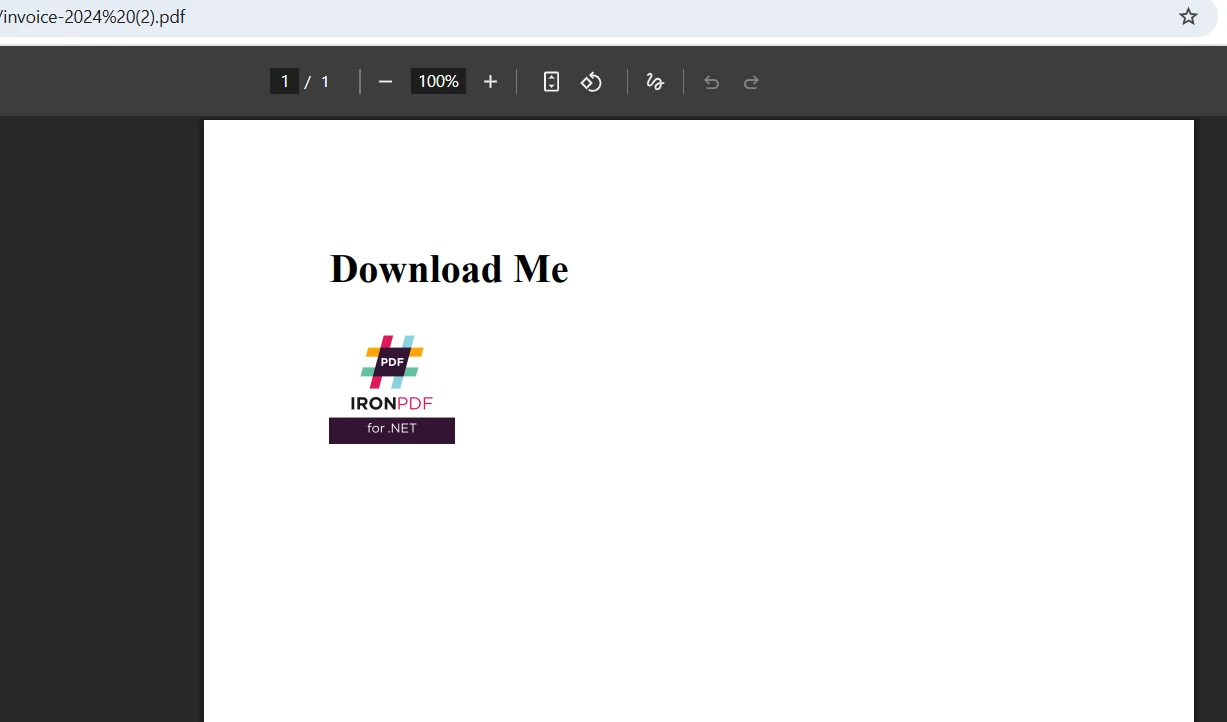
대형 문서의 메모리 효율성을 높이기 위해 스트림 사용을 권장합니다.
public IActionResult StreamPdf()
{
    var renderer = new ChromePdfRenderer();
    // Load and process HTML with images
    var html = "<h1>Streamed Content</h1>";
    var pdf = renderer.RenderHtmlAsPdf(html);
    // Stream the PDF file to the browser
    var stream = pdf.Stream;
    stream.Position = 0;
    return File(stream, "application/pdf", "document.pdf");
}

// Async streaming for better resource utilization
public async Task<IActionResult> StreamPdfAsync()
{
    var renderer = new ChromePdfRenderer();
    // Configure for optimal container performance
    renderer.RenderingOptions.Timeout = 60000; // 60 seconds for complex documents
    renderer.RenderingOptions.RenderDelay = 500; // Allow JS to execute

    var html = await LoadHtmlTemplateAsync();
    var pdf = await Task.Run(() => renderer.RenderHtmlAsPdf(html));

    var stream = pdf.Stream;
    stream.Position = 0;
    return File(stream, "application/pdf", "async-document.pdf");
}Public Function StreamPdf() As IActionResult
Dim renderer = New ChromePdfRenderer()
' Load and process HTML with images
Dim html = "<h1>Streamed Content</h1>"
Dim pdf = renderer.RenderHtmlAsPdf(html)
' Stream the PDF file to the browser
Dim stream = pdf.Stream
stream.Position = 0
Return File(stream, "application/pdf", "document.pdf")
End Function
' Async streaming for better resource utilization
Public Async Function StreamPdfAsync() As Task(Of IActionResult)
Dim renderer = New ChromePdfRenderer()
' Configure for optimal container performance
renderer.RenderingOptions.Timeout = 60000 ' 60 seconds for complex documents
renderer.RenderingOptions.RenderDelay = 500 ' Allow JS to execute
Dim html = Await LoadHtmlTemplateAsync()
Dim pdf = Await Task.Run(Function() renderer.RenderHtmlAsPdf(html))
Dim stream = pdf.Stream
stream.Position = 0
Return File(stream, "application/pdf", "async-document.pdf")
End Function이 방법은 중간 바이트 배열을 생성하지 않고 PDF를 직접 응답으로 스트리밍하여 메모리 소비를 줄입니다. wwwroot 폴더에서 기존 PDF를 로드하고 편집한 후 수정된 버전을 스트리밍할 수 있습니다. 고급 PDF 문서 조작 및 이미지 처리를 위해 PdfDocument API 참조를 탐색하세요. 구성 요소는 텍스트 선택, 양식 채우기, 디지털 서명 추가를 포함한 다양한 편집 작업을 지원합니다.
컨테이너 배포의 경우, 비동기 PDF 생성 접근 방식은 스레드 차단을 방지하고 애플리케이션 처리량을 개선하며, 이는 오케스트레이션된 환경에서 응답성있는 서비스를 유지하는 데 중요합니다.
IronPDF는 적절한 CSS 미디어 타입과 페이지 설정을 구성하여 인쇄를 위해 PDF를 최적화합니다. 이는 사용자가 실제 프린터로 출력하거나 PDF로 저장할 때 전문적인 출력을 보장합니다.
public IActionResult PrintablePdf()
{
    var renderer = new ChromePdfRenderer();
    // Configure printing options for the PDF viewer
    renderer.RenderingOptions.CssMediaType = PdfCssMediaType.Print;
    renderer.RenderingOptions.PaperOrientation = PdfPaperOrientation.Portrait;
    renderer.RenderingOptions.MarginTop = 25;
    renderer.RenderingOptions.MarginBottom = 25;
    renderer.RenderingOptions.MarginLeft = 25;
    renderer.RenderingOptions.MarginRight = 25;
    // Load HTML with print-specific CSS
    var html = @"<h1>Print-Optimized Document</h1>
                 <p>This document is optimized for printing.</p>";
    var pdf = renderer.RenderHtmlAsPdf(html);
    // Return the PDF file for viewing and printing
    return File(pdf.BinaryData, "application/pdf");
}

// Container-optimized configuration
public IActionResult ConfigureForContainer()
{
    var renderer = new ChromePdfRenderer();
    // Disable GPU for container compatibility
    renderer.RenderingOptions.EnableJavaScript = true;
    renderer.RenderingOptions.RenderDelay = 0; // No artificial delays
    renderer.RenderingOptions.Timeout = 30000; // 30 second timeout

    // Use environment variables for configuration
    var printDpi = int.Parse(Environment.GetEnvironmentVariable("PDF_PRINT_DPI") ?? "300");
    renderer.RenderingOptions.PrintHtmlBackgrounds = true;

    return Ok("Configured for container environment");
}Public Function PrintablePdf() As IActionResult
Dim renderer = New ChromePdfRenderer()
' Configure printing options for the PDF viewer
renderer.RenderingOptions.CssMediaType = PdfCssMediaType.Print
renderer.RenderingOptions.PaperOrientation = PdfPaperOrientation.Portrait
renderer.RenderingOptions.MarginTop = 25
renderer.RenderingOptions.MarginBottom = 25
renderer.RenderingOptions.MarginLeft = 25
renderer.RenderingOptions.MarginRight = 25
' Load HTML with print-specific CSS
Dim html = "<h1>Print-Optimized Document</h1><p>This document is optimized for printing.</p>"
Dim pdf = renderer.RenderHtmlAsPdf(html)
' Return the PDF file for viewing and printing
Return File(pdf.BinaryData, "application/pdf")
End Function
' Container-optimized configuration
Public Function ConfigureForContainer() As IActionResult
Dim renderer = New ChromePdfRenderer()
' Disable GPU for container compatibility
renderer.RenderingOptions.EnableJavaScript = True
renderer.RenderingOptions.RenderDelay = 0 ' No artificial delays
renderer.RenderingOptions.Timeout = 30000 ' 30 second timeout
' Use environment variables for configuration
Dim printDpi = Integer.Parse(Environment.GetEnvironmentVariable("PDF_PRINT_DPI") OrElse "300")
renderer.RenderingOptions.PrintHtmlBackgrounds = True
Return Ok("Configured for container environment")
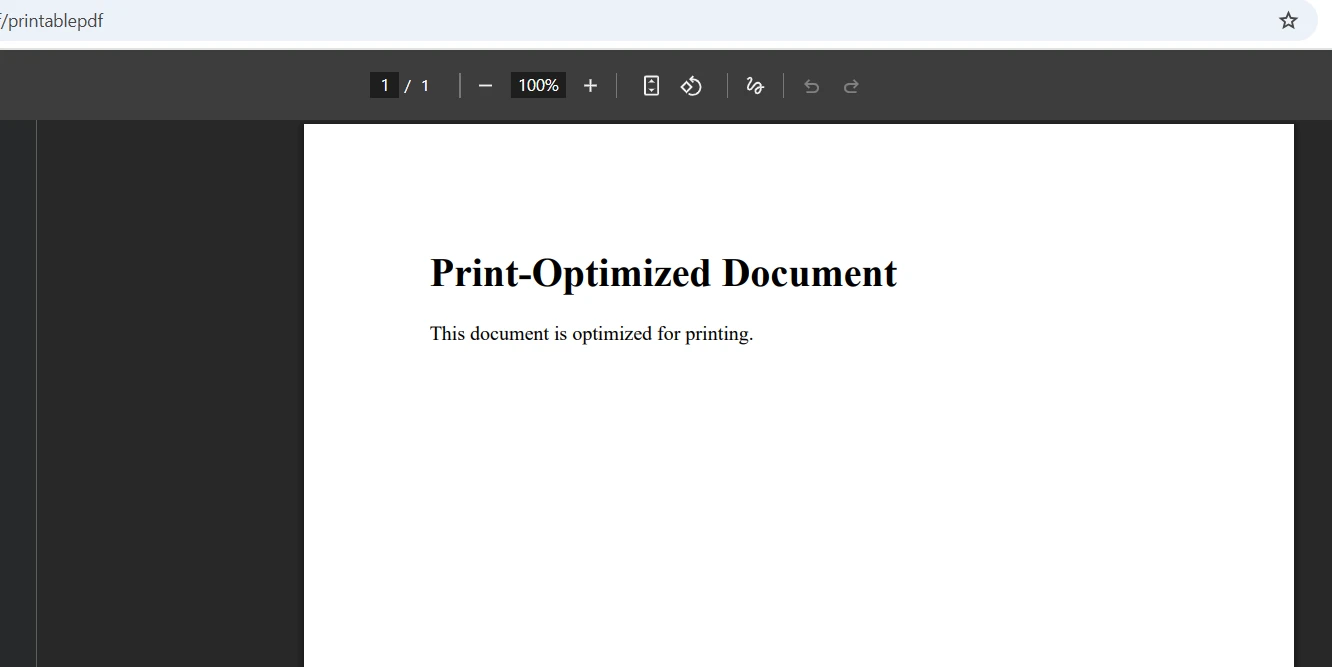
End FunctionCssMediaType을(를) Print로 설정하면 인쇄 전용 CSS 스타일이 적용되어 문서가 인쇄 시 올바르게 보이도록 보장합니다. 여백 설정은 실제 종이에 적절한 간격을 제공합니다. 사용자는 표준 인쇄 대화를 이용하여 브라우저의 PDF 뷰어에서 직접 PDF를 인쇄할 수 있으며, 프린터 선택 및 설정에 대한 충분한 제어권을 유지합니다. 출력을 세부 조정하기 위해 PDF 렌더링 옵션에 대해 더 알아보세요.
IronPDF는 Windows, Linux, macOS, Docker 컨테이너 및 Azure와 AWS 같은 클라우드 플랫폼에서 원활하게 실행됩니다. 이런 크로스 플랫폼 호환성은 ASP.NET Core PDF 뷰어 솔루션이 배포 환경에 관계없이 일관되게 작동하도록 보장합니다. 라이브러리는 플랫폼 특유의 렌더링 세부 사항을 내부적으로 처리하여 코드가 수정 없이 어디서나 작동합니다.
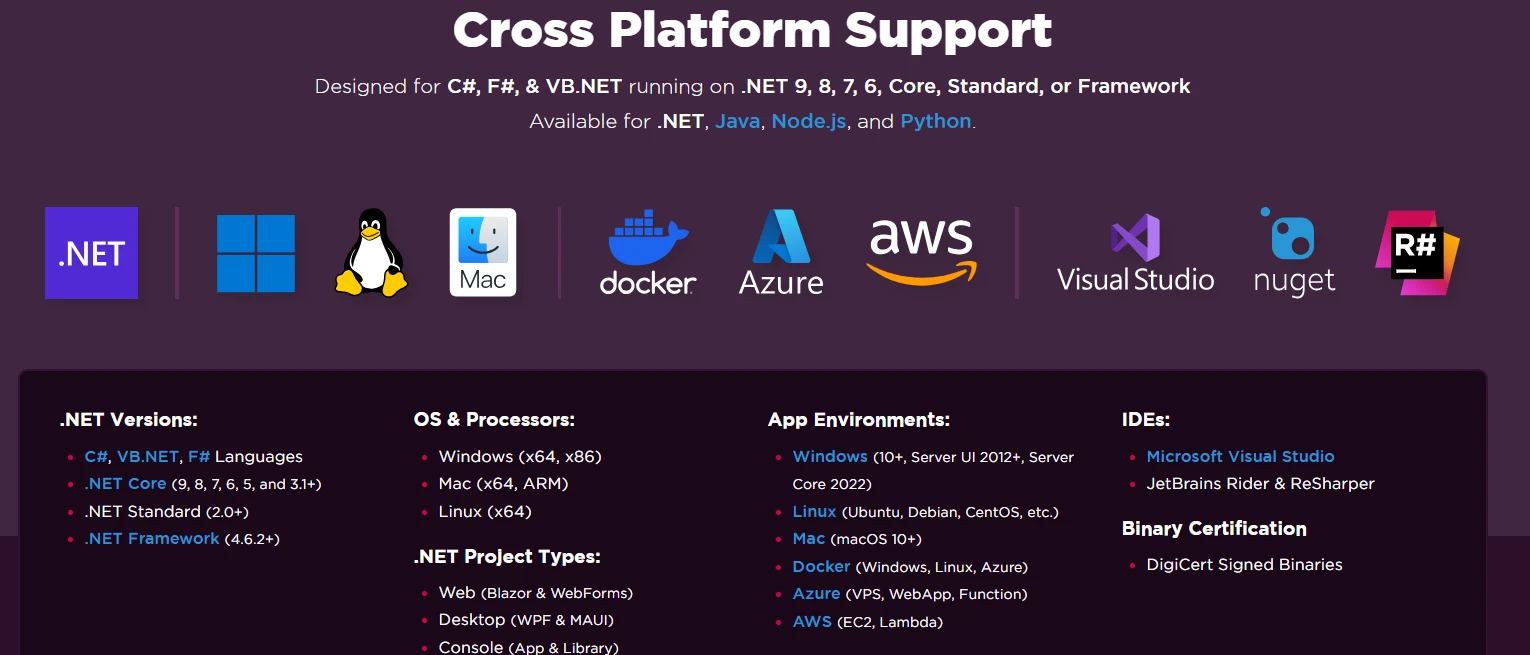
서버 측 처리는 모든 플랫폼에서 일관된 PDF 생성성을 보장합니다. Windows 서버나 Linux 컨테이너에 배포되건, 구성 요소는 동일한 렌더링 품질을 유지합니다. 라이브러리는 운영 체제 간의 경로 차이를 자동으로 처리하며, wwwroot 폴더 또는 다른 위치의 파일도 올바르게 처리합니다. 컨테이너화된 배포의 경우, Docker 배포 가이드를 확인하세요. 패키지에는 각 플랫폼에 필요한 모든 종속성이 포함되어 있으며, 표준 ASP.NET Core 요구 사항을 넘어 추가 구성이 필요하지 않습니다.
생산 컨테이너 배포를 위해 이 Dockerfile 예제를 고려하세요.
FROM mcr.microsoft.com/dotnet/aspnet:8.0 AS base
WORKDIR /app
EXPOSE 80

# Install IronPDF dependencies for Linux
RUN apt-get update && apt-get install -y \
    libgdiplus \
    libc6-dev \
    libx11-6 \
    && rm -rf /var/lib/apt/lists/*

FROM mcr.microsoft.com/dotnet/sdk:8.0 AS build
WORKDIR /src
COPY ["PdfViewerApp.csproj", "./"]
RUN dotnet restore "PdfViewerApp.csproj"
COPY . .
RUN dotnet build "PdfViewerApp.csproj" -c Release -o /app/build

FROM build AS publish
RUN dotnet publish "PdfViewerApp.csproj" -c Release -o /app/publish

FROM base AS final
WORKDIR /app
COPY --from=publish /app/publish .
ENTRYPOINT ["dotnet", "PdfViewerApp.dll"]무료 체험판으로 시작하여 오늘 문서 뷰어 기능을 변화시키세요.
IronPDF는 서버 측 생성과 브라우저 네이티브 뷰잉을 결합하여 ASP.NET Core 애플리케이션의 PDF 처리를 변혁합니다. 몇 줄의 코드만으로 HTML에서 전문적인 PDF를 생성하고, 인라인으로 표시하고, 다운로드를 가능하게 하며, 인쇄를 최적화할 수 있습니다. Chrome 기반의 렌더링 엔진은 모든 플랫폼에서 픽셀 완벽한 정확성을 보장하여 Adobe Acrobat Reader나 타사 뷰어의 필요성을 없앱니다.
이 ASP.NET Core PDF 뷰어 솔루션은 양식 채우기, 텍스트 선택, 디지털 서명, PDF 편집 능력을 포함한 종합적인 기능을 제공합니다. 구성 요소는 또한 Word 문서 (DOCX 파일), Excel 스프레드시트, 이미지를 PDF로 변환하는 것을 지원합니다. 단순한 문서 뷰어를 구축하든 복잡한 문서 관리 시스템을 구축하든 IronPDF는 필요한 도구를 제공합니다.
라이브러리의 태그 헬퍼 통합 및 광범위한 문서는 구현을 쉽고 직관적으로 만듭니다. 귀하의 프로젝트는 백엔드 처리가 복잡한 PDF 생성 작업을 처리하는 동안 PDF를 직접 표시할 수 있습니다. 뷰어는 wwwroot 폴더에서 로드하거나 동적으로 생성하거나 외부 소스에서 가져오는 경우에도 일관된 동작을 유지합니다. 내장된 테마 지원 및 사용자 정의 가능한 너비 설정을 통해 애플리케이션의 디자인에 완벽히 맞출 수 있습니다. DevOps 팀의 경우 IronPDF Slim 패키지는 오케스트레이션된 환경에서 컨테이너 크기 제약을 해결하기 위해 배포 크기를 줄입니다.
.NET Core 웹 애플리케이션에서 PDF 보기 구현을 준비하십시오.
상용 용도의 경우, 라이선스는 $999에서 시작하며, 포괄적인 지원 및 업데이트를 포함합니다. 자세한 API 참조 및 고급 기능에 대한 정보는 문서를 참조하십시오. ASP.NET Core 프로젝트에서 PDF 기능을 빠르게 구현하기 위해 우리의 광범위한 코드 예제를 참조하십시오.

커티스 차우는 칼턴 대학교에서 컴퓨터 과학 학사 학위를 취득했으며, Node.js, TypeScript, JavaScript, React를 전문으로 하는 프론트엔드 개발자입니다. 직관적이고 미적으로 뛰어난 사용자 인터페이스를 만드는 데 열정을 가진 그는 최신 프레임워크를 활용하고, 잘 구성되고 시각적으로 매력적인 매뉴얼을 제작하는 것을 즐깁니다.



IronPDF는 IRON SUITE 의 일부입니다.
10개의 .NET API 제품, 당신의 사무 문서를 위해











PDF 파일을 HTML처럼 빠르게 변환해야 할 때.


