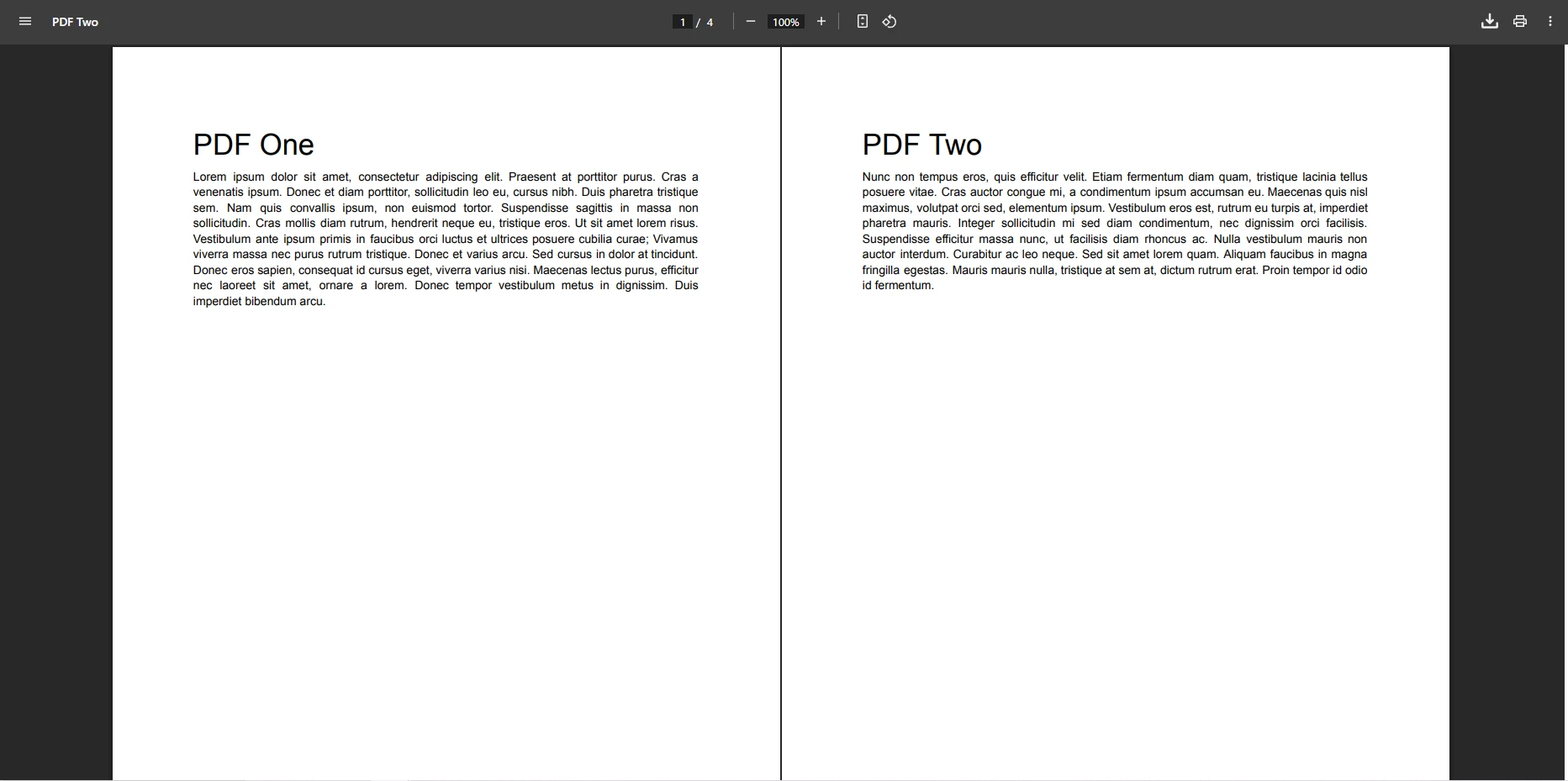
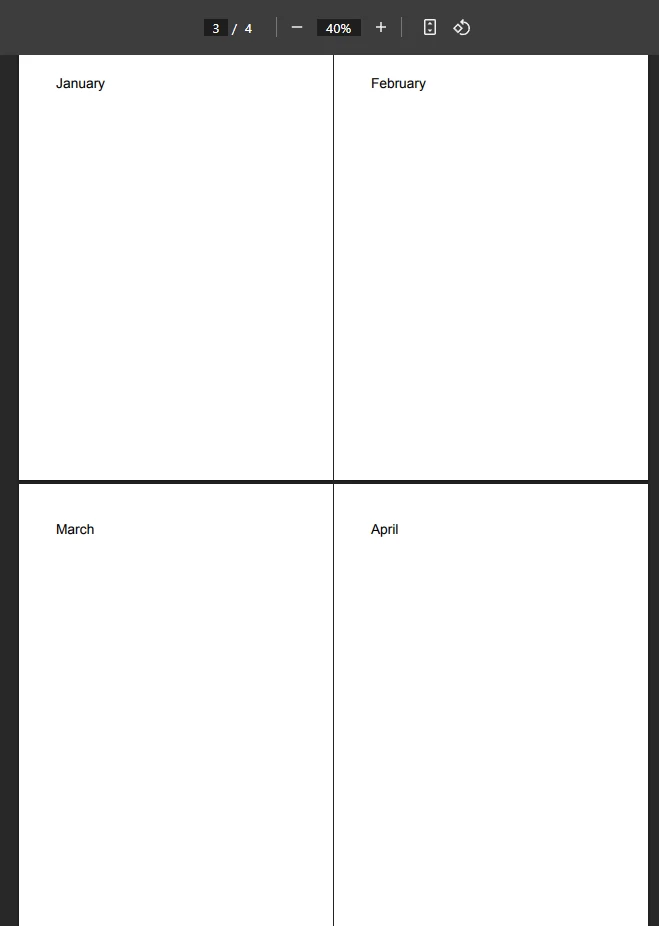
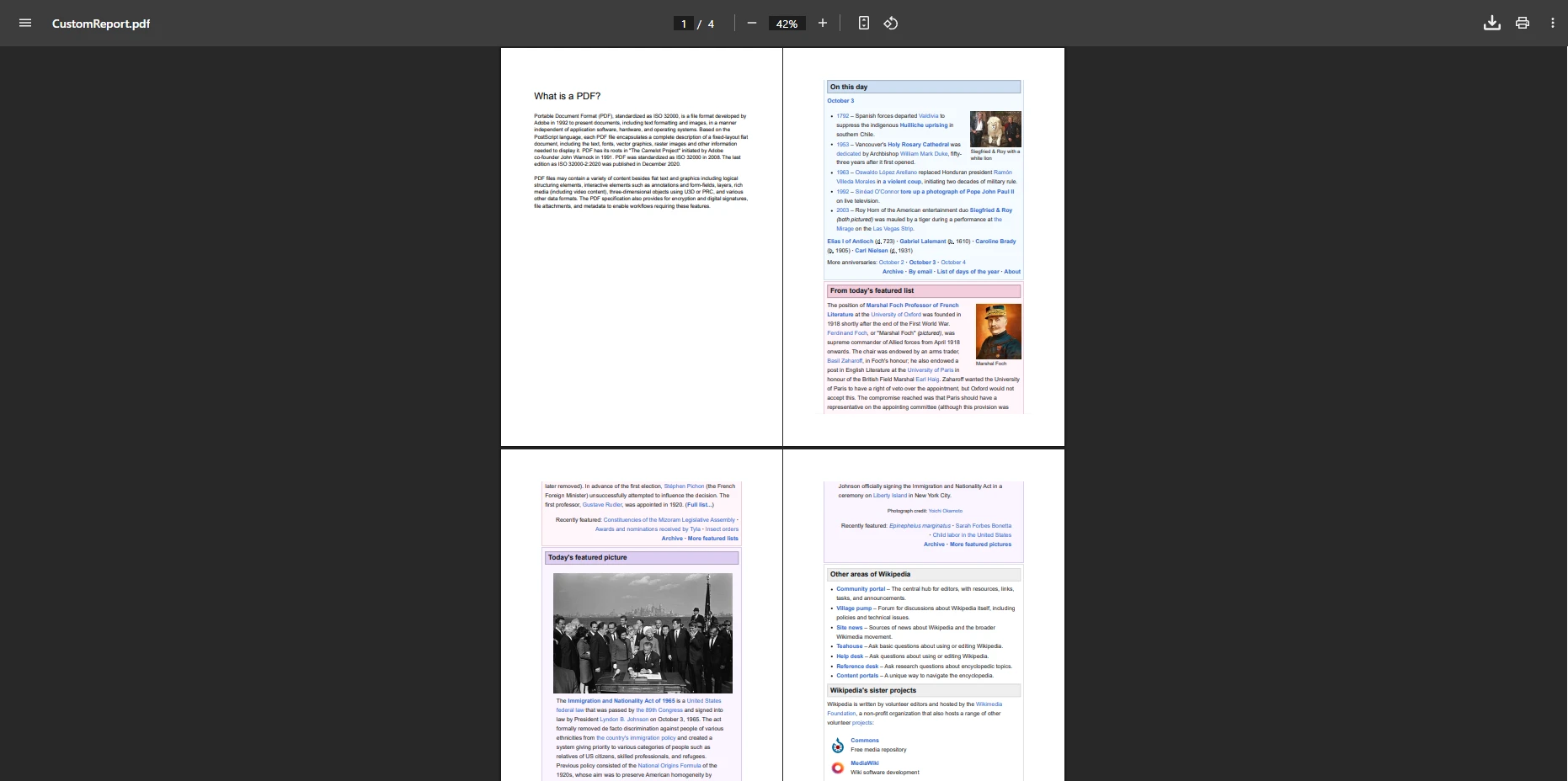
IRONPDF 사용 How to Merge PDF Files in VB.NET: Complete Tutorial 커티스 차우 업데이트됨:1월 21, 2026 다운로드 IronPDF NuGet 다운로드 DLL 다운로드 윈도우 설치 프로그램 무료 체험 시작하기 LLM용 사본 LLM용 사본 LLM용 마크다운 형식으로 페이지를 복사하세요 ChatGPT에서 열기 ChatGPT에 이 페이지에 대해 문의하세요 제미니에서 열기 제미니에게 이 페이지에 대해 문의하세요 Grok에서 열기 Grok에게 이 페이지에 대해 문의하세요 혼란 속에서 열기 Perplexity에게 이 페이지에 대해 문의하세요 공유하다 페이스북에 공유하기 트위터에 공유하기 LinkedIn에 공유하기 URL 복사 이메일로 기사 보내기 Merging PDF files in VB.NET is straightforward with IronPDF. Simply load your PDFs using PdfDocument.FromFile() and combine them with the Merge() method, eliminating manual document handling and complex code. Dealing with endless documents and reports can be a headache. Spending time manually combining PDF files or struggling with outdated tools is just wasted effort. This tutorial aims to save you time by showing you how to merge PDF files programmatically using the effective IronPDF library. It's easier than you might think! Whether you're building ASP.NET applications, working with Windows Forms, or developing cloud-based solutions on Azure, IronPDF provides a reliable solution for PDF manipulation and document management. The library's Chrome rendering engine ensures perfect fidelity when merging PDFs, preserving all formatting, fonts, and form data. How Do I Get Started with IronPDF? Download the NuGet package via Visual Studio's NuGet Package Manager: Install-Package IronPdf IronPDF is compatible with the .NET framework, .NET Core, and other platforms (like Linux, macOS, Azure, and AWS), making it an excellent tool for your project. The library supports VB.NET development alongside C#, providing flexibility for different development teams. Import the namespace in your VB.NET project or application to gain instant access to the PDF controls and methods: Imports IronPdf Imports IronPdf VB .NET For more detailed installation instructions, including advanced NuGet configurations and Docker deployment, check our complete guides. How to Merge PDF Files? Here's a sample code to merge PDF files into one PDF file: Module Program Sub Main() ' Load two PDF documents Dim pdf1 As PdfDocument = PdfDocument.FromFile("Report1.pdf") Dim pdf2 As PdfDocument = PdfDocument.FromFile("Report2.pdf") ' Merge PDF documents Dim mergedPdf As PdfDocument = PdfDocument.Merge(pdf1, pdf2) ' Save merged PDF mergedPdf.SaveAs("MergedReport.pdf") End Sub End Module Module Program Sub Main() ' Load two PDF documents Dim pdf1 As PdfDocument = PdfDocument.FromFile("Report1.pdf") Dim pdf2 As PdfDocument = PdfDocument.FromFile("Report2.pdf") ' Merge PDF documents Dim mergedPdf As PdfDocument = PdfDocument.Merge(pdf1, pdf2) ' Save merged PDF mergedPdf.SaveAs("MergedReport.pdf") End Sub End Module VB .NET This loads two PDF files using FromFile from your disk, combines them with the Merge static method, and saves the merged PDF document to an output PDF file. The merge preserves all formatting and form fields. For more details about PDF manipulation, refer to our complete documentation. The Merge method is highly efficient for performance, handling large documents effectively. It maintains document integrity, including metadata, bookmarks, and annotations. The method works smoothly with PDFs created from various sources, whether converted from HTML, generated from URLs, or created from images. What Does the Output PDF File Look Like? How to Merge Multiple PDF Files? Merge multiple PDF files using arrays to combine files: Module Program Sub Main() ' String array of PDF files Dim pdfFiles() As String = New String() { "January.pdf", "February.pdf", "March.pdf", "April.pdf" } ' Load multiple PDFs into PdfDocument objects Dim pdfs As New List(Of PdfDocument) For Each file As String In pdfFiles pdfs.Add(PdfDocument.FromFile(file)) Next ' Merge all documents Dim merged As PdfDocument = PdfDocument.Merge(pdfs.ToArray()) merged.SaveAs("QuarterlyReport.pdf") End Sub End Module Module Program Sub Main() ' String array of PDF files Dim pdfFiles() As String = New String() { "January.pdf", "February.pdf", "March.pdf", "April.pdf" } ' Load multiple PDFs into PdfDocument objects Dim pdfs As New List(Of PdfDocument) For Each file As String In pdfFiles pdfs.Add(PdfDocument.FromFile(file)) Next ' Merge all documents Dim merged As PdfDocument = PdfDocument.Merge(pdfs.ToArray()) merged.SaveAs("QuarterlyReport.pdf") End Sub End Module VB .NET This loads multiple PDF files into PdfDocument objects and merges them in one operation. The Merge static method accepts arrays for batch processing. With just a few lines of VB.NET code, you can process multiple PDFs efficiently. For improved performance when dealing with numerous files, consider using async operations or parallel processing. IronPDF's multithreading support ensures optimal performance even with large document batches. When working with memory-intensive operations, proper resource management is crucial. Advanced Multiple File Merging Module Program Sub Main() Try ' Directory containing PDF files Dim pdfDirectory As String = "C:\Reports\Monthly\" Dim pdfFiles() As String = Directory.GetFiles(pdfDirectory, "*.pdf") ' Sort files by name for consistent ordering Array.Sort(pdfFiles) ' Load and merge with error handling Dim pdfs As New List(Of PdfDocument) For Each file As String In pdfFiles Try pdfs.Add(PdfDocument.FromFile(file)) Console.WriteLine($"Loaded: {Path.GetFileName(file)}") Catch ex As Exception Console.WriteLine($"Error loading {file}: {ex.Message}") End Try Next If pdfs.Count > 0 Then Dim merged As PdfDocument = PdfDocument.Merge(pdfs.ToArray()) ' Add metadata to merged document merged.MetaData.Author = "Report Generator" merged.MetaData.CreationDate = DateTime.Now merged.MetaData.Title = "Consolidated Monthly Reports" merged.SaveAs("ConsolidatedReports.pdf") Console.WriteLine("Merge completed successfully!") End If Catch ex As Exception Console.WriteLine($"Merge operation failed: {ex.Message}") End Try End Sub End Module Module Program Sub Main() Try ' Directory containing PDF files Dim pdfDirectory As String = "C:\Reports\Monthly\" Dim pdfFiles() As String = Directory.GetFiles(pdfDirectory, "*.pdf") ' Sort files by name for consistent ordering Array.Sort(pdfFiles) ' Load and merge with error handling Dim pdfs As New List(Of PdfDocument) For Each file As String In pdfFiles Try pdfs.Add(PdfDocument.FromFile(file)) Console.WriteLine($"Loaded: {Path.GetFileName(file)}") Catch ex As Exception Console.WriteLine($"Error loading {file}: {ex.Message}") End Try Next If pdfs.Count > 0 Then Dim merged As PdfDocument = PdfDocument.Merge(pdfs.ToArray()) ' Add metadata to merged document merged.MetaData.Author = "Report Generator" merged.MetaData.CreationDate = DateTime.Now merged.MetaData.Title = "Consolidated Monthly Reports" merged.SaveAs("ConsolidatedReports.pdf") Console.WriteLine("Merge completed successfully!") End If Catch ex As Exception Console.WriteLine($"Merge operation failed: {ex.Message}") End Try End Sub End Module VB .NET What's the Result of Merging Multiple PDFs? How Can I Merge Specific Pages from PDF Documents? Extract and merge specific pages to create a single PDF: Module Program Sub Main() ' Load existing PDFs Dim doc1 As PdfDocument = PdfDocument.FromFile("PdfOne.pdf") Dim doc2 As PdfDocument = PdfDocument.FromFile("PdfTwo.pdf") ' Create new PdfDocument for current document Dim one As PdfDocument = doc2.CopyPage(0) ' Append pages to merge result Dim pages As PdfDocument = doc1.CopyPages(2, 4) Dim result As PdfDocument = PdfDocument.Merge(one, pages) result.SaveAs("CustomPdf.pdf") End Sub End Module Module Program Sub Main() ' Load existing PDFs Dim doc1 As PdfDocument = PdfDocument.FromFile("PdfOne.pdf") Dim doc2 As PdfDocument = PdfDocument.FromFile("PdfTwo.pdf") ' Create new PdfDocument for current document Dim one As PdfDocument = doc2.CopyPage(0) ' Append pages to merge result Dim pages As PdfDocument = doc1.CopyPages(2, 4) Dim result As PdfDocument = PdfDocument.Merge(one, pages) result.SaveAs("CustomPdf.pdf") End Sub End Module VB .NET CopyPage extracts one page while CopyPages extracts ranges to append. This creates PDF files with only relevant pages from larger documents. The page manipulation features allow precise control over document structure. You can also rotate pages, add page numbers, or insert page breaks as needed. Advanced Page Selection Example Module PageSelector Sub Main() ' Load source documents Dim contract As PdfDocument = PdfDocument.FromFile("Contract.pdf") Dim appendix As PdfDocument = PdfDocument.FromFile("Appendix.pdf") Dim terms As PdfDocument = PdfDocument.FromFile("Terms.pdf") ' Extract specific sections Dim contractPages As PdfDocument = contract.CopyPages(0, 5) ' First 6 pages Dim appendixSummary As PdfDocument = appendix.CopyPage(0) ' Cover page only Dim termsHighlight As PdfDocument = terms.CopyPages(3, 4) ' Pages 4-5 ' Merge selected pages Dim customDoc As PdfDocument = PdfDocument.Merge( contractPages, appendixSummary, termsHighlight) ' Add headers to identify sections customDoc.AddTextHeaders("Contract Package - {page} of {total-pages}", IronPdf.Editing.FontFamily.Helvetica, 12) customDoc.SaveAs("ContractPackage.pdf") End Sub End Module Module PageSelector Sub Main() ' Load source documents Dim contract As PdfDocument = PdfDocument.FromFile("Contract.pdf") Dim appendix As PdfDocument = PdfDocument.FromFile("Appendix.pdf") Dim terms As PdfDocument = PdfDocument.FromFile("Terms.pdf") ' Extract specific sections Dim contractPages As PdfDocument = contract.CopyPages(0, 5) ' First 6 pages Dim appendixSummary As PdfDocument = appendix.CopyPage(0) ' Cover page only Dim termsHighlight As PdfDocument = terms.CopyPages(3, 4) ' Pages 4-5 ' Merge selected pages Dim customDoc As PdfDocument = PdfDocument.Merge( contractPages, appendixSummary, termsHighlight) ' Add headers to identify sections customDoc.AddTextHeaders("Contract Package - {page} of {total-pages}", IronPdf.Editing.FontFamily.Helvetica, 12) customDoc.SaveAs("ContractPackage.pdf") End Sub End Module VB .NET What Do the Input PDF Files Look Like? How Does Page-Specific Merging Affect the Output? How Do I Merge PDF Documents from Memory Streams? For .NET applications working with existing PDFs in memory: Module Program Sub Main() Using stream1 As New MemoryStream(File.ReadAllBytes("Doc1.pdf")) Using stream2 As New MemoryStream(File.ReadAllBytes("Doc2.pdf")) Dim pdf1 As New PdfDocument(stream1) Dim pdf2 As New PdfDocument(stream2) Dim merged As PdfDocument = PdfDocument.Merge(pdf1, pdf2) merged.SaveAs("Output.pdf") End Using End Using End Sub End Module Module Program Sub Main() Using stream1 As New MemoryStream(File.ReadAllBytes("Doc1.pdf")) Using stream2 As New MemoryStream(File.ReadAllBytes("Doc2.pdf")) Dim pdf1 As New PdfDocument(stream1) Dim pdf2 As New PdfDocument(stream2) Dim merged As PdfDocument = PdfDocument.Merge(pdf1, pdf2) merged.SaveAs("Output.pdf") End Using End Using End Sub End Module VB .NET Perfect for ASP.NET applications and Windows Forms applications processing uploaded files. Memory stream operations are essential for cloud deployments where file system access may be limited. This approach is particularly useful when working with Azure Blob Storage or processing files from web services. When Should I Use Memory Streams for PDF Merging? Memory streams are ideal when: Working with uploaded files in web applications Processing PDFs from database BLOB fields Operating in restricted environments without file system access Implementing secure document handling without temporary files Building microservices that process PDFs in memory Advanced Memory Stream Example Module MemoryMerger Sub Main() ' Simulate receiving PDFs from web upload Dim uploadedFiles As New List(Of Byte()) uploadedFiles.Add(GetPdfFromDatabase("invoice_001")) uploadedFiles.Add(GetPdfFromWebService("receipt_001")) ' Process and merge in memory Dim pdfDocuments As New List(Of PdfDocument) For Each fileData As Byte() In uploadedFiles Using ms As New MemoryStream(fileData) pdfDocuments.Add(New PdfDocument(ms)) End Using Next ' Merge and return as byte array Dim merged As PdfDocument = PdfDocument.Merge(pdfDocuments.ToArray()) ' Save to memory stream for further processing Using outputStream As New MemoryStream() merged.SaveAs(outputStream) Dim mergedBytes() As Byte = outputStream.ToArray() ' Send to storage or return to client SaveToCloudStorage(mergedBytes) End Using End Sub Private Function GetPdfFromDatabase(documentId As String) As Byte() ' Simulate database retrieval Return File.ReadAllBytes($"{documentId}.pdf") End Function Private Function GetPdfFromWebService(documentId As String) As Byte() ' Simulate web service call Return File.ReadAllBytes($"{documentId}.pdf") End Function Private Sub SaveToCloudStorage(data As Byte()) ' Simulate cloud storage upload File.WriteAllBytes("cloud_merged.pdf", data) End Sub End Module Module MemoryMerger Sub Main() ' Simulate receiving PDFs from web upload Dim uploadedFiles As New List(Of Byte()) uploadedFiles.Add(GetPdfFromDatabase("invoice_001")) uploadedFiles.Add(GetPdfFromWebService("receipt_001")) ' Process and merge in memory Dim pdfDocuments As New List(Of PdfDocument) For Each fileData As Byte() In uploadedFiles Using ms As New MemoryStream(fileData) pdfDocuments.Add(New PdfDocument(ms)) End Using Next ' Merge and return as byte array Dim merged As PdfDocument = PdfDocument.Merge(pdfDocuments.ToArray()) ' Save to memory stream for further processing Using outputStream As New MemoryStream() merged.SaveAs(outputStream) Dim mergedBytes() As Byte = outputStream.ToArray() ' Send to storage or return to client SaveToCloudStorage(mergedBytes) End Using End Sub Private Function GetPdfFromDatabase(documentId As String) As Byte() ' Simulate database retrieval Return File.ReadAllBytes($"{documentId}.pdf") End Function Private Function GetPdfFromWebService(documentId As String) As Byte() ' Simulate web service call Return File.ReadAllBytes($"{documentId}.pdf") End Function Private Sub SaveToCloudStorage(data As Byte()) ' Simulate cloud storage upload File.WriteAllBytes("cloud_merged.pdf", data) End Sub End Module VB .NET What's a Real-World Example of Report Compilation? Here's how to merge multiple PDF documents for report compilation: Module ReportCompiler Sub Main() ' Load PDF documents Dim cover As PdfDocument = PdfDocument.FromFile("Cover.pdf") Dim summary As PdfDocument = PdfDocument.FromFile("Summary.pdf") Dim data As PdfDocument = PdfDocument.FromFile("Data.pdf") ' Merge files in order Dim report As PdfDocument = PdfDocument.Merge(cover, summary, data) ' Add metadata report.MetaData.Title = "Q1 Report" report.SaveAs("Q1_Complete.pdf") End Sub End Module Module ReportCompiler Sub Main() ' Load PDF documents Dim cover As PdfDocument = PdfDocument.FromFile("Cover.pdf") Dim summary As PdfDocument = PdfDocument.FromFile("Summary.pdf") Dim data As PdfDocument = PdfDocument.FromFile("Data.pdf") ' Merge files in order Dim report As PdfDocument = PdfDocument.Merge(cover, summary, data) ' Add metadata report.MetaData.Title = "Q1 Report" report.SaveAs("Q1_Complete.pdf") End Sub End Module VB .NET This demonstrates merging PDF documents in a specific order while adding metadata to the merged PDF document. Metadata management is crucial for document organization and compliance requirements. Complete Report Generation Example Module ComprehensiveReportBuilder Sub Main() Try ' Create report components Dim reportDate As DateTime = DateTime.Now Dim quarter As String = $"Q{Math.Ceiling(reportDate.Month / 3)}" ' Generate dynamic cover page Dim coverHtml As String = $" <html> <body style='text-align: center; padding-top: 200px;'> <h1>Financial Report {quarter} {reportDate.Year}</h1> <h2>{reportDate.ToString("MMMM yyyy")}</h2> <p>Confidential - Internal Use Only</p> </body> </html>" Dim renderer As New ChromePdfRenderer() renderer.RenderingOptions.PaperSize = IronPdf.Rendering.PdfPaperSize.A4 renderer.RenderingOptions.MarginTop = 40 renderer.RenderingOptions.MarginBottom = 40 ' Create cover from HTML Dim dynamicCover As PdfDocument = renderer.RenderHtmlAsPdf(coverHtml) ' Load existing report sections Dim executive As PdfDocument = PdfDocument.FromFile("ExecutiveSummary.pdf") Dim financial As PdfDocument = PdfDocument.FromFile("FinancialData.pdf") Dim charts As PdfDocument = PdfDocument.FromFile("Charts.pdf") Dim appendix As PdfDocument = PdfDocument.FromFile("Appendix.pdf") ' Apply watermark to financial data financial.ApplyWatermark("<h2 style='color: red; opacity: 0.5;'>CONFIDENTIAL</h2>") ' Merge all sections Dim fullReport As PdfDocument = PdfDocument.Merge( dynamicCover, executive, financial, charts, appendix) ' Add complete metadata With fullReport.MetaData .Title = $"Financial Report {quarter} {reportDate.Year}" .Author = "Finance Department" .Subject = "Quarterly Financial Performance" .Keywords = $"finance, {quarter}, {reportDate.Year}, quarterly report" .Creator = "Report Generator v2.0" .Producer = "IronPDF" .CreationDate = reportDate .ModifiedDate = reportDate End With ' Add headers and footers fullReport.AddTextHeaders($"{quarter} Financial Report", IronPdf.Editing.FontFamily.Arial, 10) fullReport.AddTextFooters("Page {page} of {total-pages} | Confidential", IronPdf.Editing.FontFamily.Arial, 8) ' Add bookmarks for navigation ' Note: This is pseudo-code for bookmark functionality ' fullReport.AddBookmark("Executive Summary", 2) ' fullReport.AddBookmark("Financial Data", 5) ' fullReport.AddBookmark("Charts and Graphs", 15) ' fullReport.AddBookmark("Appendix", 25) ' Apply security settings fullReport.SecuritySettings.UserPassword = "reader123" fullReport.SecuritySettings.OwnerPassword = "admin456" fullReport.SecuritySettings.AllowUserPrinting = True fullReport.SecuritySettings.AllowUserCopyPasteContent = False ' Save with compression fullReport.CompressImages(90) fullReport.SaveAs($"Financial_Report_{quarter}_{reportDate.Year}.pdf") Console.WriteLine($"Report generated successfully: {fullReport.PageCount} pages") Catch ex As Exception Console.WriteLine($"Error generating report: {ex.Message}") End Try End Sub End Module Module ComprehensiveReportBuilder Sub Main() Try ' Create report components Dim reportDate As DateTime = DateTime.Now Dim quarter As String = $"Q{Math.Ceiling(reportDate.Month / 3)}" ' Generate dynamic cover page Dim coverHtml As String = $" <html> <body style='text-align: center; padding-top: 200px;'> <h1>Financial Report {quarter} {reportDate.Year}</h1> <h2>{reportDate.ToString("MMMM yyyy")}</h2> <p>Confidential - Internal Use Only</p> </body> </html>" Dim renderer As New ChromePdfRenderer() renderer.RenderingOptions.PaperSize = IronPdf.Rendering.PdfPaperSize.A4 renderer.RenderingOptions.MarginTop = 40 renderer.RenderingOptions.MarginBottom = 40 ' Create cover from HTML Dim dynamicCover As PdfDocument = renderer.RenderHtmlAsPdf(coverHtml) ' Load existing report sections Dim executive As PdfDocument = PdfDocument.FromFile("ExecutiveSummary.pdf") Dim financial As PdfDocument = PdfDocument.FromFile("FinancialData.pdf") Dim charts As PdfDocument = PdfDocument.FromFile("Charts.pdf") Dim appendix As PdfDocument = PdfDocument.FromFile("Appendix.pdf") ' Apply watermark to financial data financial.ApplyWatermark("<h2 style='color: red; opacity: 0.5;'>CONFIDENTIAL</h2>") ' Merge all sections Dim fullReport As PdfDocument = PdfDocument.Merge( dynamicCover, executive, financial, charts, appendix) ' Add complete metadata With fullReport.MetaData .Title = $"Financial Report {quarter} {reportDate.Year}" .Author = "Finance Department" .Subject = "Quarterly Financial Performance" .Keywords = $"finance, {quarter}, {reportDate.Year}, quarterly report" .Creator = "Report Generator v2.0" .Producer = "IronPDF" .CreationDate = reportDate .ModifiedDate = reportDate End With ' Add headers and footers fullReport.AddTextHeaders($"{quarter} Financial Report", IronPdf.Editing.FontFamily.Arial, 10) fullReport.AddTextFooters("Page {page} of {total-pages} | Confidential", IronPdf.Editing.FontFamily.Arial, 8) ' Add bookmarks for navigation ' Note: This is pseudo-code for bookmark functionality ' fullReport.AddBookmark("Executive Summary", 2) ' fullReport.AddBookmark("Financial Data", 5) ' fullReport.AddBookmark("Charts and Graphs", 15) ' fullReport.AddBookmark("Appendix", 25) ' Apply security settings fullReport.SecuritySettings.UserPassword = "reader123" fullReport.SecuritySettings.OwnerPassword = "admin456" fullReport.SecuritySettings.AllowUserPrinting = True fullReport.SecuritySettings.AllowUserCopyPasteContent = False ' Save with compression fullReport.CompressImages(90) fullReport.SaveAs($"Financial_Report_{quarter}_{reportDate.Year}.pdf") Console.WriteLine($"Report generated successfully: {fullReport.PageCount} pages") Catch ex As Exception Console.WriteLine($"Error generating report: {ex.Message}") End Try End Sub End Module VB .NET Why Is Document Order Important When Merging? Document order affects: Navigation flow and table of contents Page numbering continuity Header and footer consistency Bookmark hierarchy Form field tab order Best Practices for Merging PDFs When merging PDF files with IronPDF: Ensure input files exist before loading by using proper error handling. IronPDF maintains images and formatting during merge operations. Documents are combined in the order they appear in the array. Consider PDF compression for large merged files. Use async operations to improve performance. Implement proper licensing for production use. For industry standards, visit the PDF Association. Community solutions are available on Stack Overflow. Check our troubleshooting guides for common issues. Performance Optimization Tips Module PerformanceOptimizedMerger Sub Main() ' Enable performance logging IronPdf.Logging.Logger.EnableDebugging = True IronPdf.Logging.Logger.LogFilePath = "IronPdf.log" IronPdf.Logging.Logger.LoggingMode = IronPdf.Logging.Logger.LoggingModes.All Dim stopwatch As New Stopwatch() stopwatch.Start() Try ' Batch load PDFs for better memory management Dim batchSize As Integer = 10 Dim allFiles() As String = Directory.GetFiles("C:\LargePDFCollection\", "*.pdf") Dim batches As New List(Of PdfDocument) For i As Integer = 0 To allFiles.Length - 1 Step batchSize Dim batchFiles = allFiles.Skip(i).Take(batchSize).ToArray() Dim batchPdfs As New List(Of PdfDocument) For Each file In batchFiles batchPdfs.Add(PdfDocument.FromFile(file)) Next ' Merge batch If batchPdfs.Count > 0 Then batches.Add(PdfDocument.Merge(batchPdfs.ToArray())) End If ' Clean up batch For Each pdf In batchPdfs pdf.Dispose() Next Next ' Final merge of all batches Dim finalMerge As PdfDocument = PdfDocument.Merge(batches.ToArray()) ' Improve final output finalMerge.CompressImages(85) finalMerge.SaveAs("OptimizedMerge.pdf") stopwatch.Stop() Console.WriteLine($"Merge completed in {stopwatch.ElapsedMilliseconds}ms") Catch ex As Exception Console.WriteLine($"Performance optimization failed: {ex.Message}") End Try End Sub End Module Module PerformanceOptimizedMerger Sub Main() ' Enable performance logging IronPdf.Logging.Logger.EnableDebugging = True IronPdf.Logging.Logger.LogFilePath = "IronPdf.log" IronPdf.Logging.Logger.LoggingMode = IronPdf.Logging.Logger.LoggingModes.All Dim stopwatch As New Stopwatch() stopwatch.Start() Try ' Batch load PDFs for better memory management Dim batchSize As Integer = 10 Dim allFiles() As String = Directory.GetFiles("C:\LargePDFCollection\", "*.pdf") Dim batches As New List(Of PdfDocument) For i As Integer = 0 To allFiles.Length - 1 Step batchSize Dim batchFiles = allFiles.Skip(i).Take(batchSize).ToArray() Dim batchPdfs As New List(Of PdfDocument) For Each file In batchFiles batchPdfs.Add(PdfDocument.FromFile(file)) Next ' Merge batch If batchPdfs.Count > 0 Then batches.Add(PdfDocument.Merge(batchPdfs.ToArray())) End If ' Clean up batch For Each pdf In batchPdfs pdf.Dispose() Next Next ' Final merge of all batches Dim finalMerge As PdfDocument = PdfDocument.Merge(batches.ToArray()) ' Improve final output finalMerge.CompressImages(85) finalMerge.SaveAs("OptimizedMerge.pdf") stopwatch.Stop() Console.WriteLine($"Merge completed in {stopwatch.ElapsedMilliseconds}ms") Catch ex As Exception Console.WriteLine($"Performance optimization failed: {ex.Message}") End Try End Sub End Module VB .NET Common Issues to Watch For Common challenges and solutions: Memory issues with large files - Use memory streams and batch processing. Font problems - Ensure fonts are embedded. Form field conflicts - Rename fields before merging. Performance bottlenecks - Use async methods. Security restrictions - Handle password-protected PDFs properly. Conclusion IronPDF simplifies merging PDFs in VB.NET to just a few lines of code. Whether combining two PDF files or processing multiple documents, IronPDF manages complexity while you focus on your .NET application. The library's complete feature set includes HTML to PDF conversion, PDF editing, form handling, and digital signatures. The intuitive API eliminates complex PDF manipulation, making it ideal for developers needing reliable PDF merging without extensive expertise. From simple combinations to page-level operations, IronPDF provides all the tools for professional document management in C# and VB.NET environments. The library's cross-platform support ensures your solution works on Windows, Linux, macOS, and cloud platforms. For production deployments, IronPDF offers flexible licensing options with transparent pricing. The 24/5 support team and extensive documentation ensure you're never stuck. Compare IronPDF with other solutions to see why developers choose it for enterprise PDF generation. Ready to simplify your PDF operations? Start your free trial for production use. Want to learn more about IronPDF's features? Visit here to read our extensive documentation. QUICKSTART: Merge PDFs in 30 Seconds Get Started Now • No credit card required 자주 묻는 질문 VB.NET에서 PDF 파일을 병합하는 가장 좋은 방법은 무엇인가요? VB.NET에서 PDF 파일을 병합하는 가장 좋은 방법은 여러 PDF 문서를 프로그래밍 방식으로 결합하는 간단하고 효율적인 방법을 제공하는 IronPDF 라이브러리를 사용하는 것입니다. IronPDF는 PDF 병합 프로세스를 어떻게 간소화할 수 있나요? IronPDF는 개발자가 단 몇 줄의 VB.NET 코드로 PDF 파일을 쉽게 병합할 수 있는 강력한 API를 제공하여 프로세스를 간소화함으로써 시간을 절약하고 복잡성을 줄입니다. VB.NET에서 서식을 잃지 않고 PDF를 병합할 수 있나요? 예, IronPDF를 사용하면 원본 서식을 유지하면서 PDF를 병합할 수 있으므로 병합된 문서가 의도한 레이아웃과 스타일을 유지할 수 있습니다. IronPDF를 사용하여 다른 PDF의 특정 페이지를 병합할 수 있나요? 예, IronPDF를 사용하면 여러 PDF에서 특정 페이지를 선택하여 병합할 수 있으므로 사용자 지정 결합 문서를 유연하게 만들 수 있습니다. PDF 파일 병합에 IronPDF를 사용하면 어떤 이점이 있나요? IronPDF는 사용 편의성, 문서 무결성 보존 기능, 병합을 넘어 다양한 PDF 조작 지원 등 다양한 이점을 제공합니다. PDF 병합에 IronPDF를 사용하려면 고급 프로그래밍 기술이 필요하나요? 아니요, 고급 프로그래밍 기술이 필요하지 않습니다. IronPDF는 명확한 문서와 간단한 코드 예제를 통해 모든 수준의 개발자가 액세스할 수 있도록 설계되었습니다. IronPDF는 병합 중에 대용량 PDF 파일을 어떻게 처리하나요? IronPDF는 메모리 사용량과 처리 속도를 최적화하여 대용량 PDF 파일을 효율적으로 처리하고, 방대한 문서도 원활하고 안정적으로 병합할 수 있습니다. IronPDF를 사용하여 VB.NET에서 PDF를 병합하는 단계별 가이드가 있나요? 예, IronPDF 웹사이트의 튜토리얼은 예제와 함께 자세한 단계별 가이드를 제공하여 VB.NET에서 PDF를 원활하게 병합할 수 있도록 도와줍니다. 커티스 차우 지금 바로 엔지니어링 팀과 채팅하세요 기술 문서 작성자 커티스 차우는 칼턴 대학교에서 컴퓨터 과학 학사 학위를 취득했으며, Node.js, TypeScript, JavaScript, React를 전문으로 하는 프론트엔드 개발자입니다. 직관적이고 미적으로 뛰어난 사용자 인터페이스를 만드는 데 열정을 가진 그는 최신 프레임워크를 활용하고, 잘 구성되고 시각적으로 매력적인 매뉴얼을 제작하는 것을 즐깁니다. 커티스는 개발 분야 외에도 사물 인터넷(IoT)에 깊은 관심을 가지고 있으며, 하드웨어와 소프트웨어를 통합하는 혁신적인 방법을 연구합니다. 여가 시간에는 게임을 즐기거나 디스코드 봇을 만들면서 기술에 대한 애정과 창의성을 결합합니다. 관련 기사 업데이트됨 1월 22, 2026 How to Create PDF Documents in .NET with IronPDF: Complete Guide Discover effective methods to create PDF files in C# for developers. Enhance your coding skills and streamline your projects. Read the article now! 더 읽어보기 업데이트됨 1월 21, 2026 C# PDFWriter Tutorial: Create PDF Documents in .NET Learn to create PDFs efficiently using C# PDFWriter with this step-by-step guide for developers. Read the article to enhance your skills today! 더 읽어보기 게시됨 1월 21, 2026 How to Convert Webpage to PDF in ASP .NET using C# and IronPDF Learn how to generate PDF files from web pages in ASP.NET applications. Complete guide with C# code examples for HTML to PDF conversion. 더 읽어보기 How to Convert PDF to Byte Array in C#How to Convert a PDF to Byte Array in C#

업데이트됨 1월 22, 2026 How to Create PDF Documents in .NET with IronPDF: Complete Guide Discover effective methods to create PDF files in C# for developers. Enhance your coding skills and streamline your projects. Read the article now! 더 읽어보기
업데이트됨 1월 21, 2026 C# PDFWriter Tutorial: Create PDF Documents in .NET Learn to create PDFs efficiently using C# PDFWriter with this step-by-step guide for developers. Read the article to enhance your skills today! 더 읽어보기
게시됨 1월 21, 2026 How to Convert Webpage to PDF in ASP .NET using C# and IronPDF Learn how to generate PDF files from web pages in ASP.NET applications. Complete guide with C# code examples for HTML to PDF conversion. 더 읽어보기