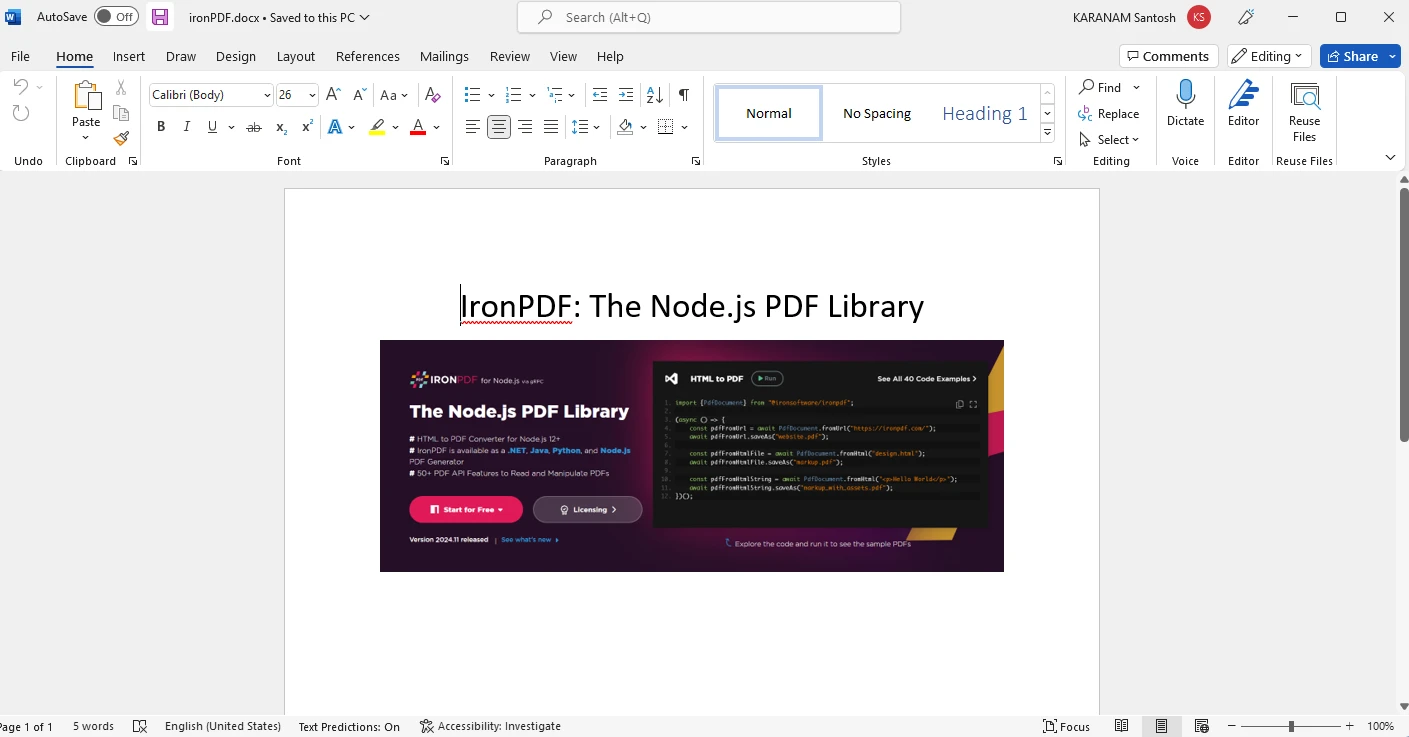
Node.js에서 PDF 파일을 압축하는 방법
This post will utilize IronPDF, a library tool that can compress PDFs in Node.js at different levels. A few lines of code are sufficient to create, open, read, and compress PDF files with IronPDF, a robust PDF library. To know more about data compression level, refer to this Wiki page.
What is Node.js?
Node.js is a cross-platform, open-source JavaScript runtime environment that allows JavaScript code to be executed outside of a web browser. It enables programmers to create scalable, quick, and efficient network applications by enabling server-side JavaScript execution. Because Node.js is lightweight and ideal for developing real-time applications that manage numerous concurrent connections, it employs an event-driven, non-blocking I/O paradigm.
Web servers, APIs, streaming apps, real-time chat apps, Internet of Things (IoT) devices, and more are among the many applications that are frequently built with Node.js. All things considered, Node.js has become increasingly popular because of its effectiveness, speed, and compatibility with JavaScript for both front-end and back-end development, providing a single language for full-stack development.
How to Compress PDFs in Node.js
- To compress PDFs, download the Node.js package.
- Create a new PDF or import an existing one.
- To minimize PDF image sizes, use the
compressSizemethod. - To reduce the PDF's size, apply the
compressSizefunction. - The compressed PDF file should be exported.
IronPDF for Node.js
The main purpose of the .NET library IronPDF is to create, edit, and handle PDF documents within .NET applications. IronPDF may not have direct, native support for Node.js, and it is primarily meant to be used with the .NET Framework like C# or VB.NET.
Features of IronPDF
- Feature-Rich PDF Operations: IronPDF might offer a full range of features for creating, editing, and modifying PDF documents if it supports Node.js. Features like converting HTML files into PDFs, incorporating text, images, tables, forms, watermarks, encryption, and more may be included.
- .NET Compatibility: IronPDF's compatibility with Node.js may be advantageous to developers who are experienced with .NET technologies or who have an established .NET-based infrastructure, as it enables them to take advantage of their expertise and make use of a preferred PDF library in a Node.js environment.
- Quality and Performance: IronPDF may provide reliable and excellent PDF creation and manipulation capabilities by bringing the performance and quality features of .NET-based PDF generation to Node.js applications.
- Support and Documentation: If IronPDF has added Node.js support, it may offer thorough documentation, sample code, and other resources to help with integration, log, and use in Node.js apps.
It's crucial to remember that the benefits would mostly depend on the particular needs of your project as well as IronPDF's capability, compatibility, and ease of interaction with Node.js. For the most up-to-date and accurate information regarding Node.js compatibility and integration, always make sure to study the most recent documentation, official sources, or updates from IronPDF. To know more about IronPDF refer to these documentation pages.
Package Requirement
- Visual Studio Code - IDE
- Node.js
- A package manager is necessary for installing packages; you can use npm or Yarn for this.
Install IronPDF Package for Node.js
Access the Command Prompt or Terminal: Open your command line interface. Depending on your operating system, you can access it:
- Windows: PowerShell or Command Prompt
- macOS: Terminal
- Linux: Terminal
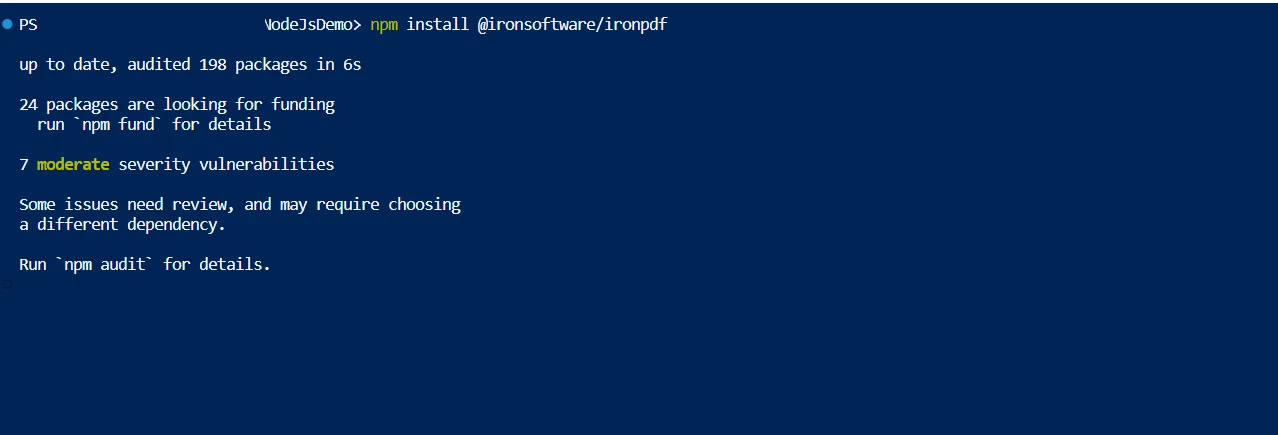
Set up the package: To install a package, use the npm install command and the package name. To install a package called @ironsoftware/ironpdf, for instance, enter the following command:
npm install @ironsoftware/ironpdfnpm install @ironsoftware/ironpdfThe name of the actual package you want to install should be substituted as per your requirements.
Install IronPDF
Compress PDF using IronPDF
PDF files can be effectively compressed with IronPDF. Keeping the images in the PDF file as small as possible is crucial. The process of optimization can be initiated by using the compressSize method on the PDF object.
const { PdfDocument } = require('@ironsoftware/ironpdf');
// Define an asynchronous function to perform PDF compression
const pdfprocess = async () => {
console.log('Start compression Process'); // Notify the start of the process
// Load the existing PDF document from the specified path
const pdf = await PdfDocument.fromFile("Demo.pdf");
// Compress images in the PDF with a quality parameter (1-100)
await pdf.compressSize(60);
// Save the compressed PDF with the specified name
await pdf.saveAs("Result_60.pdf");
// Further compress images, scaling them down based on visible size
await pdf.compressSize(90, true);
// Save the further scaled and compressed PDF
await pdf.saveAs("Result_90.pdf");
console.log('End compression Process'); // Notify the end of the process
};
// Execute the PDF compression function
pdfprocess();In the above code, first, import the IronPDF library. With the help of the method fromFile available in the PdfDocument class, load the existing PDF file. Then hold the data in an object variable which allows performing various types of operations. A compressSize method is used and passes two parameters: image quality and image scale which will optimize PDFs. Use the saveAs method to save the PDF file to the specified location.
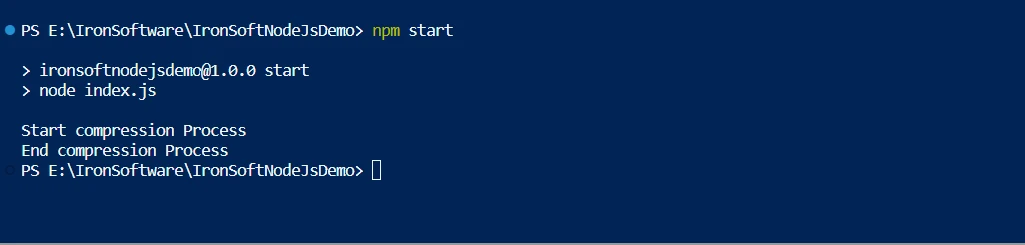
The console output
Result:
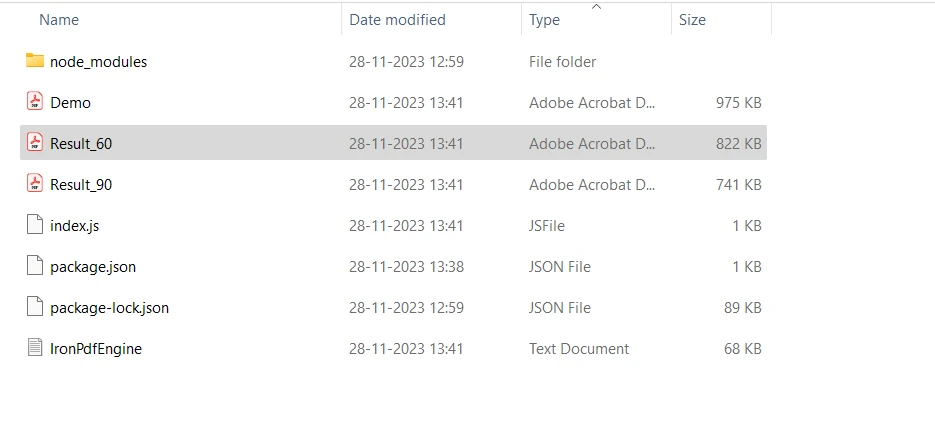
The result of compressed PDF files
The quality setting is critical when resizing JPEG images. The least amount of loss occurs when the quality level is 100%, but 1% results in very low-quality output. Images with a quality rating of 90% or greater are typically considered high-quality, 80%-90% as medium-quality, and 70%-80% as low quality. Reducing the quality below 70% could lead to lower-quality photographs but significantly reduces the total file size of the PDF publication.
To find the perfect file size to image quality ratio that suits your requirements, it is advisable to experiment with different quality settings. The degree of quality loss will ultimately depend on the sort of input image, with some images likely to lose clarity more noticeably than others. To learn more about this, click this sample page for more detailed compression settings.
Conclusion
To minimize risks and ensure data protection, the IronPDF library provides strong security features. It is compatible with any popular browser and isn't limited to a particular one. To satisfy the diverse needs of developers, the library offers multiple licensing alternatives, such as a complimentary developer license and supplementary development licenses that can be acquired.
A perpetual license, upgrade options, a year of software maintenance, and a 30-day money-back guarantee are included in the $799 Lite bundle. Users can evaluate the product in practical application settings for a watermarked trial period. Please visit the provided licensing page to learn more about IronPDF's costs, licensing, and trial version. To know other products offered by Iron Software refer to the official webpage.
자주 묻는 질문
Node.js에서 PDF를 압축하려면 어떻게 해야 하나요?
Node.js에서 PDF를 압축하려면 IronPDF 라이브러리를 사용하세요. 먼저 IronPDF Node.js 패키지를 설치하세요. 설치가 완료되면 PDF 파일을 가져와서 compressSize 메서드를 적용하여 압축된 파일을 내보내기 전에 크기를 줄일 수 있습니다.
Node.js 애플리케이션에 IronPDF를 설치하는 절차는 무엇인가요?
터미널에서 npm install @ironsoftware/ironpdf 명령을 실행하여 Node.js 애플리케이션에 IronPDF를 설치할 수 있습니다. 이렇게 하면 프로젝트에 IronPDF가 추가되어 PDF 조작 기능을 사용할 수 있습니다.
IronPDF를 사용하여 Node.js에서 HTML 파일을 PDF로 변환할 수 있나요?
예, IronPDF는 Node.js에서 HTML 파일을 PDF로 변환할 수 있습니다. IronPDF의 메서드를 사용하여 HTML 콘텐츠를 PDF 문서로 렌더링하여 텍스트, 이미지 및 CSS 스타일을 원활하게 통합할 수 있습니다.
Node.js에서 PDF 압축을 위해 IronPDF를 사용하면 어떤 이점이 있나요?
IronPDF는 Node.js에서 PDF 압축을 위한 간단한 API를 제공하여 compressSize 메서드를 사용하여 이미지 품질과 크기를 조정할 수 있습니다. 품질을 유지하면서 PDF 크기를 효율적으로 줄일 수 있습니다.
IronPDF에서 압축 수준을 조정할 때 고려해야 할 사항은 무엇인가요?
IronPDF를 사용하여 PDF를 압축할 때는 compressSize 메서드의 품질 설정을 고려하세요. 품질 설정이 높을수록 이미지 품질은 좋아지지만 파일 크기는 커집니다. 필요에 맞는 최적의 균형을 찾기 위해 실험해 보는 것이 중요합니다.
IronPDF는 PDF 내 이미지 최적화를 지원하나요?
예, IronPDF의 compressSize 메서드는 PDF 내의 이미지를 최적화하여 이미지 품질과 크기를 조정하여 품질을 크게 떨어뜨리지 않고 전체 파일 크기를 줄일 수 있습니다.
IronPDF에는 어떤 라이선스 옵션을 사용할 수 있나요?
IronPDF는 라이트 번들 및 평가판 기간을 포함한 다양한 라이선스 옵션을 제공합니다. 비용 및 라이선스에 대한 자세한 정보는 IronPDF 공식 웹페이지에서 확인할 수 있습니다.
IronPDF는 .NET 기술과 호환되나요?
IronPDF는 주로 .NET 라이브러리이지만 Node.js 프로젝트에 통합할 수 있습니다. .NET 기술과의 호환성 덕분에 이러한 환경에 익숙한 개발자에게 다재다능한 선택이 될 수 있습니다.