Python에서 PDF에서 특정 텍스트를 추출하는 방법
This article will demonstrate how to extract text elements from PDF documents with the help of the IronPDF for Python library.
IronPDF
Python is a programming language that makes it simple and quick for developers to create graphical user interfaces. Compared to other languages, Python is also much more dynamic for programmers. Because of this, adding the IronPDF library to Python is a simple process. A multitude of pre-installed tools, including PyQt, wxWidgets, Kivy, and many additional packages and Python libraries, can be used to rapidly and securely build a fully complete GUI. IronPDF incorporates Python and also allows integration of features from other frameworks, such as .NET Core.
IronPDF makes web development easier. The main reason for this is the widespread adoption of Python web development paradigms like Django, Flask, and Pyramid. Reddit, Mozilla, and Spotify are just a few of the websites and online services that have used these frameworks.
IronPDF Features
- With IronPDF, PDF files may be created from a variety of sources, including HTML, HTML5, ASPX, and Razor/MVC View. It offers the ability to convert HTML pages and images into PDF files.
- Creating interactive PDFs, completing and submitting interactive forms, splitting and combining PDF files, extracting text and images, searching text within PDF files, rasterizing PDFs to images, changing font sizes, natural language processing using ChatGPT, and converting PDF pages property are just a few of the activities that the IronPDF toolkit can help with.
- IronPDF offers HTML login form validation with support for user-agents, proxies, cookies, HTTP headers, and form variables.
- IronPDF uses usernames and passwords to provide users access to protected documents.
- With just a few lines of code, IronPDF can print a PDF file from a variety of sources, including a string, stream, or URL.
Setup Python
Environment Configuration
Make sure Python is set up on your computer. To download and install the most recent version of Python compatible with your operating system, go to the official Python website. Create a virtual environment once Python is installed to separate the needs for your project. Create and manage virtual environments with the venv module to give your conversion project a tidy, separate workplace.
New Initiative in PyCharm
For this demonstration, PyCharm is recommended as an IDE for developing Python code.
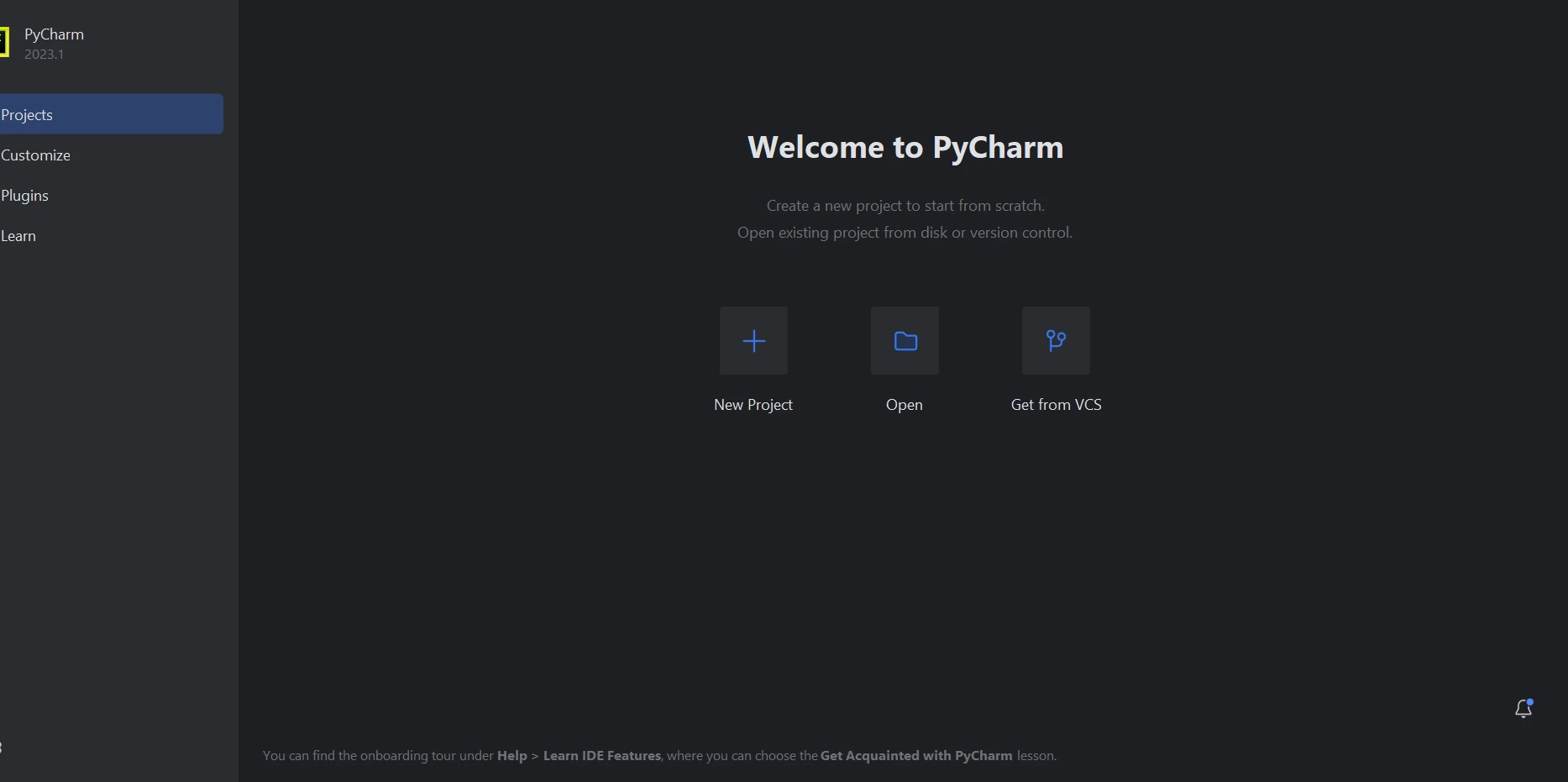
After starting the PyCharm IDE, select "New Project".
PyCharm
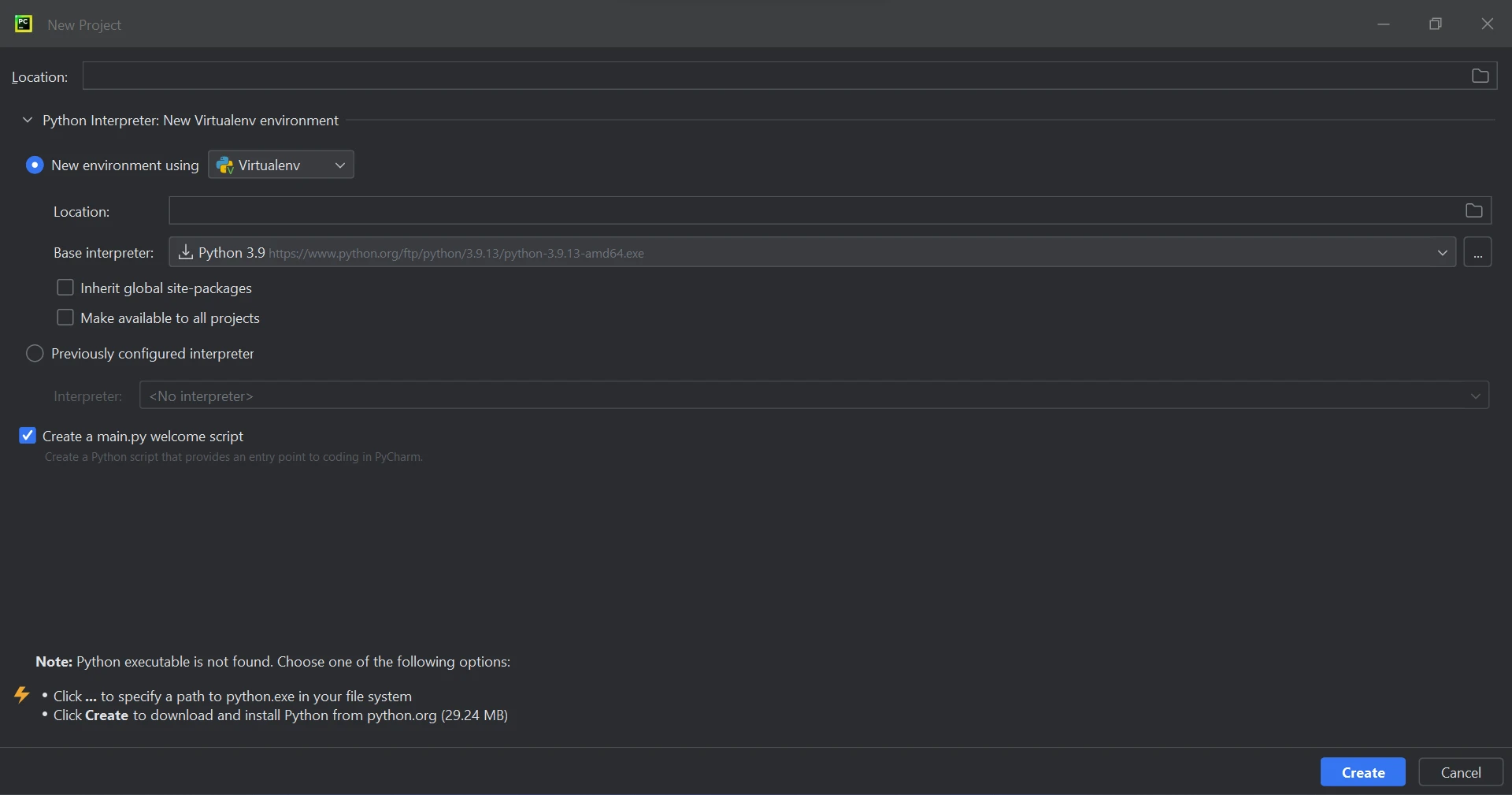
A new window will open when you choose "New Project", allowing you to set the project's location and environment. This might be seen in the image below.
New Project
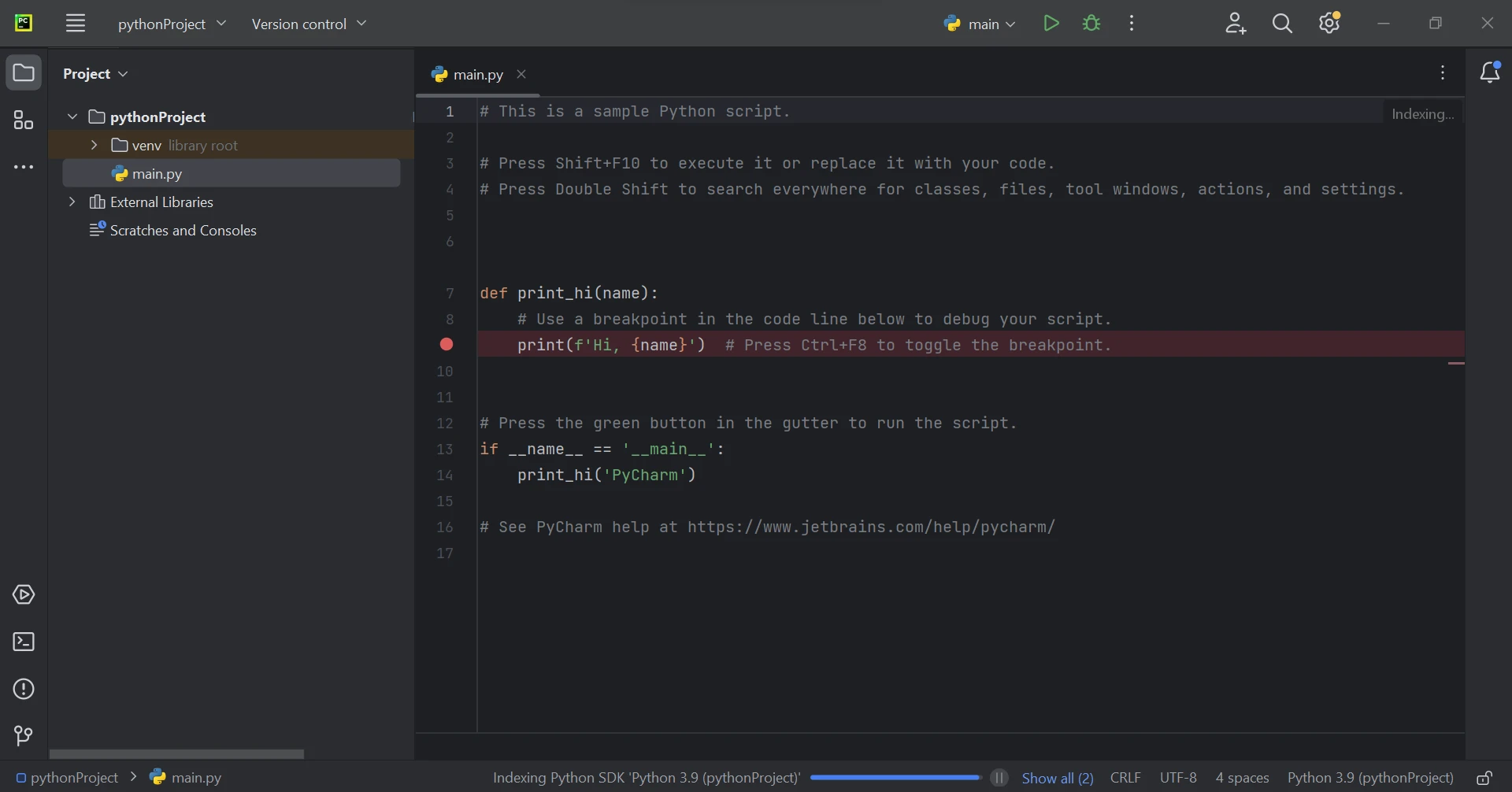
After choosing the project location and environment path, click the Create button to begin a new project. The program can then be created in a new window that will open as a result. For this lesson, Python 3.9 is being used.
Create Python Project
IronPDF Library Requirement
The Python library IronPDF largely uses .NET 6.0. As a result, the .NET 6.0 runtime must be installed on your computer in order to use IronPDF for Python. It might be necessary to install .NET before this Python module can be used by Linux and Mac users. Visit this download page from Microsoft to get the needed runtime environment.
IronPDF Library Setup
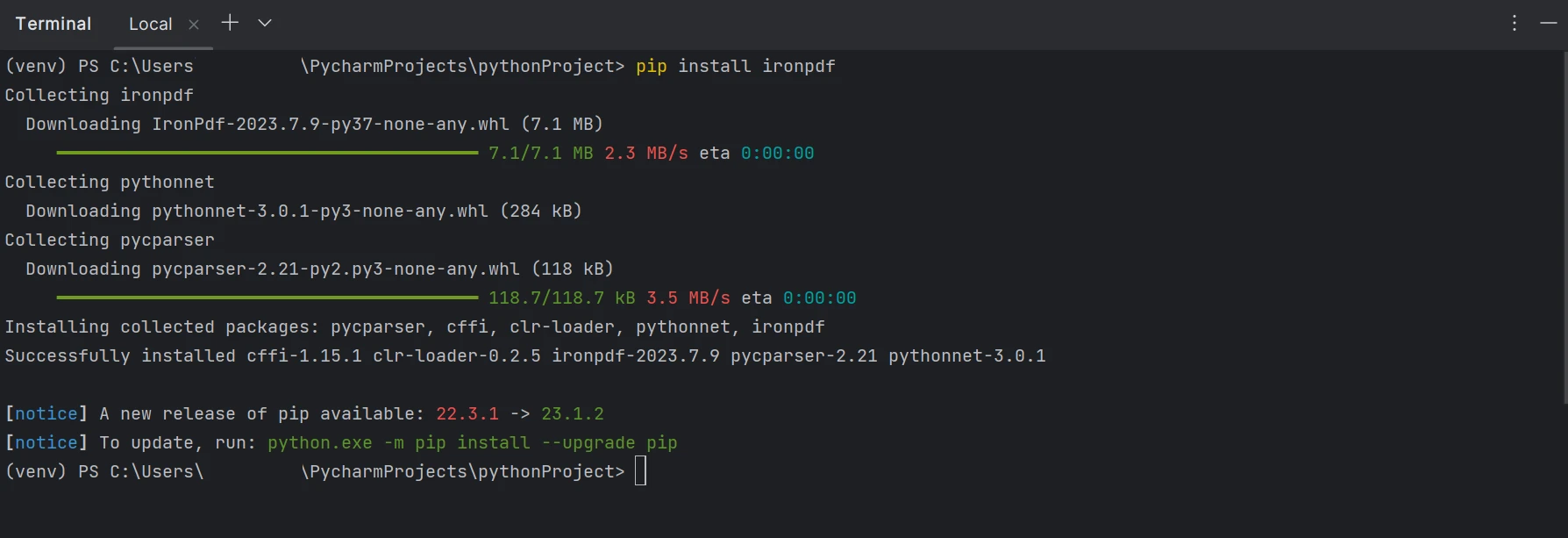
To generate, modify, and open files with the ".pdf" extension, the "ironpdf" package must be installed. Open a terminal window and enter the following command to install the package in PyCharm:
pip install ironpdfpip install ironpdfThe installation of the ironpdf package is shown in the screenshot below.
Install IronPDF
Extract Specific Data from PDF File
It is possible to extract text from PDF files with the help of the IronPDF libraries. IronPDF offers a number of text extraction methods. The first method entails retrieving the entire page's content as a single string. The second strategy entails going over the content page by page, beginning with the first page. Existing PDF files can be investigated using the IronPDF library. The snippet of code that follows shows how to use IronPDF to inspect live PDF files.
There are two options for extracting information from a PDF:
- Page-by-page extraction from the PDF
- Converting the entire PDF to text
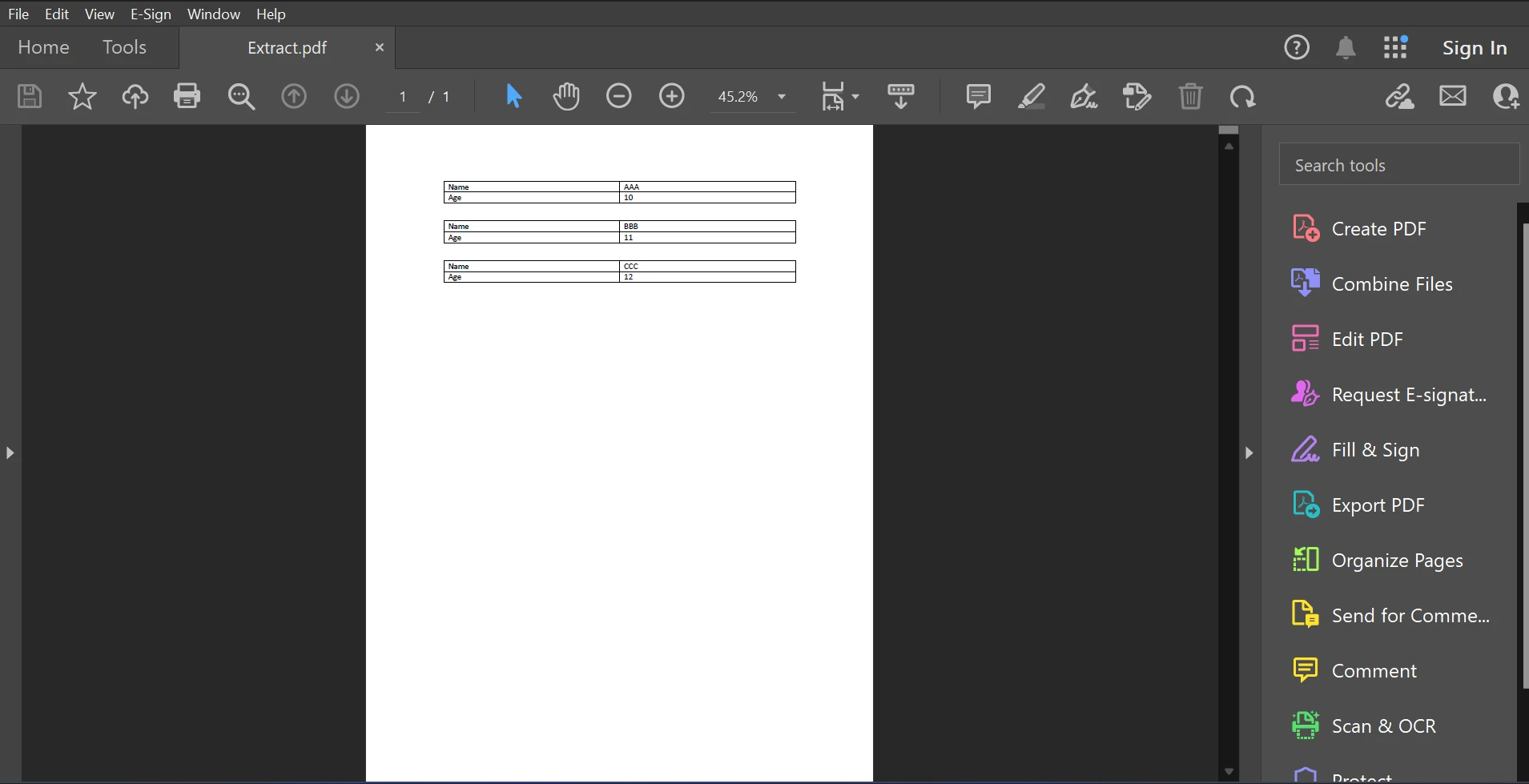
Here is the sample PDF file for this article is available below.
Input PDF
Page-by-Page Extraction from the PDF
The example code supplied below shows how to obtain data from a PDF file using the page number.
from ironpdf import PdfDocument
# Load the PDF file
pdf = PdfDocument.FromFile('F:\\PDF\\Extract.pdf')
# Extract text from the first page of the PDF document
all_text = pdf.ExtractTextFromPage(0)
# Iterate over each line in the extracted text
for line in all_text.split('\n'):
# Check if the line contains the keyword "Name"
if 'Name' in line:
# Print the line if it contains the keyword
print(line)from ironpdf import PdfDocument
# Load the PDF file
pdf = PdfDocument.FromFile('F:\\PDF\\Extract.pdf')
# Extract text from the first page of the PDF document
all_text = pdf.ExtractTextFromPage(0)
# Iterate over each line in the extracted text
for line in all_text.split('\n'):
# Check if the line contains the keyword "Name"
if 'Name' in line:
# Print the line if it contains the keyword
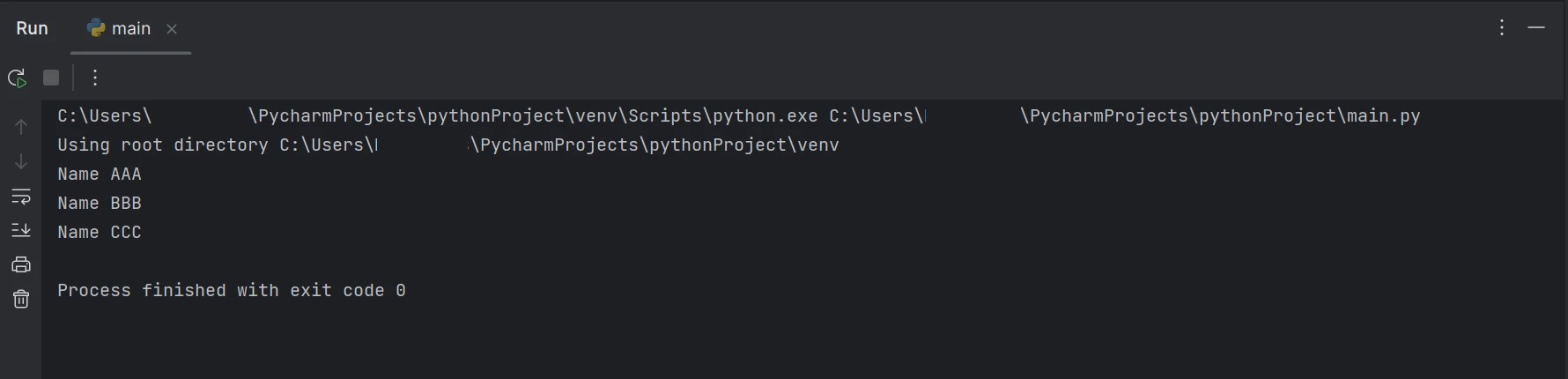
print(line)The code snippet shows how to read a PDF file and build a PDF object using the FromFile function. This object can be used to access the PDF's text and images. By passing the page number as a parameter to the ExtractTextFromPage function, the text can be retrieved from a specific page. A string containing all the words on the chosen page will be returned by this method. Then, use the split function in Python to split all the new lines from the extracted text. After that, check whether each line in the extracted text contains the required keywords. If the keyword matches, it will display the specific line in the command prompt. Otherwise, it will ignore that line and move on to the next line. The output for text extraction will appear as shown below.
Converting the Entire PDF to Text
The following code sample demonstrates the first method for quickly and simply getting all the PDF content as a string.
from ironpdf import PdfDocument
# Load the PDF file
pdf = PdfDocument.FromFile('F:\\PDF\\Extract.pdf')
# Extract all text from the PDF document
all_text = pdf.ExtractAllText()
# Iterate over each line in the extracted text
for line in all_text.split('\n'):
# Check if the line contains the keyword "Name"
if 'Name' in line:
# Print the line if it contains the keyword
print(line)from ironpdf import PdfDocument
# Load the PDF file
pdf = PdfDocument.FromFile('F:\\PDF\\Extract.pdf')
# Extract all text from the PDF document
all_text = pdf.ExtractAllText()
# Iterate over each line in the extracted text
for line in all_text.split('\n'):
# Check if the line contains the keyword "Name"
if 'Name' in line:
# Print the line if it contains the keyword
print(line)The example code above demonstrates how to use the FromFile function to read a PDF from an existing file path and convert it into a PDF file object. As a result, we can use this PDF reader object to see the text and images in the PDF. The object's ExtractAllText function will be used to extract data from PDF into plain text, convert it to a string, and use the similar logic like the above to find the specific keyword to display the result in the terminal. Results are displayed as follows.
Output
The above code/output shows that the given PDF document contains both the name and age, but the result shows only the name available in the PDF document.
Conclusion
Strong security mechanisms are offered by the IronPDF library to reduce threats and guarantee data safety. It is not restricted to any one browser and is compatible with all widely used ones. With just a few lines of code, programmers can quickly produce and read PDF files using IronPDF. The IronPDF library offers a range of licensing options, including a free developer license and extra development licenses that are available for purchase, to meet the diverse demands of developers.
A perpetual license, a 30-day money-back guarantee, a year of software maintenance, and upgrade options are included in the Lite package. These licenses can be used in all environments. Additionally, IronPDF provides free licenses with some redistribution restrictions. A trial license allows users to evaluate the product without a watermark.
Please view the available IronPDF Licenses for more information about commercial licensing.
자주 묻는 질문
Python을 사용하여 PDF에서 특정 텍스트를 추출하려면 어떻게 해야 하나요?
IronPDF의 Python 라이브러리를 사용하여 PDF에서 텍스트를 추출할 수 있습니다. ExtractTextFromPage를 사용하여 페이지별로 텍스트를 추출하거나 ExtractAllText를 사용하여 전체 문서에서 텍스트를 추출하는 기능을 제공합니다.
Python 프로젝트에서 IronPDF를 설정하는 단계는 무엇인가요?
먼저 .NET 6.0 런타임이 설치되어 있지 않은 경우 설치합니다. 그런 다음 PyCharm과 같은 개발 환경에서 Python을 설정합니다. pip install ironpdf를 사용하여 IronPDF를 설치하여 프로젝트에 PDF 기능 통합을 시작합니다.
IronPDF는 장고 및 플라스크와 같은 프레임워크와 호환되나요?
예, IronPDF는 장고 및 플라스크와 같은 Python 웹 개발 프레임워크와 잘 통합되어 웹 애플리케이션에서 PDF를 처리할 수 있는 다양한 옵션을 제공합니다.
Python과 함께 IronPDF를 사용하는 데 사용할 수 있는 라이선스 옵션에는 어떤 것이 있나요?
IronPDF는 개인용 무료 개발자 라이선스와 추가 기능과 혜택을 제공하는 다양한 상업용 라이선스 등 다양한 라이선스 옵션을 제공합니다.
Python용 IronPDF는 어떻게 설치하나요?
터미널 또는 명령 프롬프트에서 pip install ironpdf 명령을 실행하여 pip 패키지 관리자를 사용하여 IronPDF를 설치합니다.
Python과 함께 IronPDF를 사용하려면 어떤 개발 환경이 권장되나요?
PyCharm은 포괄적인 기능 세트와 Python 지원으로 인해 IronPDF를 사용하여 Python 애플리케이션을 개발하는 데 권장되는 통합 개발 환경(IDE)입니다.
Python용 IronPDF 라이브러리의 주요 기능은 무엇인가요?
Python용 IronPDF는 HTML에서 PDF 만들기, 이미지를 PDF로 변환, 양식 처리, 텍스트 및 이미지 추출, PDF 병합과 같은 기능을 제공합니다.
PDF 파일 처리를 위한 IronPDF 라이브러리는 얼마나 안전한가요?
IronPDF는 강력한 보안 기능으로 설계되어 PDF 파일을 안전하게 처리할 수 있습니다. 민감한 정보를 보호하기 위해 암호화 및 비밀번호 보호를 지원합니다.