


PDF高亮顯示器(免費和在線工具教程)

在PDF中新增浮水印是文件安全性、品牌標識和版本控制的常見要求。 無論是將文件標記為機密、為正式報告加上品牌標識,還是防止未經授權的複製,浮水印都是一項基本功能。
在C#中,開發人員有多種程式庫可供選擇,其中IronPDF和PDFSharp是兩個最受歡迎的選項。 然而,它們的方式、易用性、性能和許可結構有顯著差異。 本文詳細比較了IronPDF和PDFSharp在現有PDF中新增浮水印的功能,提供了關於其功能、實施過程和自定義能力的見解。
比較涵蓋了兩個程式庫的浮水印API及工作程式碼範例,讓您可以評估哪個更符合您的專案需求。
了解PDF浮水印
什麼是浮水印?
浮水印是文件上的圖形或文字覆蓋層,用來作為標識、威懾或品牌元素。 根據目的,浮水印可以是可見的或不可見的,並且與用於文件註解的文字和圖像戳記密切相關。
浮水印的型別
- 文字浮水印 – 通常是帶有"機密"或"草稿"等資訊的半透明覆蓋層。
- 圖像浮水印 – 連結到文件中的圖標、徽章或圖形。
- 透明浮水印 – 一種不妨礙文件可讀性的微妙品牌標識。
- 衝壓浮水印 – 確保能見度的更顯眼、醒目的標識。
常見用途案例
- 安全與保護 – 通過將文件標記為專有來防止未經授權的複製。
- 品牌標識 – 新增公司徽標或簽名以維持文件的一致性。
- 版本控制 – 標記草稿、最終版本或文件修訂。
什麼是IronPDF和PDFSharp?
IronPDF
IronPDF是一個高級功能豐富的.NET程式庫,旨在簡化PDF處理,從從頭创建PDF到高級操作任務。 這對於尋找簡單PDF操控任務實現的開發人員特別有用,包括浮水印。
主要特點:
- 簡單且直觀的API,只需最少的程式碼。
- 支持文字和圖像浮水印,並具有自定義選項。
- 提供不透明度控制、定位和旋轉以進行精確放置。
- 與.NET 6+、.NET Core、.NET Framework相容。
- 提供永久許可模式以供長期使用。
- 額外功能包括PDF註釋、HTML到PDF的轉換和數位簽名。
PDFSharp
PDFSharp是一個開源程式庫,允許開發人員在C#中建立、編輯和操控PDF。 如果您目前正在使用PDFSharp並考慮切換,從PDFSharp到IronPDF的遷移指南將引導您完成過渡過程。 它提供了對繪圖操作的精細控制,雖然浮水印涉及比IronPDF的抽象方式更手動的實施。
主要特點:
- 免費和開源,使其對於預算考量的專案來說是一種經濟實惠的選擇。
- 提供對PDF繪圖操作的低級控制,包括輪廓圖形路徑和透明圖形路徑。
- 支持文字和圖像浮水印,但需要額外的程式碼進行轉換。
- 與.NET Framework和.NET Core(通過PDFSharpCore)一起使用。
- 不包括內建的高級浮水印功能; 開發人員需通過繪圖API直接實施不透明度和旋轉等功能。
這是兩個程式庫在浮水印任務上的快速並排摘要:
| 功能 | IronPDF | PDFSharp |
|---|---|---|
| 文字浮水印 | 內建ApplyWatermark方法 |
通過XGraphics API手動繪製 |
| 圖像浮水印 | HTML/CSS <img>標籤支持 |
DrawImage,帶有手動定位 |
| 不透明度控制 | ApplyWatermark上的參數 |
需要自定義筆刷/alpha處理 |
| 旋轉 | ApplyWatermark上的參數 |
手動RotateTransform調用 |
| 浮水印樣式 | 完整的HTML/CSS支持 | 字體和刷子配置 |
| .NET相容性 | .NET 6+、Core、Framework | .NET Framework,Core(通過PDFSharpCore) |
| 授權 | 商業(永久選項) | 開源(MIT) |
IronPDF的[免費30天試用](trial-license包括下面範例中使用的完整浮水印API。
使用IronPDF新增浮水印
IronPDF提供了高級API,使開發人員能夠以極少的程式碼行應用浮水印,無需手動坐標計算或設置圖形管道。由於IronPDF的浮水印工具接受HTML/CSS字串—利用該程式庫使用的相同基於Chromium的HTML渲染引擎,您可以使用熟悉的網頁標記完全控制樣式、定位和外觀。
文字浮水印範例
using IronPdf;

const string filename = "existing.pdf";
// Load the existing PDF file
PdfDocument pdf = PdfDocument.FromFile(filename);

// Create a simple HTML-based watermark
string watermark = "<h1 style='color:red'>Confidential!</h1>";

// Apply the watermark to the PDF
pdf.ApplyWatermark(watermark);

// Save the updated document with the applied watermark
pdf.SaveAs("watermarked.pdf");
using IronPdf;
const string filename = "existing.pdf";
// Load the existing PDF file
PdfDocument pdf = PdfDocument.FromFile(filename);
// Create a simple HTML-based watermark
string watermark = "<h1 style='color:red'>Confidential!</h1>";
// Apply the watermark to the PDF
pdf.ApplyWatermark(watermark);
// Save the updated document with the applied watermark
pdf.SaveAs("watermarked.pdf");Imports IronPdf
Private Const filename As String = "existing.pdf"
' Load the existing PDF file
Private pdf As PdfDocument = PdfDocument.FromFile(filename)
' Create a simple HTML-based watermark
Private watermark As String = "<h1 style='color:red'>Confidential!</h1>"
' Apply the watermark to the PDF
pdf.ApplyWatermark(watermark)
' Save the updated document with the applied watermark
pdf.SaveAs("watermarked.pdf")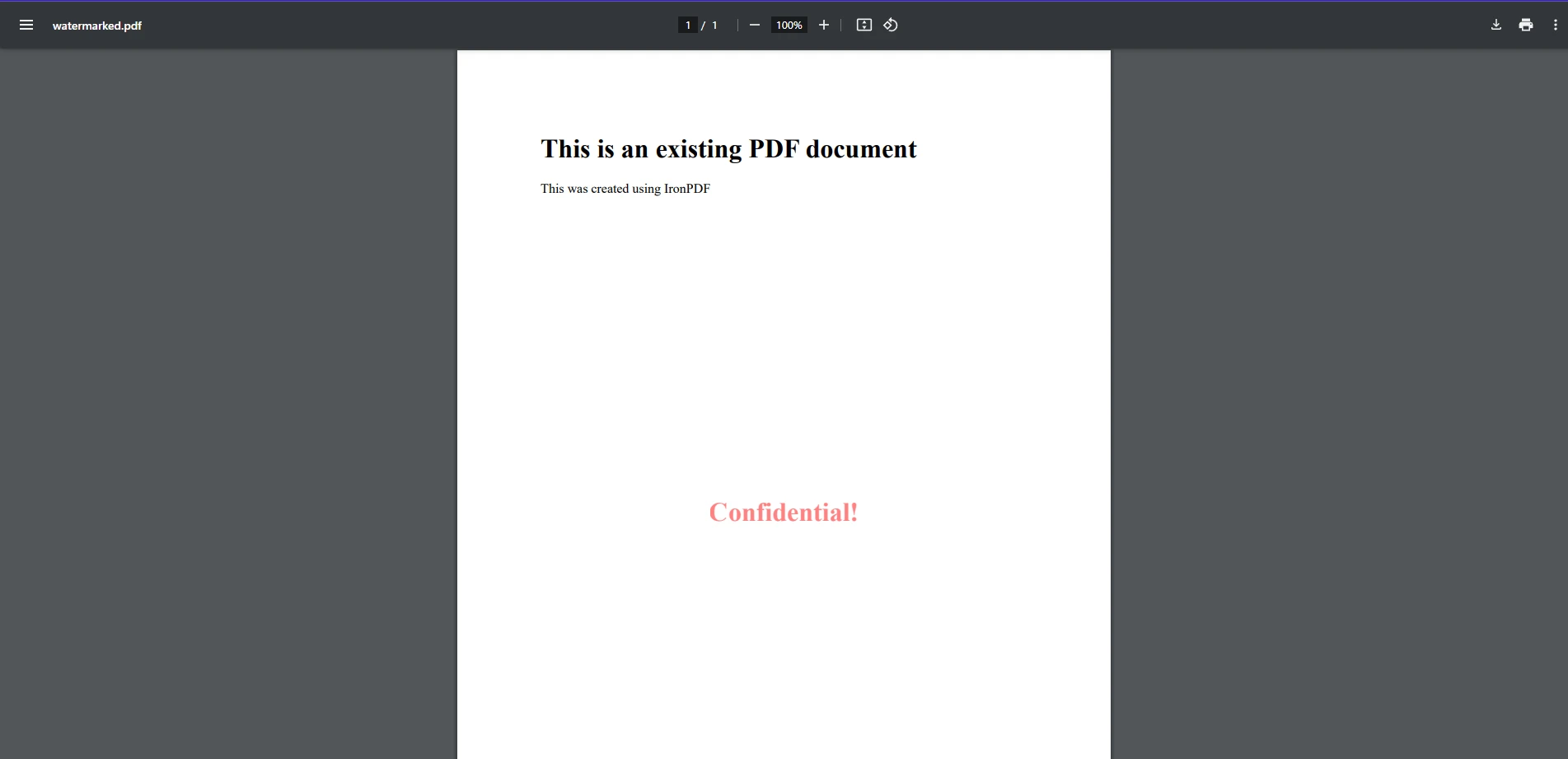
在此程式碼範例中,我們可以看到使用IronPDF將浮水印應用於現有PDF文件是多麼簡單。 在這裡,我們使用FromFile方法載入現有的PDF。 然後,我們建立一個簡單的字串作為HTML元素格式作為浮水印,並使用ApplyWatermark將其應用於PDF,就像從頭使用HTML建立一個PDF一樣。 如輸出圖像所示,這已將簡單的文字字串"機密"作為浮水印新增到我們的PDF上。
圖像浮水印範例
using IronPdf;

// Load the PDF document
PdfDocument pdf = PdfDocument.FromFile("existing.pdf");

// Create an HTML-based watermark containing the image
string watermark = "<img src='https://ironsoftware.com/img/products/ironpdf-logo-text-dotnet.svg'>";

// Apply the watermark to the PDF with rotation and opacity
pdf.ApplyWatermark(watermark, rotation: 45, opacity: 80);

// Save the watermarked document
pdf.SaveAs("watermarked.pdf");
using IronPdf;
// Load the PDF document
PdfDocument pdf = PdfDocument.FromFile("existing.pdf");
// Create an HTML-based watermark containing the image
string watermark = "<img src='https://ironsoftware.com/img/products/ironpdf-logo-text-dotnet.svg'>";
// Apply the watermark to the PDF with rotation and opacity
pdf.ApplyWatermark(watermark, rotation: 45, opacity: 80);
// Save the watermarked document
pdf.SaveAs("watermarked.pdf");Imports IronPdf
' Load the PDF document
Private pdf As PdfDocument = PdfDocument.FromFile("existing.pdf")
' Create an HTML-based watermark containing the image
Private watermark As String = "<img src='https://ironsoftware.com/img/products/ironpdf-logo-text-dotnet.svg'>"
' Apply the watermark to the PDF with rotation and opacity
pdf.ApplyWatermark(watermark, rotation:= 45, opacity:= 80)
' Save the watermarked document
pdf.SaveAs("watermarked.pdf")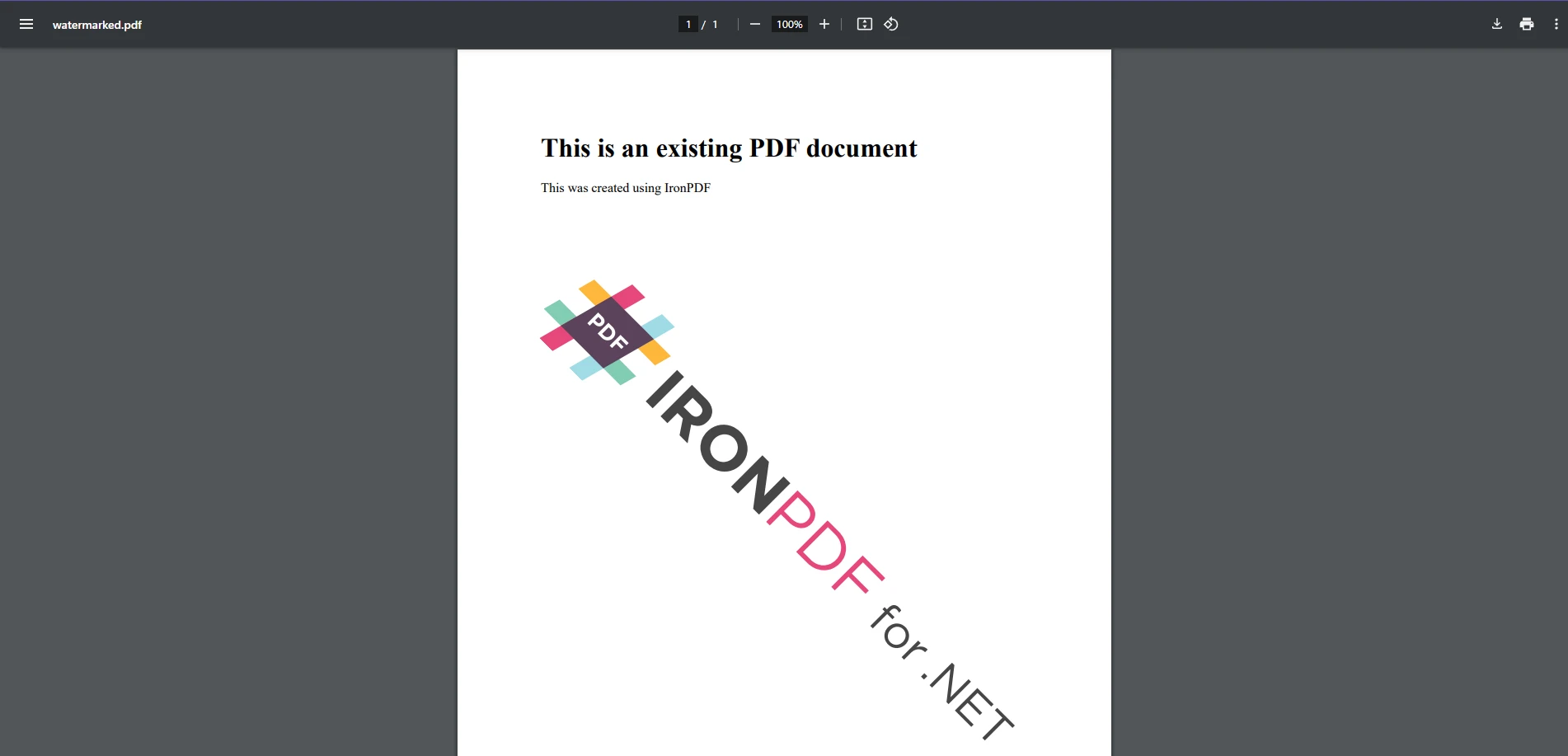
新增圖像作為浮水印就像新增文字一樣簡單,因為它們都使用相同的方法。 就像文字範例中一樣,我們建立一個新浮水印字串變數,其中包含指向圖像URL的HTML圖像標籤,並將其應用。 這次,我們通過IronPDF的渲染選項參數包括自定義旋轉和不透明度轉換。
這種方法在指定位置覆蓋圖像浮水印,允許自定位置和透明度。
使用PDFSharp新增浮水印
PDFSharp需要開發人員使用其GDI+繪圖API手動渲染文字和圖像。 要為現有PDF文件新增浮水印,請建立一個XGraphics物件進行繪製並應用所需的內容。
文字浮水印範例
using PdfSharp.Pdf;
using PdfSharp.Drawing;
using PdfSharp.Pdf.IO;

const string filename = "existing.pdf";
// Open the PDF document in modify mode
var document = PdfReader.Open(filename, PdfDocumentOpenMode.Modify);

foreach (var page in document.Pages)
{
    // Create an XGraphics object for drawing
    var gfx = XGraphics.FromPdfPage(page);

    // Move the origin to the center of the page for rotation purposes
    gfx.TranslateTransform(page.Width / 2, page.Height / 2);

    // Rotate for diagonal watermark placement
    gfx.RotateTransform(Math.Atan(page.Height / page.Width));

    // Define font and brush for drawing the watermark text
    var font = new XFont("Arial", 40);
    var brush = new XSolidBrush(XColor.FromArgb(128, XColors.Red));  // Semi-transparent red

    // Draw the watermark text centered on the page
    gfx.DrawString("WATERMARK", font, brush, new XPoint(0, 0));
}

// Save modified document
document.Save("watermarked.pdf");
using PdfSharp.Pdf;
using PdfSharp.Drawing;
using PdfSharp.Pdf.IO;
const string filename = "existing.pdf";
// Open the PDF document in modify mode
var document = PdfReader.Open(filename, PdfDocumentOpenMode.Modify);
foreach (var page in document.Pages)
{
// Create an XGraphics object for drawing
var gfx = XGraphics.FromPdfPage(page);
// Move the origin to the center of the page for rotation purposes
gfx.TranslateTransform(page.Width / 2, page.Height / 2);
// Rotate for diagonal watermark placement
gfx.RotateTransform(Math.Atan(page.Height / page.Width));
// Define font and brush for drawing the watermark text
var font = new XFont("Arial", 40);
var brush = new XSolidBrush(XColor.FromArgb(128, XColors.Red)); // Semi-transparent red
// Draw the watermark text centered on the page
gfx.DrawString("WATERMARK", font, brush, new XPoint(0, 0));
}
// Save modified document
document.Save("watermarked.pdf");Imports PdfSharp.Pdf
Imports PdfSharp.Drawing
Imports PdfSharp.Pdf.IO
Private Const filename As String = "existing.pdf"
' Open the PDF document in modify mode
Private document = PdfReader.Open(filename, PdfDocumentOpenMode.Modify)
For Each page In document.Pages
' Create an XGraphics object for drawing
Dim gfx = XGraphics.FromPdfPage(page)
' Move the origin to the center of the page for rotation purposes
gfx.TranslateTransform(page.Width \ 2, page.Height \ 2)
' Rotate for diagonal watermark placement
gfx.RotateTransform(Math.Atan(page.Height \ page.Width))
' Define font and brush for drawing the watermark text
Dim font = New XFont("Arial", 40)
Dim brush = New XSolidBrush(XColor.FromArgb(128, XColors.Red)) ' Semi-transparent red
' Draw the watermark text centered on the page
gfx.DrawString("WATERMARK", font, brush, New XPoint(0, 0))
Next page
' Save modified document
document.Save("watermarked.pdf")此實現通過基於坐標的位置在每一頁上繪製浮水印。 雖然它產生的輸出與IronPDF範例相似,但PDFSharp的方法涉及更多程式碼—IronPDF的文字浮水印需要大約4行活動程式碼,而PDFSharp則需要10行,因為PDFSharp將布局決策(翻譯、旋轉、字體選擇)委託給開發人員,而不是抽象它們。
圖像浮水印範例
using PdfSharp.Pdf;
using PdfSharp.Drawing;
using PdfSharp.Pdf.IO;

// Open the existing PDF document in modify mode
var document = PdfReader.Open("sample.pdf", PdfDocumentOpenMode.Modify);

// Load the watermark image
XImage watermark = XImage.FromFile("watermark.png");

foreach (var page in document.Pages)
{
    // Create a graphics object from the page
    XGraphics gfx = XGraphics.FromPdfPage(page);

    // Draw the image watermark at the specified position and size
    gfx.DrawImage(watermark, 50, 100, watermark.PixelWidth / 2, watermark.PixelHeight / 2);
}

// Save the modified PDF document
document.Save("watermarked.pdf");
using PdfSharp.Pdf;
using PdfSharp.Drawing;
using PdfSharp.Pdf.IO;
// Open the existing PDF document in modify mode
var document = PdfReader.Open("sample.pdf", PdfDocumentOpenMode.Modify);
// Load the watermark image
XImage watermark = XImage.FromFile("watermark.png");
foreach (var page in document.Pages)
{
// Create a graphics object from the page
XGraphics gfx = XGraphics.FromPdfPage(page);
// Draw the image watermark at the specified position and size
gfx.DrawImage(watermark, 50, 100, watermark.PixelWidth / 2, watermark.PixelHeight / 2);
}
// Save the modified PDF document
document.Save("watermarked.pdf");Imports PdfSharp.Pdf
Imports PdfSharp.Drawing
Imports PdfSharp.Pdf.IO
' Open the existing PDF document in modify mode
Private document = PdfReader.Open("sample.pdf", PdfDocumentOpenMode.Modify)
' Load the watermark image
Private watermark As XImage = XImage.FromFile("watermark.png")
For Each page In document.Pages
' Create a graphics object from the page
Dim gfx As XGraphics = XGraphics.FromPdfPage(page)
' Draw the image watermark at the specified position and size
'INSTANT VB WARNING: Instant VB cannot determine whether both operands of this division are integer types - if they are then you should use the VB integer division operator:
gfx.DrawImage(watermark, 50, 100, watermark.PixelWidth / 2, watermark.PixelHeight / 2)
Next page
' Save the modified PDF document
document.Save("watermarked.pdf")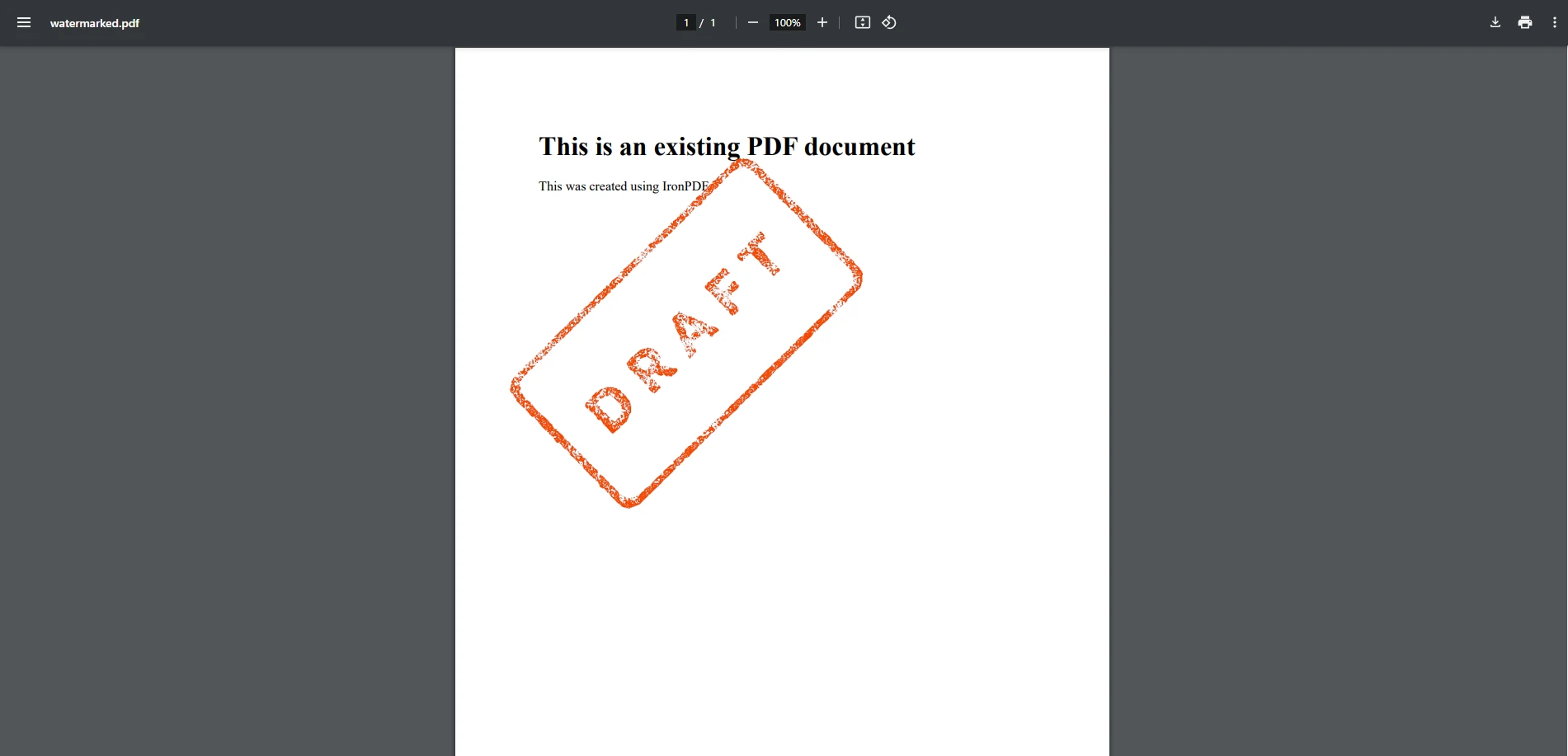
此方法將圖像浮水印固定在固定位置和大小。不透明度處理不在PDFSharp的單調用API表面之內—需要透明度控制的開發人員直接通過XGraphics管道管理它。 正如文字浮水印範例所示,PDFSharp在附加設置方面比IronPDF的高級浮水印API更多地提供了精細控制。
IronPDF和PDFSharp的浮水印比較如何?
易用性
- IronPDF: 提供高級功能,通過極少的程式碼簡化浮水印。 它抽象出複雜的操作,使其成為需要快速高效解決方案的開發人員的理想選擇。
- PDFSharp: 需要使用圖形API進行手動實施,這增加了複雜性和開發時間。它更適合需要對渲染有精細控制但對額外編碼舒適的開發人員。
性能
- IronPDF: 作為單個NuGet包運送,浮水印操作在一次方法調用中處理不透明度、旋轉和定位,從而減少多頁文件上浮水印的每頁處理開銷。 對於大規模工作流,請參閱IronPDF性能優化指南。
- PDFSharp: 輕量且具有小依賴性足跡。 對於涉及多個轉換每頁的複雜浮水印任務,開發人員可能需要對其繪圖邏輯進行分析和優化,因為PDFSharp不會批處理或快取這些操作。
自定義選項
- IronPDF: 內建對不透明度、旋轉、定位和字體大小自定義的支持。 使用者可以輕鬆調整設置,而無需深入複雜的渲染邏輯。
- PDFSharp: 需要額外的程式碼來處理不透明度、透明效果和轉換。 雖然功能強大,但需要開發人員進行較高層次的自定義,包括使用
var格式進行特定的渲染任務。
相容性
- IronPDF: 與.NET 6+、.NET Core和.NET Framework完全相容,適合現代和傳統應用。
- PDFSharp: 支持.NET Framework和.NET Core(通過PDFSharpCore)。 根據您選擇的社群移植版本,某些較新的框架功能可能超出其目前的範疇。
授權和成本
- IronPDF: 需要付費許可,但包括永久許可選項、客戶支援和持續更新的商業產品。
- PDFSharp: 開源且免費使用,使其成為喜歡不受限制許可模式的開發人員的經濟實惠解決方案,但需要自行處理支援和更新。
除了許可費用外,總專案成本還包括開發人員花費在手動坐標定位、自定義不透明度和旋轉邏輯以及IronPDF使用單一方法調用處理的每頁繪圖程式碼的時間。 對於評估多年專案生命週期成本的團隊,這些實施和維護時間通常超過開源和商業許可之間的差異。
您應該選擇哪個程式庫?
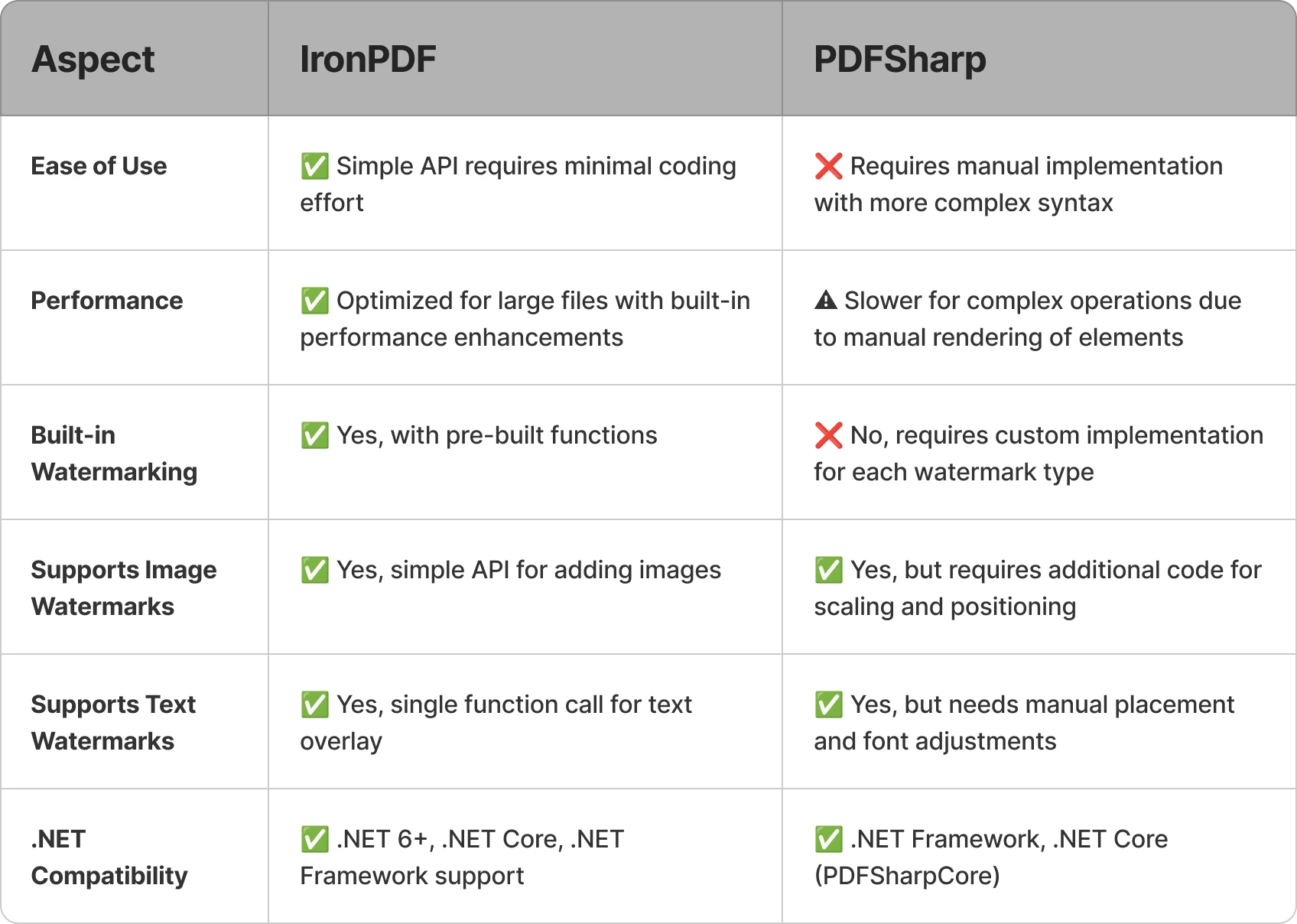
PDFSharp提供靈活的低級繪圖控制和開源許可—對於預算緊張且具有從零開始建立浮水印邏輯開發能力的團隊而言,這是一項真正的優勢。 對於需要內建浮水印定位、不透明度、旋轉和基於HTML/CSS樣式作為一流運作的團隊,IronPDF提供了一個更全面的API,可減少實施時間。最終,最佳選擇取決於您的專案需求、編碼專長和可用資源。
通過下載免費試用並探索其如何將您的C# PDF專案提升到新水平,自己試用IronPDF吧!
常見問題
如何使用.NET程式庫將浮水印新增到PDF?
您可以使用IronPDF新增浮水印,利用其簡單的API,支持文字和圖像浮水印,可自訂不透明度和旋轉等選項。
使用高級.NET PDF程式庫浮水印的優勢是什麼?
像IronPDF這樣的高級.NET PDF程式庫提供了高級函式,可以輕鬆浮水印,相容現代.NET框架,並具有PDF註解和HTML轉換為PDF等附加功能。
為什麼浮水印在PDF文件中很重要?
浮水印對於文件安全性、品牌塑造和版本控制很重要。它有助於防止未經授權的複制,確保品牌一致性,並將文件標記為機密。
IronPDF和PDFsharp在PDF浮水印方面有什麼不同?
IronPDF提供了更直觀的API,可以輕鬆地進行浮水印,僅需少量程式碼,而PDFsharp則需要更多的手動操作和額外的程式碼變換和不透明度設置。
IronPDF在PDF操作方面如何優於開源選擇?
IronPDF提供內建的高級函式,使得執行像浮水印、註解和轉換之類的PDF操作更加容易,而在開源選擇如PDFsharp中,需要更複雜的編碼。
使用.NET程式庫可以在PDF中新增哪些型別的浮水印?
使用像IronPDF這樣的程式庫,您可以新增文字浮水印、圖像浮水印和透明浮水印,並可以客制化位置、不透明度和旋轉。
IronPDF是否適合處理大型PDF文件?
是的,IronPDF針對高速處理進行了優化,可以高效地處理大型PDF文件而不會出現性能問題。
在選擇高級和開源的.NET PDF程式庫時應考慮哪些因素?
考慮使用便捷性、可用功能、相容性、性能和支援。像IronPDF這樣的高級程式庫提供廣泛的功能和支援,而像PDFsharp這樣的開源程式庫是免費的,但需要更複雜的編碼並且缺乏官方支援。
我可以在.NET Core上使用IronPDF嗎?
可以,IronPDF與.NET 6+、.NET Core和.NET Framework相容,使其適用於不同的開發環境。
除浮水印外,IronPDF還提供哪些附加功能?
除了浮水印,IronPDF還支持PDF註解、HTML轉換為PDF、數位簽名等,提供全面的PDF操作功能。







 免費開始
免費開始 免費開始
免費開始 預訂免費直播演示
















