


C# 等待數秒(開發者的工作原理)

在程式設計中,有時候您會想要暫停或延遲程式碼的執行一段時間。這樣做是為了模擬不同的時間條件、優先處理某些任務、執行其他任務而不阻塞主執行緒,等等。
在本指南中,我們將解釋如何在C#中等待,包括非同步方法、暫停命令、暫停函式、控制台應用,以及如何在我們領先業界的PDF生成工具IronPDF中包括等待功能。
如何在C#中使用Await任務
暫停命令
"暫停"是一個簡單但強大的命令,它允許您暫停當前任務的執行達到特定時間,基本上是告訴您的程式在移動到下一個任務之前要等待。 在C#中,我們使用Thread.Sleep(int milliseconds)方法來執行此操作,比如在以下程式碼範例中:
using System;
using System.Threading;
class Program
{
public static void Main()
{
Console.WriteLine("Starting the program...");
Thread.Sleep(3000); // Sleep for 3 seconds
Console.WriteLine("...Program continues after 3 seconds");
}
}using System;
using System.Threading;
class Program
{
public static void Main()
{
Console.WriteLine("Starting the program...");
Thread.Sleep(3000); // Sleep for 3 seconds
Console.WriteLine("...Program continues after 3 seconds");
}
}Imports System
Imports System.Threading
Class Program
Public Shared Sub Main()
Console.WriteLine("Starting the program...")
Thread.Sleep(3000) ' Sleep for 3 seconds
Console.WriteLine("...Program continues after 3 seconds")
End Sub
End Class在這裡,程式開始時先列印"Starting the program..."到控制台,然後使用Thread.Sleep方法暫停3,000毫秒(或三秒)。 在指定的延遲後,程式繼續運行並列印輸出"...Program continues after 3 seconds"到控制台。
非同步方法和任務
C#中的非同步方法允許您同時執行多個任務而不干擾主執行緒。 這表示當一個任務等待時,其他任務可以繼續運行。 要實施非同步方法,您需要使用Task類。
using System;
using System.Threading.Tasks;
class Program
{
public static async Task Main()
{
Console.WriteLine("Starting Task 1...");
var task1 = DoSomethingAsync(3000);
Console.WriteLine("Starting Task 2...");
var task2 = DoSomethingAsync(2000);
await Task.WhenAll(task1, task2);
Console.WriteLine("Both tasks completed.");
}
private static async Task DoSomethingAsync(int milliseconds)
{
await Task.Delay(milliseconds); // Asynchronously wait without blocking the main thread
Console.WriteLine($"Task completed after {milliseconds} milliseconds");
}
}using System;
using System.Threading.Tasks;
class Program
{
public static async Task Main()
{
Console.WriteLine("Starting Task 1...");
var task1 = DoSomethingAsync(3000);
Console.WriteLine("Starting Task 2...");
var task2 = DoSomethingAsync(2000);
await Task.WhenAll(task1, task2);
Console.WriteLine("Both tasks completed.");
}
private static async Task DoSomethingAsync(int milliseconds)
{
await Task.Delay(milliseconds); // Asynchronously wait without blocking the main thread
Console.WriteLine($"Task completed after {milliseconds} milliseconds");
}
}Imports System
Imports System.Threading.Tasks
Friend Class Program
Public Shared Async Function Main() As Task
Console.WriteLine("Starting Task 1...")
Dim task1 = DoSomethingAsync(3000)
Console.WriteLine("Starting Task 2...")
Dim task2 = DoSomethingAsync(2000)
Await Task.WhenAll(task1, task2)
Console.WriteLine("Both tasks completed.")
End Function
Private Shared Async Function DoSomethingAsync(ByVal milliseconds As Integer) As Task
Await Task.Delay(milliseconds) ' Asynchronously wait without blocking the main thread
Console.WriteLine($"Task completed after {milliseconds} milliseconds")
End Function
End Class在此程式碼範例中,我們有兩個任務同時運行。2000中看到的,都是超時值)。 Thread.Sleep()方法,但它與非同步任務一起工作,不會阻塞主執行緒。
使用計時器安排您的任務
C#中的計時器允許您在指定的間隔後執行特定任務。 您可以使用System.Timers.Timer類建立一個計時器。 這裡是一個如何在控制台應用中使用計時器的例子:
using System;
using System.Timers;
class Program
{
public static void Main()
{
var timer = new Timer(1000); // Create a timer with a 1-second interval
timer.Elapsed += OnTimerElapsed;
timer.AutoReset = true;
timer.Enabled = true;
Console.WriteLine("Press any key to exit...");
Console.ReadKey();
}
private static void OnTimerElapsed(object sender, ElapsedEventArgs e)
{
Console.WriteLine("Timer ticked at " + e.SignalTime);
}
}using System;
using System.Timers;
class Program
{
public static void Main()
{
var timer = new Timer(1000); // Create a timer with a 1-second interval
timer.Elapsed += OnTimerElapsed;
timer.AutoReset = true;
timer.Enabled = true;
Console.WriteLine("Press any key to exit...");
Console.ReadKey();
}
private static void OnTimerElapsed(object sender, ElapsedEventArgs e)
{
Console.WriteLine("Timer ticked at " + e.SignalTime);
}
}Imports System
Imports System.Timers
Class Program
Public Shared Sub Main()
Dim timer As New Timer(1000) ' Create a timer with a 1-second interval
AddHandler timer.Elapsed, AddressOf OnTimerElapsed
timer.AutoReset = True
timer.Enabled = True
Console.WriteLine("Press any key to exit...")
Console.ReadKey()
End Sub
Private Shared Sub OnTimerElapsed(sender As Object, e As ElapsedEventArgs)
Console.WriteLine("Timer ticked at " & e.SignalTime)
End Sub
End Class在上述例子中,我們建立了一個間隔為1秒的計時器。 OnTimerElapsed方法在每次計時器滴答作響時執行。 我們將AutoReset屬性設置為true,以便計時器在每次滴答後自動重啟。 Enabled屬性設置為true以啟動計時器。
當您運行這個控制台應用程式時,您會看到每秒計時器打勾,將勾選時間列印到控制台。 程式將繼續運行,直到您按任意鍵退出。
建立自定義的等待函式
有時候,您可能需要自定義的等待函式來滿足程式碼中的特定要求。 例如,您可能想建立一個只阻止當前任務而不是整個執行緒的等待函式。 您可以使用非同步委託來達成此目的。
這裡是一個自定義等待函式的例子:
using System;
using System.Threading;
using System.Threading.Tasks;
class Program
{
public static async Task Main()
{
Console.WriteLine("Starting Task 1...");
await CustomWaitAsync(3000);
Console.WriteLine("Task 1 completed.");
Console.WriteLine("Starting Task 2...");
await CustomWaitAsync(2000);
Console.WriteLine("Task 2 completed.");
}
private static async Task CustomWaitAsync(int milliseconds)
{
await Task.Run(() => Thread.Sleep(milliseconds)); // Run in a separate task to avoid blocking the main thread
}
}using System;
using System.Threading;
using System.Threading.Tasks;
class Program
{
public static async Task Main()
{
Console.WriteLine("Starting Task 1...");
await CustomWaitAsync(3000);
Console.WriteLine("Task 1 completed.");
Console.WriteLine("Starting Task 2...");
await CustomWaitAsync(2000);
Console.WriteLine("Task 2 completed.");
}
private static async Task CustomWaitAsync(int milliseconds)
{
await Task.Run(() => Thread.Sleep(milliseconds)); // Run in a separate task to avoid blocking the main thread
}
}Imports System
Imports System.Threading
Imports System.Threading.Tasks
Friend Class Program
Public Shared Async Function Main() As Task
Console.WriteLine("Starting Task 1...")
Await CustomWaitAsync(3000)
Console.WriteLine("Task 1 completed.")
Console.WriteLine("Starting Task 2...")
Await CustomWaitAsync(2000)
Console.WriteLine("Task 2 completed.")
End Function
Private Shared Async Function CustomWaitAsync(ByVal milliseconds As Integer) As Task
Await Task.Run(Sub() Thread.Sleep(milliseconds)) ' Run in a separate task to avoid blocking the main thread
End Function
End Class在此處,int參數,代表延遲時間(以毫秒為單位)。 此方法使用非同步委託在新任務中運行Thread.Sleep函式,確保當前任務狀態在等待時被阻塞,但主執行緒不會被阻塞。
選擇正確的等待策略
現在我們已經介紹了C#的等待語句、暫停命令、非同步方法、計時器和自定義等待函式,了解何時使用每種技術很重要。 這裡是快速總結:
- 當您需要使用一種簡單的方法來暫停程式碼的執行一段指定時間時,使用
Thread.Sleep函式。 - 當您需要同時執行多個任務而不阻塞主執行緒時,使用非同步方法和任務。
- 當您需要在指定的間隔執行特定任務時,使用計時器。
- 當您有內建方法滿足不了的特定要求時,建立自定義等待函式。
使用IronPDF的等待函式生成PDF
IronPDF 是一個輕量級的 .NET PDF 程式庫,專為網頁開發者設計。 它使閱讀、寫入和操作 PDF 文件變得輕而易舉,能夠將各型別的文件轉換為 PDF 內容,您可以在您的 .NET 專案中使用它,無論是桌面還是網頁。 最好的部分 - 它在開發環境中是免費試用的。 讓我們開始吧。
IronPDF可用於HTML文件、URL、原始字串和ZIP文件。 這裡是程式碼的快速概覽:
using IronPdf;
class Program
{
static void Main(string[] args)
{
var renderer = new ChromePdfRenderer();
// 1. Convert HTML String to PDF
var htmlContent = "<h1>Hello, IronPDF!</h1><p>This is a PDF from an HTML string.</p>";
var pdfFromHtmlString = renderer.RenderHtmlAsPdf(htmlContent);
pdfFromHtmlString.SaveAs("HTMLStringToPDF.pdf");
// 2. Convert HTML File to PDF
var htmlFilePath = "path_to_your_html_file.html"; // Specify the path to your HTML file
var pdfFromHtmlFile = renderer.RenderHtmlFileAsPdf(htmlFilePath);
pdfFromHtmlFile.SaveAs("HTMLFileToPDF.pdf");
// 3. Convert URL to PDF
var url = "http://ironpdf.com"; // Specify the URL
var pdfFromUrl = renderer.RenderUrlAsPdf(url);
pdfFromUrl.SaveAs("URLToPDF.pdf");
}
}using IronPdf;
class Program
{
static void Main(string[] args)
{
var renderer = new ChromePdfRenderer();
// 1. Convert HTML String to PDF
var htmlContent = "<h1>Hello, IronPDF!</h1><p>This is a PDF from an HTML string.</p>";
var pdfFromHtmlString = renderer.RenderHtmlAsPdf(htmlContent);
pdfFromHtmlString.SaveAs("HTMLStringToPDF.pdf");
// 2. Convert HTML File to PDF
var htmlFilePath = "path_to_your_html_file.html"; // Specify the path to your HTML file
var pdfFromHtmlFile = renderer.RenderHtmlFileAsPdf(htmlFilePath);
pdfFromHtmlFile.SaveAs("HTMLFileToPDF.pdf");
// 3. Convert URL to PDF
var url = "http://ironpdf.com"; // Specify the URL
var pdfFromUrl = renderer.RenderUrlAsPdf(url);
pdfFromUrl.SaveAs("URLToPDF.pdf");
}
}Imports IronPdf
Friend Class Program
Shared Sub Main(ByVal args() As String)
Dim renderer = New ChromePdfRenderer()
' 1. Convert HTML String to PDF
Dim htmlContent = "<h1>Hello, IronPDF!</h1><p>This is a PDF from an HTML string.</p>"
Dim pdfFromHtmlString = renderer.RenderHtmlAsPdf(htmlContent)
pdfFromHtmlString.SaveAs("HTMLStringToPDF.pdf")
' 2. Convert HTML File to PDF
Dim htmlFilePath = "path_to_your_html_file.html" ' Specify the path to your HTML file
Dim pdfFromHtmlFile = renderer.RenderHtmlFileAsPdf(htmlFilePath)
pdfFromHtmlFile.SaveAs("HTMLFileToPDF.pdf")
' 3. Convert URL to PDF
Dim url = "http://ironpdf.com" ' Specify the URL
Dim pdfFromUrl = renderer.RenderUrlAsPdf(url)
pdfFromUrl.SaveAs("URLToPDF.pdf")
End Sub
End ClassIronPDF可以無縫結合您的等待策略,以便在執行任務之後、在安排好的間隔期間或當前執行緒恢復執行時生成PDF文件。
例如,您可以結合非同步方法使用IronPDF來在從資料庫提取資料後生成PDF報告,而不會阻塞主執行緒。 同樣,您也可以使用計時器類來定期建立應用程式資料的PDF快照。
安裝IronPDF程式庫
IronPDF易於使用且更易於安裝。 有幾種方法可以做到這一點:
方法1:NuGet套件管理器控制台
在Visual Studio中,在解決方案總管中,右鍵點擊參考,然後點擊管理NuGet套件。 點擊瀏覽並搜尋"IronPDF",然後安裝最新版本。 如果您看到這一點,說明其工作正常:
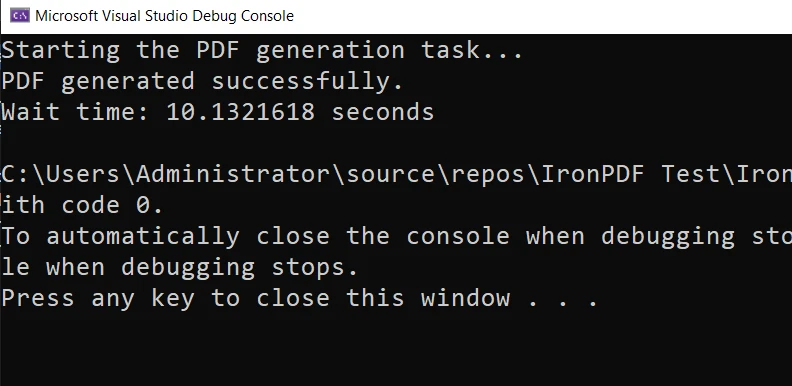
您也可以前往工具 -> NuGet套件管理器 -> 套件管理器控制台,在套件管理器選項卡中輸入以下內容:
Install-Package IronPdf
最後,您可以直接從NuGet的官方網站獲得IronPDF。 從頁面右側的選單中選擇下載套件選項,雙擊下載以自動安裝,並重新載入解決方案以在專案中開始使用它。
無法工作嗎? 您可以在我們的進階NuGet安裝頁面找到特定平台的幫助。
方法2:使用DLL文件
您也可以直接從我們這裡獲得IronPDF DLL文件,並手動將其新增到Visual Studio中。 有關詳細說明和聯結至Windows、macOS和Linux的DLL套件,請查看我們專門的安裝頁面。
如何在IronPDF中使用C#的等待
您可以在以下範例中查看如何在IronPDF中包含一個等待功能:
using System;
using System.Threading.Tasks;
using System.Diagnostics;
using IronPdf;
class Program
{
    public static async Task Main()
    {
        Console.WriteLine("Starting the PDF generation task...");
        Stopwatch stopwatch = Stopwatch.StartNew();
        await Task.Delay(3000); // Wait for 3 seconds
        GeneratePdf();
        Console.WriteLine("PDF generated successfully.");
    }
    private static void GeneratePdf()
    {
        var htmlToPdf = new ChromePdfRenderer();
        var pdf = htmlToPdf.RenderHtmlAsPdf("<h1>Hello, World!</h1>");
        pdf.SaveAs("HelloWorld.pdf");
    }
}using System;
using System.Threading.Tasks;
using System.Diagnostics;
using IronPdf;
class Program
{
public static async Task Main()
{
Console.WriteLine("Starting the PDF generation task...");
Stopwatch stopwatch = Stopwatch.StartNew();
await Task.Delay(3000); // Wait for 3 seconds
GeneratePdf();
Console.WriteLine("PDF generated successfully.");
}
private static void GeneratePdf()
{
var htmlToPdf = new ChromePdfRenderer();
var pdf = htmlToPdf.RenderHtmlAsPdf("<h1>Hello, World!</h1>");
pdf.SaveAs("HelloWorld.pdf");
}
}Imports System
Imports System.Threading.Tasks
Imports System.Diagnostics
Imports IronPdf
Friend Class Program
Public Shared Async Function Main() As Task
Console.WriteLine("Starting the PDF generation task...")
Dim stopwatch As Stopwatch = System.Diagnostics.Stopwatch.StartNew()
Await Task.Delay(3000) ' Wait for 3 seconds
GeneratePdf()
Console.WriteLine("PDF generated successfully.")
End Function
Private Shared Sub GeneratePdf()
Dim htmlToPdf = New ChromePdfRenderer()
Dim pdf = htmlToPdf.RenderHtmlAsPdf("<h1>Hello, World!</h1>")
pdf.SaveAs("HelloWorld.pdf")
End Sub
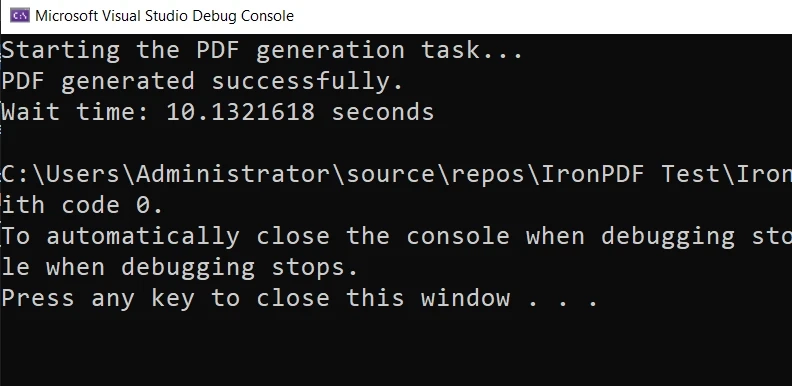
End Class在此處,我們使用Task.Delay方法等待3秒鐘,然後生成PDF。 然後PDF會在等待完成後以"HelloWorld.pdf"的名稱儲存在應用程式的工作目錄中。
這就是最終的產品:
與IronPDF一起使用等待方法
在C#應用程式中,您可以有效地使用暫停功能來管理當前執行緒和CPU時間,同時執行如將資料載入DataTable或使用IronPDF生成PDF報告等操作。
結論
這在一開始可能看起來違反直覺,但在建立高效的應用程式時,將等待語句實作到您的程式碼中是一項必備技能。 而通過整合IronPDF,您可以讓應用程式升級到更高的層次,即時建立PDF文件,而不阻塞主執行緒。
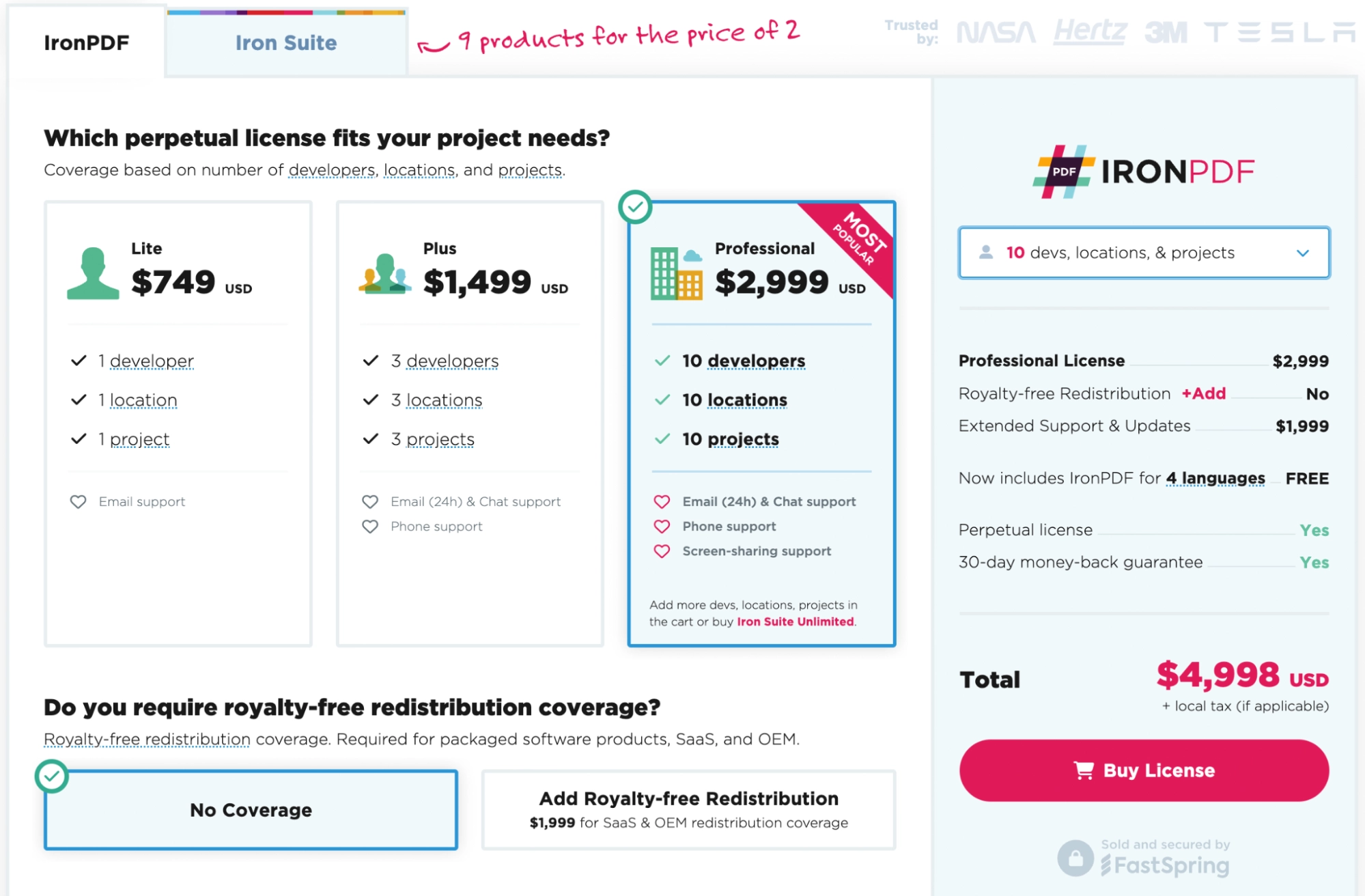
準備好使用IronPDF了嗎? 您可以從我們的30天免費試用開始。 它在開發目的中完全免費使用,因此您可以真正看到它的功能。 如果您喜歡您所看到的,IronPDF的起價僅$999。 要獲得更大的節省,查看Iron Suite,您可以用買二贈九的價格獲得全部九個Iron Software工具。 祝您編碼愉快!
常見問題
如何在C#中延遲PDF渲染?
您可以在C#中使用`Thread.Sleep`方法進行同步等待或`Task.Delay`進行非同步等待來延遲PDF渲染。這些方法允許您暫停程式碼的執行達到指定時間,以確保任務在正確的時間執行。
什麼是C#中的WaitFor類?
C#中的WaitFor類用於在程式碼中實現各種等待策略。它提供了像`Thread.Sleep`和`Task.Delay`這樣的方法來幫助管理任務執行的時機,允許開發者根據需要暫停程式碼的執行。
如何在C#中為PDF任務實現非同步等待?
在C#中可以使用`Task.Delay`方法實現非同步等待,這讓您可以非同步地等待,而不阻塞主執行緒。這在PDF任務中尤為有用,以確保流暢的執行和適當的任務調度。
計時器在C#中管理任務執行時扮演什麼角色?
計時器,比如`System.Timers.Timer`類提供的計時器,允許您在特定的間隔內安排任務。它們在定期執行像PDF生成這樣的任務時很有用,以確保在不阻塞主執行緒的情況下高效管理任務。
能夠在C#中建立自定義的等待函式嗎?
是的,您可以在C#中使用非同步委派建立自定義的等待函式。這允許為滿足特定需求進行定制的程式碼執行暫停,尤其是當預設的等待方法不夠用時。
如何在C#中將PDF生成與等待策略整合?
您可以通過使用非同步方法和計時器在C#中將PDF生成與等待策略整合。這確保PDF建立任務得到高效管理,允許安排的執行而不阻塞其他過程。
如何在C#中將HTML轉換為PDF?
要在C#中將HTML轉換為PDF,您可以使用像IronPDF這樣的程式庫。這個程式庫提供將HTML字串、URL和文件高效地轉換為PDF文件的方法。
在C#中使用非同步方法有什麼好處?
C#中的非同步方法提供併發任務執行的好處,通過允許多個任務並行運行而不阻塞主執行緒來提高應用的效率。
如何在.NET專案中安裝PDF程式庫?
要在.NET專案中安裝PDF程式庫,您可以使用Visual Studio中的NuGet套件管理器來搜尋並安裝程式庫。或者,您可以下載程式庫的DLL文件並手動將其新增到專案中。
在C#中能否暫停PDF渲染特定時間?
是的,您可以使用像`Thread.Sleep`的同步暫停或`Task.Delay`的非同步暫停來在C#中暫停PDF渲染特定時間,讓您控制PDF生成任務的時機。










 免費開始
免費開始 免費開始
免費開始 預訂免費直播演示
















