




已更新 2026年9月4日
產生每月帳戶報表(PDF 文件)
using IronPDF C# PDF 庫,開發人員可以在 .NET 專案中將 HTML 轉換為可靠的 PDF 文件,而無需依賴外部服務。
閱讀更多

在整理報告、組裝月刊或在發佈前重組多段文件時,移動PDF文件中的頁面(或在兩個文件之間轉移頁面)是一項常見的需求。 使用IronPDF,整個操作僅需要幾行C#程式碼。
本文介紹了四個實際情境:將單個頁面移動到文件中的新位置、一次性重新排序多個頁面、在兩個PDF文件之間轉移頁面,以及了解驅動這些工作流程的常見用例。 每個情境都包含一個有效的程式碼範例和一個顯示結果的輸出圖像。
開始您的免費試用以便能夠跟隨以下的範例。
使用NuGet包管理器控制台或.NET CLI將IronPDF新增到任何.NET專案中。 此包針對.NET Standard 2.0並能在.NET Framework 4.6.2+、.NET Core及所有現代.NET版本(包括.NET 8和.NET 10)上運行。
安裝後,在您的C#文件頂部新增using IronPdf;。有效的授權金鑰可以解鎖完整的商業用途; 一個免費試用授權涵蓋評估和開發。 在調用任何API之前設置一次金鑰:
IronPdf.License.LicenseKey = "YOUR-LICENSE-KEY";IronPdf.License.LicenseKey = "YOUR-LICENSE-KEY"引用包並配置授權後,本文中的每個範例都可以編譯並運行,不需進行修改。 IronPDF NuGet包自動安裝所需的所有依賴項; 在Windows、Linux或macOS上不需要額外的本機二進制文件或運行時配置。
使用IronPDF在PDF文件中移動頁面涉及三個步驟:複製目標頁面、將其插入新位置,然後刪除原始頁面。 RemovePage以處理此操作的每一部分。
以下程式碼演示將文件的最後一頁移動到開頭:
using IronPdf;

// Load the PDF document from the file system
var pdf = PdfDocument.FromFile("report.pdf");

// Get the zero-based index of the last page
int lastPageIndex = pdf.PageCount - 1;

// Copy the last page into a standalone PdfDocument
var pageToCopy = pdf.CopyPage(lastPageIndex);

// Insert the copied page at position 0 (the first page slot)
pdf.InsertPdf(pageToCopy, 0);

// The original last page has shifted down by one; remove it
pdf.RemovePage(lastPageIndex + 1);

// Save the reordered document to a new file
pdf.SaveAs("report-reorganized.pdf");Imports IronPdf
' Load the PDF document from the file system
Dim pdf = PdfDocument.FromFile("report.pdf")
' Get the zero-based index of the last page
Dim lastPageIndex As Integer = pdf.PageCount - 1
' Copy the last page into a standalone PdfDocument
Dim pageToCopy = pdf.CopyPage(lastPageIndex)
' Insert the copied page at position 0 (the first page slot)
pdf.InsertPdf(pageToCopy, 0)
' The original last page has shifted down by one; remove it
pdf.RemovePage(lastPageIndex + 1)
' Save the reordered document to a new file
pdf.SaveAs("report-reorganized.pdf")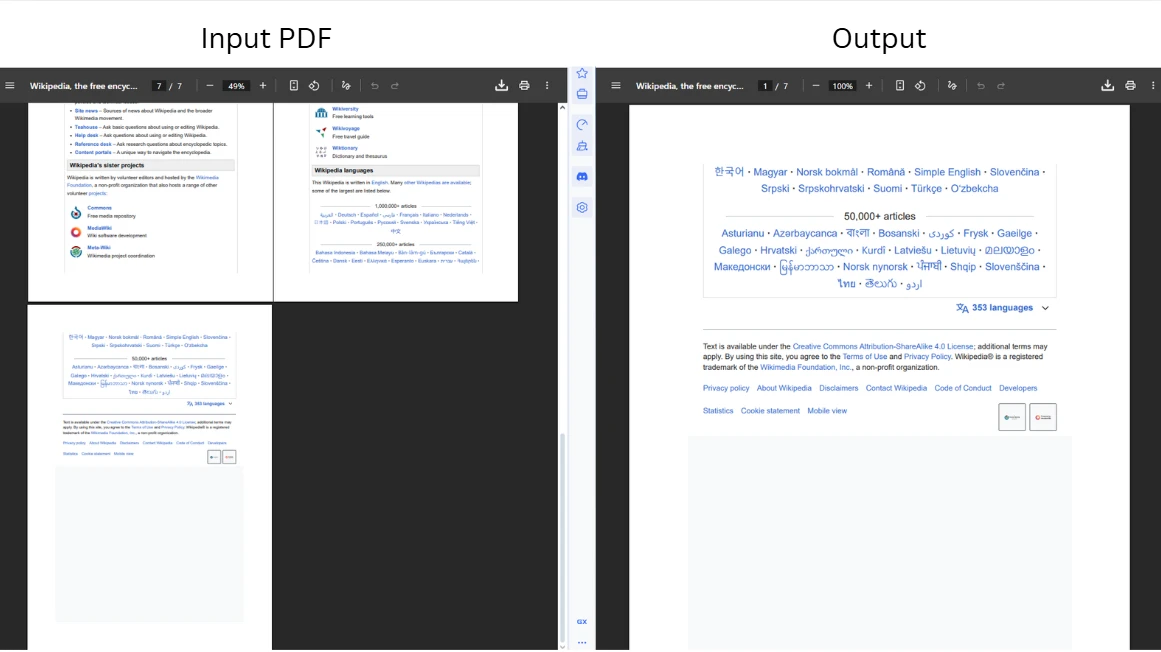
程式碼載入一個PDF文件,並調用CopyPage通過其從零開始的索引提取最後一頁。 IronPDF在其API中使用從零開始的頁碼,因此第一頁是索引0,而最後一頁是PageCount - 1。 在位置0插入副本後,原始頁面在索引序列中向下移一個位置; 刪除調用考量到這點,因此以lastPageIndex為目標。 傳遞超出範圍的索引會拋出ArgumentOutOfRangeException,因此在對邊界位置進行操作之前務必驗證頁數。
如需更深入了解個別的複製和刪除操作,新增、複製和刪除PDF頁面指南詳細介紹了每種方法。
由於插入會將所有後續的頁面索引提升一個,因此在複製插入後,原始頁面會比預期多移動一個位置。 模式pdf.RemovePage(lastPageIndex + 1)捕獲了這種變化。 同樣的原則適用於從文件中部移動頁面:任何原本位於索引N的頁面,若在插入點之後,則會在副本插入之前位於索引N+1。
在保存之前驗證索引計算,可以防止默默的排序錯誤,特別是文件長度不同的批次流水線。 在每次操作前快速核對pdf.PageCount,無論文件大小都能保持邏輯正確。
當需要重定位多個頁面時,CopyPages提取特定頁面的集合。 該方法接受一個從零開始的頁面索引清單,並返回一個新的PdfDocument僅包含這些頁面,按指定順序排列。 這種方式適合應用於將附錄頁塊移至報告末尾或將一組摘要頁移到前面的情境。
using IronPdf;
using System.Collections.Generic;

// Load the quarterly report
var pdf = PdfDocument.FromFile("quarterly-report.pdf");

// Copy pages at indexes 1 and 2 (the second and third pages)
var selectedPages = pdf.CopyPages(new List<int> { 1, 2 });

// Append the copied pages to the end of the original document
var result = PdfDocument.Merge(pdf, selectedPages);

// Remove the originals at their former positions (now indexes 1 and 2)
result.RemovePages(new List<int> { 1, 2 });

// Write the reordered result to a new path
result.SaveAs("quarterly-report-reordered.pdf");Imports IronPdf
Imports System.Collections.Generic
' Load the quarterly report
Dim pdf = PdfDocument.FromFile("quarterly-report.pdf")
' Copy pages at indexes 1 and 2 (the second and third pages)
Dim selectedPages = pdf.CopyPages(New List(Of Integer) From {1, 2})
' Append the copied pages to the end of the original document
Dim result = PdfDocument.Merge(pdf, selectedPages)
' Remove the originals at their former positions (now indexes 1 and 2)
result.RemovePages(New List(Of Integer) From {1, 2})
' Write the reordered result to a new path
result.SaveAs("quarterly-report-reordered.pdf")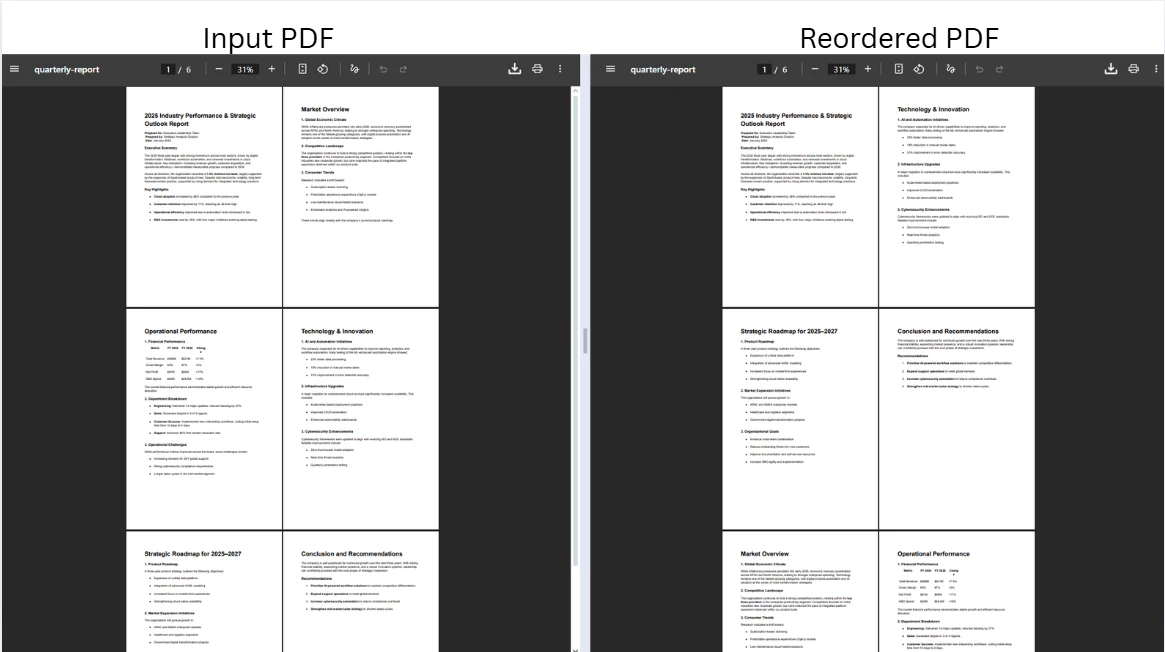
程式碼從來源文件復制兩頁,使用PdfDocument.Merge合併至末尾,然後刪除原件以完成重新排列。 PdfDocument物件,依序結合具有原始文件和提取頁。 刪除已經重複的原件,可以使最終文件按預期的順序排列而不留任何冗餘內容。
RemovePages方法接受一組從零開始的索引,並在一次運行中刪除所有指定頁面。 刪除多個頁面時,將所有索引在一次調用中供應,而不是在迴圈中反复調用RemovePage,因為每次單獨刪除會使剩餘的索引移動,造成偏差一位的錯誤。
合併或拆分PDFs教程涵蓋了合併和拆分文件的附加策略,包括按頁範圍拆分。
IEnumerable<int>,因此非連續頁面自然得到支持。 傳遞new List<int> { 0, 3, 7 }以將第一、第四和第八頁按照該順序複製到單個文件中。 索引列表不需要排序,讓您完全控制輸出順序。 這種靈活性在從長源文件中組裝自訂文件時特別有用,例如僅提取高層管理摘要頁面。
如果目的是完全重新排序文件而非移動子集,則建構一個索引陣列列出所有頁面位置按所需順序並將其傳遞給CopyPages,一次操作就建立重新排列的文件。 在PDF C#中重新排列頁面教程深入探討這種全文件重新排序的模式。
從一個PDF文件中轉移頁面到另一個文件使用相同的複製-插入模式,應用於兩個獨立的PdfDocument實例。 這是合併多個源文件內容的標準方法:例如將選定的批准頁從草稿移至最終合約文件中。
using IronPdf;

// Load the source and destination documents
var sourceDoc = PdfDocument.FromFile("source-document.pdf");
var destinationDoc = PdfDocument.FromFile("destination-document.pdf");

// Extract the first page (index 0) from the source document
var pageToMove = sourceDoc.CopyPage(0);

// Insert the extracted page at position 2 in the destination (third page slot)
destinationDoc.InsertPdf(pageToMove, 2);

// Save the updated destination document
destinationDoc.SaveAs("destination-document-updated.pdf");

// Remove the transferred page from the source and save separately
sourceDoc.RemovePage(0);
sourceDoc.SaveAs("source-document-updated.pdf");Imports IronPdf
' Load the source and destination documents
Dim sourceDoc = PdfDocument.FromFile("source-document.pdf")
Dim destinationDoc = PdfDocument.FromFile("destination-document.pdf")
' Extract the first page (index 0) from the source document
Dim pageToMove = sourceDoc.CopyPage(0)
' Insert the extracted page at position 2 in the destination (third page slot)
destinationDoc.InsertPdf(pageToMove, 2)
' Save the updated destination document
destinationDoc.SaveAs("destination-document-updated.pdf")
' Remove the transferred page from the source and save separately
sourceDoc.RemovePage(0)
sourceDoc.SaveAs("source-document-updated.pdf")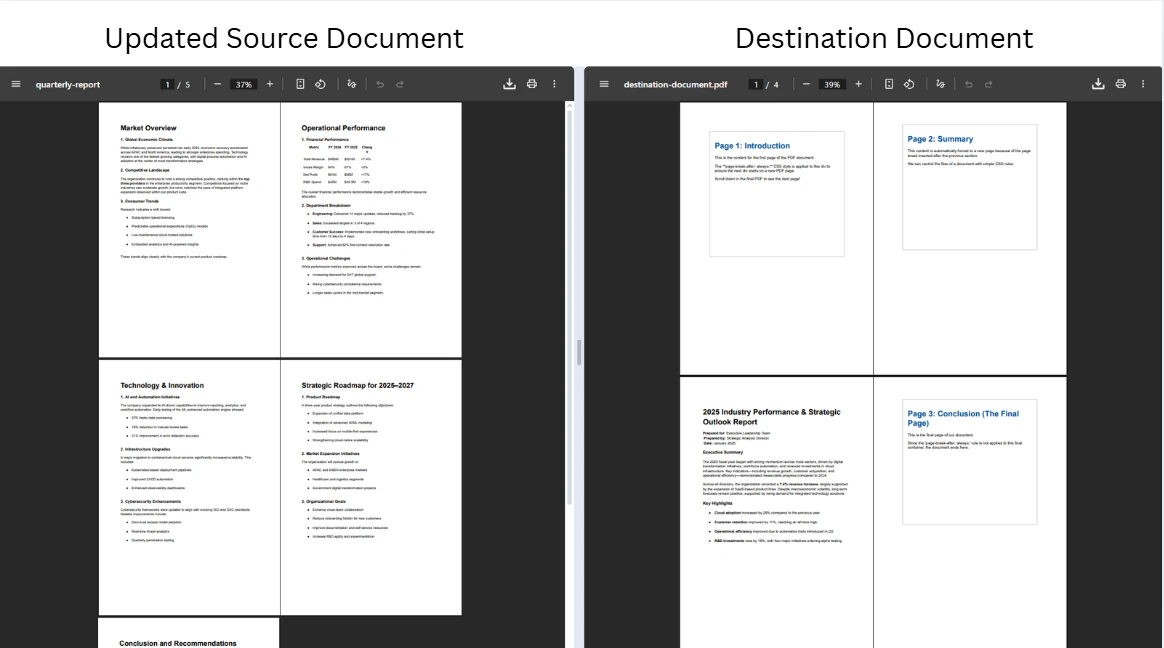
程式碼獨立載入兩個文件,從源文件複製一頁使用InsertPdf。 源文件和目標文件以不同路徑保存為獨立文件,因此運行時互不覆蓋。 先保存目標再保存源文件是安全的,因為CopyPage產生獨立的副本; 源文件不會在RemovePage調用之前被修改。
兩次Stream輸出方法進行的記憶體內工作流程。 這在需要將修改後的PDF作為HTTP響應返回而不寫入磁盤的Web應用程式中特別有用。 轉換PDF頁面指南涵蓋了附加的記憶體中的操作模式。
當使用CopyPage複製頁面時,IronPDF保留頁面上的所有視覺內容,包括文字、圖像、表單字段和渲染屬性。 僅參考移動頁面的輪廓(書籤)隨副本一同移動,但跨文件書籤層次未能自動更新。 對於具有複雜書籤樹的文件,移動頁面後請在PDF閱讀器中檢閱輸出,以確保內部導航連結指向正確目的地。
直接嵌入在頁層上的註釋和表單字段資料可通過複製操作保留。 若源文件使用已命名目的地進行內部連結,這些目的地名稱在被複製的頁面中保留,但目標文件其餘部分中的連結將無法解決這些目的地,除非在目標文件目錄中註冊這些命名目的地。
開發人員需針對各種實際情侶移動和重新排列PDF頁面。 PDF規格中定義的PDF頁面模型將每頁表示為文件頁樹中的獨立物件,這就是為什麼針對單獨頁面的複製-插入-刪除操作總是有效的,無論文件長度如何。 了解這些模式有助於設計處理不同行程結構的文件處理管道。
| 情境 | 典型操作 | IronPDF方法 |
|---|---|---|
| 每月新聞信組裝 | 將封面或目錄移至前面 | CopyPage, InsertPdf, RemovePage |
| 報告生成 | 重新定位摘要頁或插入部分分隔符 | CopyPages, Merge, RemovePages |
| 文件整合 | 從多個源文件中提取選定頁面以納入單個輸出 | CopyPage, InsertPdf, SaveAs |
| 檔案庫重組 | 按參考文件重新排序按時間或分類的頁面 | CopyPages, Merge, RemovePages |
| 合同準備 | 將批準或簽名頁移至所需位置 | CopyPage, InsertPdf, RemovePage |
除頁面操作外,IronPDF還支持在同一管道中進行中列出的完整範圍文件操作。新增頁眉與頁腳,應用水印,以及新增數位簽章均能通過相同的PdfDocument API實現,因此可在最終保存之前將多種轉換連鎖起來。 IronPDF功能頁提供了所有可用功能的概覽。
對於由文件內容決定頁面位置的自動化方案(例如找到特定段後插入批准頁),編輯PDF檔案教程介紹了可與頁面重新排序配合使用的文字搜尋和驅動內容操作技術。
IronPDF中的頁面操作以記憶體中的文件表示進行,因此效能會隨文件大小和應用的操作數目而伸縮。 針對大型PDF,幾種模式有助於保持處理的效率。
使用所需的最小頁數可以降低記憶體負擔。 與其載入一個500頁的文件只是為了移動其中兩頁,首先用Merge重新組裝。 拆分PDF頁面範例展示了這個分解並重新組裝的模式。
針對在多個文件中移動頁面的批次處理管道,將PdfDocument實例在每次保存後釋放以快速釋放記憶體。 PdfDocument實施了using語句中即便在中途發生例外情況時也能保證確定性清理。
using IronPdf;

// Use 'using' declarations to ensure deterministic disposal
using var source = PdfDocument.FromFile("source-large.pdf");
using var destination = PdfDocument.FromFile("destination-large.pdf");

var pageToTransfer = source.CopyPage(0);
destination.InsertPdf(pageToTransfer, 0);

destination.SaveAs("destination-updated.pdf");
source.RemovePage(0);
source.SaveAs("source-updated.pdf");Imports IronPdf
' Use 'Using' blocks to ensure deterministic disposal
Using source = PdfDocument.FromFile("source-large.pdf")
Using destination = PdfDocument.FromFile("destination-large.pdf")
Dim pageToTransfer = source.CopyPage(0)
destination.InsertPdf(pageToTransfer, 0)
destination.SaveAs("destination-updated.pdf")
source.RemovePage(0)
source.SaveAs("source-updated.pdf")
End Using
End Using這裡的PdfDocument物件都被處理掉,立即釋放底層儲存器緩衝區。 這一模式在ASP.NET Core應用程式中特別重要,因為許多請求可能在相同的伺服器上同時處理文件。 如需有關記憶體安全文件處理的更多API詳情,可參考IronPDF API Reference。
在C#中移動並排序PDF頁面需要三個IronPDF方法:RemovePage,按複製-插入-刪除的順序應用。 相同的模式適用於從一個文件中移動單個頁面到跨多個文件轉移多個頁面。 IronPDF也在VB.NET中工作,使用相同的API,頁面操作方法可在所有支持的.NET平台上獲得,包括.NET 8和.NET 10。
欲探索相關能力,新增、複製與刪除PDF頁面指南詳盡介紹了所有頁面級別的操作。 針對使用頁面索引陣列進行的全文件重新排序,在PDF C#文章中重新排列頁面介紹了該方法。
準備將PDF頁面操作新增到您的項目中嗎? 開始免費試用以在開發期間存取所有IronPDF功能,或購買授權在今天部署到生產。

Curtis Chau擁有Carleton大學的電腦科學學士學位,專精於前端開發,擁有Node.js、TypeScript、JavaScript和React的專業知識。Curtis熱衷於建立直觀且美觀的使用者介面,喜愛使用現代框架並建立結構良好、視覺吸引力的手冊。

IronPDF 是 IRONSUITE 的一部分
10 款適用於辦公室文件的 .NET API 產品

當您需要您的PDF看起來像HTML一樣快速。














